KPI-based Completeness Rules

The KPI-based Completeness Rules is a data governance feature that sets up rules to assess the completeness of an Article or a Product with respect to a KPI.

Key Term:
  • Taxonomy: a taxonomy is a scheme of classification used for an organization’s products.
Description:
  • KPIs demonstrate the accuracy of the products on the basis of an article’s attributes, taxonomy, and tags.
  • KPIs check the following data accuracy measures: Accuracy, Completeness, Conformity and Uniqueness.
  • KPIs can be drilled down on the basis of Taxonomy and Tags.
  • The KPI: Completeness, as the name suggests, ensures that the product data are complete in all aspects.
Related topics:
Application:
  • Data Completeness is one of the most important data quality measures. It is one of the most important factors for KPIs.

  • Example:

    Supplier A with 100 fashion products sets up a rule stating that the Name Attribute can’t be left blank. This rule will be applicable to all of 100 fashion products. If there are violations, they would be reflected in the graph.

How-to: KPI-based Completeness Rules

To do this feature, follow these steps:


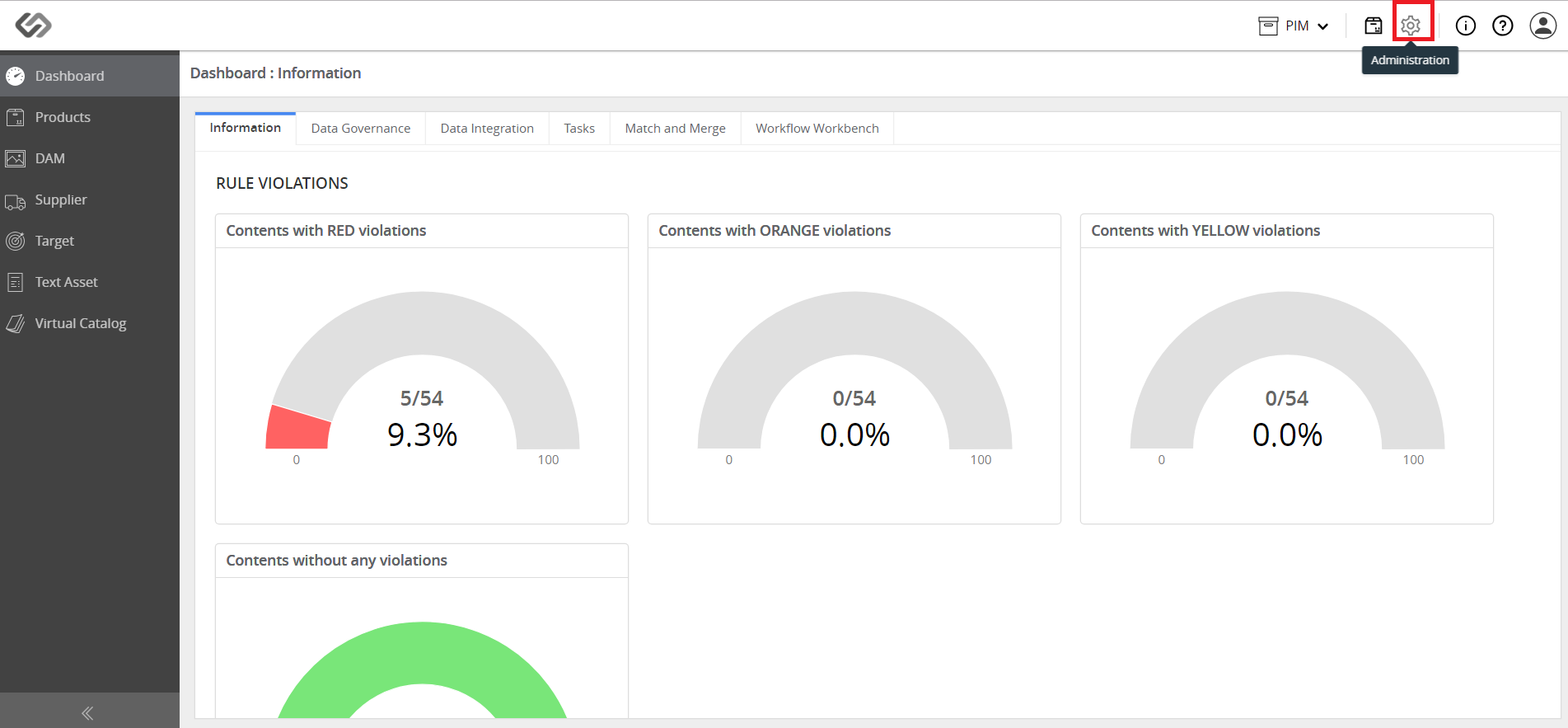
  • Log in and go to Administration.
../../../../../../_images/pxp_monitordataquality_login.PNG


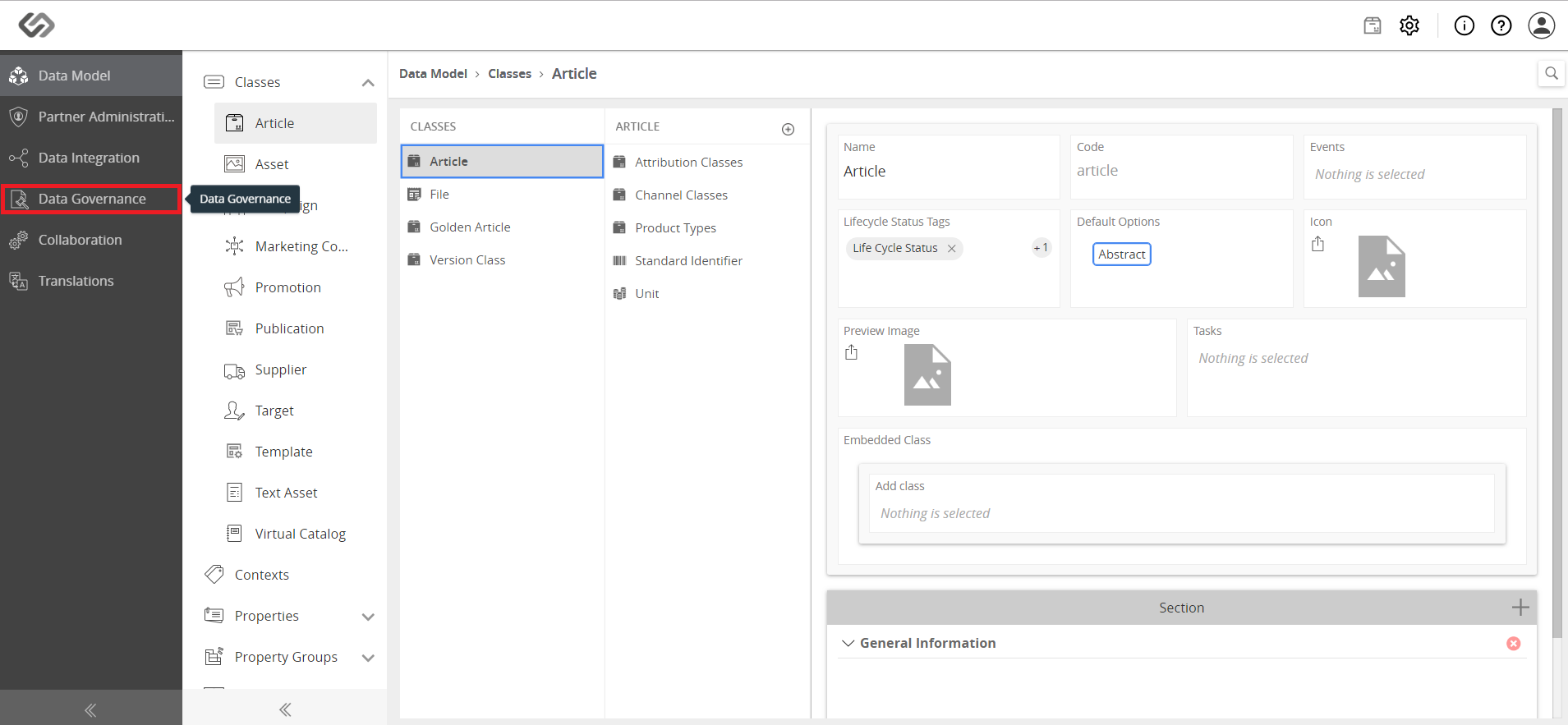
  • Click on Data Governance.
../../../../../../_images/pxp_monitordataquality_clickondatagovernance.PNG


  • Click on KPIs.
../../../../../../_images/pxp_monitordataquality_clickonkpis.PNG


  • Click on the ‘+’ icon to create a new KPI.
../../../../../../_images/pxp_monitordataquality_clickontheicontocreatenewkpi.PNG


  • Fill out the name and click on the Create button.
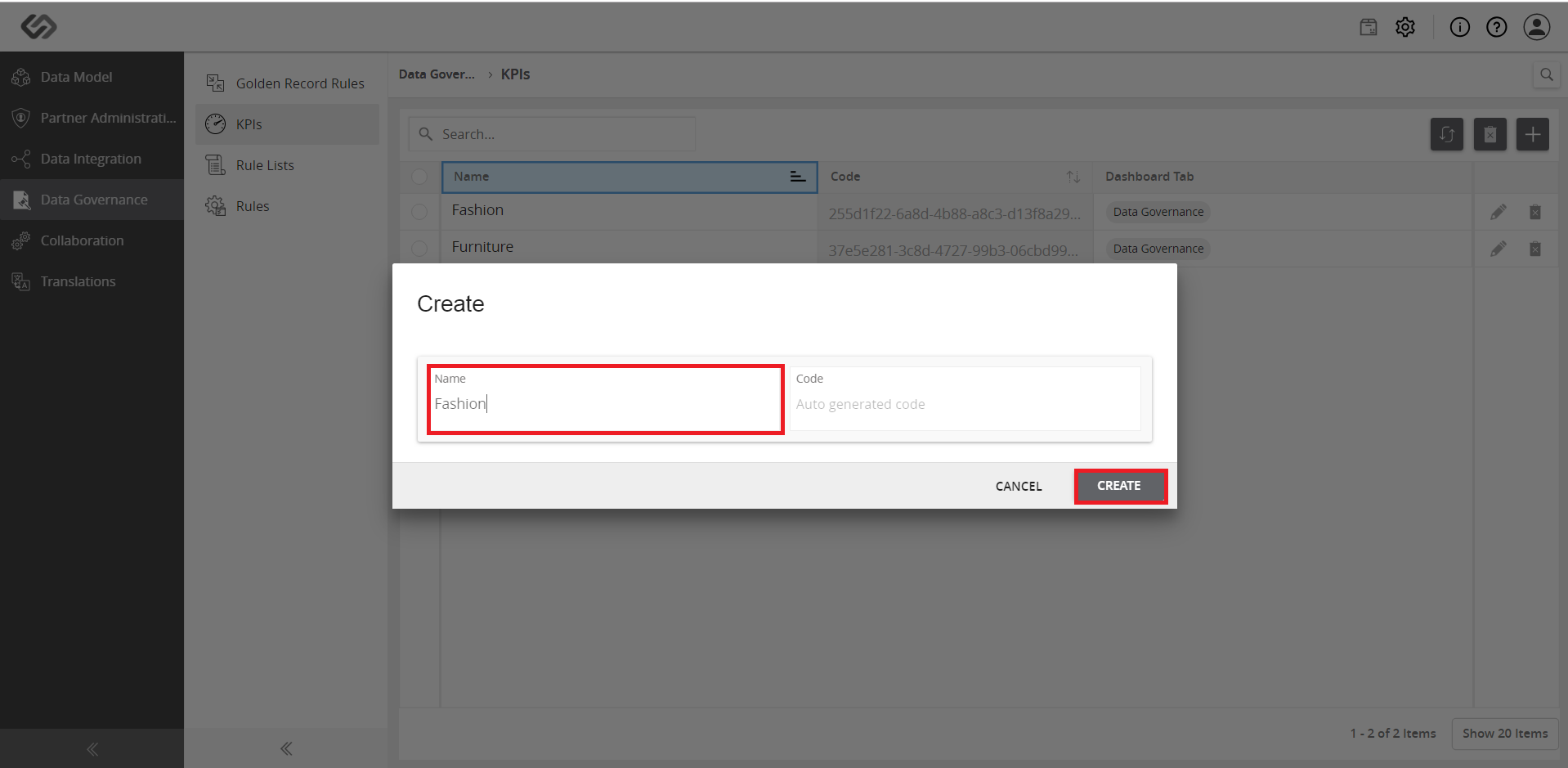
../../../../../../_images/pxp_monitordataquality_filloutthename.PNG


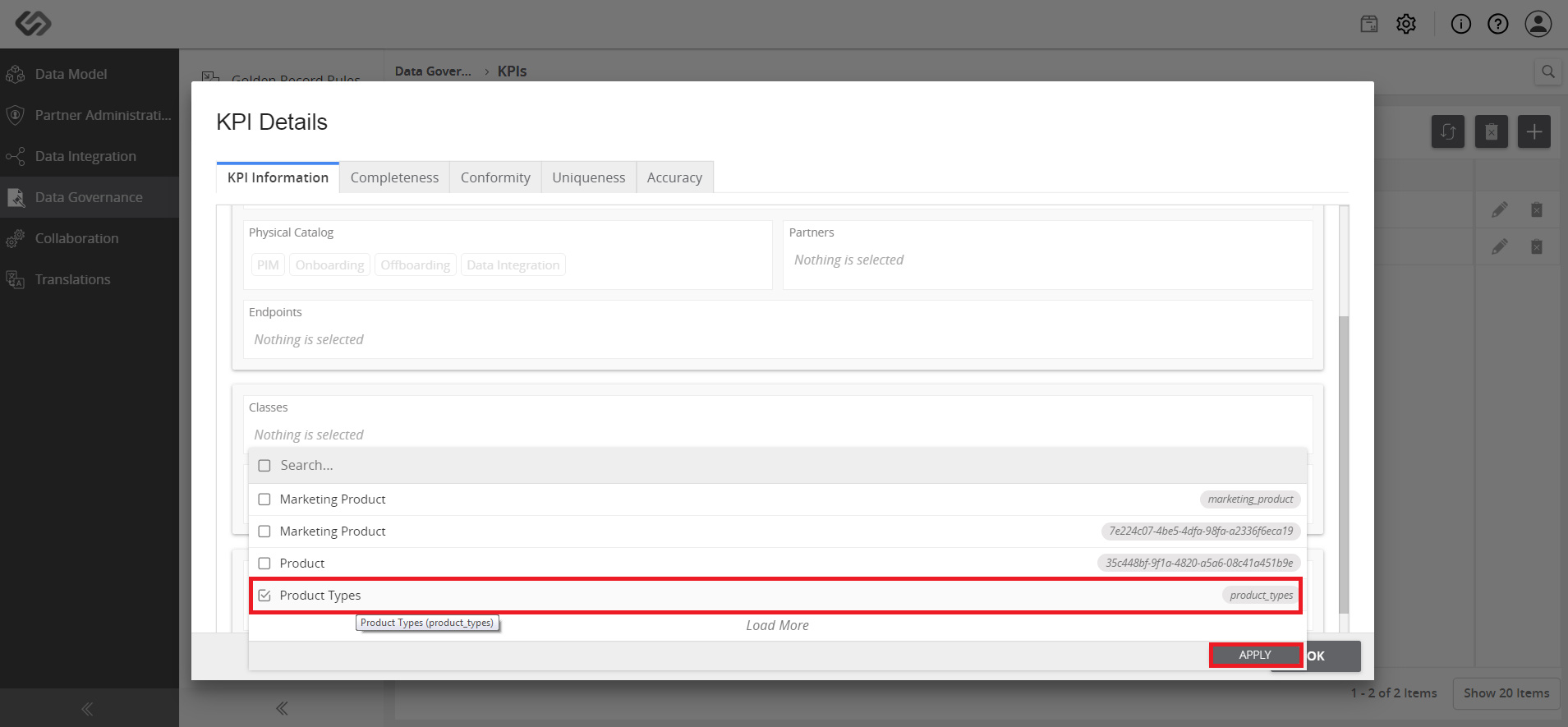
  • On the KPI Details page, select a Class and Taxonomy, which will use the KPI. Click the Apply button.
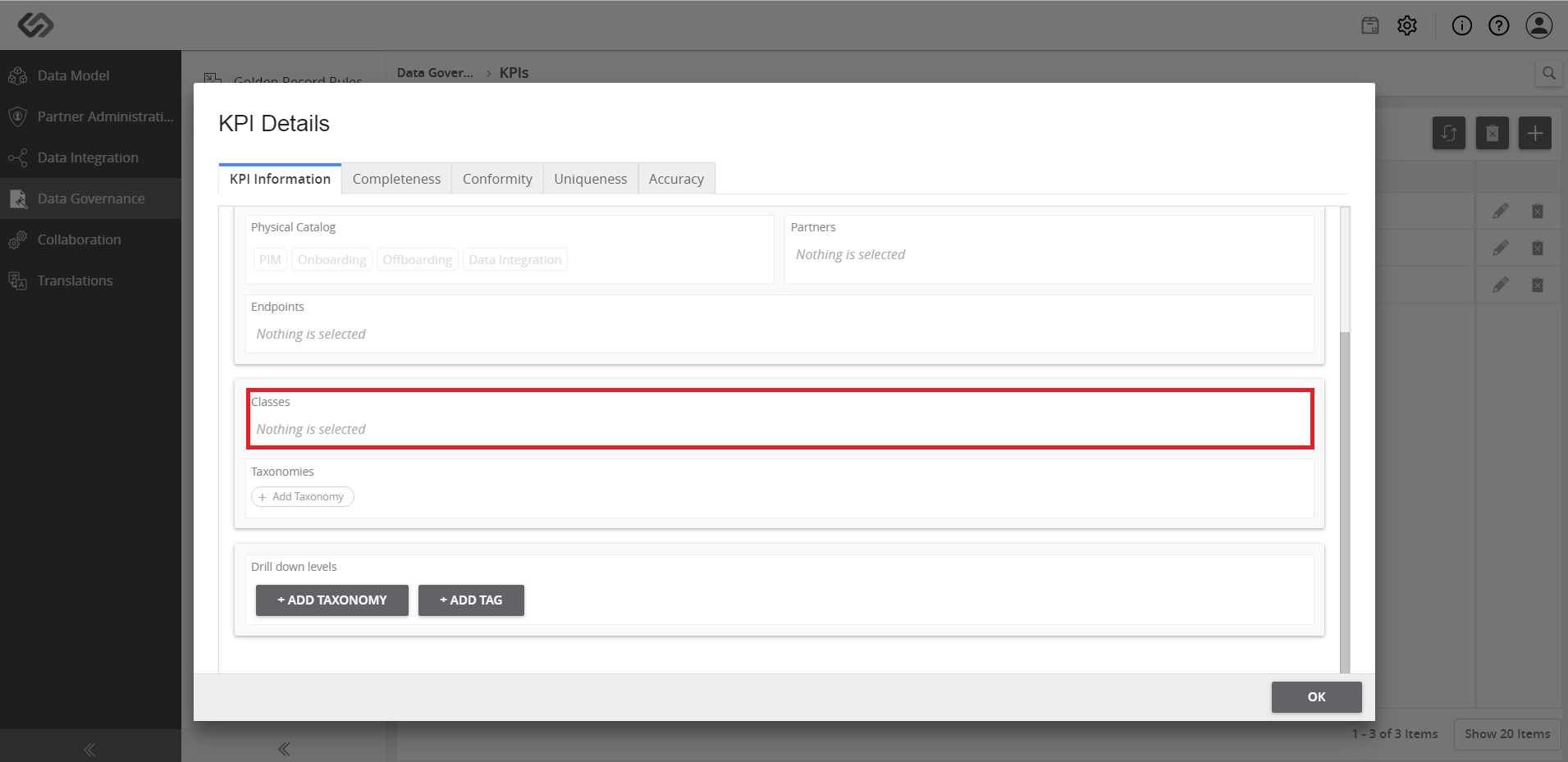
../../../../../../_images/pxp_monitordataquality_selectclassandtaxonomy.PNG

../../../../../../_images/pxp_monitordataquality_selectclassandtaxonomy2.PNG


  • For the Drill down levels, add Tags or Taxonomies, where the KPI is to be categorized into.
../../../../../../_images/pxp_monitordataquality_forthedrilldownlevels.PNG


  • Click on the Completeness tab and click on the + Add Rule button to create a new rule.
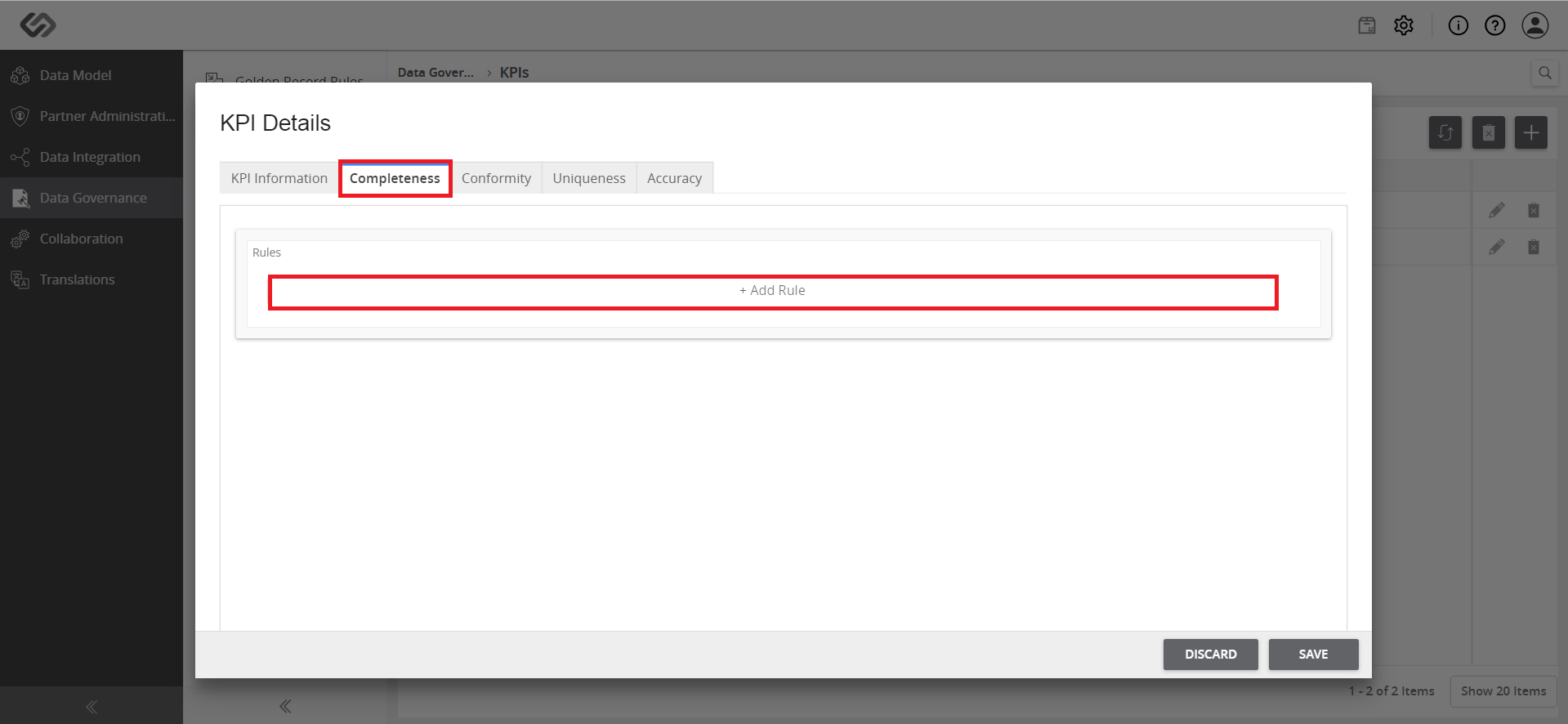
../../../../../../_images/pxp_kpibasedcompleteness_clickoncompleteness.PNG


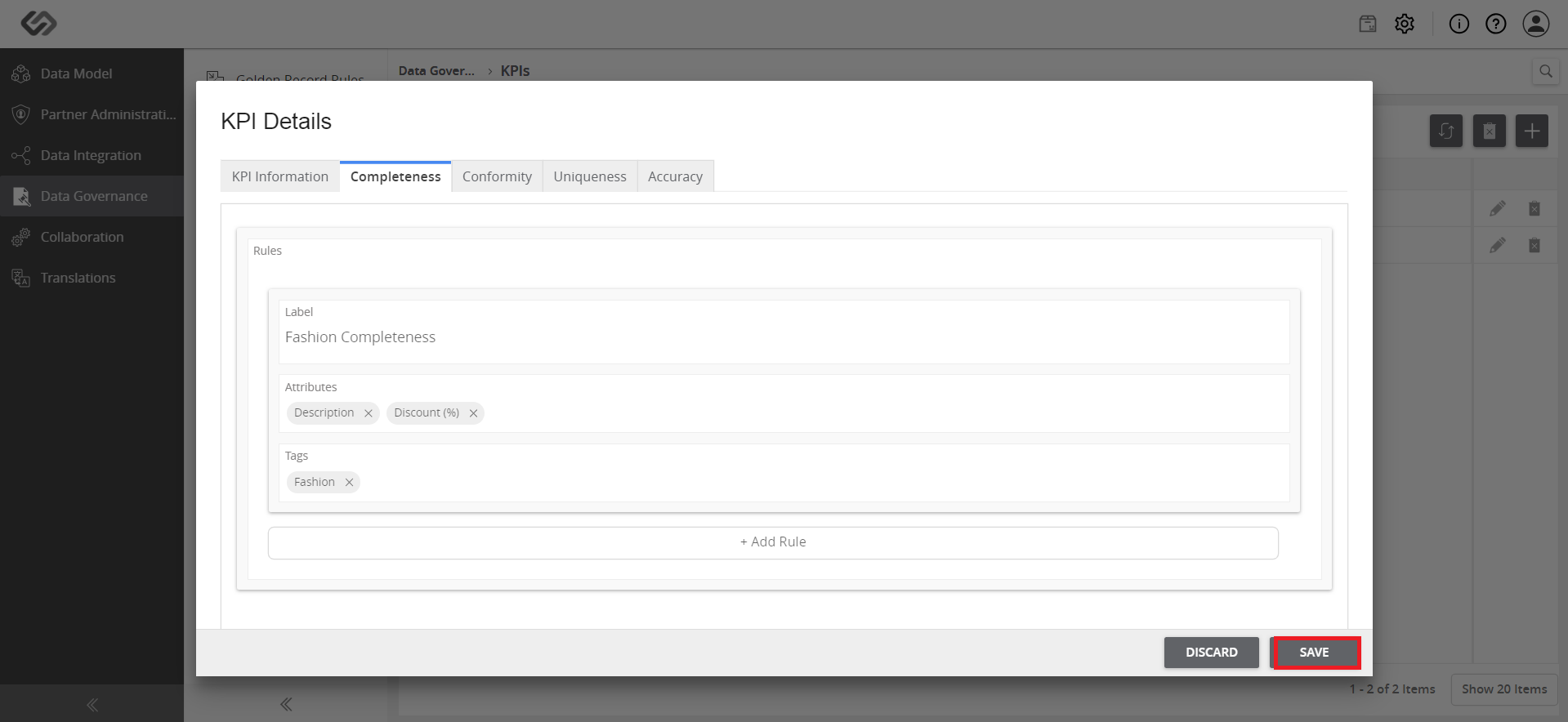
  • Provide the details for the Label, Attributes, and Tags to which the rule will be applied.
../../../../../../_images/pxp_kpibasedcompleteness_providethedetails.PNG

../../../../../../_images/pxp_kpibasedcompleteness_providethedetails2.PNG


  • Click the Save button.
../../../../../../_images/pxp_kpibasedcompleteness_clickthesavebutton.PNG


Note: A notification will confirm that the rule and the KPI have been created. Click on the OK button to continue.
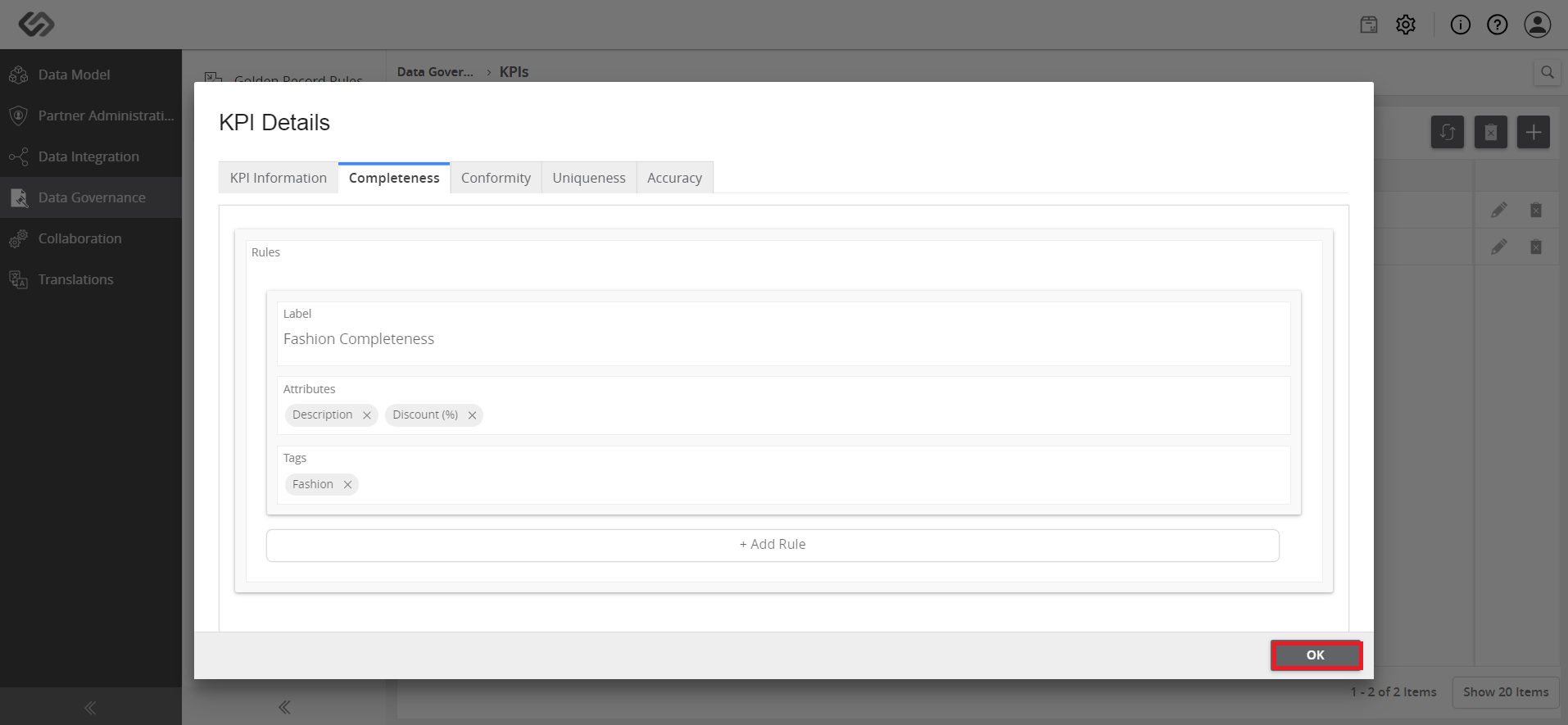

../../../../../../_images/pxp_kpibasedcompleteness_noteclickok2.PNG


Contentserv line