Manage Master Taxonomies

The Manage Master Taxonomies is an admin feature that sets up Master Taxonomies that are based on Masters so that each level of taxonomy is represented by a Master Tag Group.

Key Term:
  • Taxonomy: a taxonomy is a scheme of classification used for an organization’s products.
Description:
  • Taxonomy is concerned with the classification of various products. Taxonomies can also represent related concepts that can be used to connect a product to a various level of branches of a taxonomy.
  • This feature is about how to map a product to different concepts and terms in order to maintain a consistent structure.
Related topics:
Application:
  • This feature helps to multi-classify a product.

  • This feature drives information through the applied taxonomy.

  • This feature gives the product a hierarchy to show all the related concepts.

  • Example:

    An electronics retailer, who sells various electronics products, would like to further categorize them. The ‘Mobile Phones’ he sells may have a taxonomy ‘Electronics’ under which he will create a number of levels to classify his mobile phones. So, the mobile phone will fall under two categories - Smartphones or Basic phones. The smartphones category will further have branches - Touchscreen or Keypad and so on. Similarly, various taxonomies can be applied to other electronics for easy categorization.

How-to: Manage Master Taxonomies

To manage master taxonomies, follow these steps:


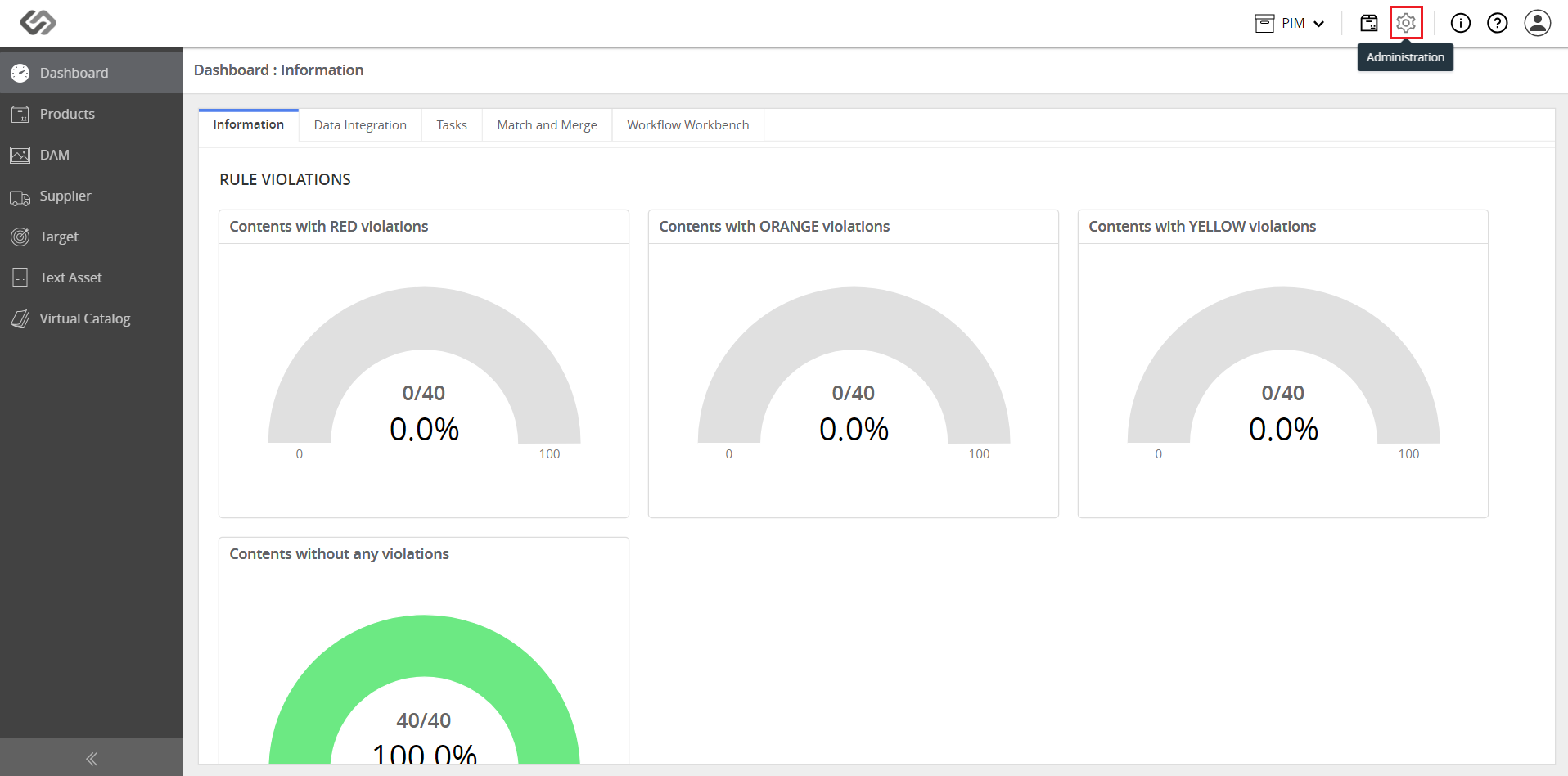
  • Log in and click on the Administration icon.
../../../../../../_images/pxp_managemastertaxonomies_login.PNG


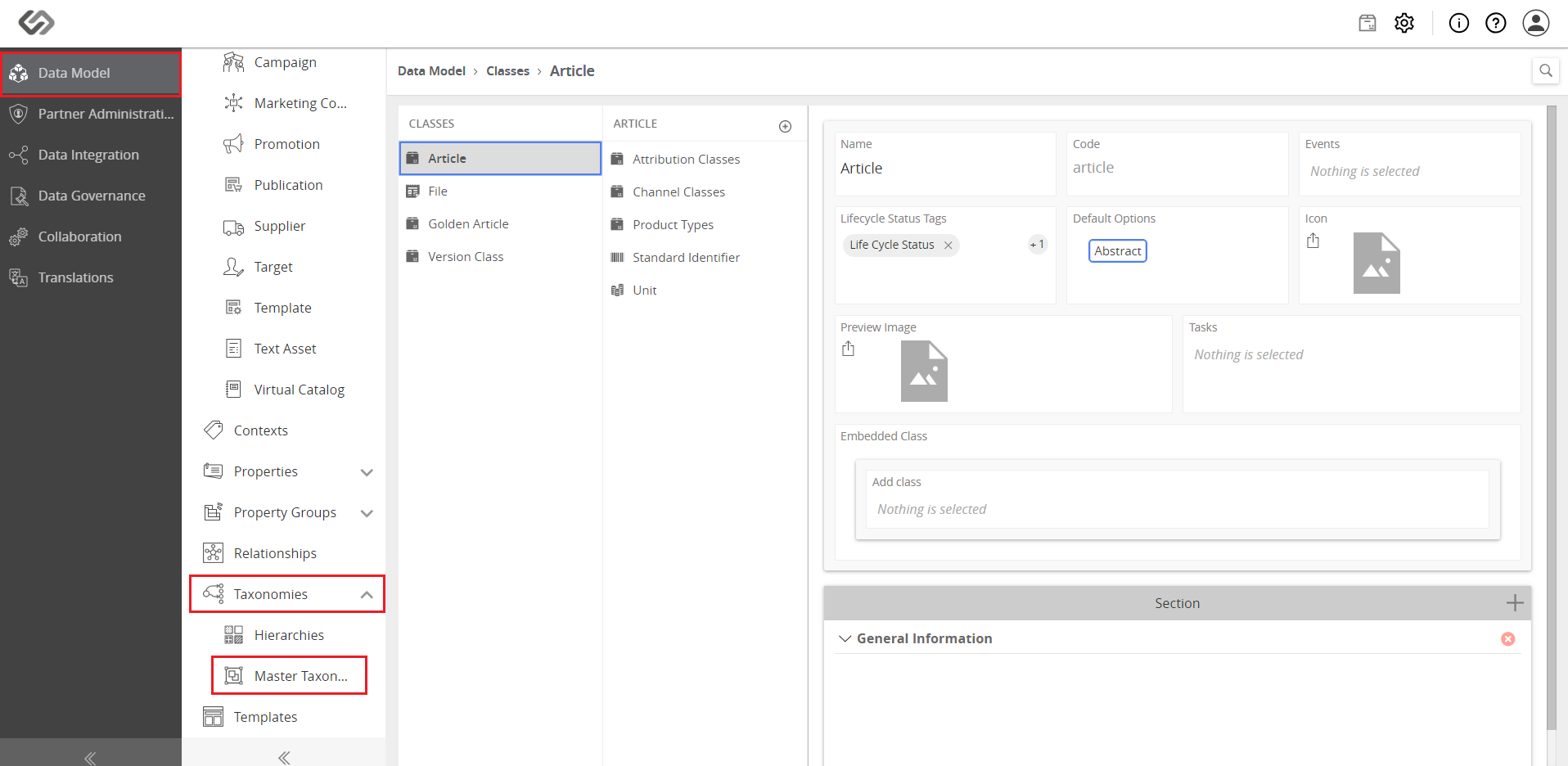
  • In Data Model, click on the Taxonomies drop-down list and select Master Taxonomies.
../../../../../../_images/pxp_managemastertaxonomies_clicktaxonomies.PNG


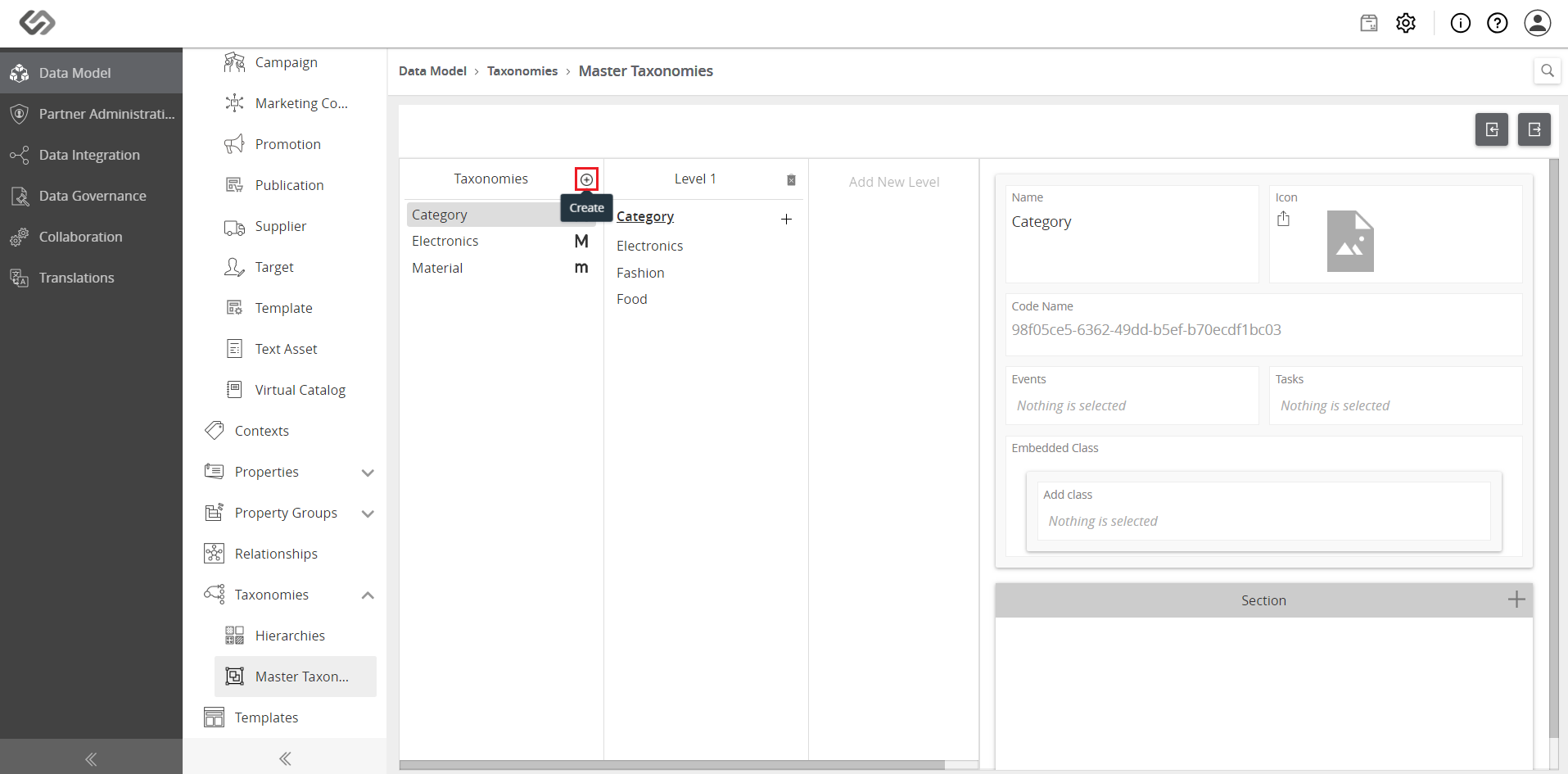
  • Click on the ‘+’ icon to create a new Master Taxonomy.
../../../../../../_images/pxp_managemastertaxonomies_clickplusicon.PNG


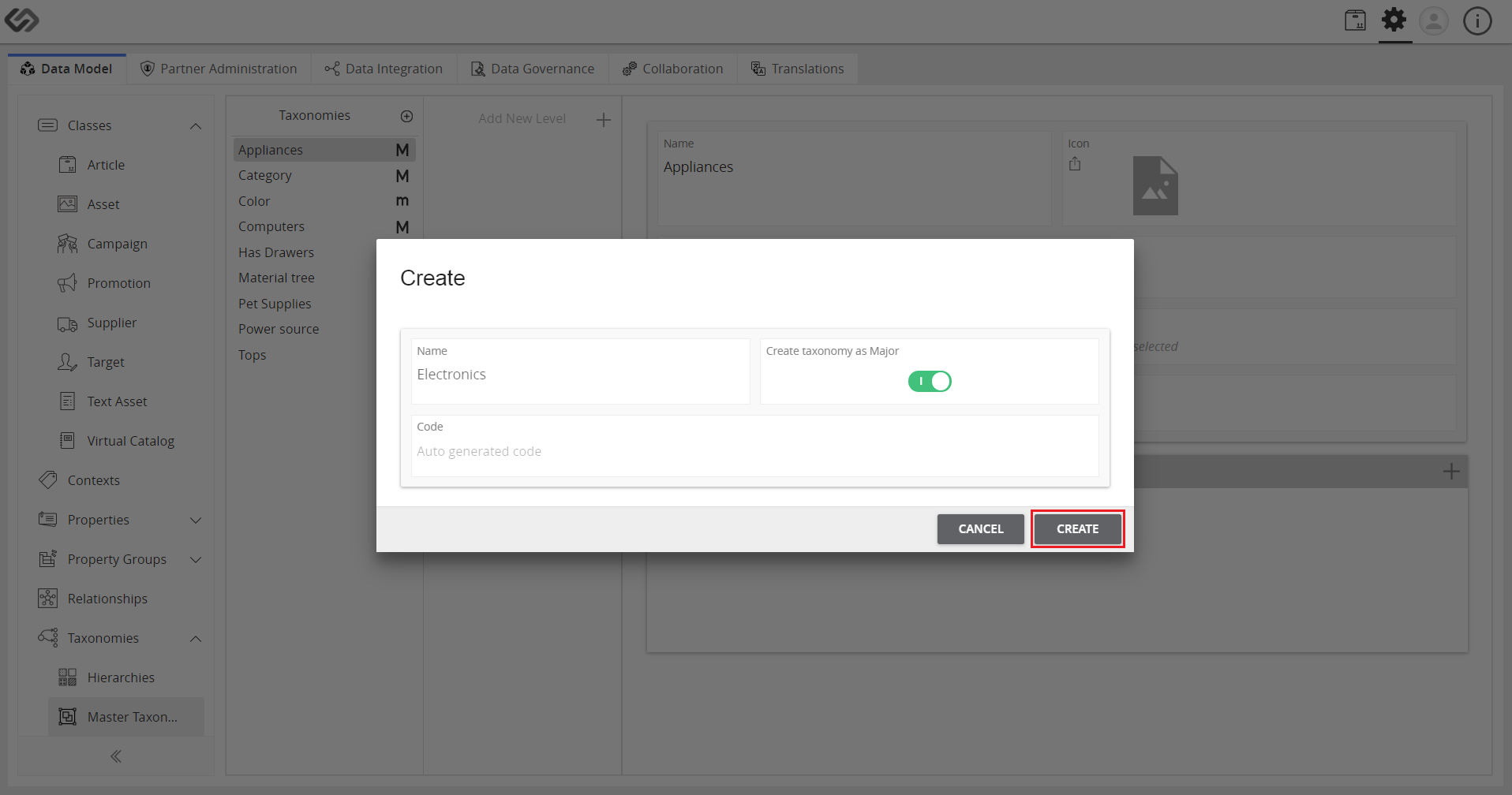
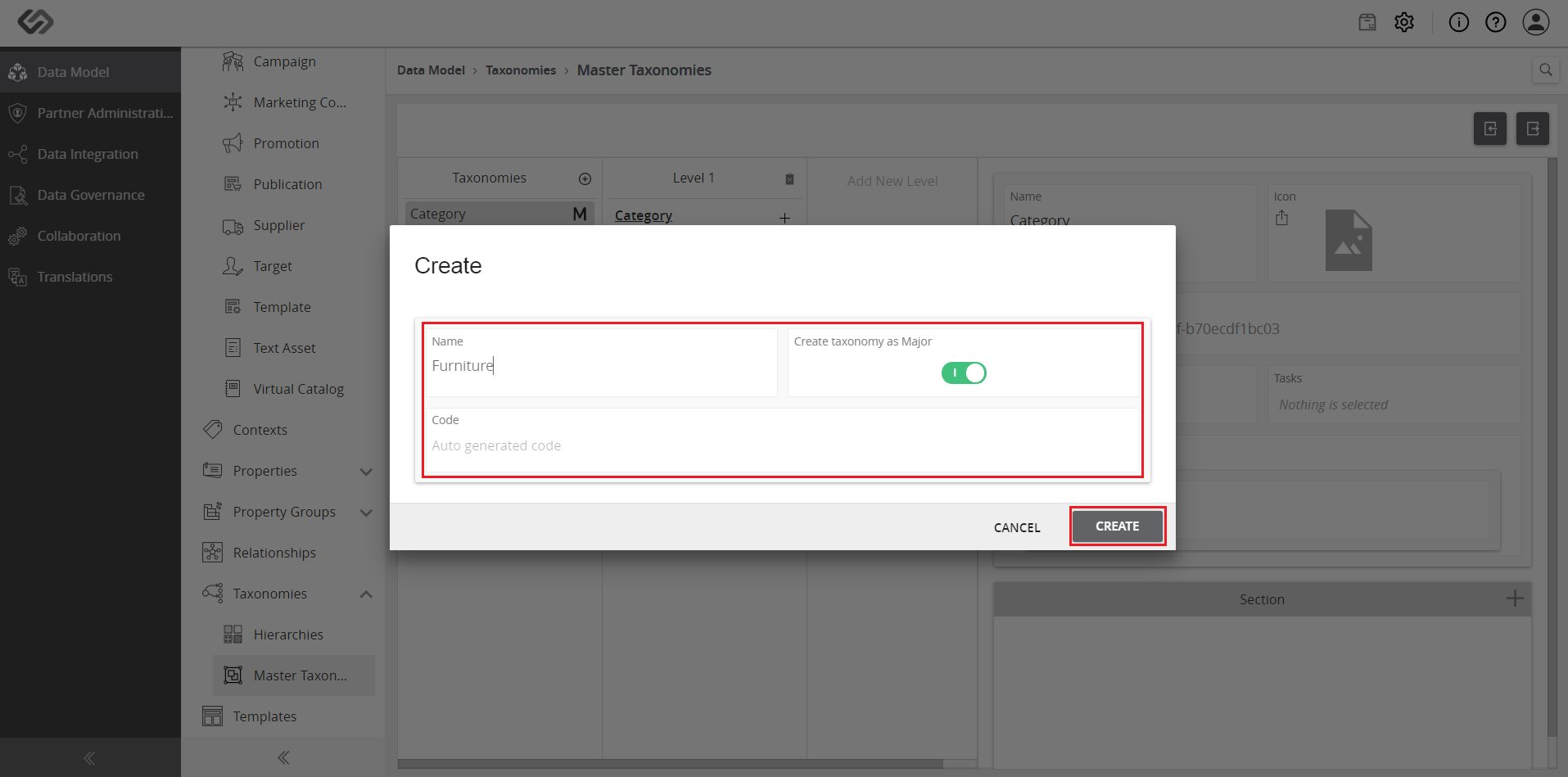
  • Enter a name for the taxonomy and enable the Create Taxonomy as Major option. Click on the Create button.
../../../../../../_images/pxp_managemastertaxonomies_entername.PNG


  • Click on the Create button.
../../../../../../_images/cs_managemastertaxonomies_create.PNG


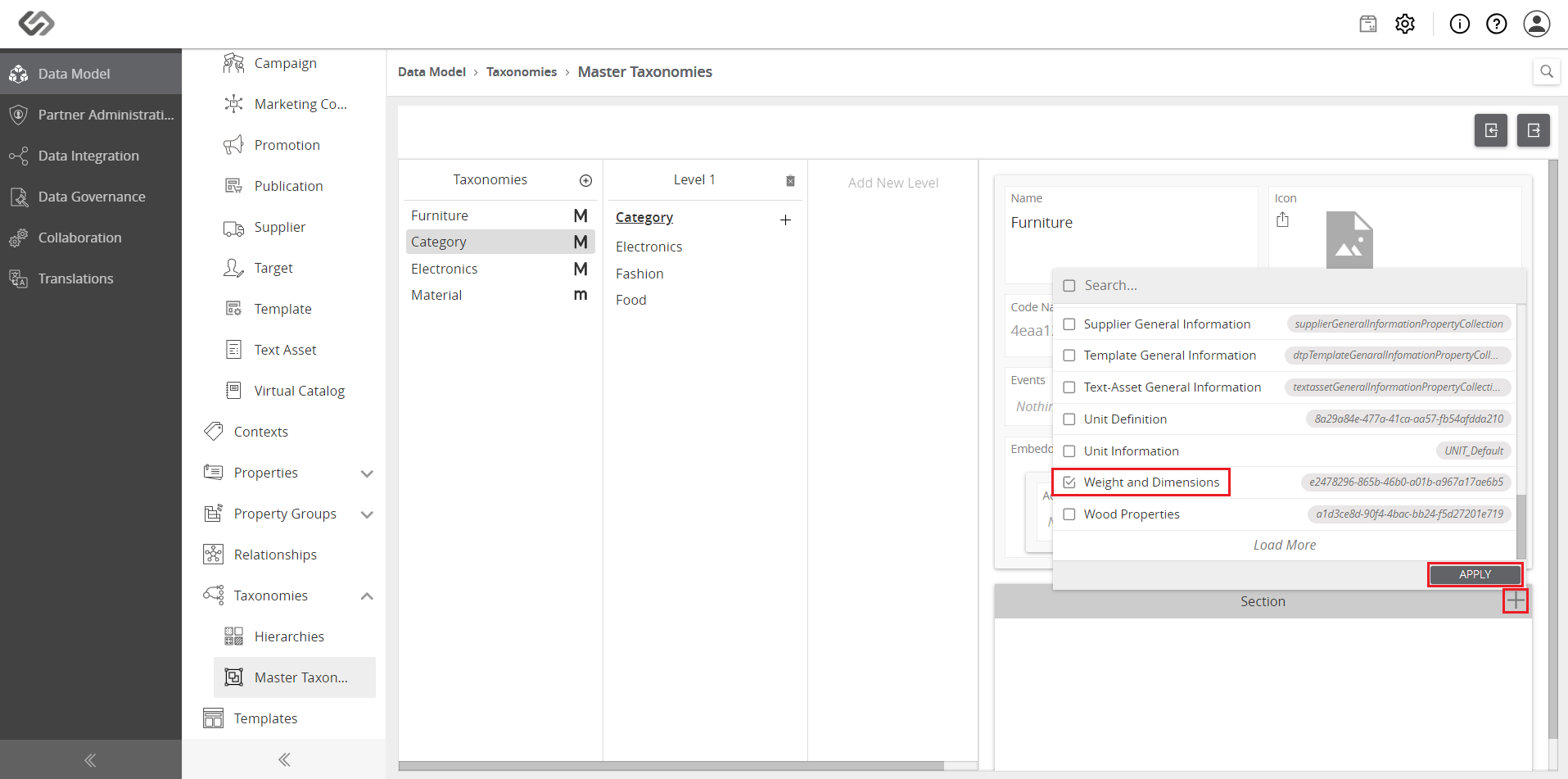
  • Scroll down to Section and click on the ‘+’ icon to add a property collection. Select the applicable property collection and click on the Apply button.
../../../../../../_images/pxp_managemastertaxonomies_addpropertycollection.PNG


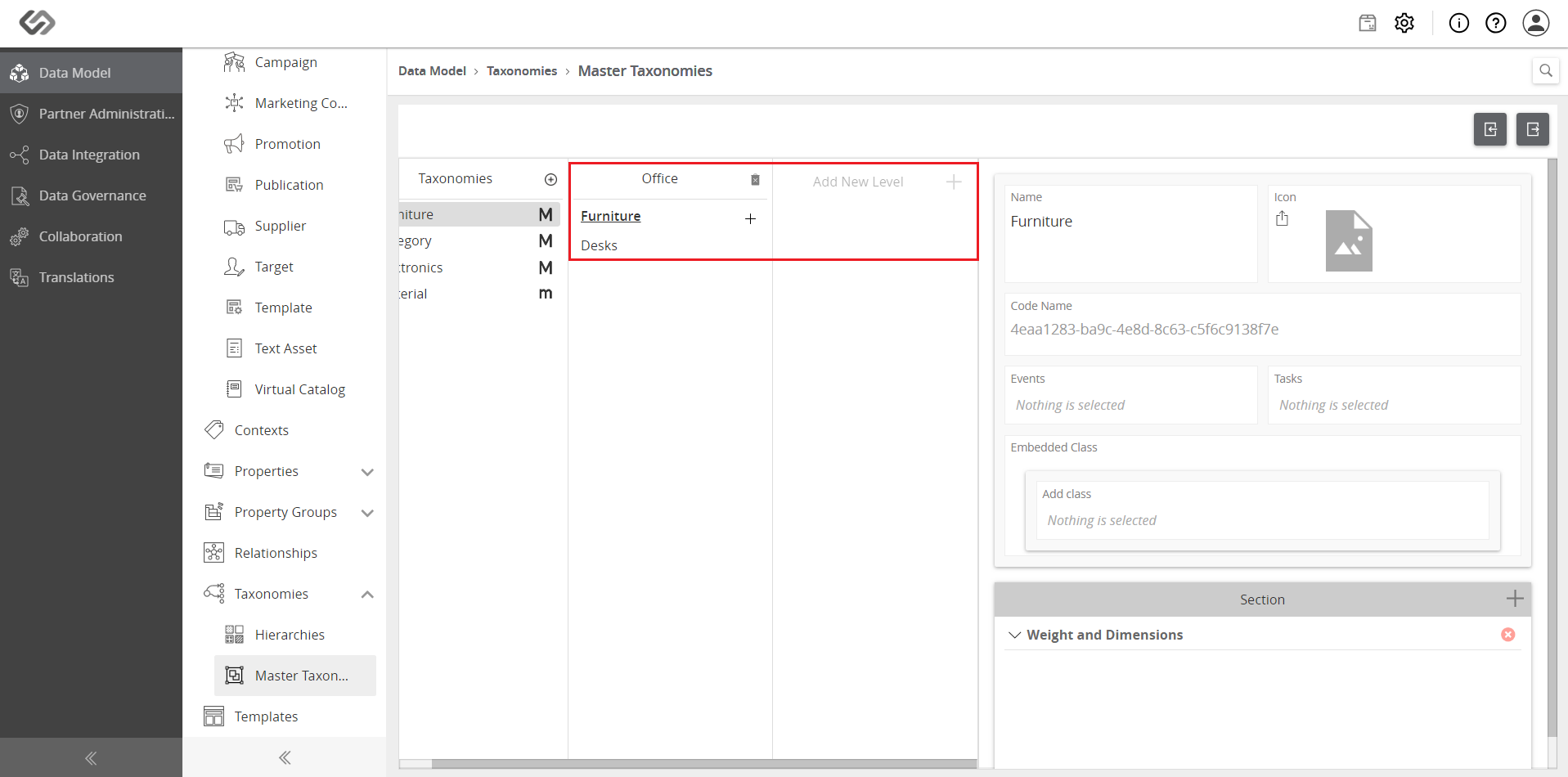
  • Select the created taxonomy and add sub-levels to it to create a sub-taxonomy.
../../../../../../_images/pxp_managemastertaxonomies_selectcreatedtaxonomy1.PNG


  • To create sub-levels for a taxonomy, follow these steps.


    • Select a taxonomy.

    • Click on the ‘+’ icon to add new level.

    • Enter the name in the search bar.

    • If the name exists, it will appear in the search results. Otherwise, click on ‘Create <name>’ to create a new one.

    • Click on the ‘+’ next to the parent taxonomy to add sub-taxonomies.

    • Enter the name for the sub-taxonomy.

  • Repeat the previous step if you want to add more levels to the existing sub-taxonomies.

Contentserv line