Edit Data in a Grid View

The feature allows a user to change the values of multiple attributes/tags for multiple products in a single operation using the grid view.

Key Term:
  • Grid Edit: is a data editing functionality wherein the product data are presented in a grid.
Description:
  • This feature can change the values of multiple attributes/tags for multiple products in a single operation using the grid view.
  • This feature can be used on similar or dissimilar types of products.
  • This feature allows multiple attributes/tags to be edited in a single operation.
  • This feature allows multiple attributes/tags to be changed and applied to products.
Related topics:
Application:
  • Edit Data in Grid View supports a variety of actions, such as Editing, Labeling, Changing States, Moving, or Deleting.

  • Edit Data in Grid View saves hours of manual work by editing selected products in a grid in one go.

  • It also provides the functionality to change and set a variety of product attributes like Price, Compare at Price, Weight, Tags, and more.

  • Example:

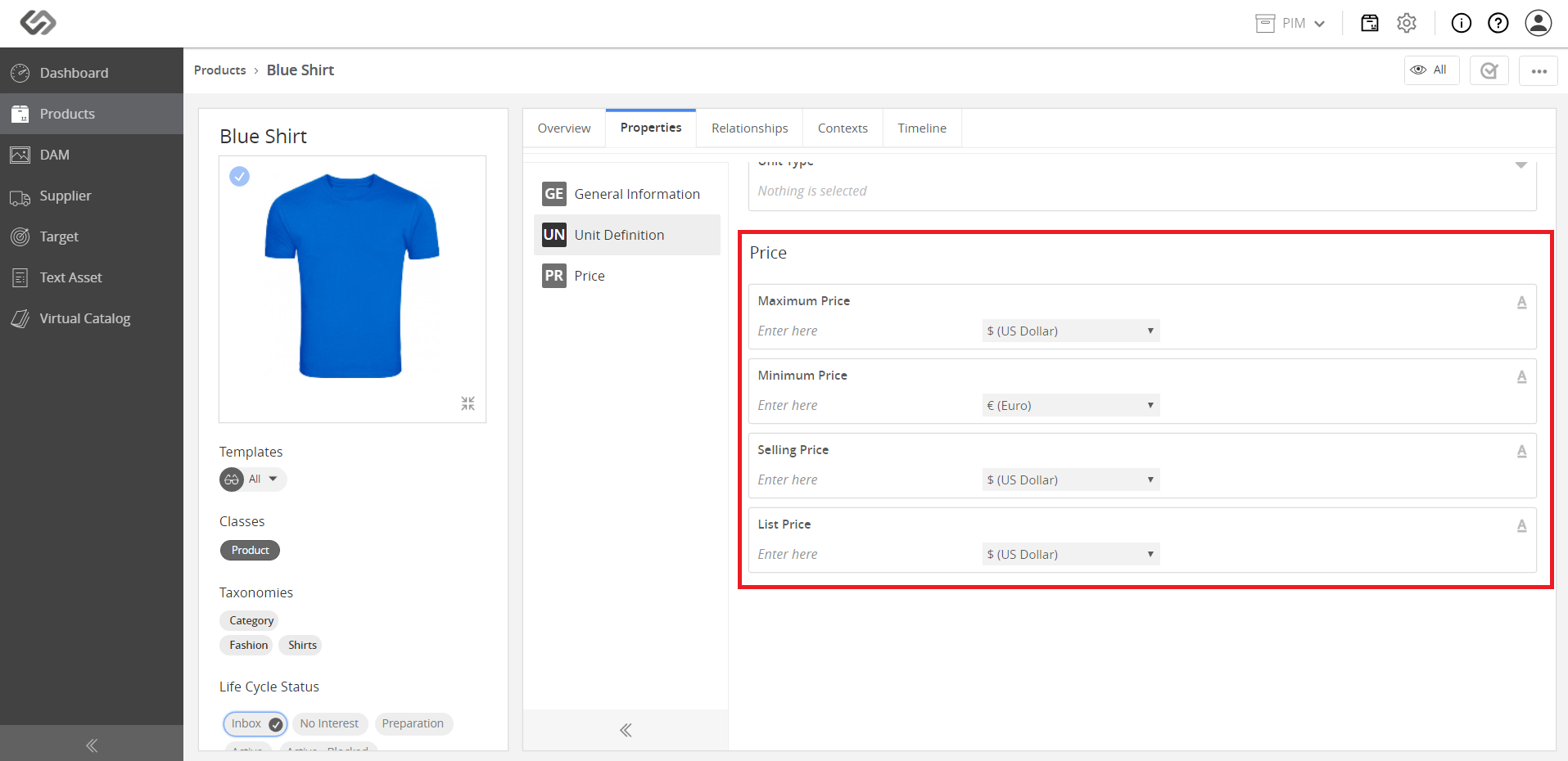
    A retailer wants to update the pricing of his products. The retailer can simply select all products on a dashboard and click on Grid Editable to update the pricing information.

How-to: Edit Data in a Grid View

To do this editing feature, follow these steps:


  • Log in and go to Administration.
../../../../../_images/pxp_editdataingridview_login.PNG


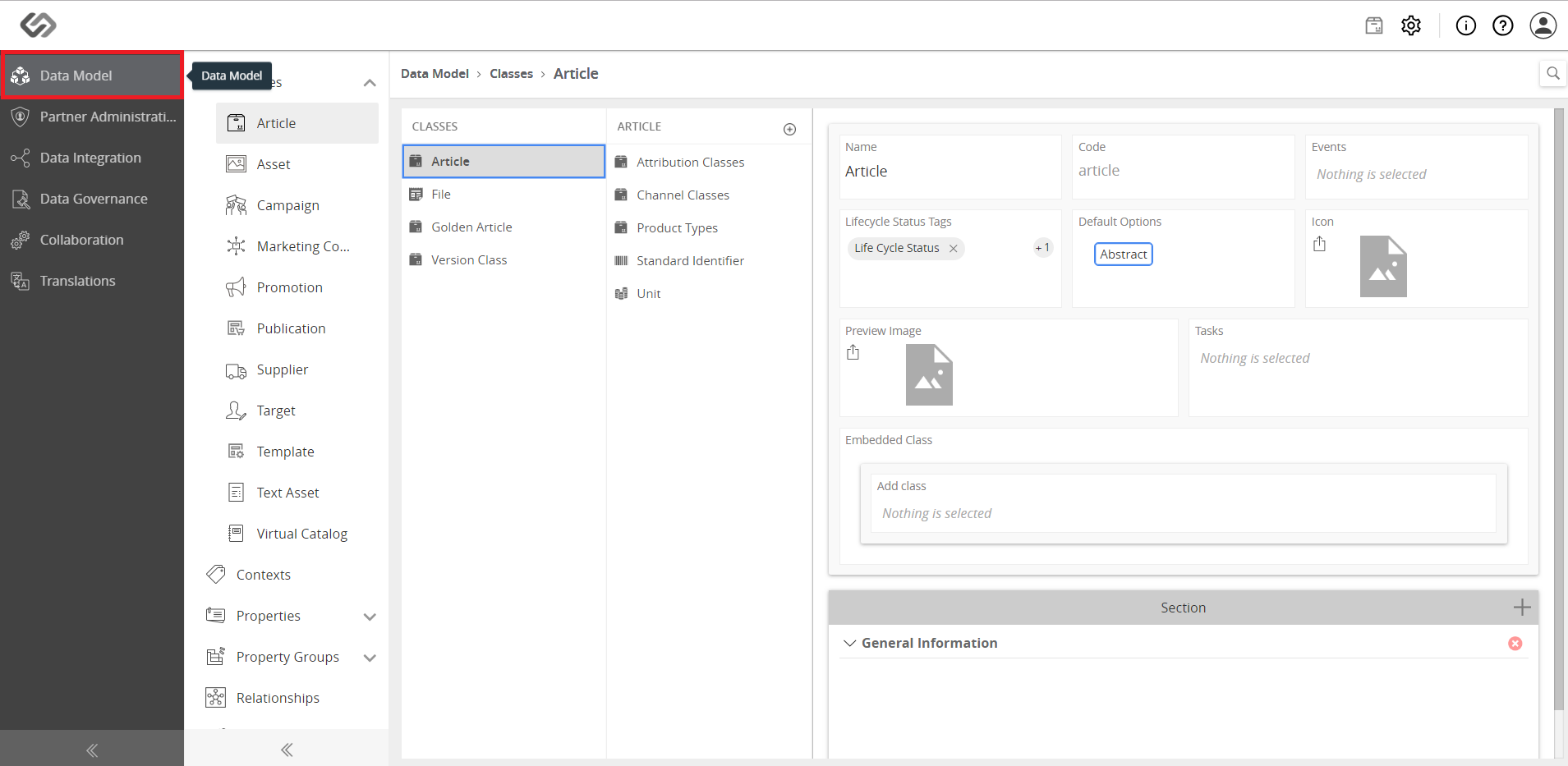
  • Click on the Data Model.
../../../../../_images/pxp_editdataingridview_clickondatamodel.PNG


  • Click on Properties on the left panel and search for the attribute or tag that will be set as editable in a grid view.
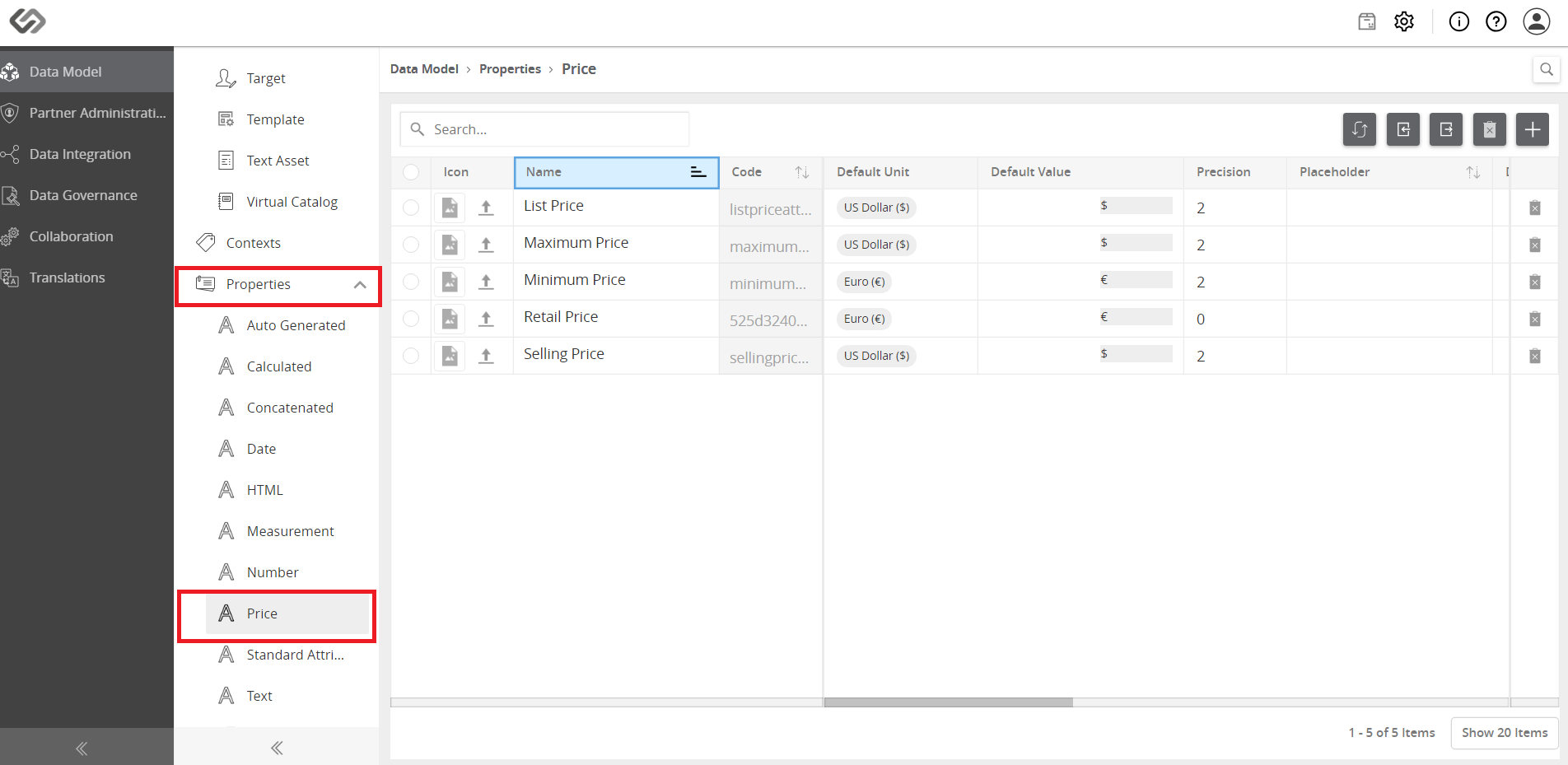
../../../../../_images/pxp_editdataingridview_clickonproperties.PNG


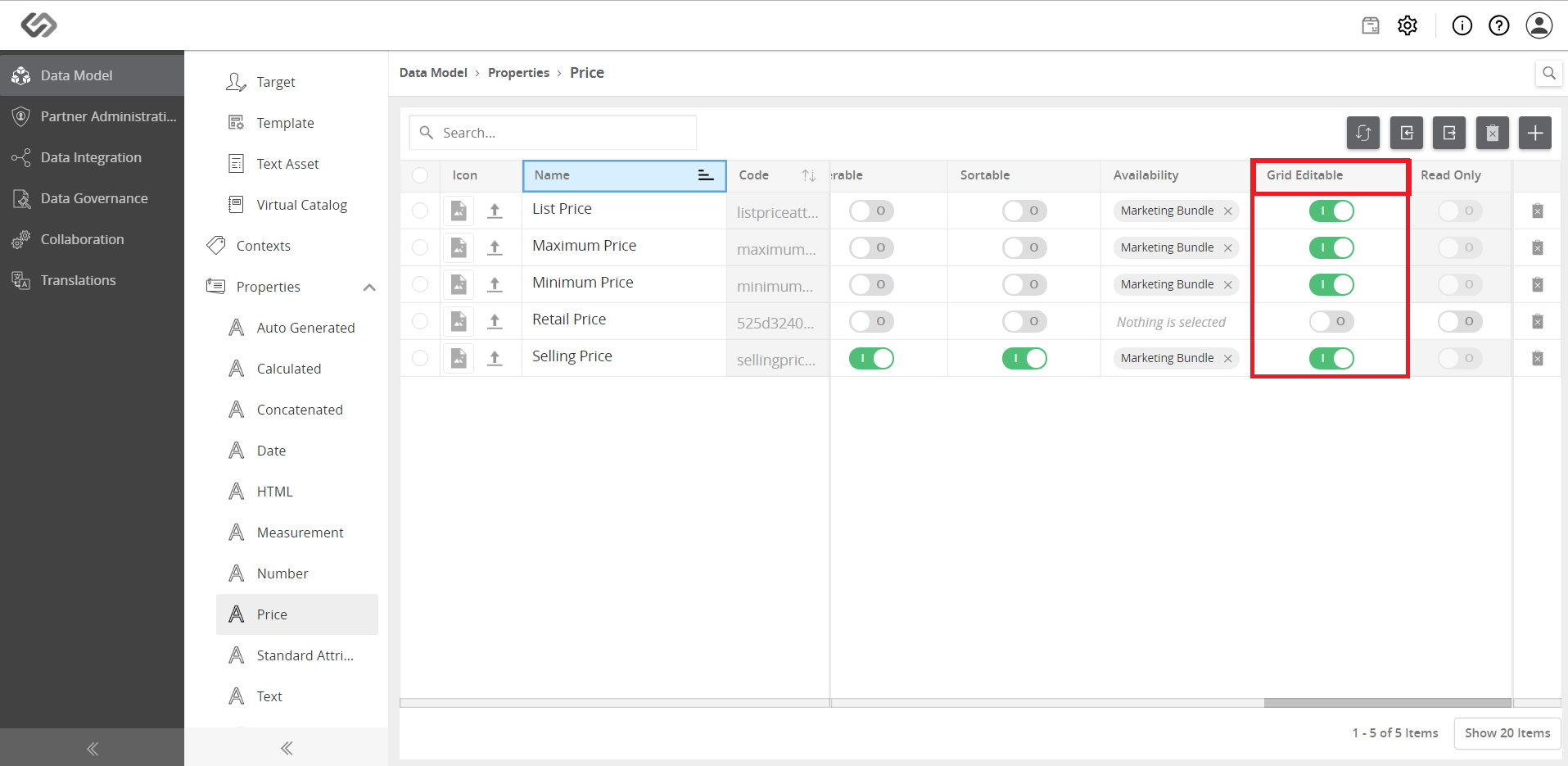
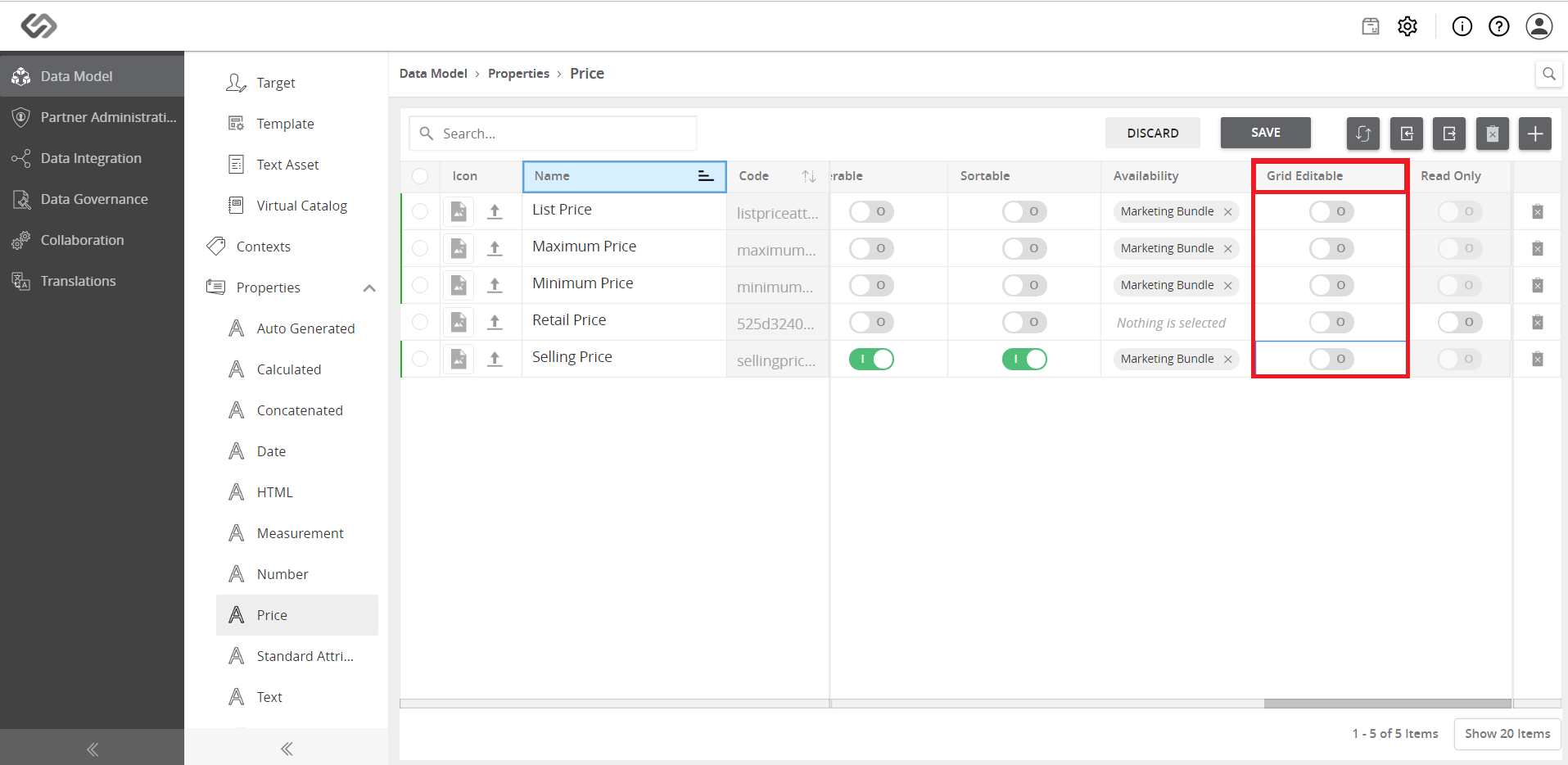
  • Scroll to the right and find the Grid Editable column. Enable this option for the attribute or tag. Repeat this step for the other attributes and tags. If not enabled, the attribute/tag will not be editable in a grid view.
../../../../../_images/pxp_editdataingridview_scrollrightandfind.PNG

../../../../../_images/pxp_editdataingridview_scrollrightandfind2.PNG


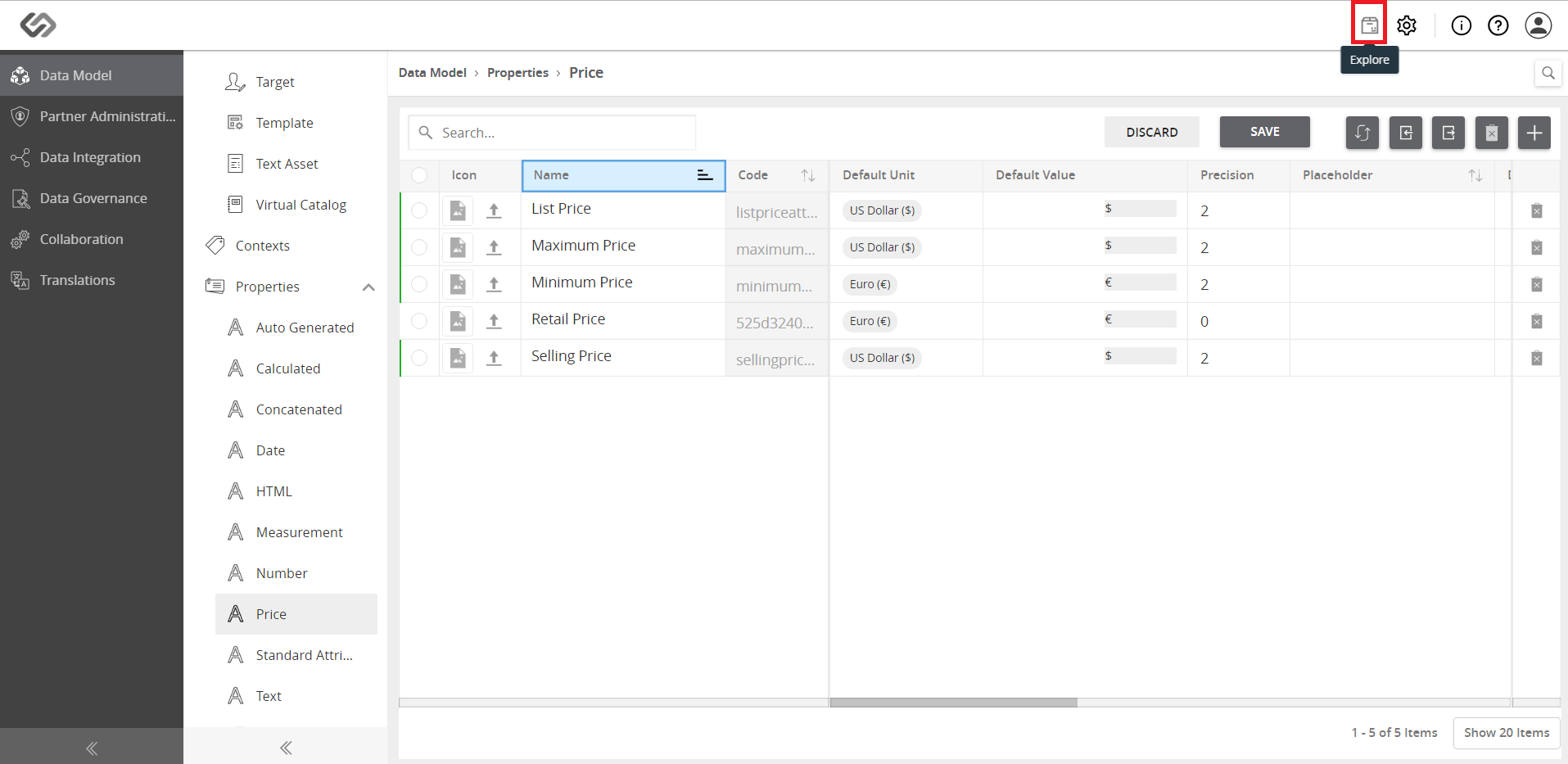
  • Click on the Explore button and go to Products.
../../../../../_images/pxp_editdataingridview_clickontheexplore.PNG


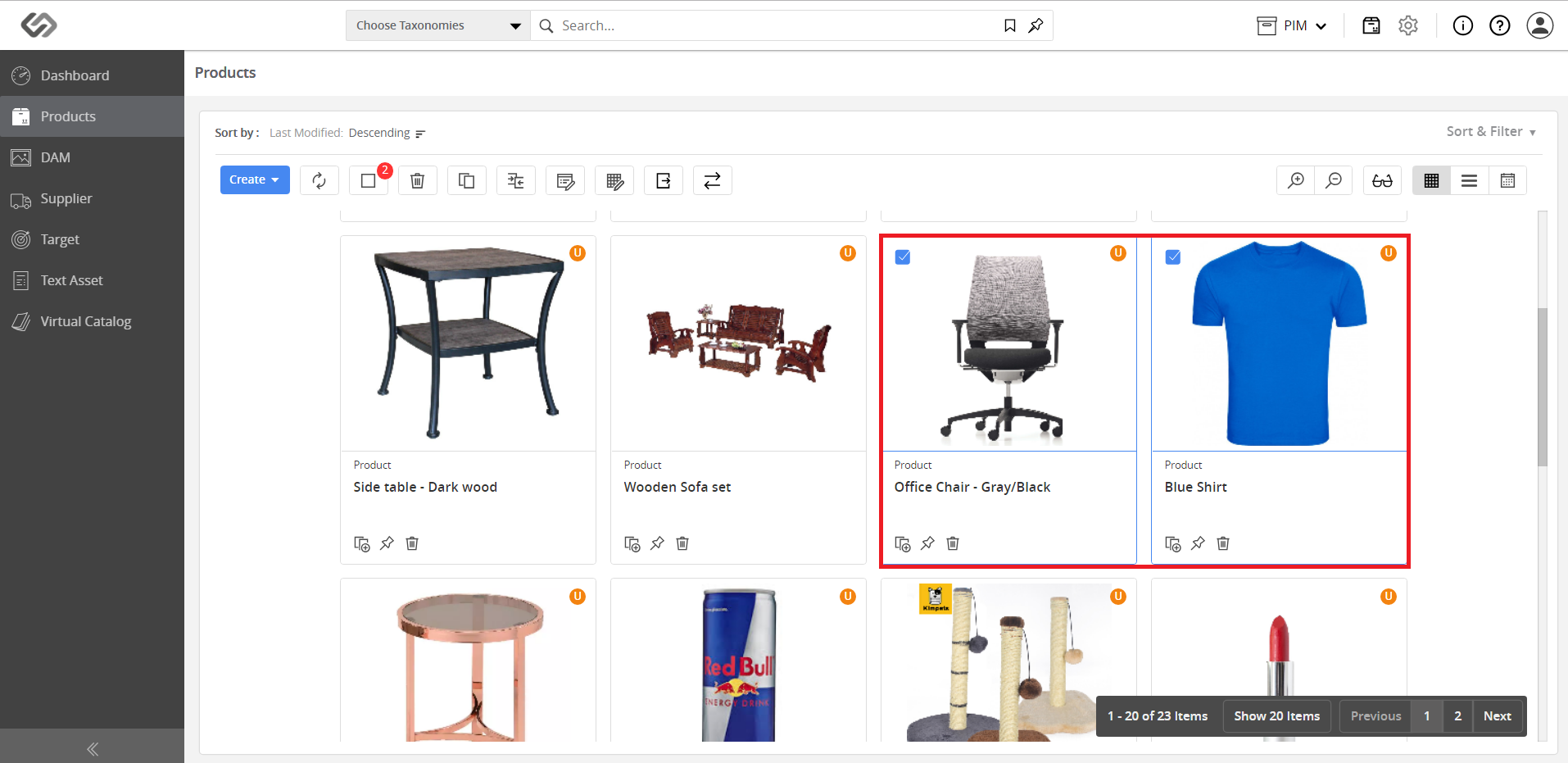
  • Select the products that need the modifications.
../../../../../_images/pxp_editdataingridview_selecttheproducts.PNG


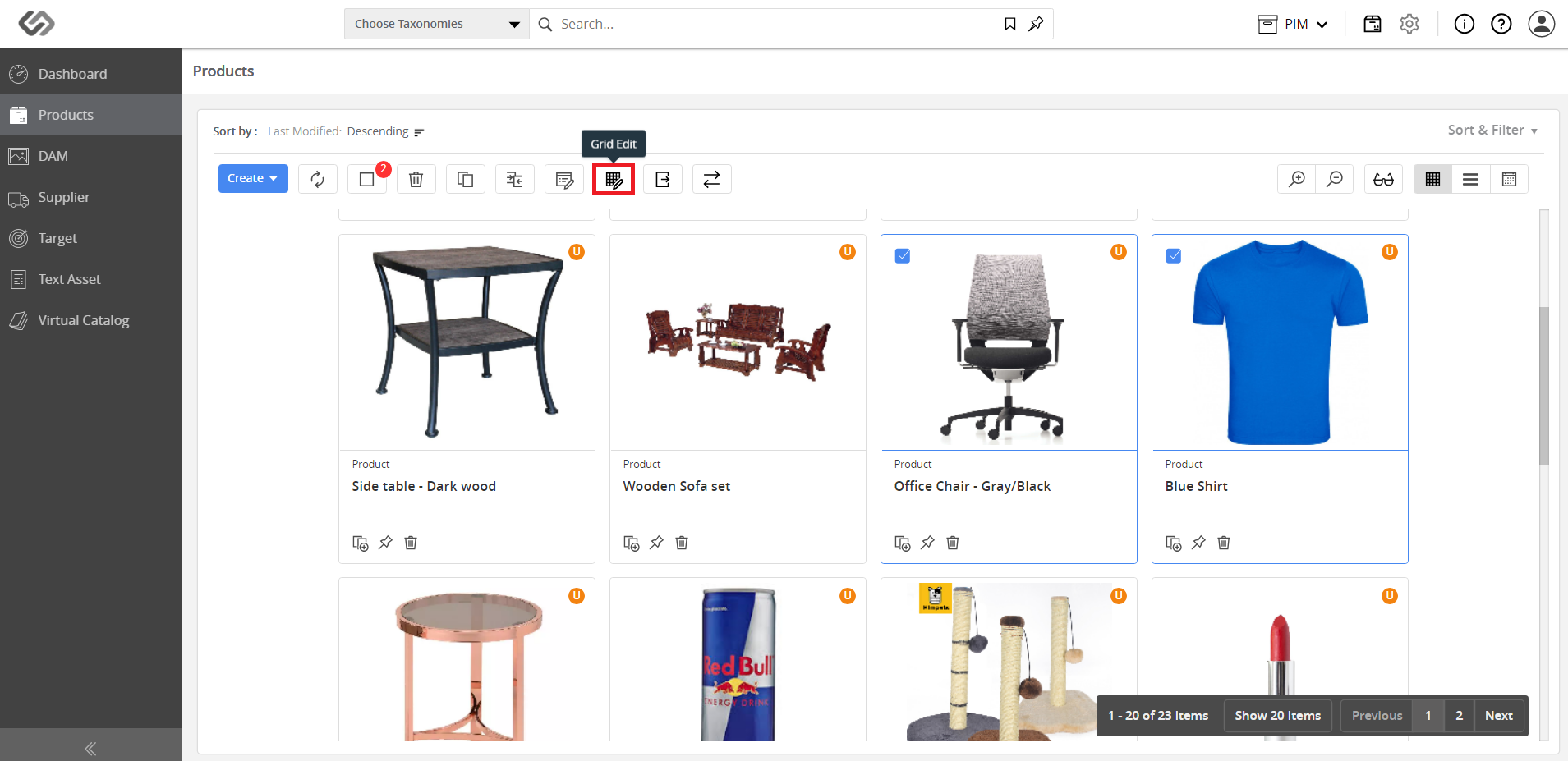
  • Click on the Grid Edit button to perform the editing.
../../../../../_images/pxp_editdataingridview_clickonthegridedit.PNG


  • View the window that pops up. It lists the selected products with the attributes/tags that are to be edited.
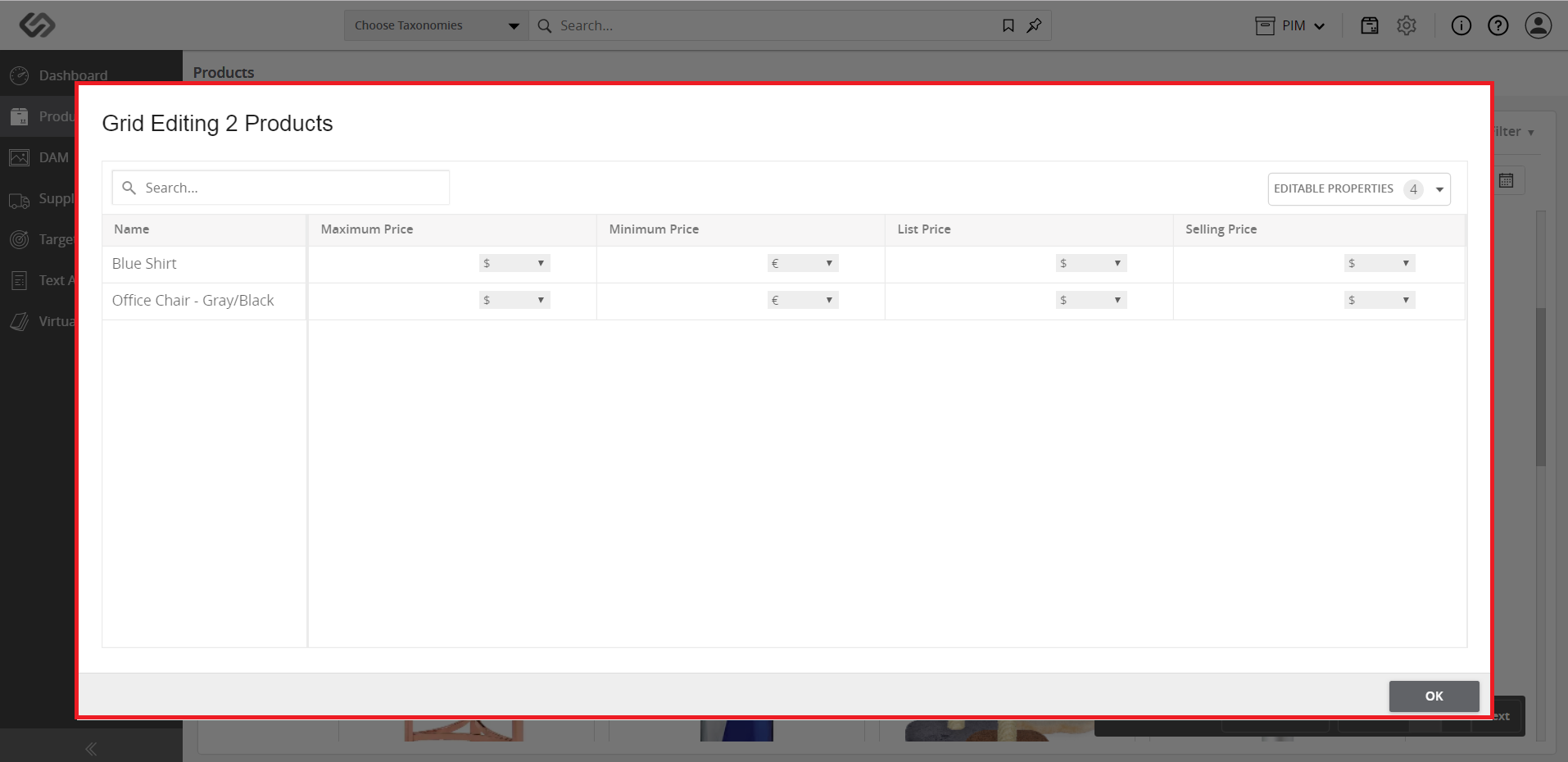
../../../../../_images/pxp_editdataingridview_viewthewindow.PNG


Note: Other pricing and details are not included in the property collections of the product. Thus, these attributes are not shown in the grid.


  • Make the necessary changes and click the OK button to save these changes.
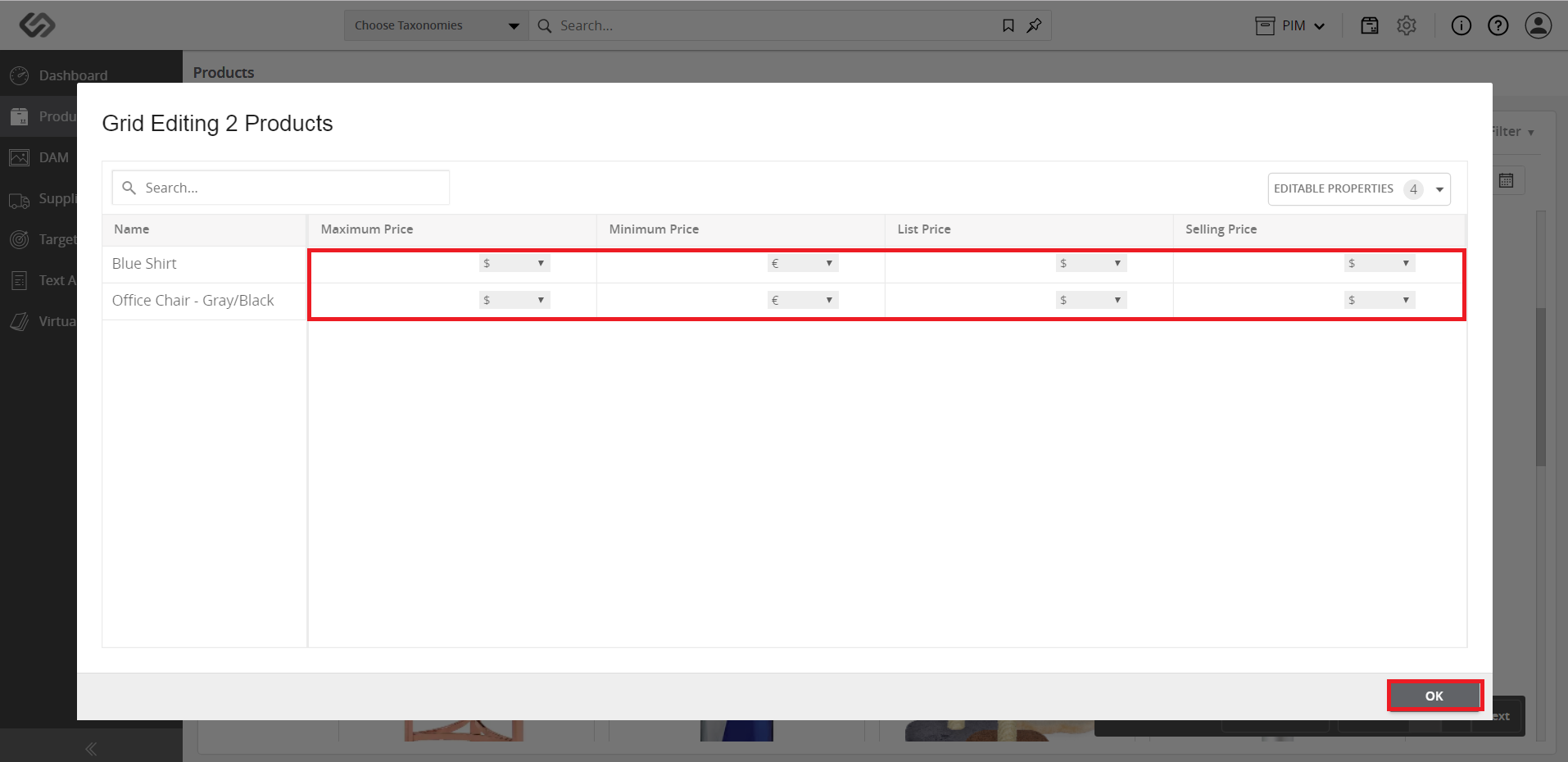
../../../../../_images/pxp_editdataingridview_makethenecessaryadjustments.PNG

../../../../../_images/pxp_editdataingridview_makethenecessaryadjustments2.PNG


Contentserv line