Search and Store Bookmarks

Search and Store Bookmarks lets you search for products using various criteria to easily identify items of interest.

Key Term:
  • Bookmark: a self-updating bookmark that saves the results of a search.
Description:
  • Searches can be saved and viewed later to see the newly added products that satisfy the search criteria.
  • Bookmarks allow saving of favorite products as part of a watchlist, enabling users to view and compare products.
  • Collections include the products added by the user. The products in a collection stay the same unless a user adds or removes products.
Related topics:
Application:
  • Easily find favorite products by bookmarking them.

  • Never miss out on applicable products as bookmarks are auto-updated.

  • Example:

    A retailer deals with a mixture of washing machines and creates a bookmark named ‘fully automated’ to group only the fully automated washing machines. If the user wants to see the fully automated washing machines, he searches for the keyword ‘fully automated’ in the bookmark search bar. Whenever a fully automated washing machine is added to the system, it is automatically added to the bookmark.

How-to: Search and Store Bookmarks

This How-to guide provides instructions on how to search for products or assets using various criteria. It also provides details on how to save the search results and how to visit these results at a later time. To do this, follow these steps:


Storing a Bookmark


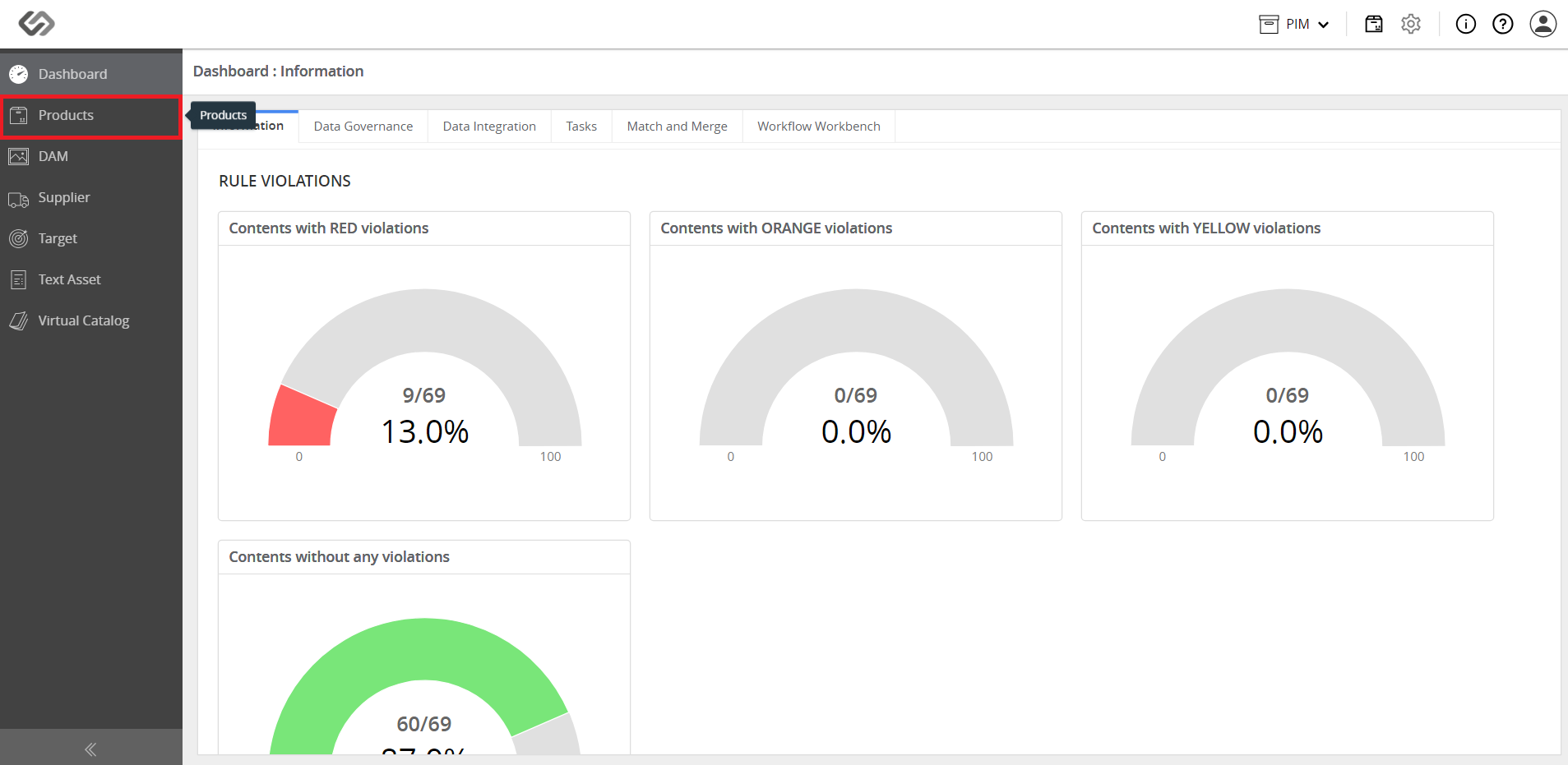
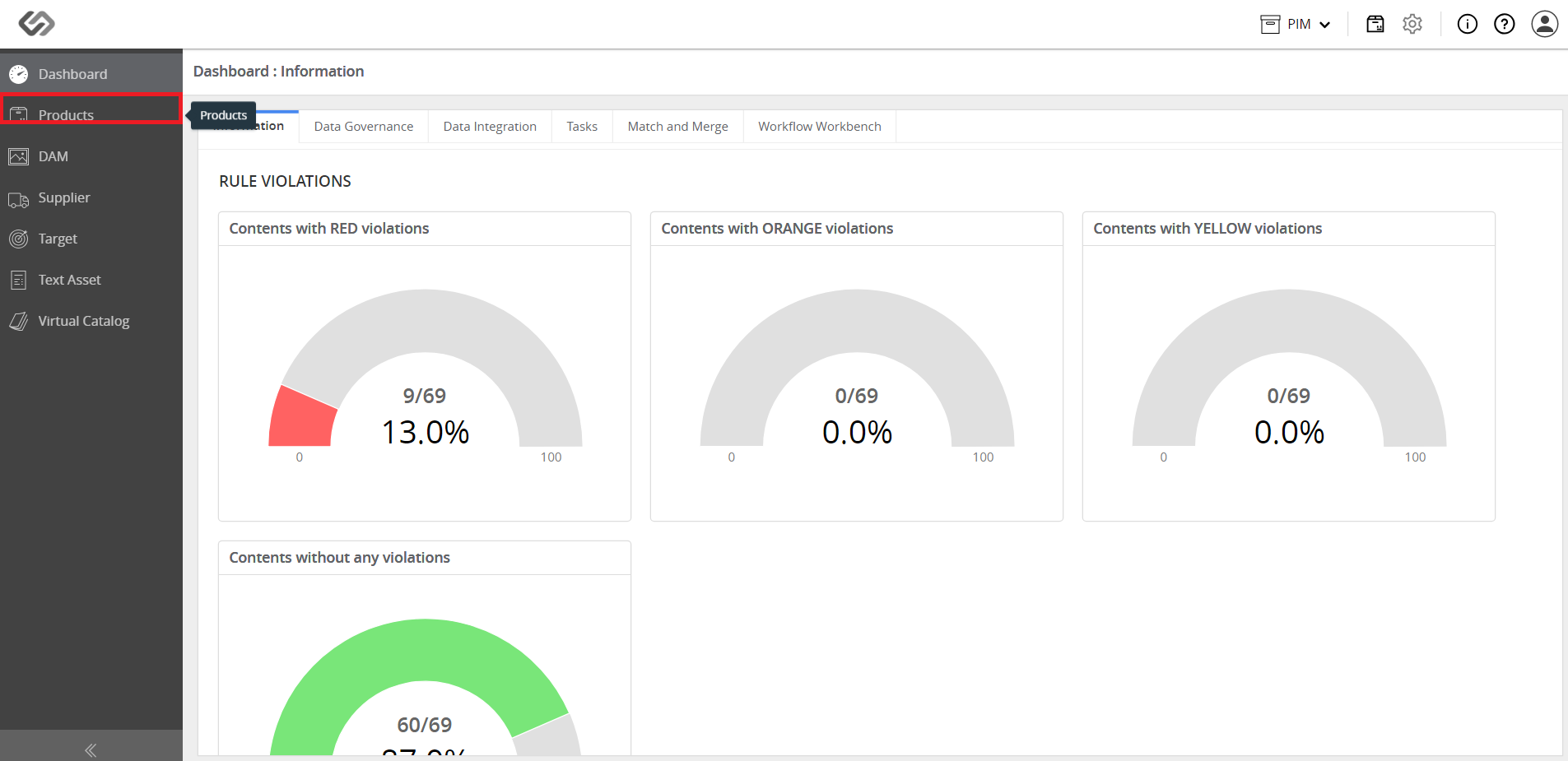
  • Log in and go to Products.
../../../../../_images/pxp_searchandstorebookmarks_login.PNG


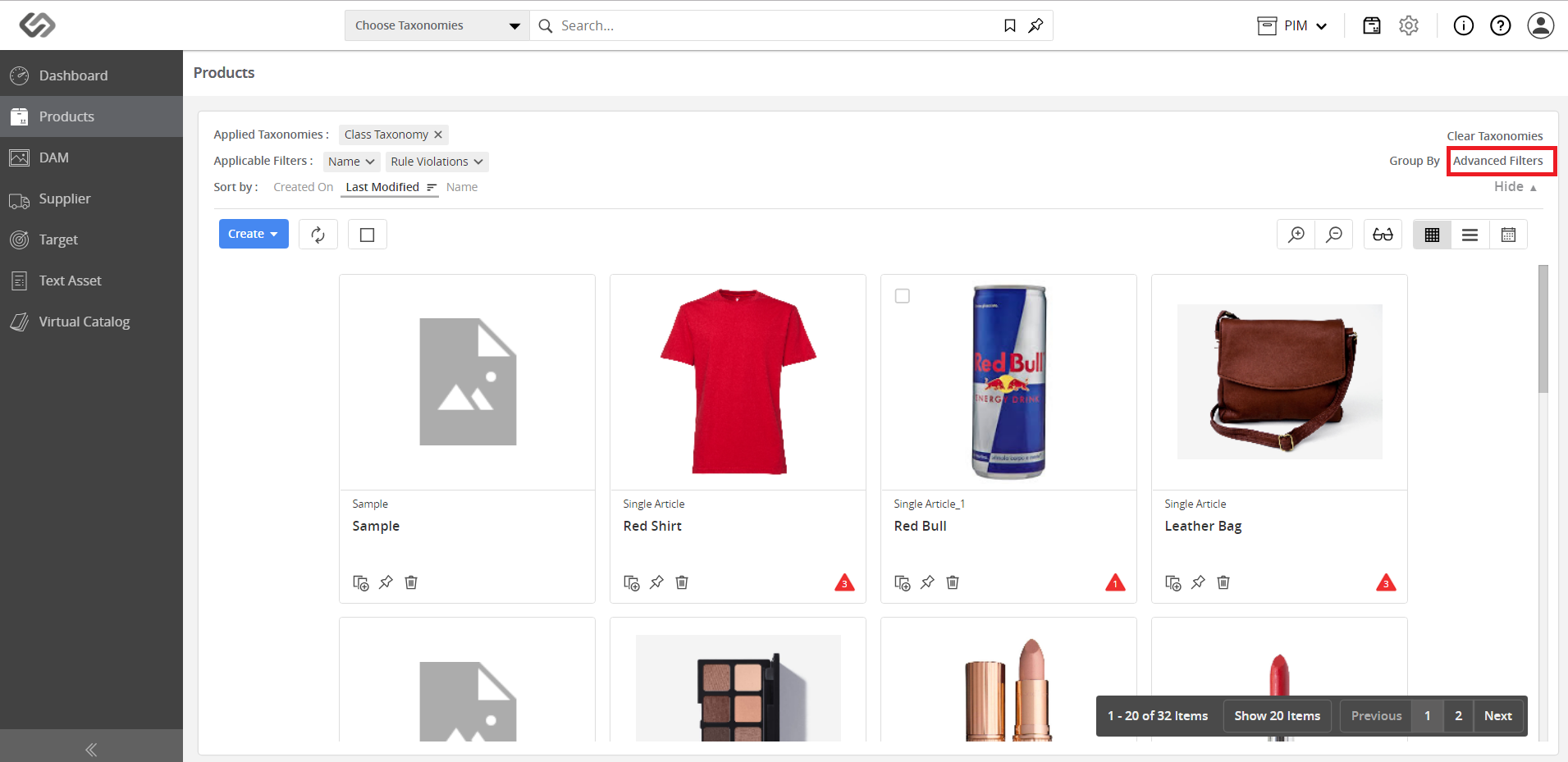
  • Click on the Sort & Filter button then click on the Advanced Filters button.
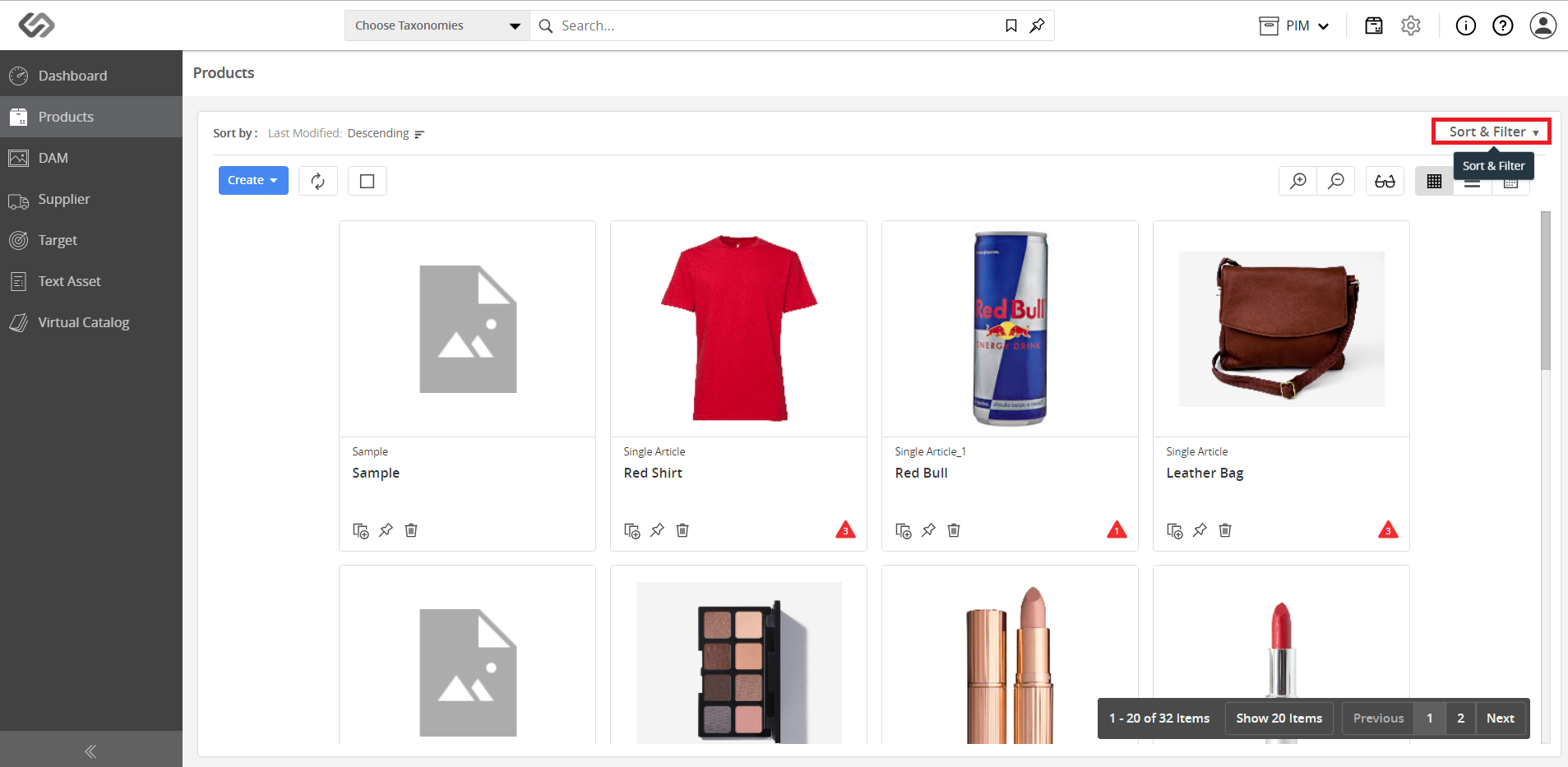
../../../../../_images/pxp_searchandstorebookmarks_clicksortandfilter.PNG

../../../../../_images/pxp_searchandstorebookmarks_clickadvancedfilter.PNG


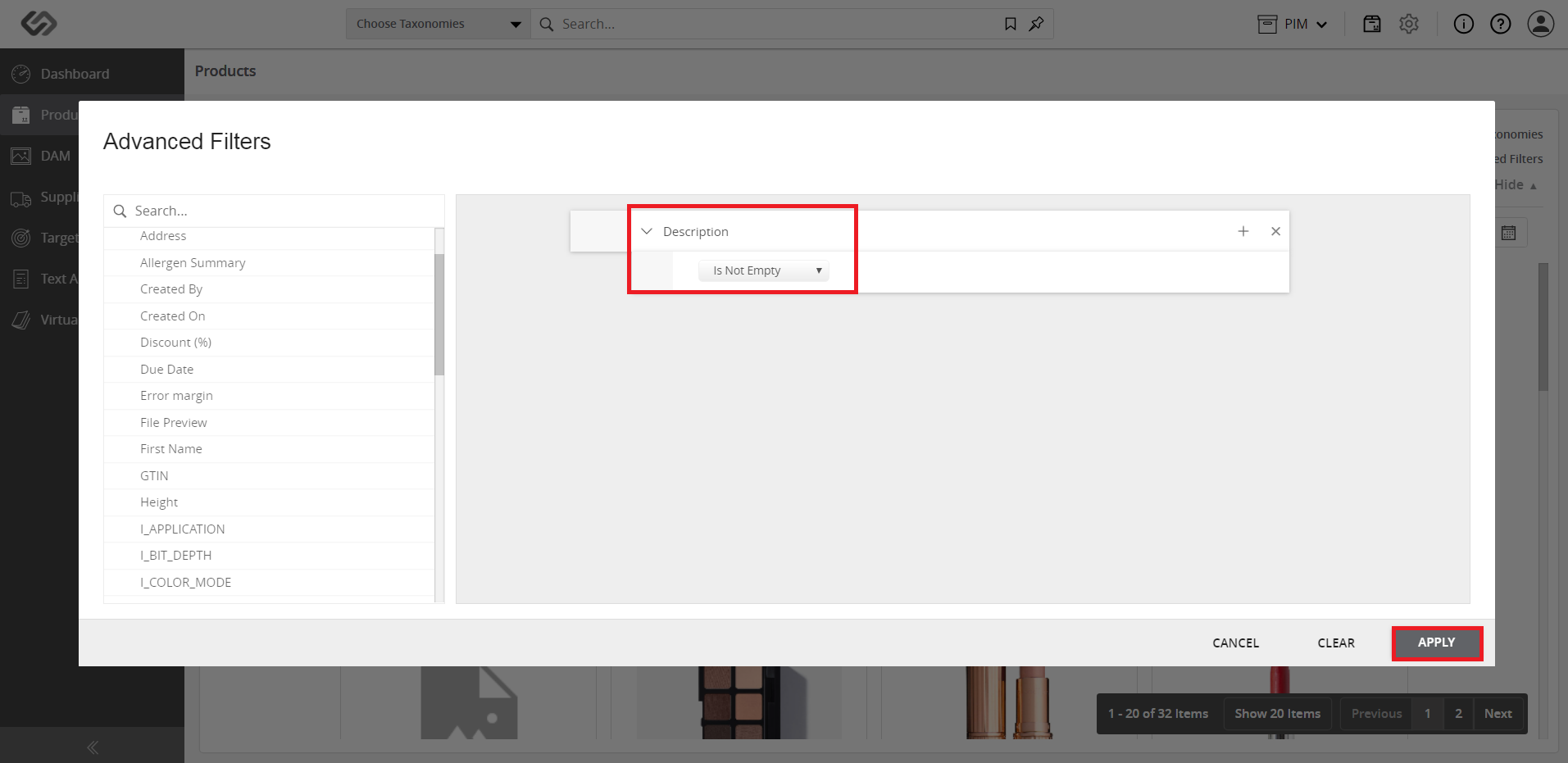
  • Select the desired filters and click on the Apply button.
../../../../../_images/pxp_searchandstorebookmarks_selectfilter.PNG


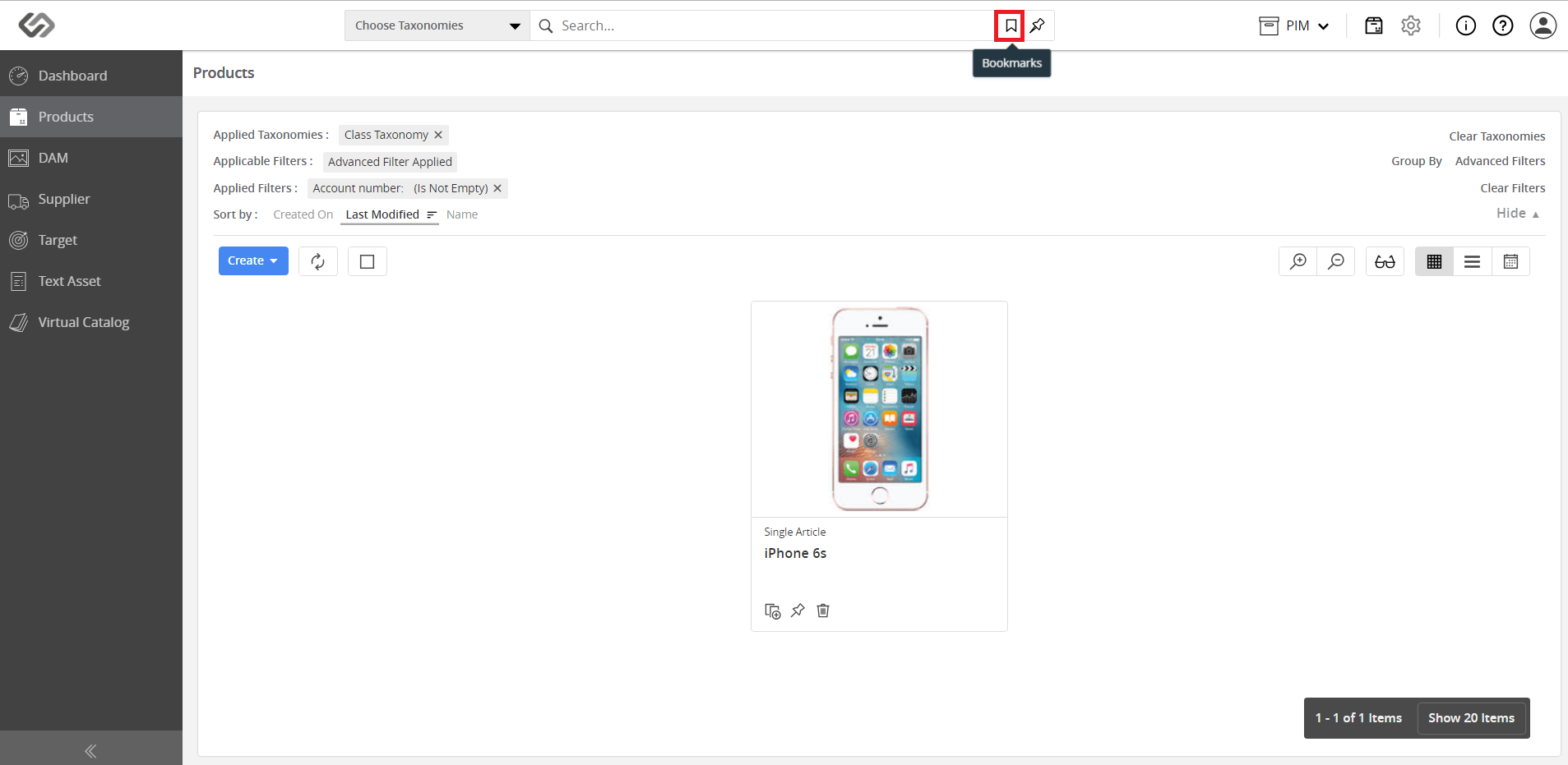
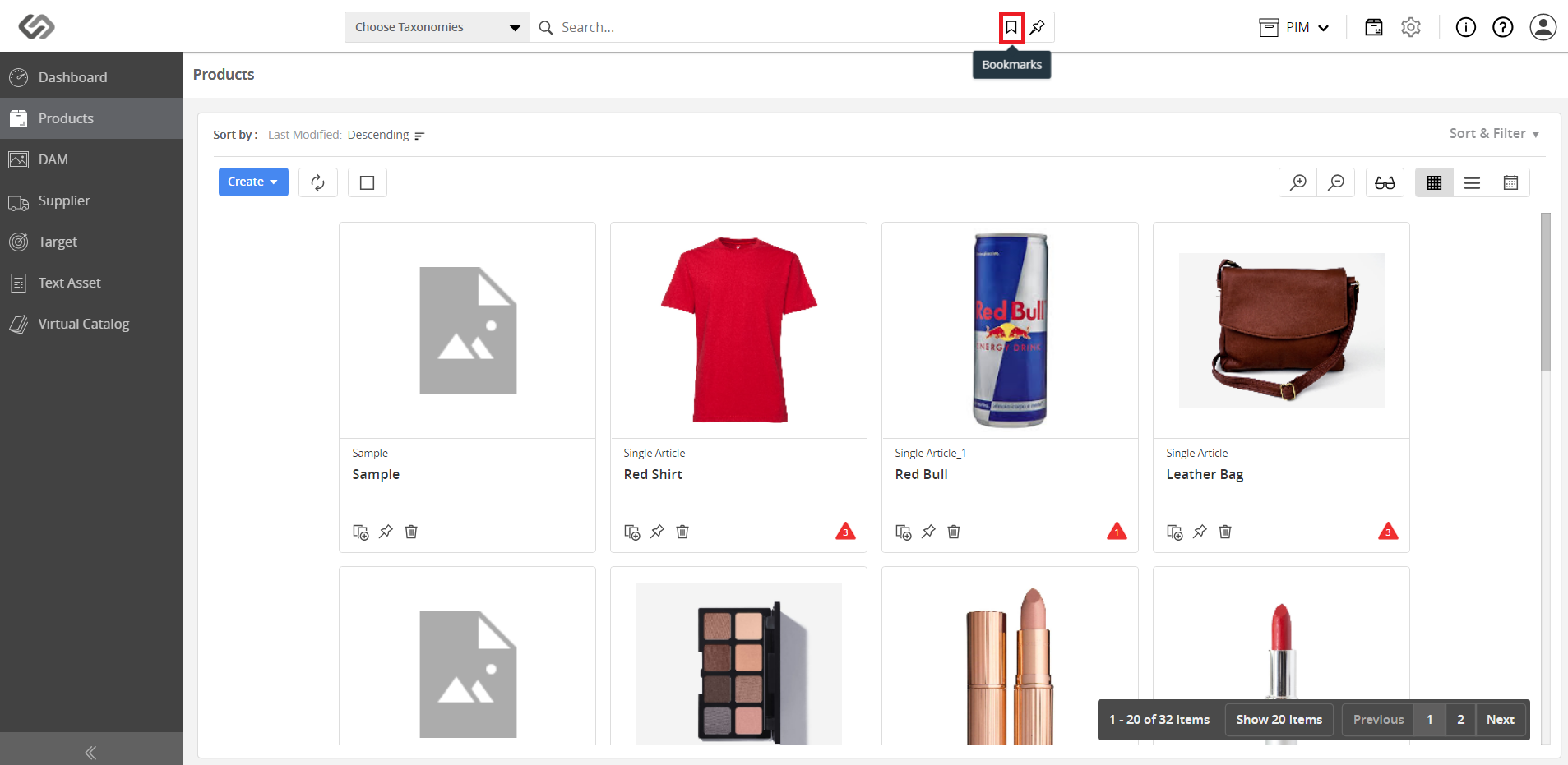
  • Click on the Bookmarks icon.
../../../../../_images/pxp_searchandstorebookmarks_clickbookmarksicon.PNG


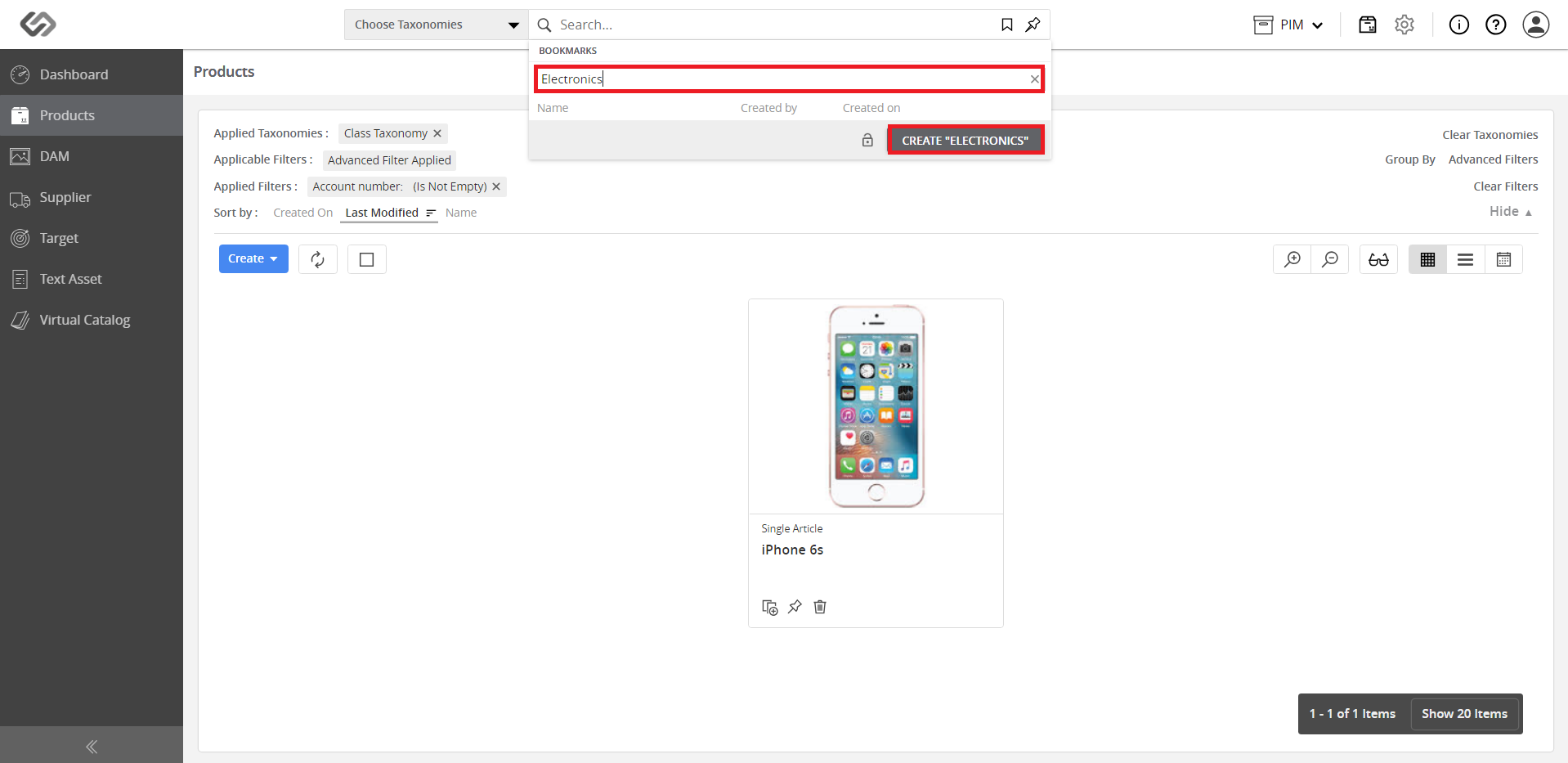
  • Enter the name of the bookmark and click on the Create button.
../../../../../_images/pxp_searchandstorebookmarks_enterbookmarkname.PNG


  • View the added bookmark.
../../../../../_images/pxp_searchandstorebookmarks_viewbookmark.PNG


Searching for a Bookmark


  • Go to Products.
../../../../../_images/pxp_searchandstorebookmarks_gotoproducts.PNG


  • Click on the Bookmarks icon.
../../../../../_images/pxp_searchandstorebookmarks_clickbookmarksicon2.PNG


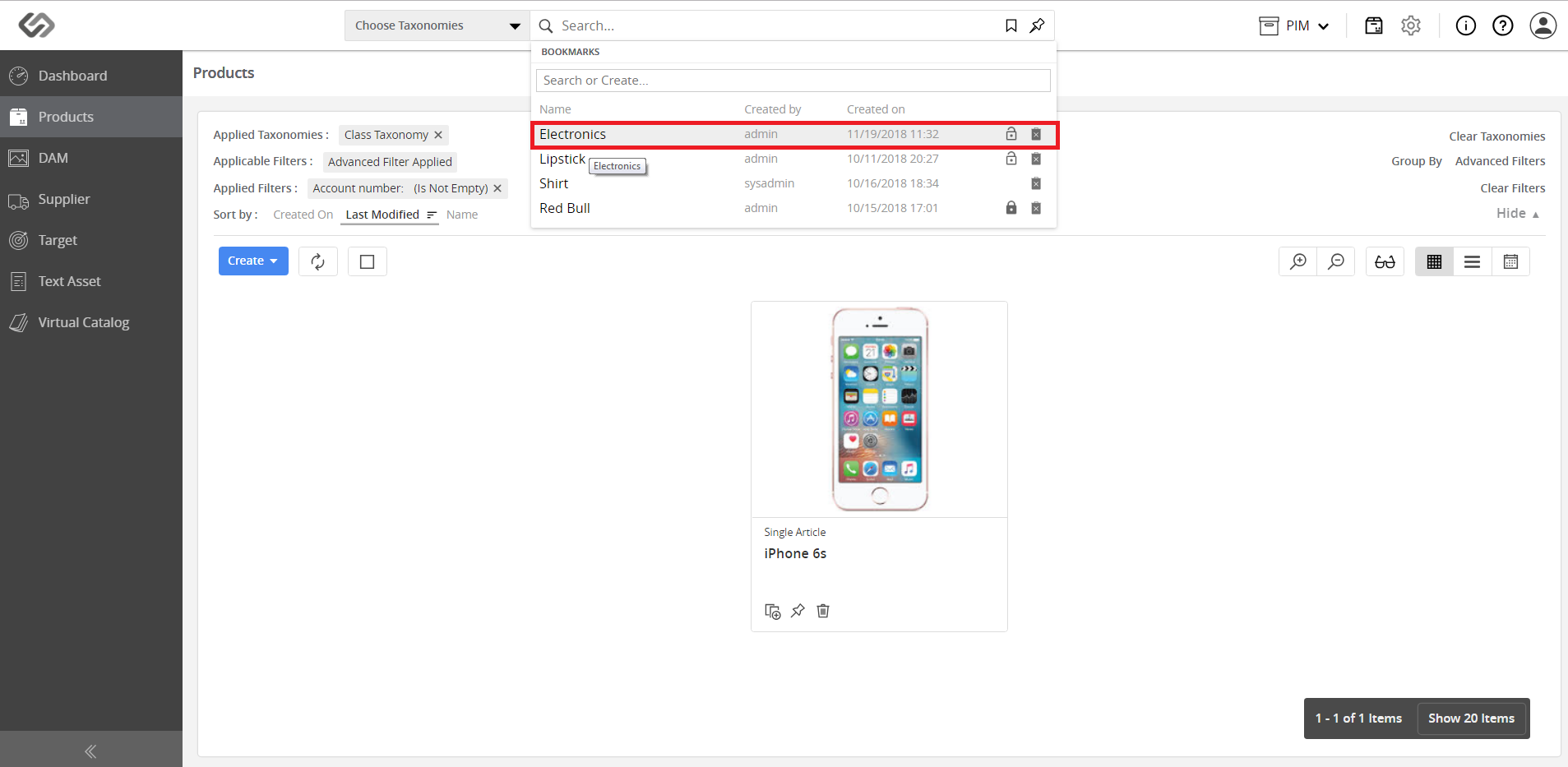
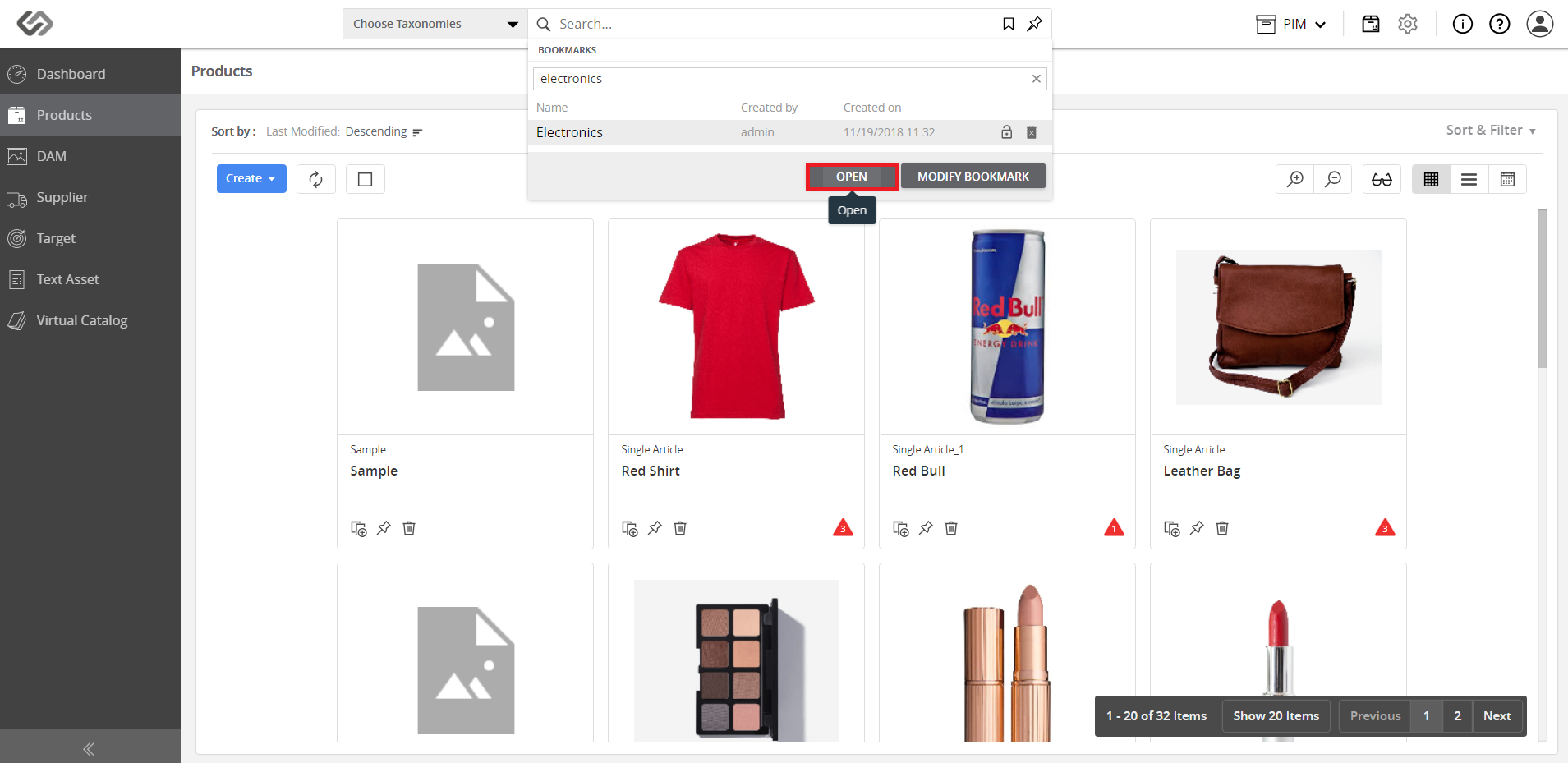
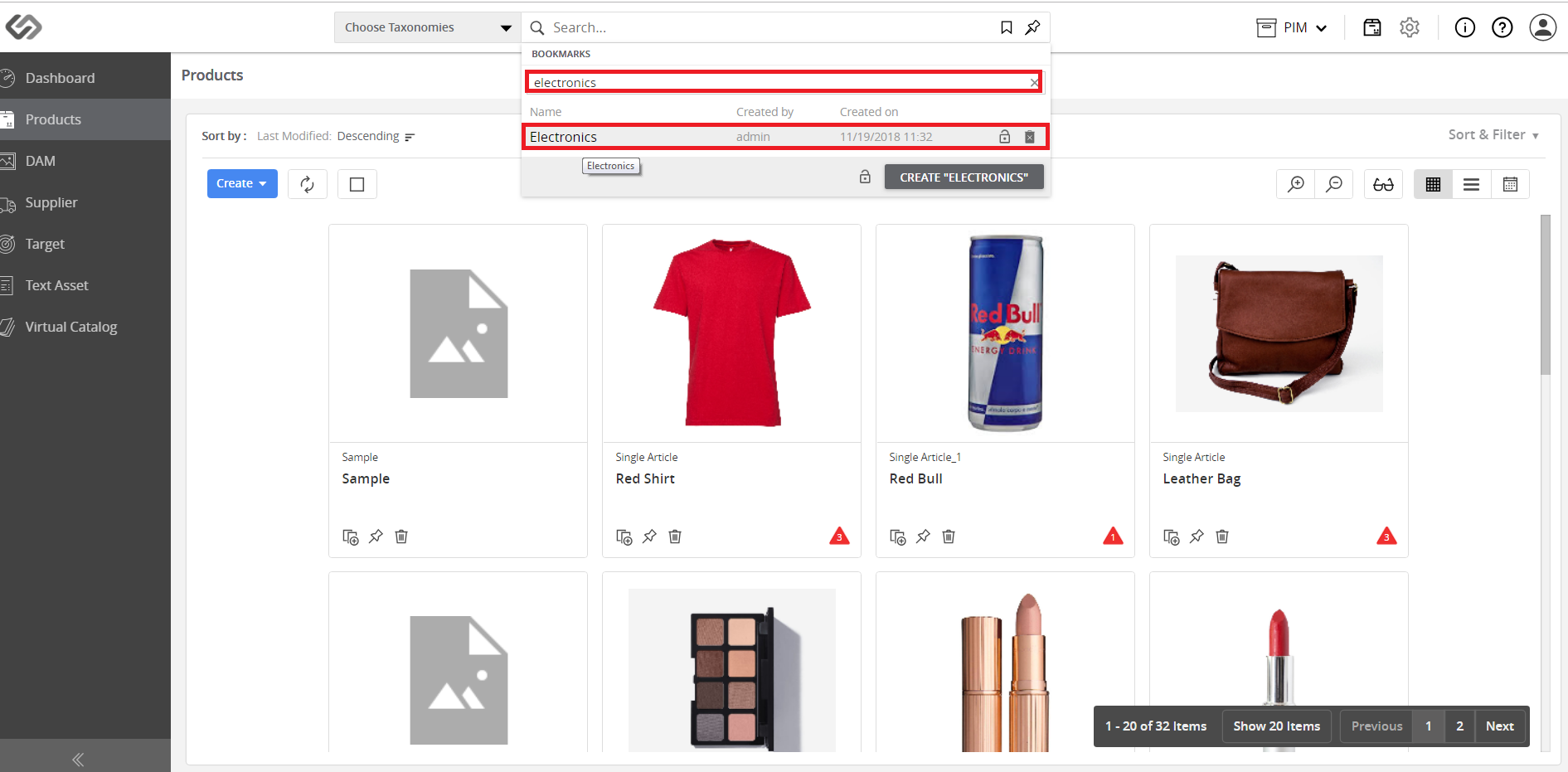
  • Enter the name of the bookmark on the Search bar, then click on the bookmark.
../../../../../_images/pxp_searchandstorebookmarks_search.PNG


  • Click on the Open button.
../../../../../_images/pxp_searchandstorebookmarks_clickopen.PNG


  • View the bookmark.
../../../../../_images/pxp_searchandstorebookmarks_viewbookmark.PNG


Note: The bookmark page will be updated automatically in case there are new products that satisfy the criteria.


Contentserv line