Add Transfer Component
To add a Transfer Component, follow the steps below:
- The Transfer component is used to transfer the products to PIM, Onboarding portal, Offboarding portal, or to the Data Integration portal. To add the Transfer component, select the last notation in the workflow and click on the Task notation.

- When you click on the Task notation, it gets added in the flow.

- Click on the Change type icon and select the component.
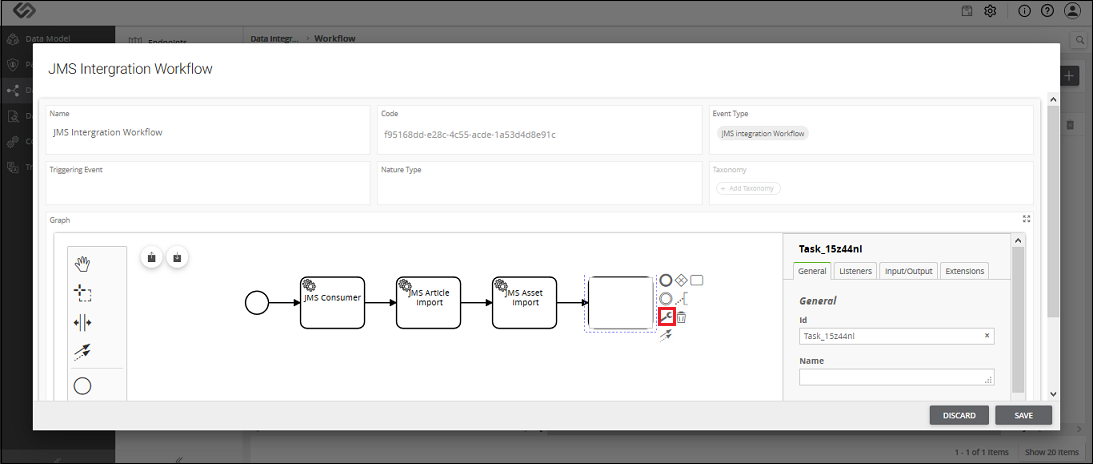
- As soon as you click on the Change type icon, a pop-up window appears containing the types of components.

- Select the Transfer component from the list.

- Enter the name for the component.

Transfer Component - Configuration
| Sr. No. | Screen Element | Description |
|---|---|---|
| Destination Catalog IP | Select the catalog where you want to transfer the products. Select one of the following options:
|
|
| Destination Organization ID | Select the organization from the list where you want to transfer the product details. |
