Monitor Exports
The Monitor Exports feature provides an export summary for every export of product data that allows corrective action to be promptly done, if necessary.
| Description: |
|
| Related topics: | |
| Application: |
|
How-to: Monitor Exports
To monitor exports, follow these steps:
- Log in and go to Products.
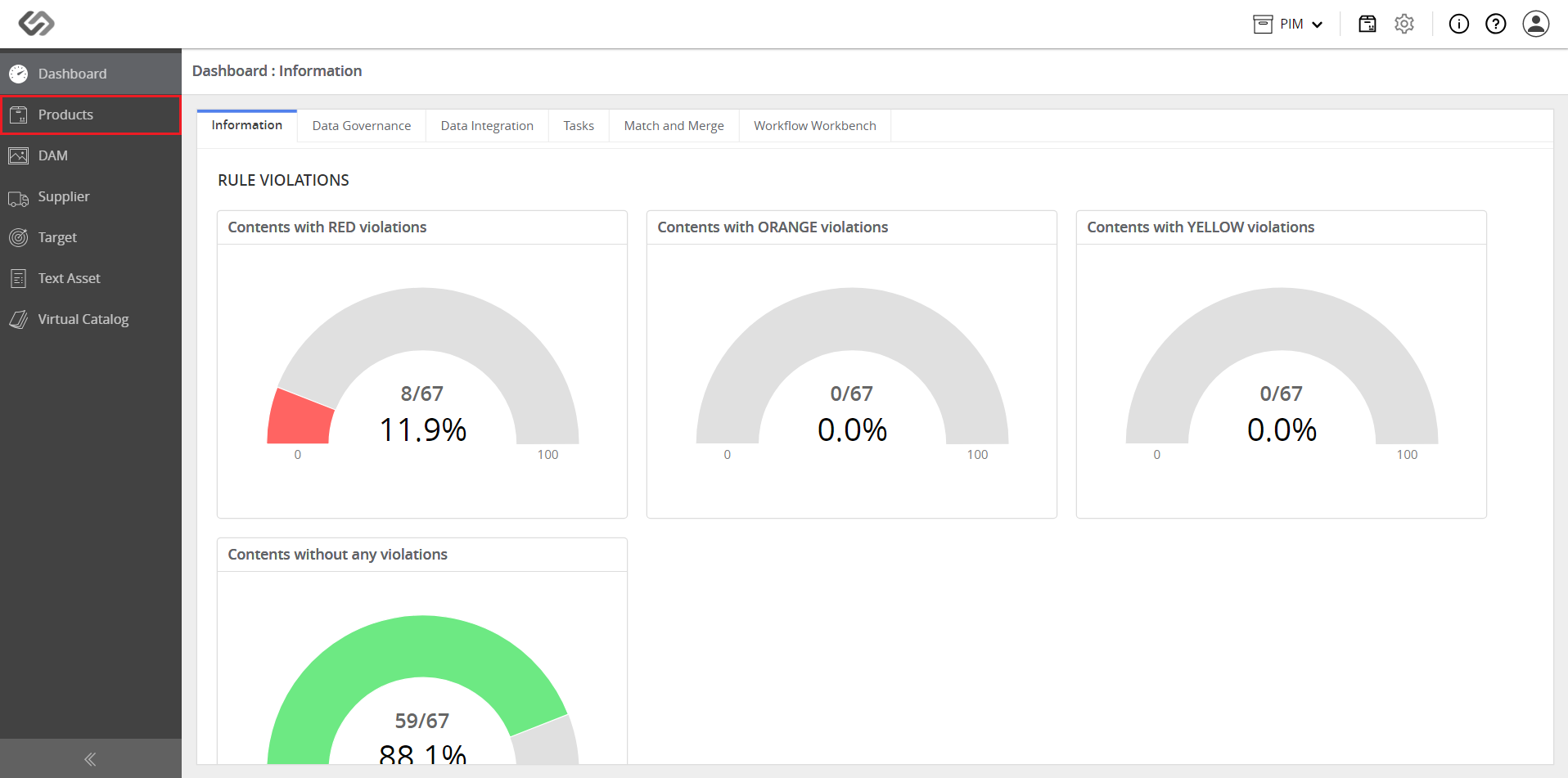
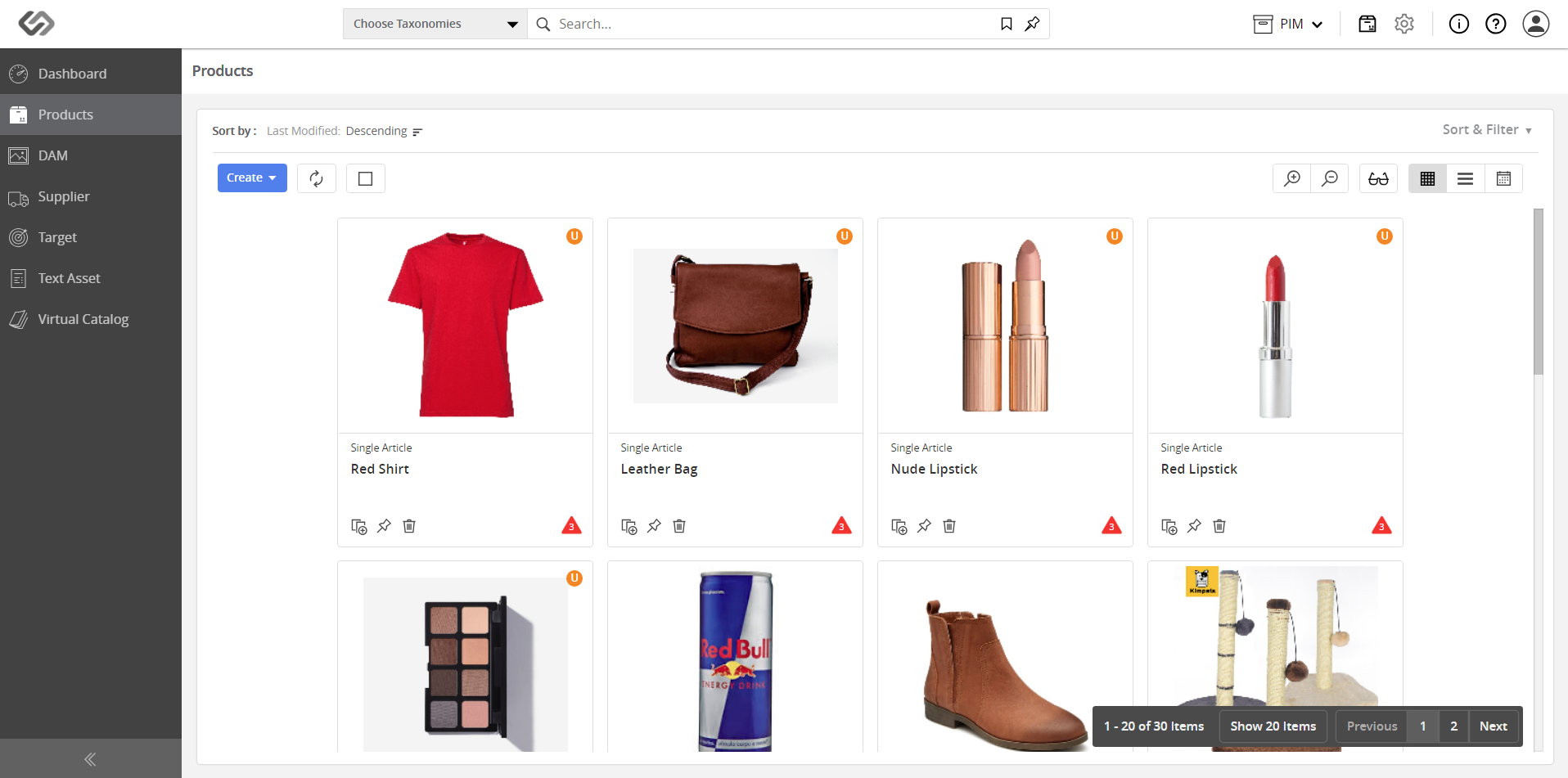
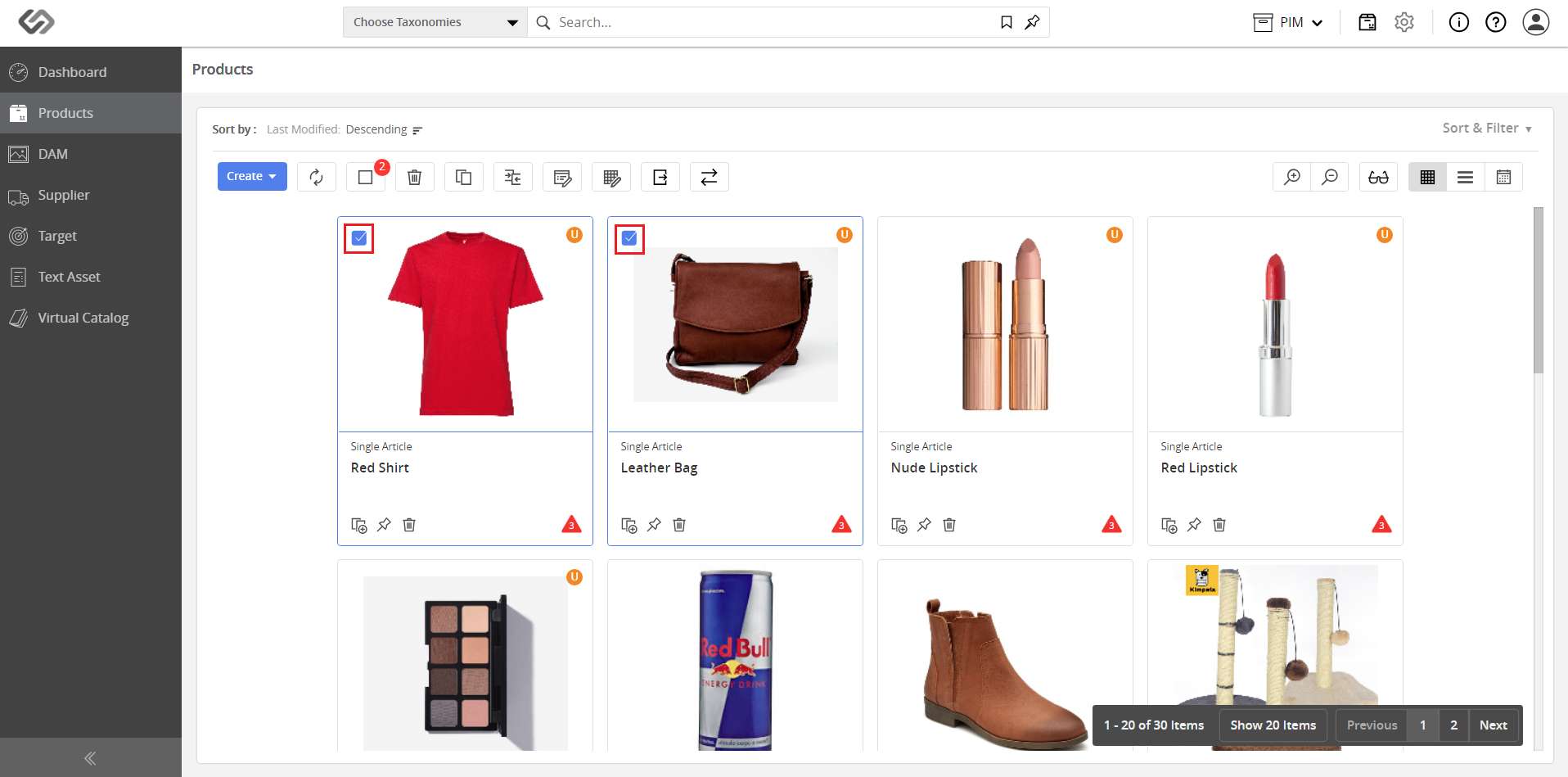
- Select the products to be exported. Note: To select all the products, click on the Select All button.
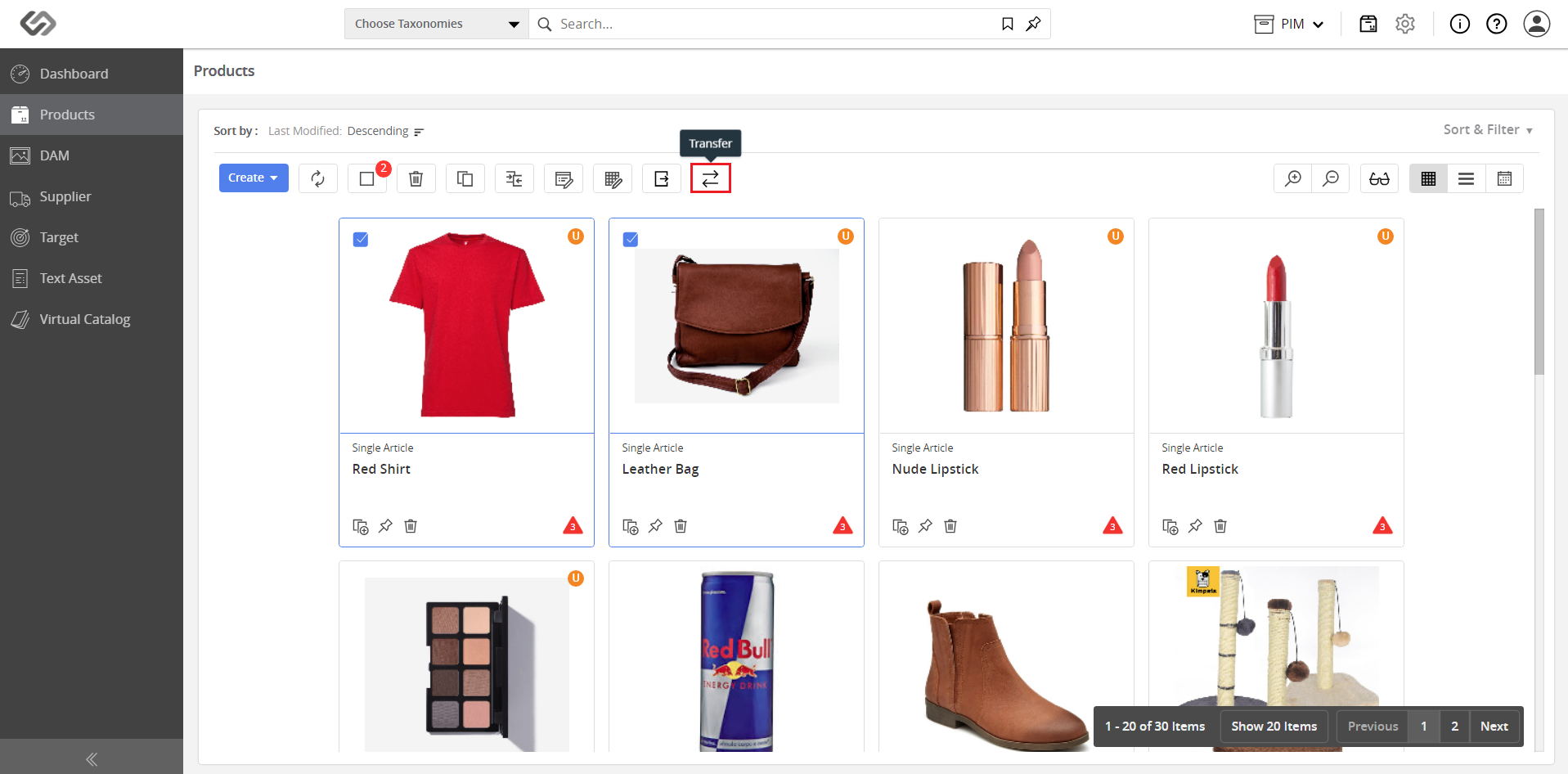
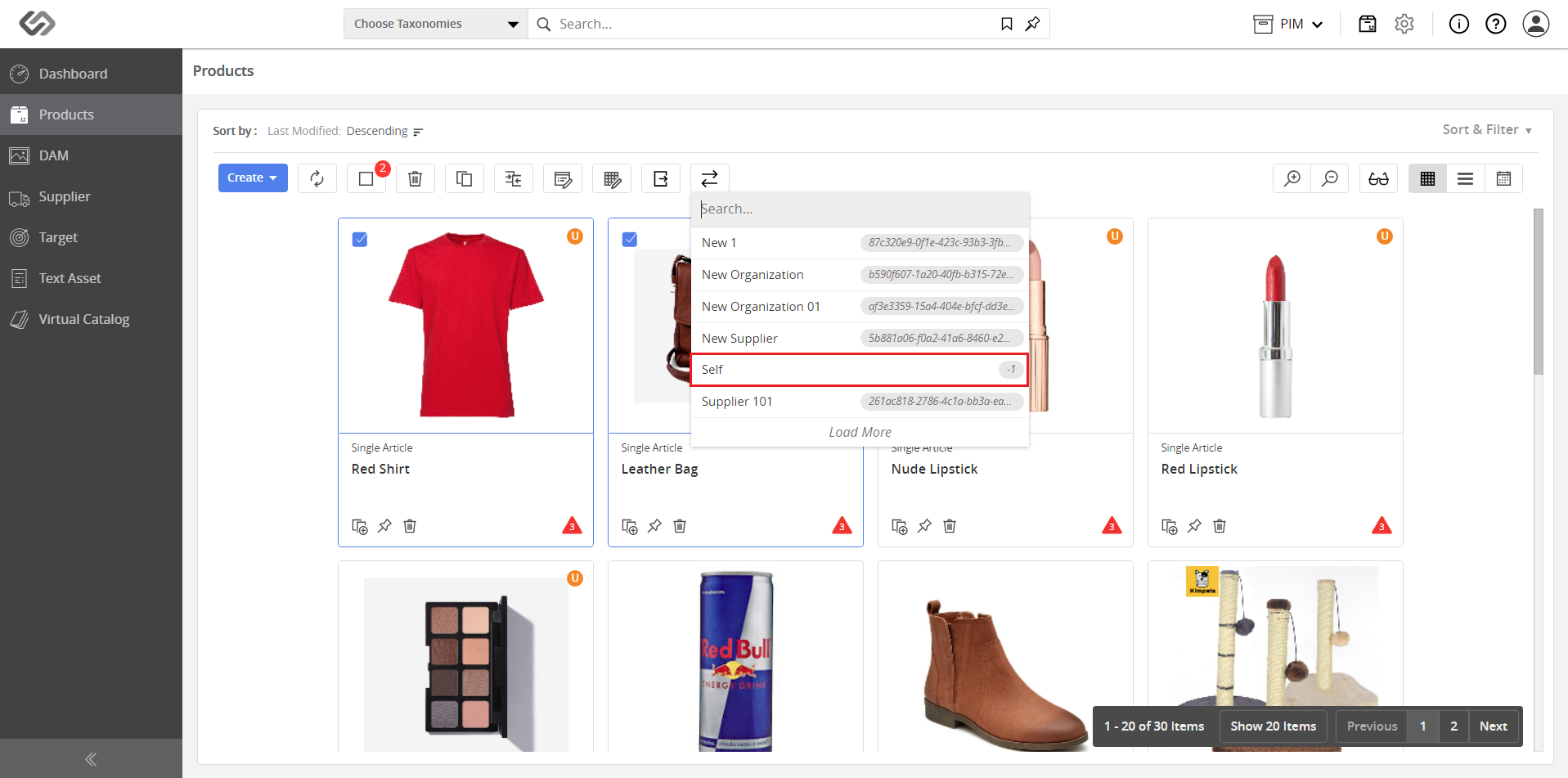
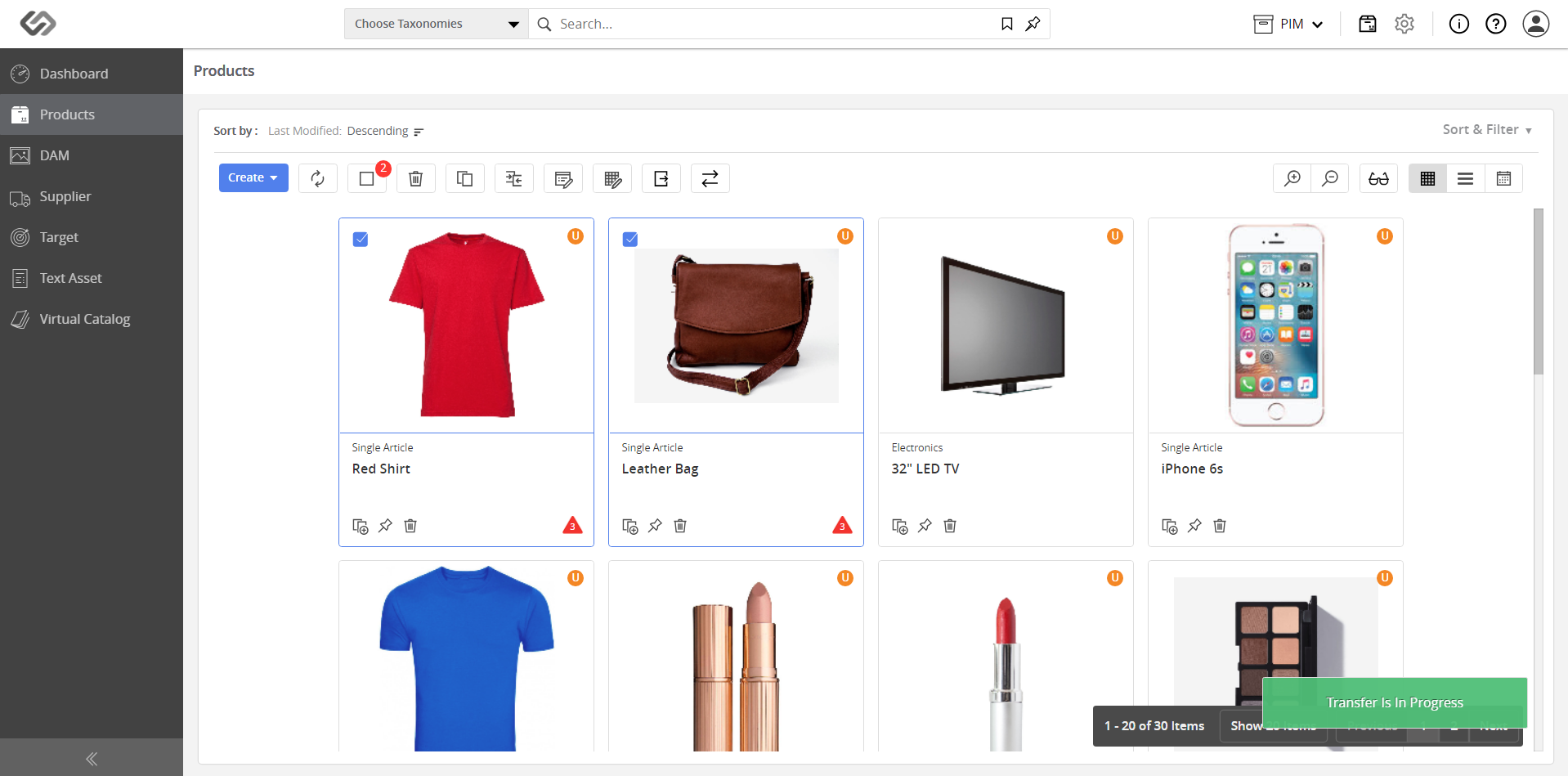
- Once selected, click on the Transfer button. This will transfer and get the products ready for offboarding and select Self.
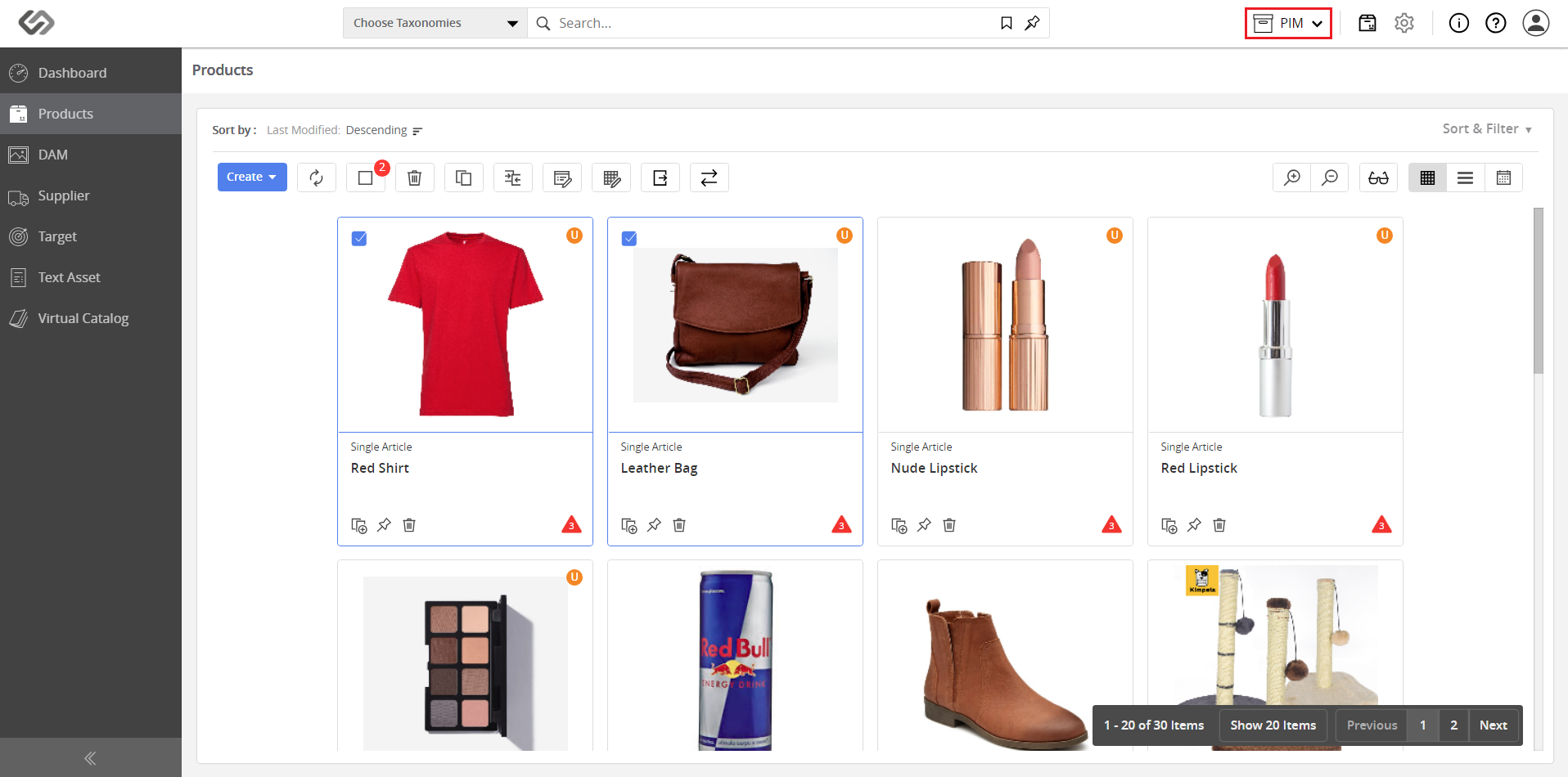
- Once the notification says that the transfer is successful, click on the PIM menu and go to Offboarding.

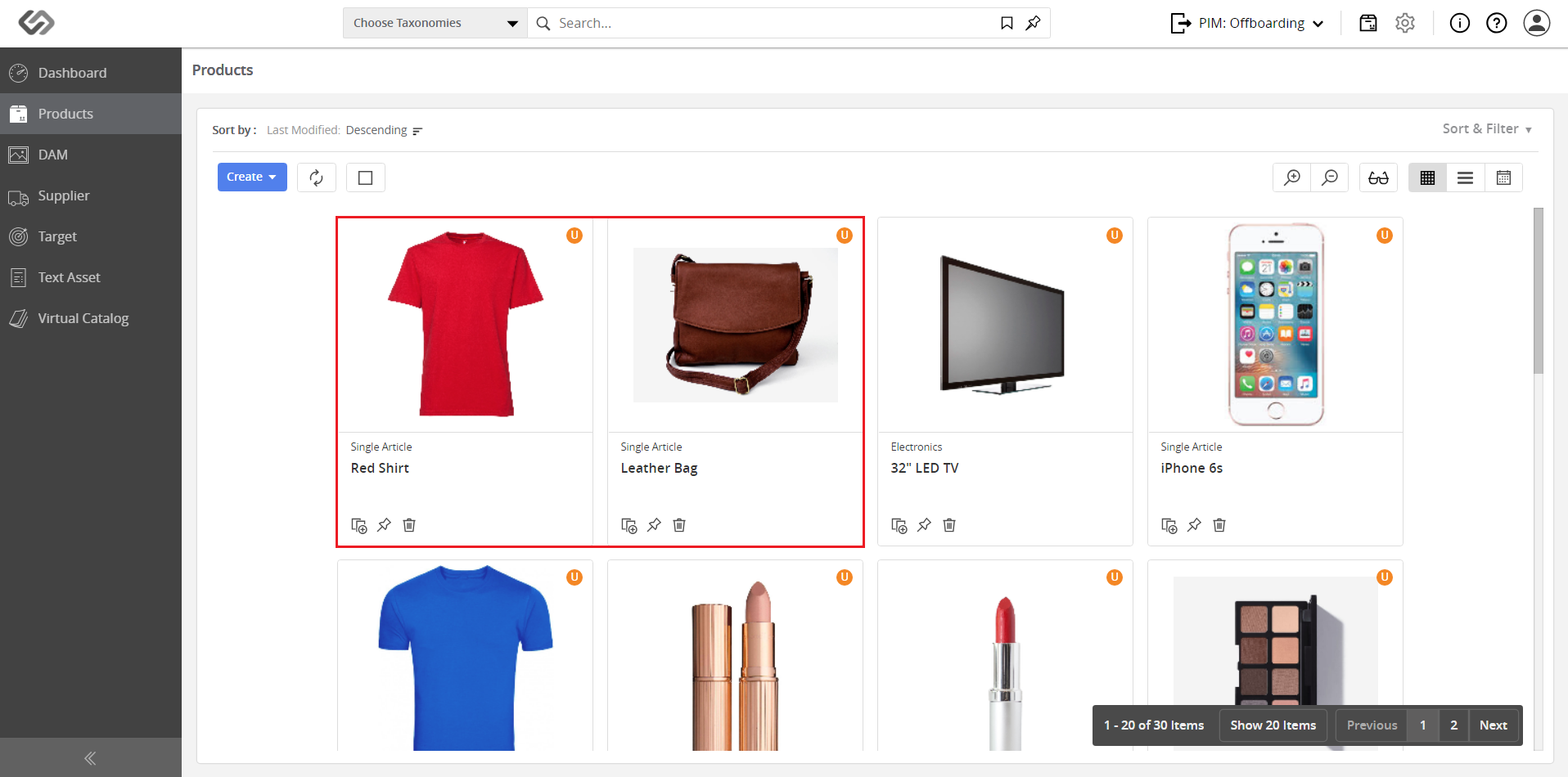
- Check if the page shows the selected products.
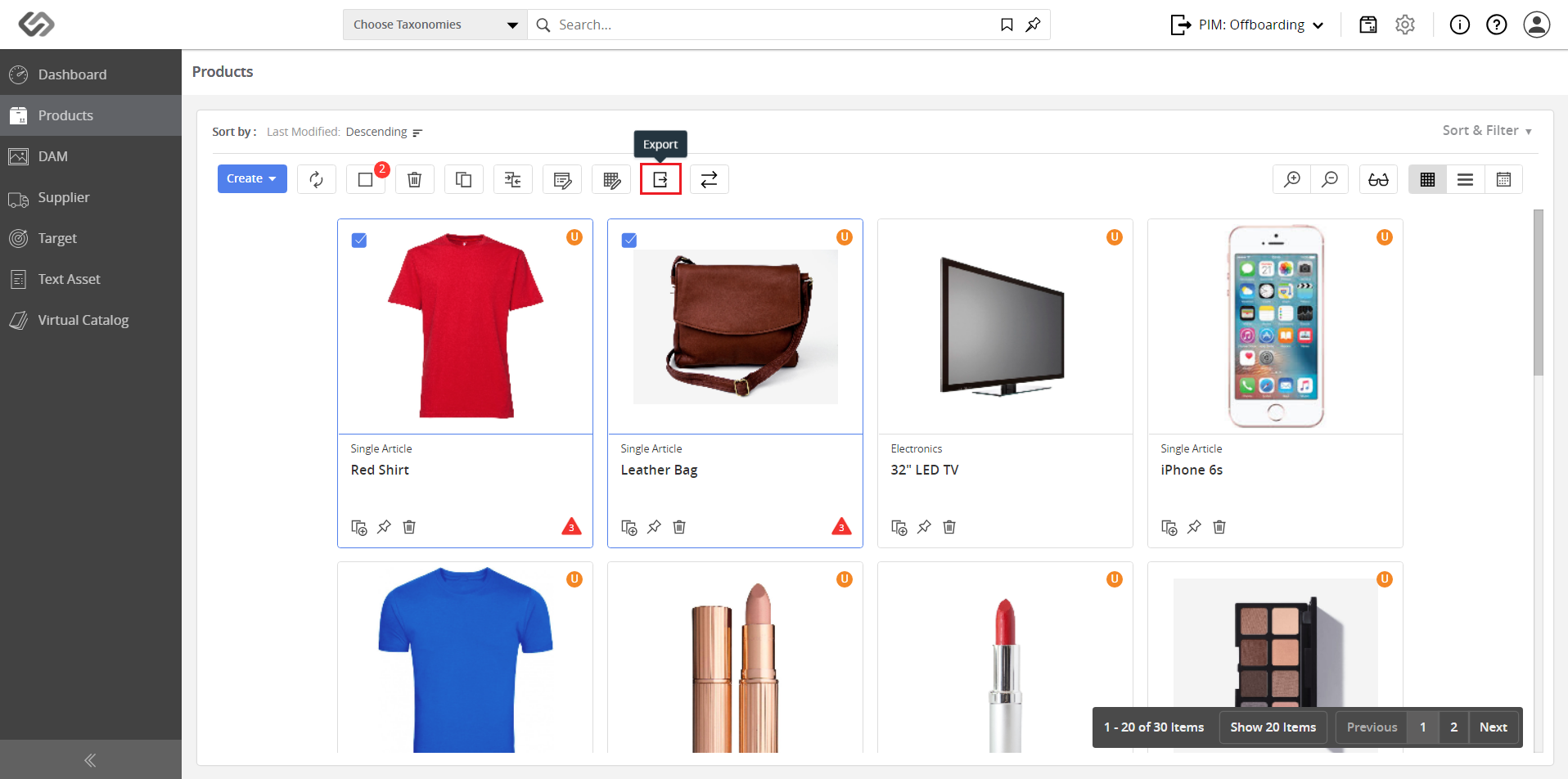
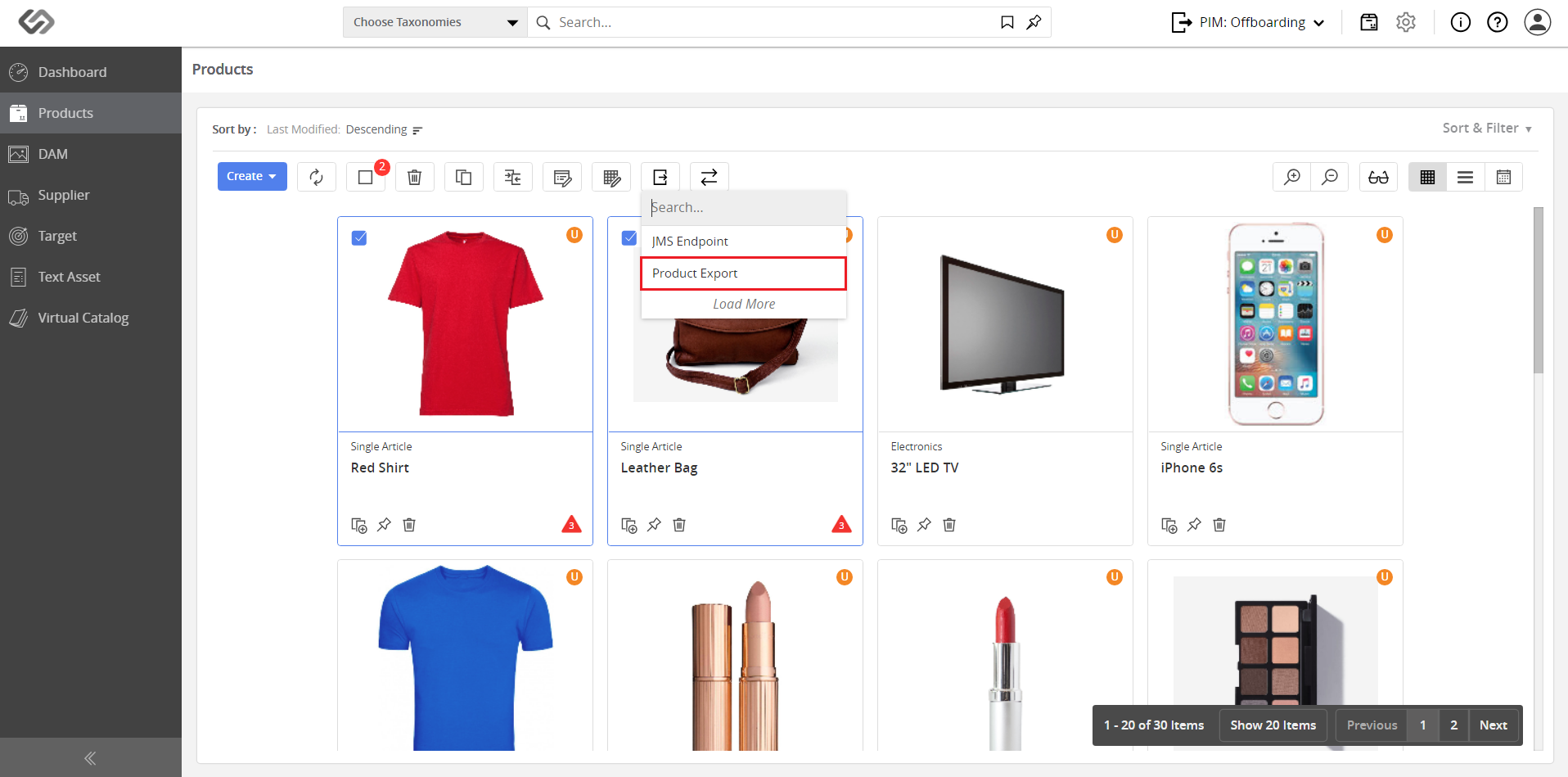
- Select the products and click on the Export button. Then, select the desired endpoint from the menu. Wait for the data to be exported. Once done, view the exported data.
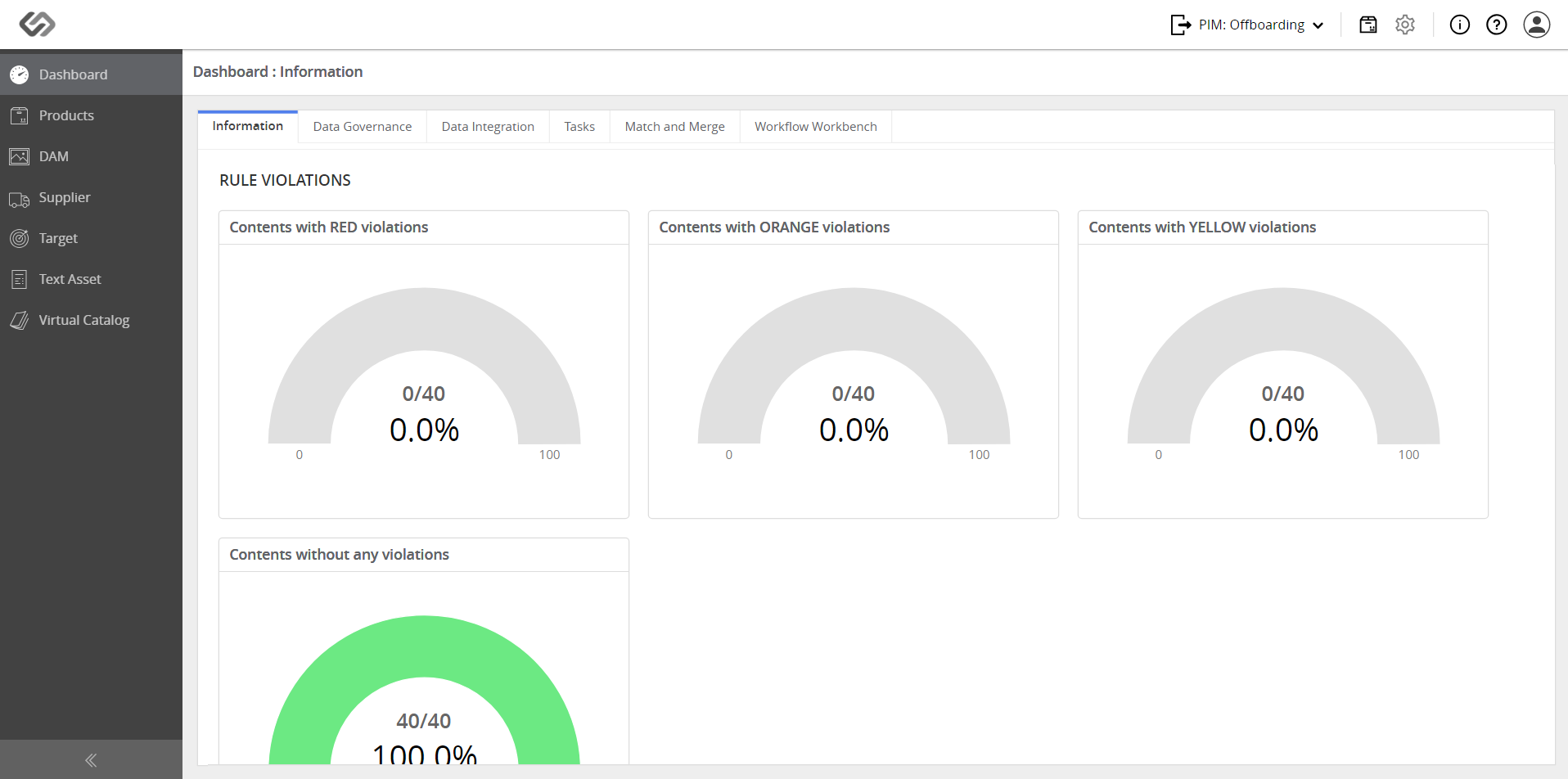
Note: Go to the Dashboard and check on the endpoint that has been selected from the previous step to check the offboarding report summary.
