Promotional Sets
The promotional set is a collection of multiple Marketing Products, which are put together to form a set. It offers several products for sale as one combined product. The set may contain the similar products with the same sales unit and common sales price. The user can choose to buy any of the Marketing Product from the set at the defined common price. It is used for promotion and marketing of your business products.
A promotional set is used for any special offer intended to raise a customer’s interest and influence a purchase. For example, a retailer offers the promotional set that contains three different types of cold drink bottles of 1 liter. Here, a retailer has set a common sales unit, which is the 1-liter bottle. He will set a common sales price for this promotional set. A customer can buy any of the cold-drink from a set at a defined common sales price.
| Purpose: |
|
| Target Audience: |
|
| Prerequisites |
|
| Key Terms: |
|
How-to: Configure the Promotional Set
To do this, follow these steps:
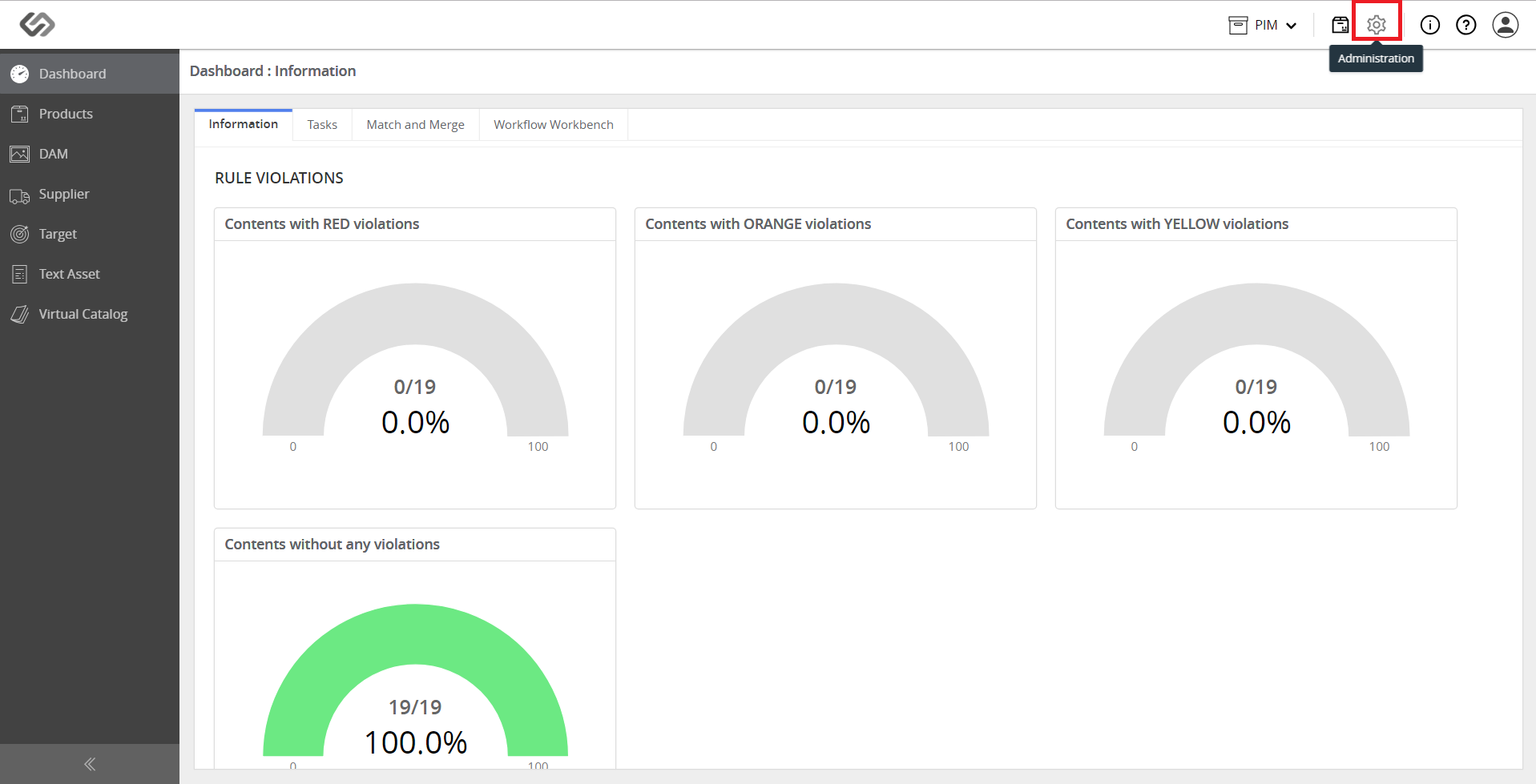
- Log into Contentserv and click on the Administration icon.
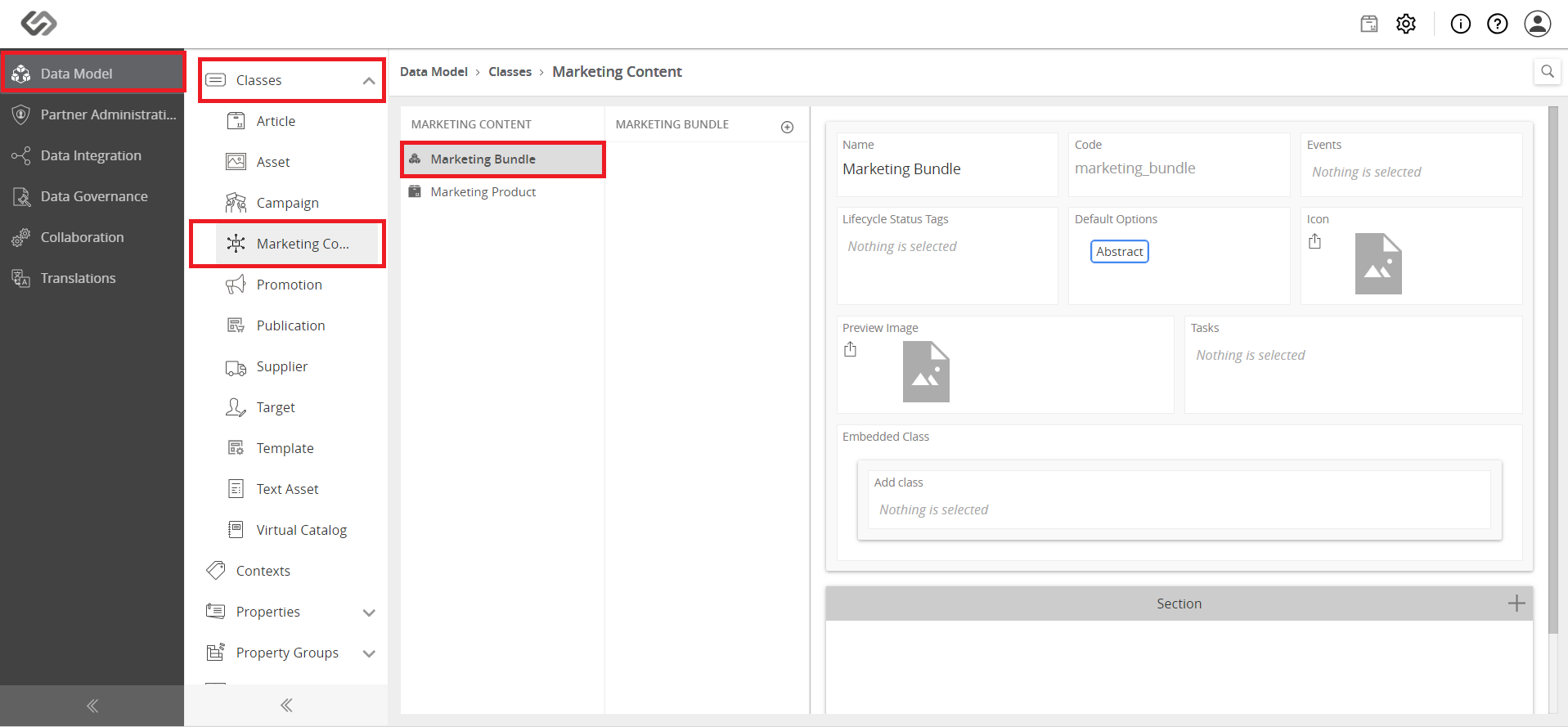
- Navigate to Data Model → Classes → Marketing Content → Marketing Bundle menu.
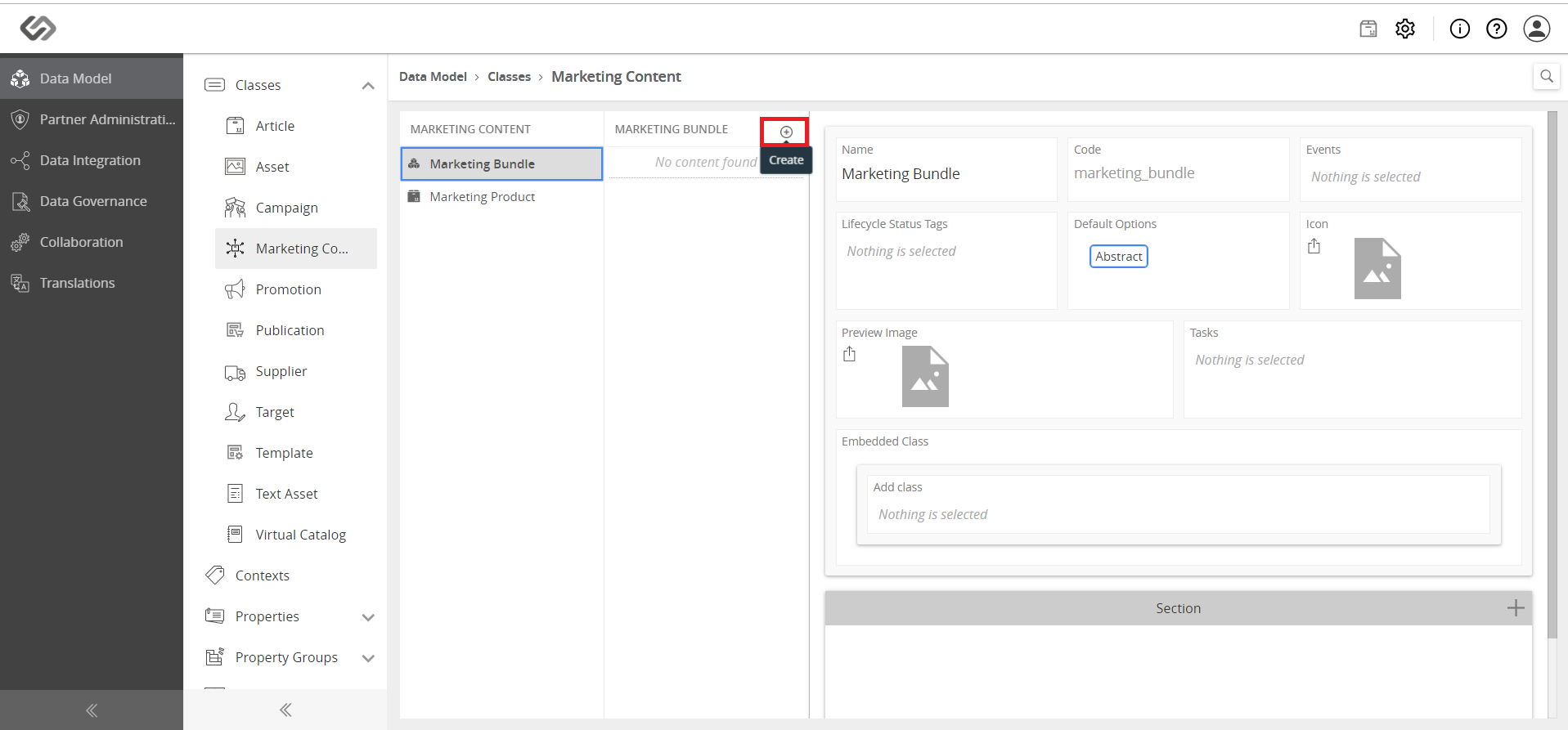
- Click on the plus icon to create a marketing bundle.
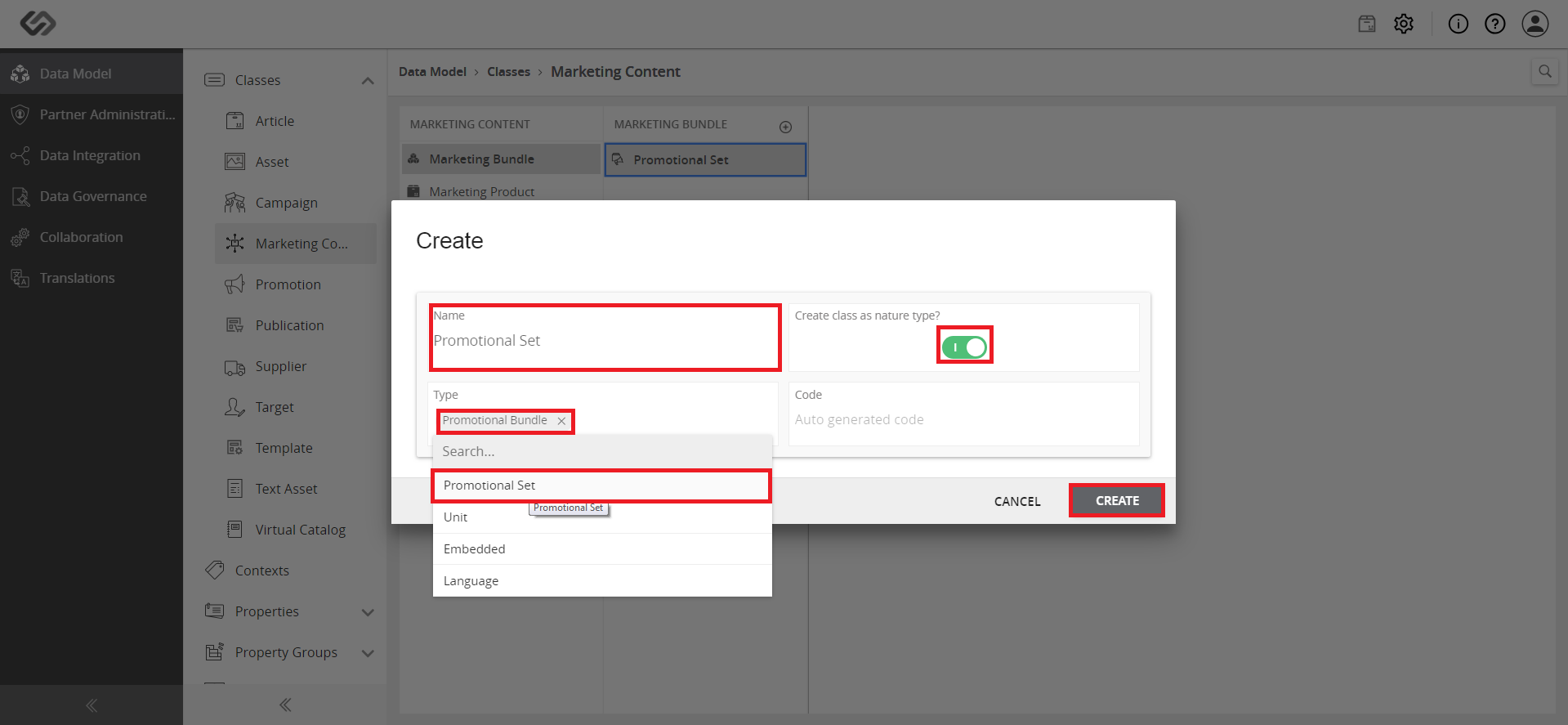
- A pop-up window appears, enter the Name and Code. Enable the radio button for Create class as nature type field. Select the Promotional Set option from Type. Select the created Marketing Product class from Nature Class field, for which you want to create a promotional set. Then, click on the Create button.
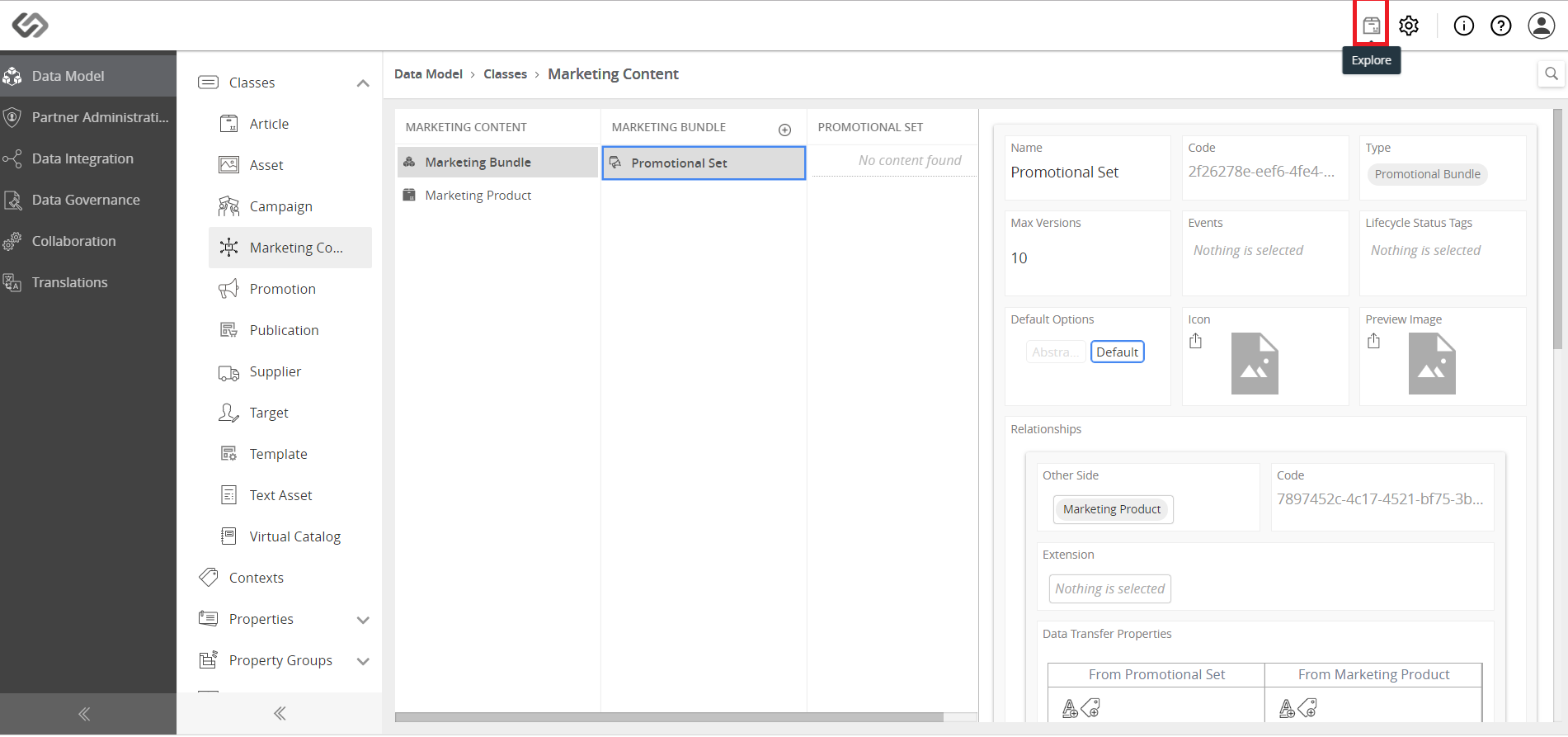
- Click on the Explore icon to display the Dashboard.
Create a Promotional Set Containing Marketing Products
To do this, follow these steps:
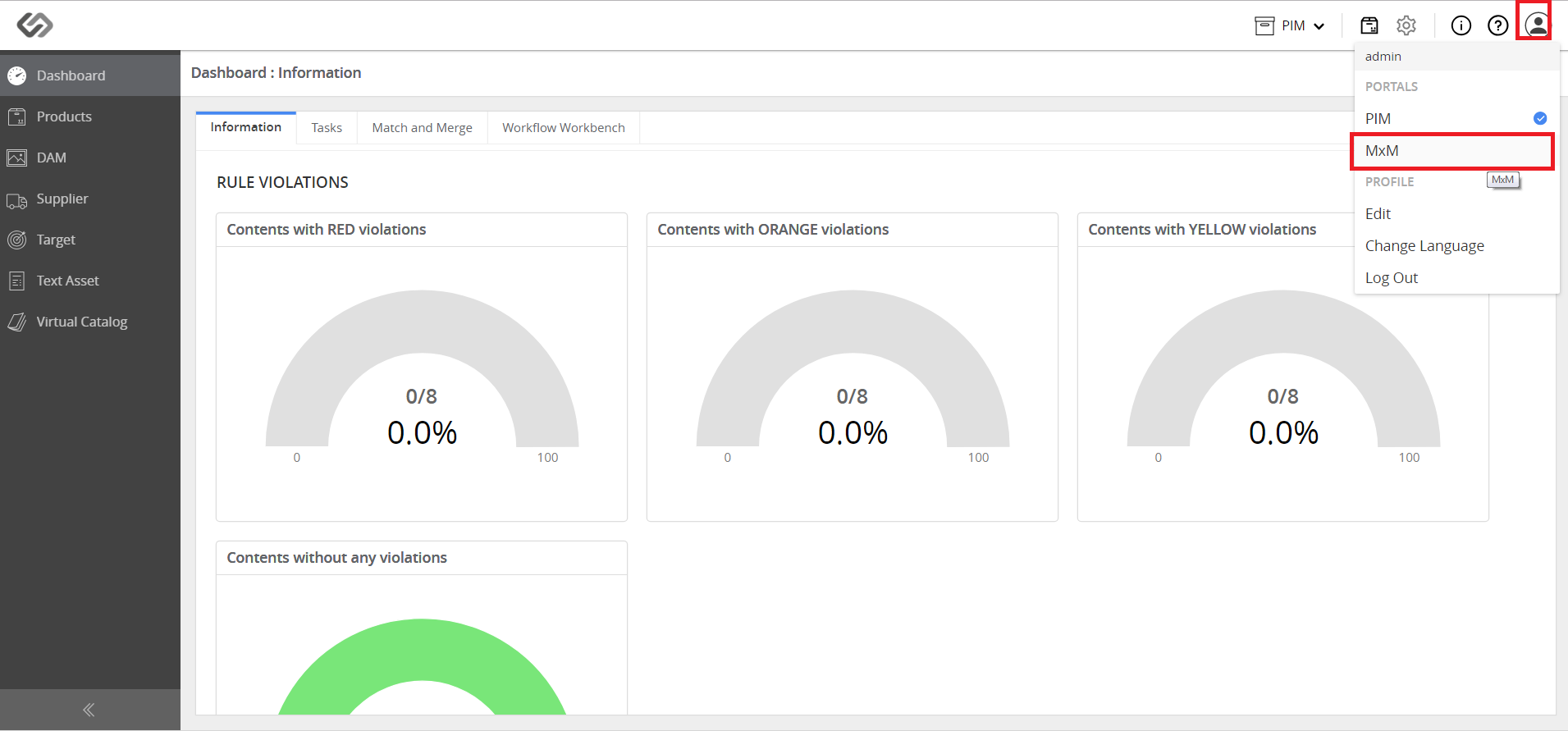
- Click on the Admin icon and select MxM option from the drop-down list.
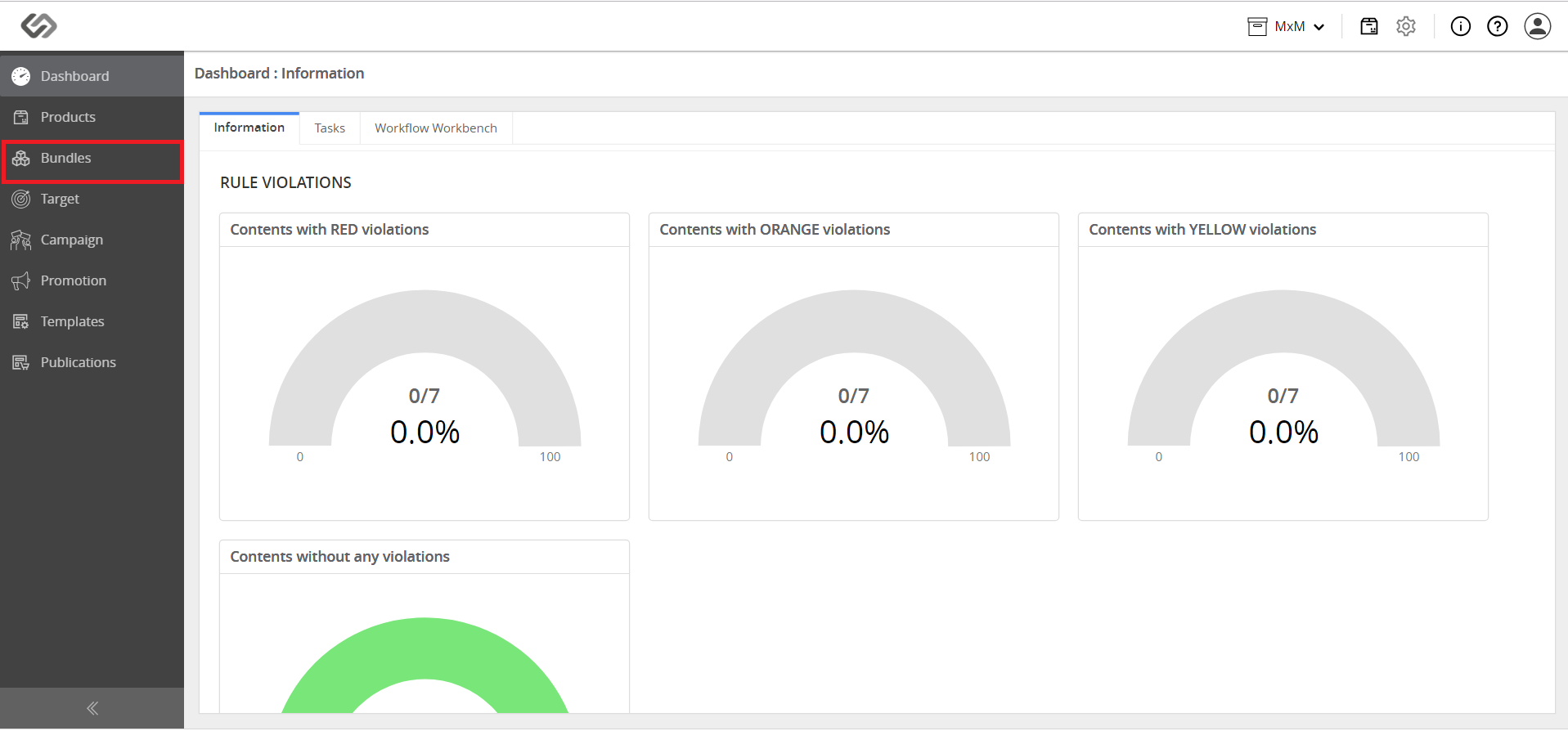
- Navigate to Bundles menu on left side panel.
- Click on Create drop-down and select the created Promotional Set class to make the set of Marketing Products.
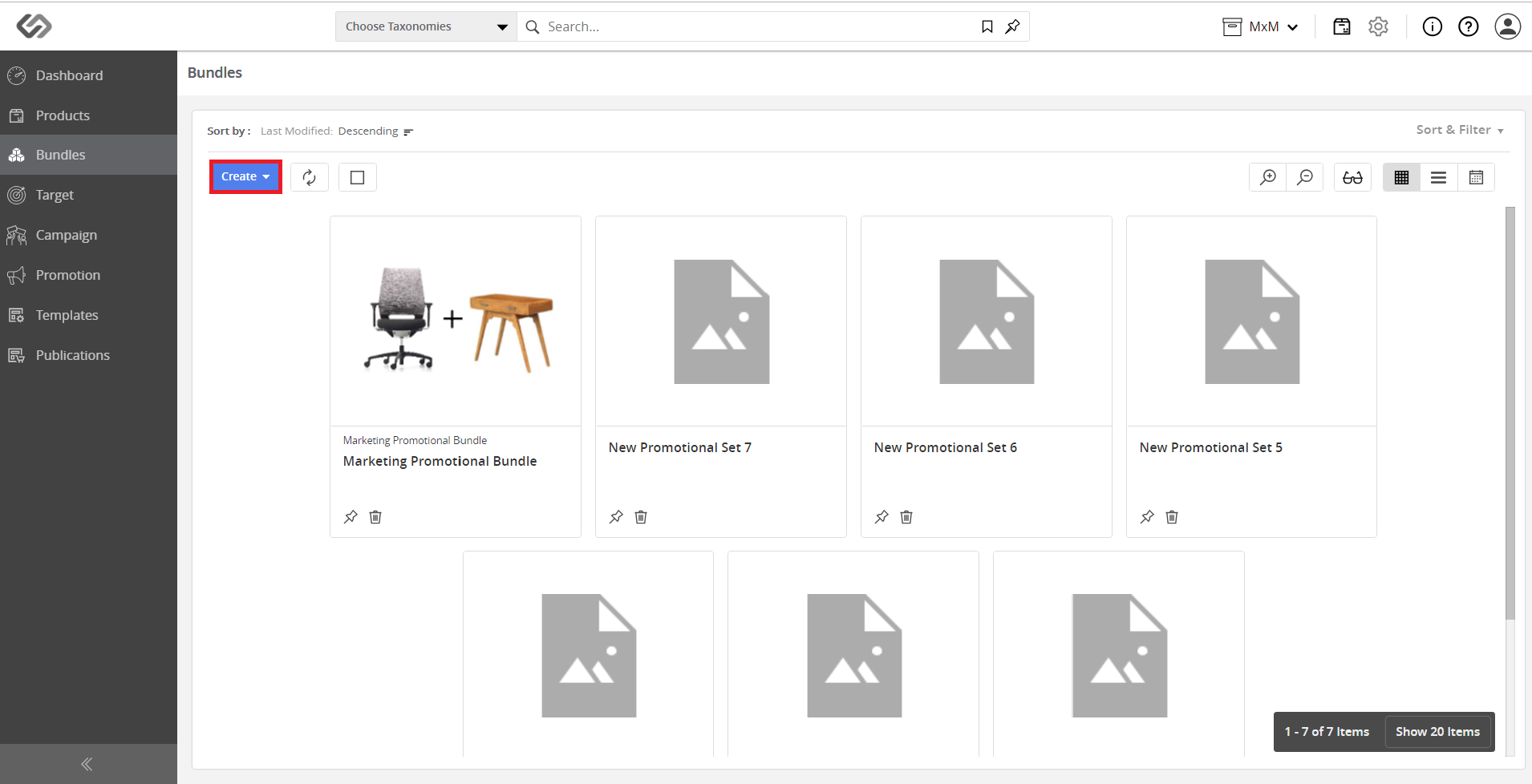
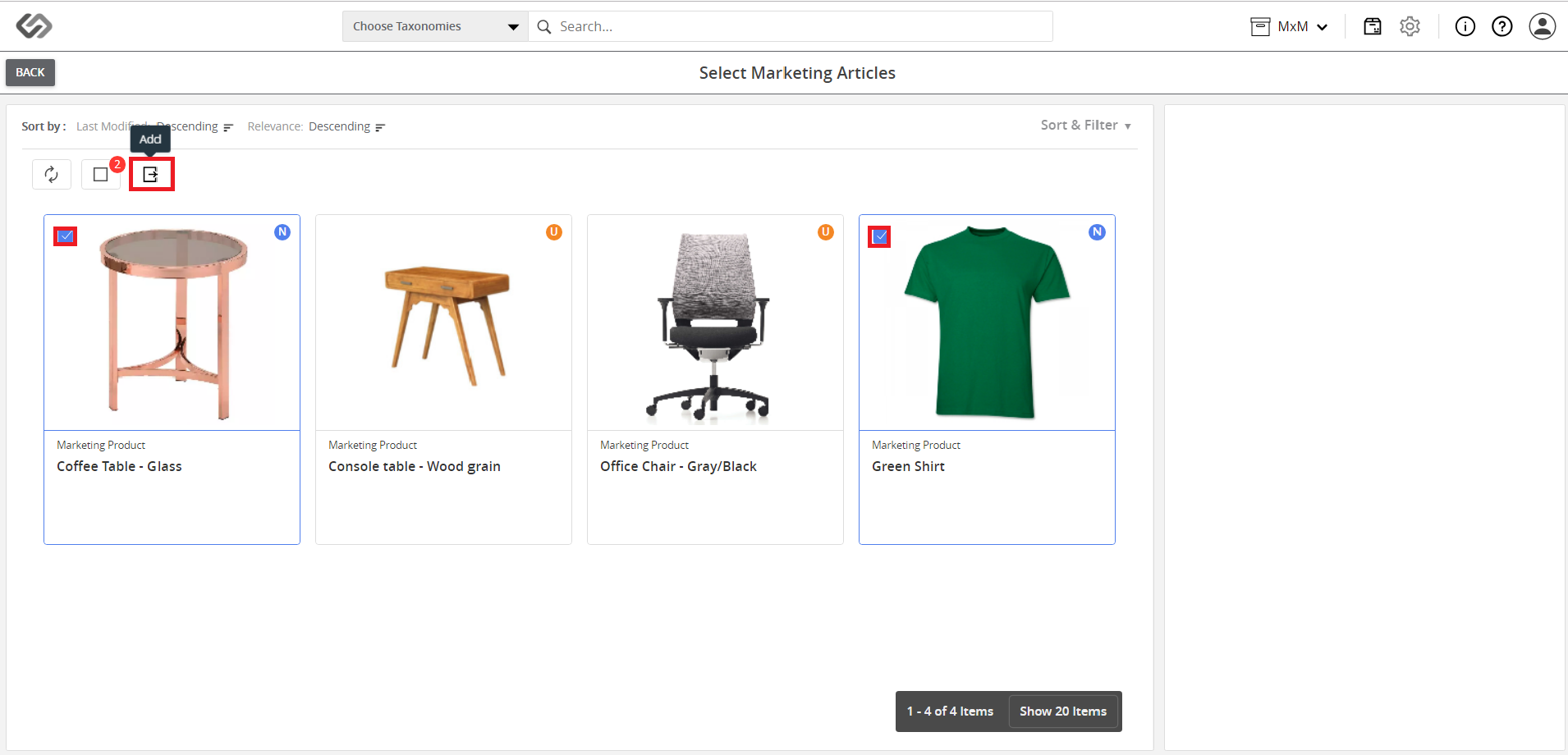
- A window appears from where you can selectthe multiple products, and add them to a promotional set. Select the products and click on the Add icon.
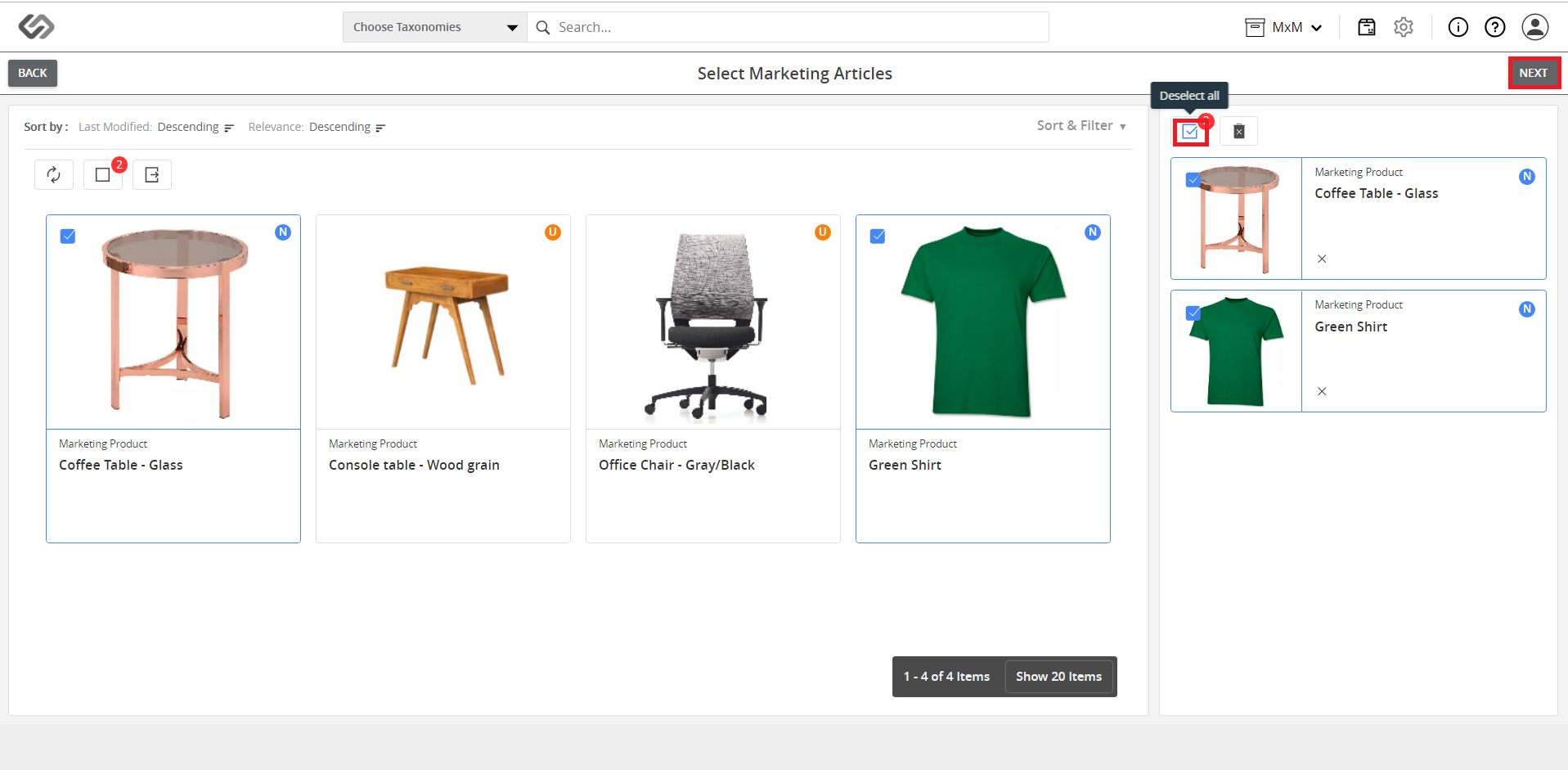
- The products are added on the right side. Click on Select all icon and click on Next.
- View the filters based on the units of different products. View the availability of selected products in different sales units.
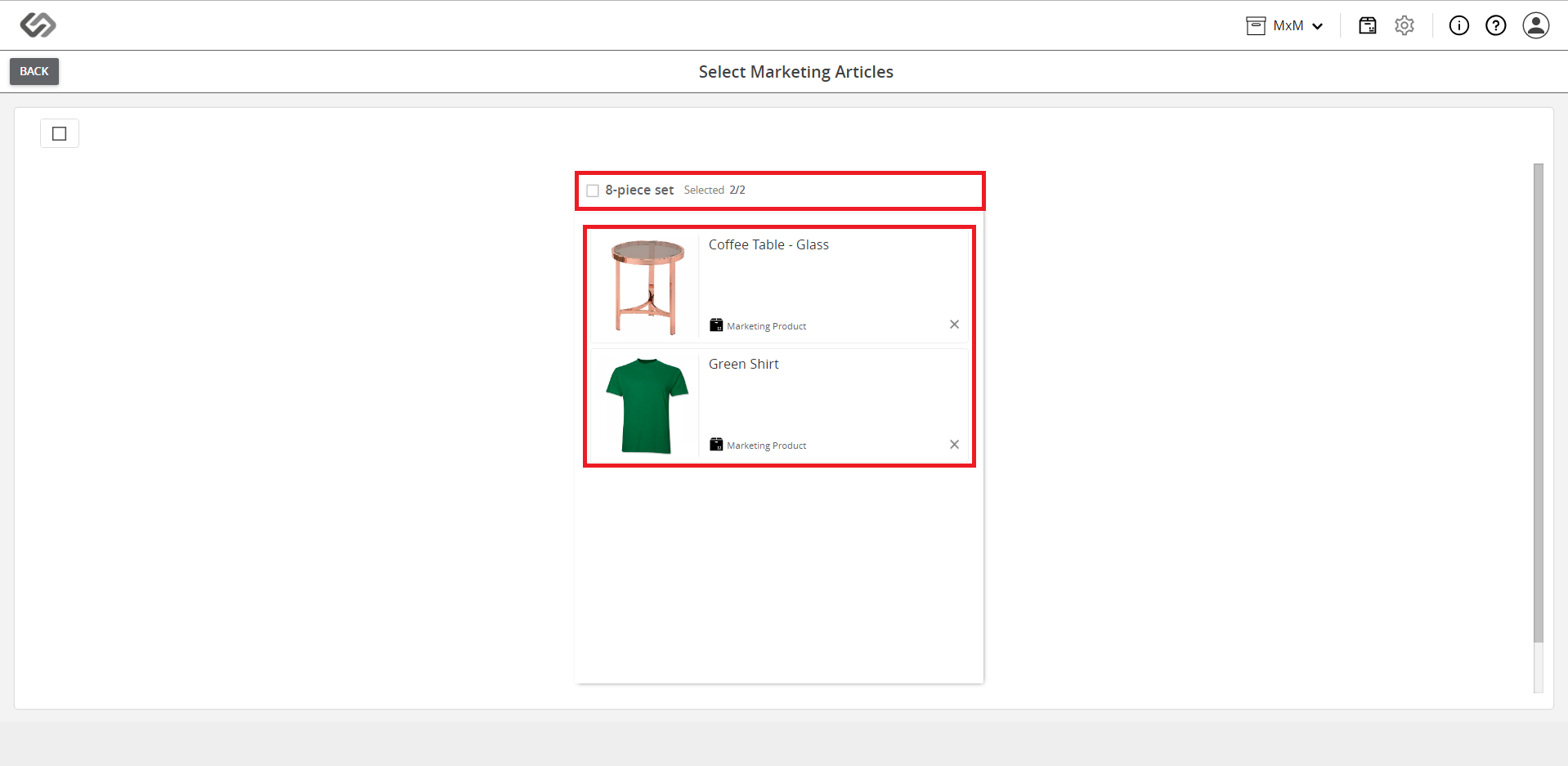
- Select a unit for the promotional set of the selected products. This will make a promotional set of products in the same sales unit. Once you select the unit, click on the Create button to create a promotional set.
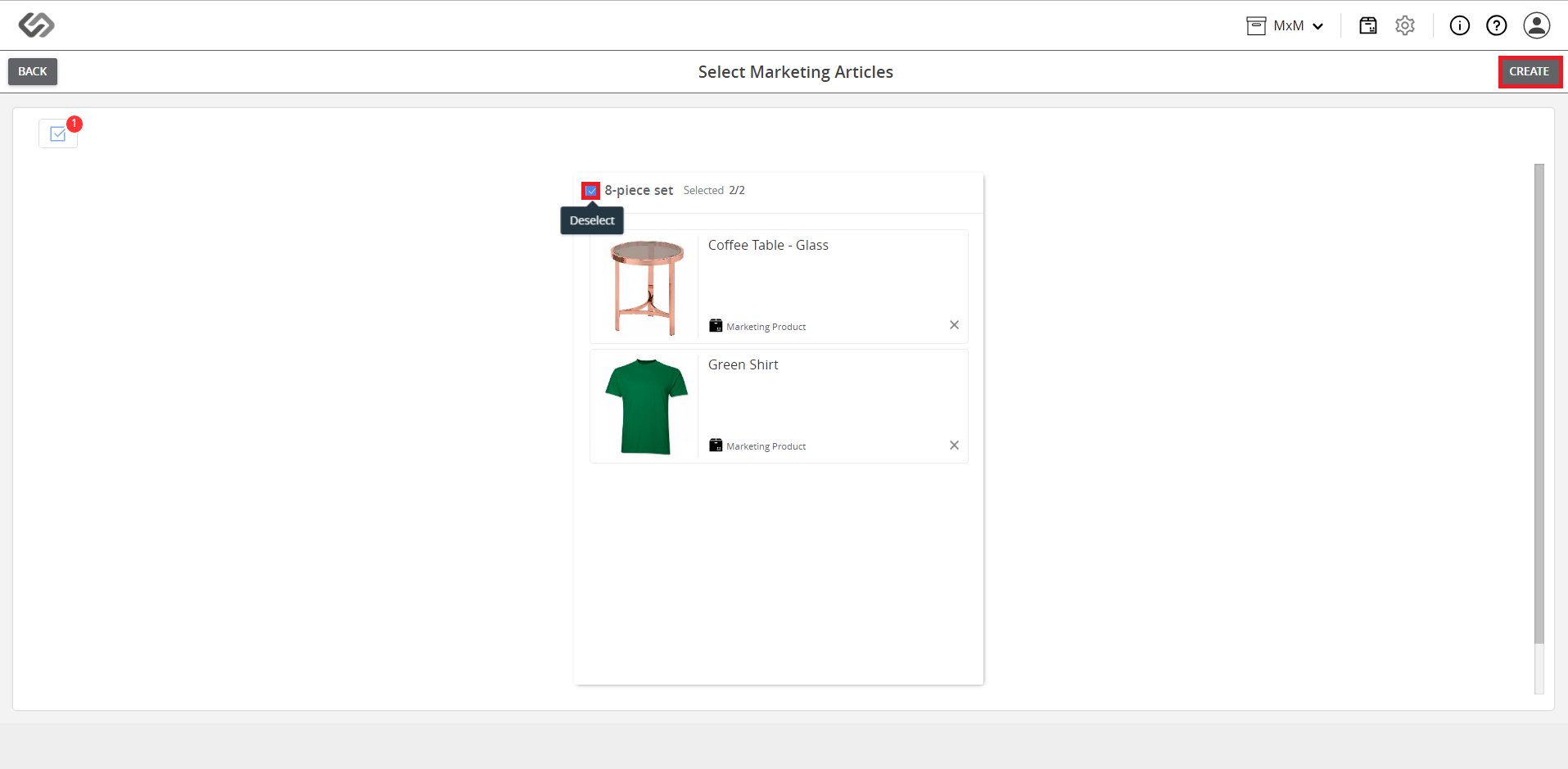
- See the created promotional set in the list.
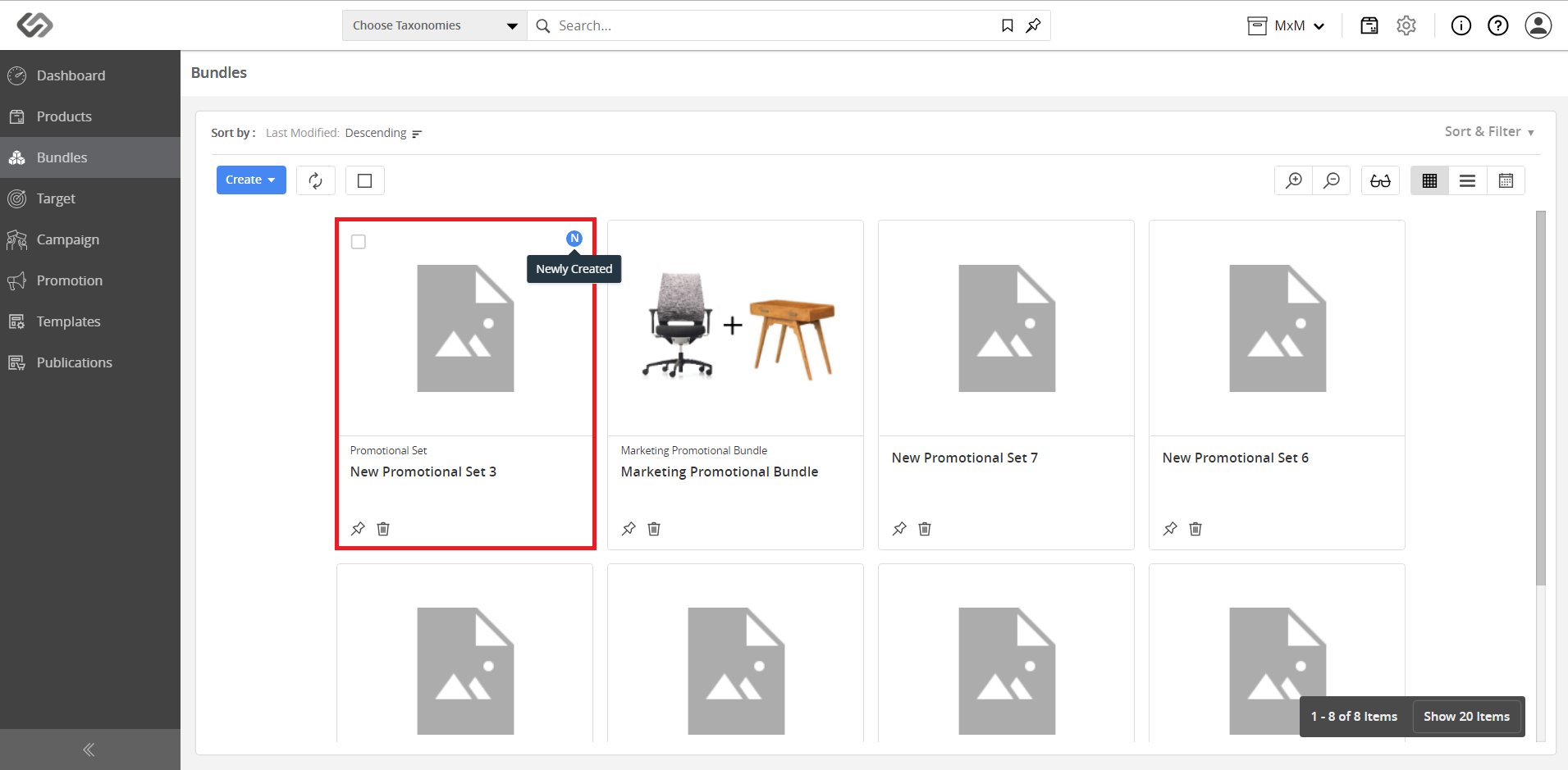
Promotional Set in Content Open View
To do this, follow these steps:
- Click on the created promotional set and see the content open view.
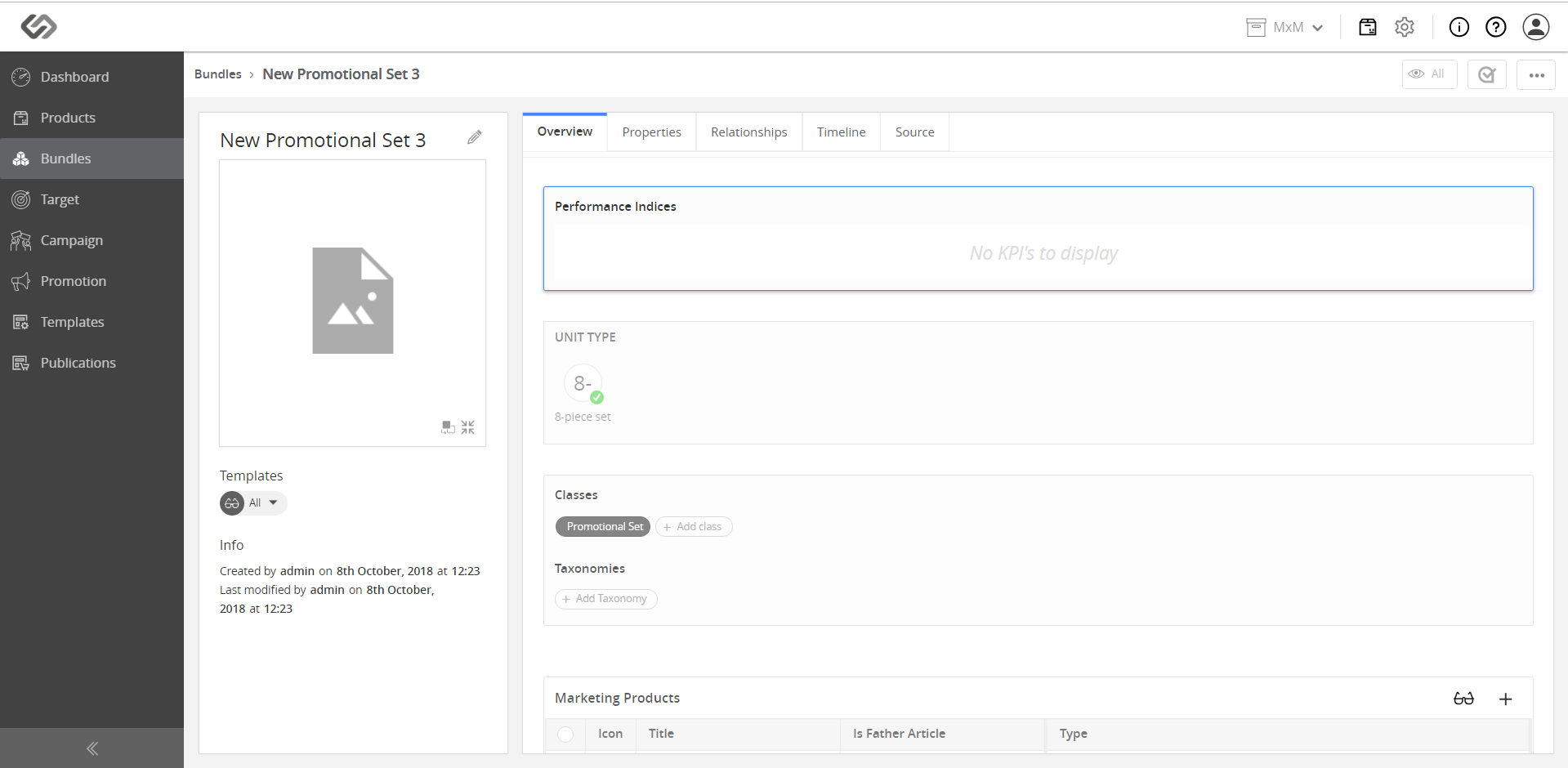
- Enter a name for a promotional set by clicking on the Edit icon.
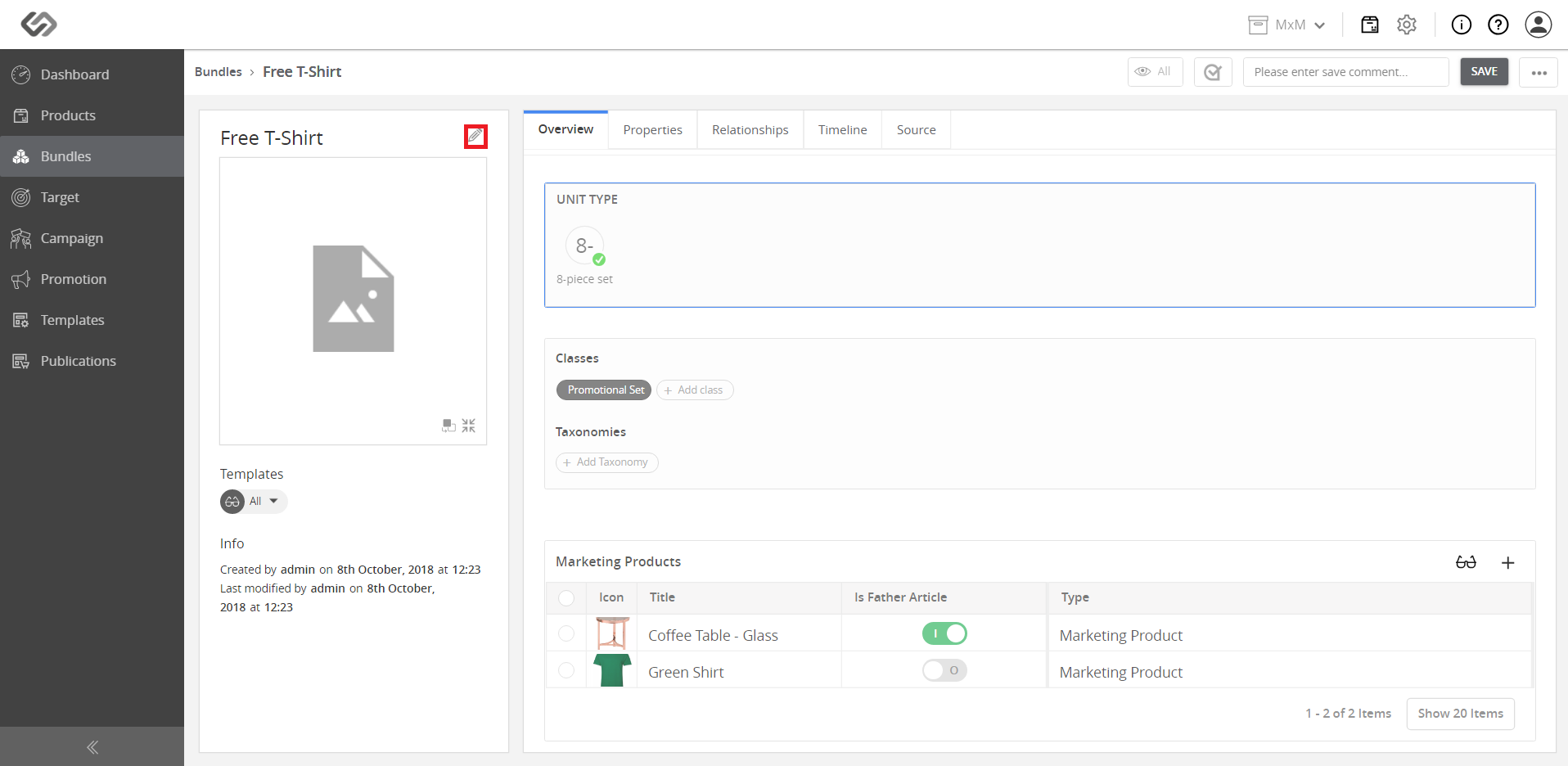
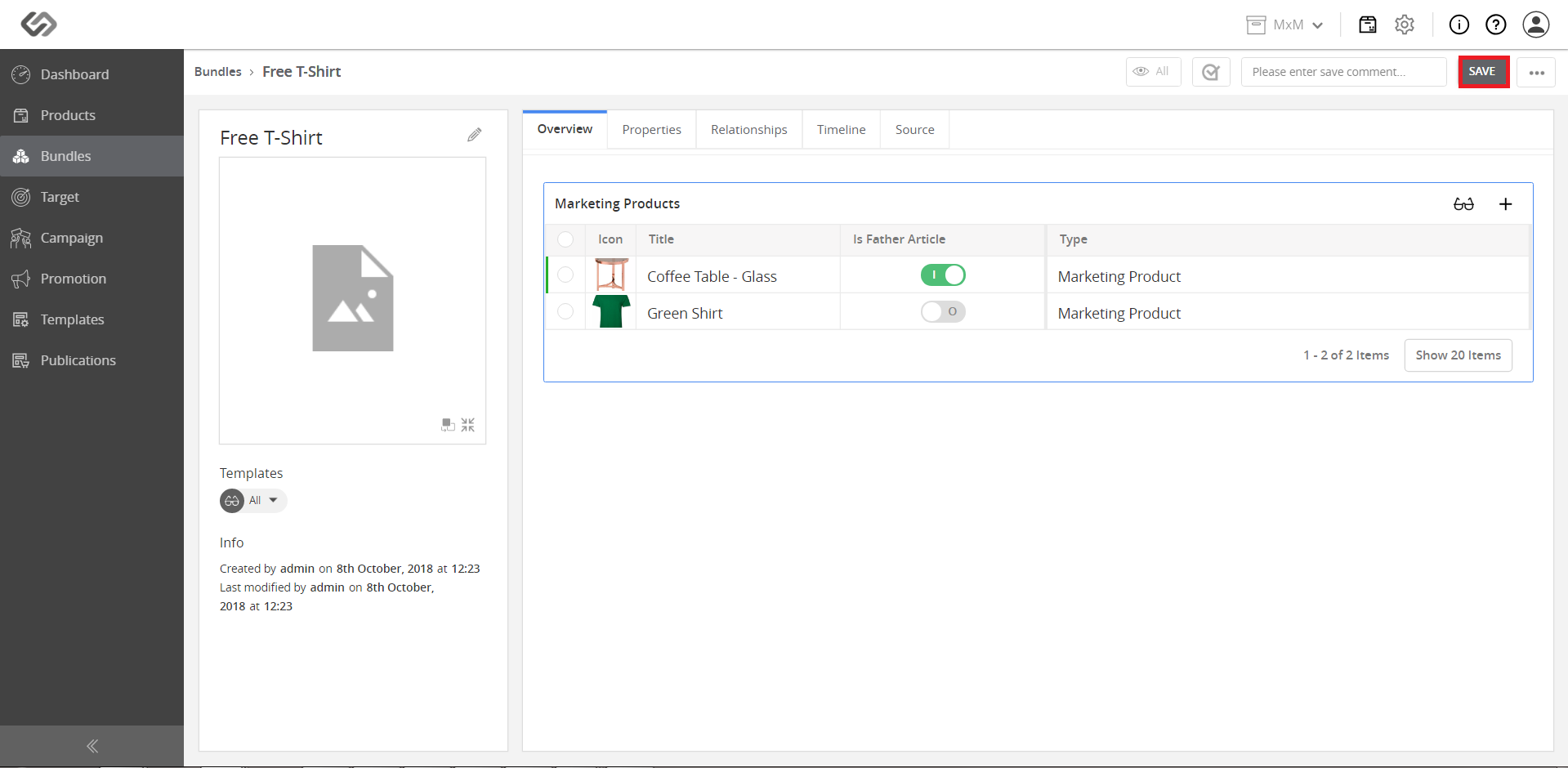
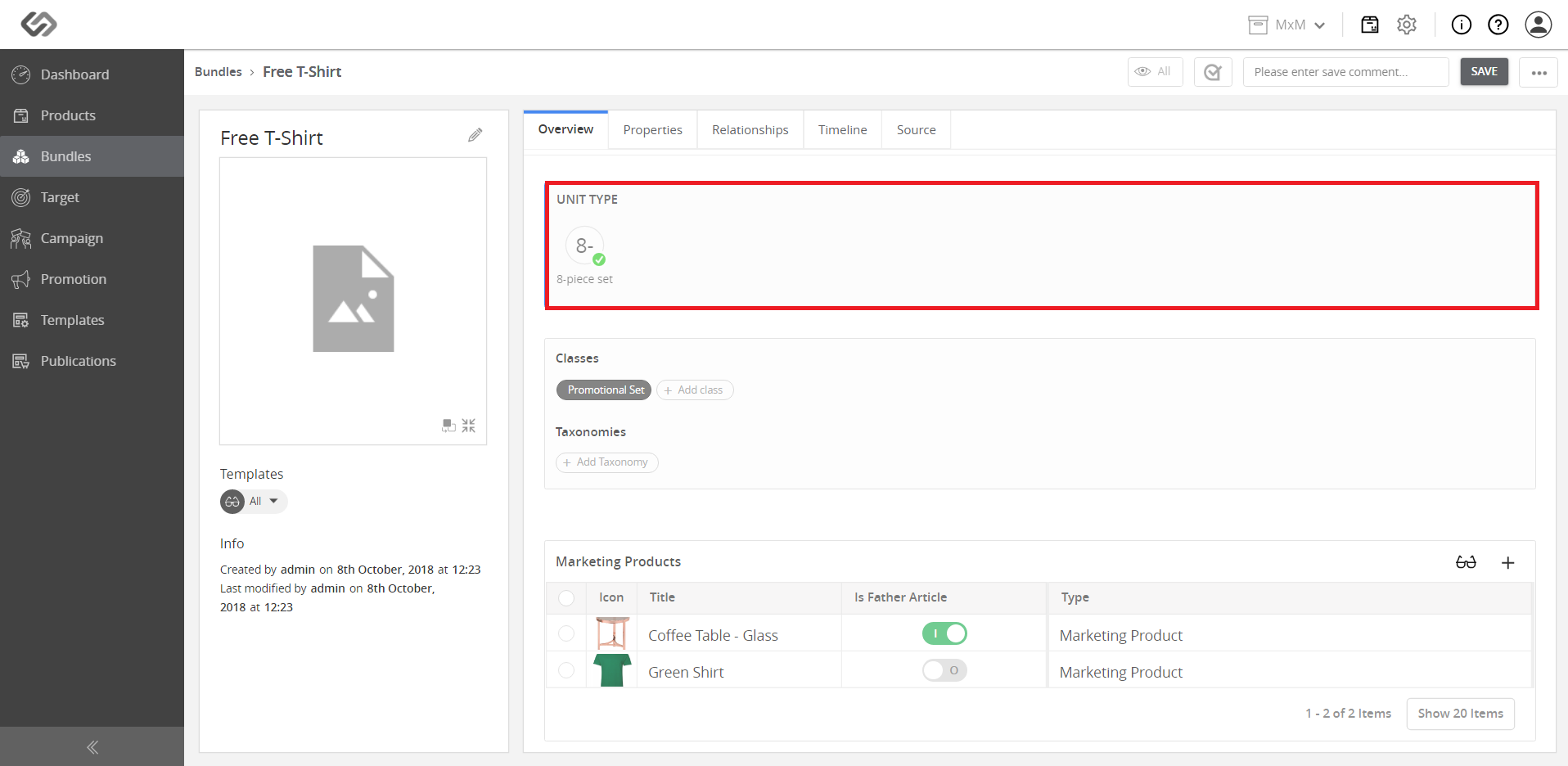
- In the Overview tab of a content view, the created unit will be a promotional set of products for this unit.
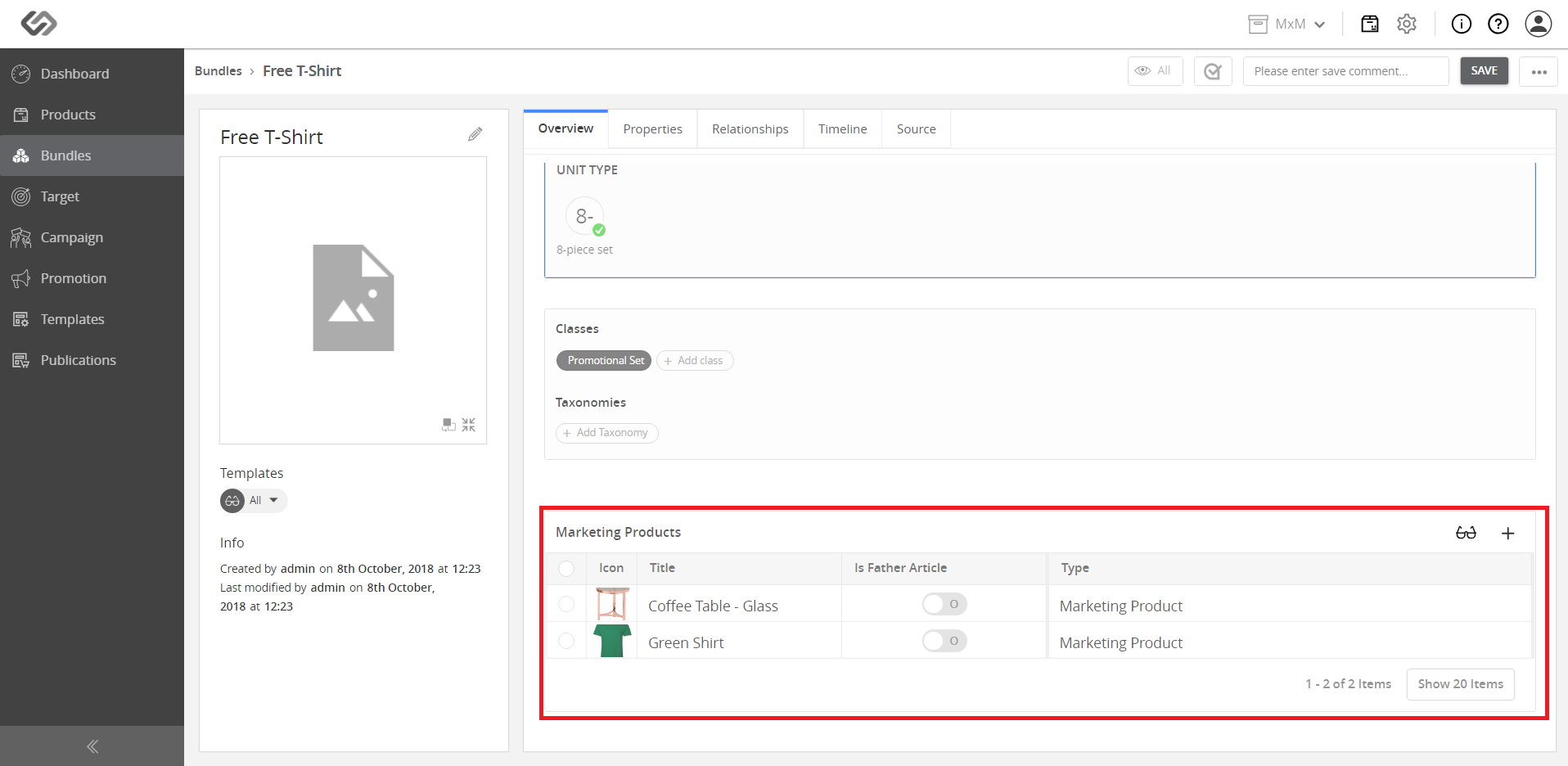
- See all promotional set products in the Marketing Products section.
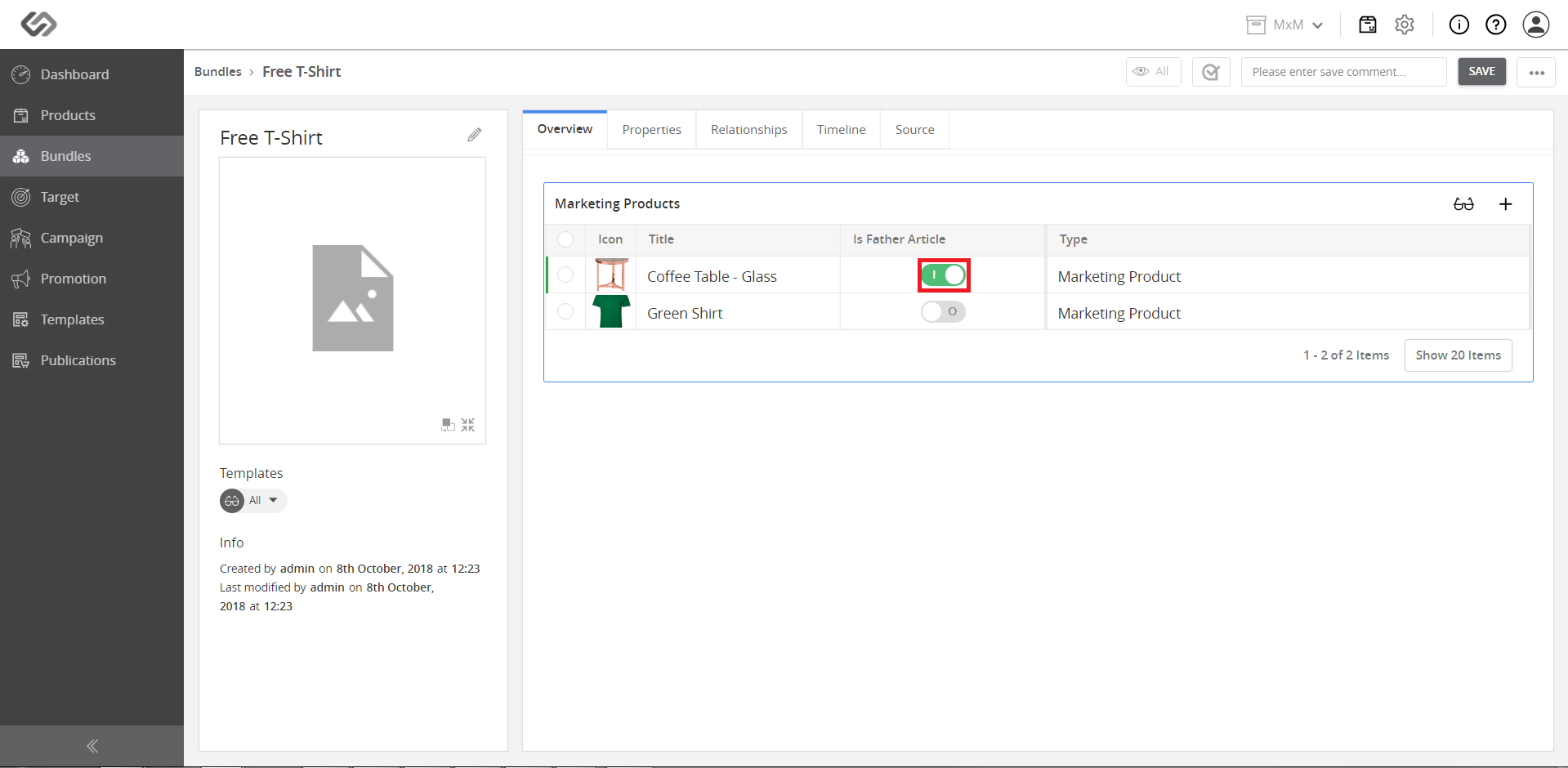
- In the Overview tab, select any product from the Marketing Products section as a father article.
- Click on the Save button once all the changes in the set are made.