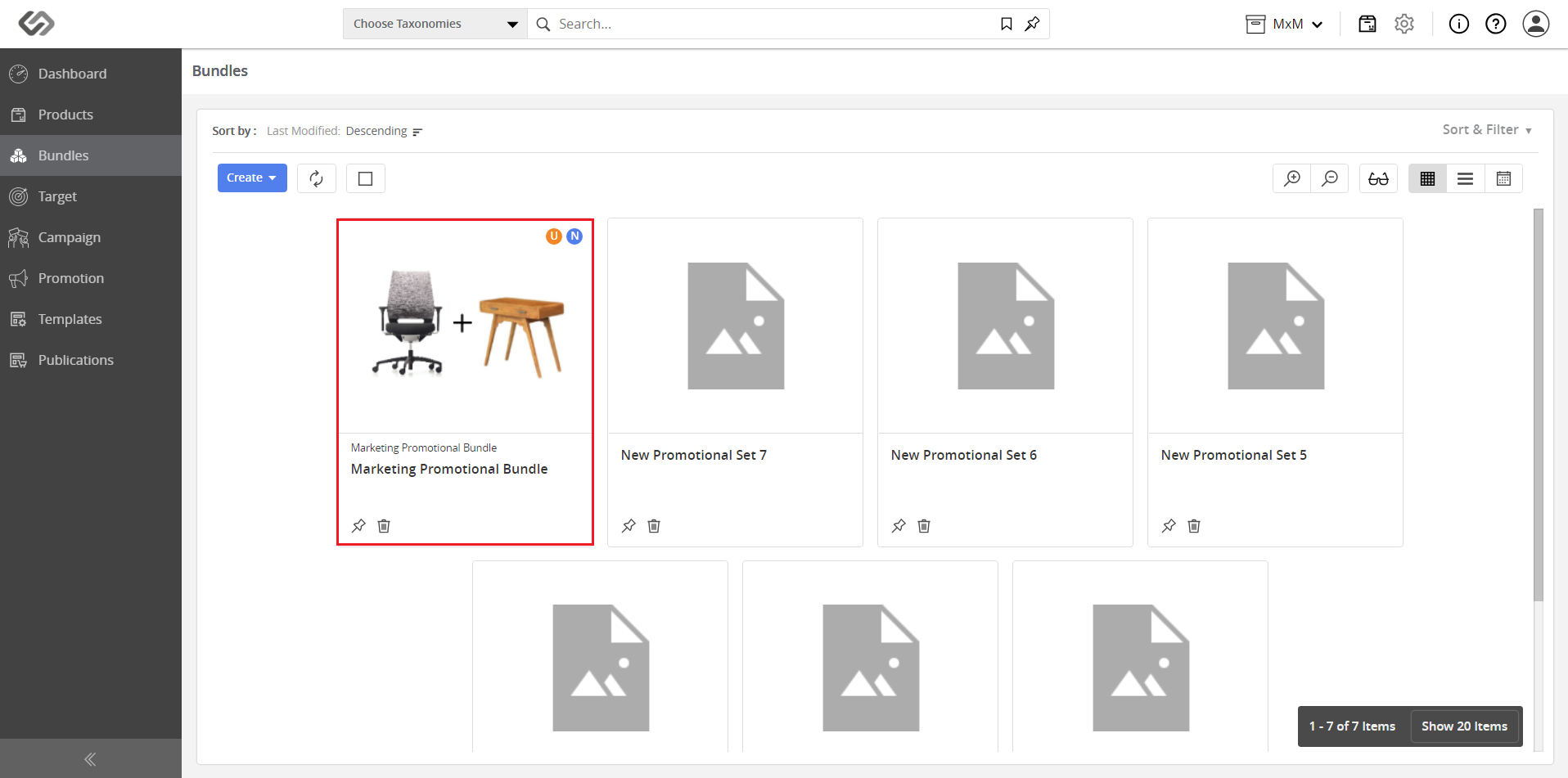
Promotional Bundle
A bundle is a set of multiple Marketing Products that are put together to form a bundle. It offers several products for sale as one combined product. The bundle may contain complementary products and is used for promotion and marketing of your business products. You can sell a set of products at a lower price compared to the total cost of all the included items. Bundling allows consumers to benefit from a single, value-oriented purchase of complementary offerings.
Pursuing a bundle pricing strategy allows the supplier or retailer to increase the profit by giving customers a discount when buying the bundled products. Note that the customer cannot choose to buy only some of the items from the bundle. For example, a retailer offers a promotional bundle for women, and this bundle consists of a tunic wear, a bag, and a pair of shoes. A customer needs to purchase this bundle as a whole. A retailer can sell this bundle at a lower cost compared to the cost of buying the items separately.
| Purpose: |
|
| Target Audience: |
|
| Prerequisites: |
|
| Key Terms: |
|
How-to: Use a Promotional Bundle
Configure a Promotional Bundle from the Administration Side
- Log in and go to Administration.
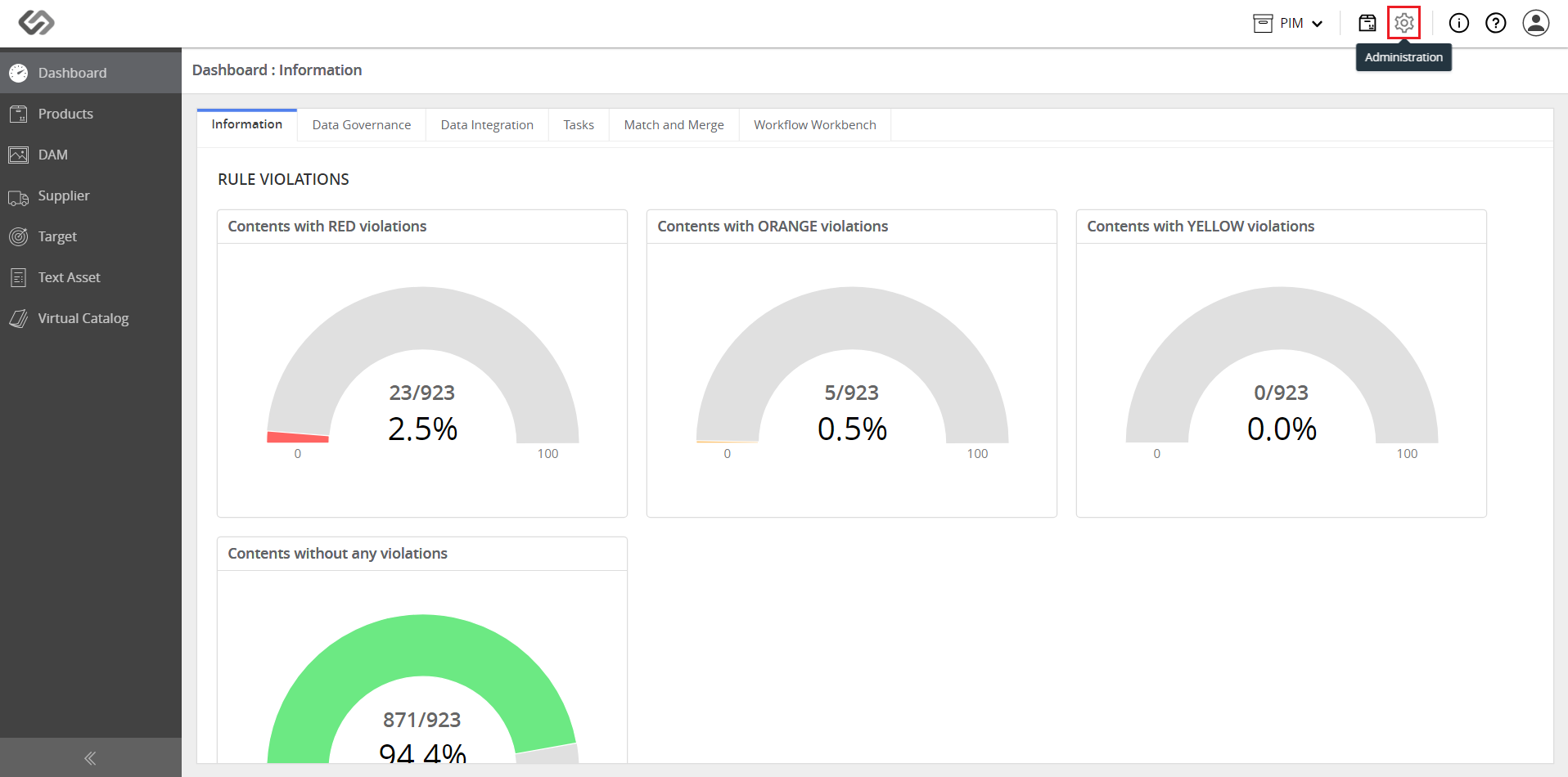
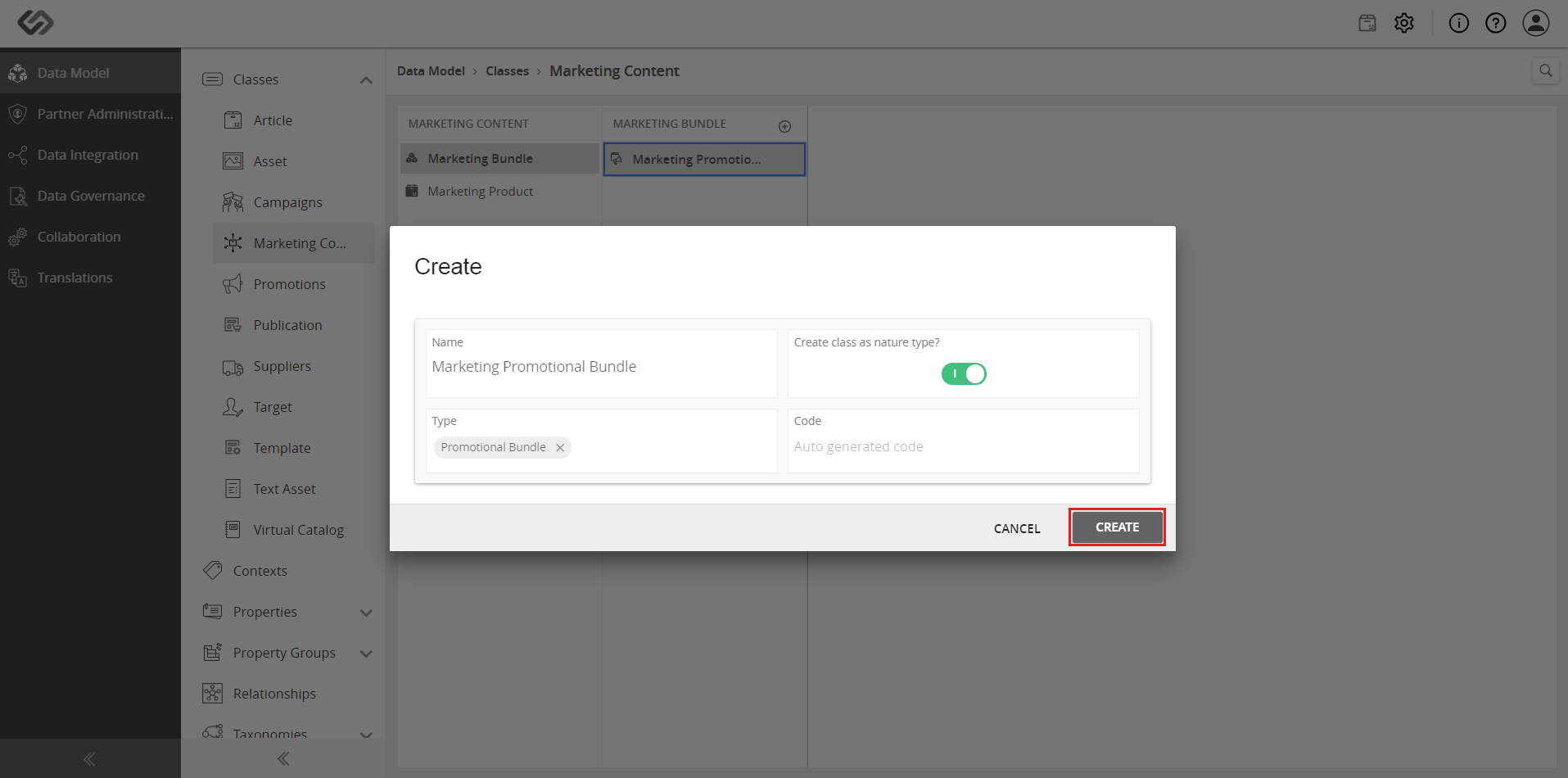
- Navigate to Data Model → Classes → Marketing Content → Marketing Bundle menu.
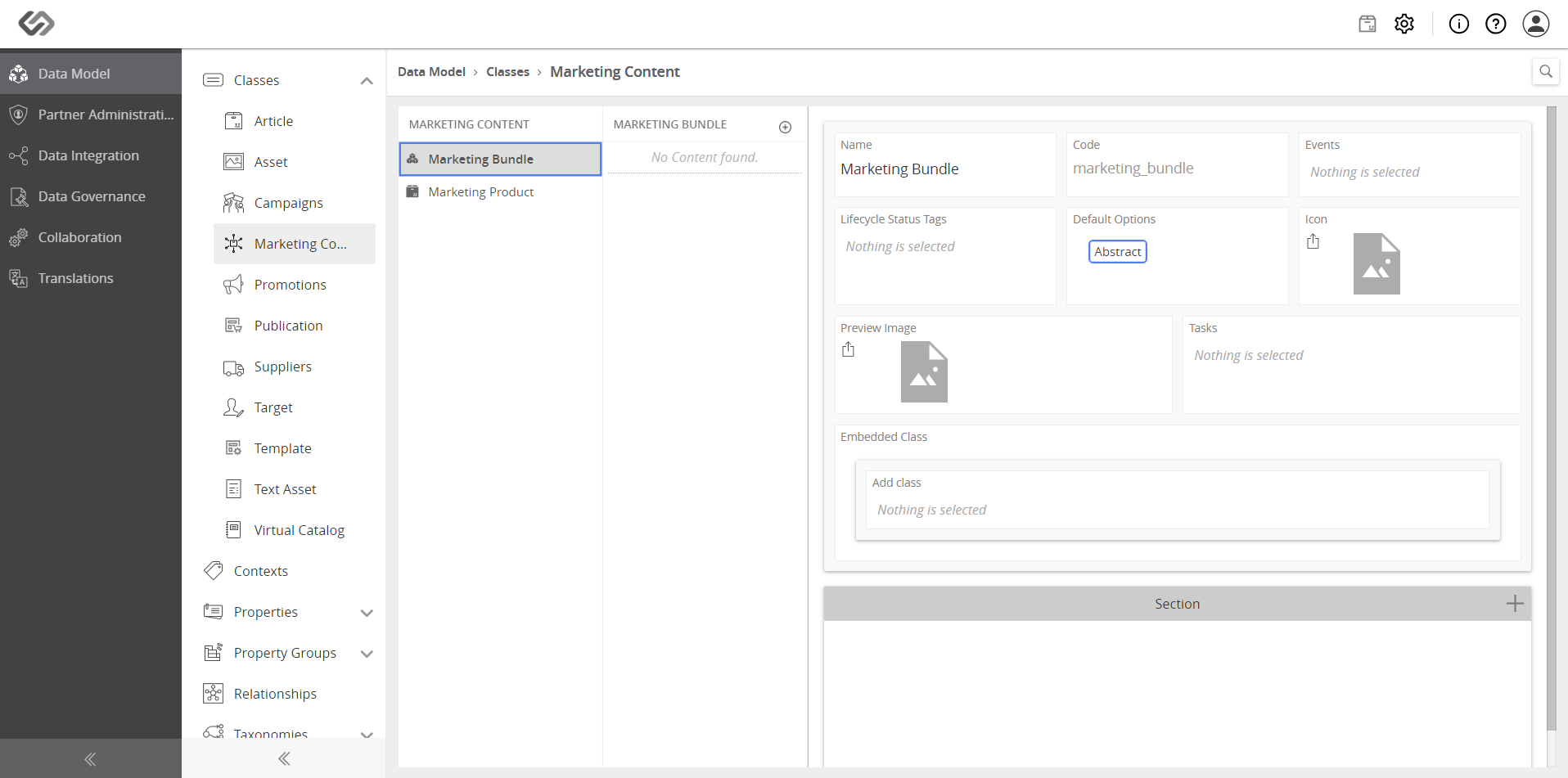
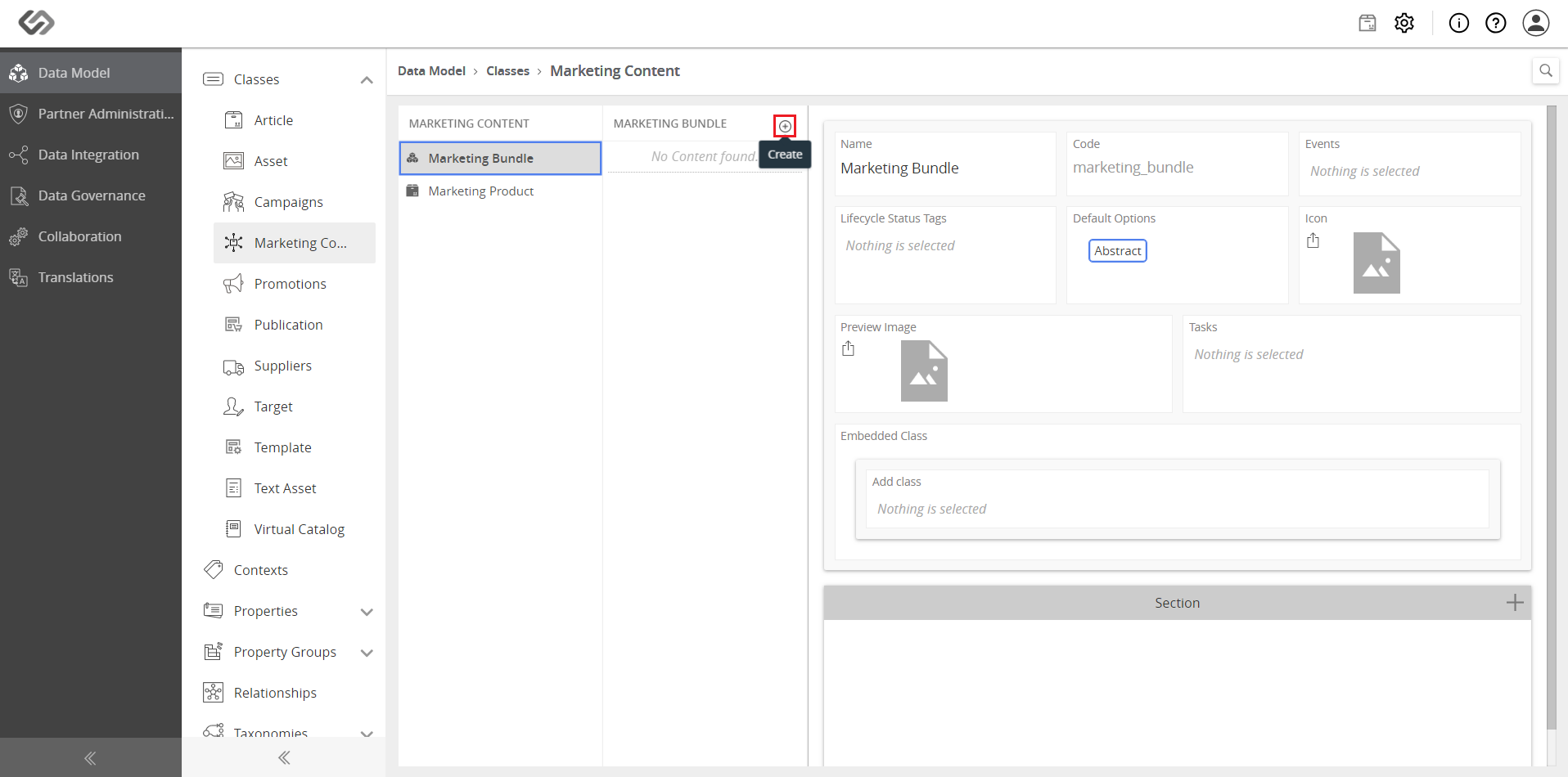
- Click on the “+” icon to create the marketing bundle.
- On the pop-up window, enter the Name and Code. Enable the slider if you want to create a nature class. Select Promotional Bundle from Type then click on the Create button.
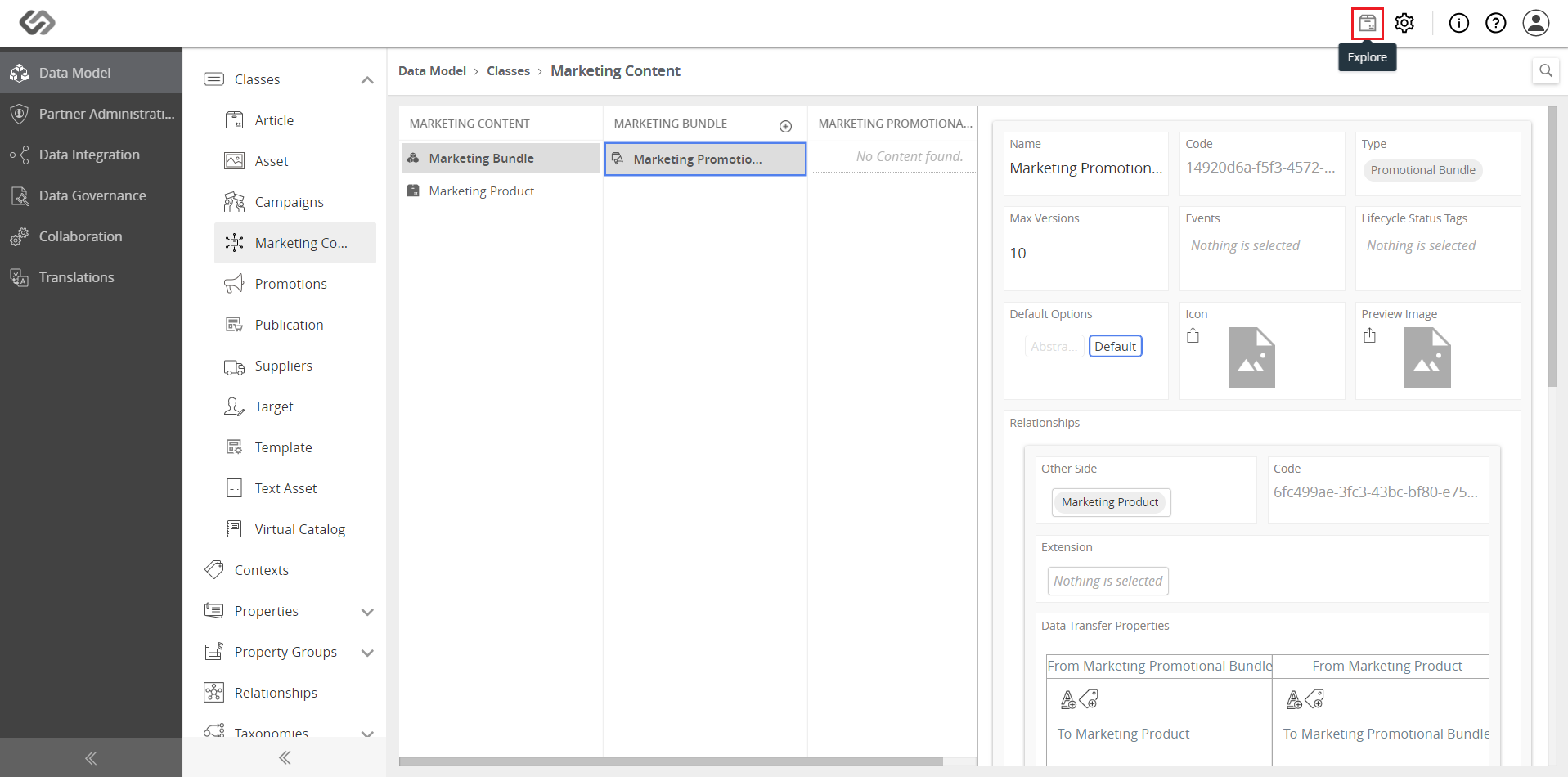
- Go to Explore to view the Dashboard.
Create a Promotional Bundle
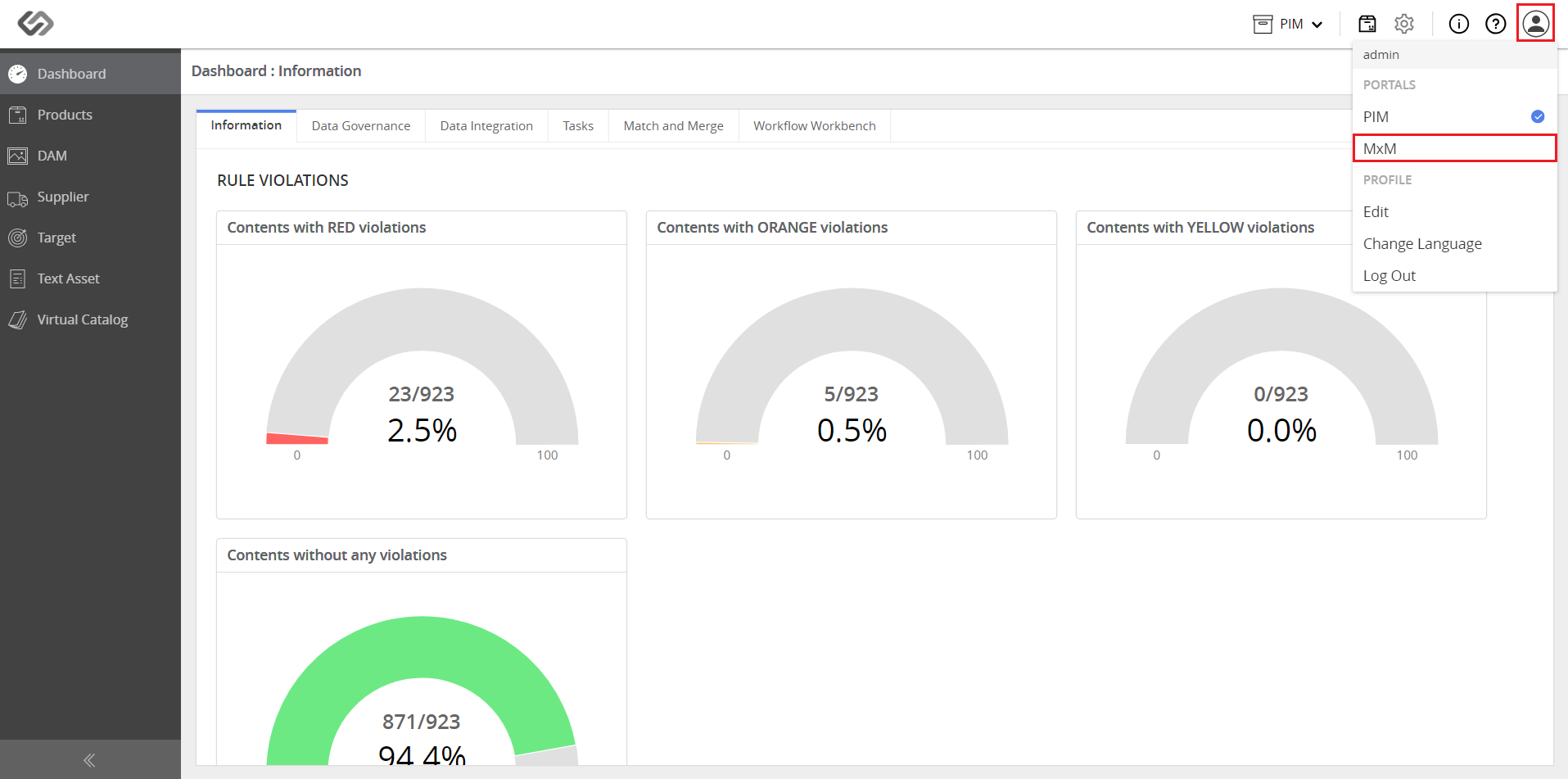
- Click on the user profile and select MxM from the drop-down list.
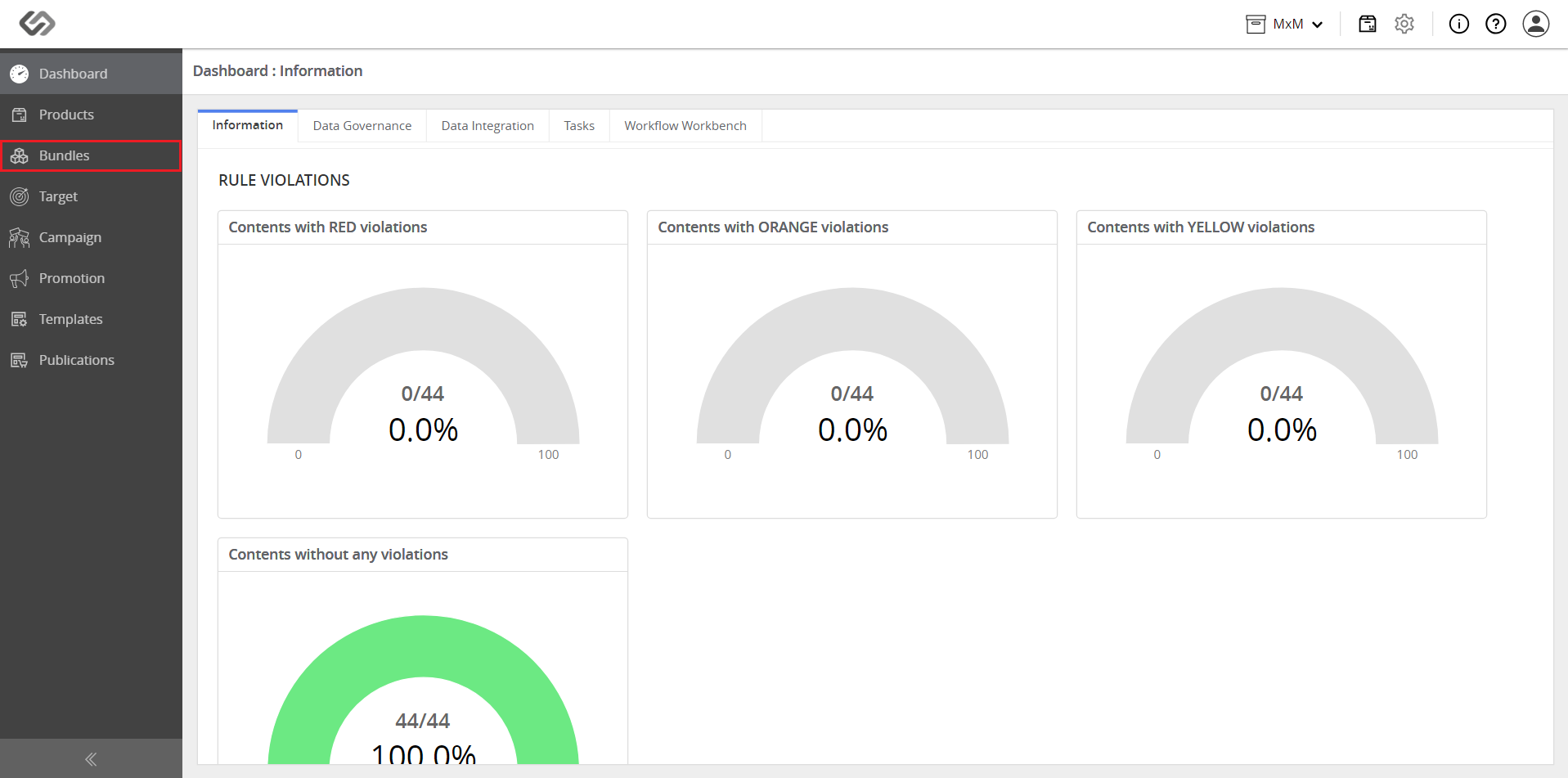
- From the left pane, click on Bundles.
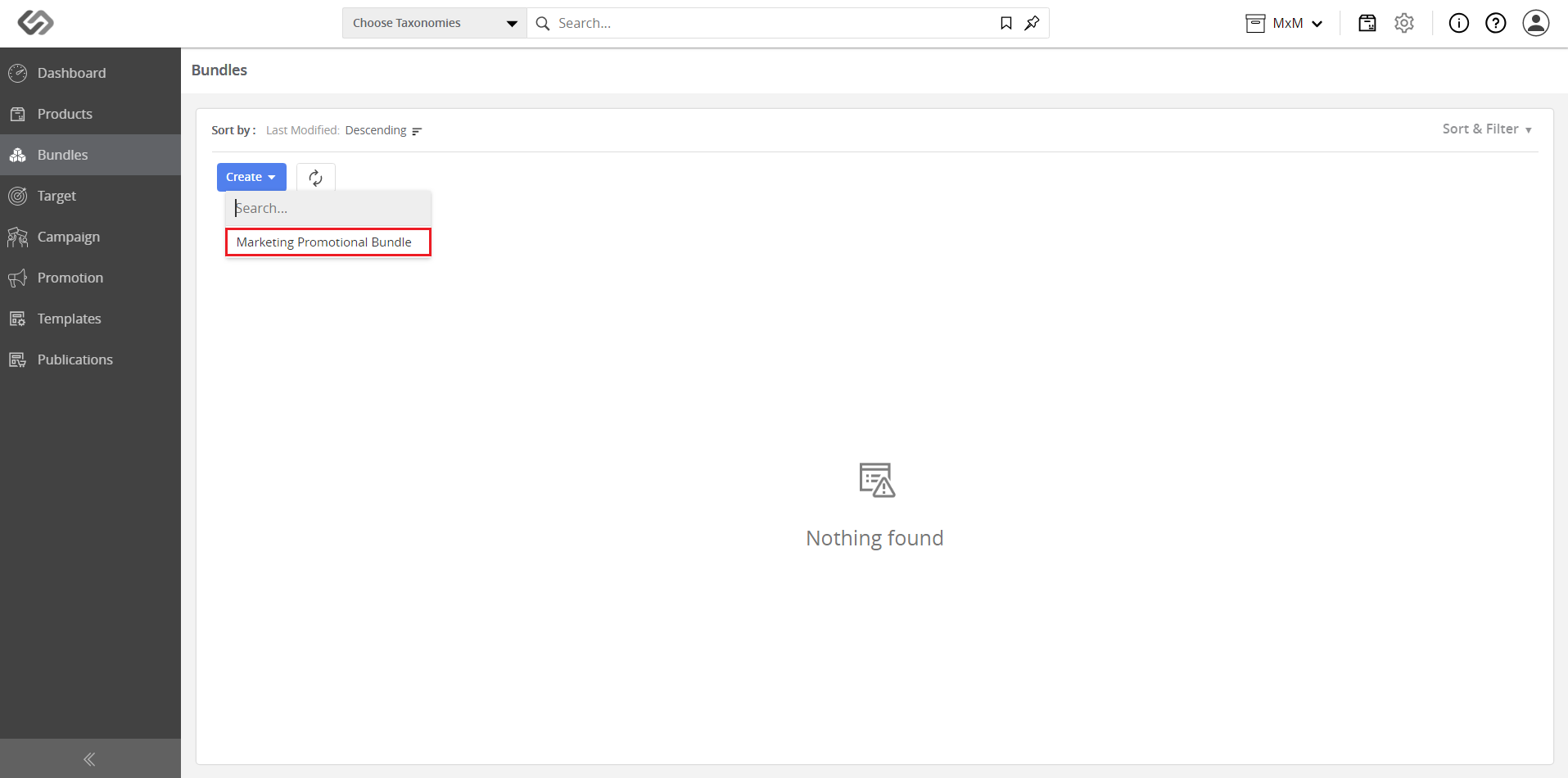
- Click on the Create drop-down menu and select the created Marketing Bundle class to make a bundle out of Marketing Products.
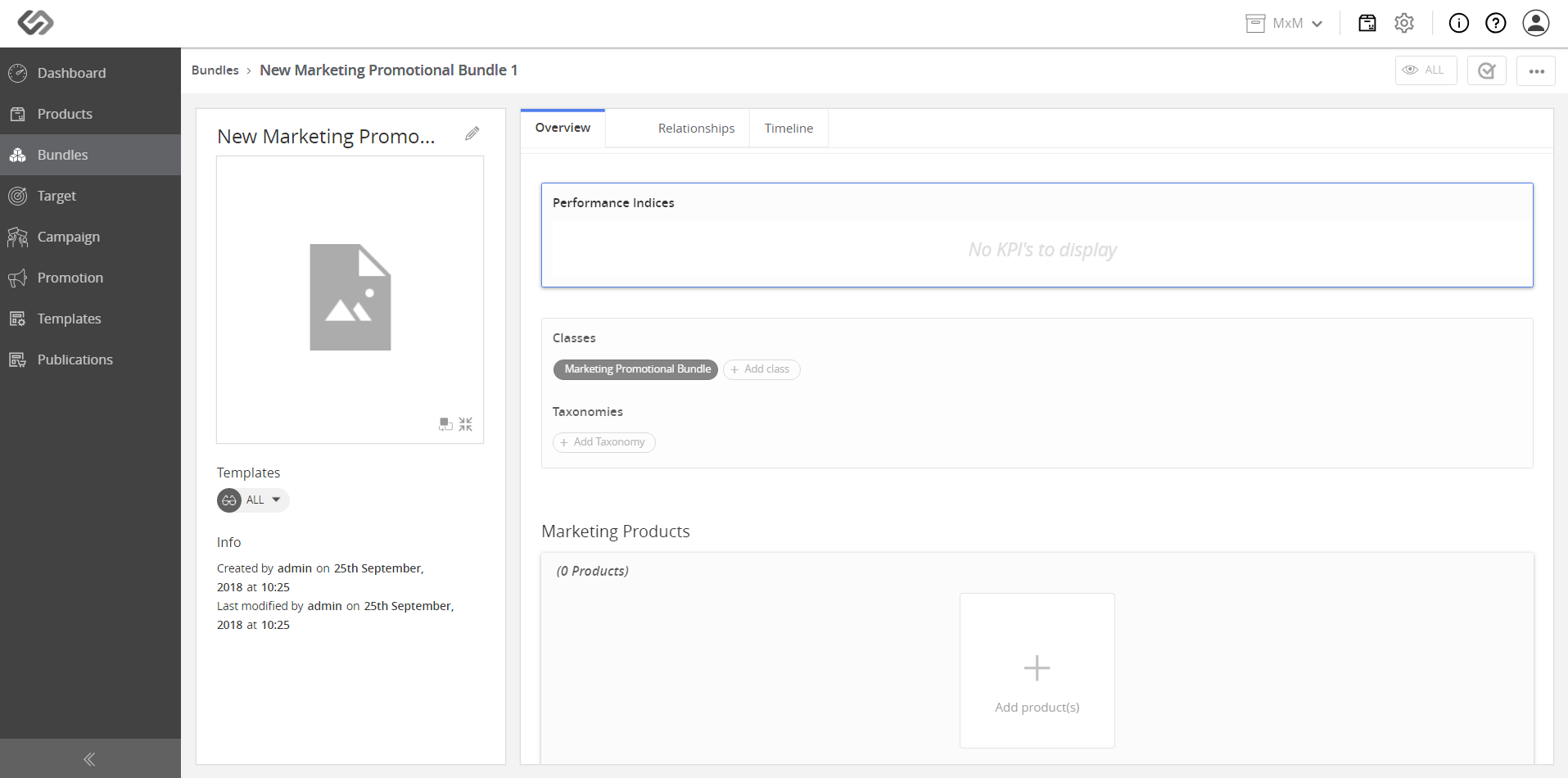
- New bundle is created and you will be redirected to the content open view for a bundle.
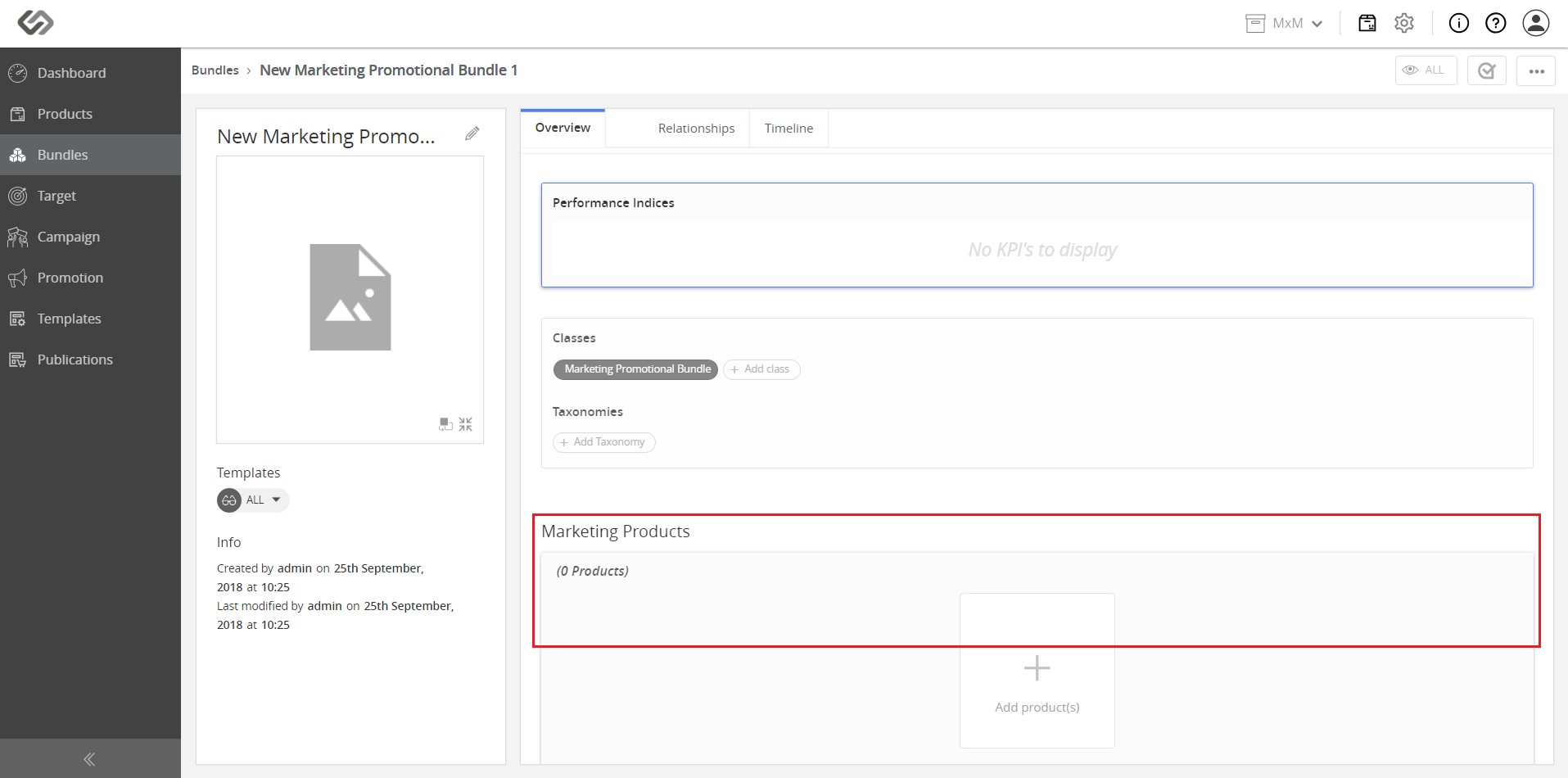
- In the Marketing Products section under the Overview tab, add products to make a promotional bundle.
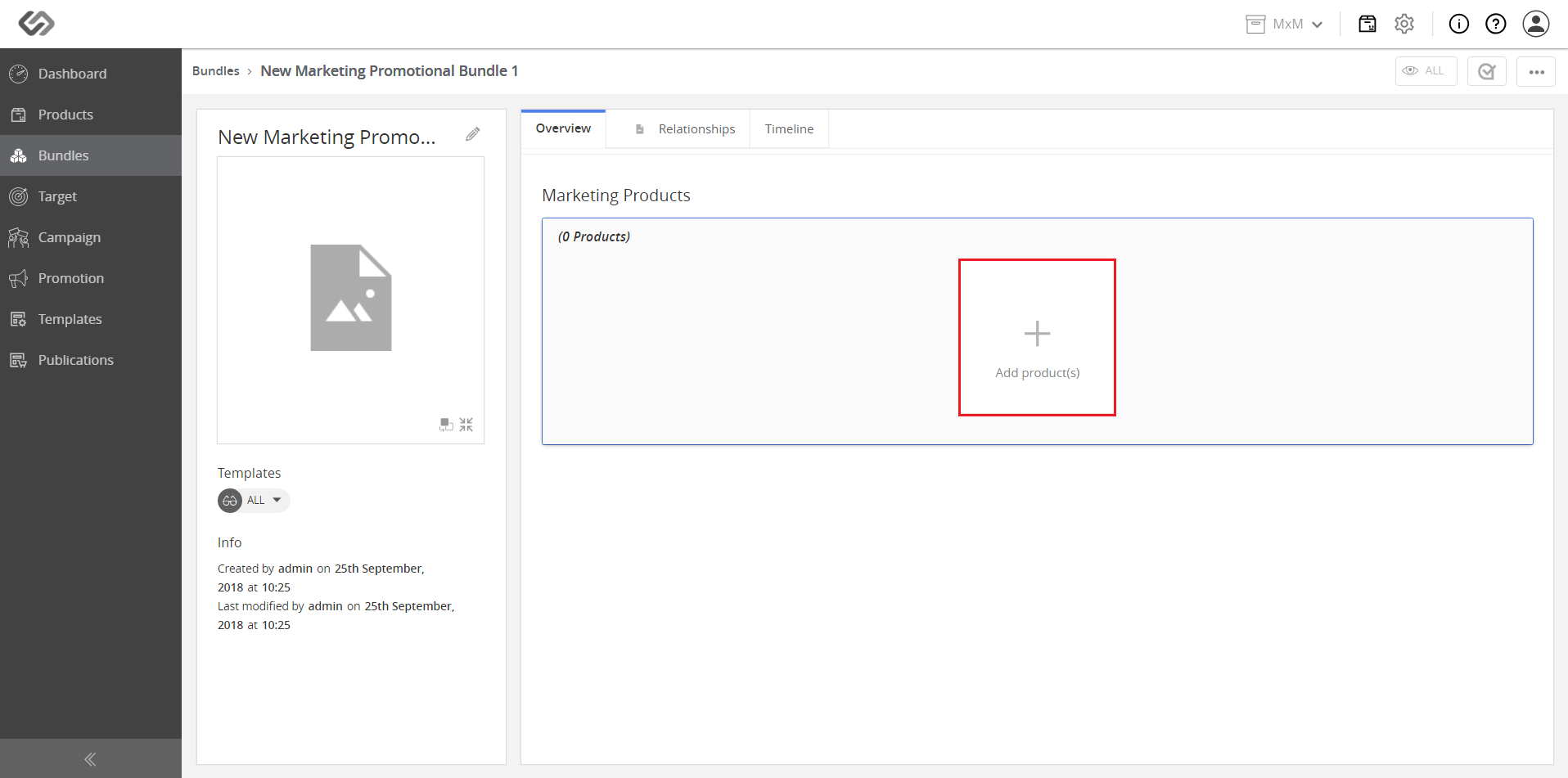
- Click on the Add Product(s) icon.
- Select the Marketing Products that you want to add to the bundle.
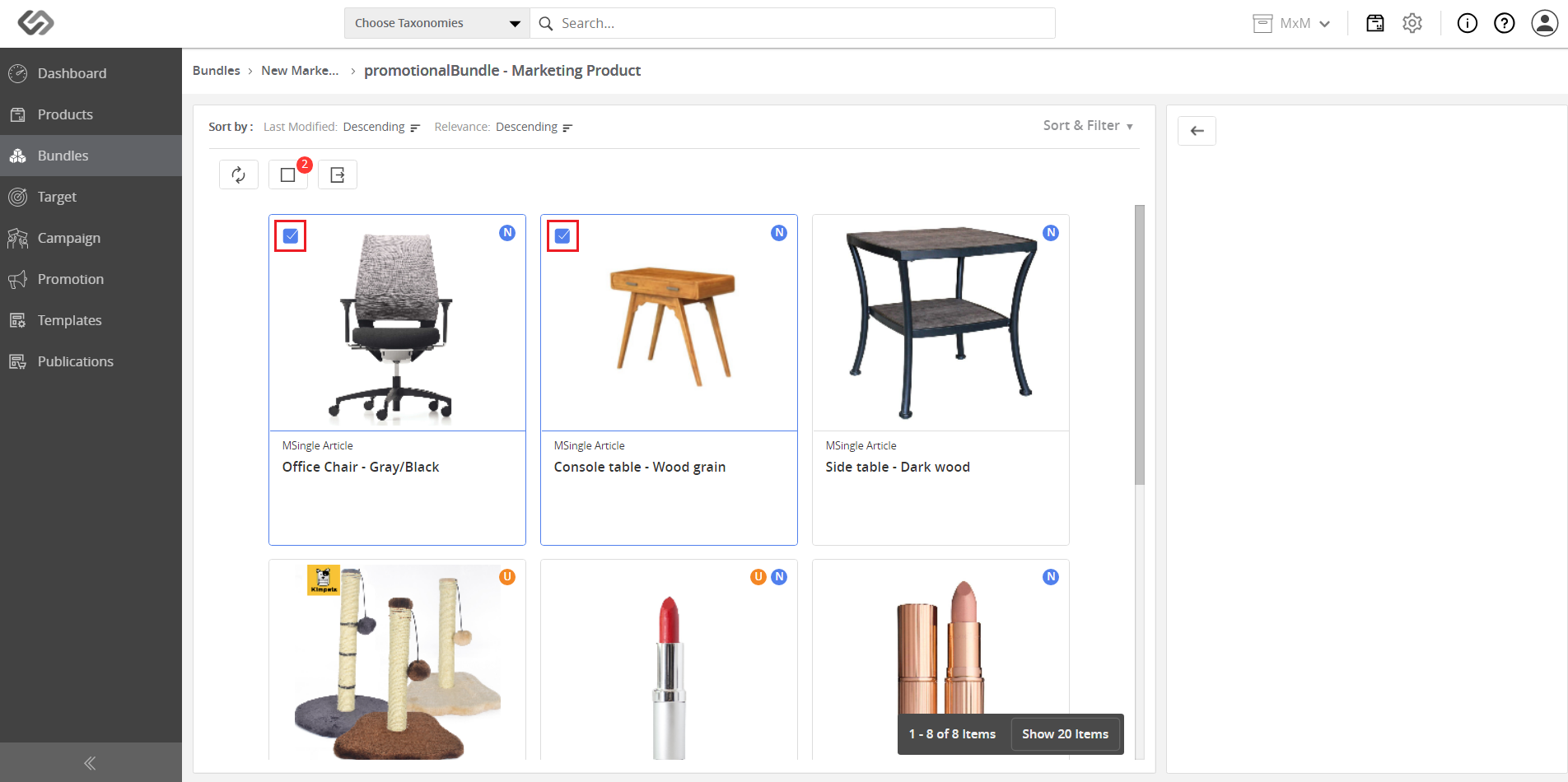
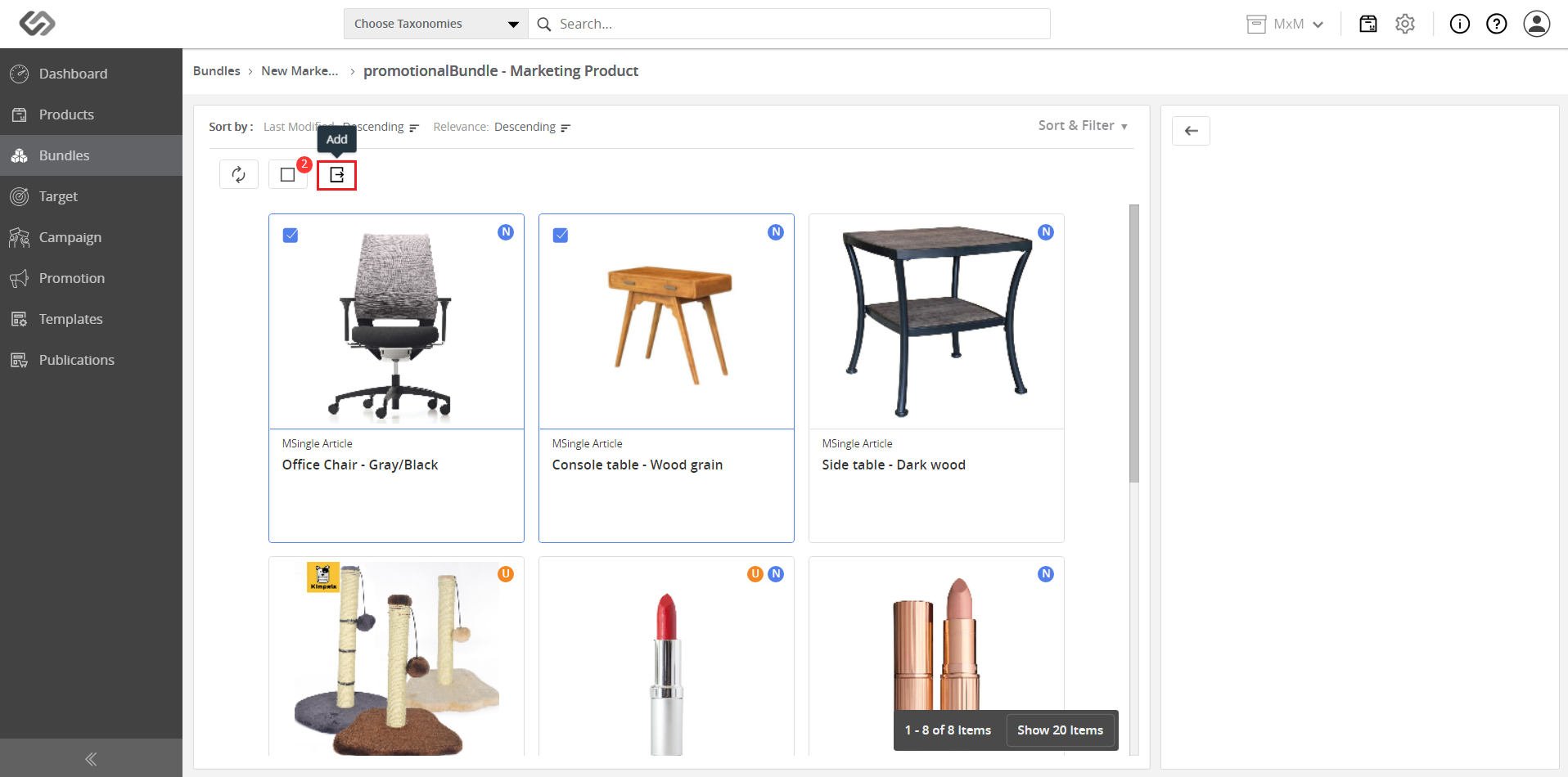
- Click on the Add icon.
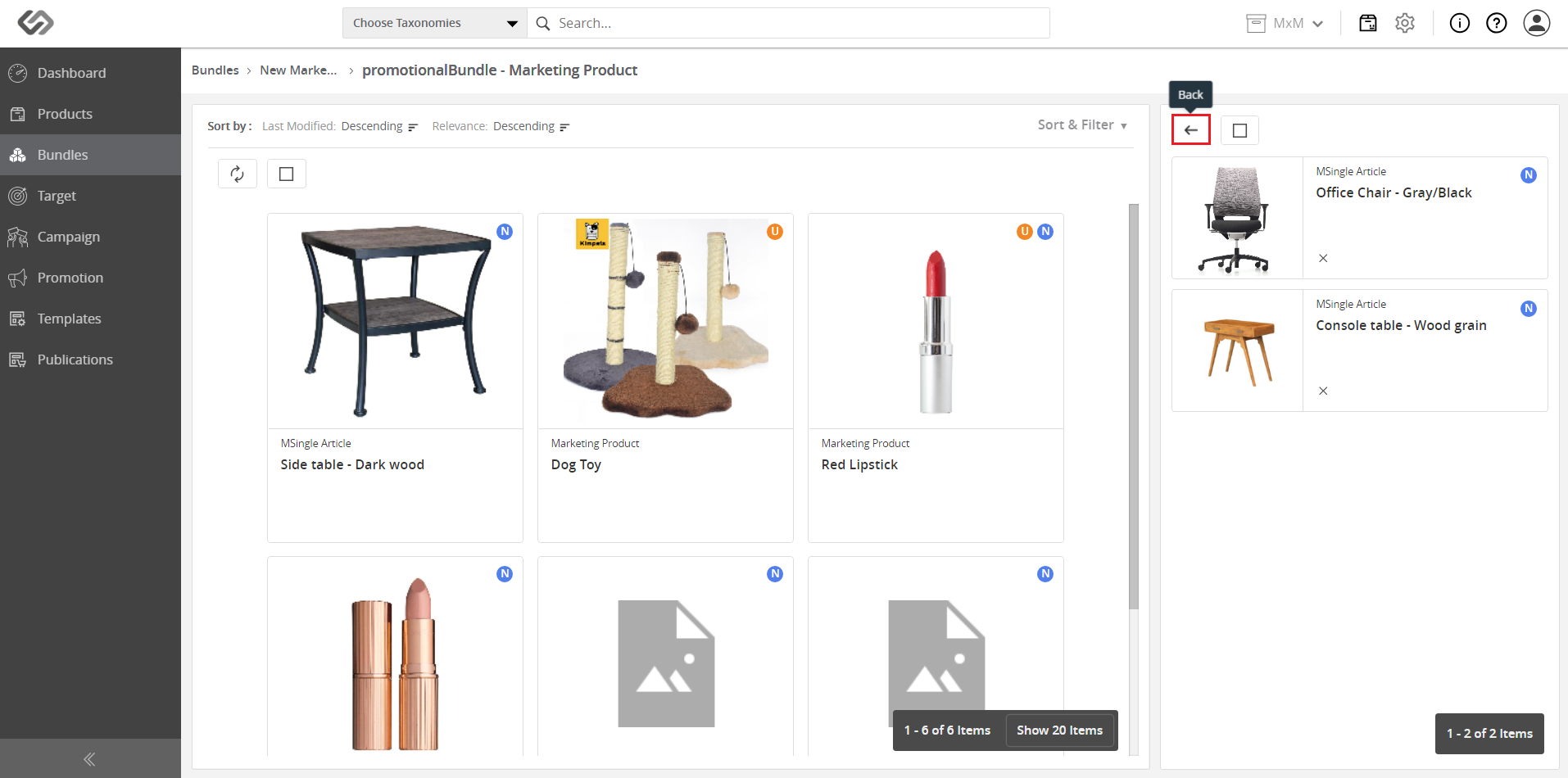
- Click on the Back icon to go to the bundle content open view screen.
- In the Overview tab, view the Marketing Products that have been added to the Marketing Products section.
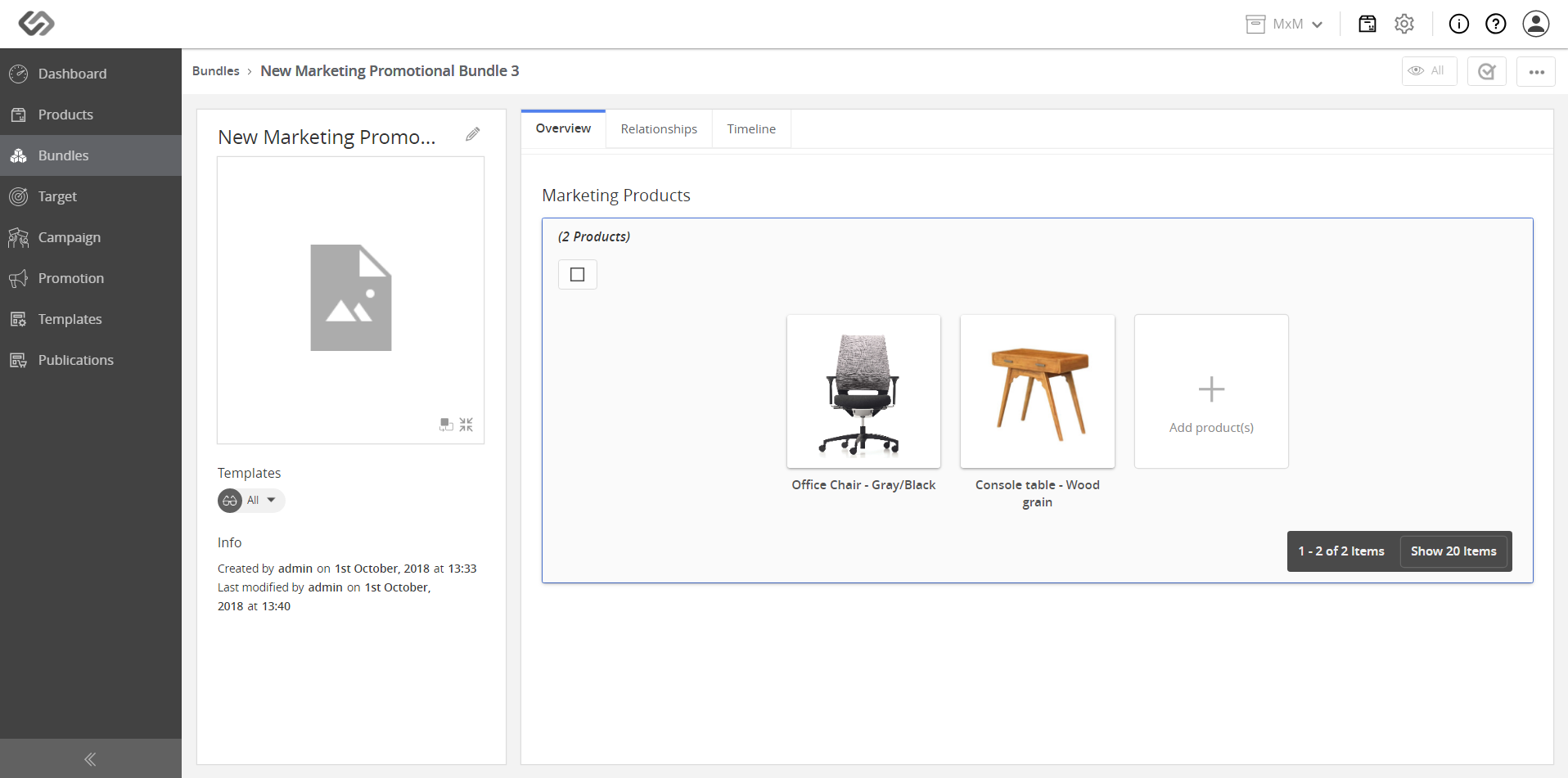
- From the content open view, click on the Edit icon and enter a name for the bundle.
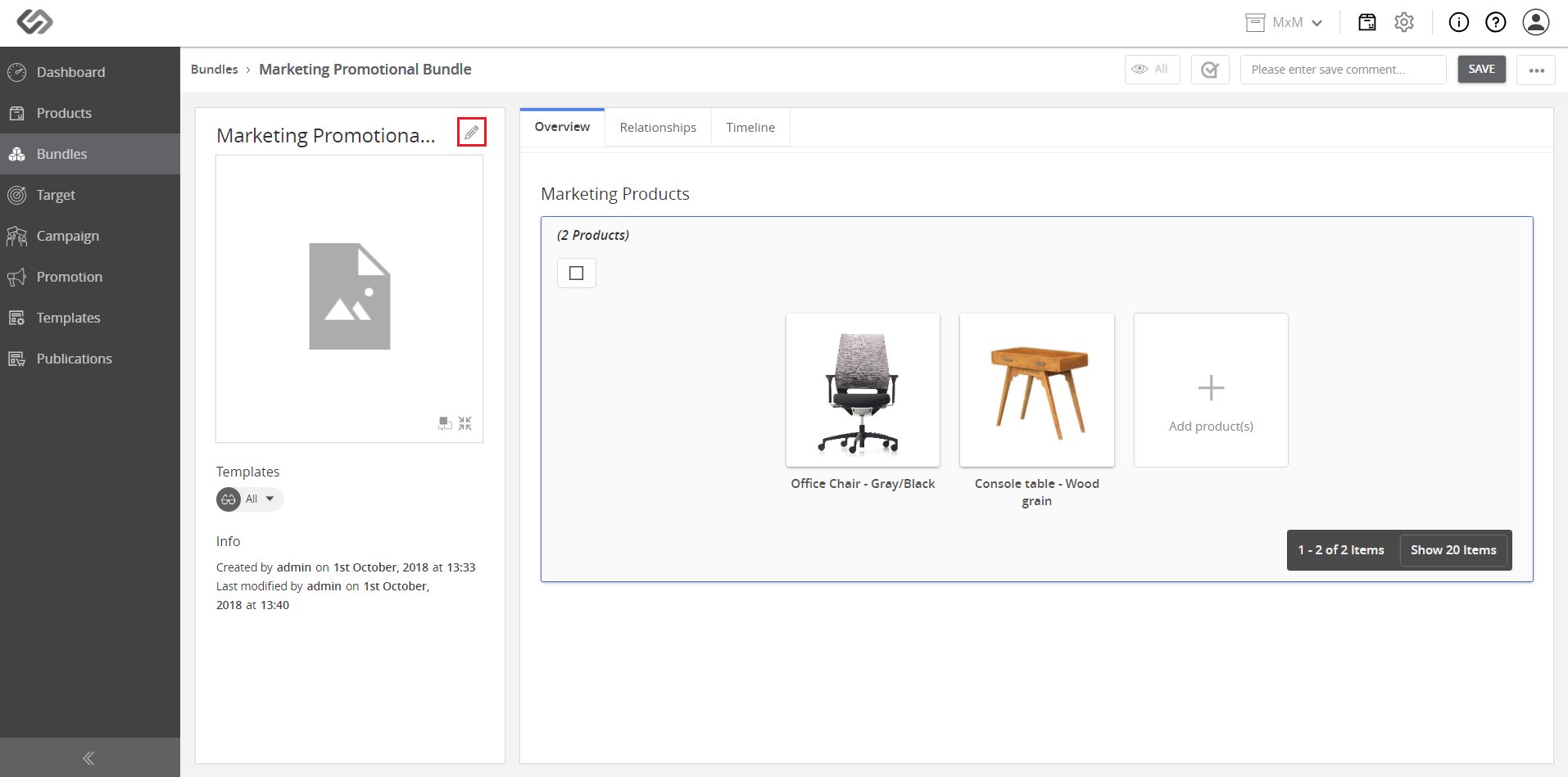
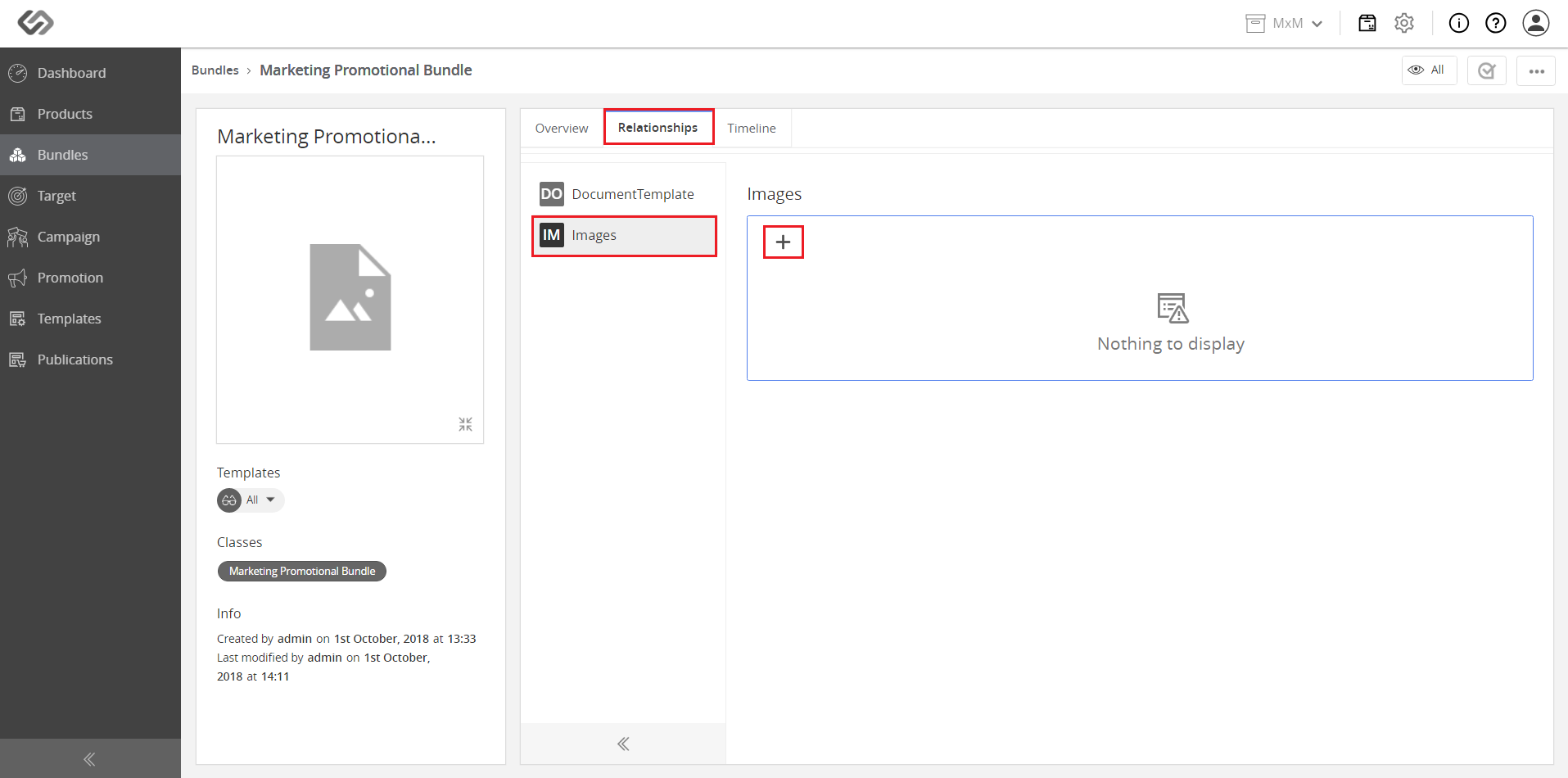
- Click on the Relationships tab and click on the “+” icon from the Images section to add an image to the bundle.
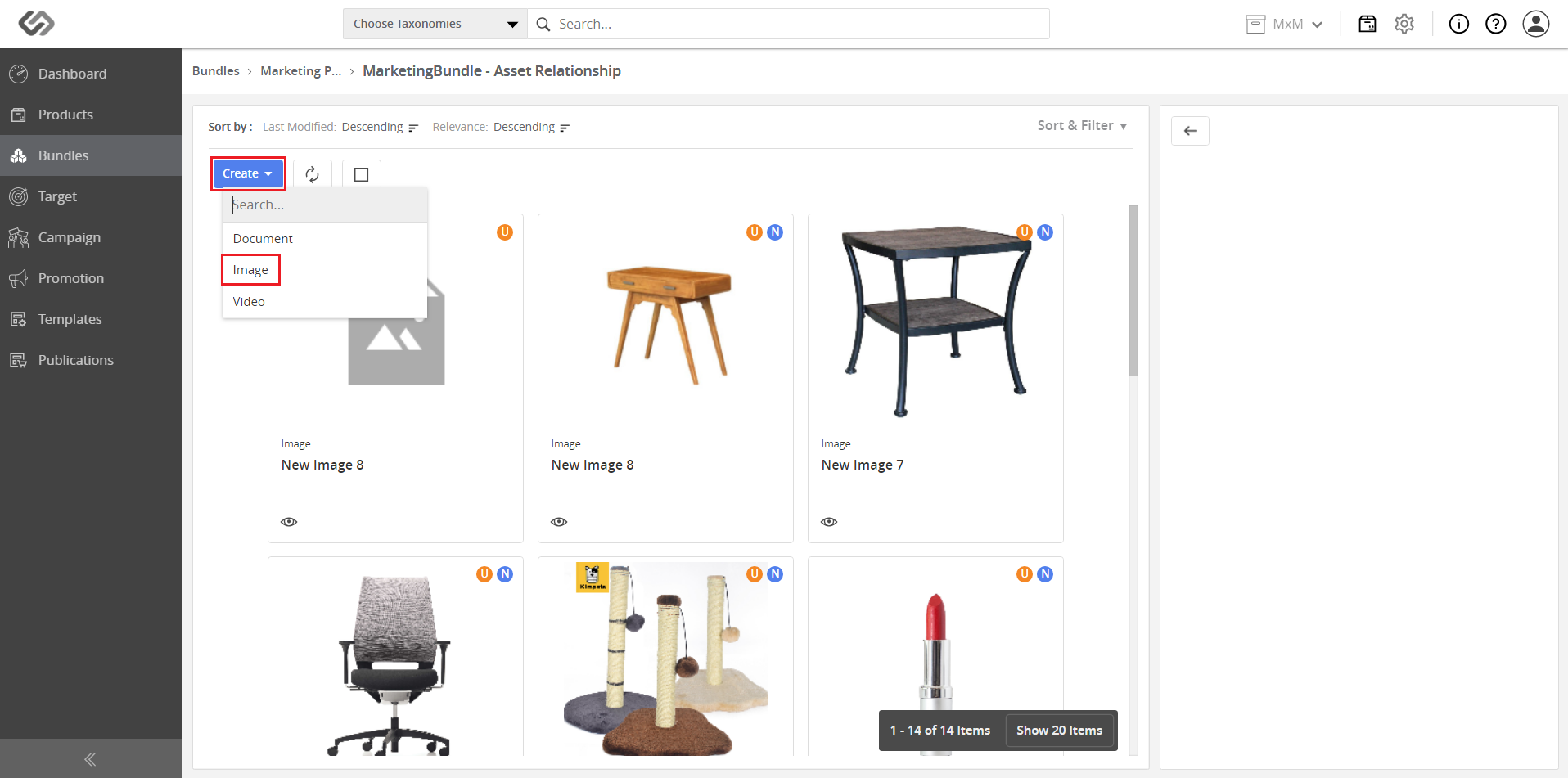
- Select an existing image or add a new image. Click on the Create drop-down menu and select Image.
- In the image class open view, click on the Add Image icon to upload an image.
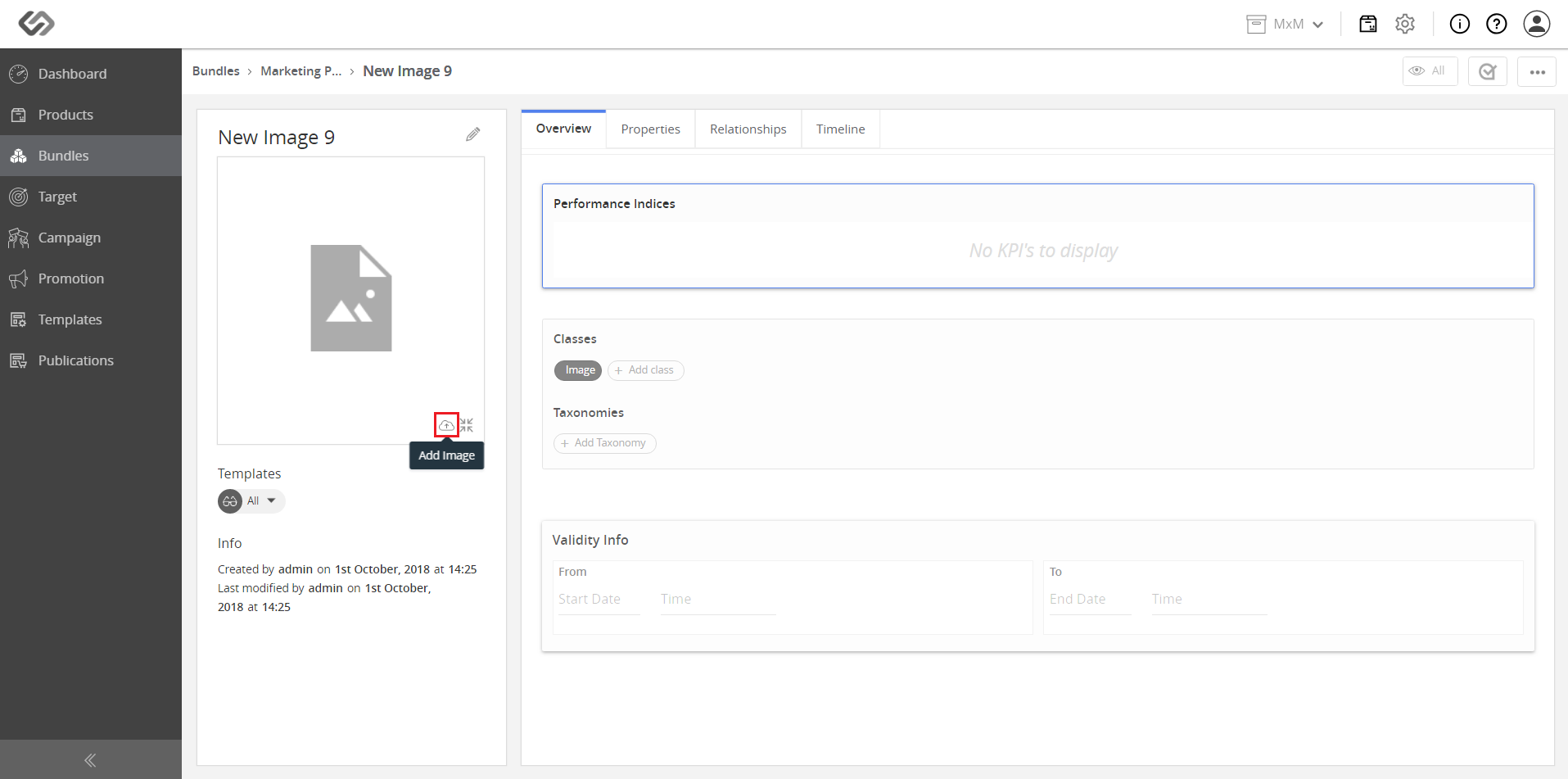
- Click on the Save button.
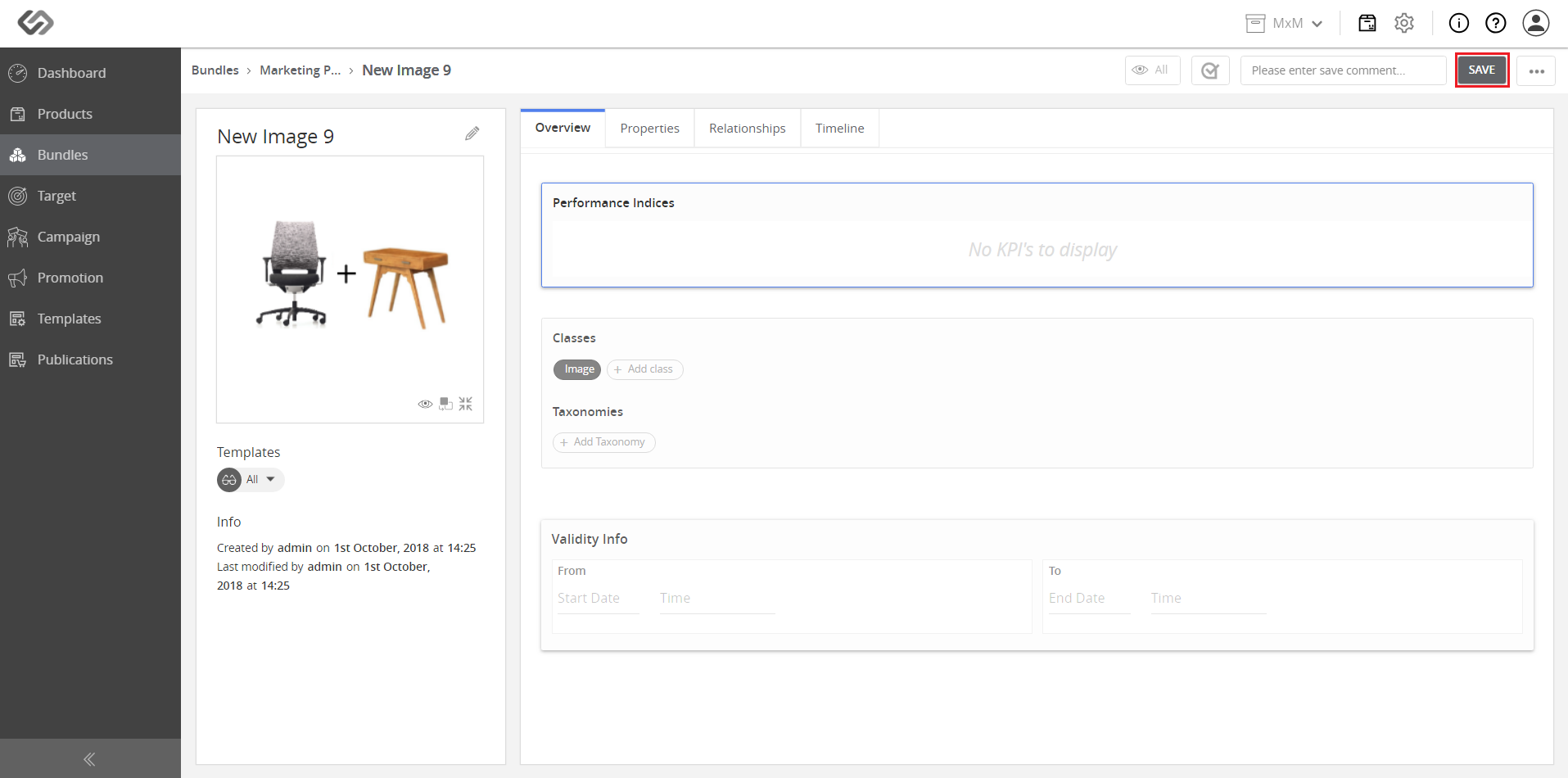
- Go back to the content open view for a bundle to view the image added to the bundle.
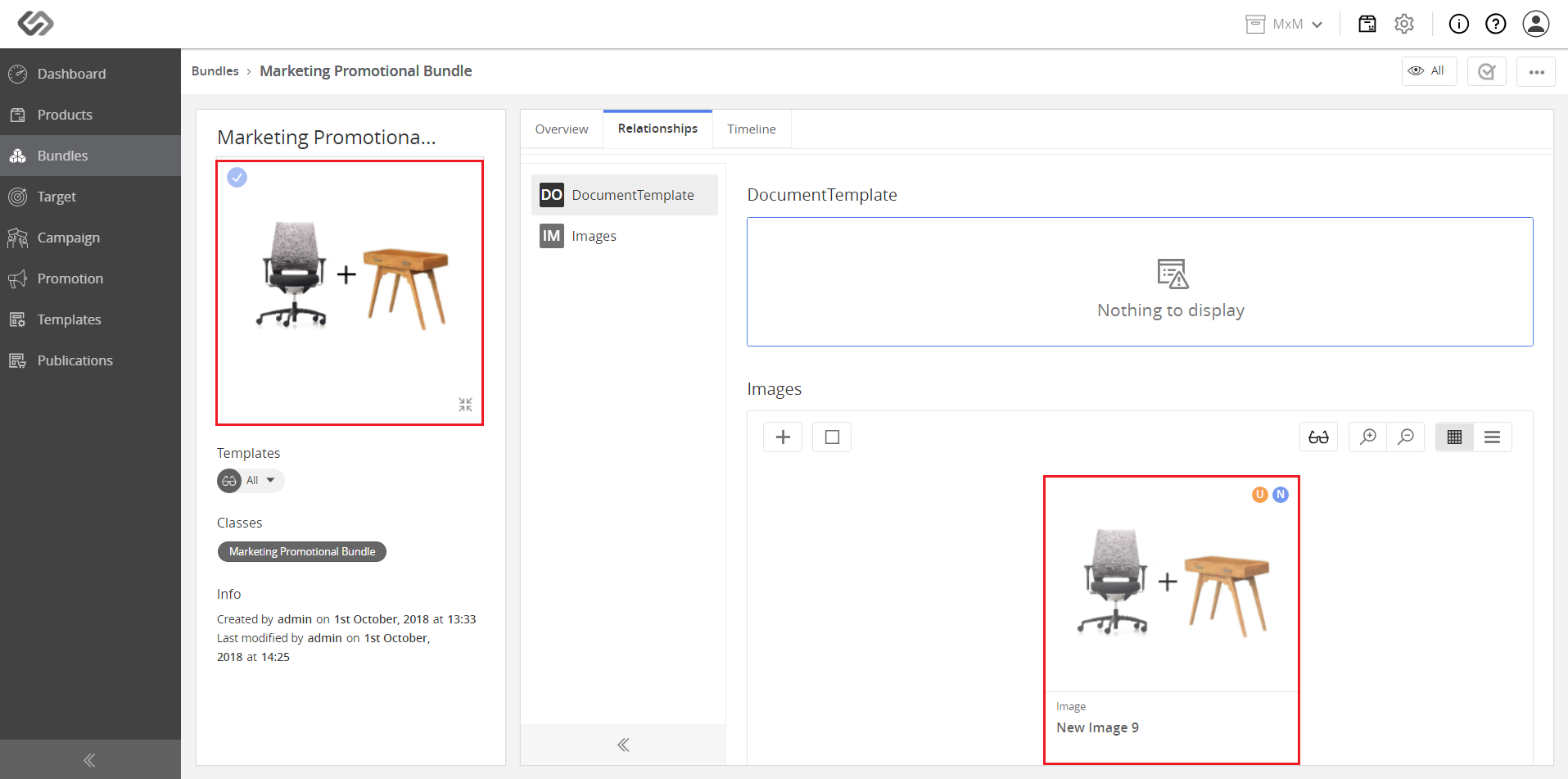
- View the created marketing bundle in the Bundles menu.