Contentserv
latest
  • Overview
    • Contentserv
    • Deployment and Product Guides
      • Getting Started
      • Leading Concepts
      • Using the Platform
        • Using the Features
        • References
  • Tutorials
  • Glossary
Contentserv
  • Docs »
  • Overview »
  • Deployment and Product Guides »
  • Using the Platform »
  • Using the Features »
  • Master Data Management (MDM) »
  • General »
  • Search and Explore »
  • Parametric Search
  • Edit on GitHub

Parametric Search

The Parametric Search feature provides general users the ability to search for products or assets using various data fields that have been used to describe a product or article. The users can narrow down items using the specified criteria.

Key Term:
  • Attribute: a data field which describes a product, can also use ‘property’.
Description:
  • This feature allows searching for products or assets using various/detailed criteria that can narrow down items using fine criteria.
  • The search is expressed in terms of values of the Tags, Attributes, and Roles in the products/articles.
  • A user can put the conditions for the filter values.
Related topics:
  • Search within Taxonomy
  • Multi-faceted Search
Application:
  • A user can use the advanced filter for conditional search.

  • A user can use specific detailed search to narrow down items with the help of the fine criteria.

  • Examples:

    Number attribute can have conditions such as range, greater than, less than, etc.

    Text attribute can have conditions such as starts with, ends with, contains, etc.

How-to: Parametric Search

To do a parametric search, follow these steps:


  • Log in and go to Products.
../../../../../../_images/pxp_parametricsearch_login.PNG


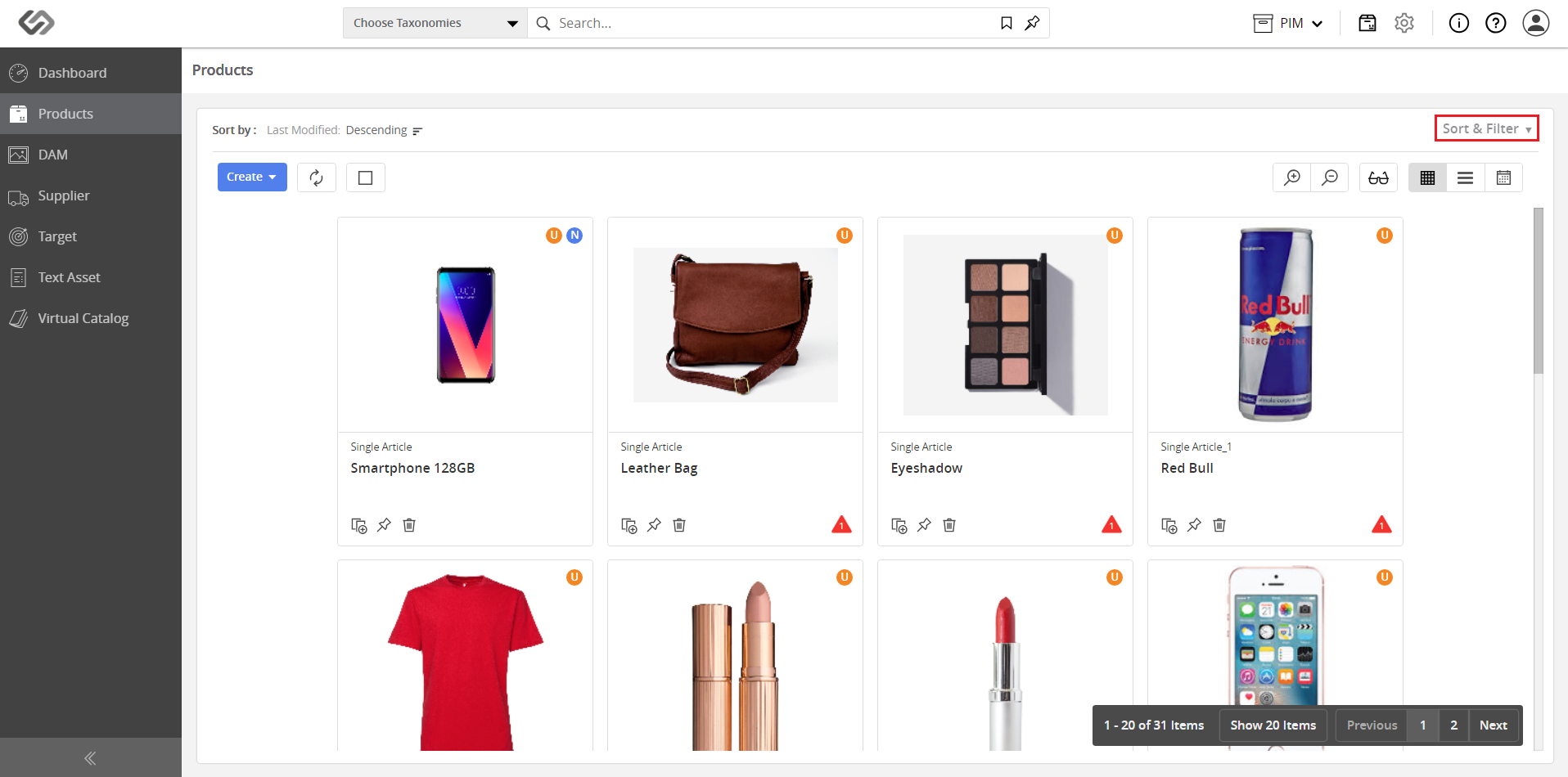
  • Click on the Sort & Filter button. Once clicked, it will expand the selection.
../../../../../../_images/pxp_parametricsearch_sortandfilter.PNG


  • Click on Advanced Filters.
../../../../../../_images/pxp_parametricsearch_clicktheadvancedfilters.PNG


  • Click on Attributes on the pop-up window and select an attribute (e.g. GTIN).
../../../../../../_images/pxp_parametricsearch_clickonattributeandselect.PNG


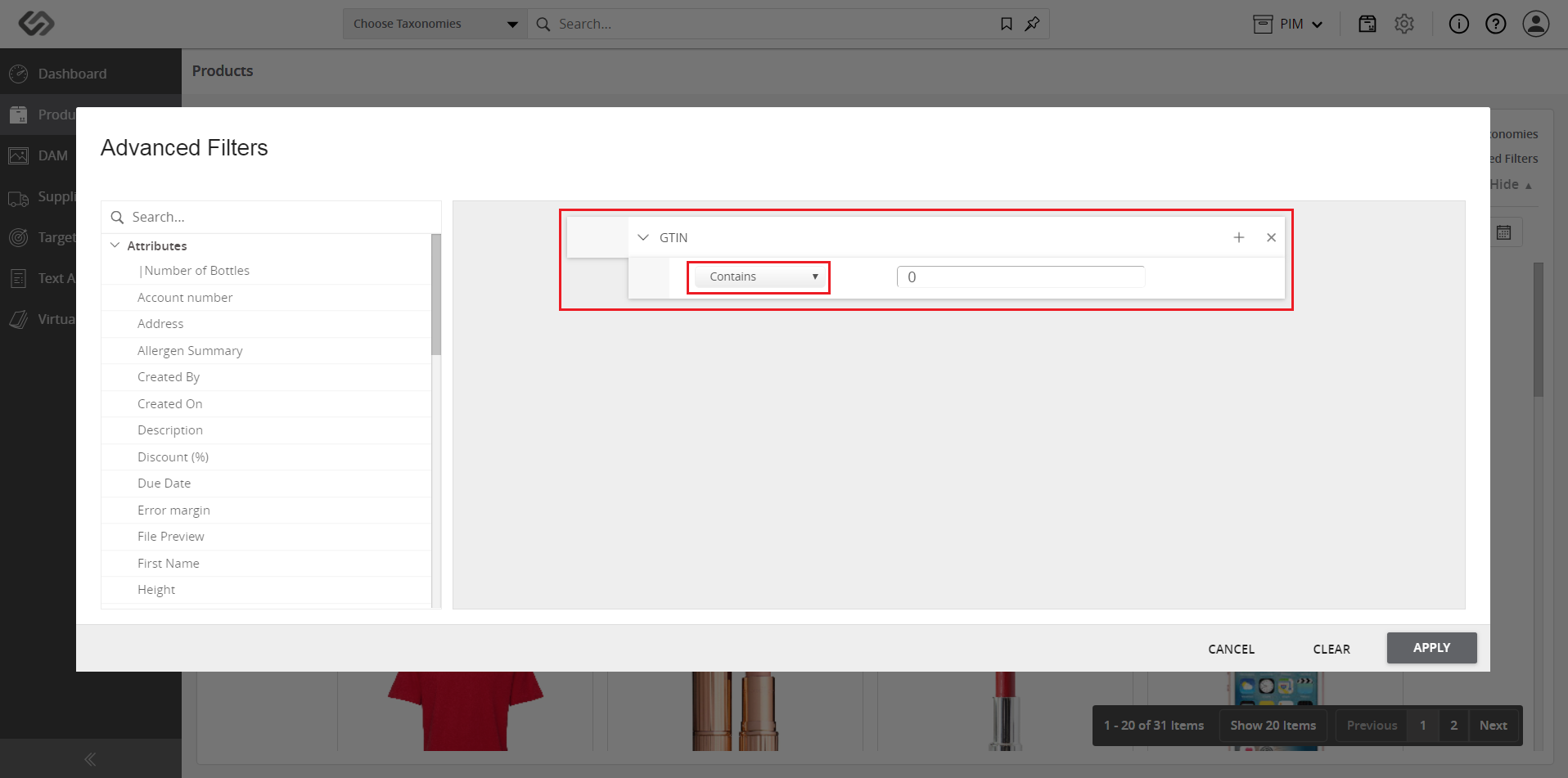
  • After selecting an attribute, the attribute options will appear on the right. Click on the first drop-down list (the Contains drop-down list) and select the appropriate condition.
../../../../../../_images/pxp_parametricsearch_afterselectingtheattribute.PNG

../../../../../../_images/pxp_parametricsearch_afterselectingtheattribute2.PNG


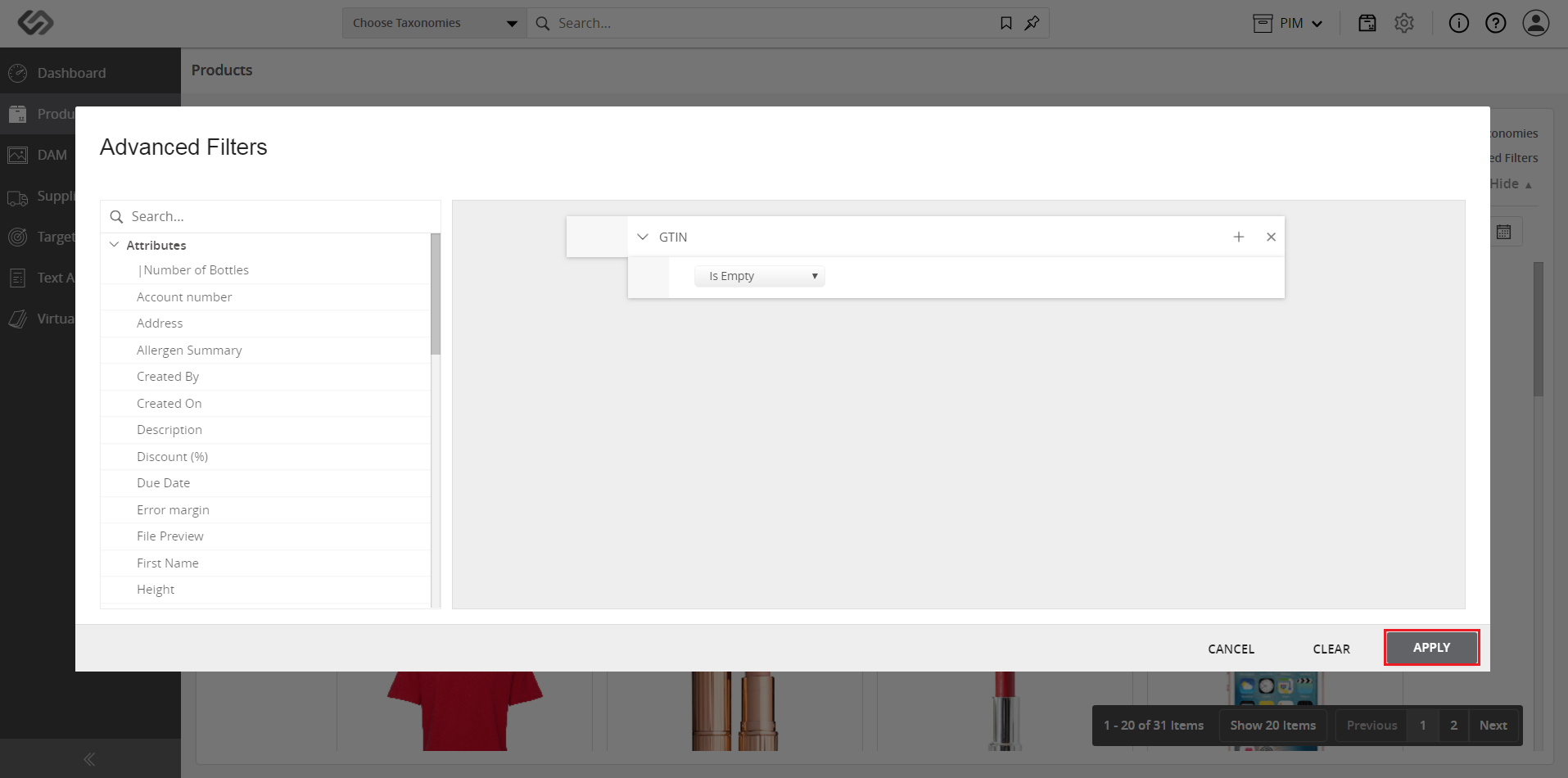
  • After selecting and defining a condition (e.g. Is Empty), click on the Apply button.
../../../../../../_images/pxp_parametricsearch_clickapply.PNG


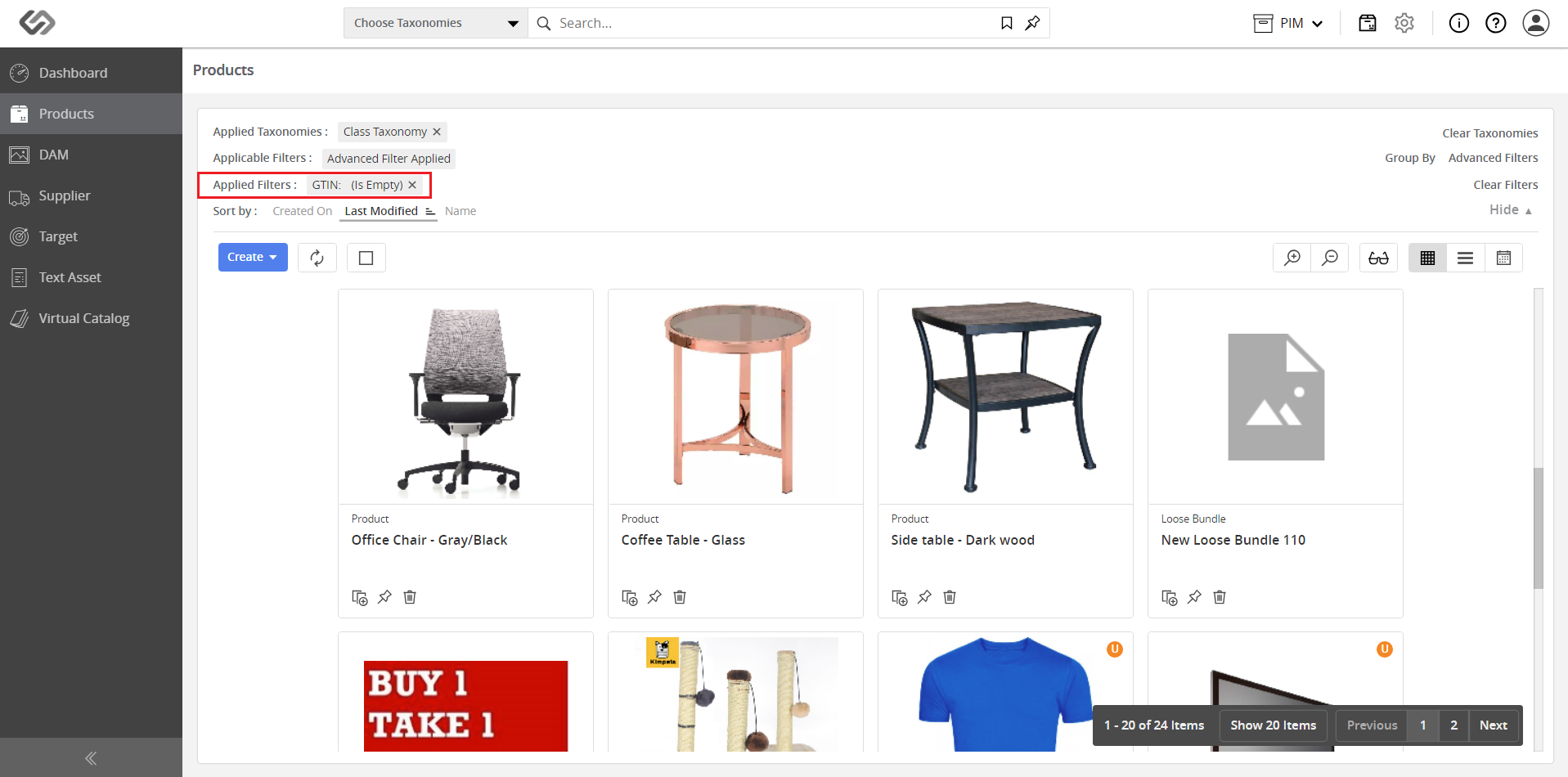
  • Wait for the results to be displayed based on the search criteria. The search criteria can be found in the Applied Filter section as shown.
../../../../../../_images/pxp_parametricsearch_waitfortheresults.PNG


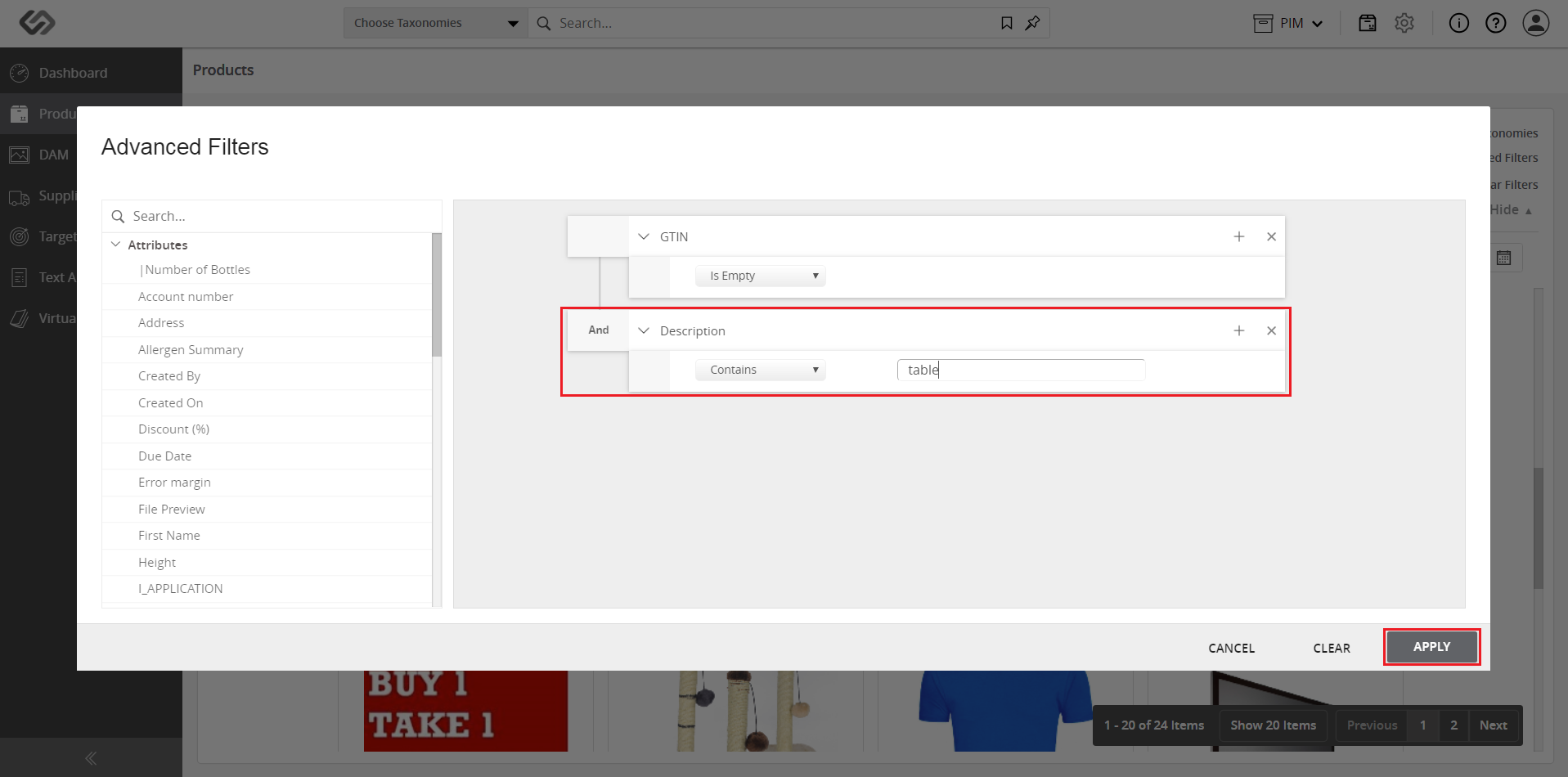
  • For an improved and more refined search, use multiple properties (attributes/tags).
../../../../../../_images/pxp_parametricsearch_foranimprovedsearch.PNG


Note: Multiple criteria can be applied for a single property as well as using an “OR” operation.


../../../../../../_images/pxp_parametricsearch_notemultiplecriteria.PNG


Contentserv line
Next Previous

© Copyright CS Group Revision e37b6cb0.

Built with Sphinx using a theme provided by Read the Docs.