Multi-classify Objects

The Multi-classify Objects feature provides users the ability to add multiple classes to a product. This enables better categorization of products as well as inheritance of relevant properties and attributes.

Key Term:
  • Nature Class: a class that defines the base type of a product. This product type is specific to how the product should behave in the Contentserv software. Nature Classes could include Single Article, Product, Bundle, or other custom-made product types.
  • Attribution Class: a class that adds specific attributes to the product it is assigned to. For example, a Mobile Phone class may add attributes for Screen Size, Memory Size, Operating System, etc.
Description:
  • To multi-classify the product, we add multiple attribution classes to the product in addition to the single Nature Class. Attribution classes contain detailed descriptive properties of the product.
  • The user is able to define the product further by adding properties based on different attribution classes.
  • Classifying a product with classes aids in finding that product, as well as giving it access to class-specific sets of attributes and properties.
Related topics:
Application:
  • Attribution classes, which are also known as Non-nature classes, contain more detailed information about the products. The Nature class would only have general properties.

  • The attribution class would define the product more in detail.

  • Example:

    For an energy drink, the nature class Single Article would contain generic properties for the product, whereas an attribution class, Beverages would give details regarding beverages such as volume and can size. As for another class, Energy Drinks, it would give properties such as nutrition contents and caffeine contents.

How-to: Multi-classify Objects

To multi-classify objects, follow these steps:


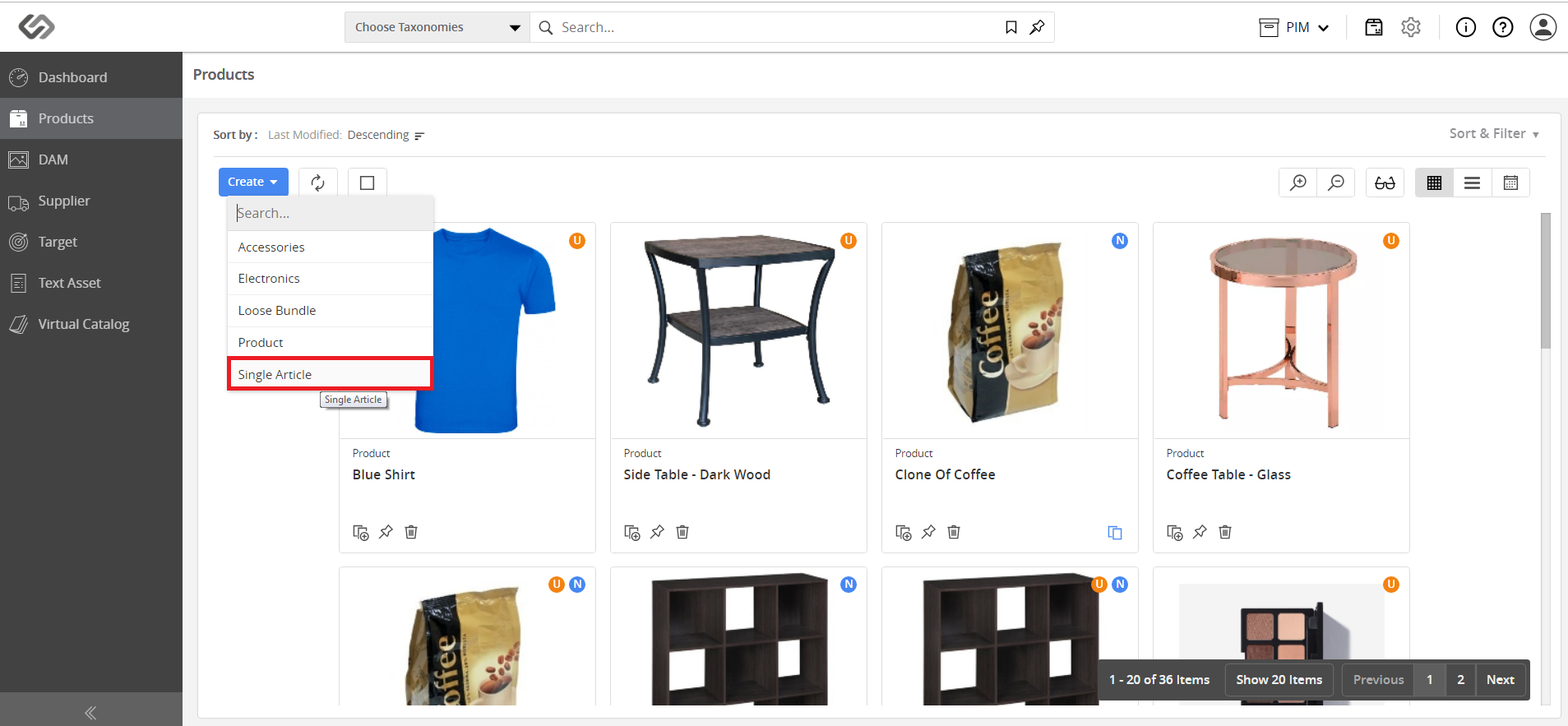
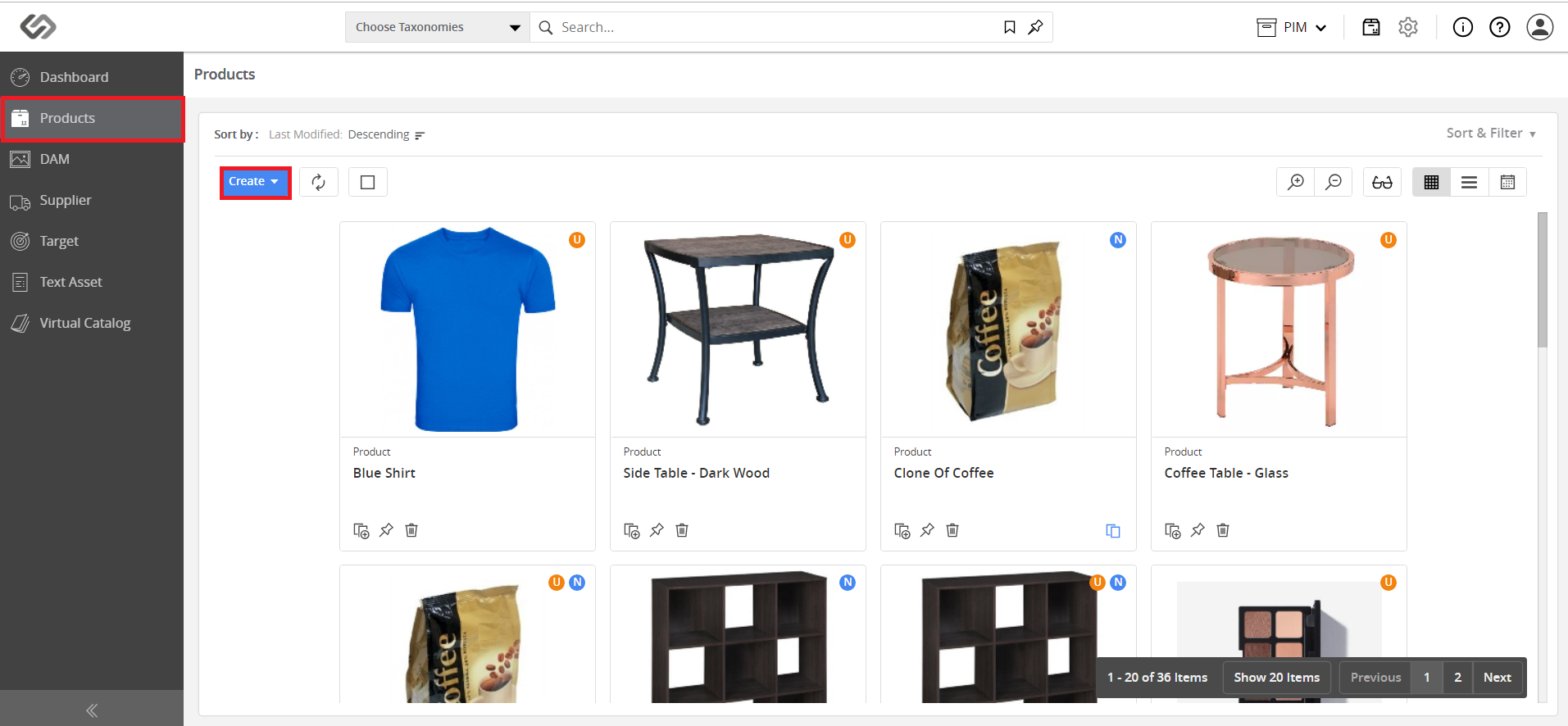
  • Go to Products and click on the Create button.
../../../../../../_images/pxp_multiclassification_gotoproductsb.PNG


  • Click Single Article.
../../../../../../_images/pxp_multiclassification_clicksinglearticle.PNG


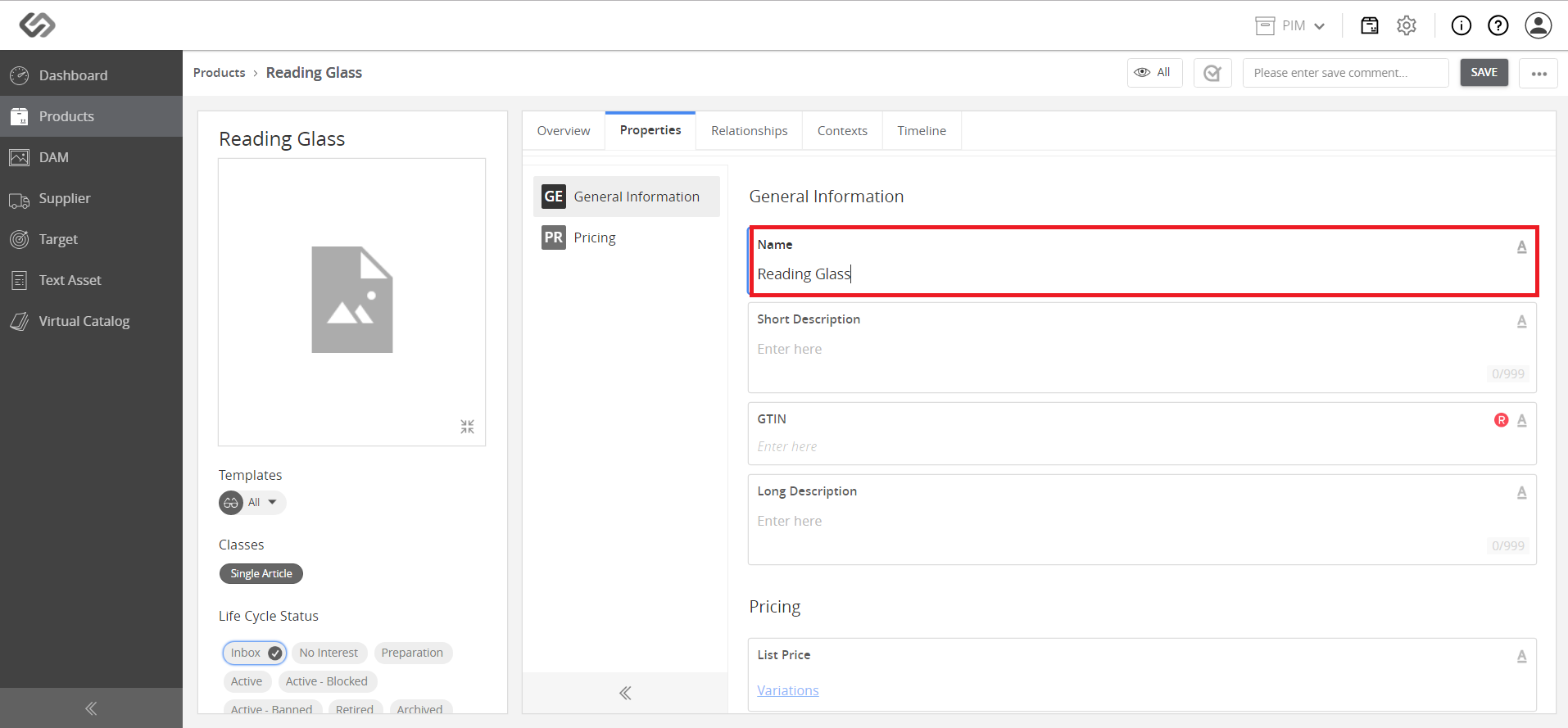
  • Once clicked, a new window will appear. Enter the name of the single article.
../../../../../../_images/pxp_multiclassification_enterthenameofarticle.PNG


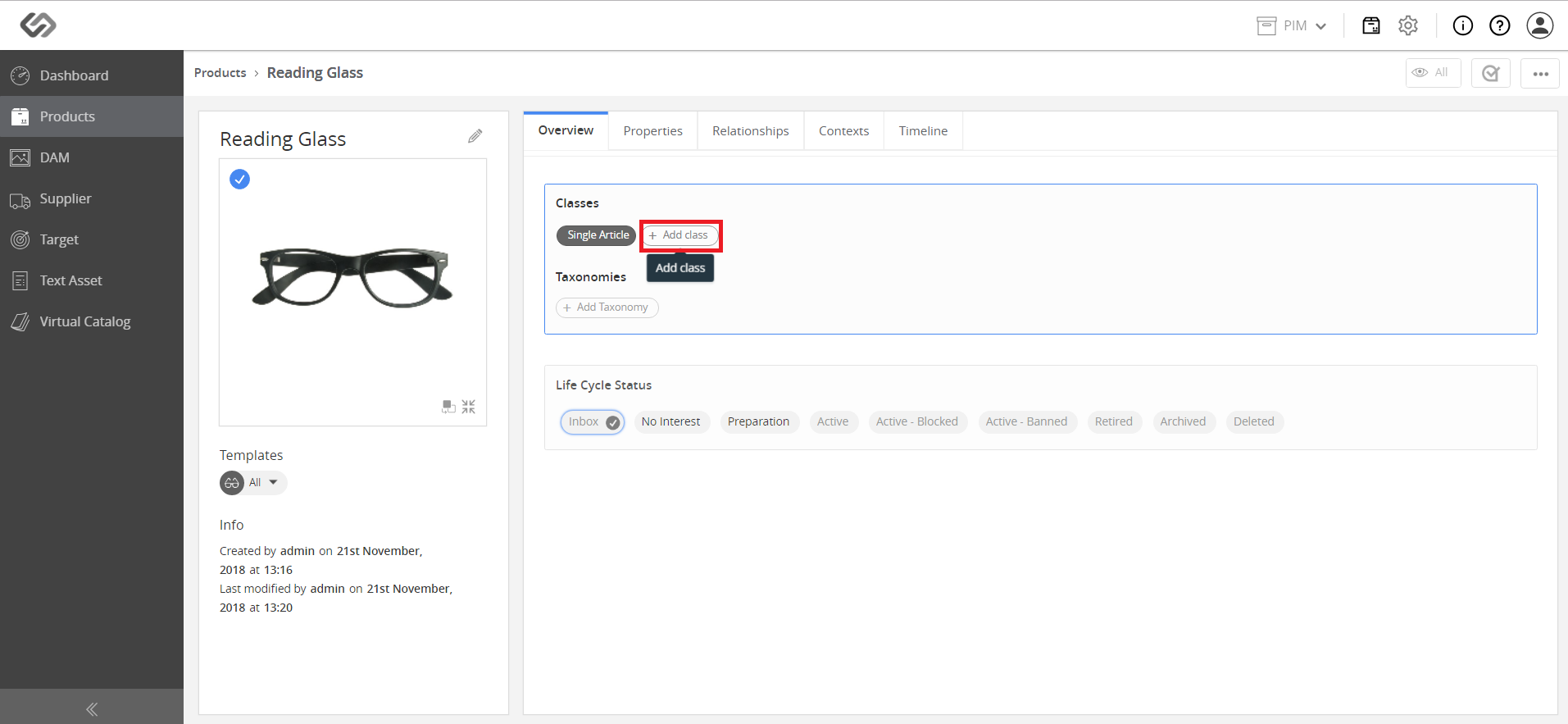
  • To add an Attribution (Non-Nature) class, refer to the Classes section and click Add Class button.
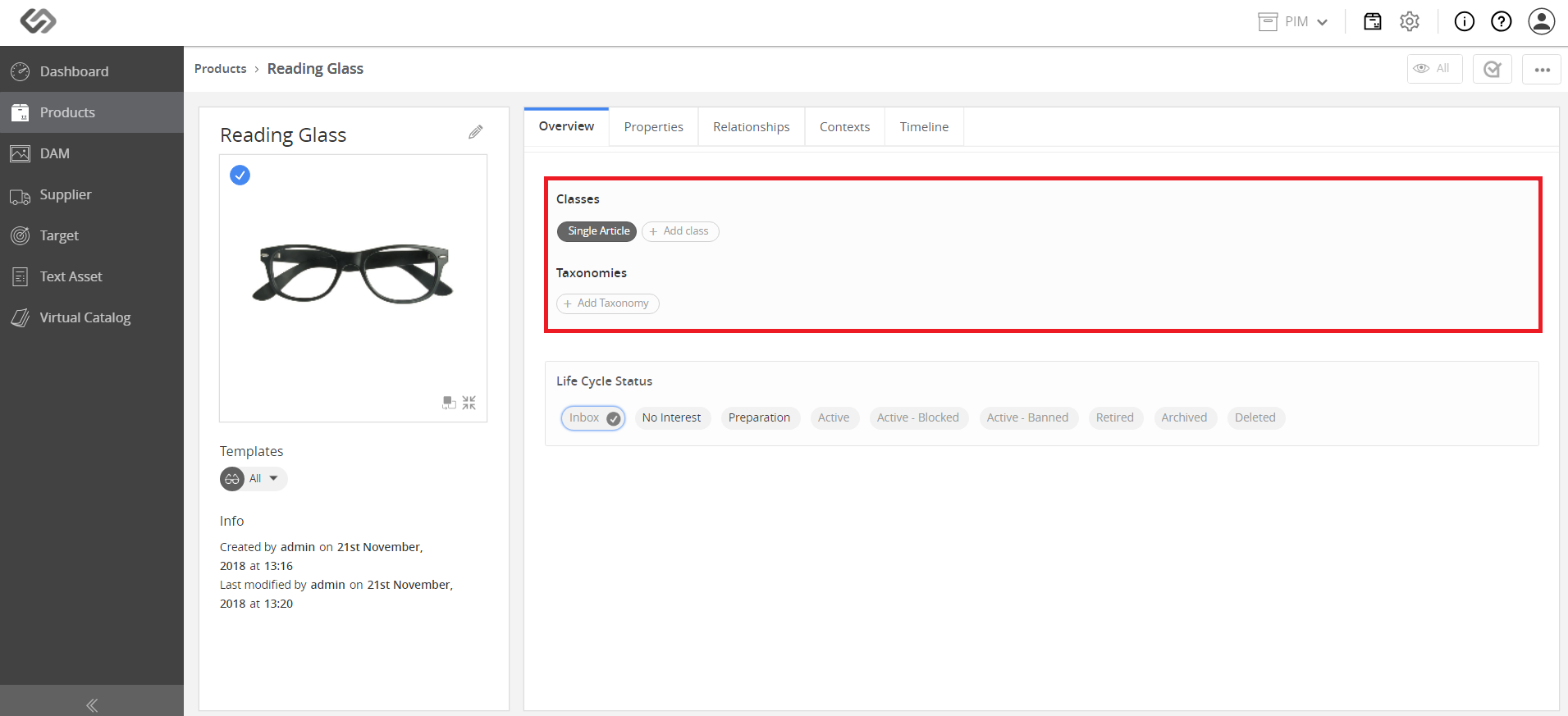
../../../../../../_images/pxp_multiclassification_toaddanattributionclass.PNG

../../../../../../_images/pxp_multiclassification_toaddanattributionclass2.PNG


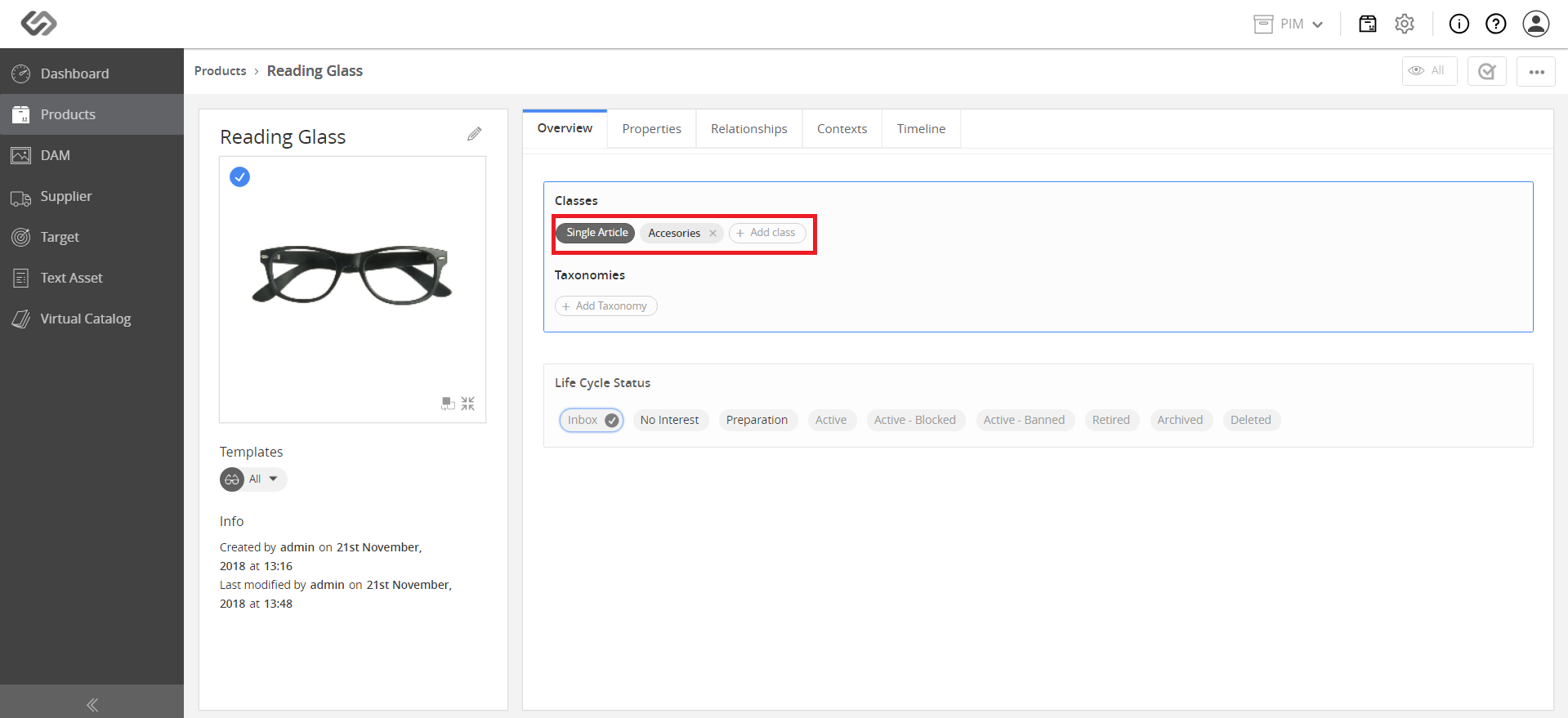
  • Select a relevant class from the drop-down list.
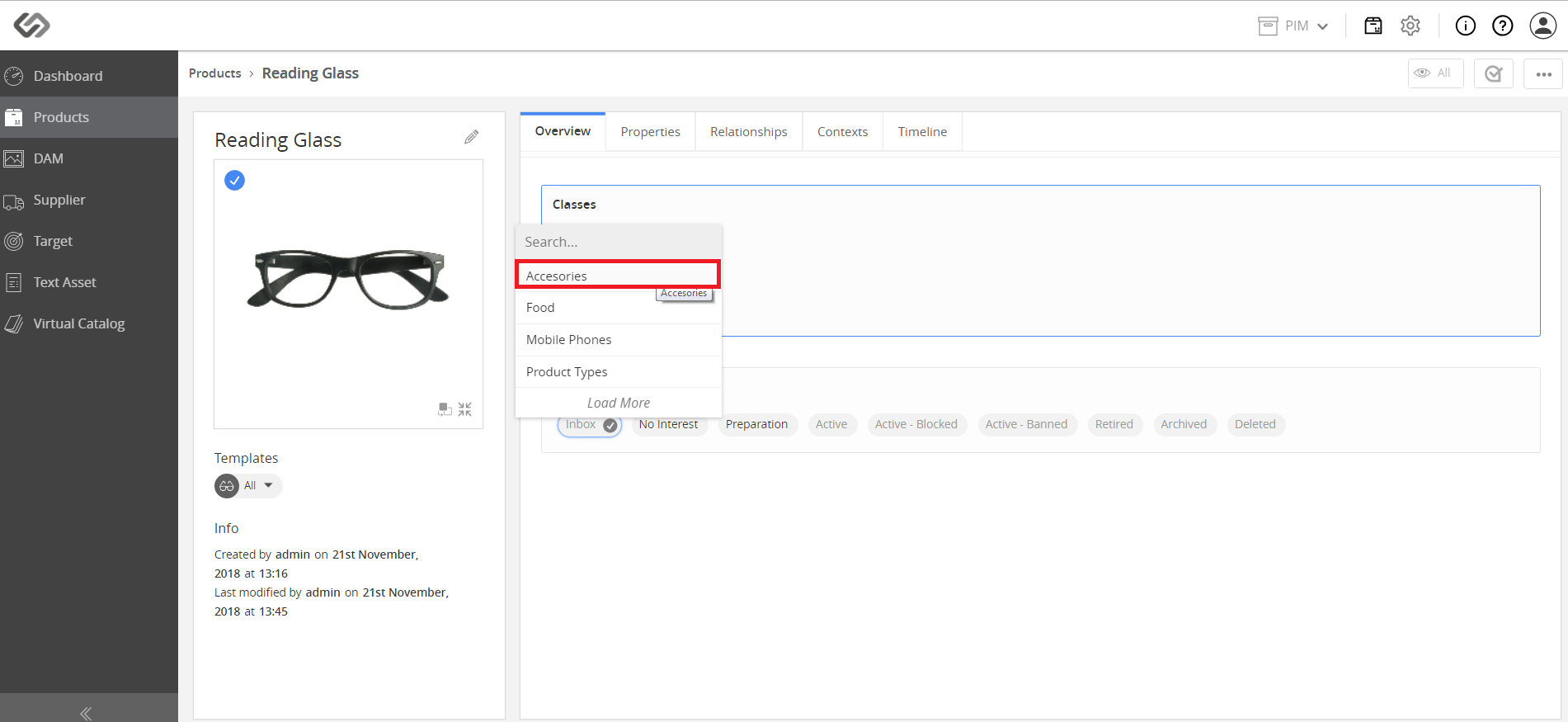
../../../../../../_images/pxp_multiclassification_selectarelevantclass.PNG

../../../../../../_images/pxp_multiclassification_selectarelevantclass2.PNG


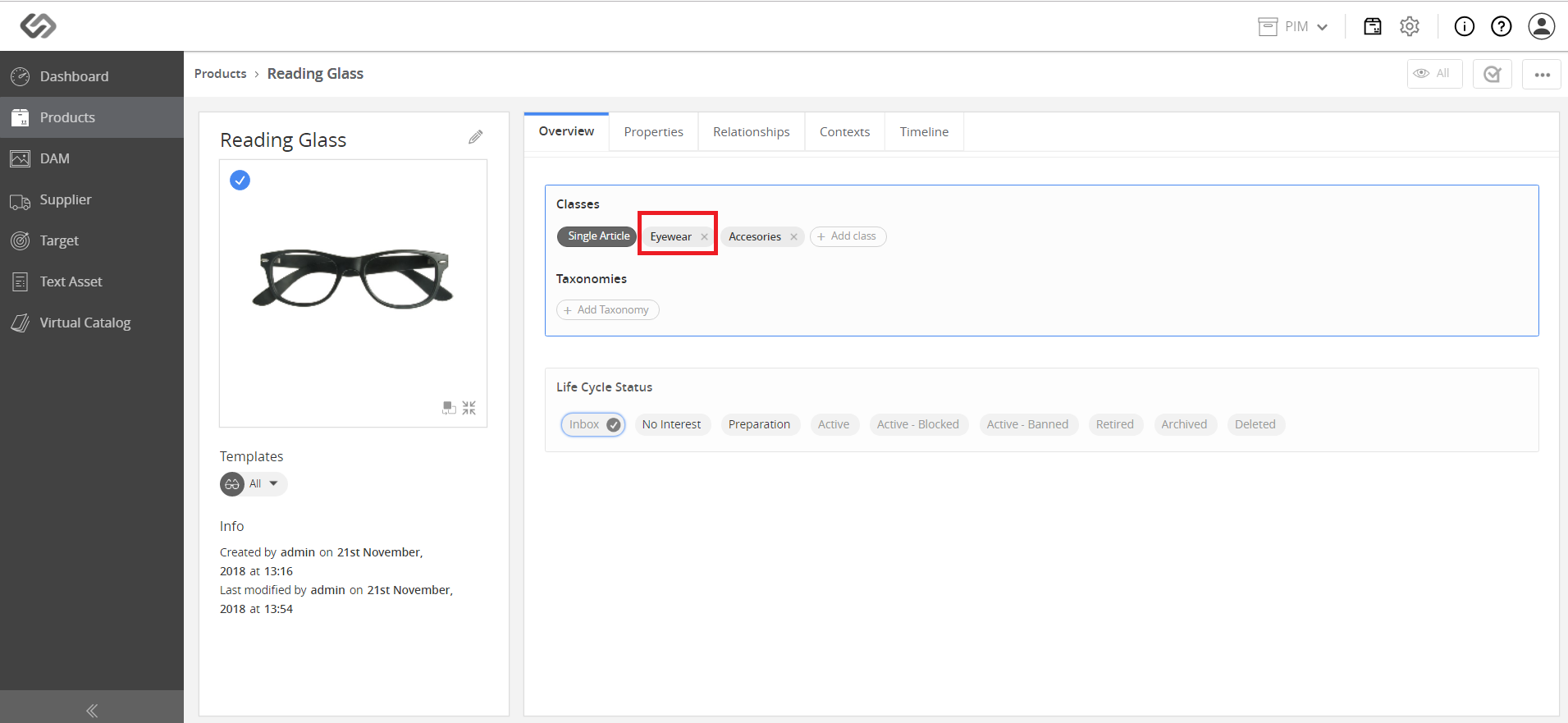
  • To add another attribution class, click on the Add Class button and select a class from the list.
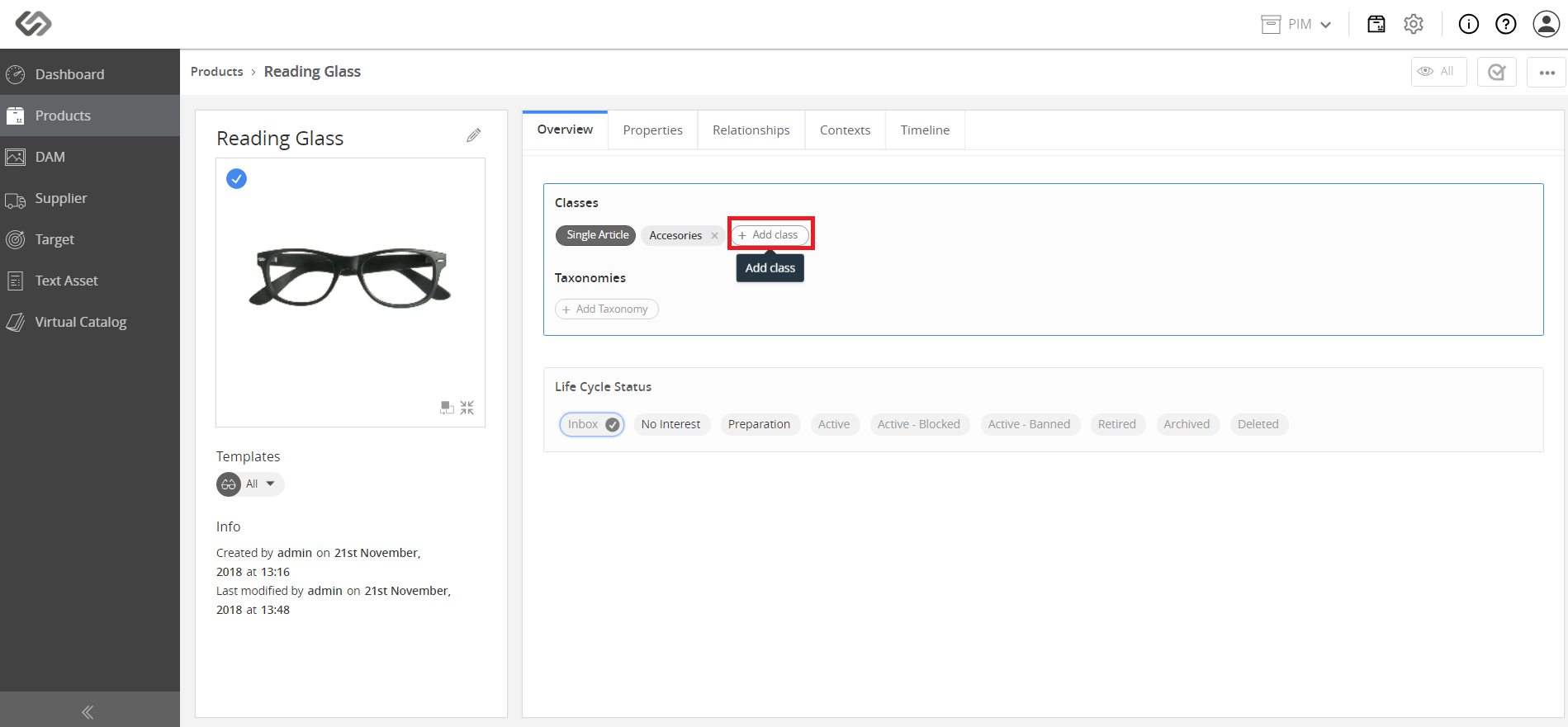
../../../../../../_images/pxp_multiclassification_toaddanotherattri.PNG

../../../../../../_images/pxp_multiclassification_toaddanotherattri2.PNG


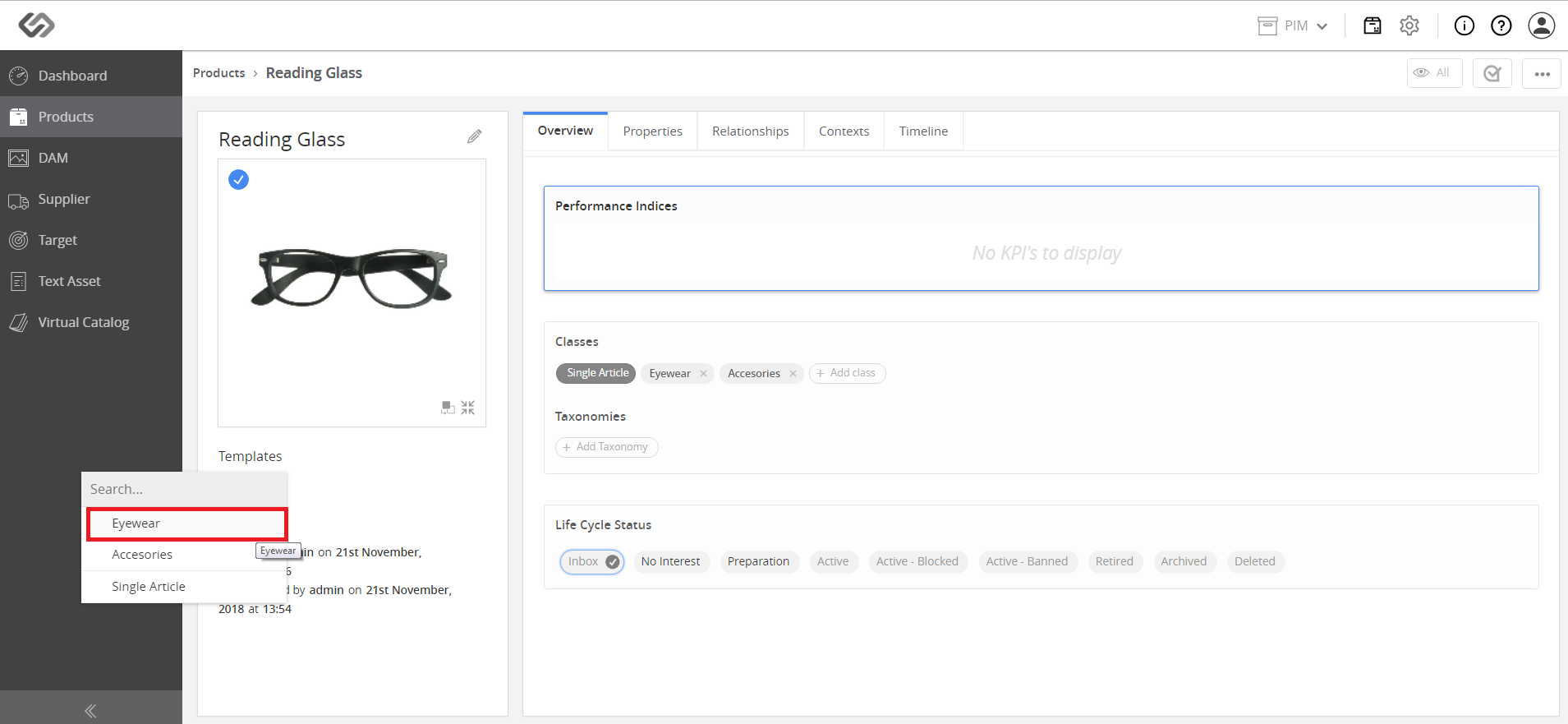
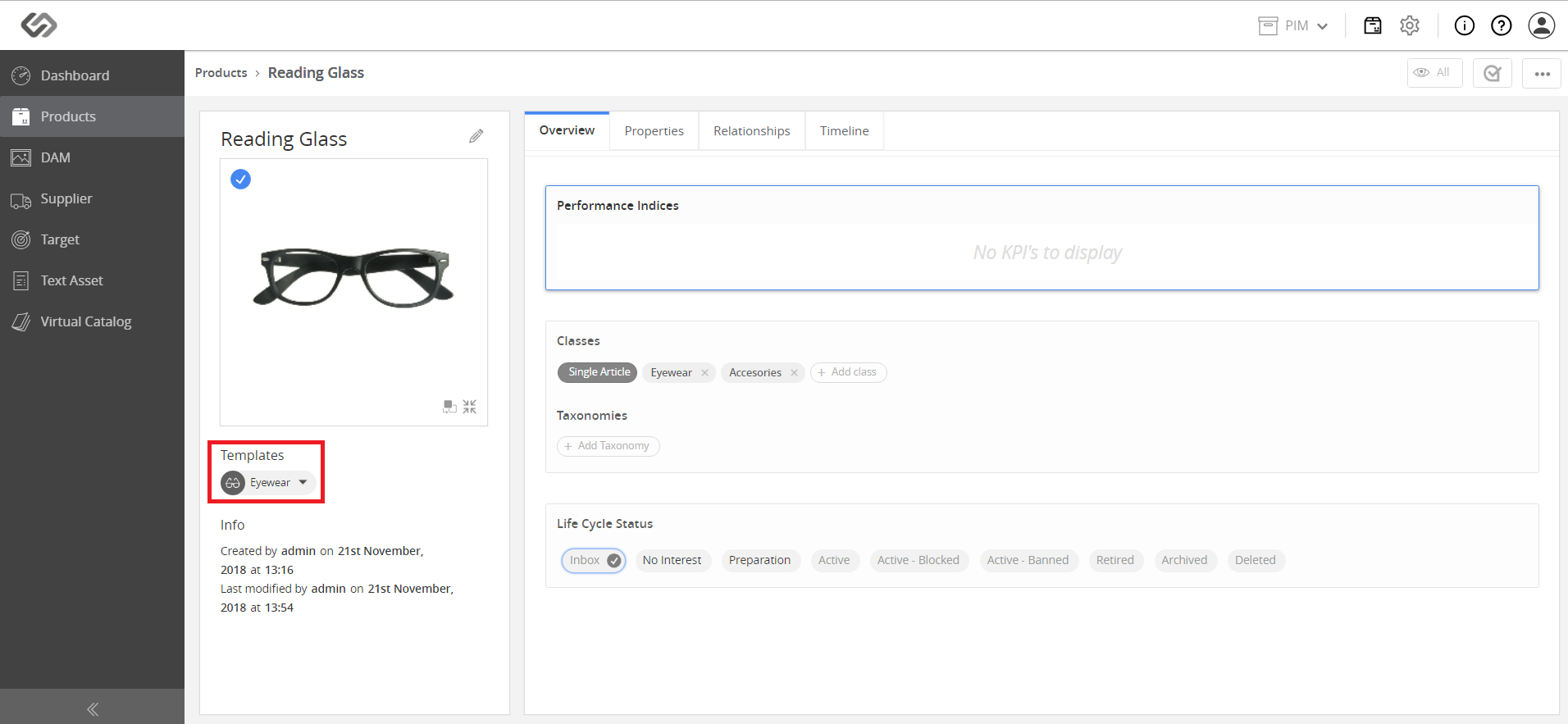
  • To switch templates from Nature class to Non-nature class, click on the drop-down list and select an option, for example, Beverages.
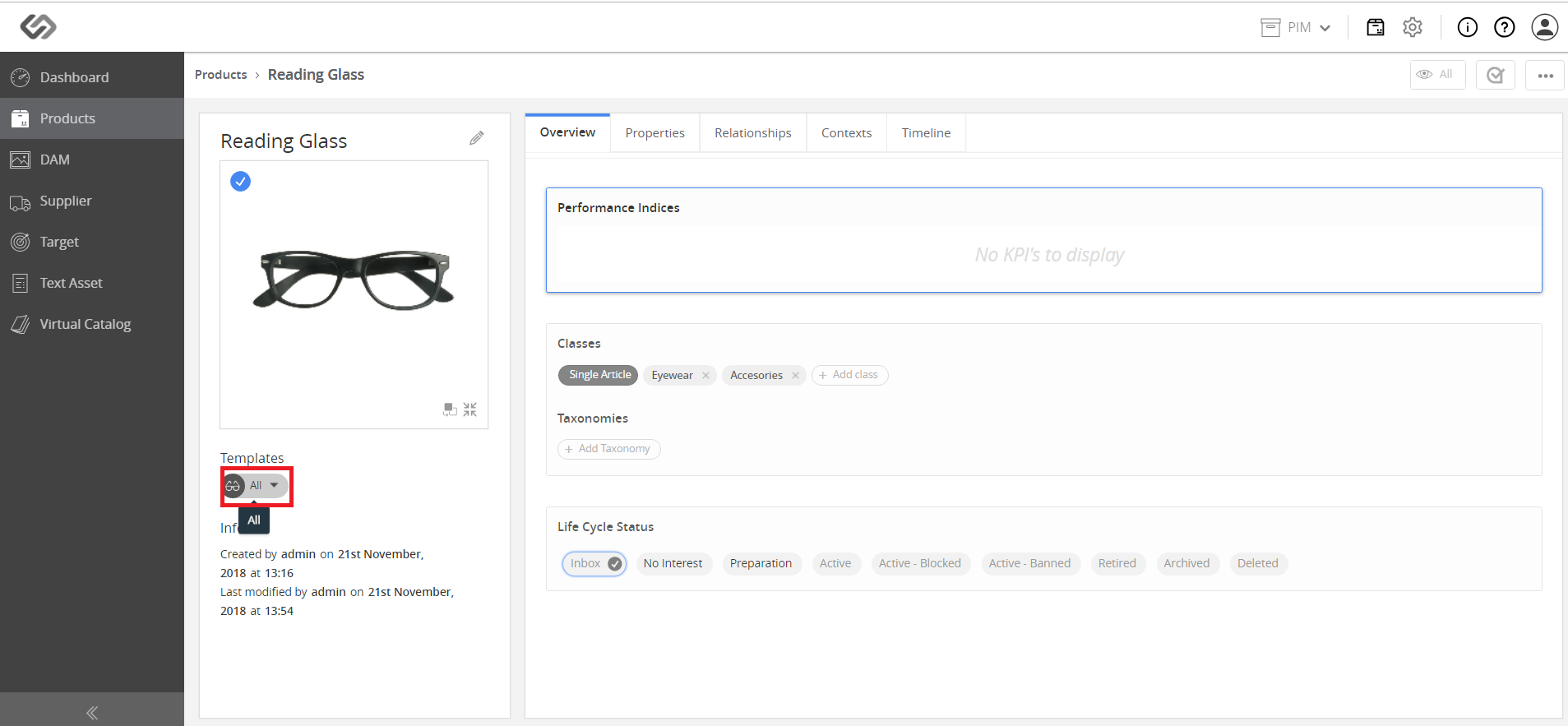
../../../../../../_images/pxp_multiclassification_toswitchtemplates.PNG

../../../../../../_images/pxp_multiclassification_toswitchtemplates2.PNG

../../../../../../_images/pxp_multiclassification_toswitchtemplates3.PNG


Contentserv line