Search and Store Bookmarks
Search and Store Bookmarks lets you search for products using various criteria to easily identify items of interest.
| Key Term: |
|
| Description: |
|
| Related topics: | |
| Application: |
|
How-to: Search and Store Bookmarks
This How-to guide provides instructions on how to search for products or assets using various criteria. It also provides details on how to save the search results and how to visit these results at a later time. To do this, follow these steps:
Storing a Bookmark
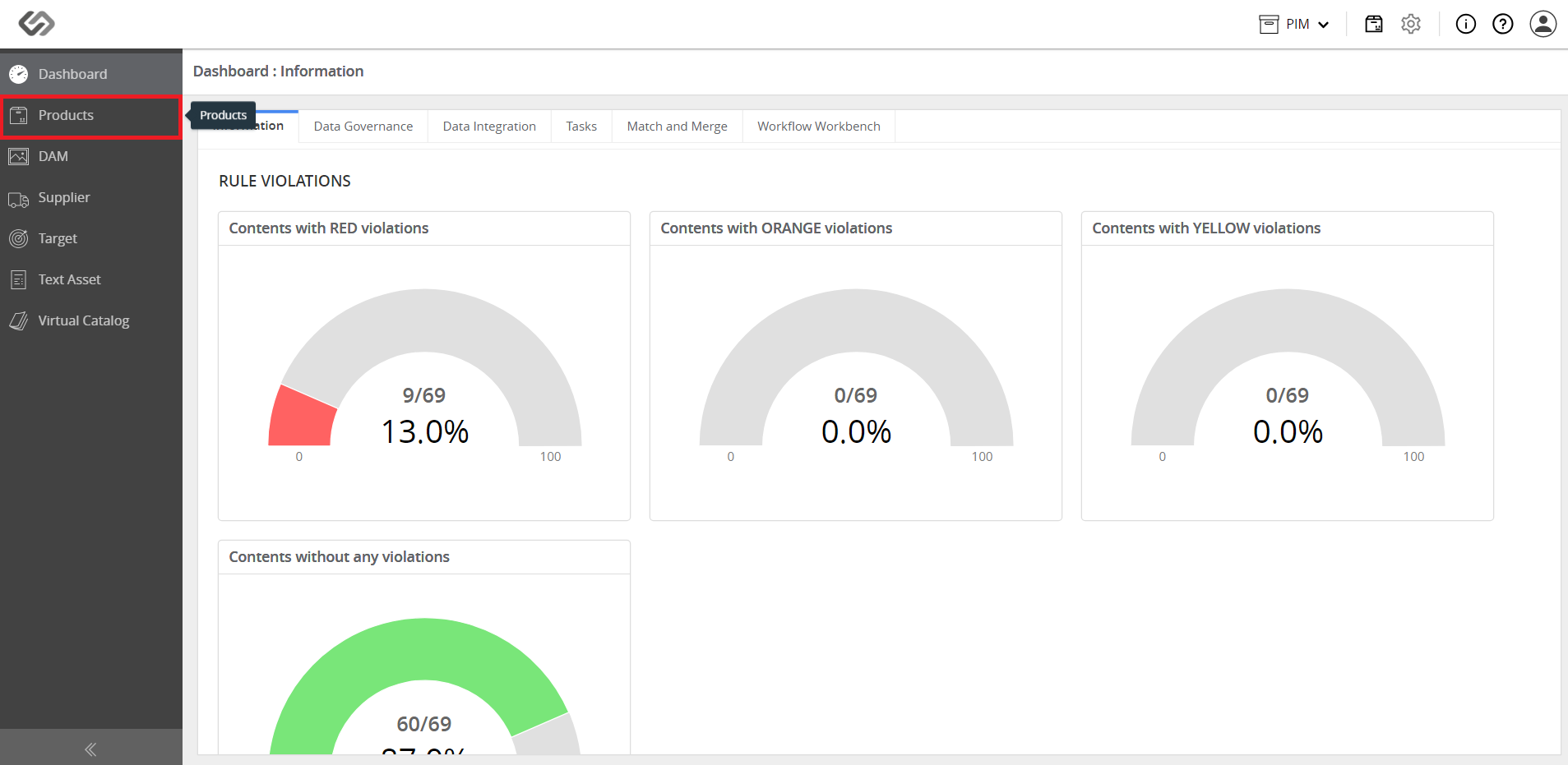
- Log in and go to Products.
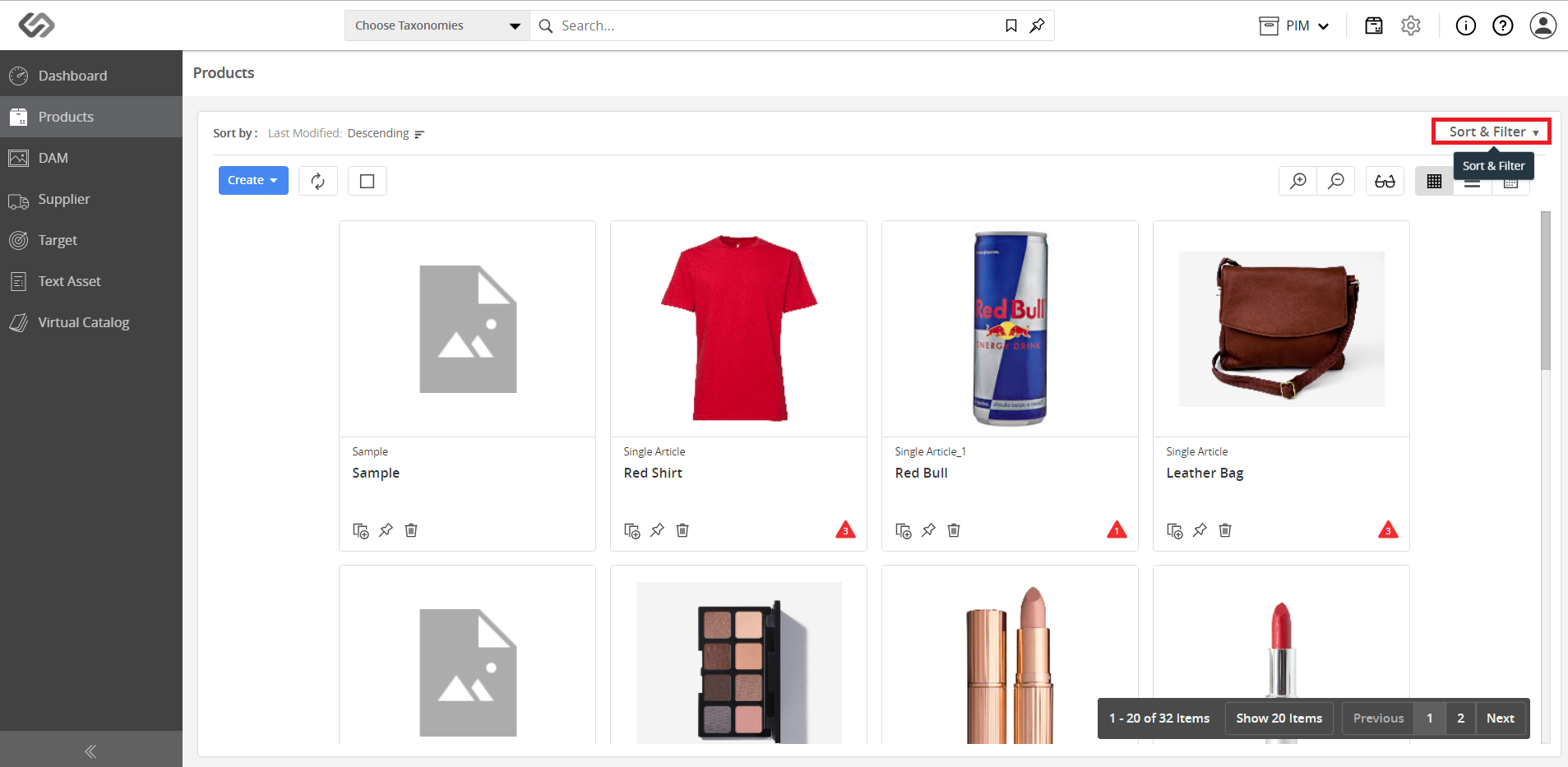
- Click on the Sort & Filter button then click on the Advanced Filters button.
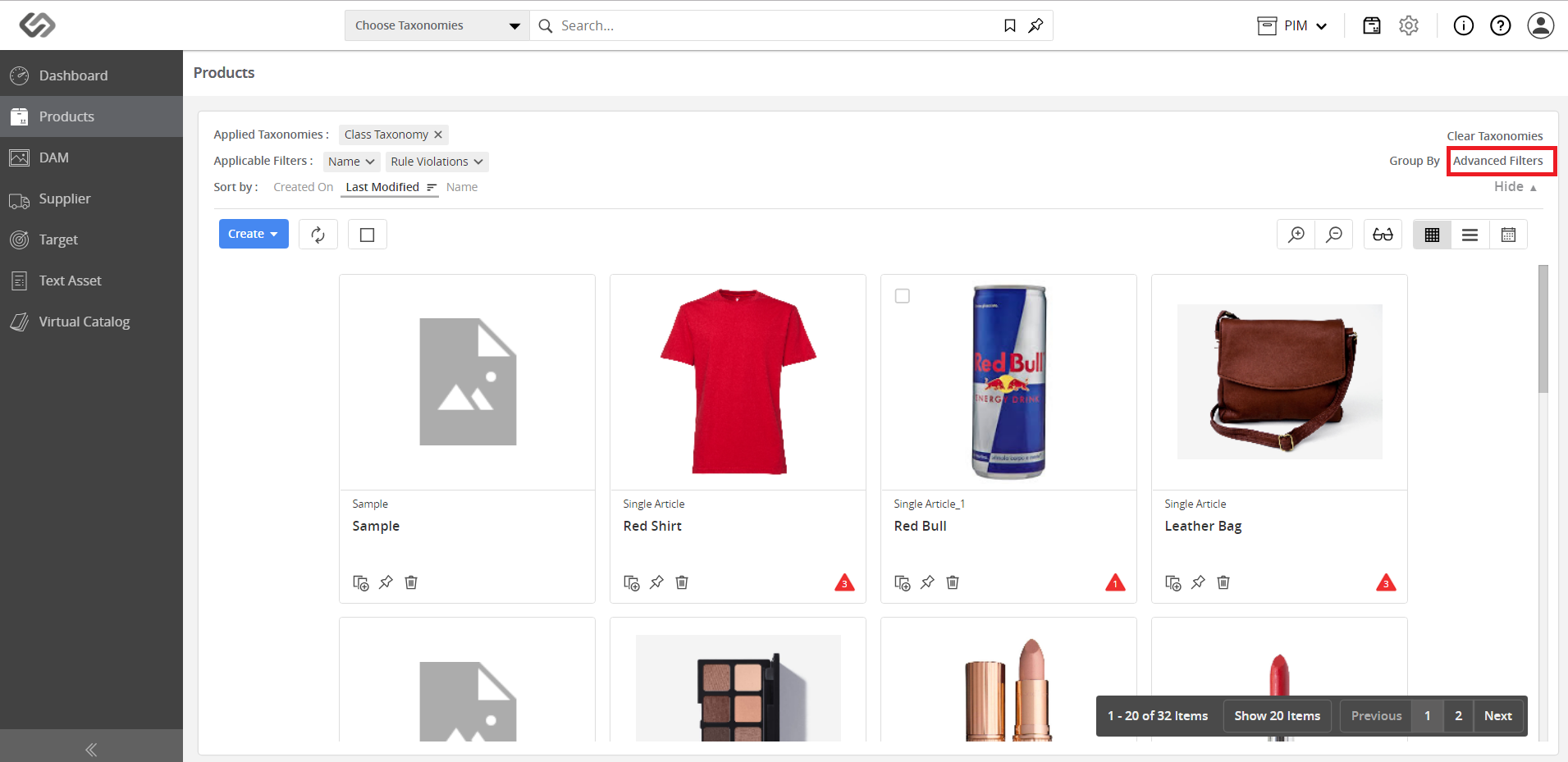
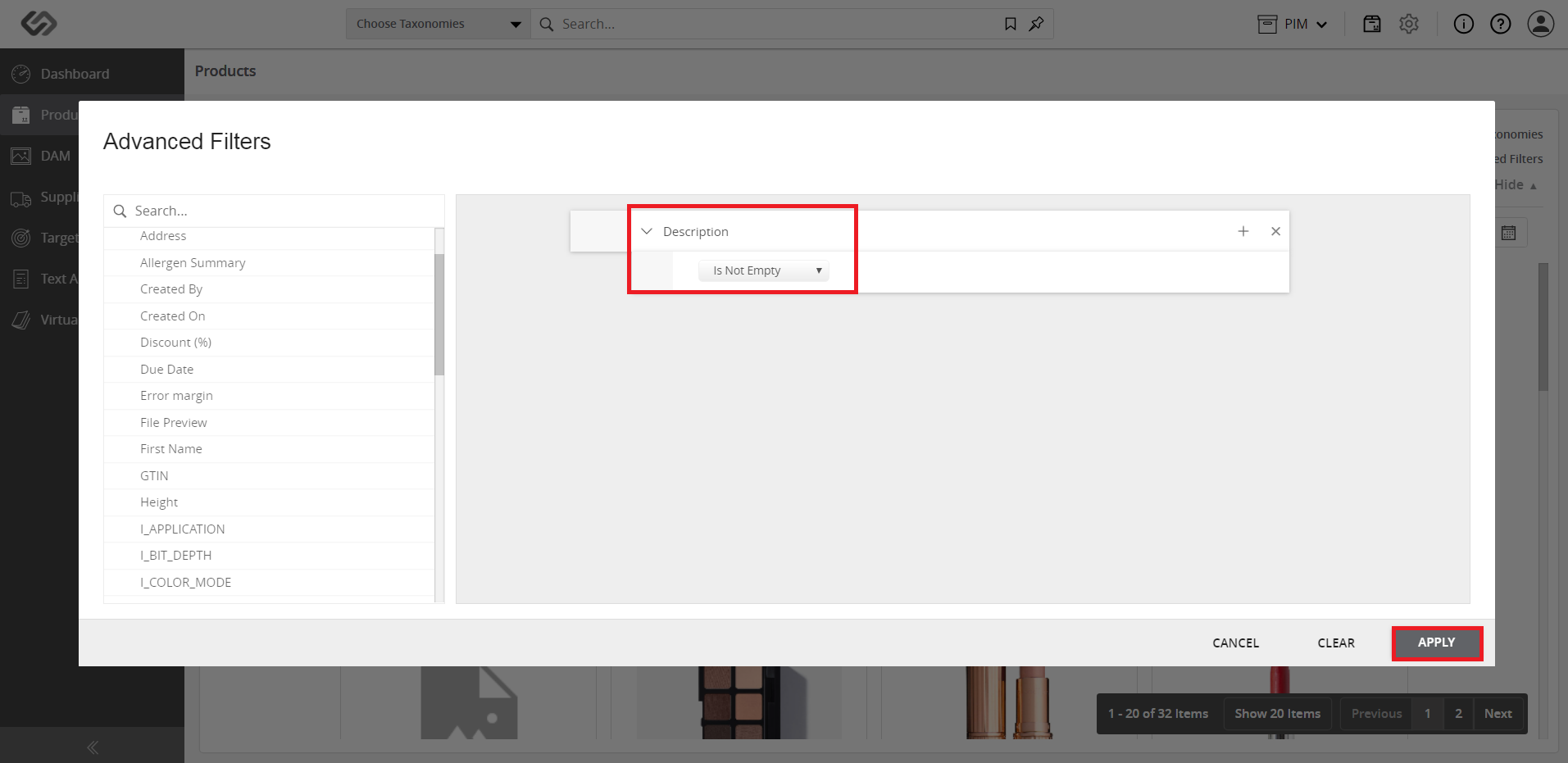
- Select the desired filters and click on the Apply button.
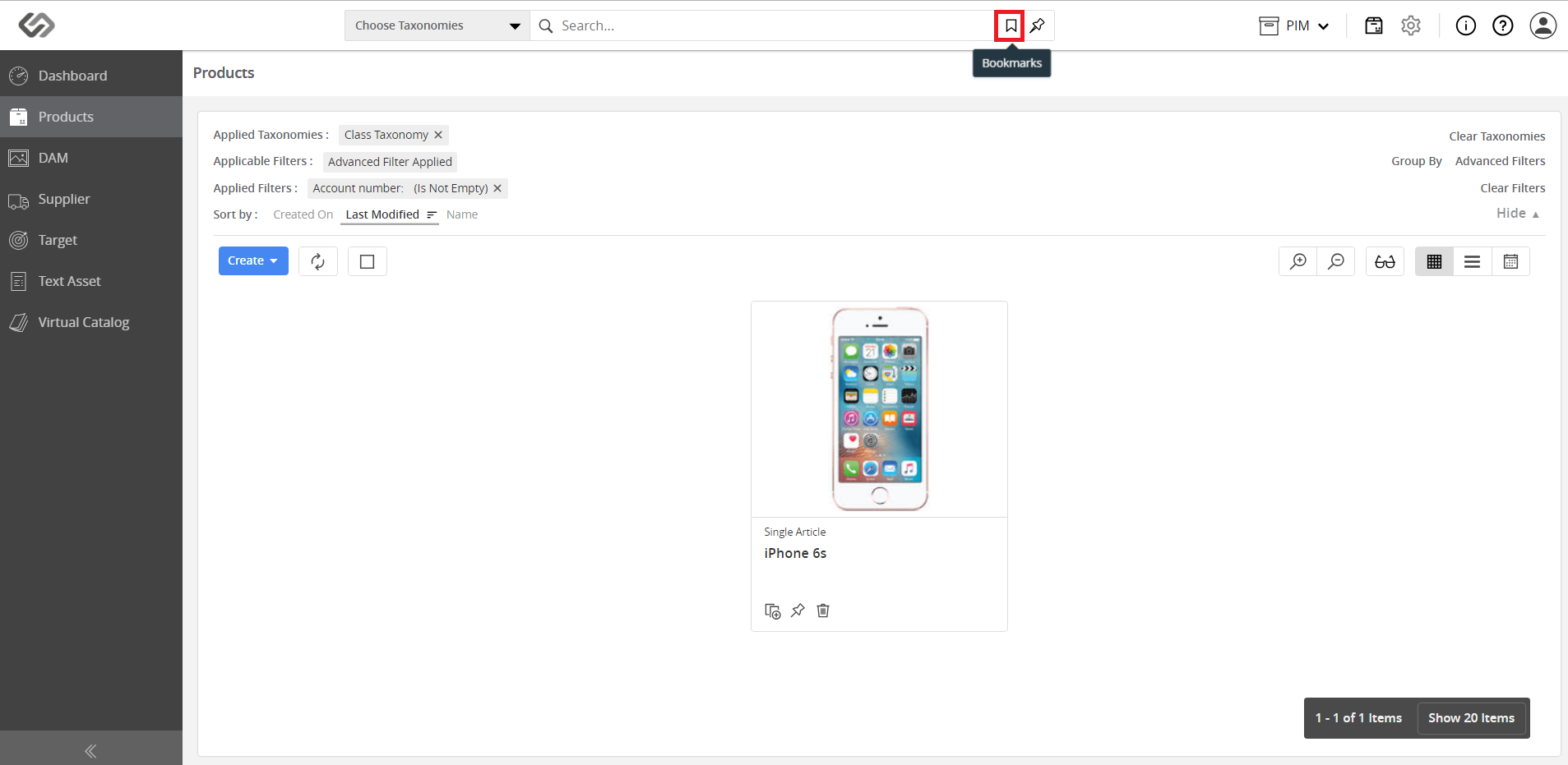
- Click on the Bookmarks icon.
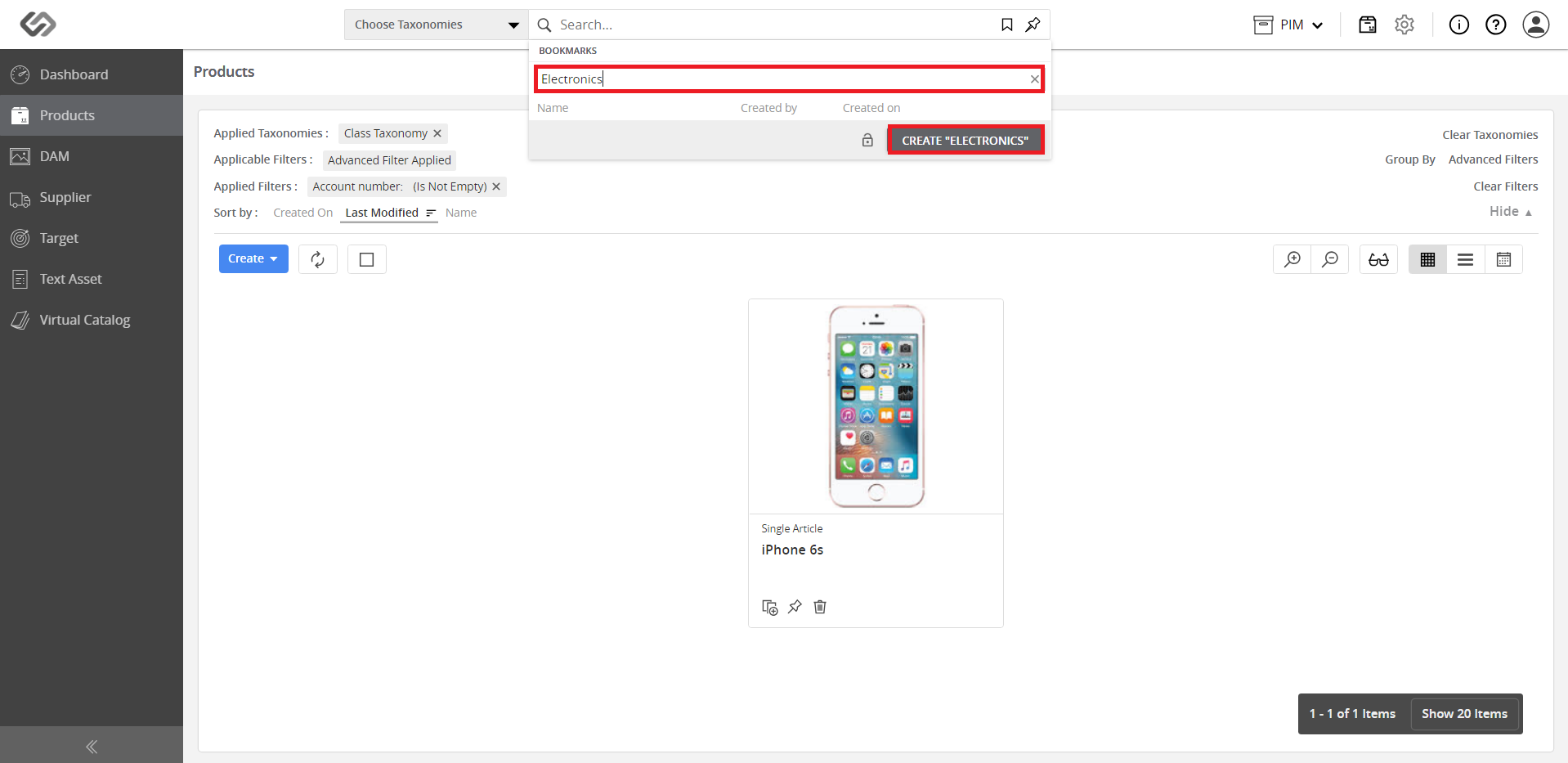
- Enter the name of the bookmark and click on the Create button.
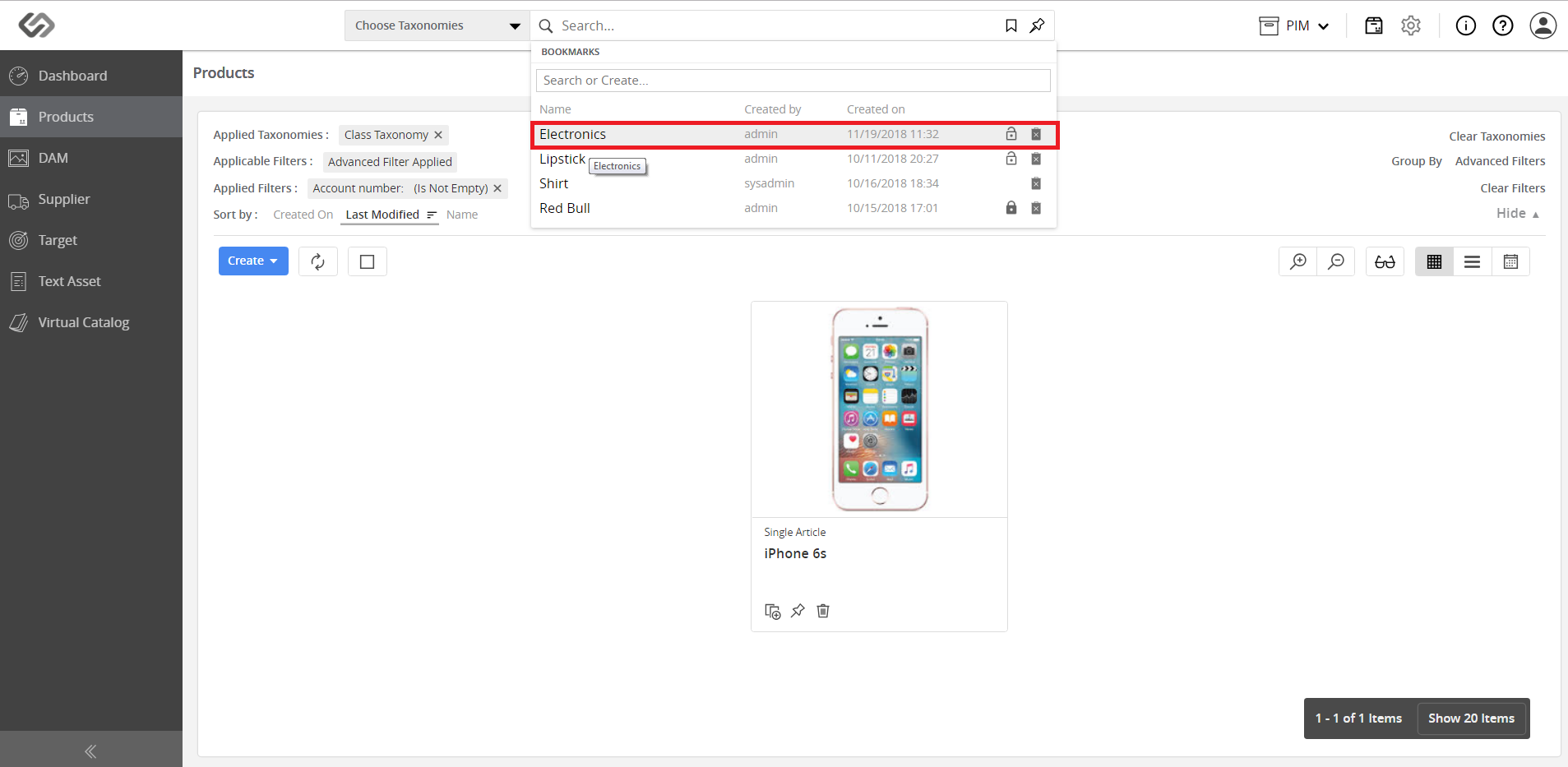
- View the added bookmark.
Searching for a Bookmark
- Go to Products.
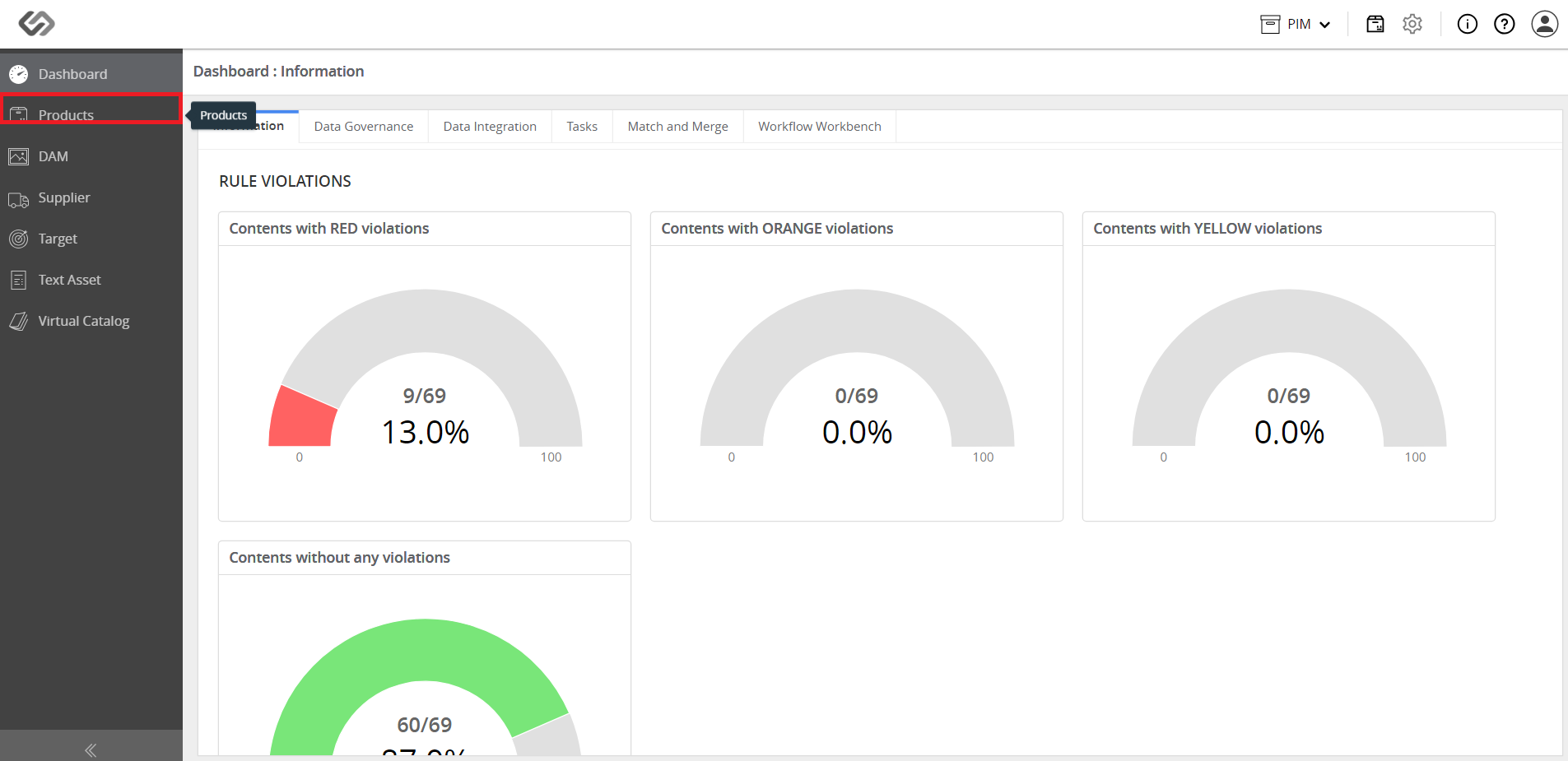
- Click on the Bookmarks icon.
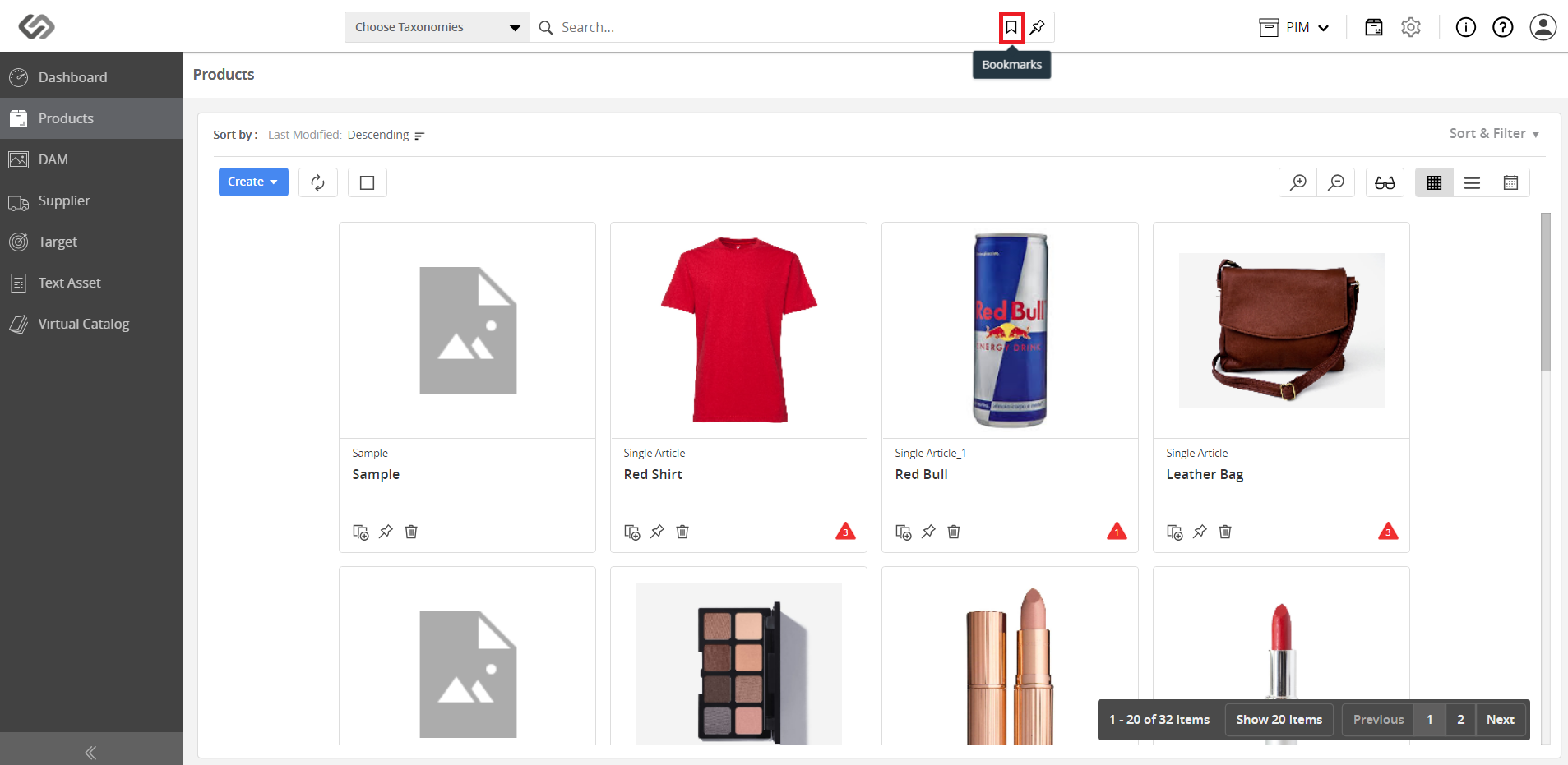
- Enter the name of the bookmark on the Search bar, then click on the bookmark.
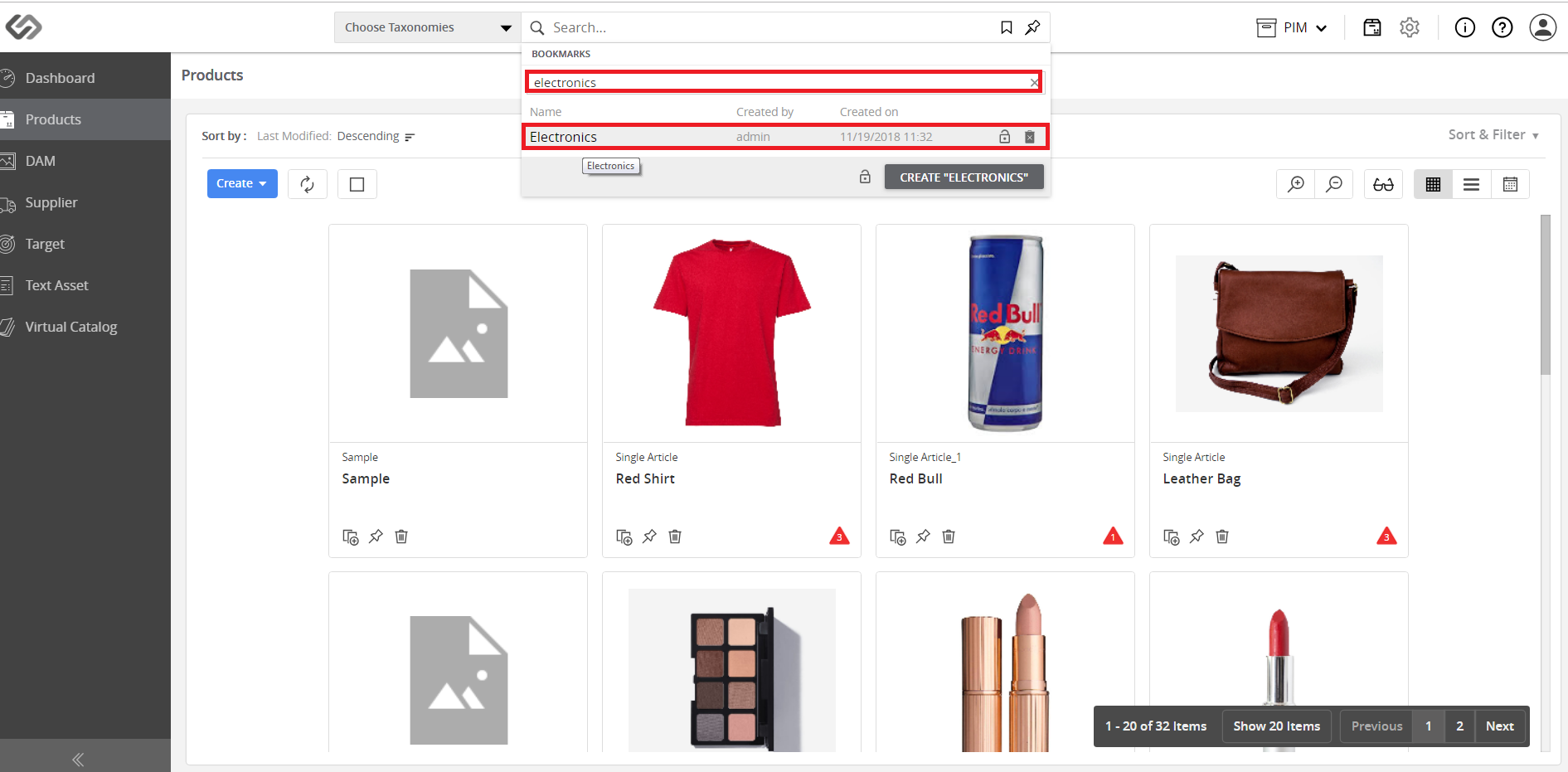
- Click on the Open button.
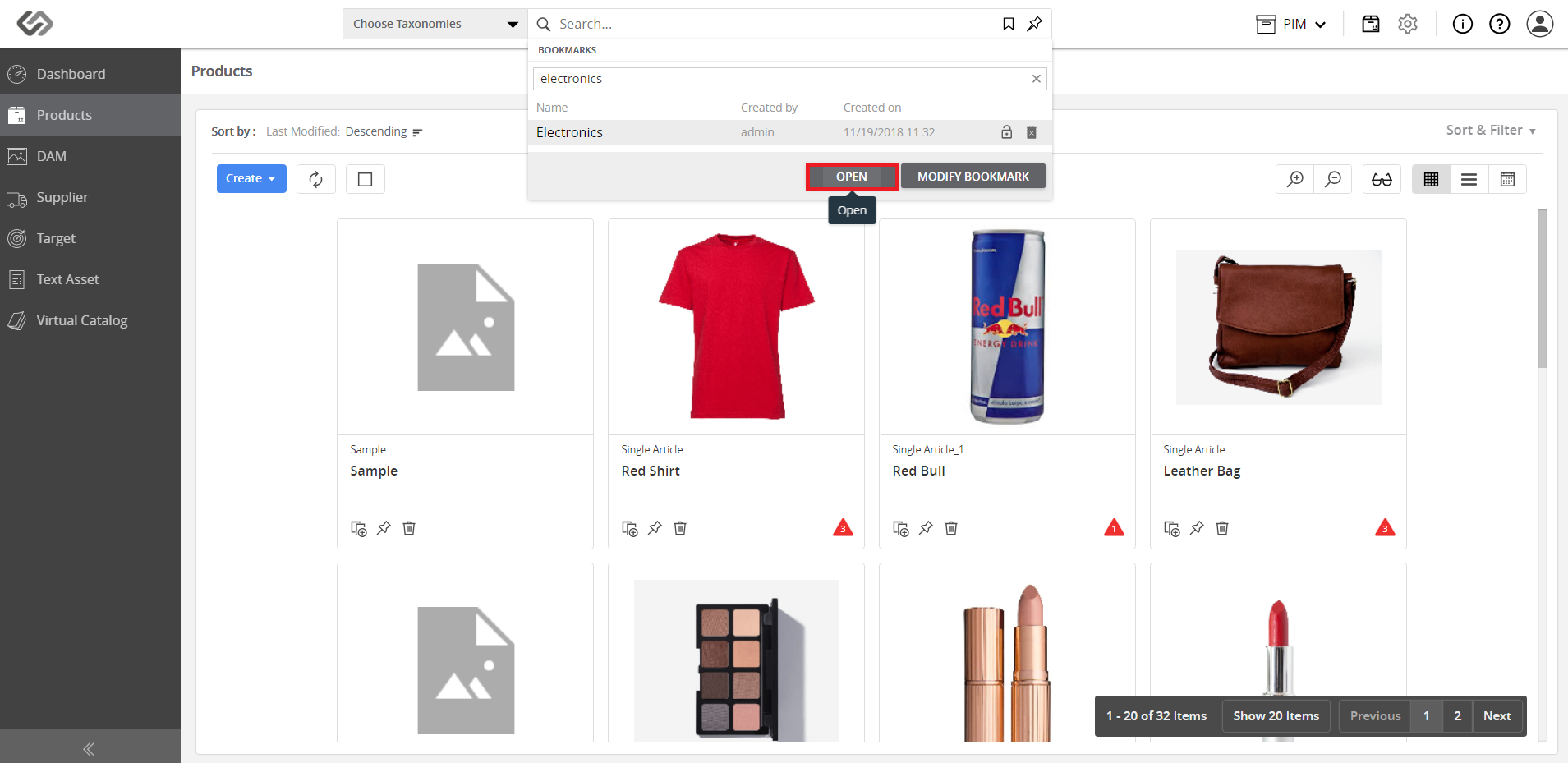
- View the bookmark.
Note: The bookmark page will be updated automatically in case there are new products that satisfy the criteria.
