Manage Permissions

Manage Permissions lets you define what the user can or cannot do.

Key Term:
  • Taxonomy: a taxonomy is a scheme of classification used for an organization’s products.
Description:
  • Simply assign the user to the role with the appropriate functions and say goodbye to unnecessary system changes.
  • Have full control as to who gets to view, edit, and delete the products in the system.
Related topics:
Application:
  • The user can access only the permitted functions.

  • Example:

    Let’s say you did not allow a certain user to delete products, then that user will not have the delete function.

How-to: Manage Permissions

To manage the permissions of a user, refer to the instructions below:


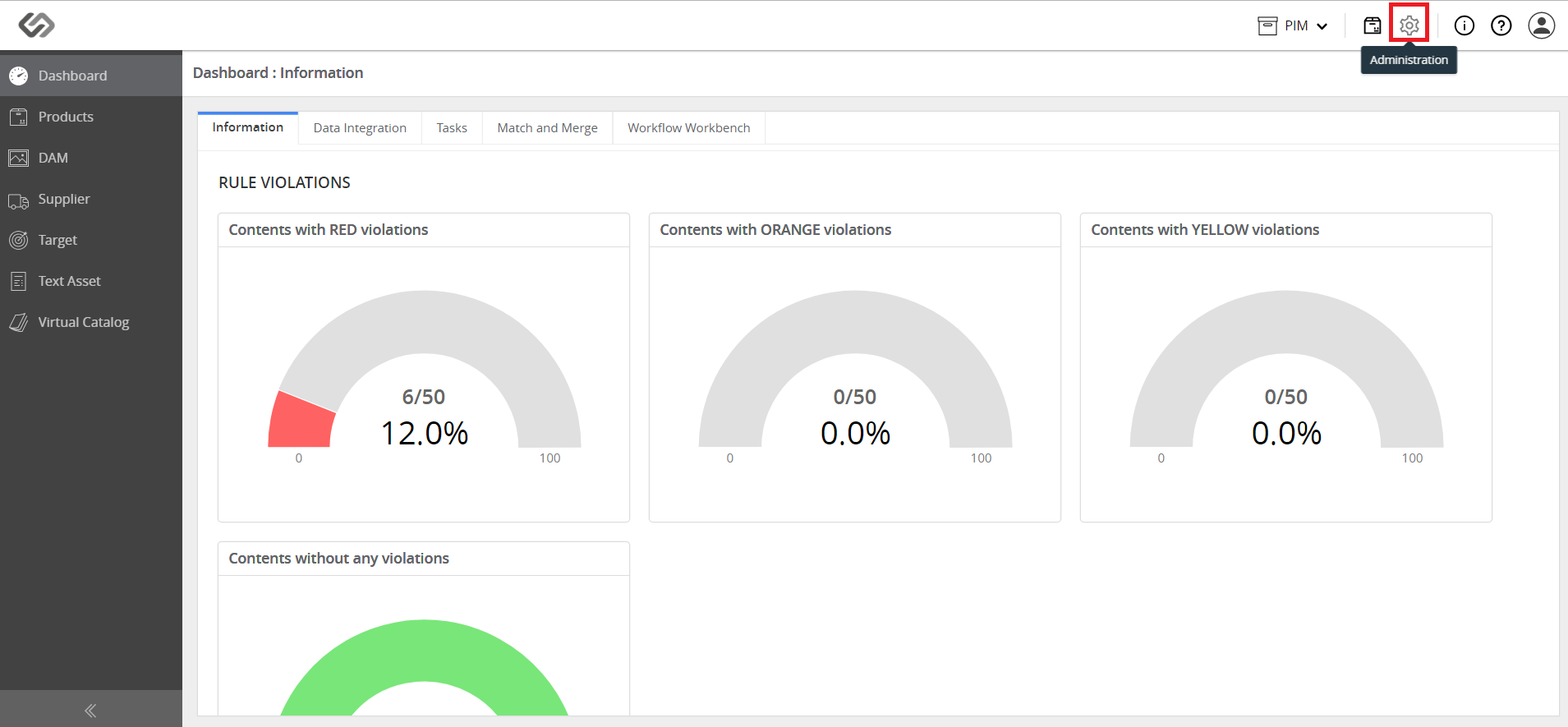
  • Log in and click on the Administration icon.
../../../../../../_images/pxp_managepermissions_gotoadministration.PNG


  • Click on Partner Administration and go to the Partners section.
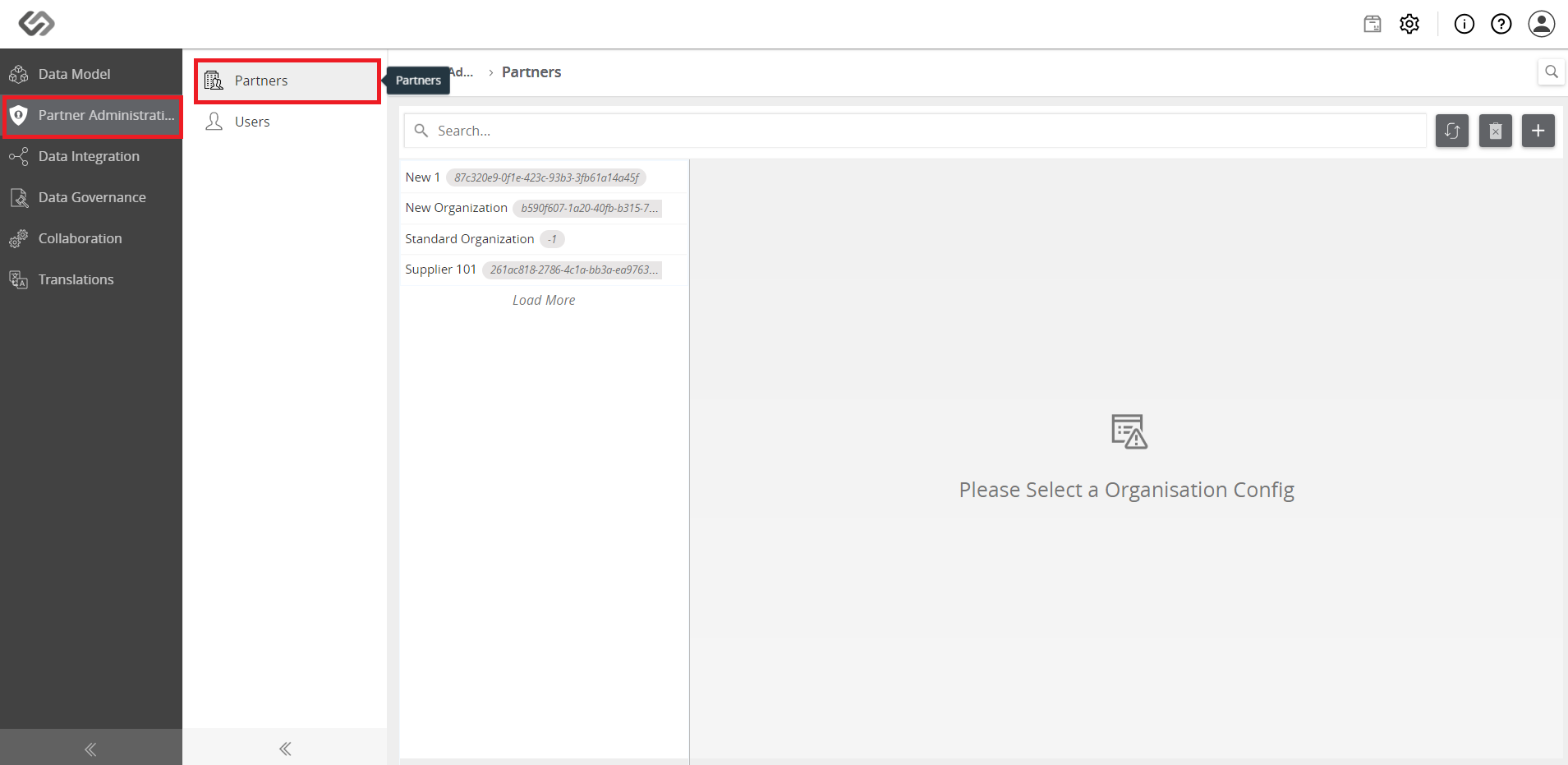
../../../../../../_images/pxp_managepermissions_clickpartners.PNG


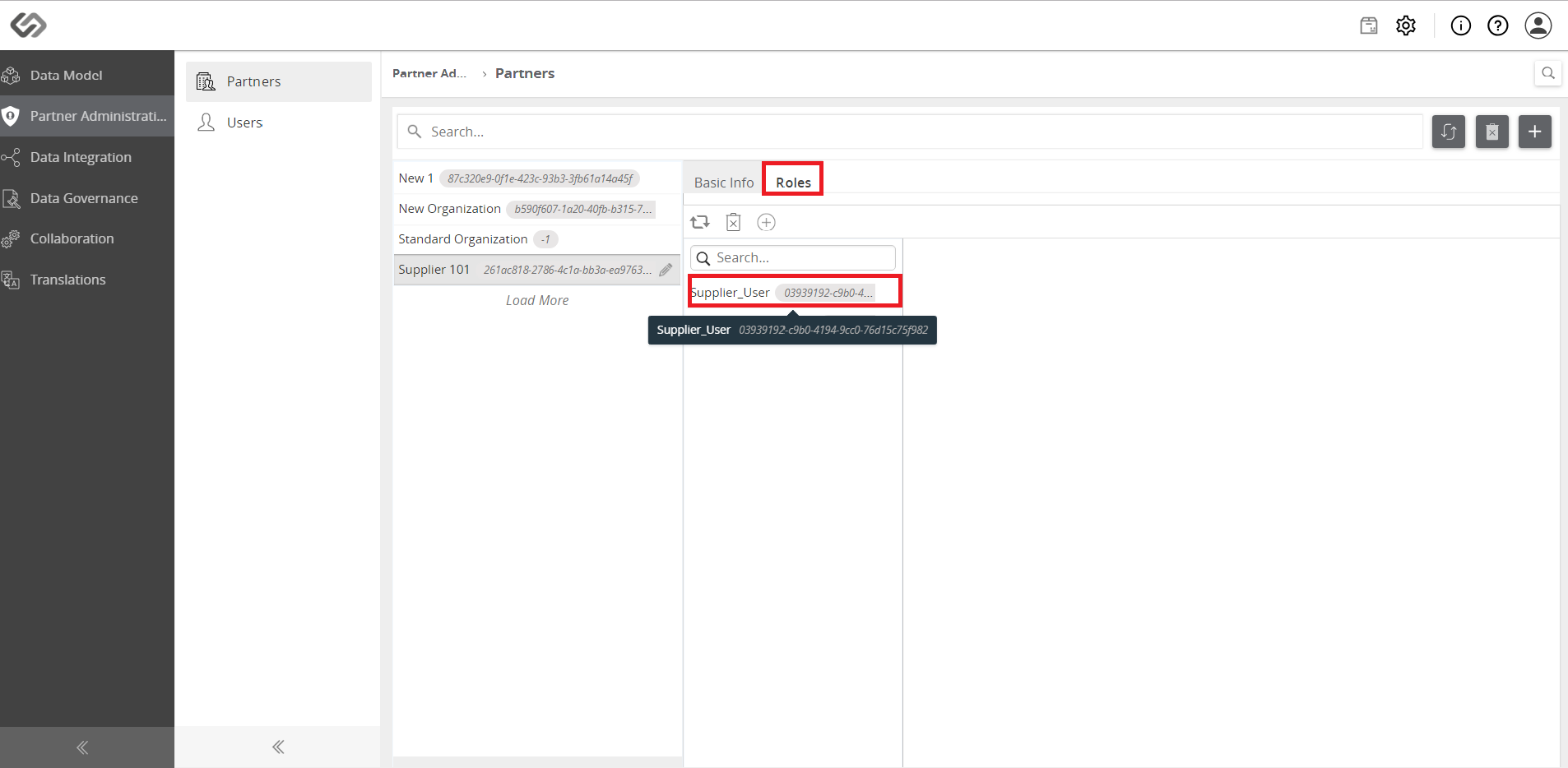
  • On the Partners pane, select an organization.
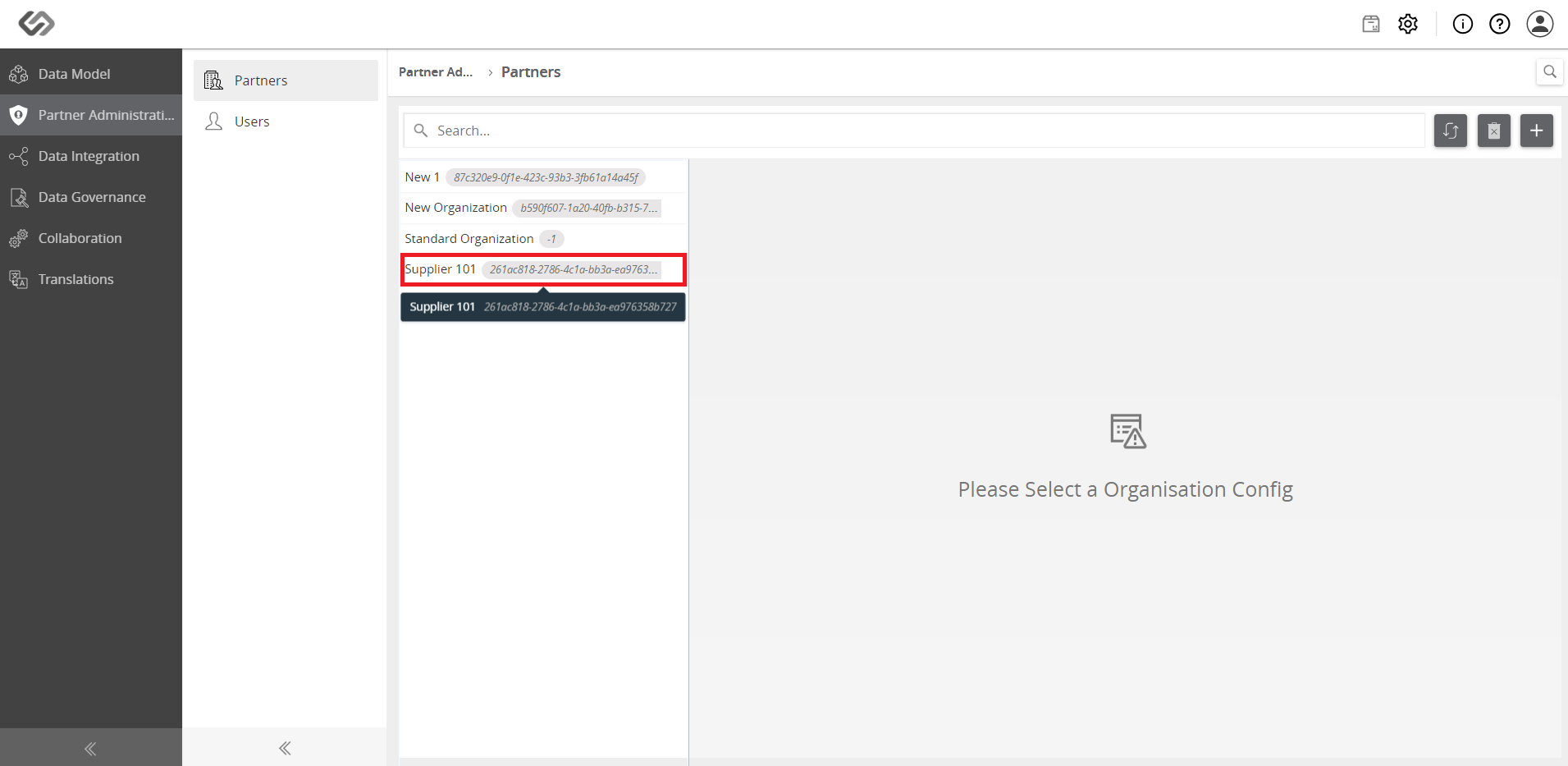
../../../../../../_images/pxp_managepermissions_selectpartner.PNG


  • Click Roles and select a role.
../../../../../../_images/pxp_managepermissions_selectrole.PNG


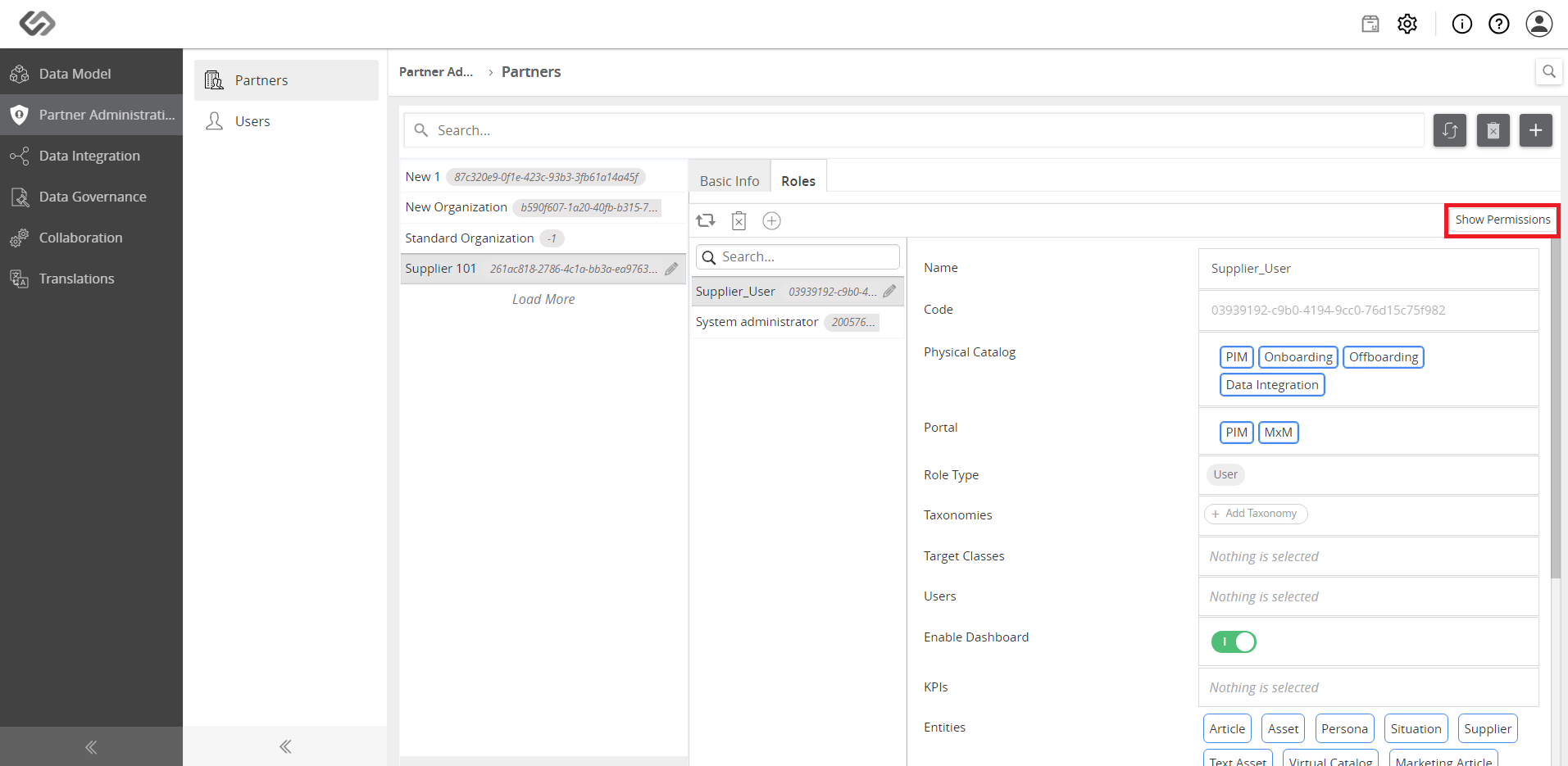
  • Click on the Show Permissions button.
../../../../../../_images/pxp_managepermissions_clickshowpermission.PNG


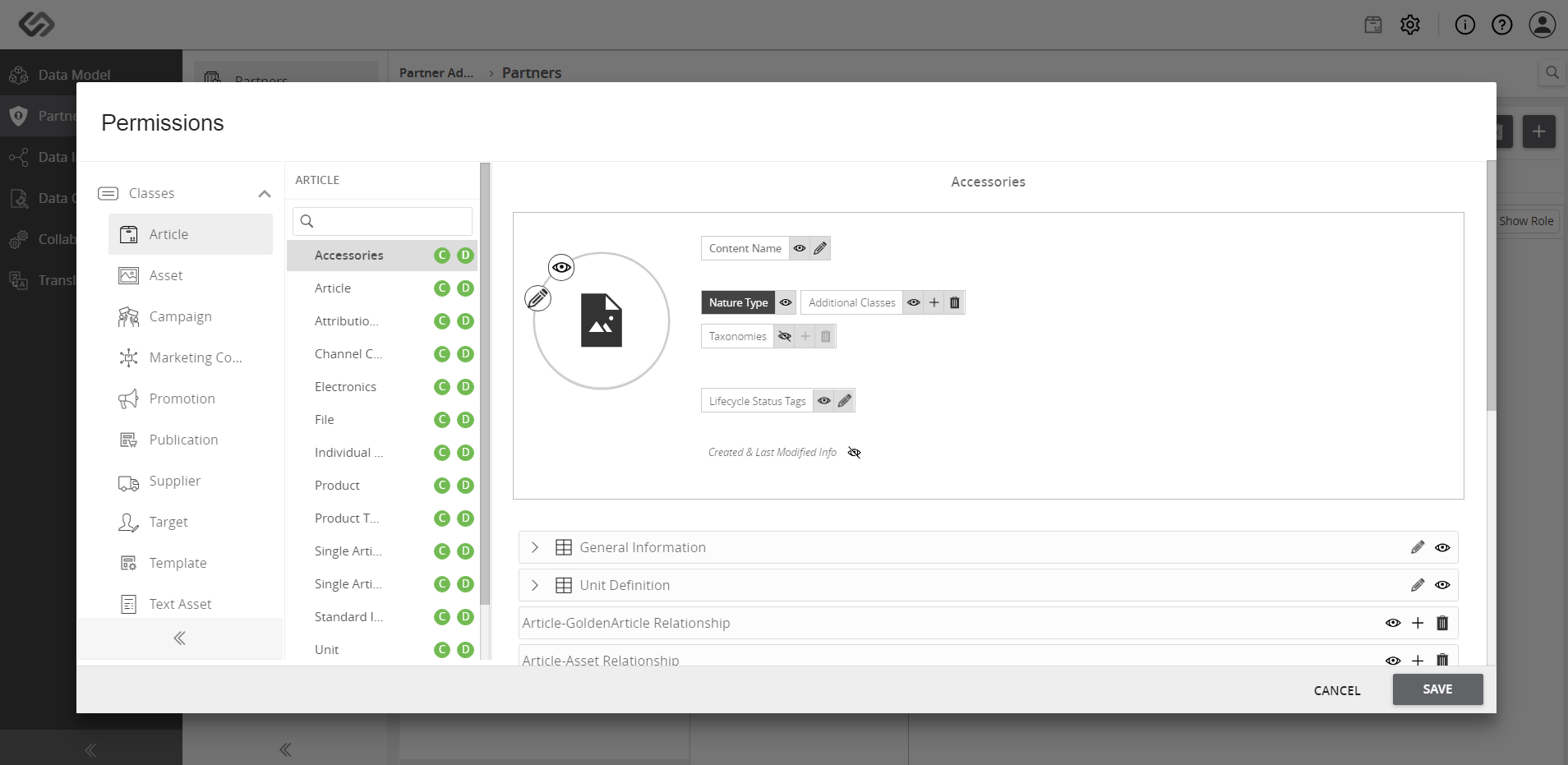
  • Select a class and set the permission for Create, Update, and Delete.
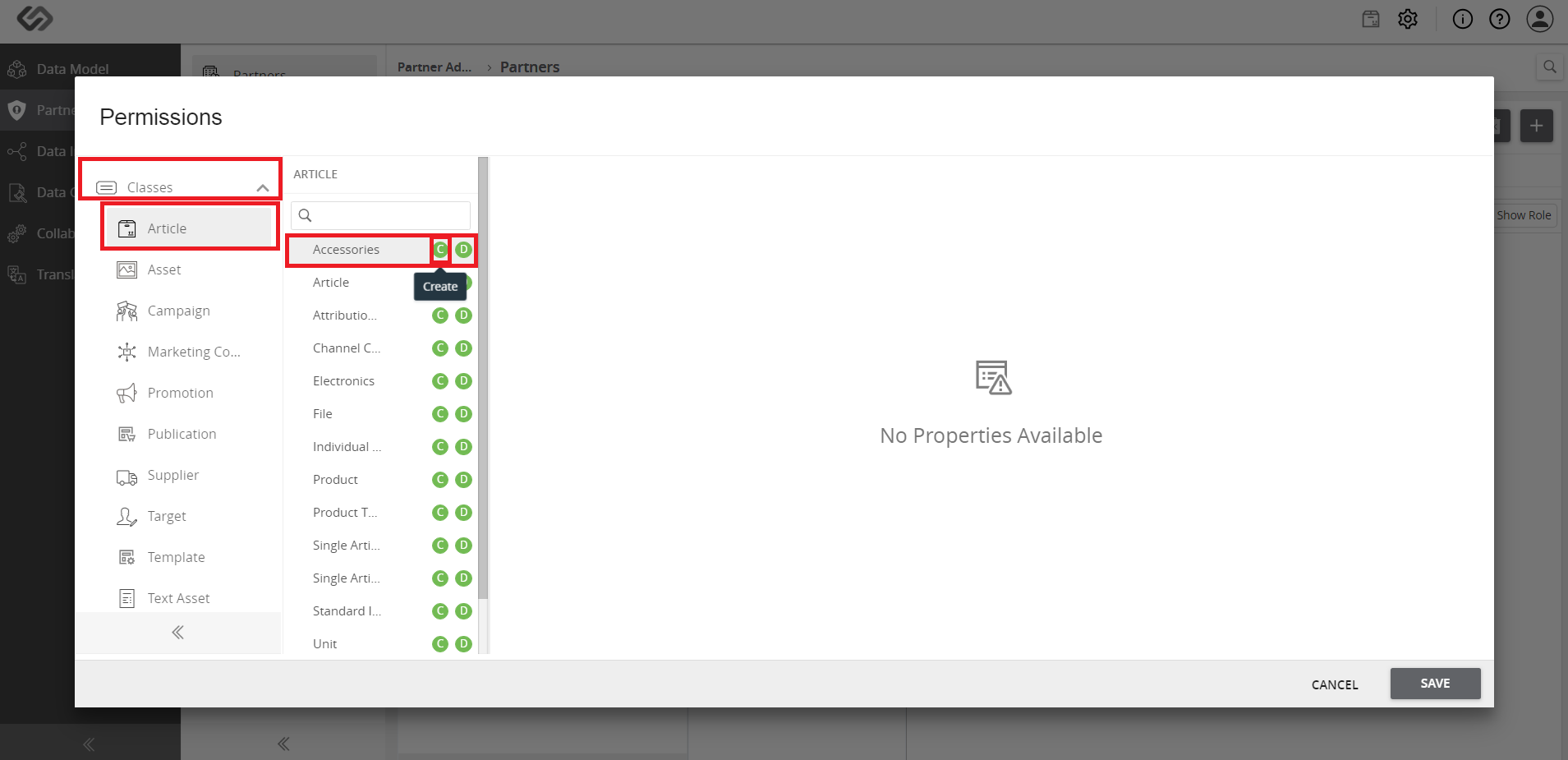
../../../../../../_images/pxp_managepermissions_selectslass.PNG

../../../../../../_images/pxp_managepermissions_selectslass3.PNG


  • Do the same for taxonomy. A green circle indicates that the function is enabled.
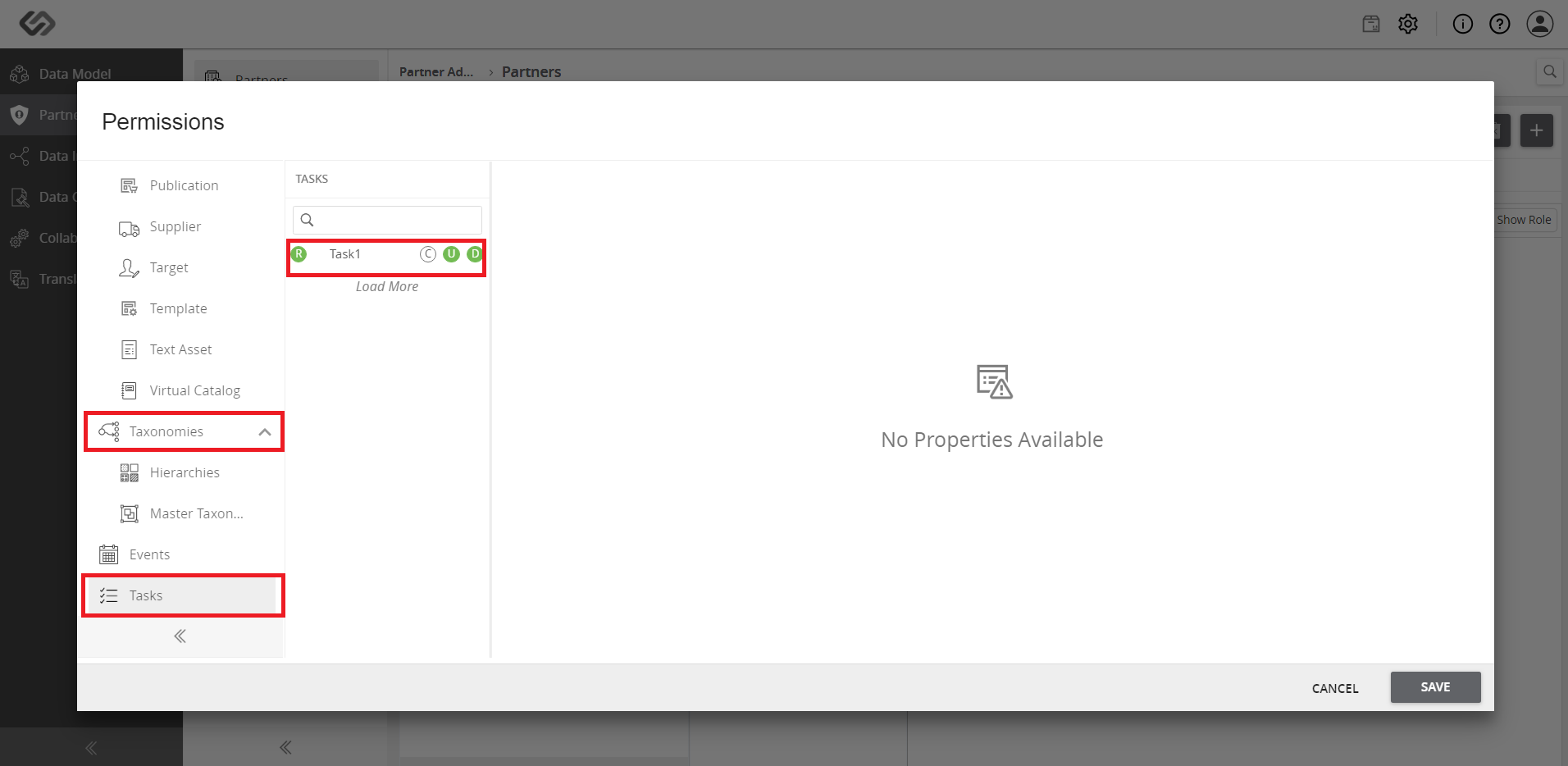
../../../../../../_images/pxp_managepermissions_selecttaxonomy.PNG


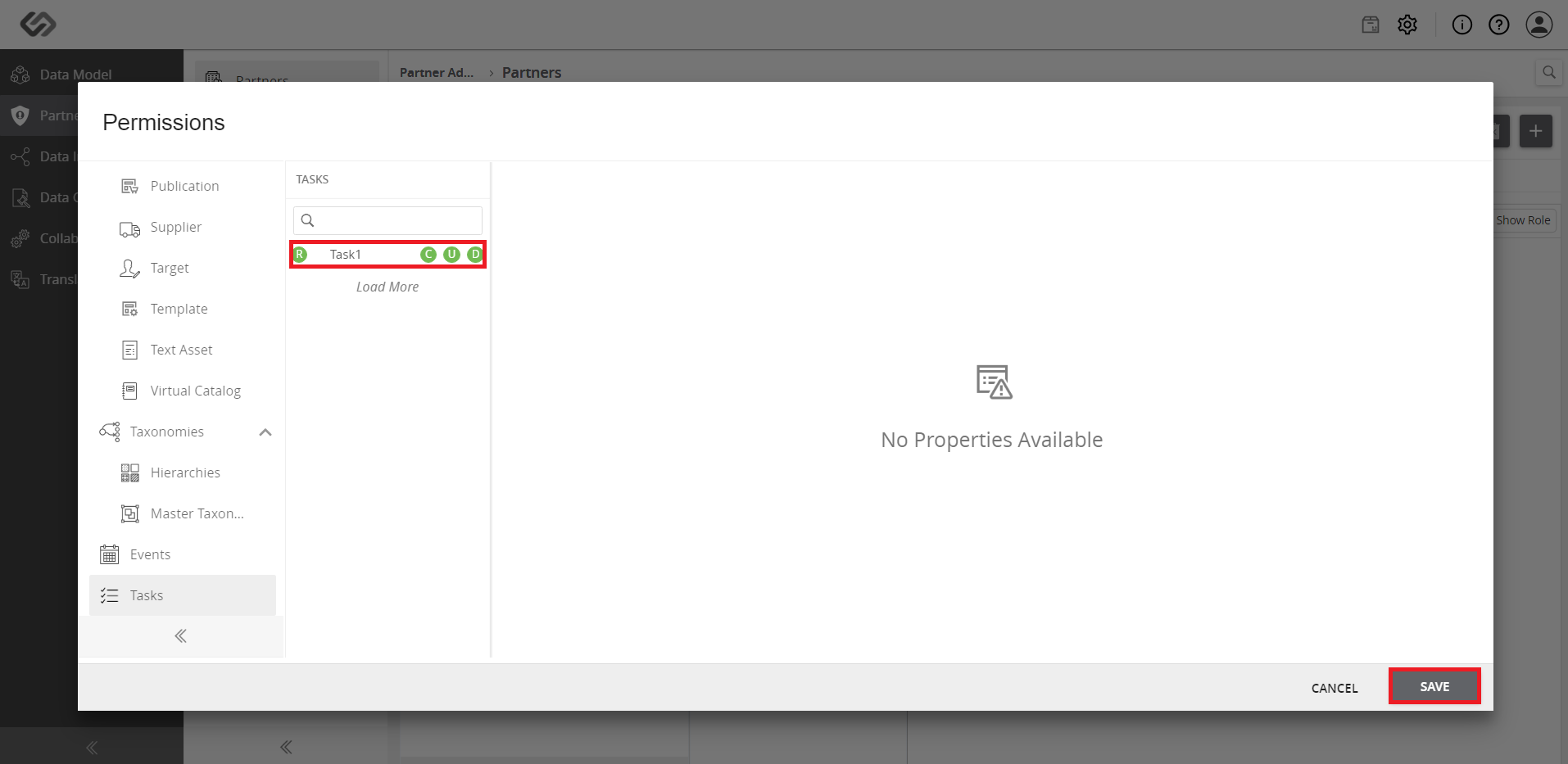
  • View the image below that shows an example of a role that has been assigned the following rights. Click the Save button to save the changes.
../../../../../../_images/pxp_managepermissions_viewimage.PNG


Contentserv line