Multilingual UI

Multilingual UI is a feature that provides translation capability for UI menu items so that it can be used in multiple languages.

Key Term:
  • User Interface (UI): the digital interface used to interact with the Contentserv software.
Description:
  • The UI can be in various languages such as French, German and Spanish.
  • The administrator can set up the data model (attributes, tags, classes) in various languages so that it can be understood by users in multiple countries or regions.
  • The configuration of this feature can be accessed in the administration section.
Related topics:
Application:
  • The system can have multiple languages of the UI for different languages.

  • Example:

    The administrator wants the UI to be in French for a French user. The adminstrator configures translations to the UI labels in the administration section. When the user selects their desired language, the UI of the system will be translated.

How-to: Manage Multilingual UI

To do this, follow these steps:


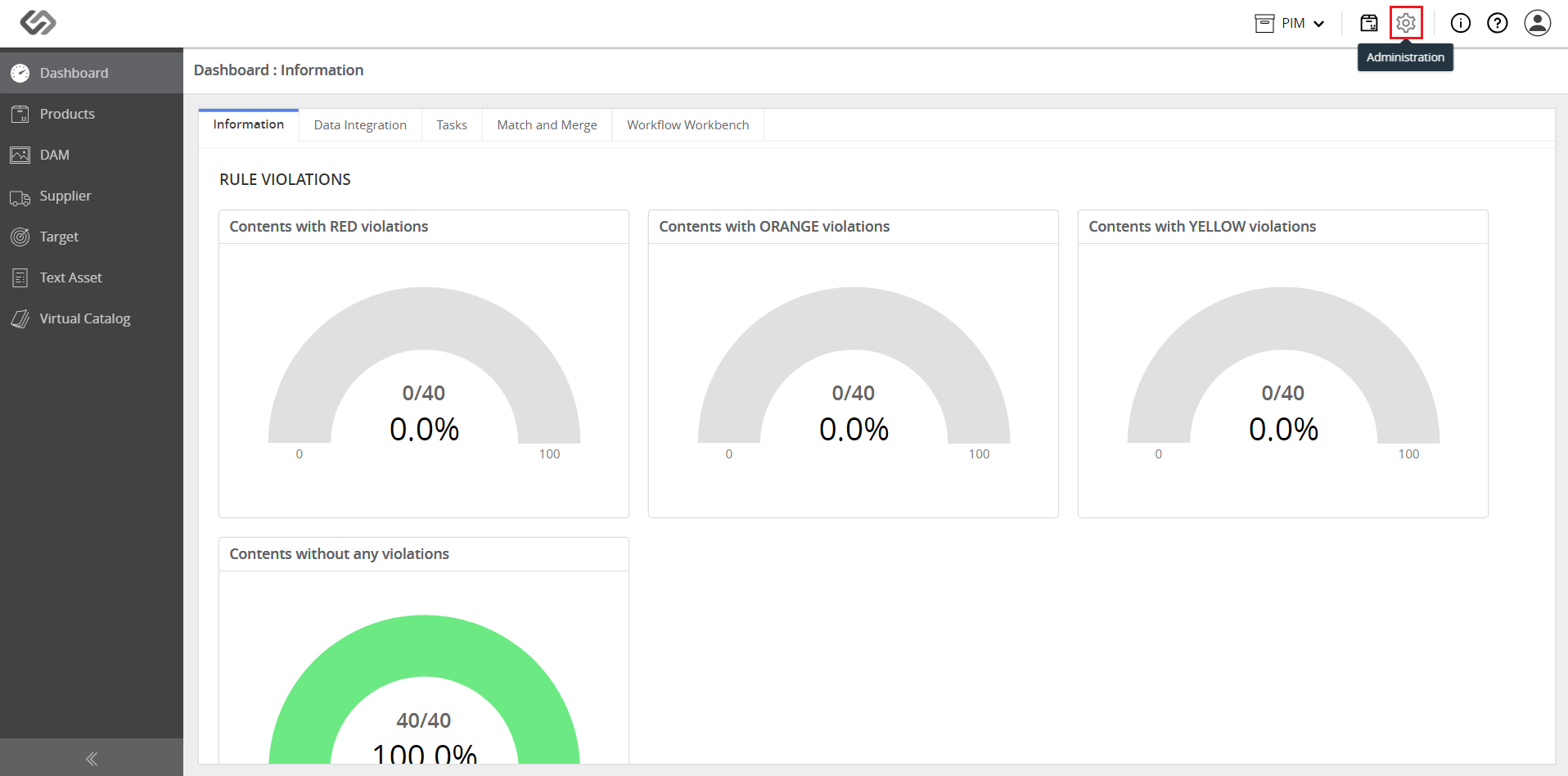
  • Log in and click on the Administration icon.
../../../../../../_images/pxp_multilingualui_login.PNG


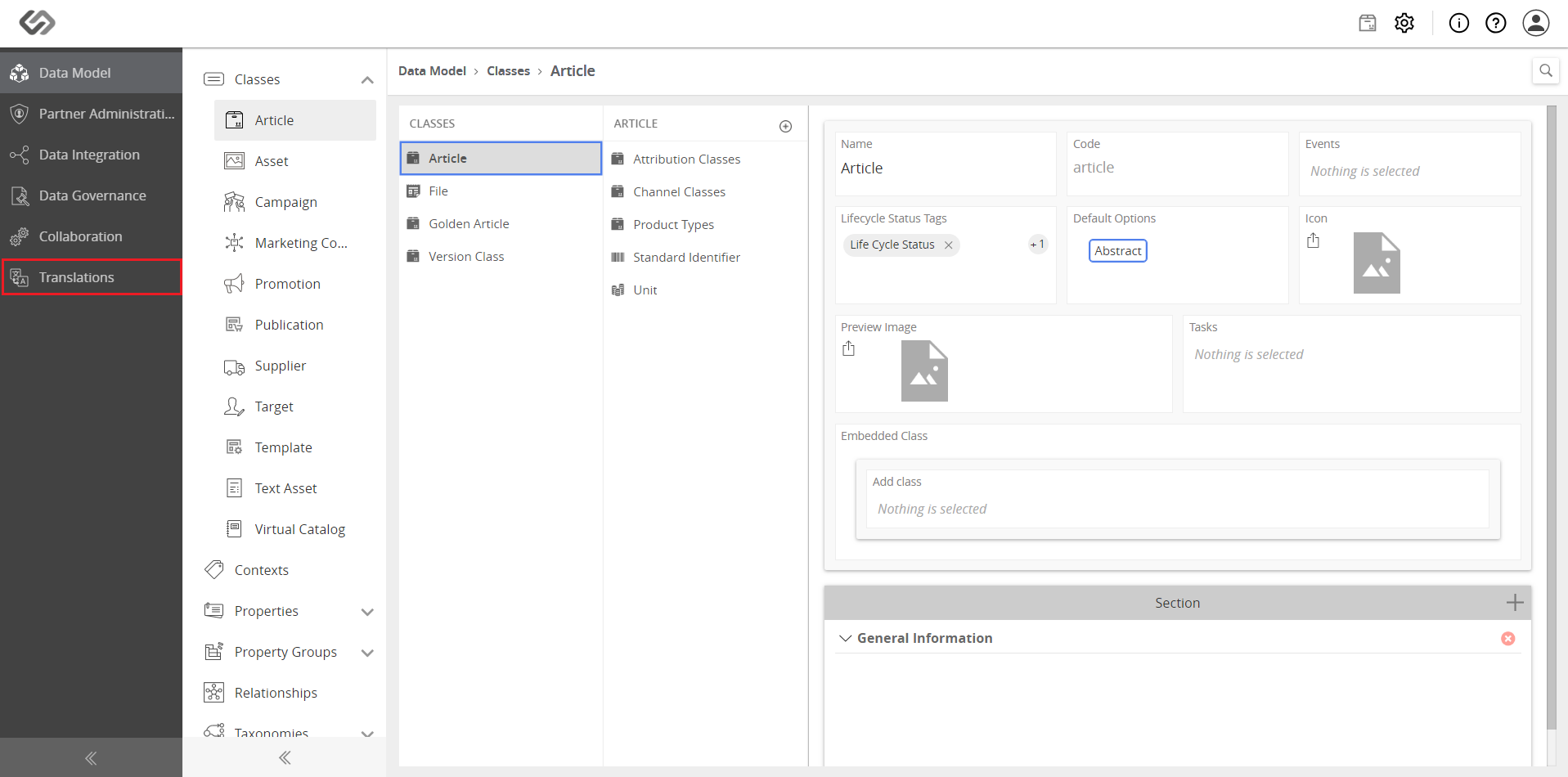
  • Click on Translations.
../../../../../../_images/pxp_multilingualui_clicktranslations.PNG


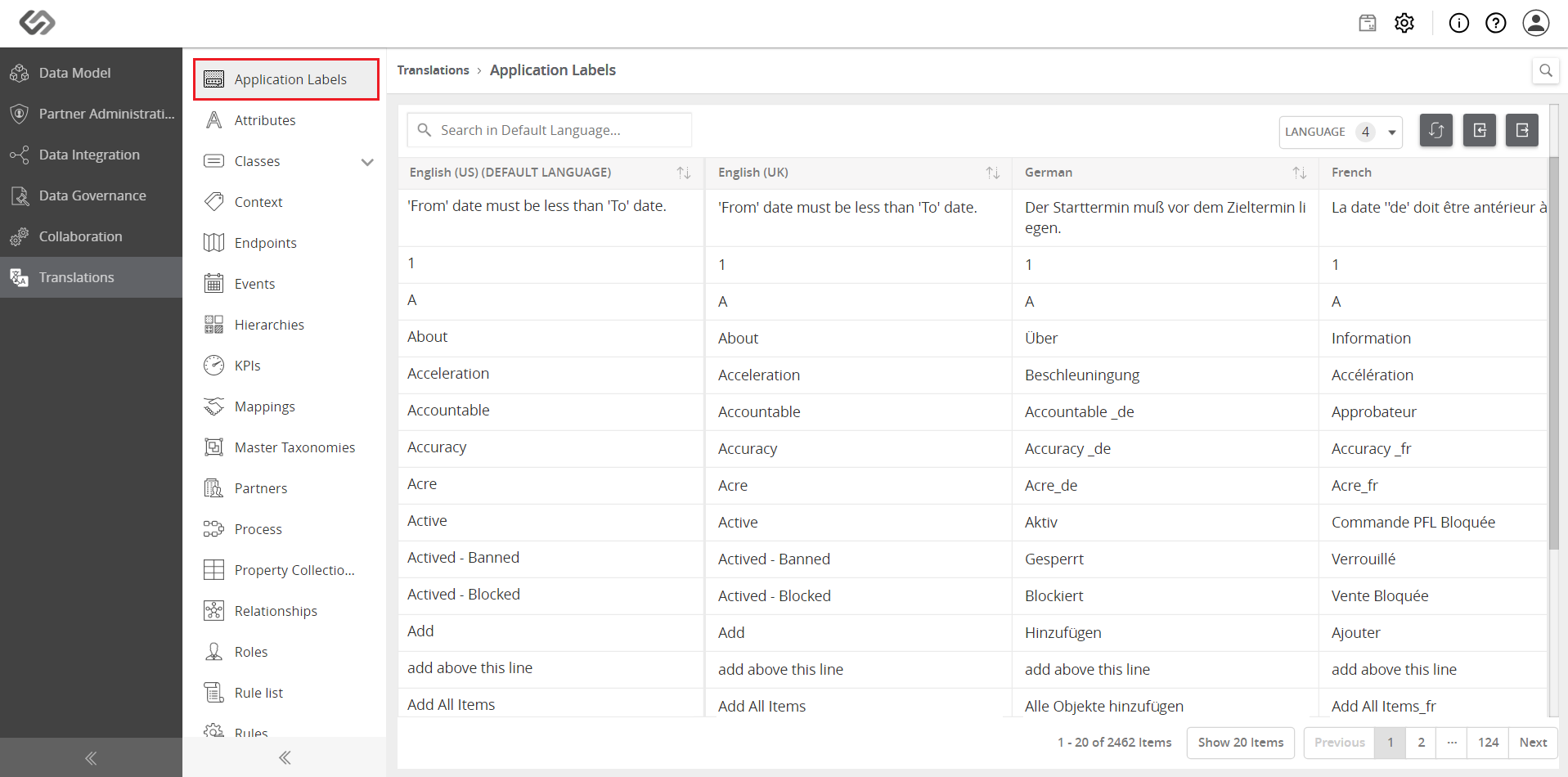
  • Go to the Application Labels section.
../../../../../../_images/pxp_multilingualui_clickapplicationlabels.PNG


  • Based on the language required, enter the translations for the desired label (e.g., ‘Username’).
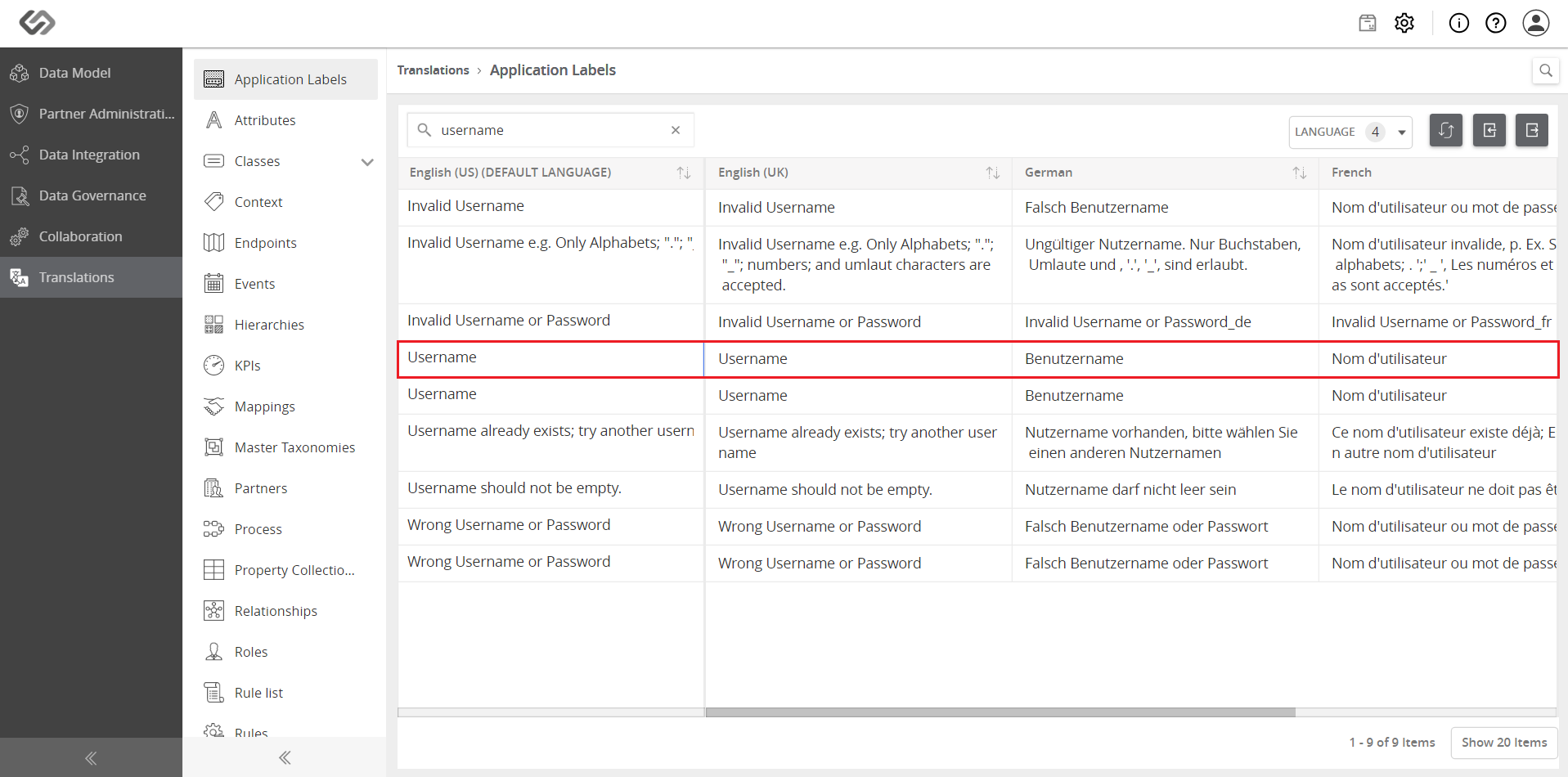
../../../../../../_images/pxp_multilingualui_basedlanguagerequiredentertranslation.PNG


  • Click on the Save button to save the changes made in the translations.
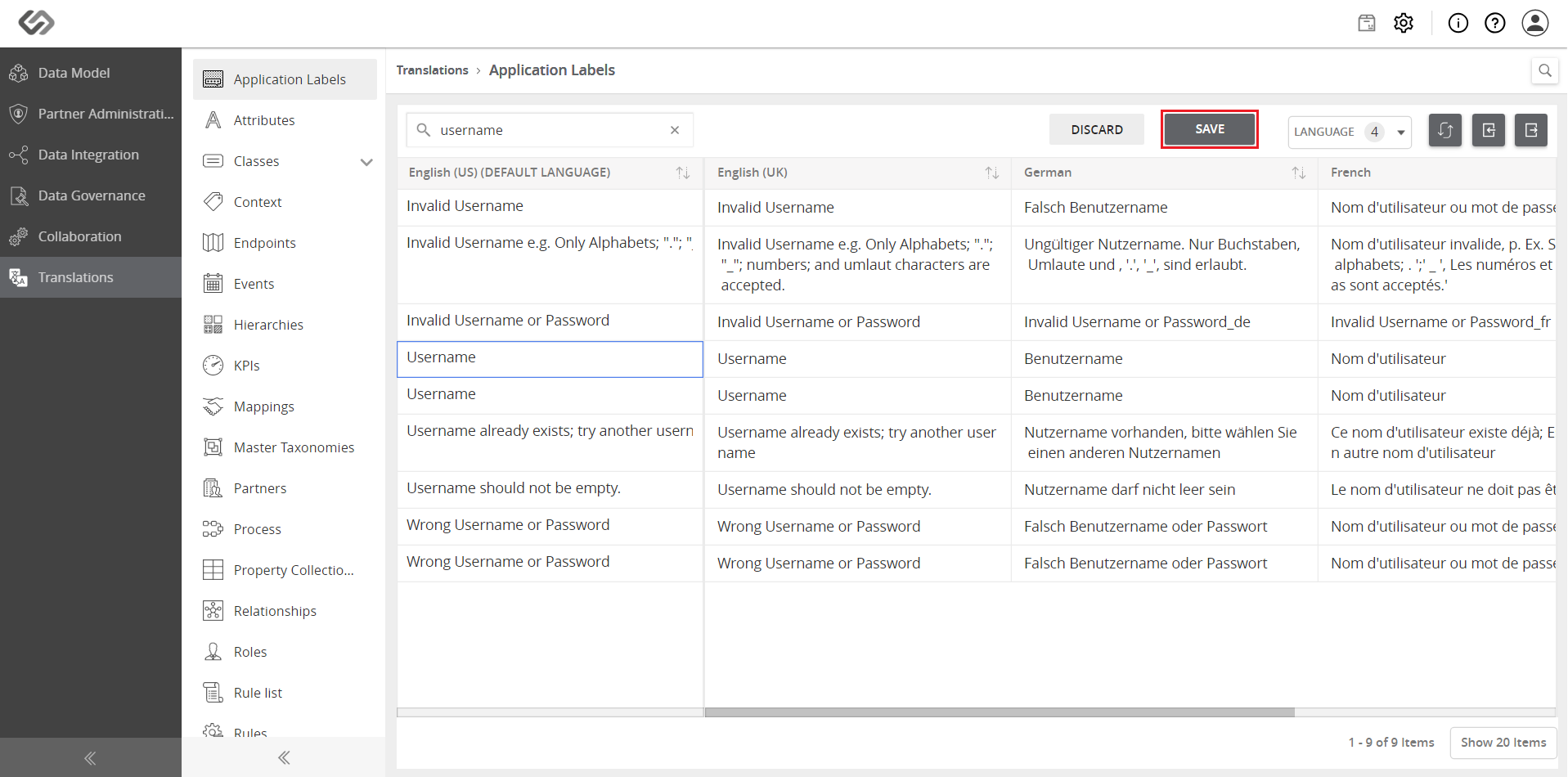
../../../../../../_images/pxp_multilingualui_save.PNG


  • Click on the user profile icon and select Log Out.
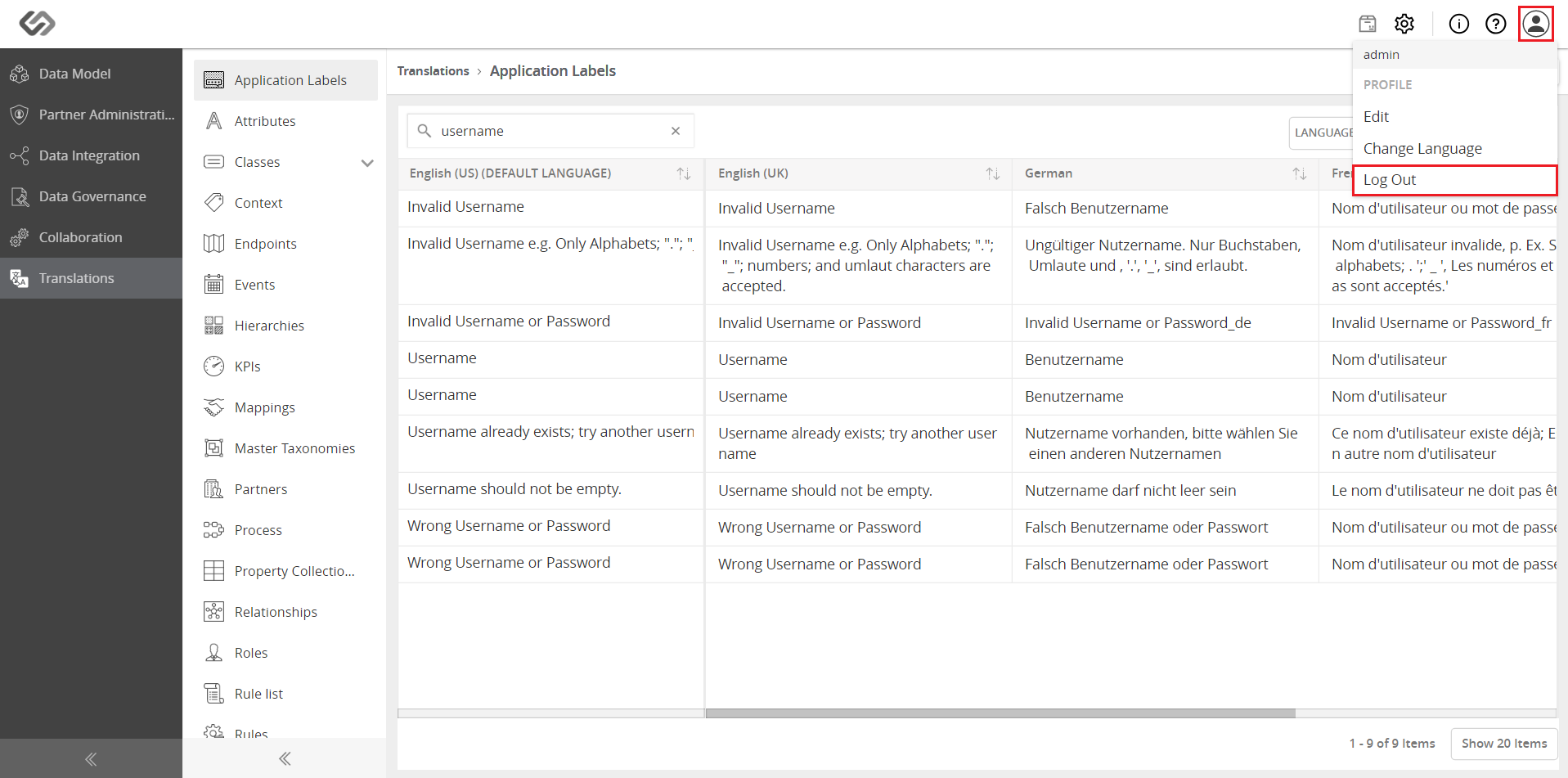
../../../../../../_images/pxp_multilingualui_logout.PNG


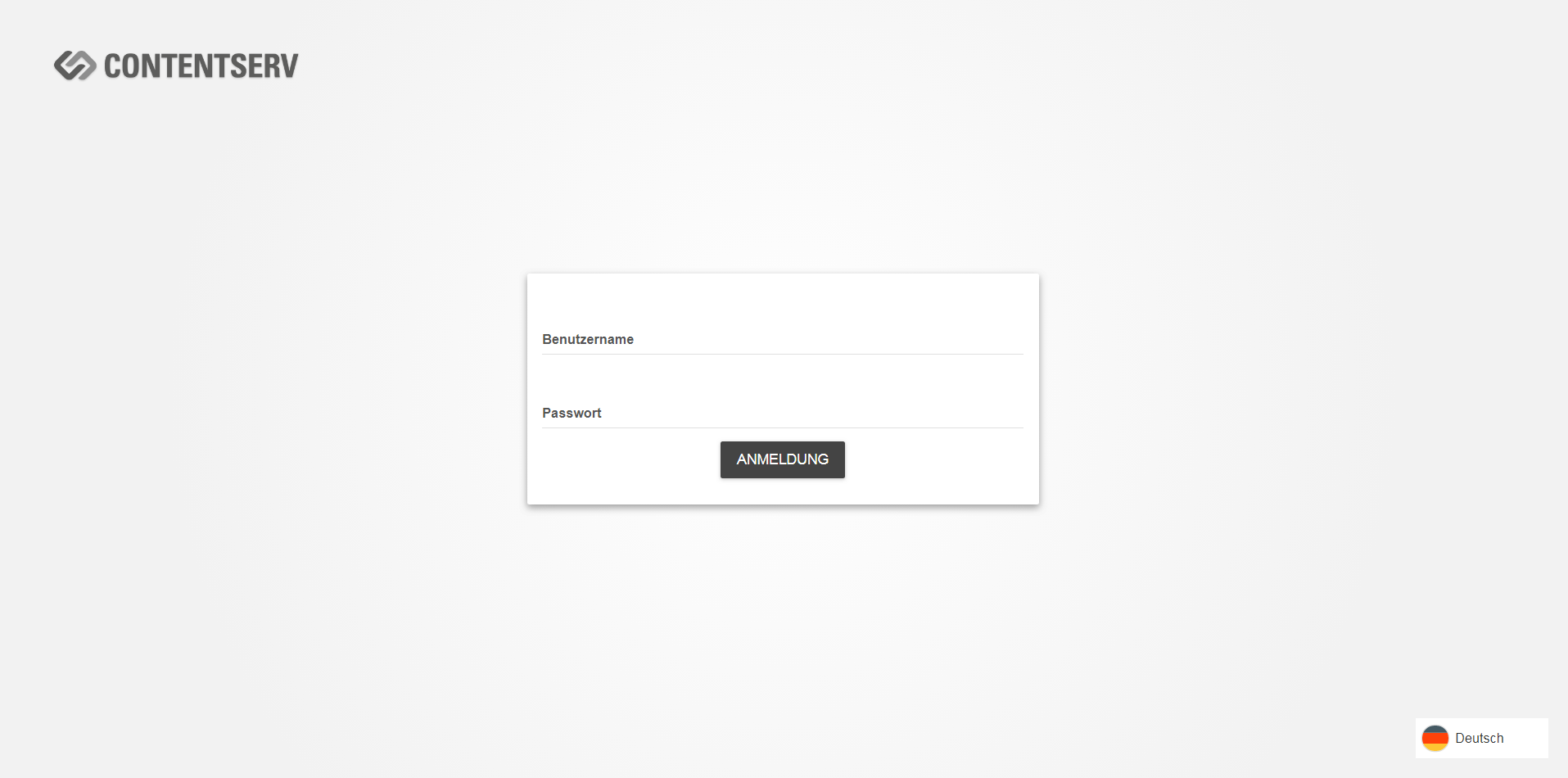
  • Select the desired language from the lower right corner of the login page.
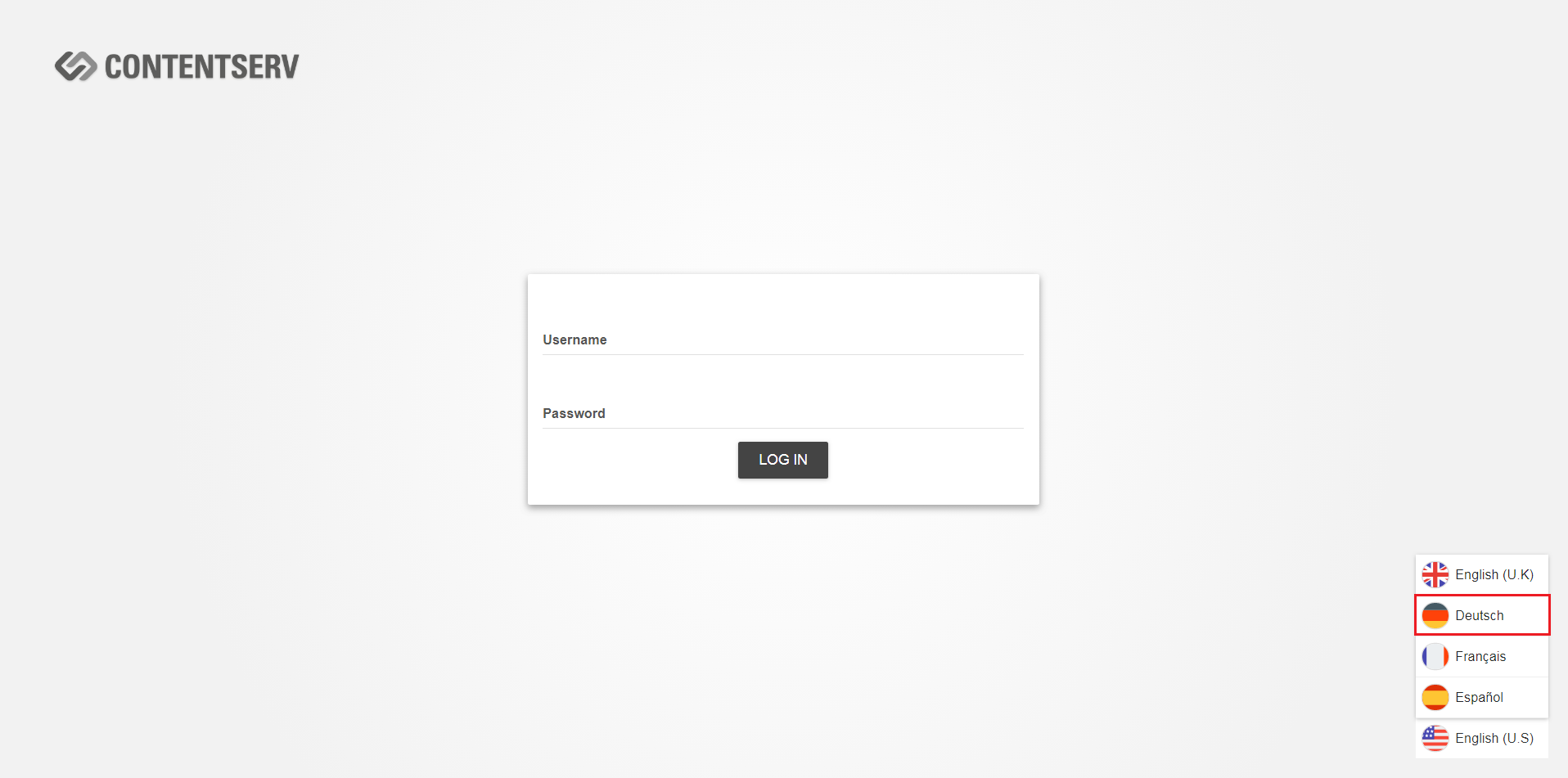
../../../../../../_images/pxp_multilingualui_selectlanguage.PNG

../../../../../../_images/pxp_multilingualui_selectlanguage2.PNG


Contentserv line