Contentserv
latest
  • Overview
  • Tutorials
  • Glossary
Contentserv
  • Docs »
  • Manage Media Links
  • Edit on GitHub

Manage Media Links

The Manage Media Links feature provides the functionality to set up a relationship (or linking) between a product and an asset.

Key Term:
  • Relationships: a way of linking entities together from different domains (e.g. PIM, MDM, DAM) as well as within the same domain.

    • Example:

      Products + supplier + image + target

Description:
  • This feature allows the linking of products to various assets like Images, Videos, PDFs, and other relevant files. The images if linked to a product will be visible in the product thumbnail and in the relationship tab. In the image relationship tab, the product to which that image is linked to would be visible too.
Related topics:
  • Define Article Links
  • Define Relationships
Application:
  • Manage Media Links can be used to link a product to its media assets. An example would be an article that is linked to its video files that will provide additional information regarding the article.
  • Example:

How-to: Manage Media Links

To manage media links follow these steps:


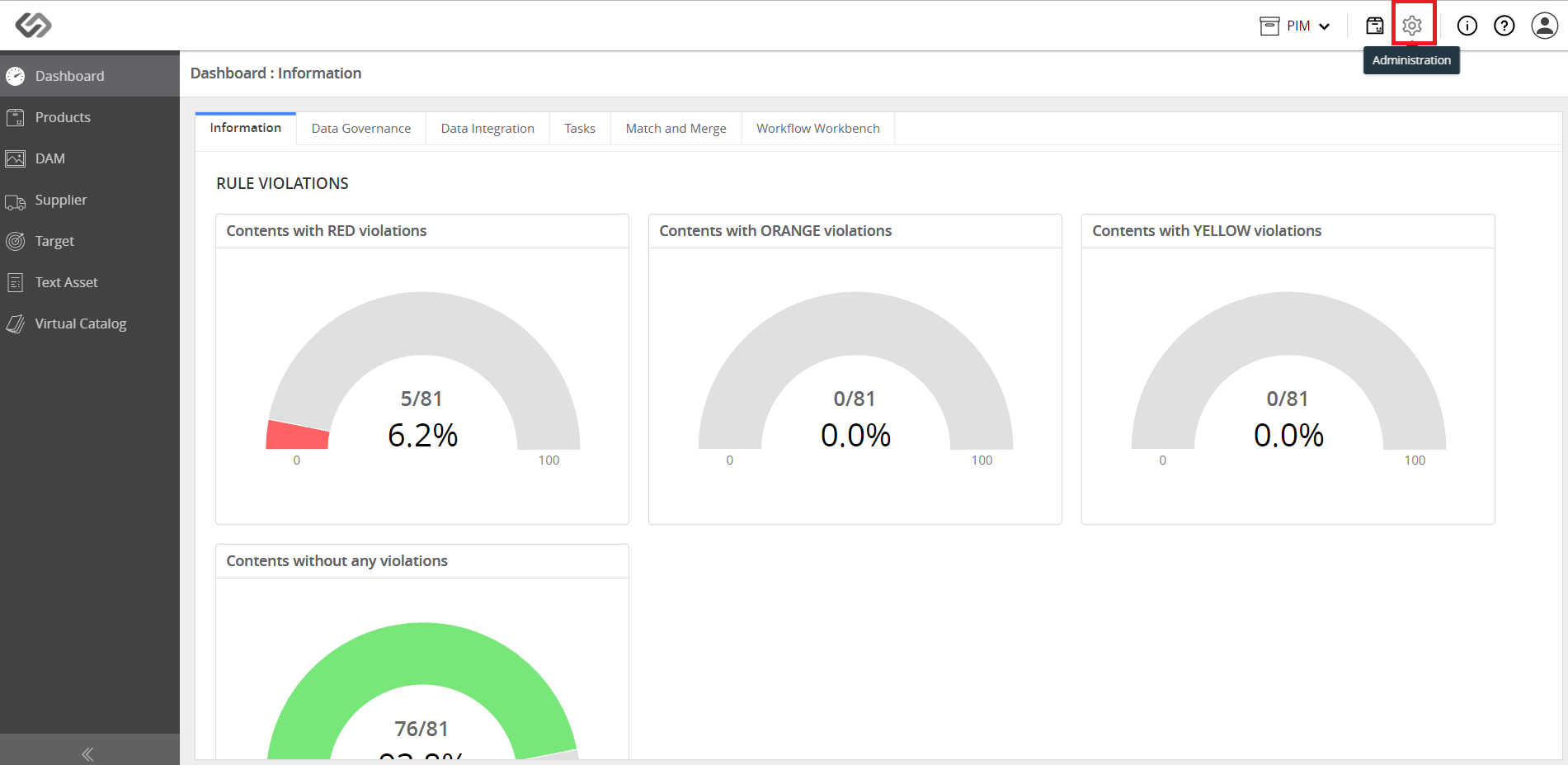
  • Log in and click on the Administration icon.
../../../../../_images/pxp_managemedialinks_loginc.PNG


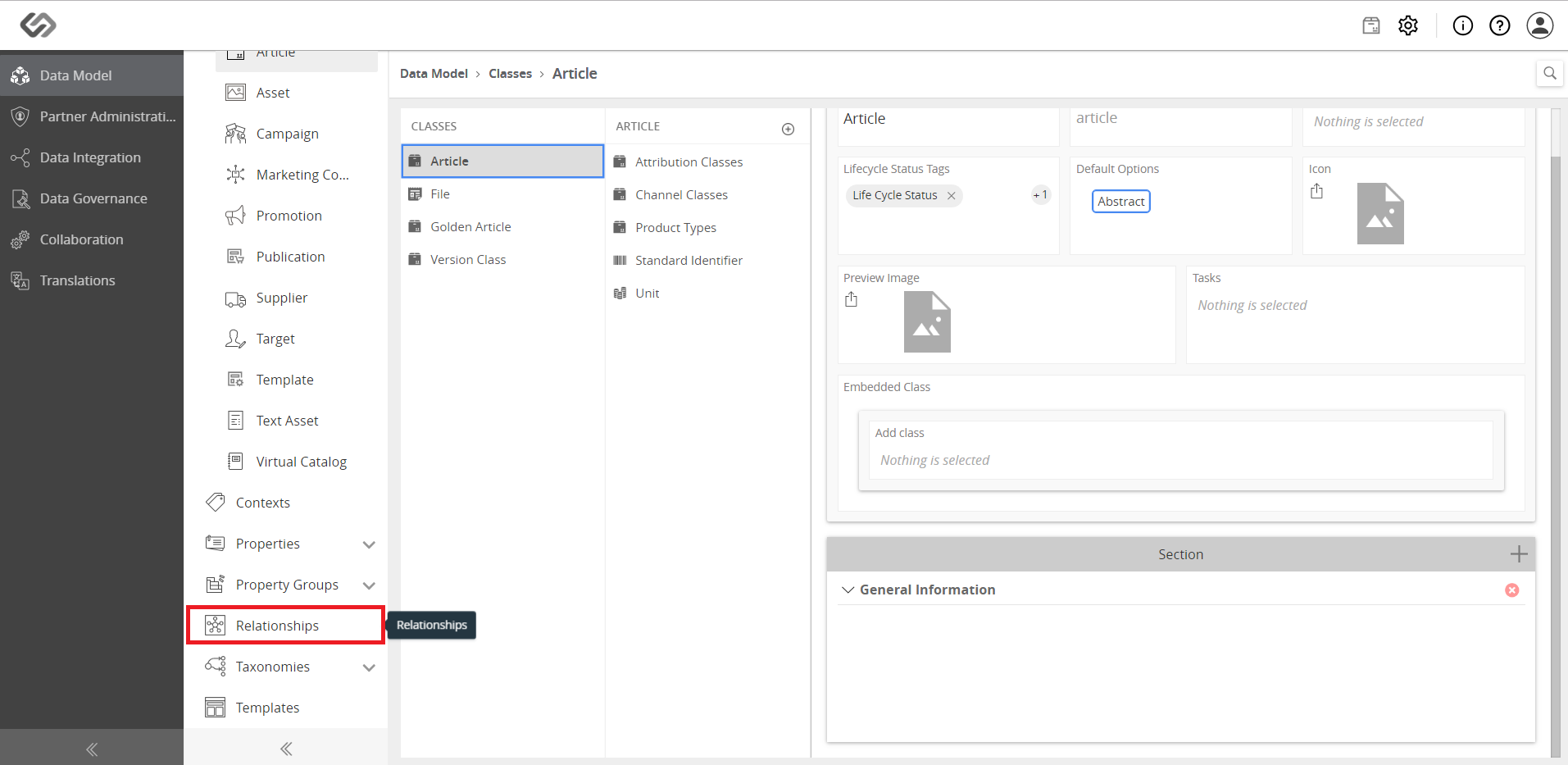
  • Click on Relationships.
../../../../../_images/pxp_managemedialinks_relationshipconfiguration.PNG


  • Click on the ‘+’ icon to create a new relationship.
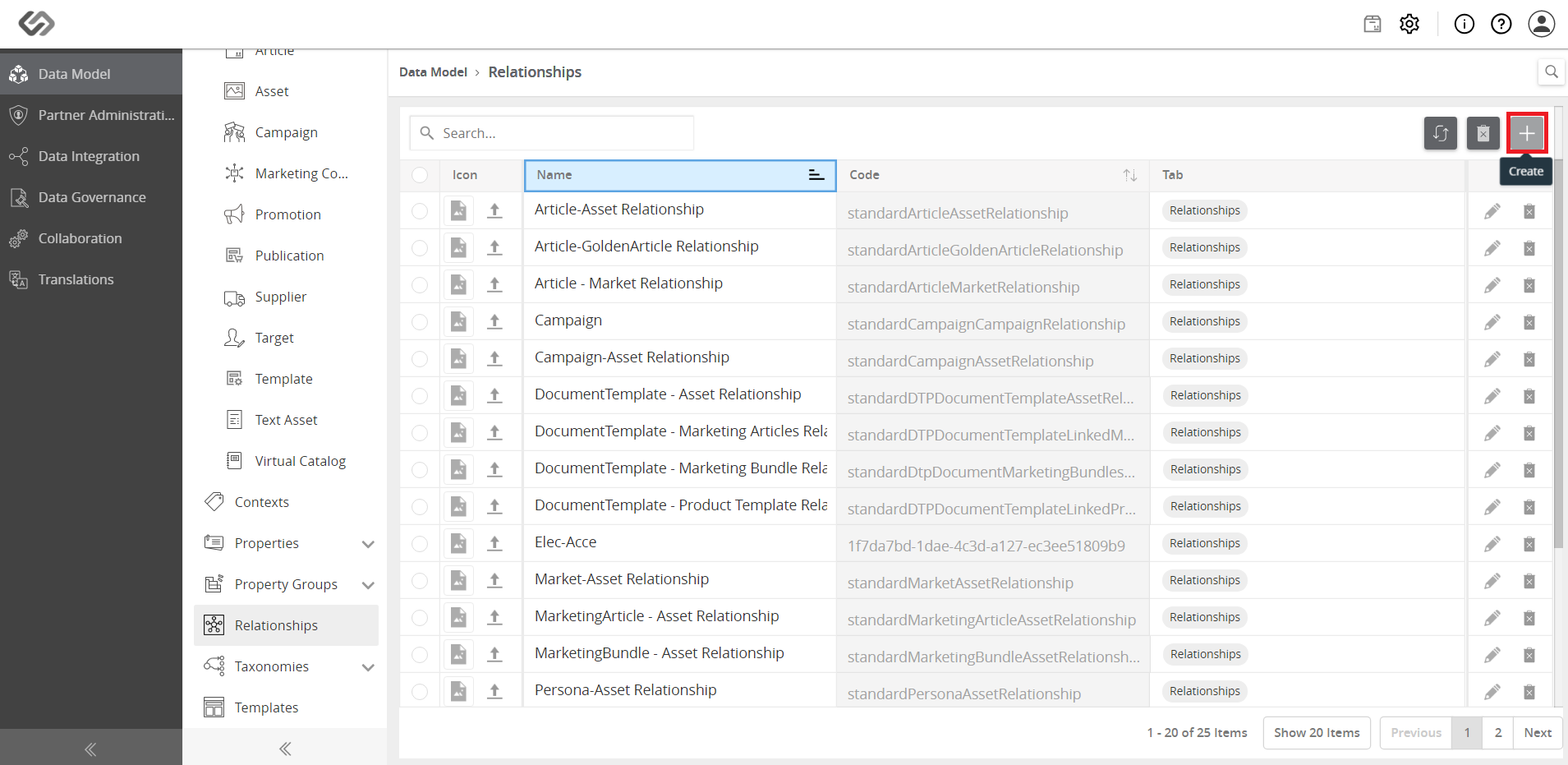
../../../../../_images/pxp_managemedialinks_clickplusicon.PNG


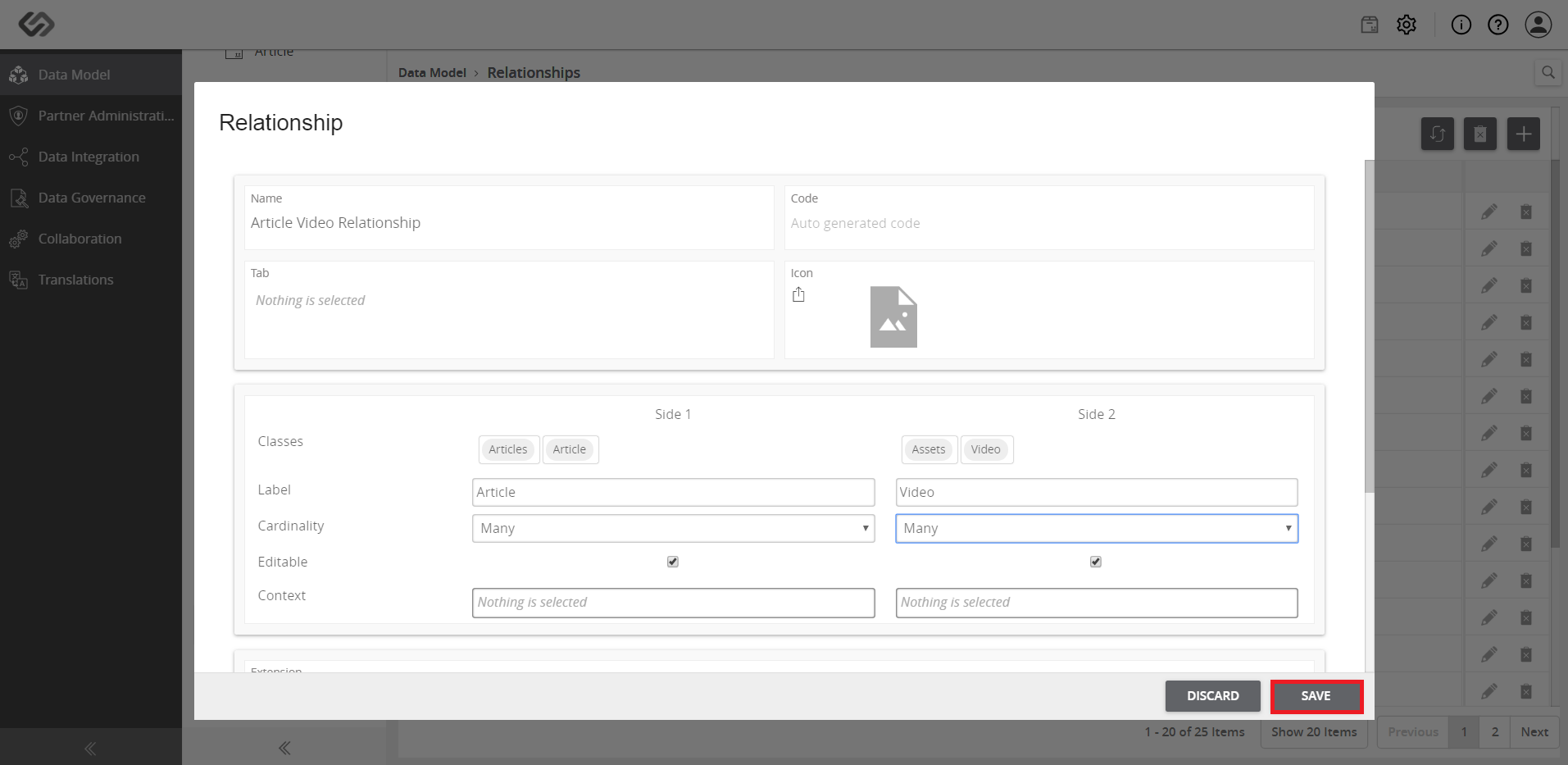
  • Enter a name for the relationship and select the two desired entity classes to be linked in Side1 and Side2 using the drop-down lists. In the example shown, a relationship is created for an Article and its Video files.
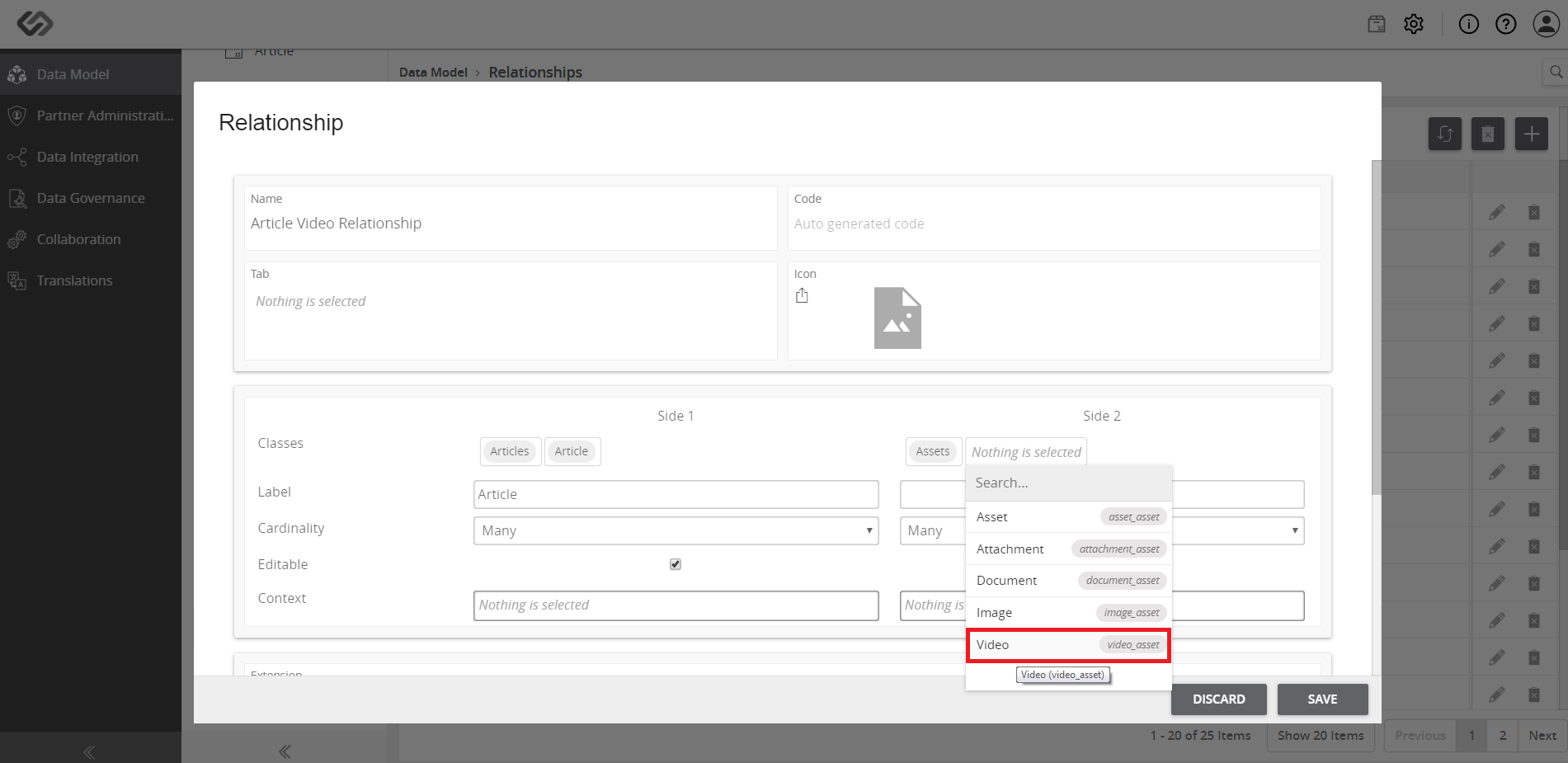
../../../../../_images/pxp_managemedialinks_entername.PNG


  • Enter the information for the Label and select the Cardinality of the relationship. In cardinality, choose either Many or One.
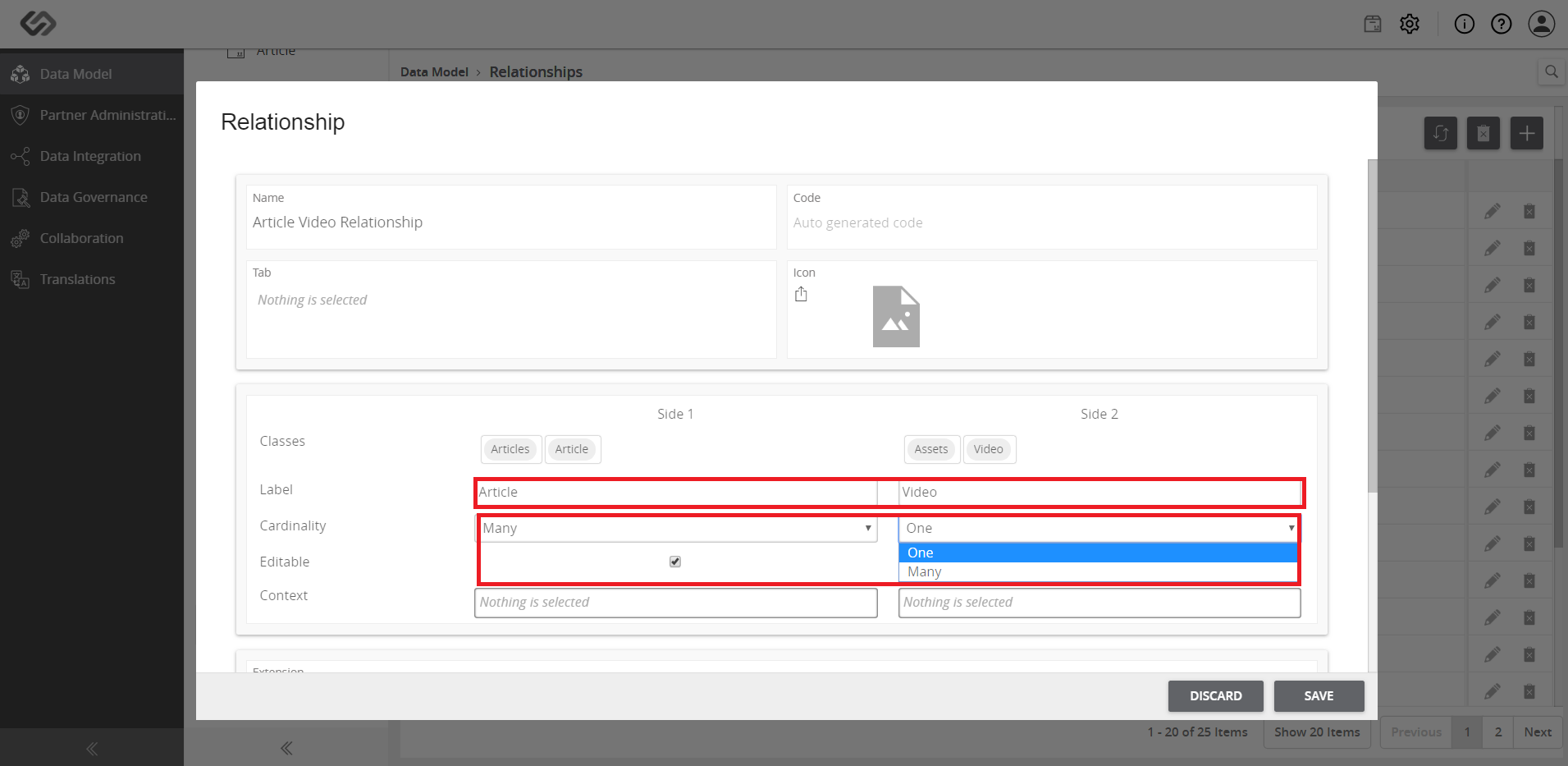
../../../../../_images/pxp_managemedialinks_enterinfo.PNG


  • Tick on the checkboxes for the elements to be editable. Select either one or both sides.
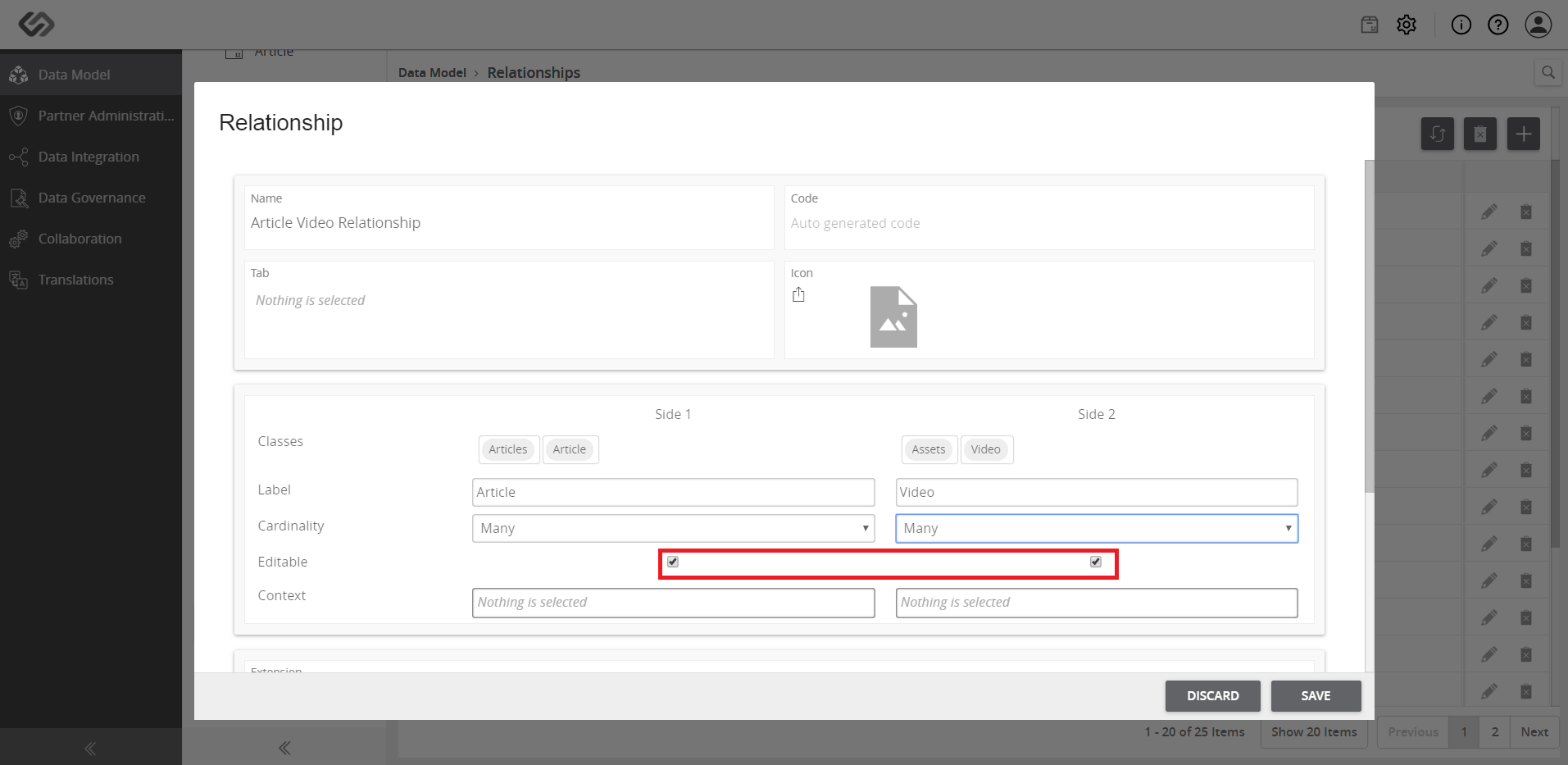
../../../../../_images/pxp_managemedialinks_tickcheckboxes.PNG


  • Once done, click on the Save button.
../../../../../_images/pxp_managemedialinks_clicksave.PNG


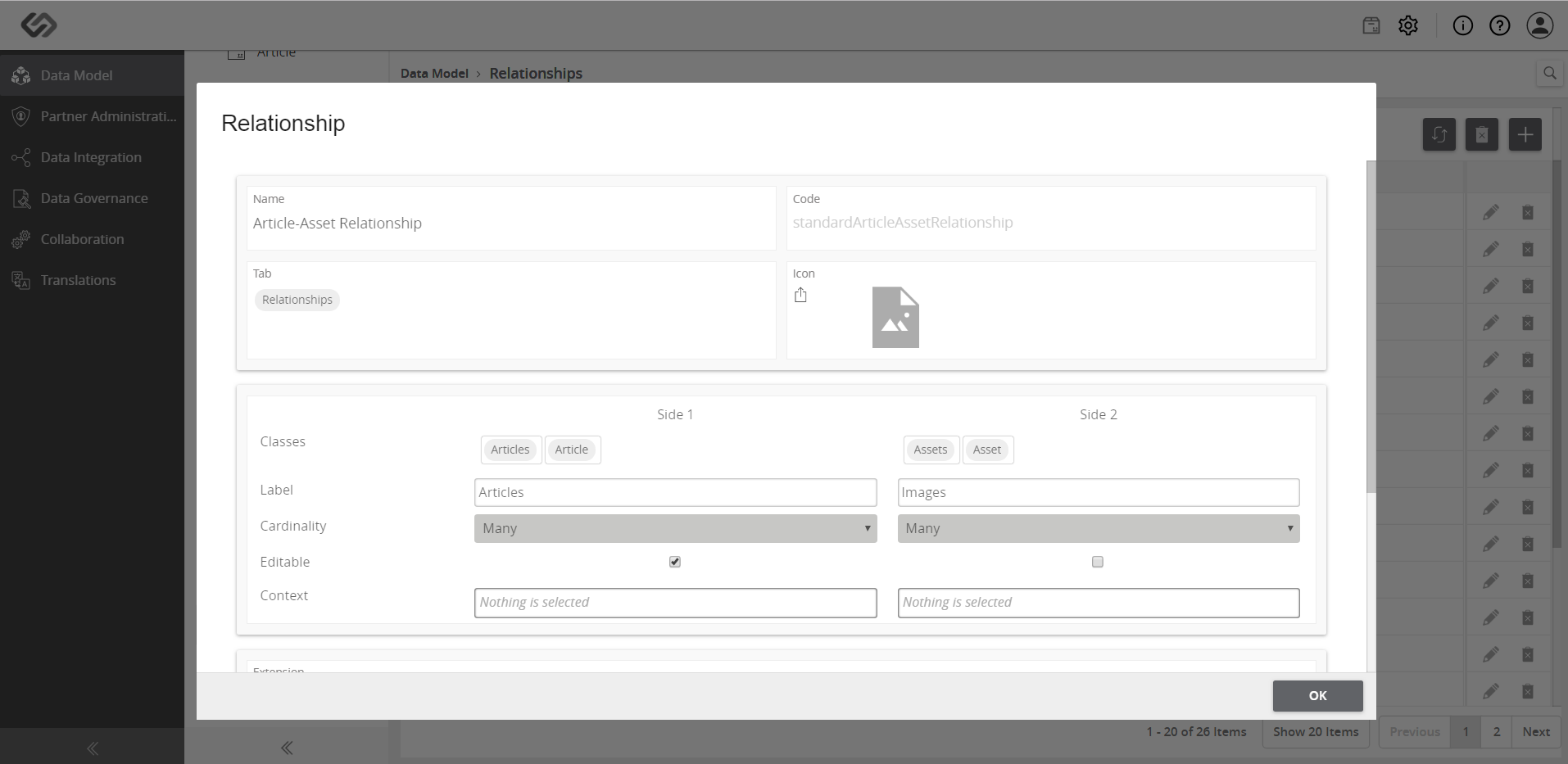
  • View the applied relationship.
../../../../../_images/pxp_managemedialinks_viewrelationship.PNG

Contentserv line

© Copyright CS Group Revision e37b6cb0.

Built with Sphinx using a theme provided by Read the Docs.