|
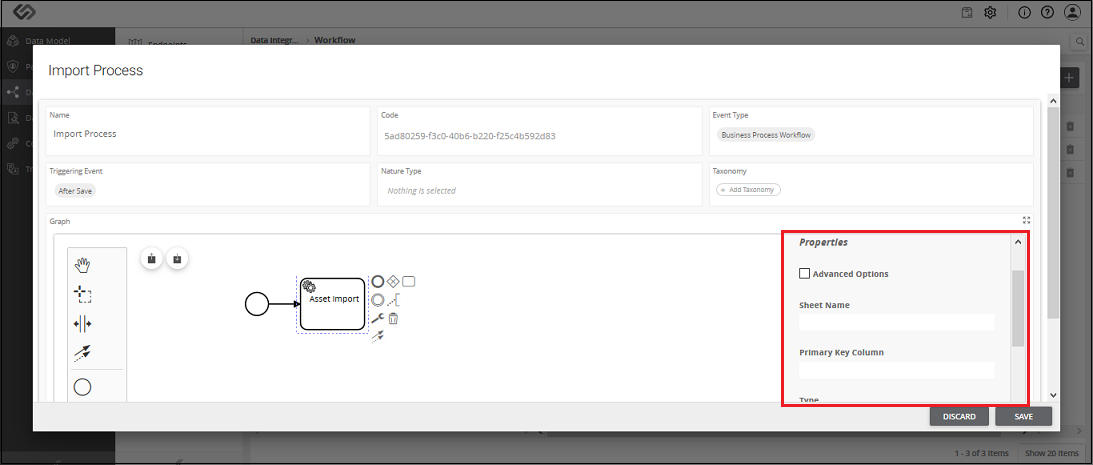
Sheet Name |
The onboarding file is the Excel file. Excel file may contain different sheets in it.
Here, we need to mention the sheet name which contains the article details. |
|
Primary Key Column |
All the articles in an onboarding file have unique identification or IDs.
Here, in Primary Key Column, we need to define the column name of the sheet which contains the unique IDs of the articles.
So, a system will fetch all the IDs of the product from the defined column of the sheet. |
|
Type |
Here we need to select one of following options:
- Single Class: Select this option, if all the assets in an onboarding file use the same class of the system.
For example, if all the assets are Document or all the products are Video.
- Column Class: Select this option, if assets in an onboarding file use different types of classes of the system.
For example, there are two assets in a sheet; one is Document and the other one is PID.
|
|
Class ID/Class Column |
The value of this field is based on the selection of Type field.
- Class ID: When all the articles in an onboarding file use the same class of the system, we select the Single Class option from the Type field.
In this case, we need to select that system-generated class from the list as Class ID.
- Class Column: When articles in an onboarding file use different classes of the system, we select the Column Class option from the Type field.
In this case, we need to enter the column name of a sheet, which contains the IDs of all the classes in a Class Column field.
|
|
Multiclassification |
Select this option, if all articles in a sheet use non-nature classes. |
|
Type |
As soon as you select MultiClassification option, this option will be visible. Here, we need to select one of the following options:
- Multiple Class: Select this option, if articles in an onboarding file use multiple system-generated non-nature classes.
- Column Class: Select this option, if articles in an onboarding file use multiple non-nature classes which are yet to be created.
|
|
Select Classes/Column Name |
The value of this field is based on the selection of Type field:
- Select Classes: When all the assets in an onboarding file use multiple system-generated non-nature classes, we select the Multiple Class option from the Type field.
In this case, we need to select that system-generated non-nature classes from the Select Classes list.
- Class Column Name: When assets in an onboarding file use multiple non-nature classes which are yet to be created, we select the Column Class option from the Type field.
In this case, we need to enter the column name of a sheet, which contains the IDs of all the non-nature classes in a Class Column Name field.
|
|
File Source |
This option is used to select the image source. Select from the following options from where you want to import the image:
- From Folder: Enter the path of the folder containing images.
- From URL: the http link of the image is provided to allow the image to be downloaded and imported to the PXP application.
|
|
Image Folder Path |
This option is available only when you select the From Folder option from the File Source field. It contains the path of a folder containing images. |
|
File Path Column Name |
Enter the name of an image that you want to import into the PXP system. |