Article Variant Import
Article Variant Import component is used to import the article variants to the system.
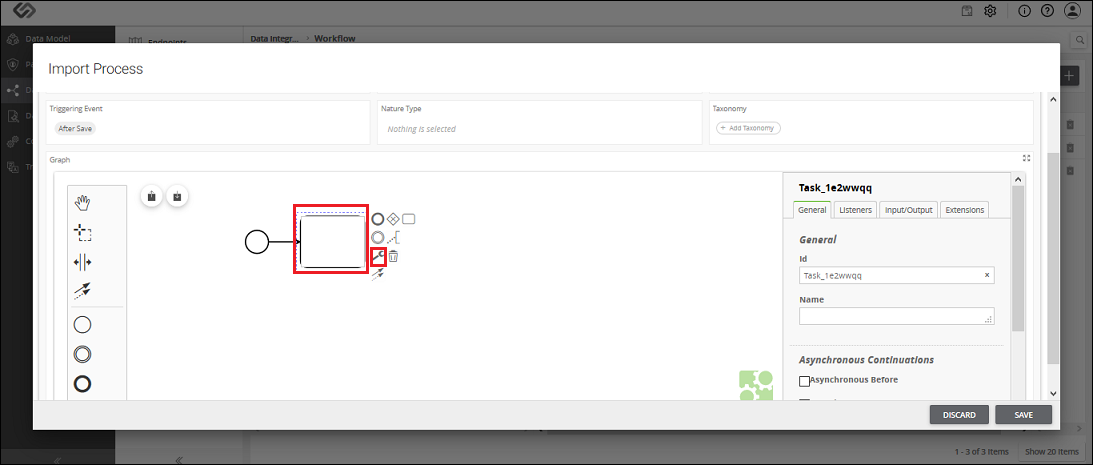
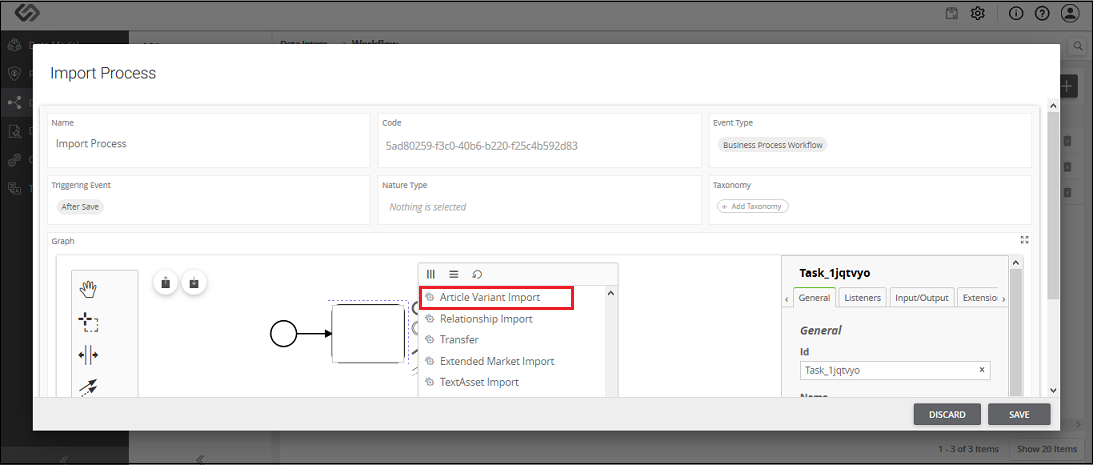

Article Variant Import - Property Configuration
| Sr. No. | Screen Element | Description |
|---|---|---|
| Sheet Name | The onboarding file is the Excel file. Excel file may contain different sheets in it. Here, we need to mention the sheet name which contains the article variant details. | |
| Primary Key Column Name | All the article variants in an onboarding file have unique identification or IDs. Here, in Primary Key Column Name, you need to define the column name of a sheet which contains the unique IDs of the article variants. So, a system will fetch all the IDs of the nature relationships from the defined column of the sheet. | |
| Master Instance ID | Enter the ID of the embedded variant, for which you want to create the nested variant. | |
| IsVariantAttribute | This is for the attribute variant. Enable it to import the attribute variant. | |
| Attribute Column | Enter the column name of a sheet that contains the names of the attribute for which you want to create the variant of the article. Basically, this column contains the list of the attributes that will differ in the variant of the same article. | |
| attributeValueColumn | Enter the column name of a sheet that contains the value of the attribute for which you want to create the variant of the article. Basically, this column contains the list of the attributes’ value that will differ in the variant of the same article. | |
| Type | This defines if you want to create the Variant or the Nested Variant. | |
| Master Variant Instance column | This field is visible when you select the Nested Variant option from the Type field. Enter the column name from a sheet, which contains the master variant instance. For example, you have a product called a table. A table is composed of different components. One of the components is a table leg. You are creating one of its variants called a table leg. Now, a table leg is also composed of different components. One of the components is a wheel. So, you will create a nested variant called a wheel. Here, the table is the master product. So, in this field, you need to enter the column name of a file which contains the ID of the master variant i.e. the table in our example. | |
| Parent Context IDs | This field is visible when you select the Nested Variant option from the Type field. Enter the column name from a sheet, which contains the parent context ID. For example, you have a product called table. A table is composed of different components. One of the components is a table leg. You are creating one of its variants called a table leg. Now, a table leg is also composed of different components. One of the components is a wheel. So, you will create a nested variant called a wheel. Here, the table leg is the parent of a wheel. So, in this field, you need to enter the column name of a file which contains the name of the parent component i.e. the table leg in our example. | |
| Context ID | Enter the column name that contains the ID of the embedded variant, or the ID of the nested variant, which is to be created. When you select the Variant option from the Type field, you need to enter the column name that contains the ID of an embedded variant. When you select the Nested Variant option from the Type field, you need to enter the column name that contains the ID of a nested variant. For example, you have a product called table. A table is composed of different components. One of the components is a table leg. You are creating one of its variants called a table leg. Now, a table leg is also composed of different components. One of the components is a wheel. So, you will create a nested variant called wheel. Here, the wheel is the context. So, in this field, you need to enter the column name of a file that contains the name of the context i.e. the wheel in our example. | |
| Tag Column Name | Enter the column name that contains the tag, for which the context has been created. A tag associated with the context is selected in this column, and then that value is imported into the system. For example, you have a product called sofa. You are creating its variant called cushions. To differentiate the various colors of cushions, you can select the Color tag from the Tag Column Name to differentiate various cushions. | |
| From Date Column Name | This option is present for time-enabled article variant. Enter the column name of a sheet, which contains the effective date of an article variant. It contains the starting date from when the article variant will be effective. | |
| To Date Column Name | This option is present for time-enabled article variants. Enter the column name of a sheet, which contains the end date till which the article variant will be effective. |
