Rollback
The Rollback feature allows a user to switch (or to revert) to a previous version of a product in the system.
| Key Term: |
|
| Description: |
|
| Related topics: | |
| Application: |
|
How-to: Rollback
To do this, follow these steps:
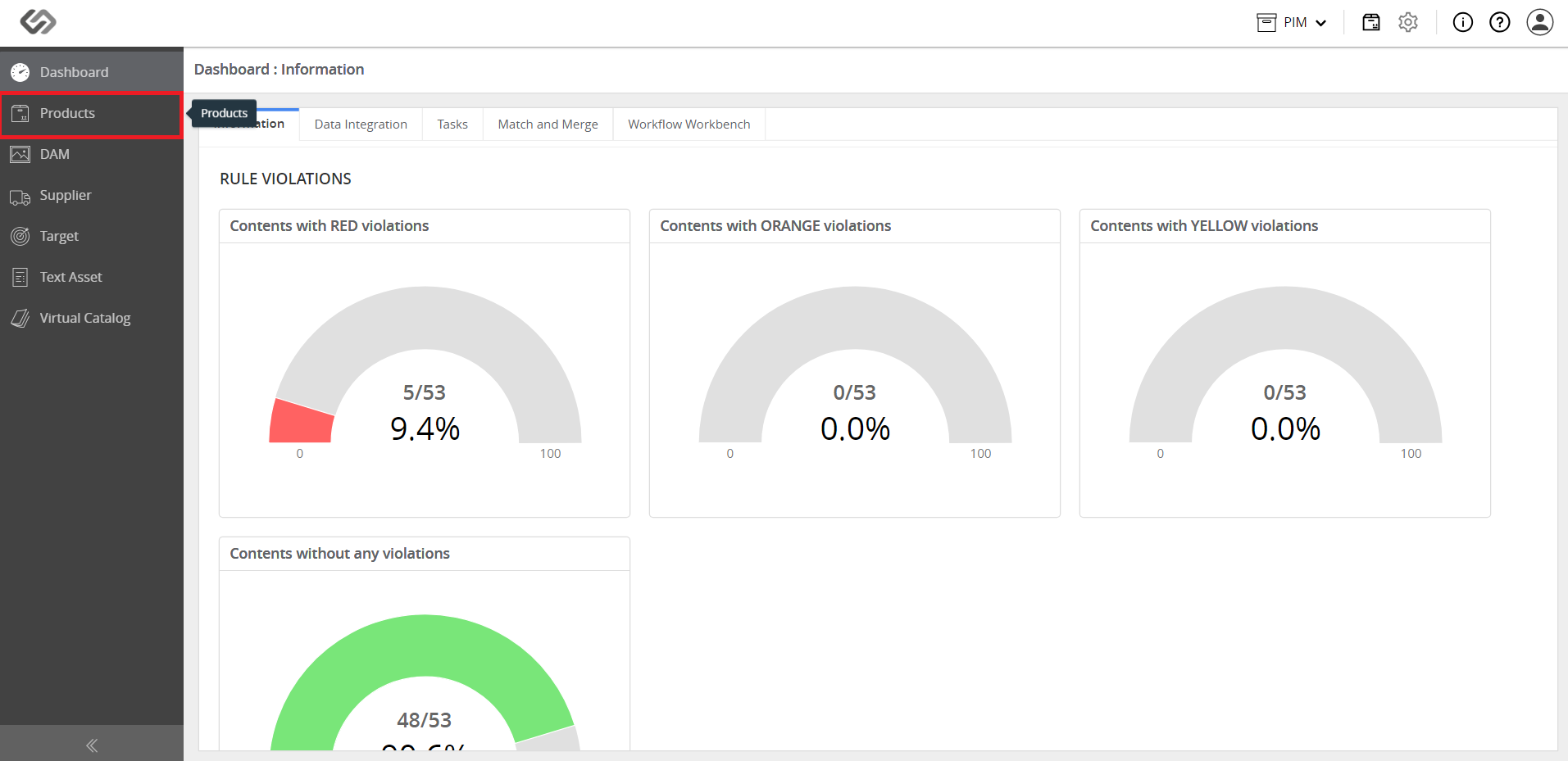
- Go to Products.
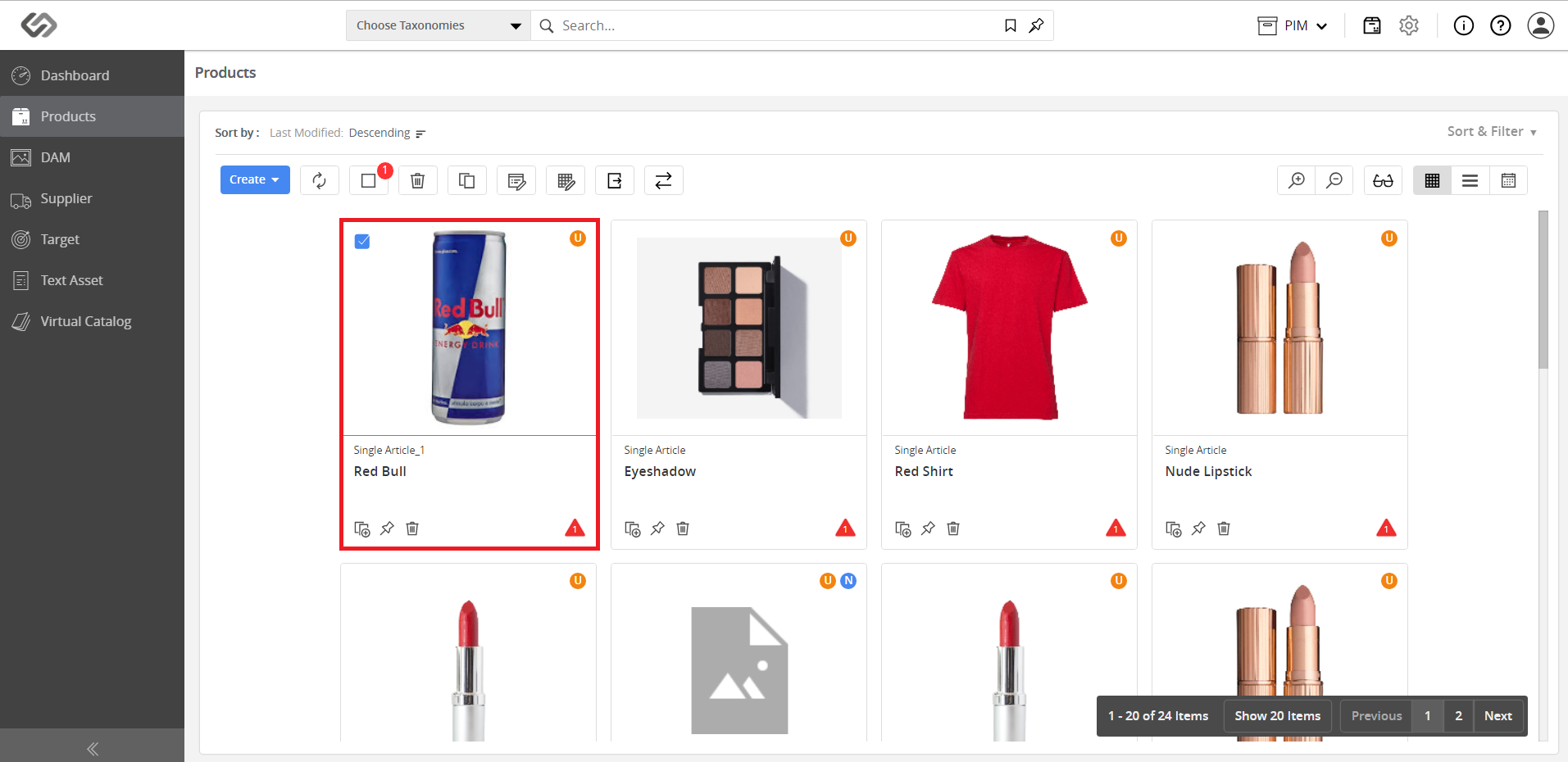
- Click to select the desired product for which you want to perform rollback operation.
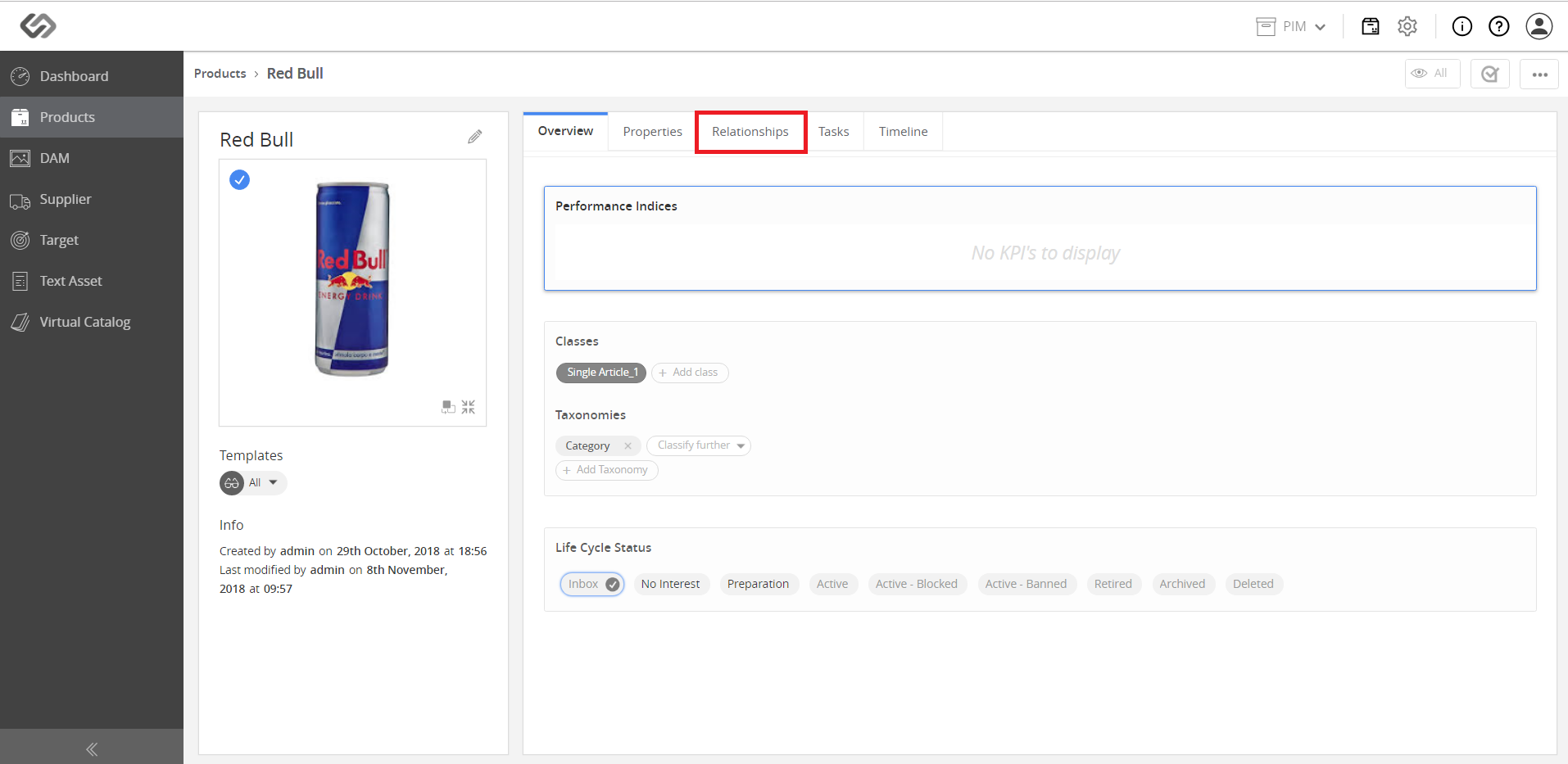
- Click on the Relationships tab.
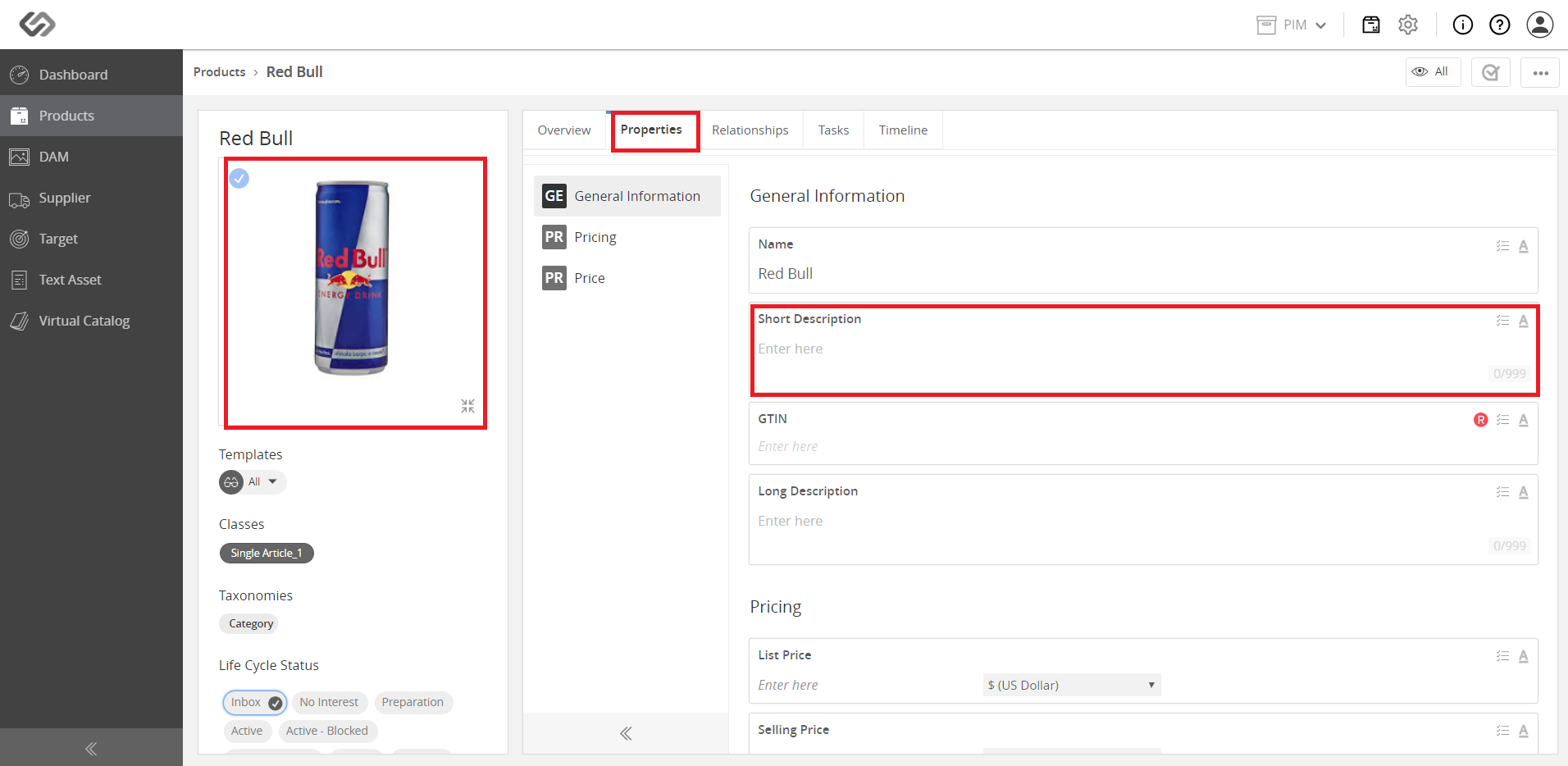
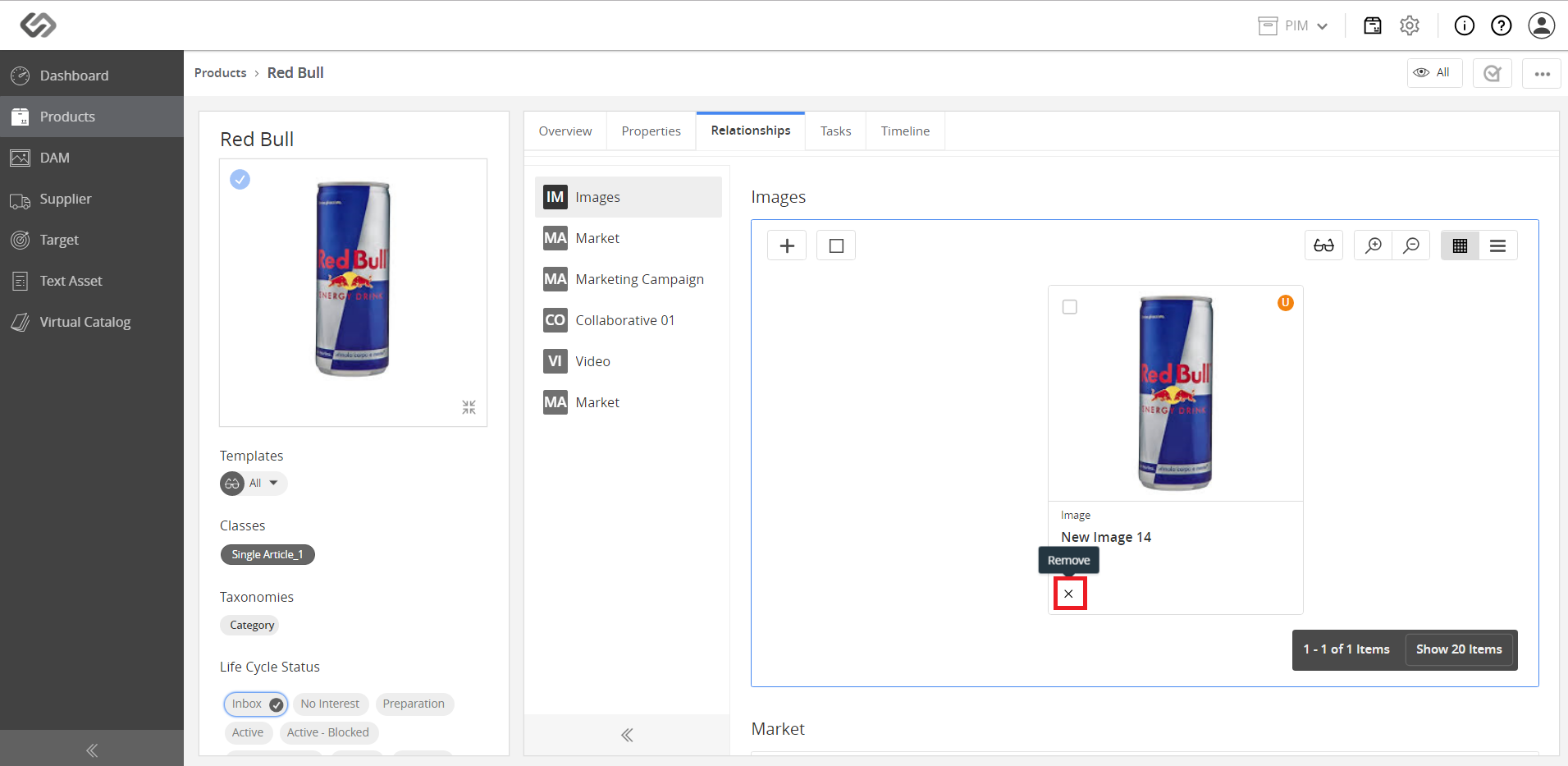
- In this demo, we will remove the image and change an attribute.
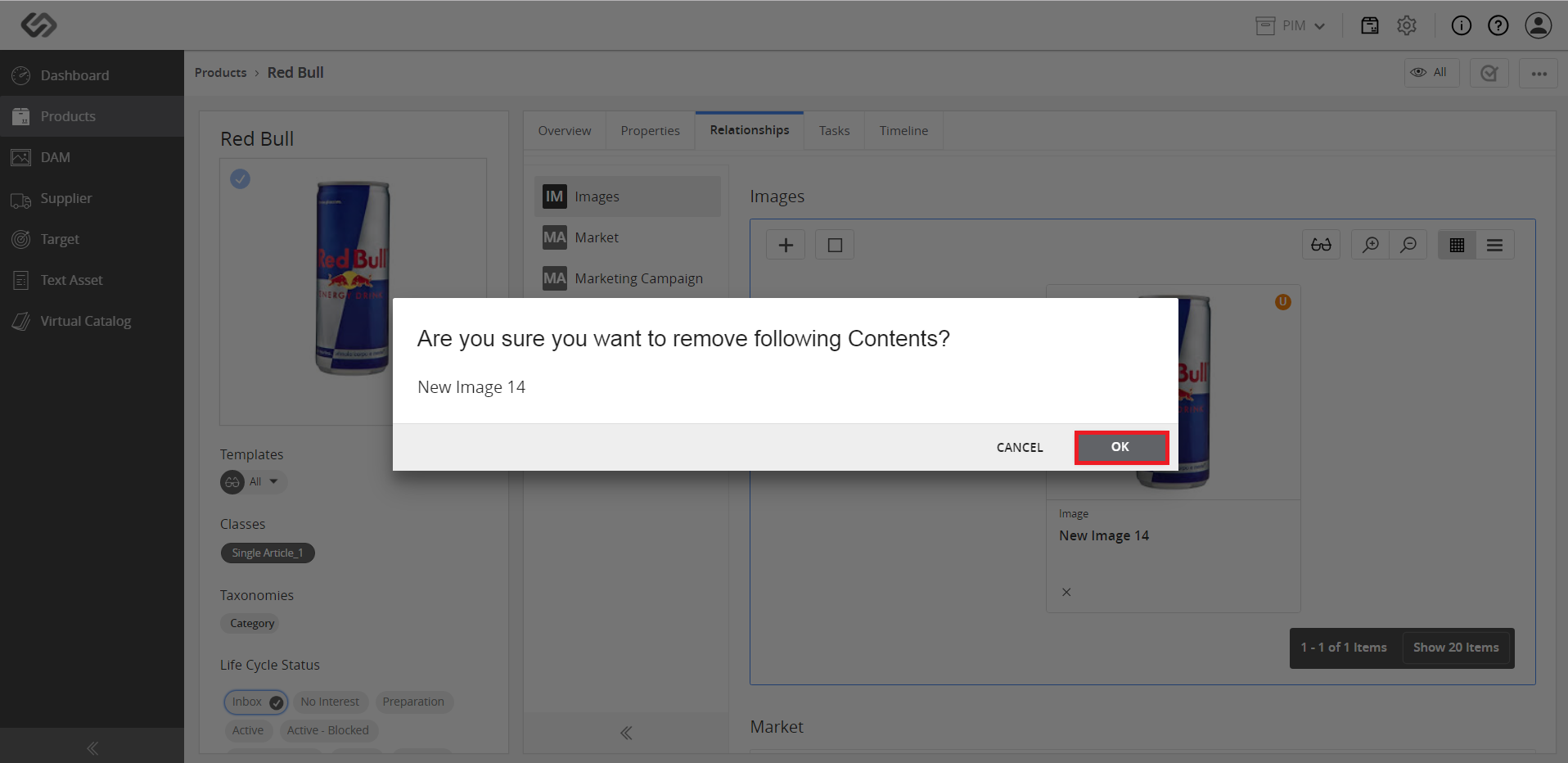
- Click on the OK button to save the changes.
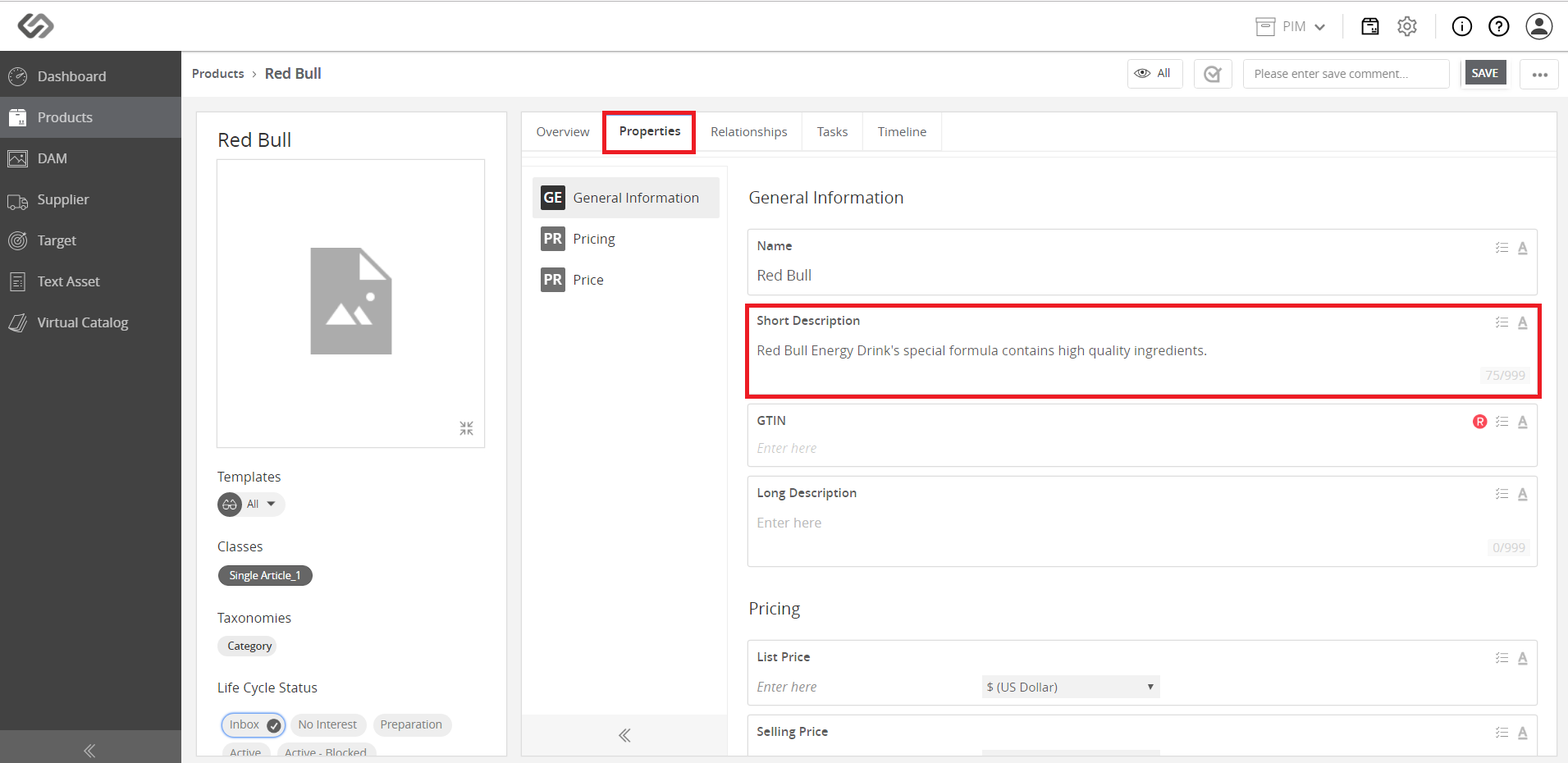
- In the Property Tab, change the name (or any other attribute) of the product.
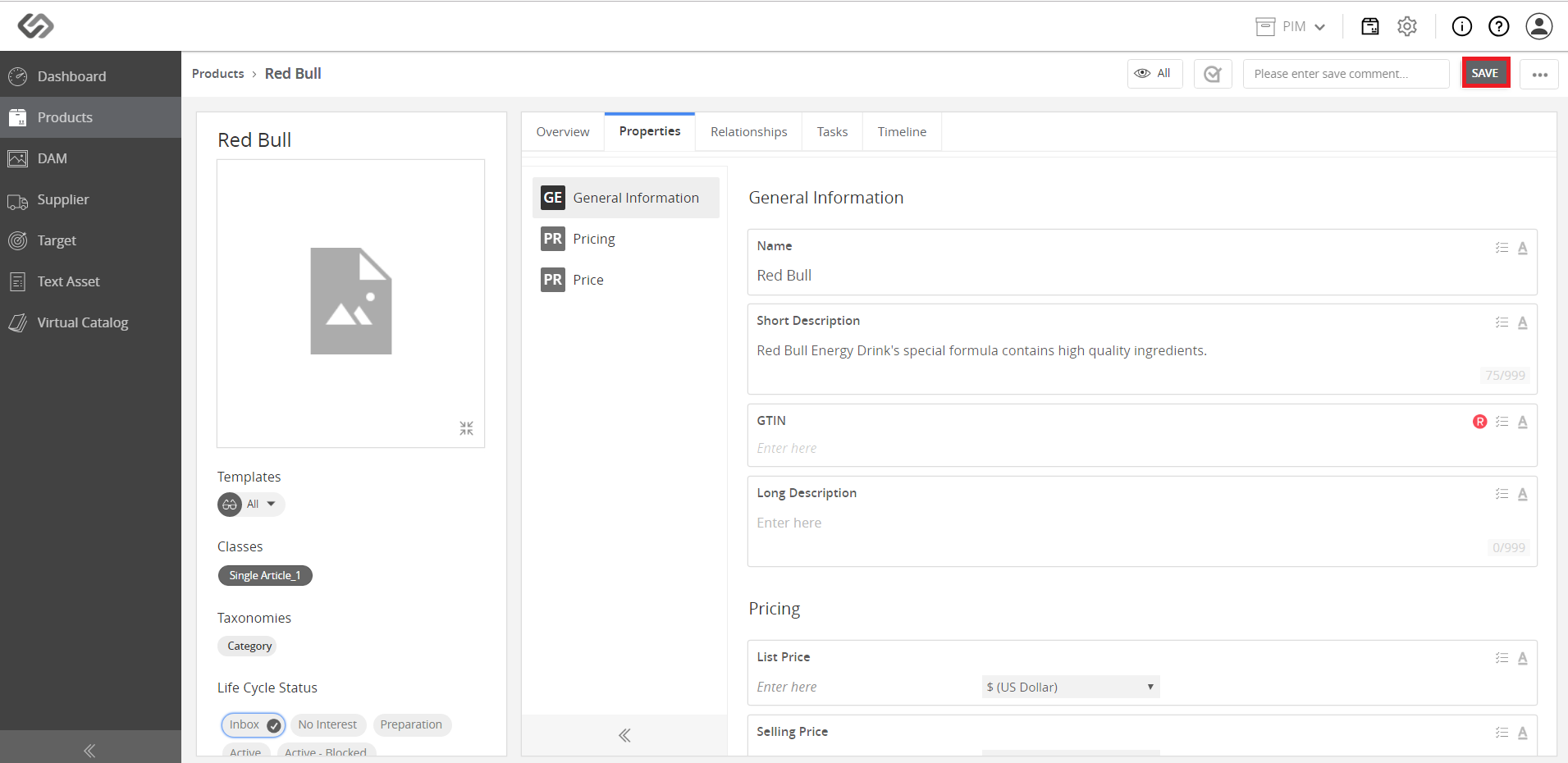
- Click the Save button to save the changes on the product.
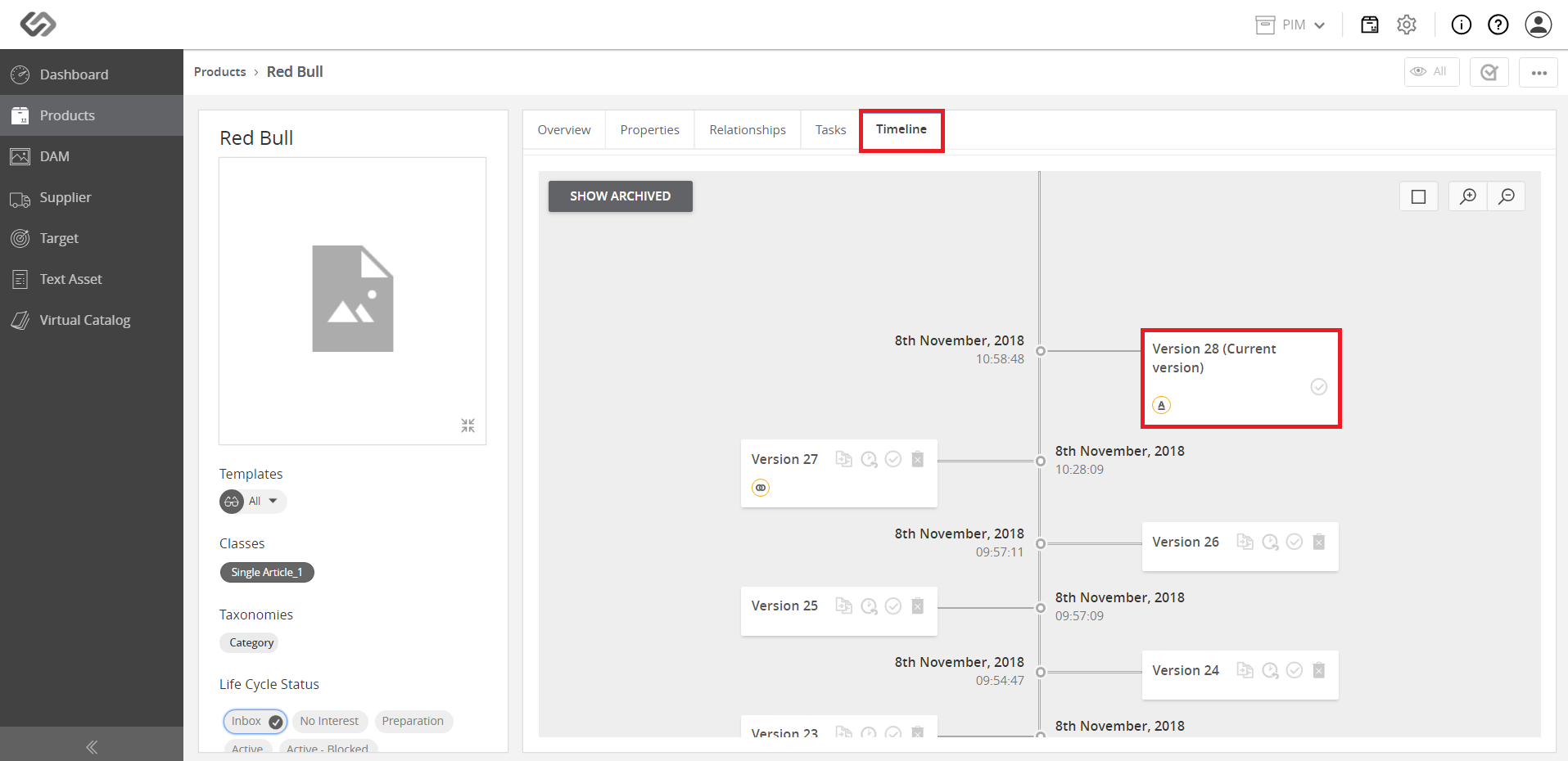
- Click the Timeline tab. The current version of the product would be with the latest version number on the top.
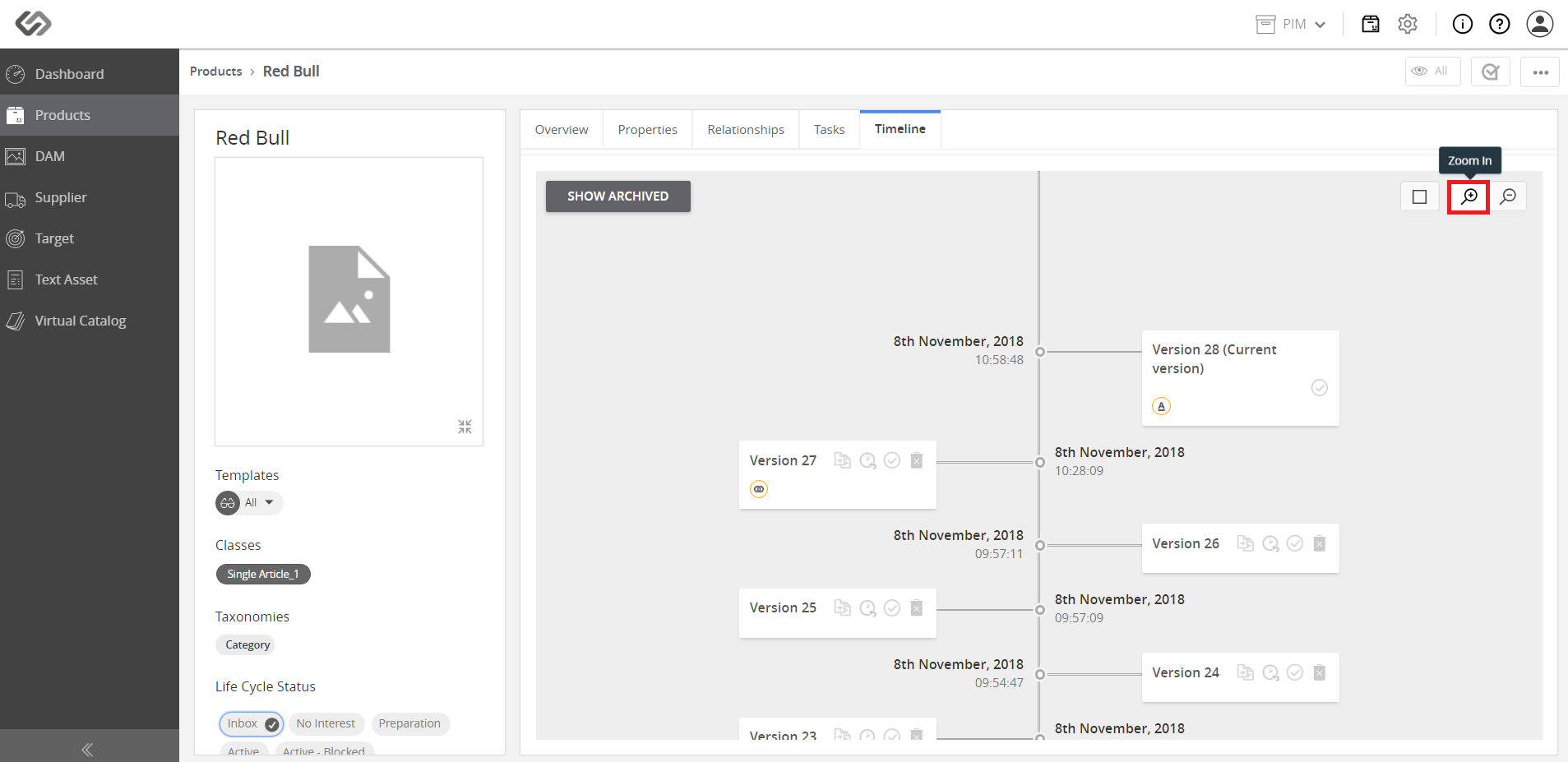
- Click on the Zoom in icon to preview the changes in the product versions.
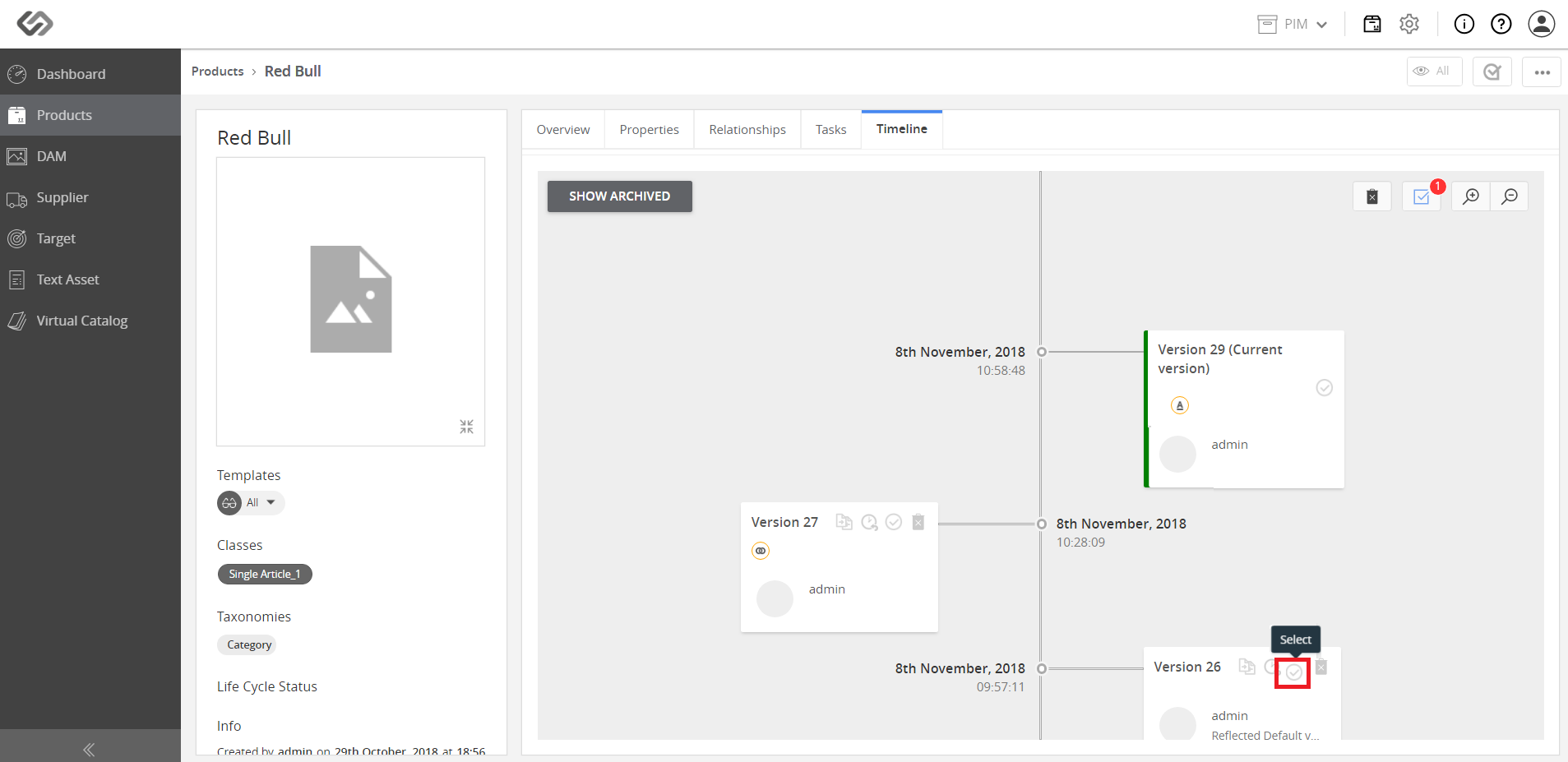
- Select the versions (one or more) that you would like to compare the current version to.
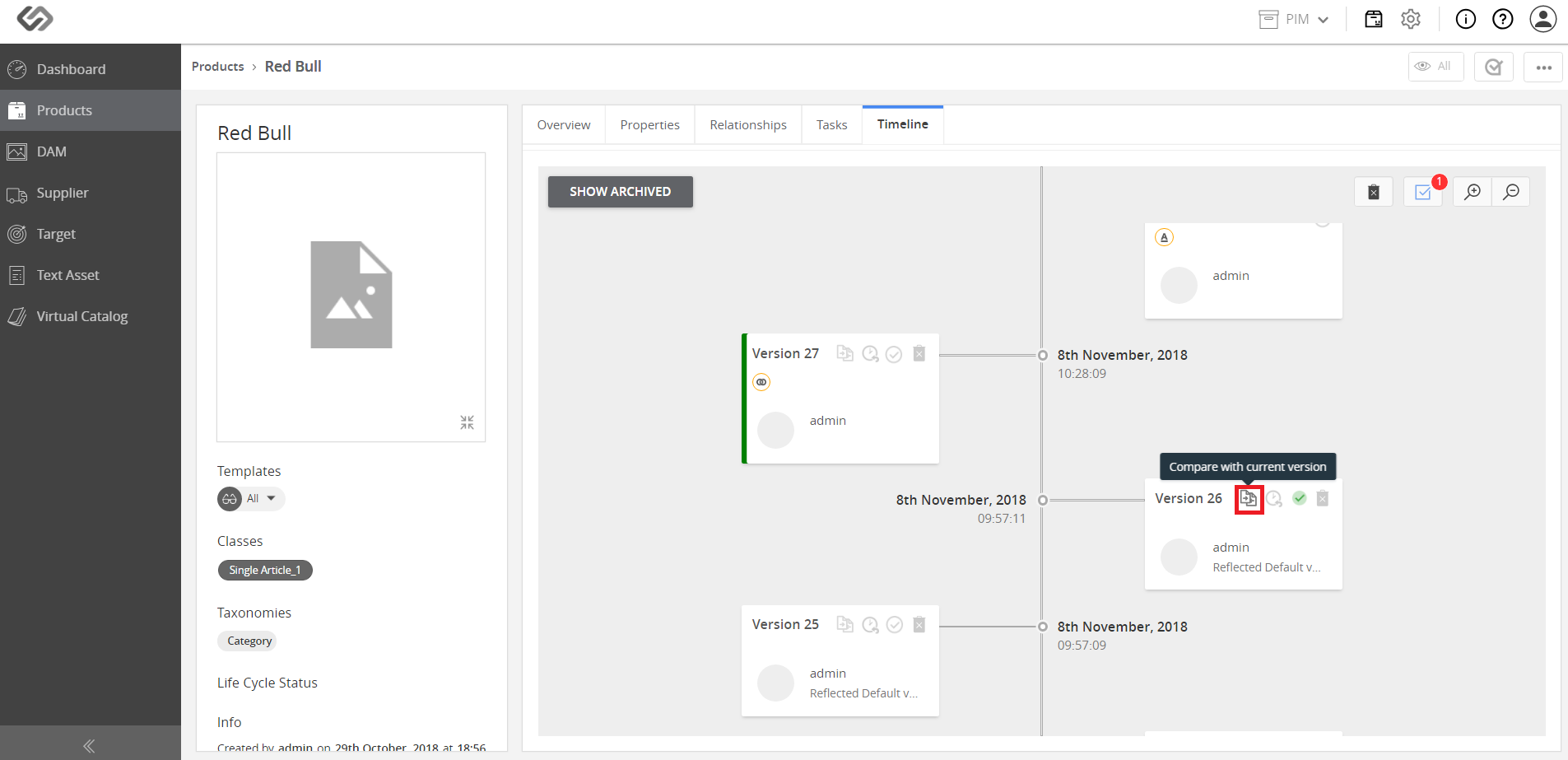
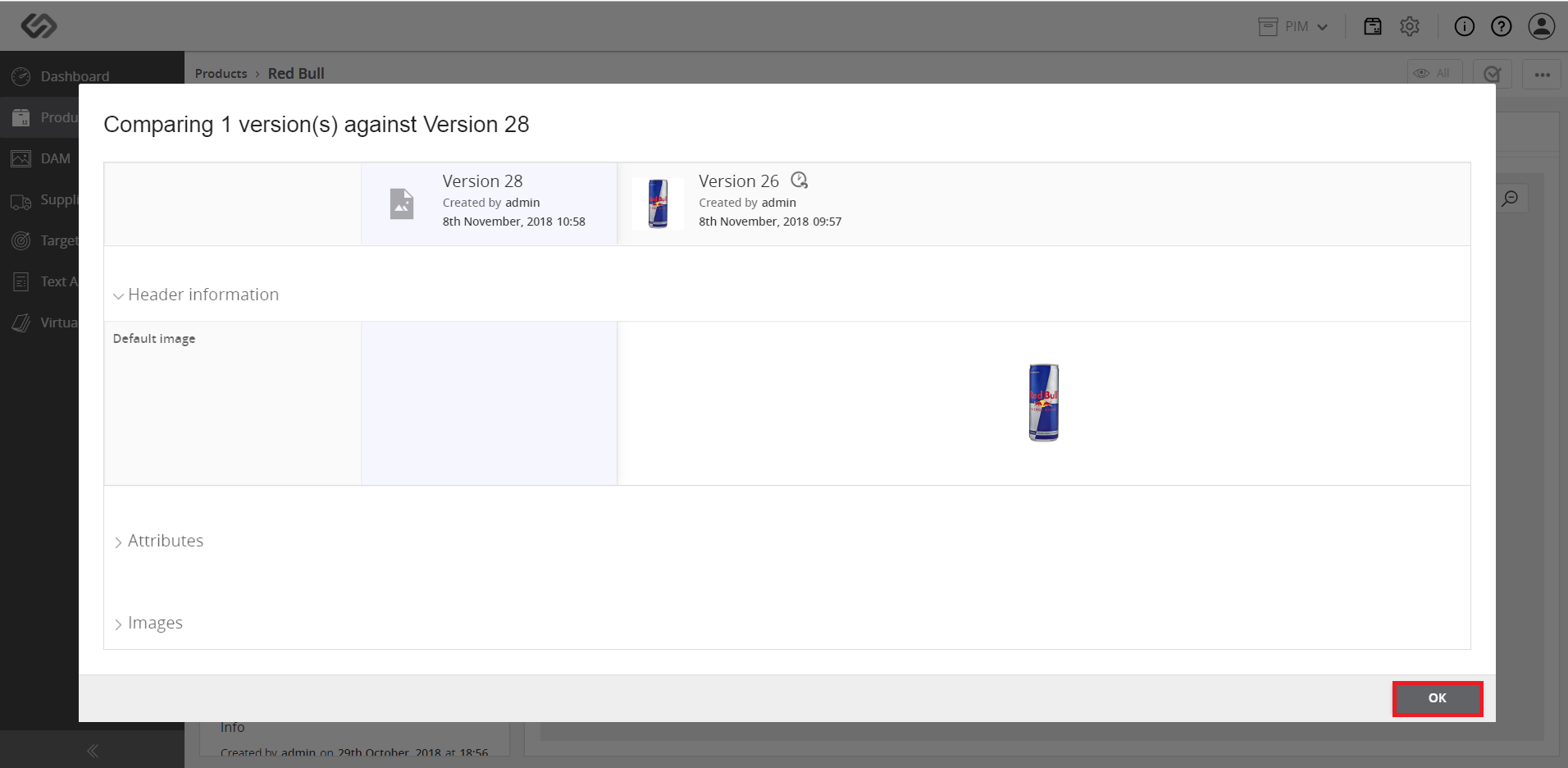
- Click on the Compare with current version icon.Then, click the OK button to close the window.
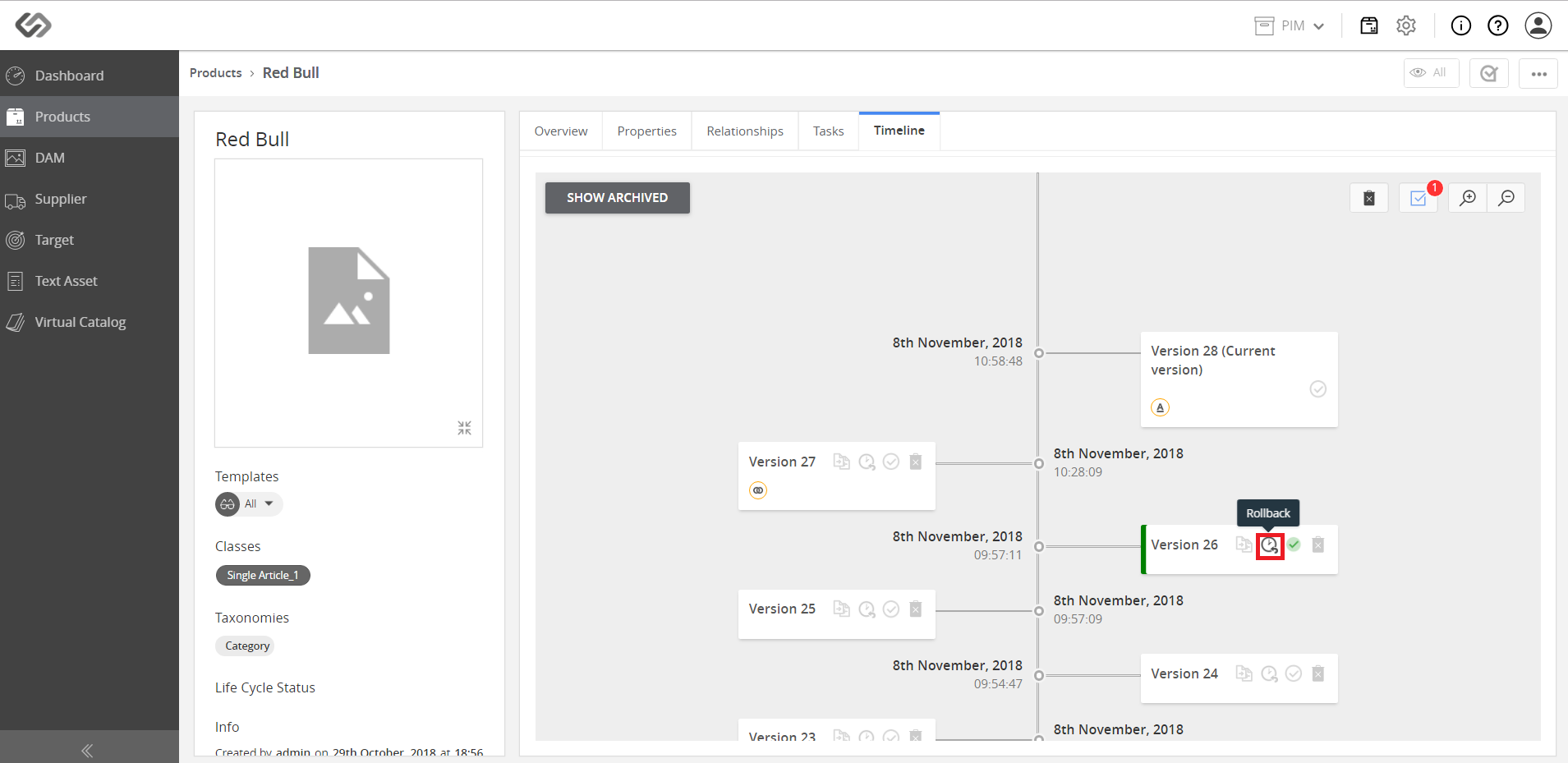
- Click the Rollback icon of the selected version.
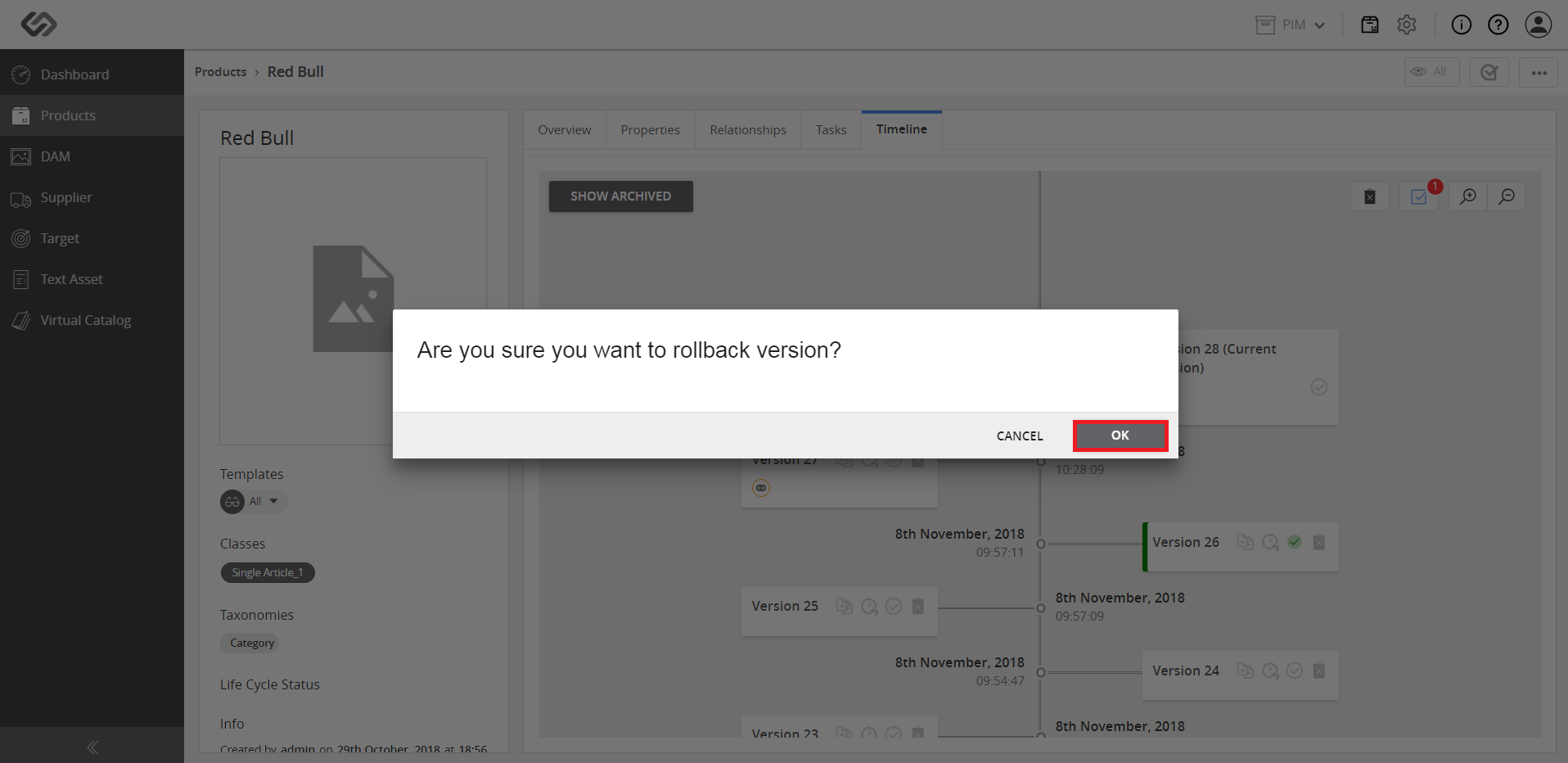
- Once the rollback has been confirmed, go to the Properties Tab, and the changes are restored. View the image (now reverted to the old version).