Contextual Data Transfer
The Contextual Data Transfer is a feature that replicates and transfers the data from a parent product to its child products. This feature provides the facility to transfer the details of contextual products to the different variants of the product.
| Key Term: |
|
| Description: |
|
| Related topics: | |
| Application: |
|
How-to: Contextual Data Transfer
To do a contextual data transfer, follow these steps:
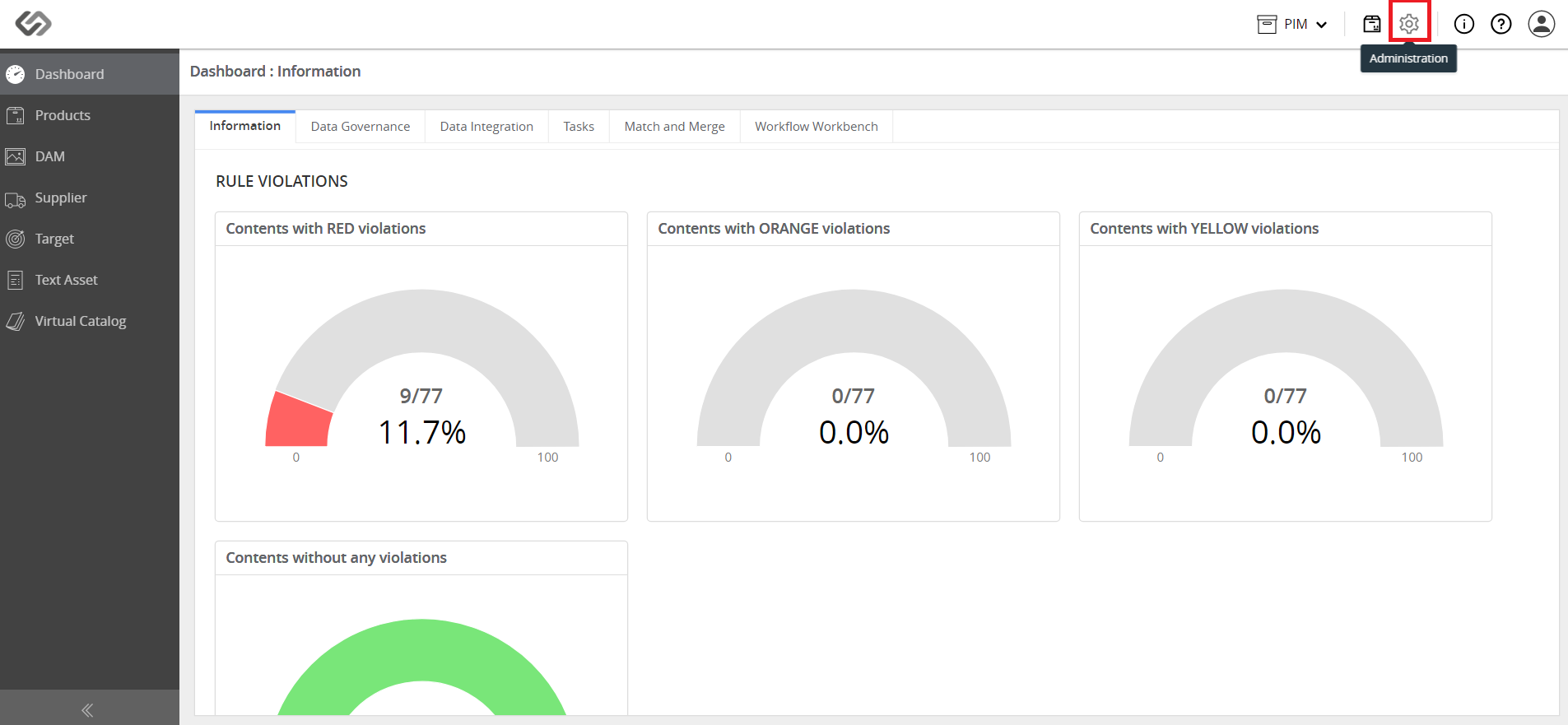
- Log in and click on the Administration icon.
- Click on Data Model and click Classes.
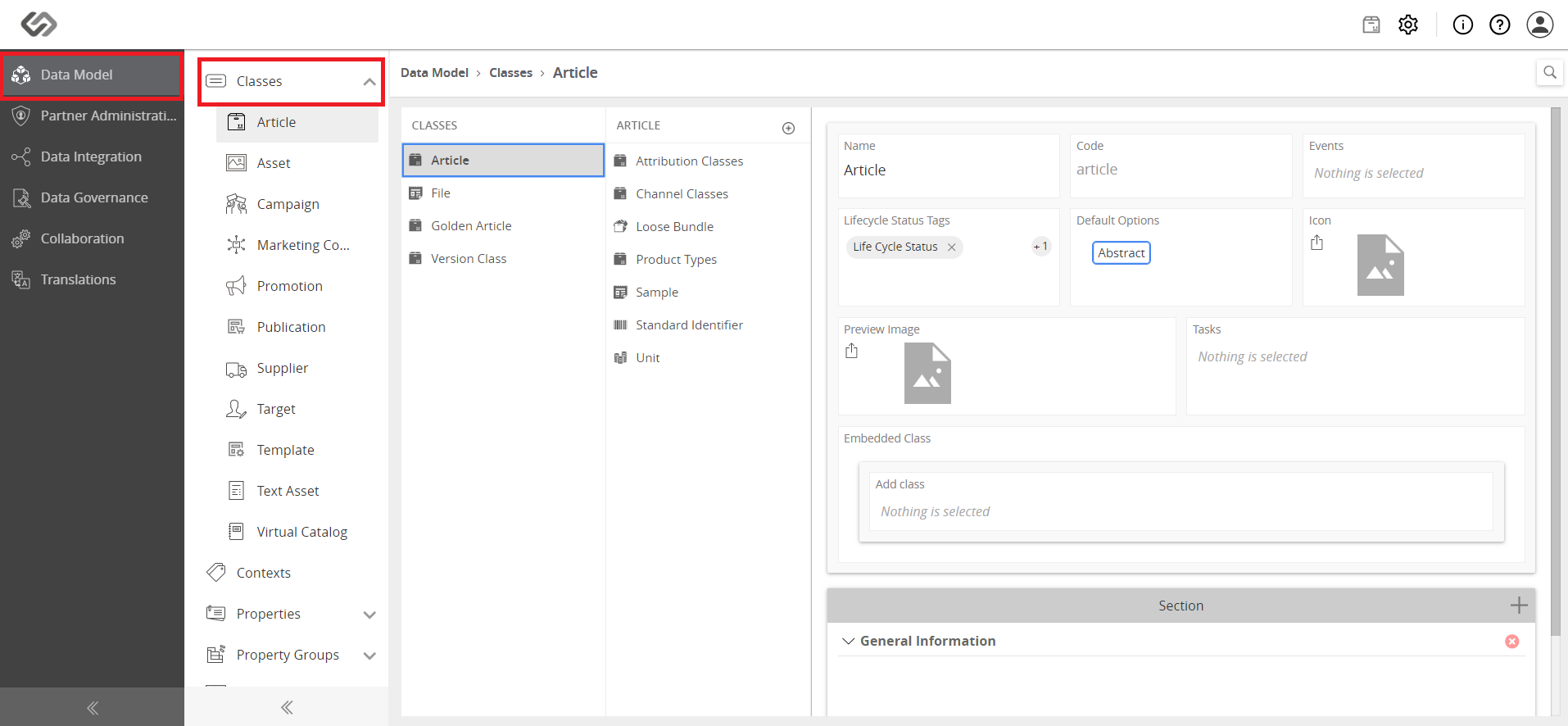
- Click on a class type and select the created class of that class type. You will see all the details of that class.
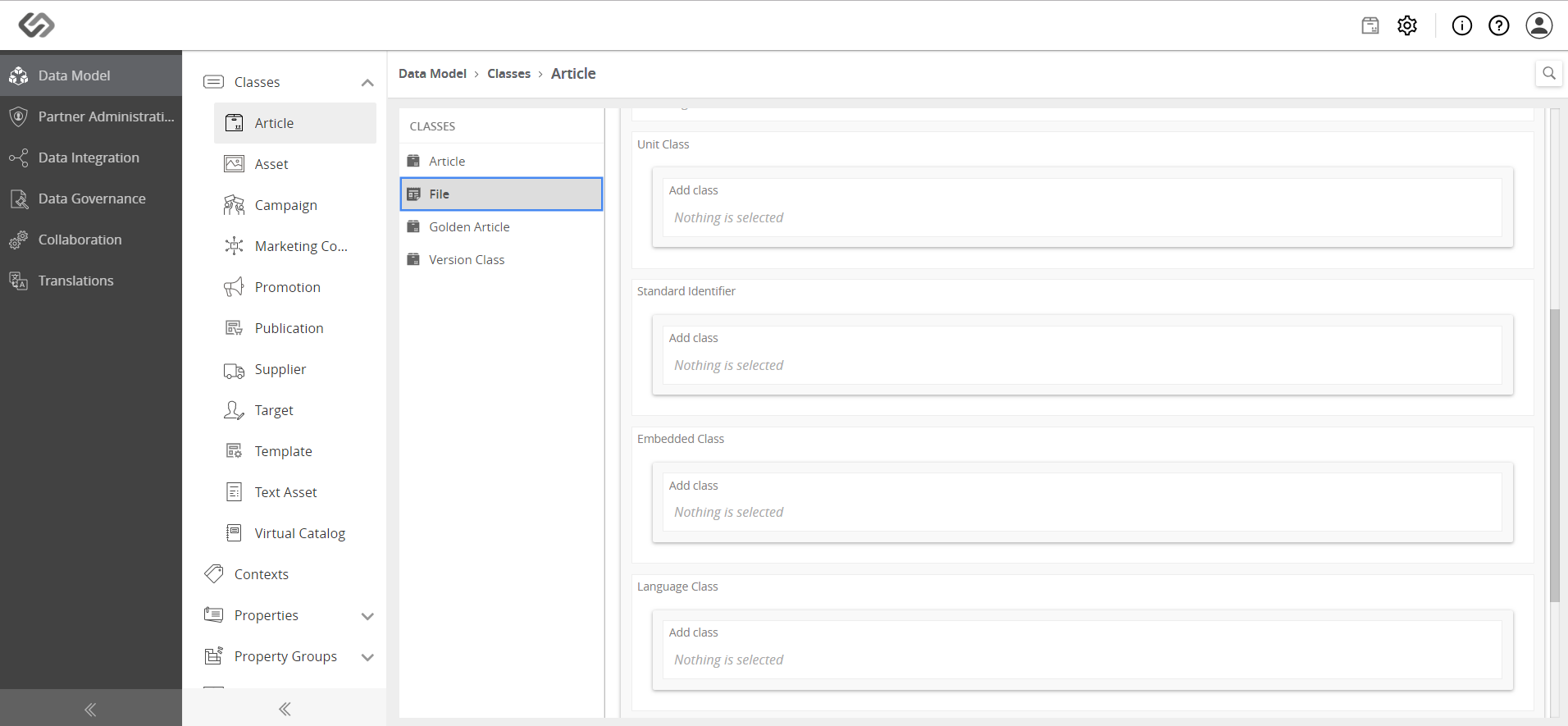
- Locate the Unit Class section and select a created unit class from the Add Class field.
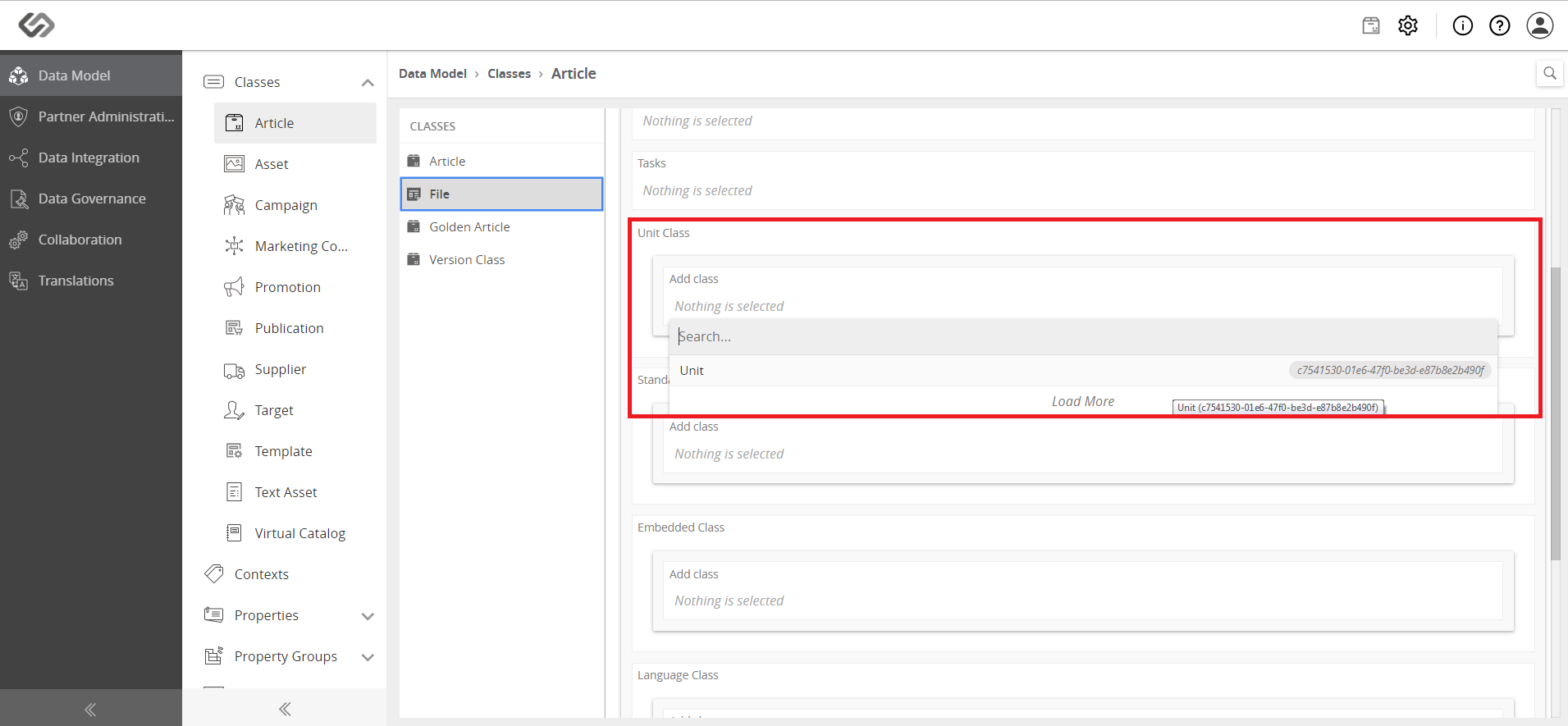
- Upon selecting the class, you will see the Data Transfer Properties field appear in the Unit Class section.
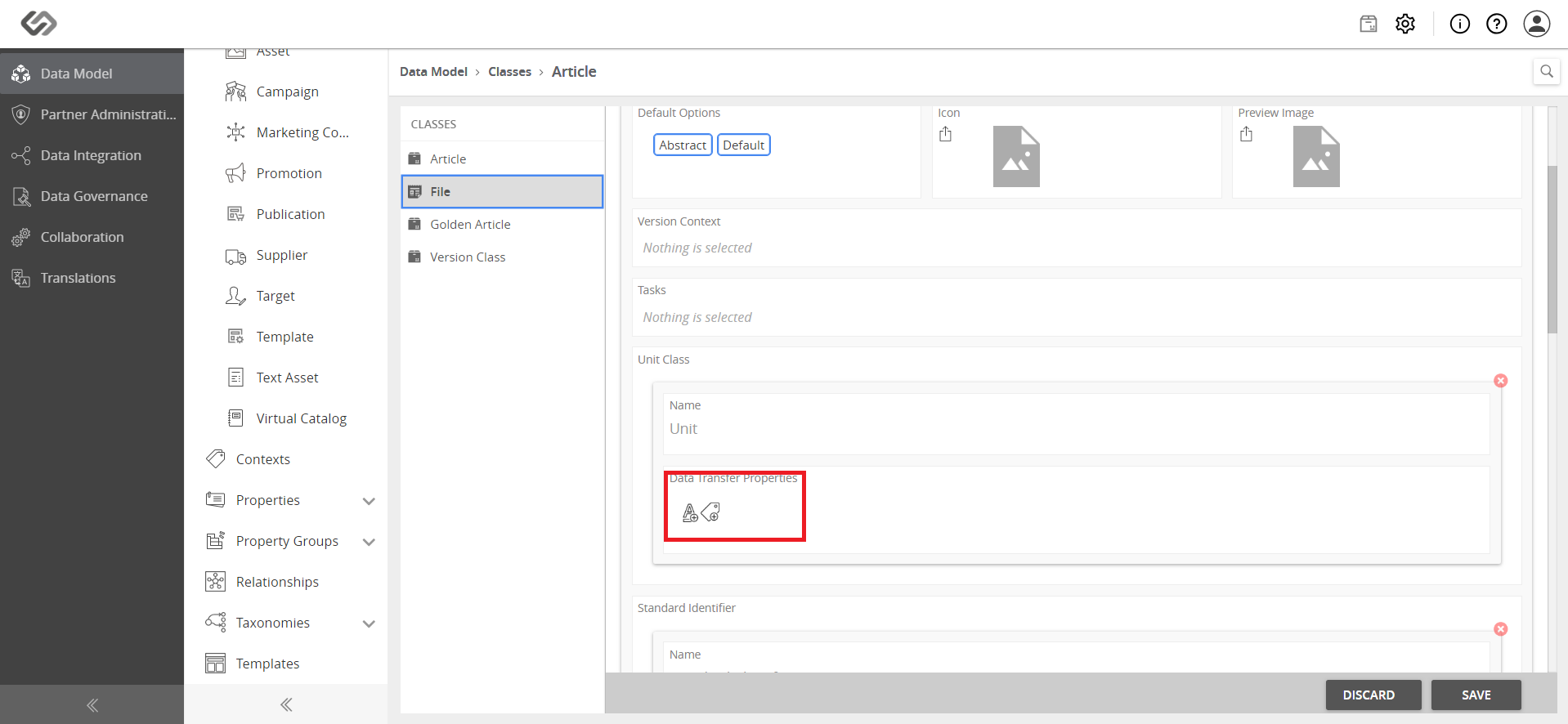
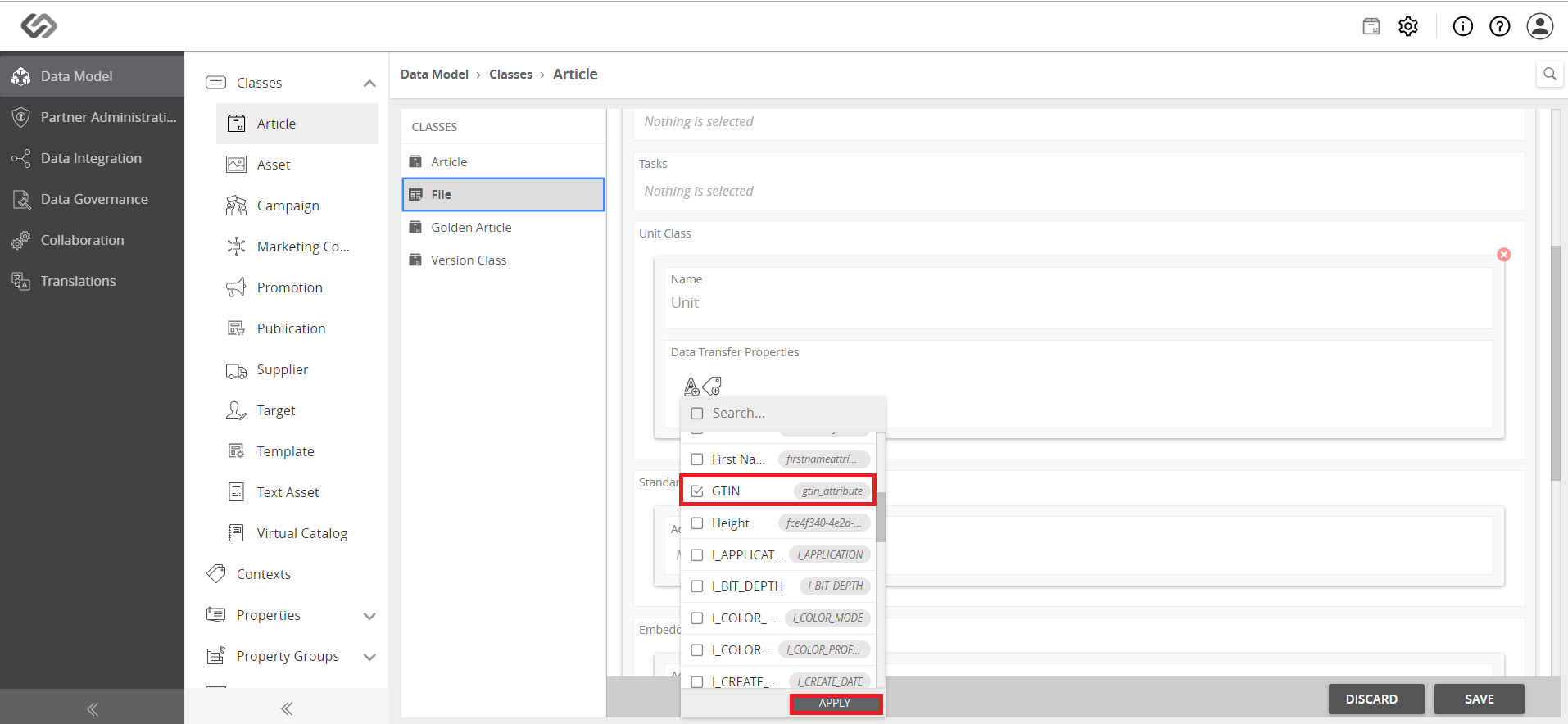
- Click on the Attributes icon from the Data Transfer Properties field to view the list of attributes.
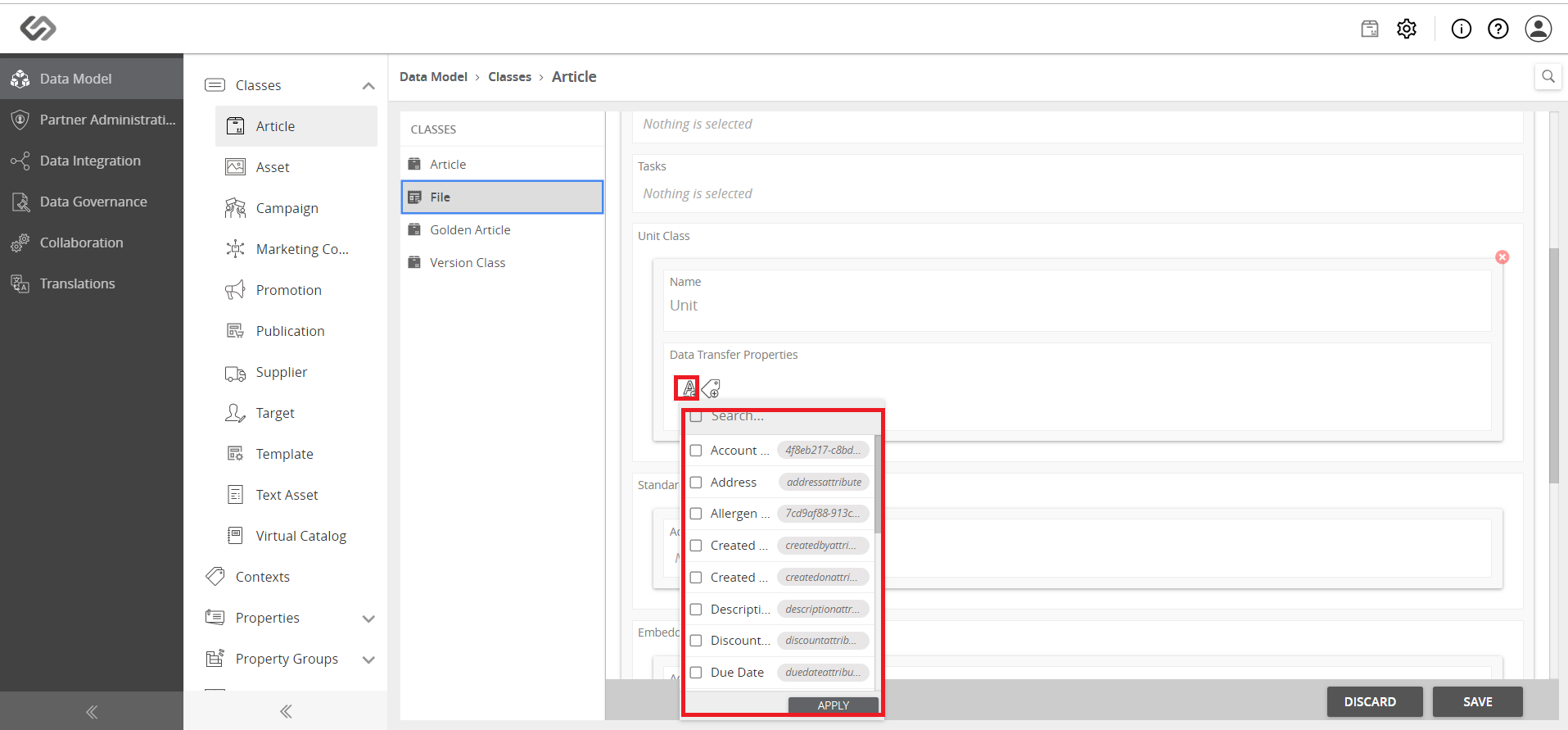
- Select the attributes that you want to replicate and transfer from the parent product to its variants, then click on the Apply button.
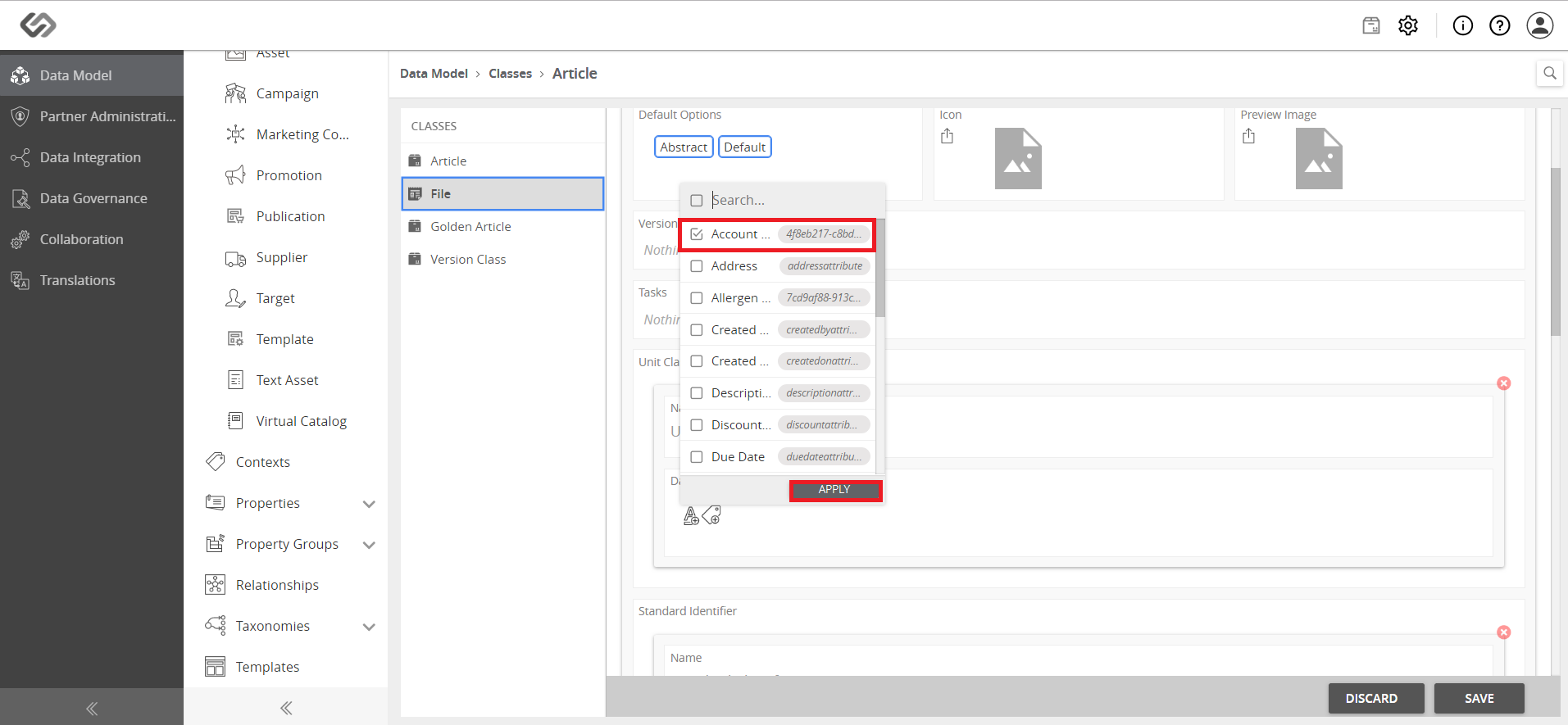
- Click on the Tags icon from the Data Transfer Properties field to view the list of tags.
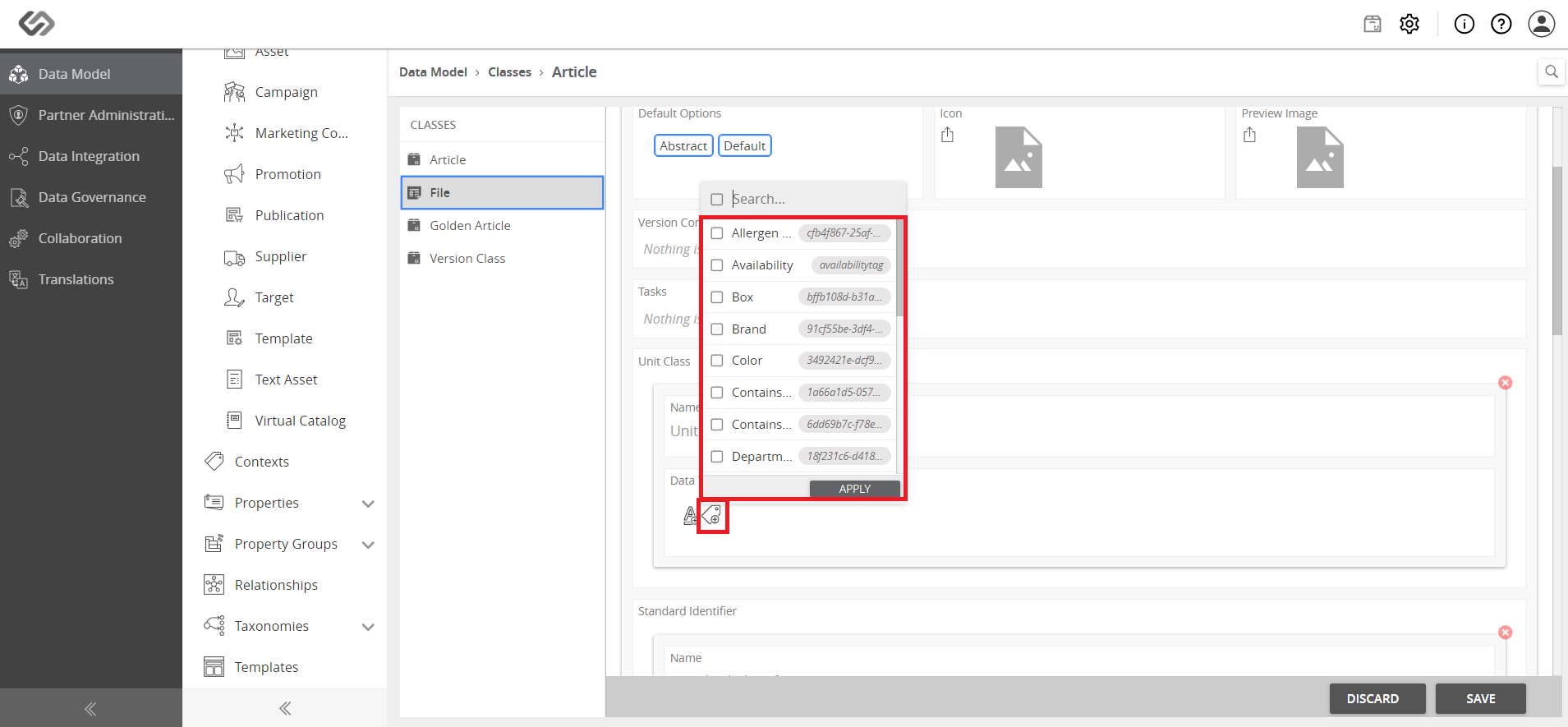
- Select the unit tags that you want to replicate and transfer from the parent product to its variants, then click on the Apply button.
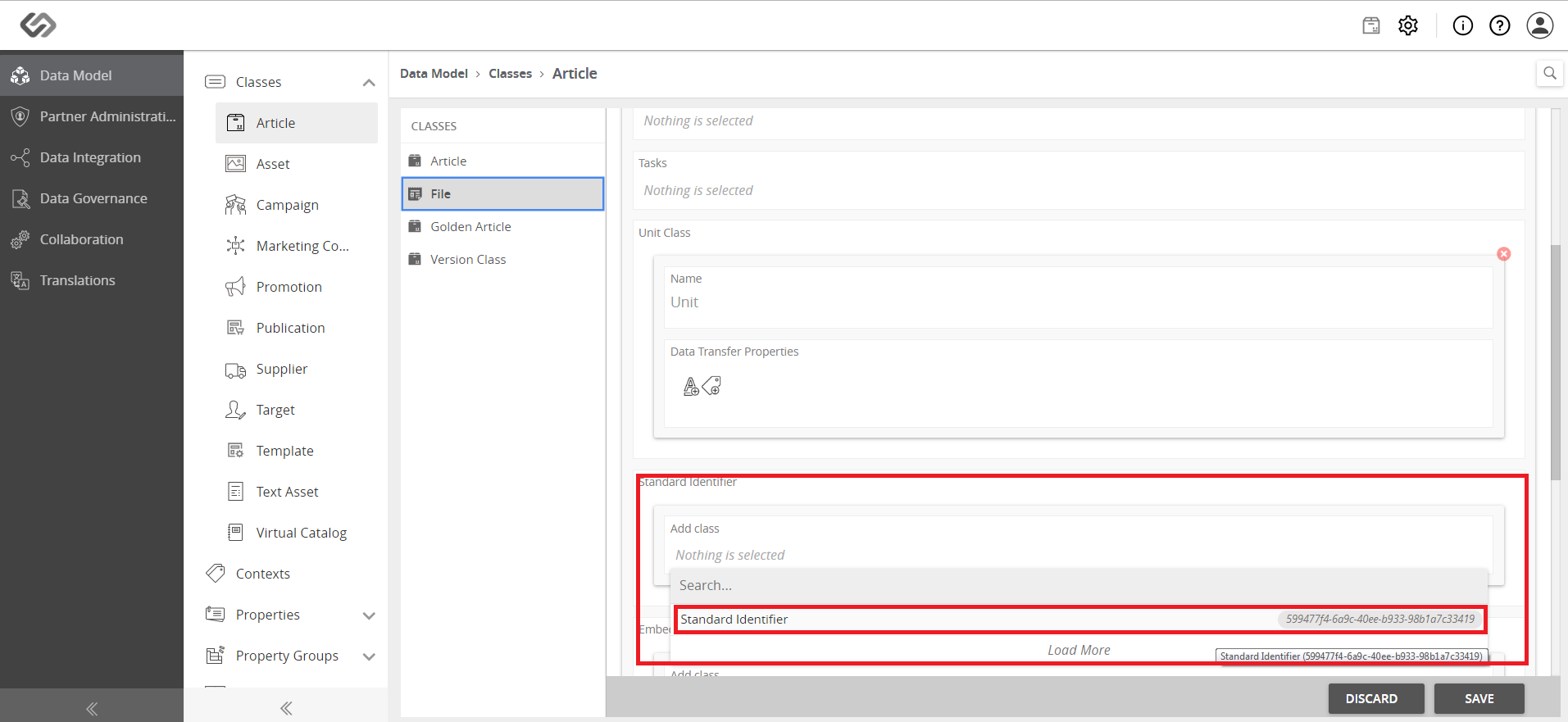
- Locate the Standard Identifier section and select a created standard identifier class from the Add Class field.
- Upon selecting the class, you will see the Data Transfer Properties field appear in the Standard Identifier section.
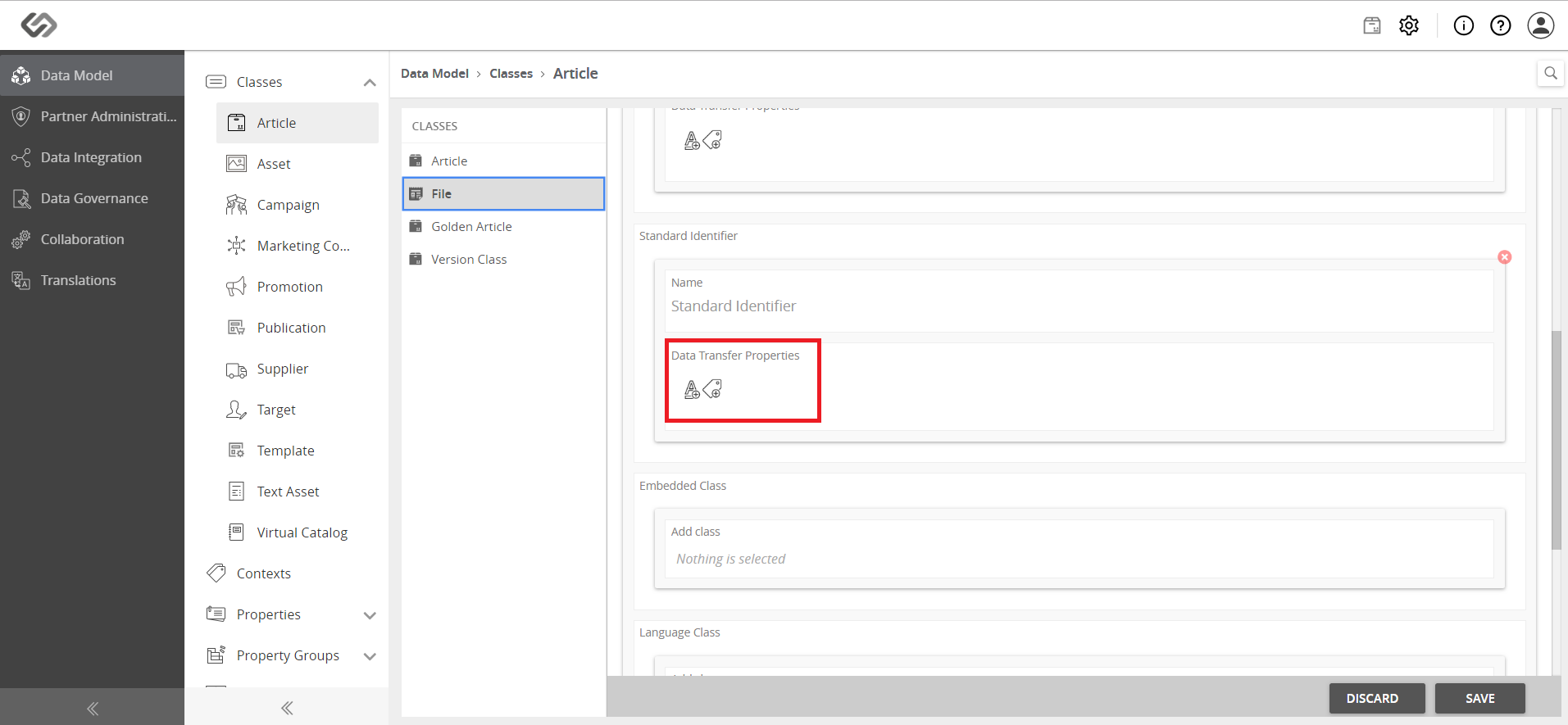
- Click on the Attributes icon from the Data Transfer Properties field to view the list of attributes.
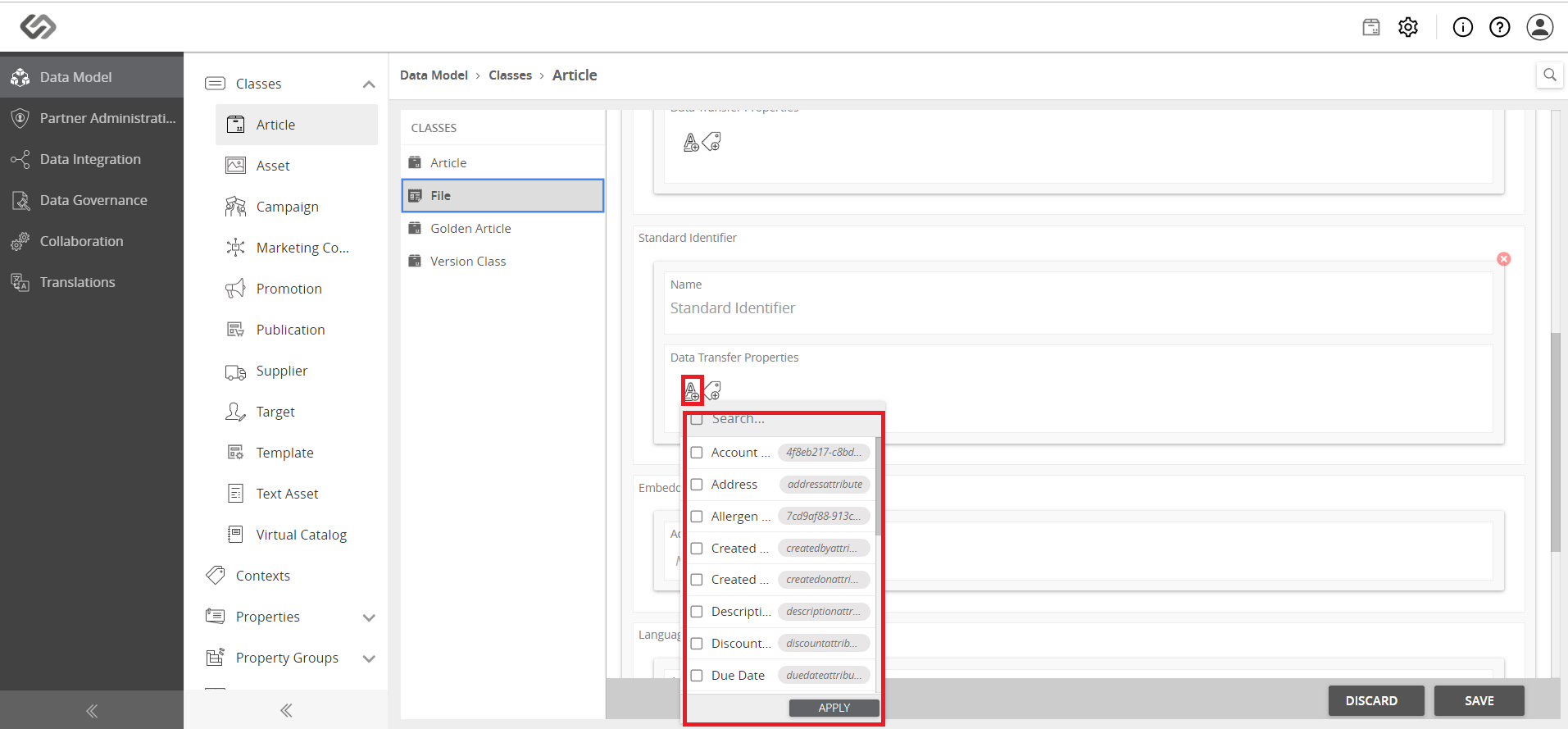
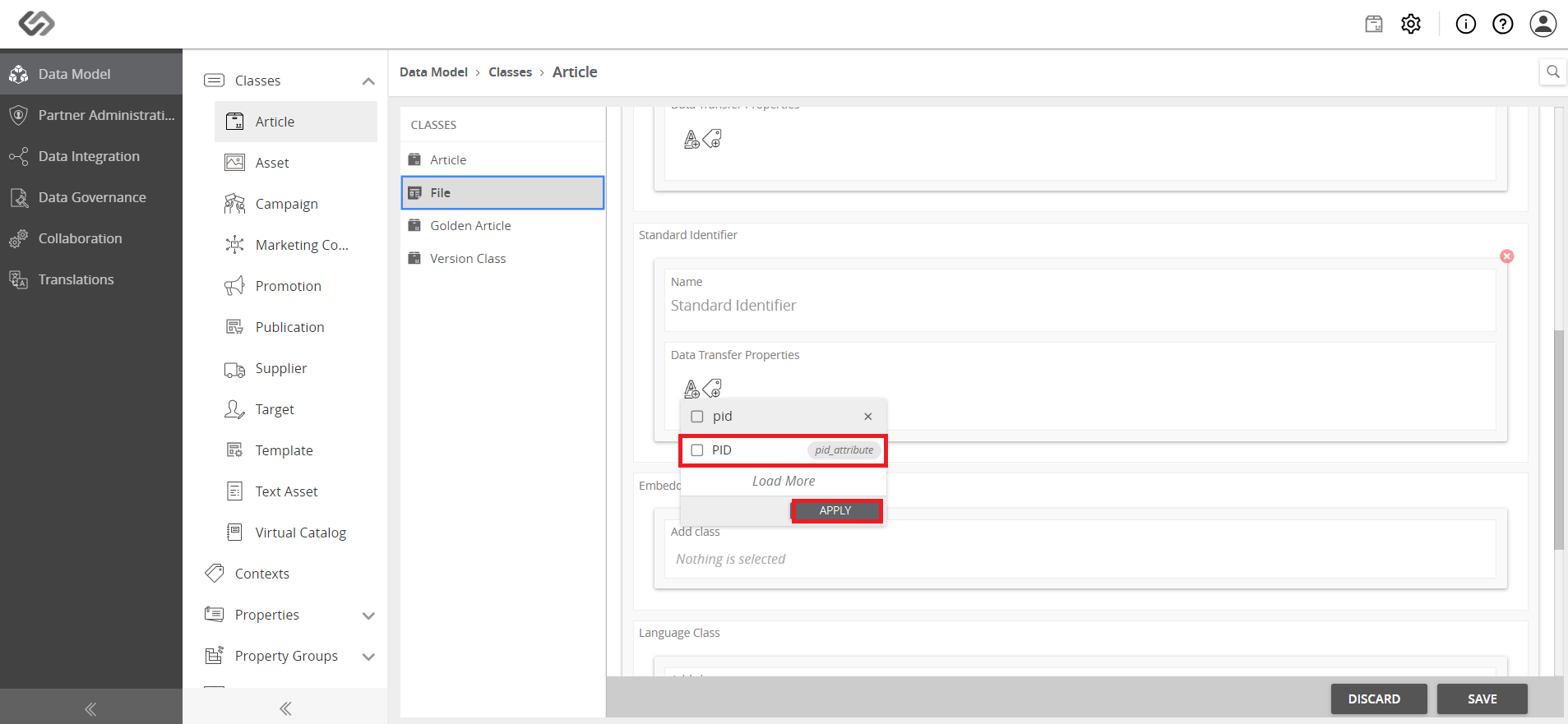
- Select the attributes that you want to replicate and transfer from the parent product to its variants, then click on the Apply button.
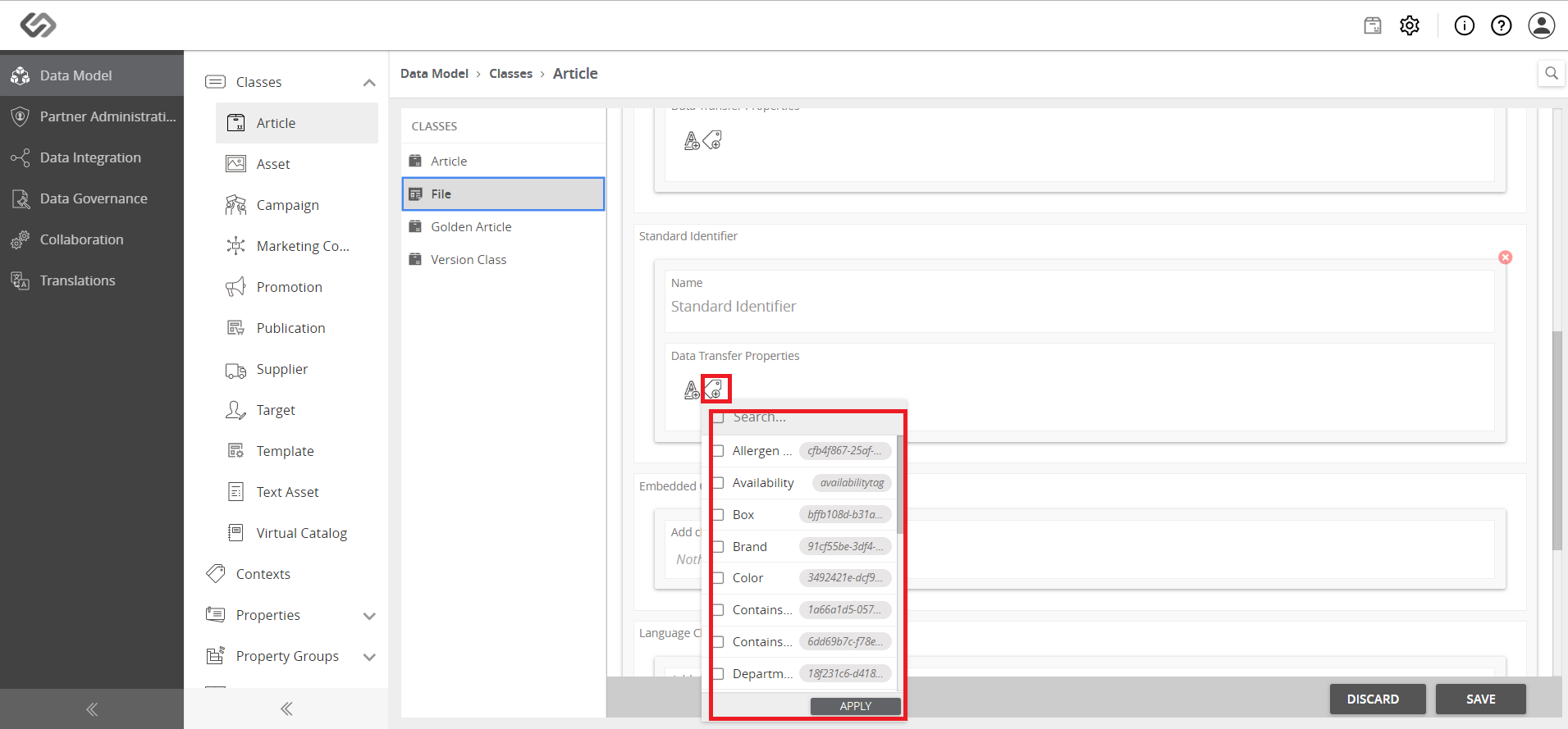
- Click on the Tags icon from the Data Transfer Properties field to view the list of tags.
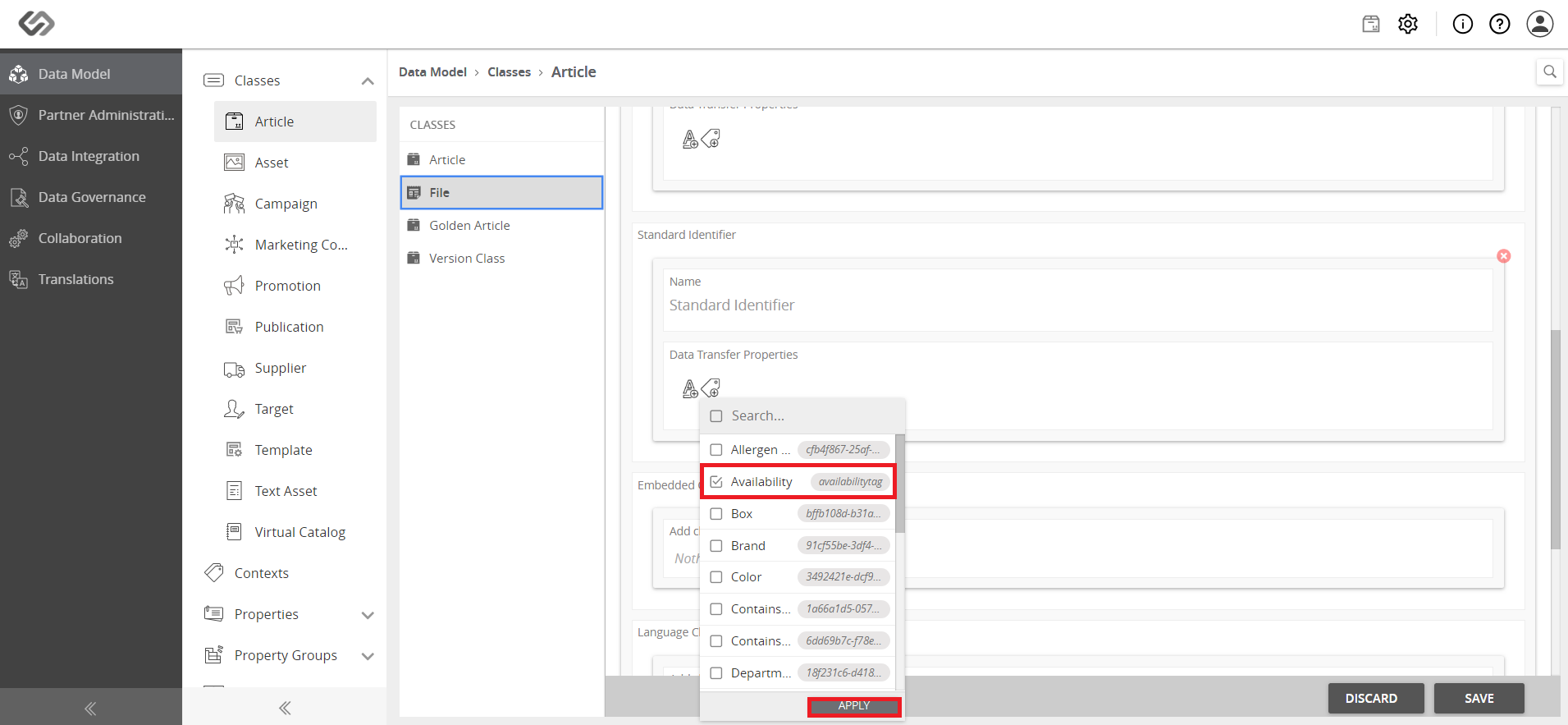
- Select the tags that you want to replicate and transfer from the parent product to its variants, then click on the Apply button.
- Locate the Embedded Class section and select a created embedded class from Add Class field.
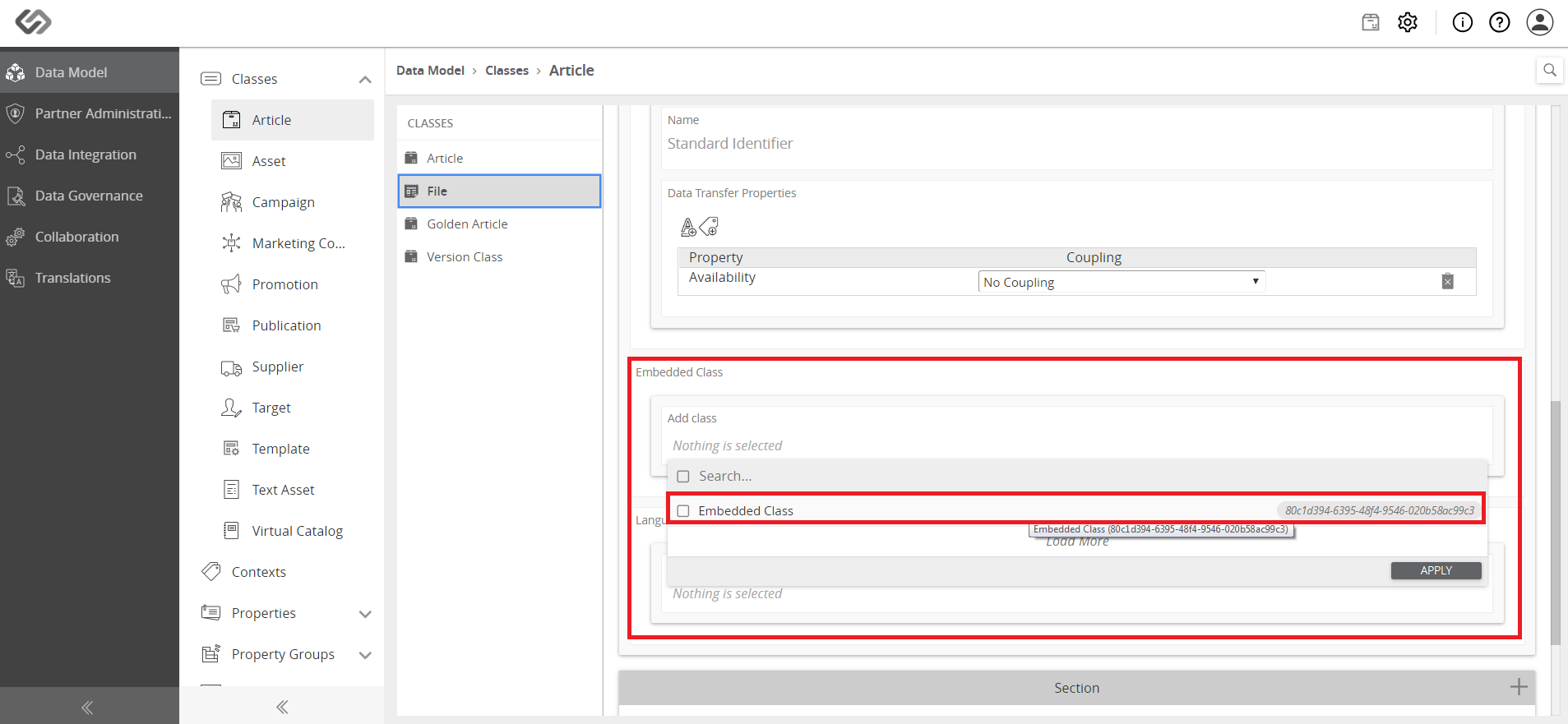
- Upon selecting the class, you will see the Data Transfer Properties field appear in the Embedded Class section.
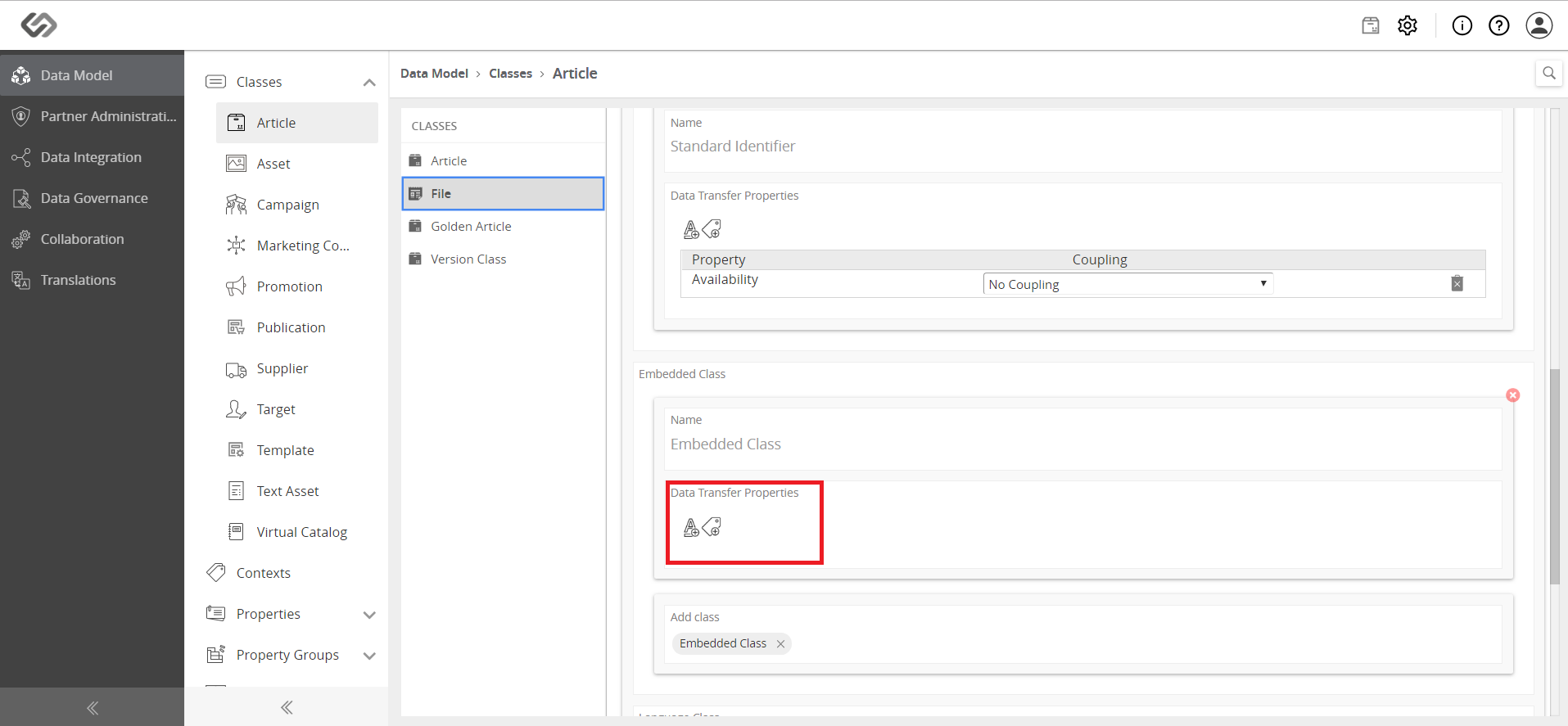
- Click on the Attributes icon from the Data Transfer Properties field to view the list of attributes.
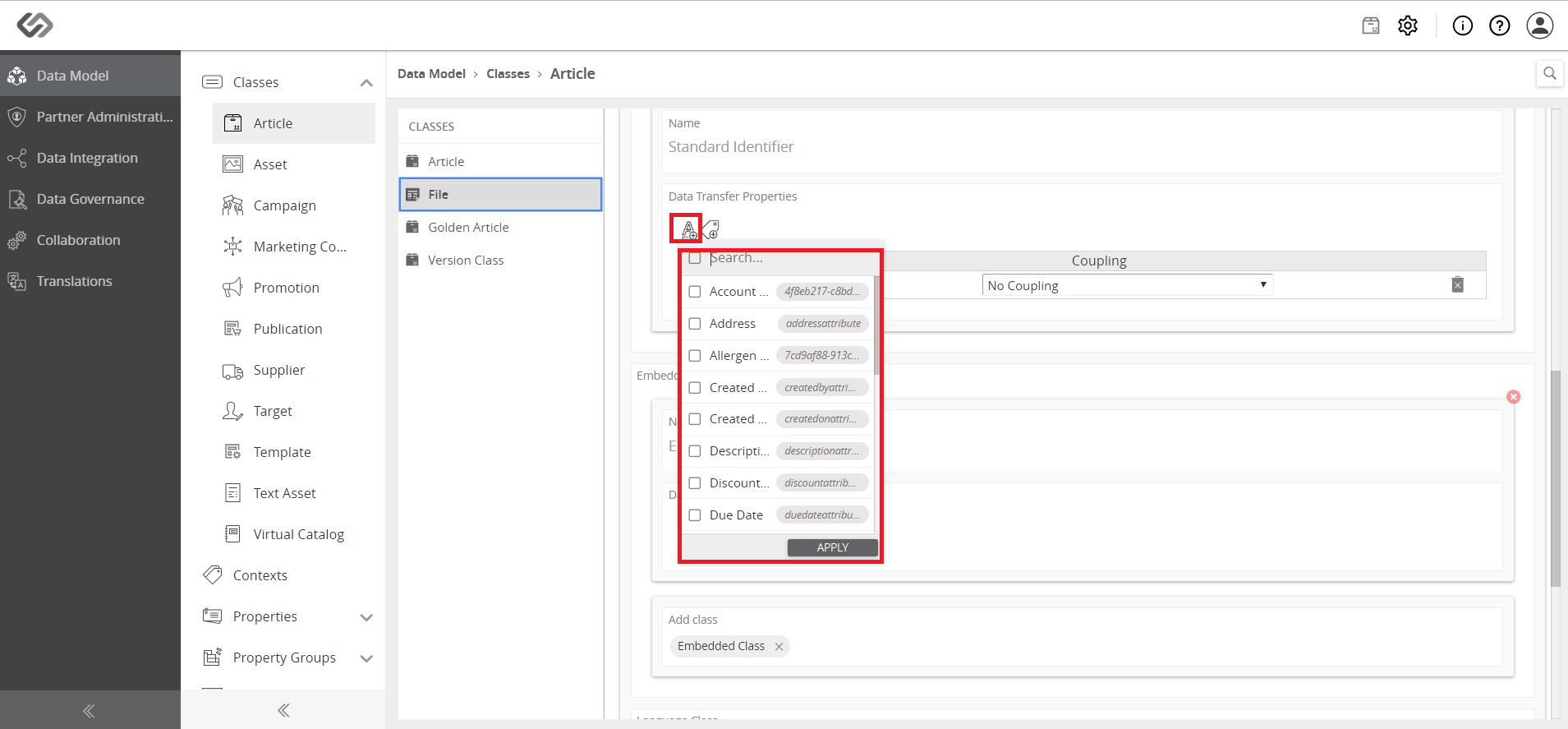
- Select the attributes that you want to replicate and transfer from the parent product to its variants, then click on the Apply button.
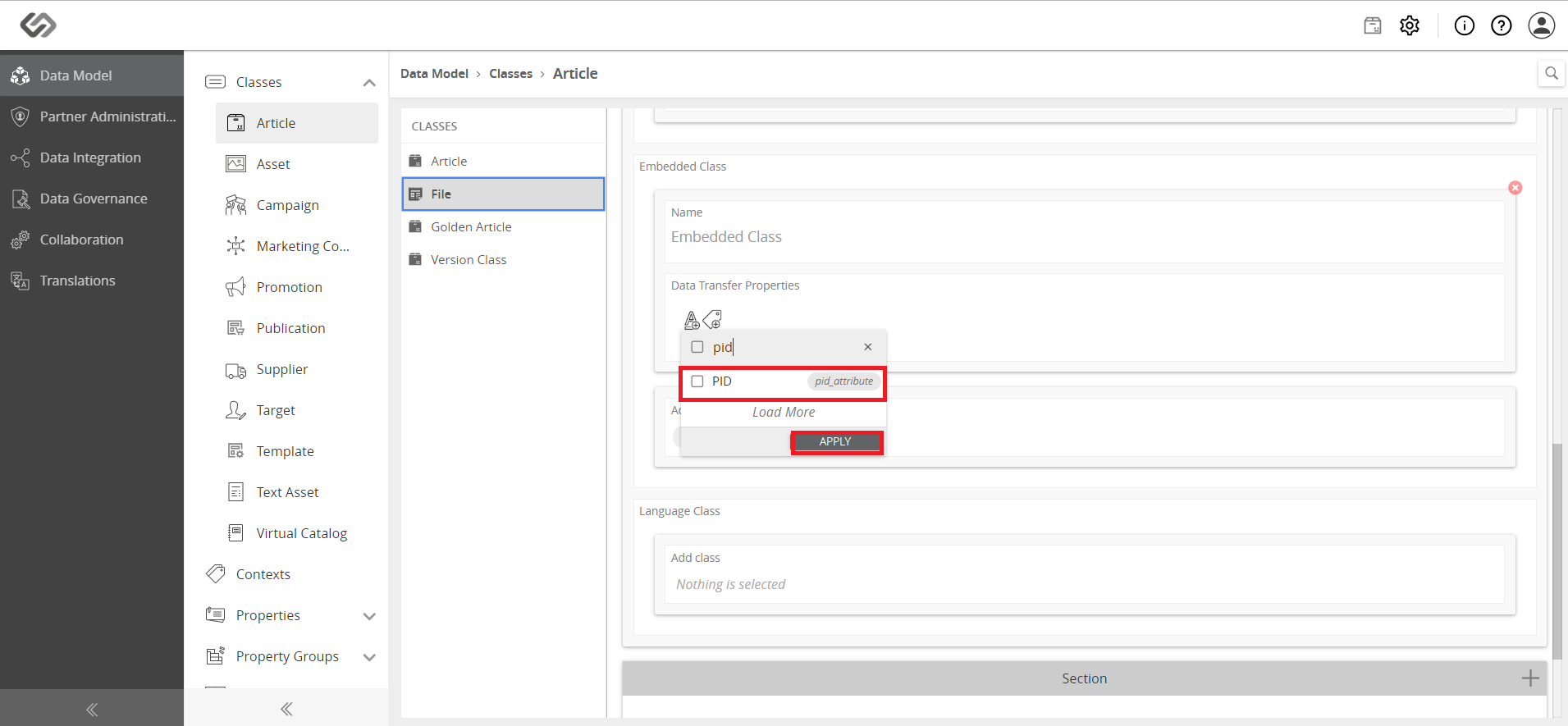
- Click on the Tags icon from the Data Transfer Properties field to view the list of tags.
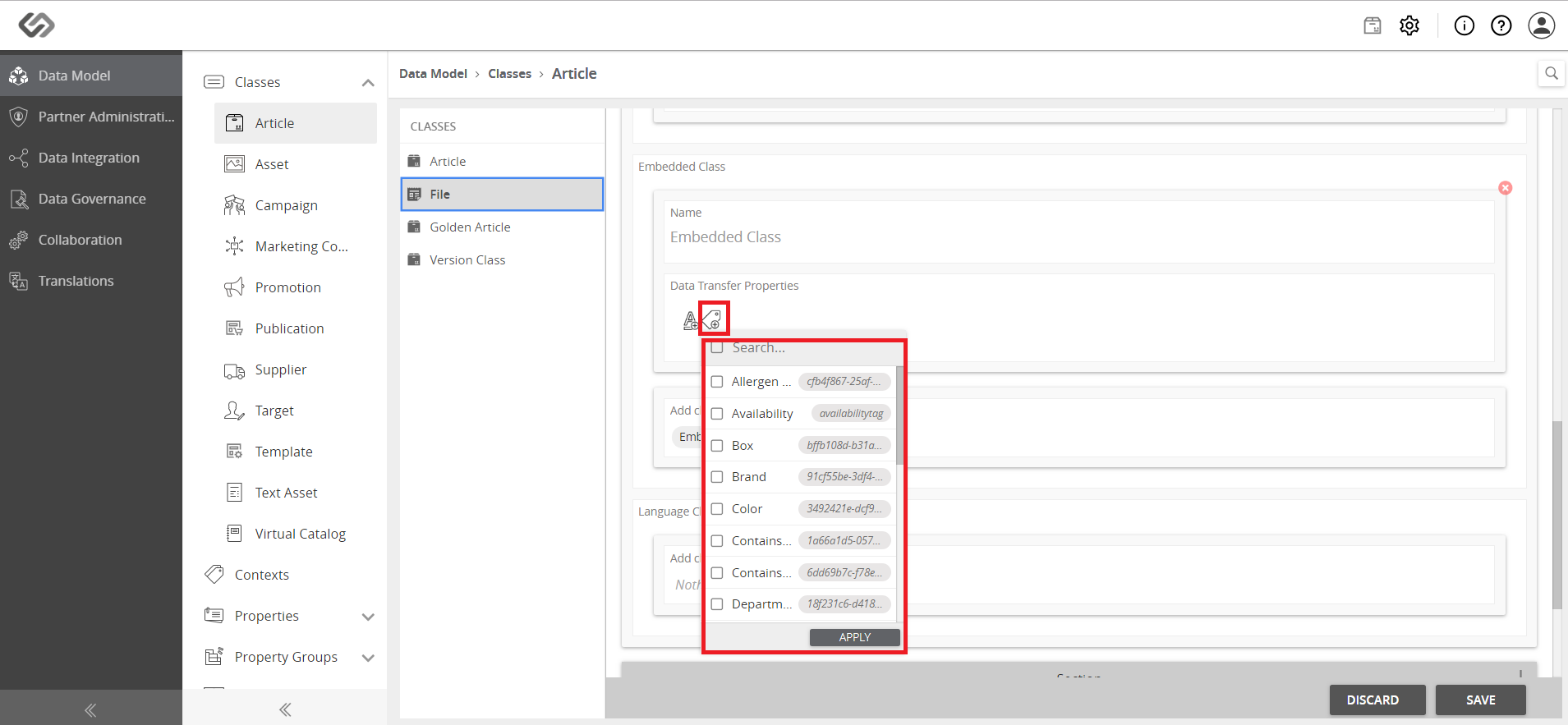
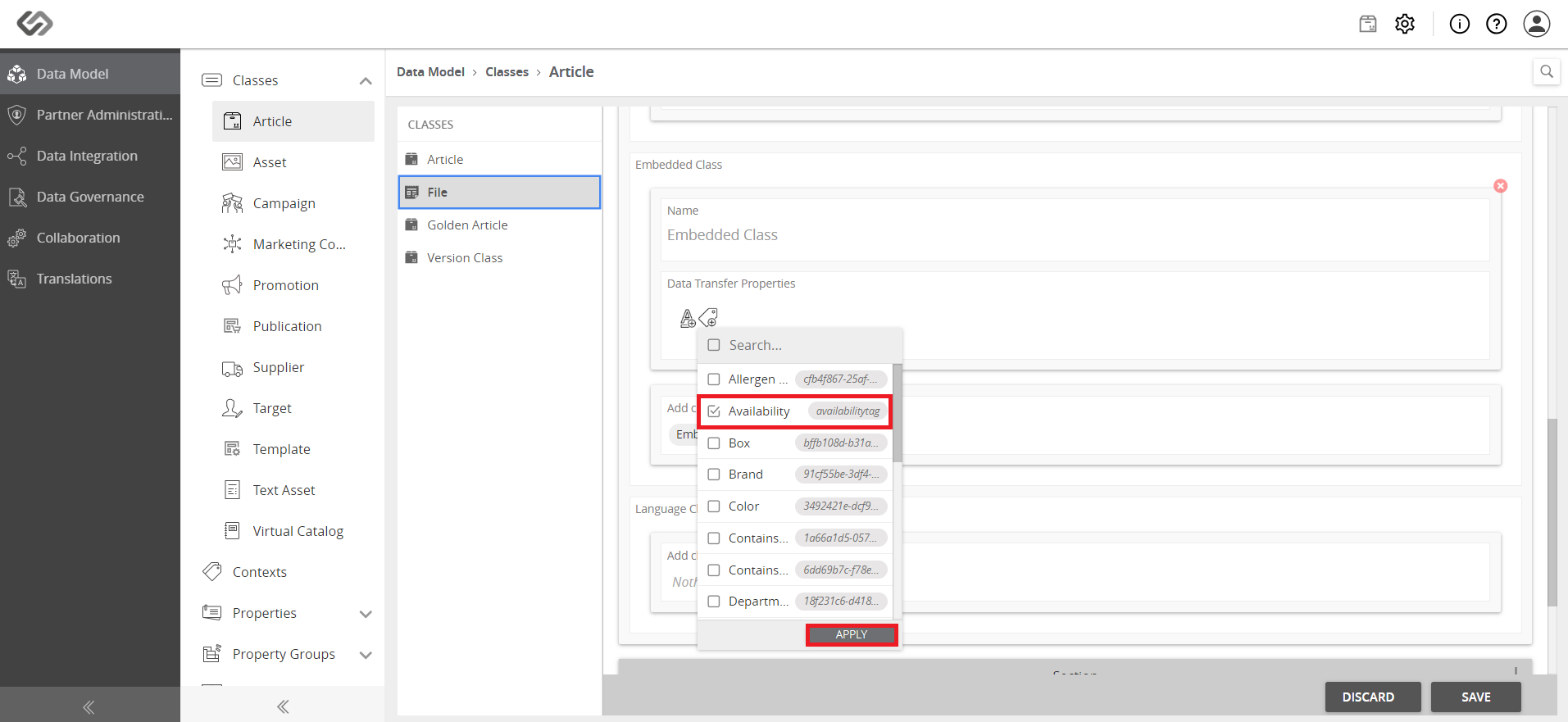
- Select the tags that you want to replicate and transfer from the parent product to its variants, then click on the Apply button.
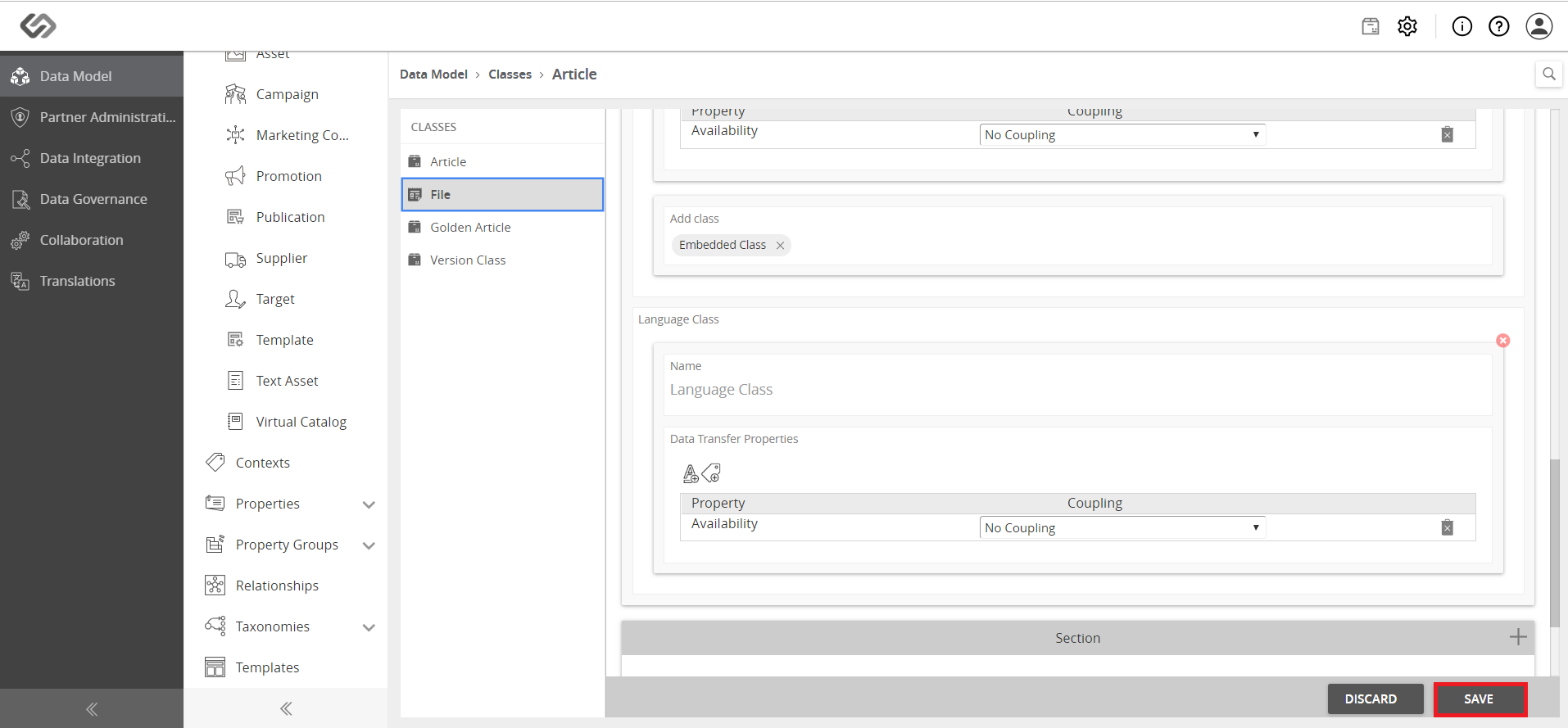
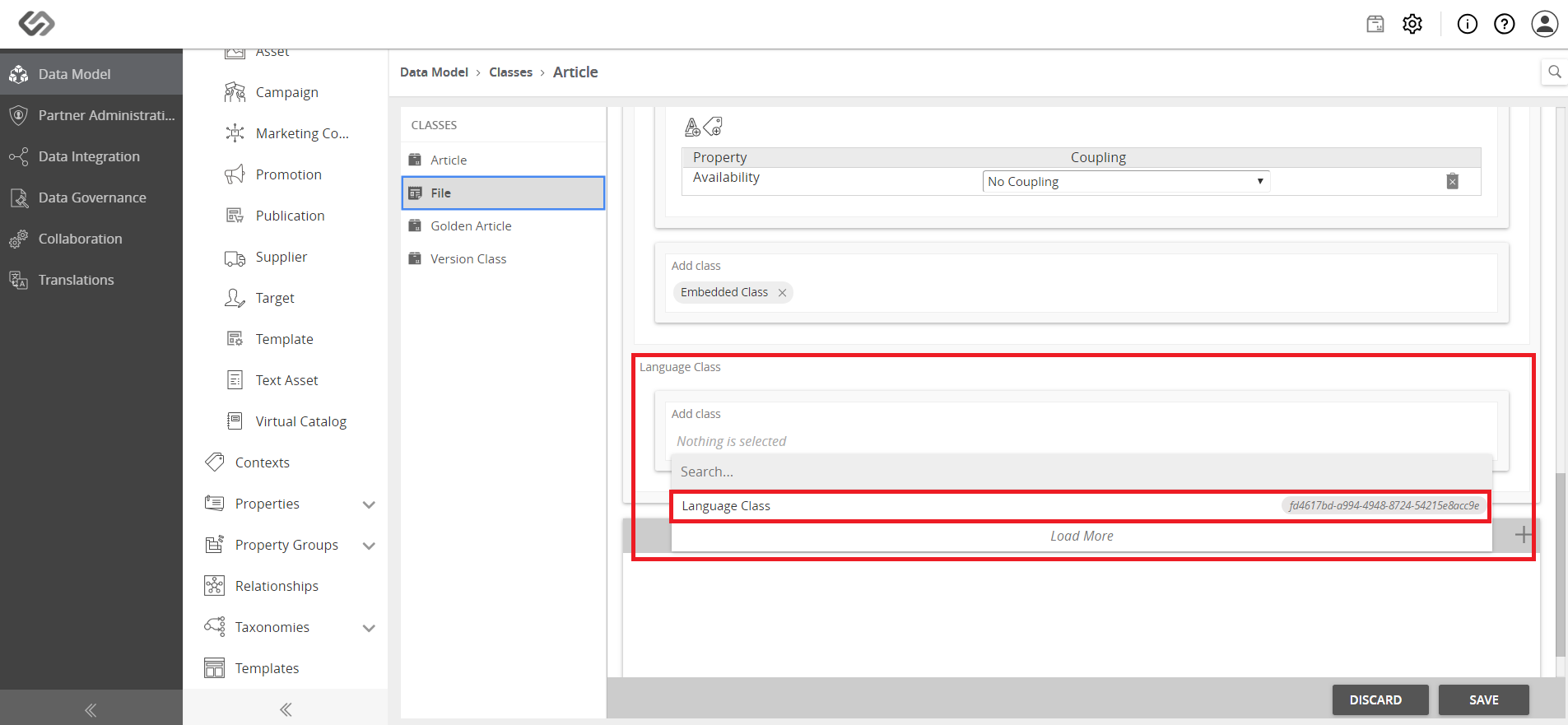
- Locate the Language Class section and select a created language class from Add Class field.
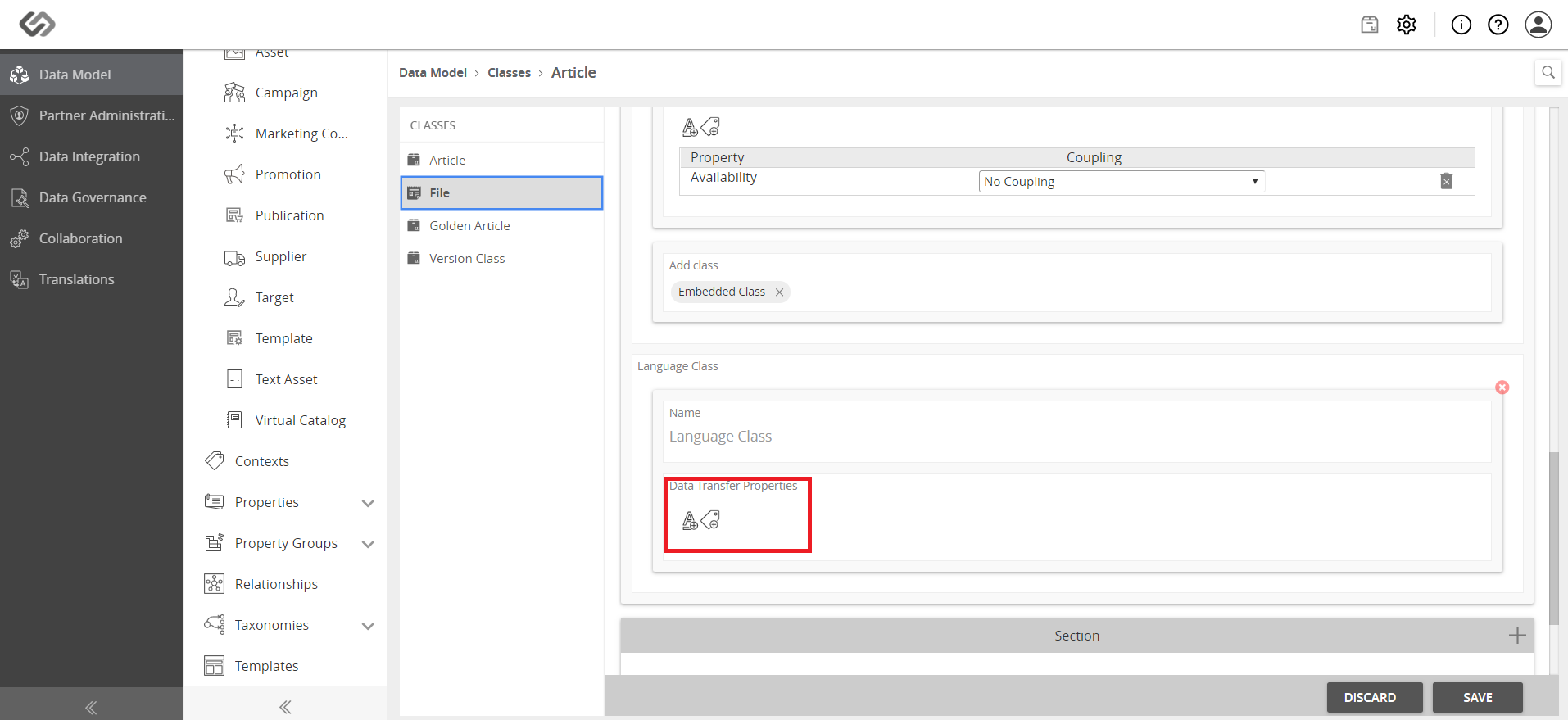
- Upon selecting the class, you will see the Data Transfer Properties field appear in the Language Class section.
- Click on the Attributes icon from the Data Transfer Properties field to view the list of attributes.
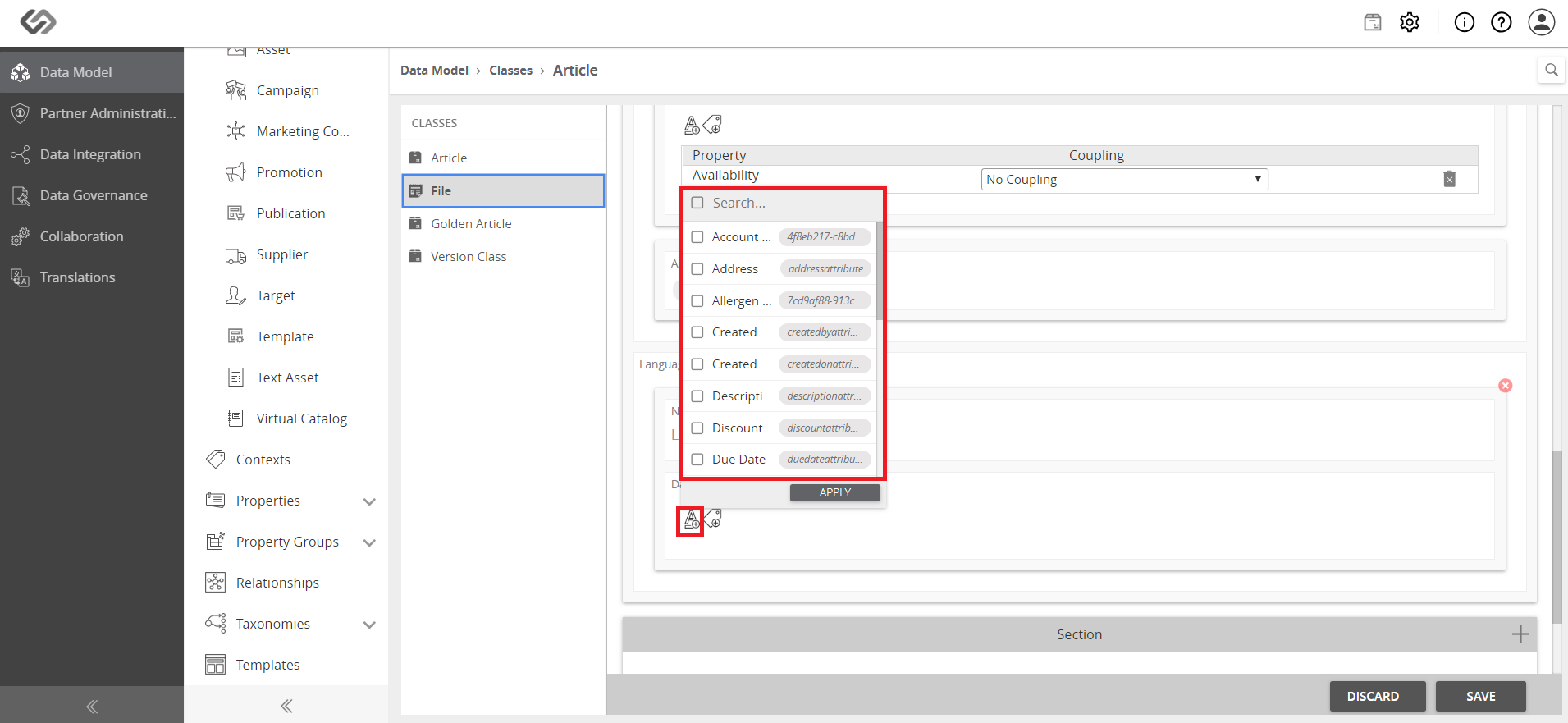
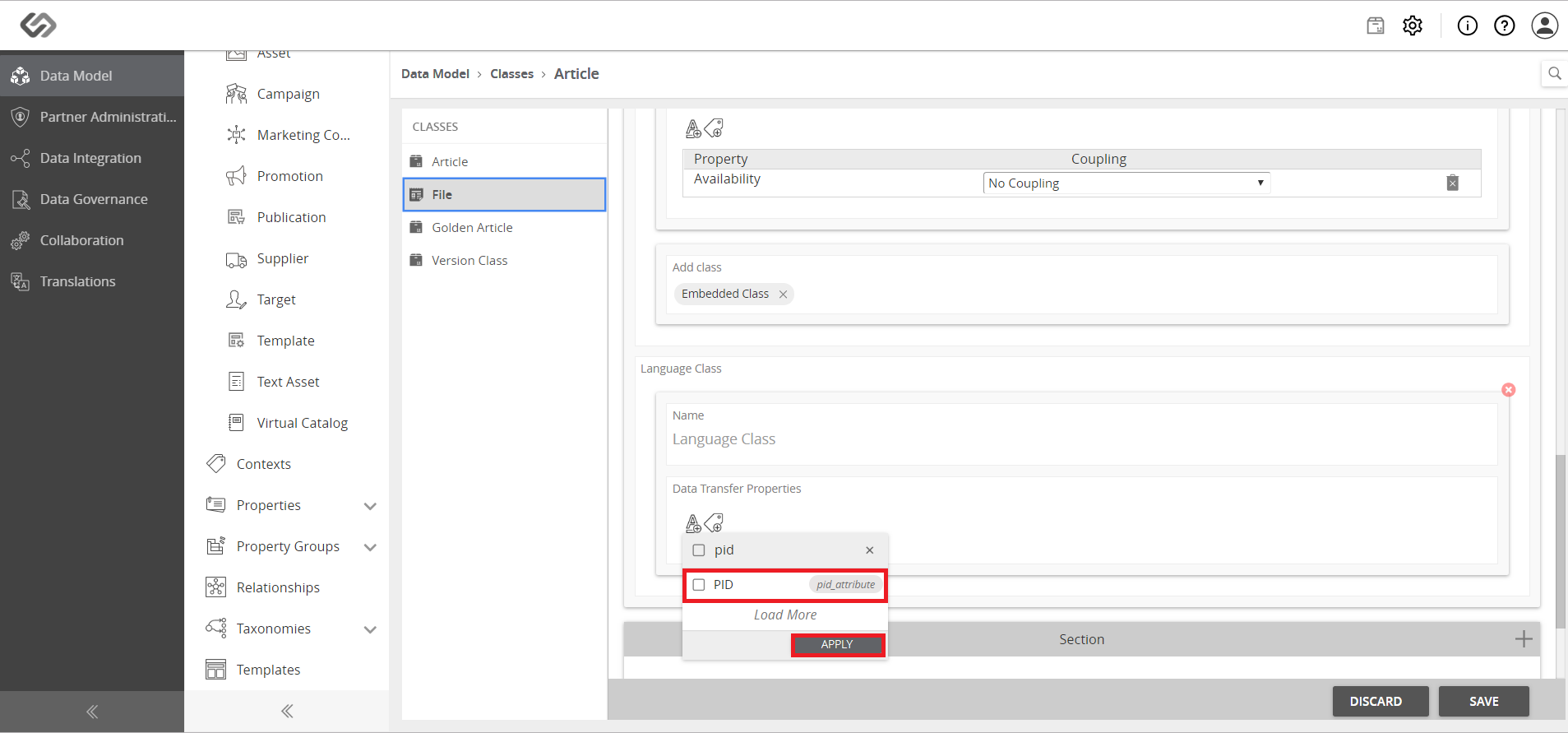
- Select the attributes that you want to replicate and transfer from the parent product to its variants, then click on the Apply button.
- Click on the Tags icon from the Data Transfer Properties field to view the list of tags.
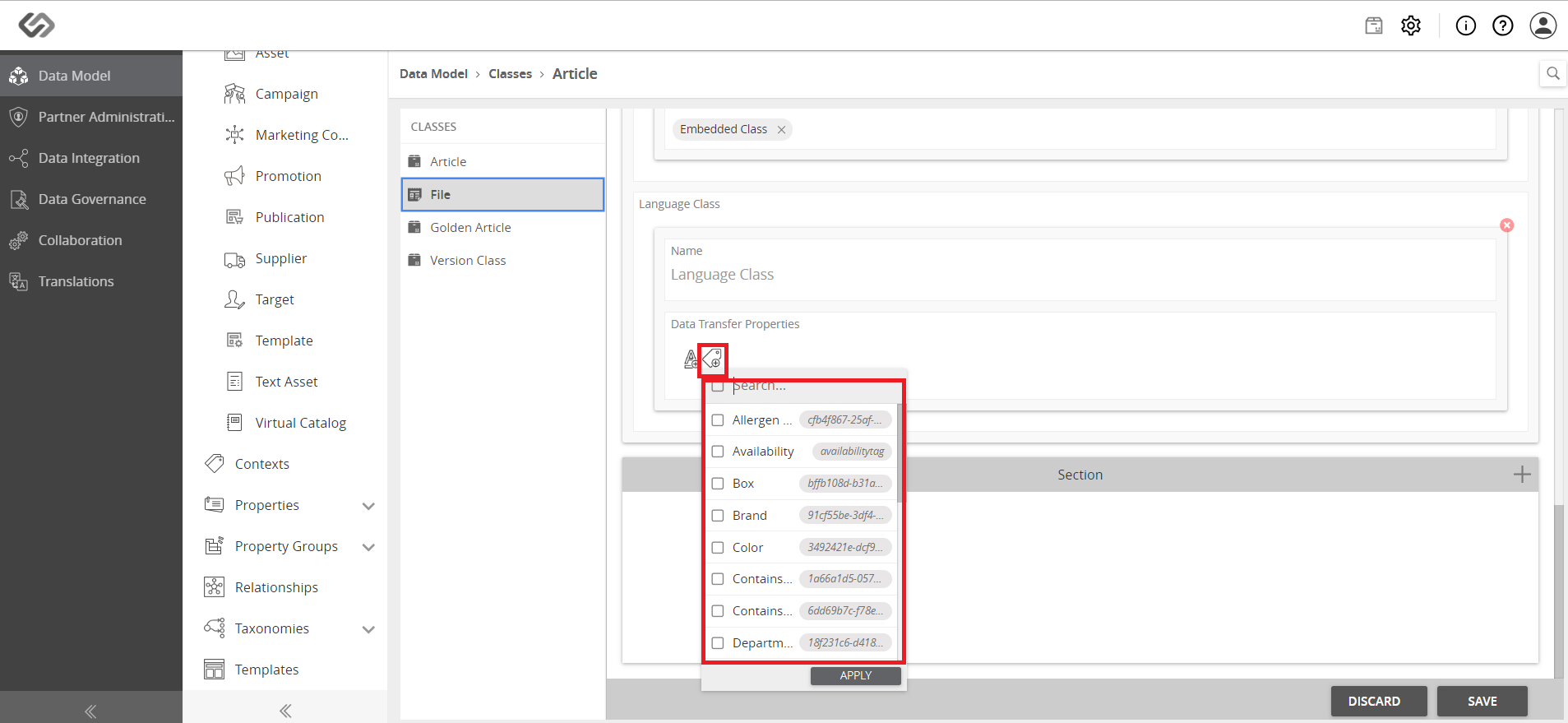
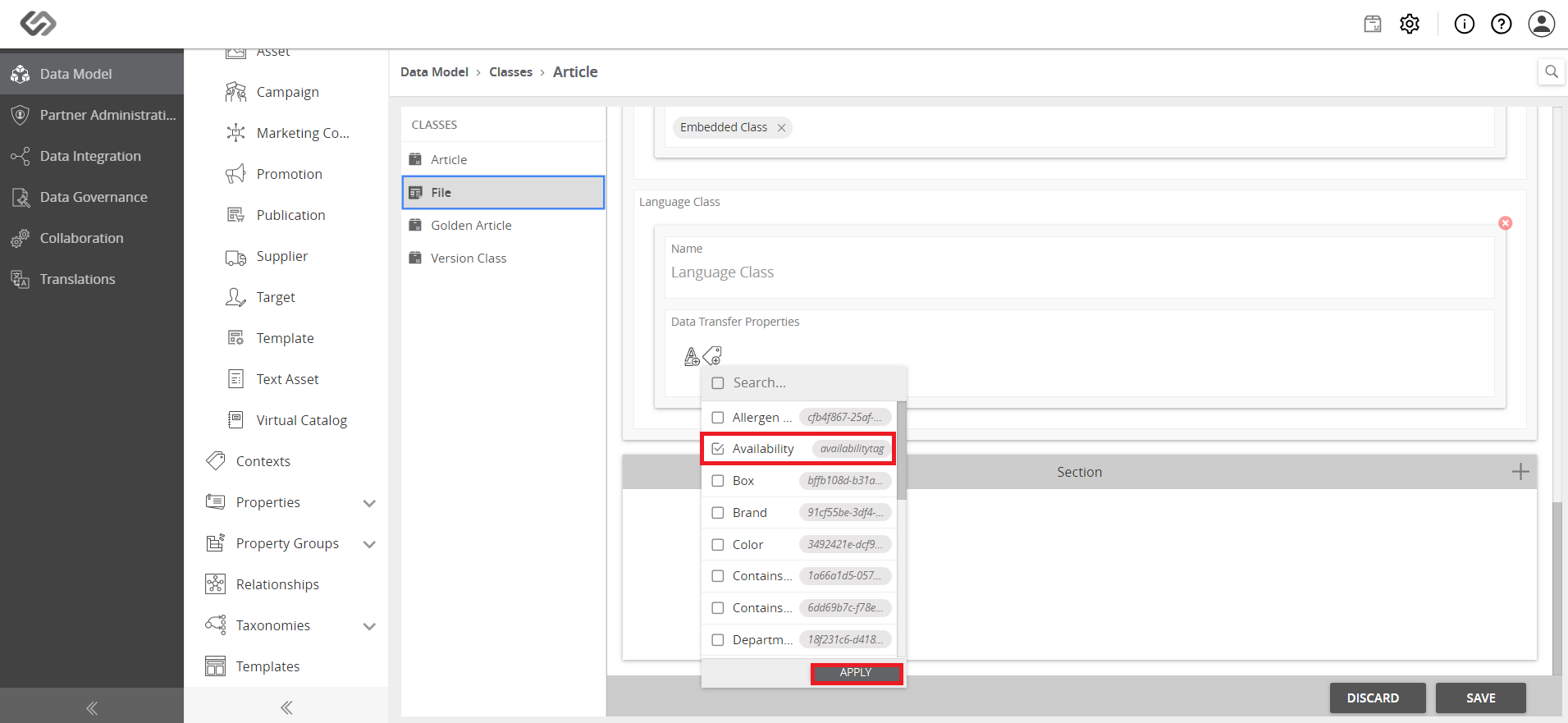
- Select the tags that you want to replicate and transfer from the parent product to its variants, then click on the Apply button.
- Click on the Save button.