Manage View Templates
Manage View Templates lets you set up view templates that are customized to different users.
| Key Term: |
|
| Description: |
|
| Related topics: | |
| Application: |
|
How-to: Manage View Templates
Easily manage who gets to see what, and here’s how to do it.
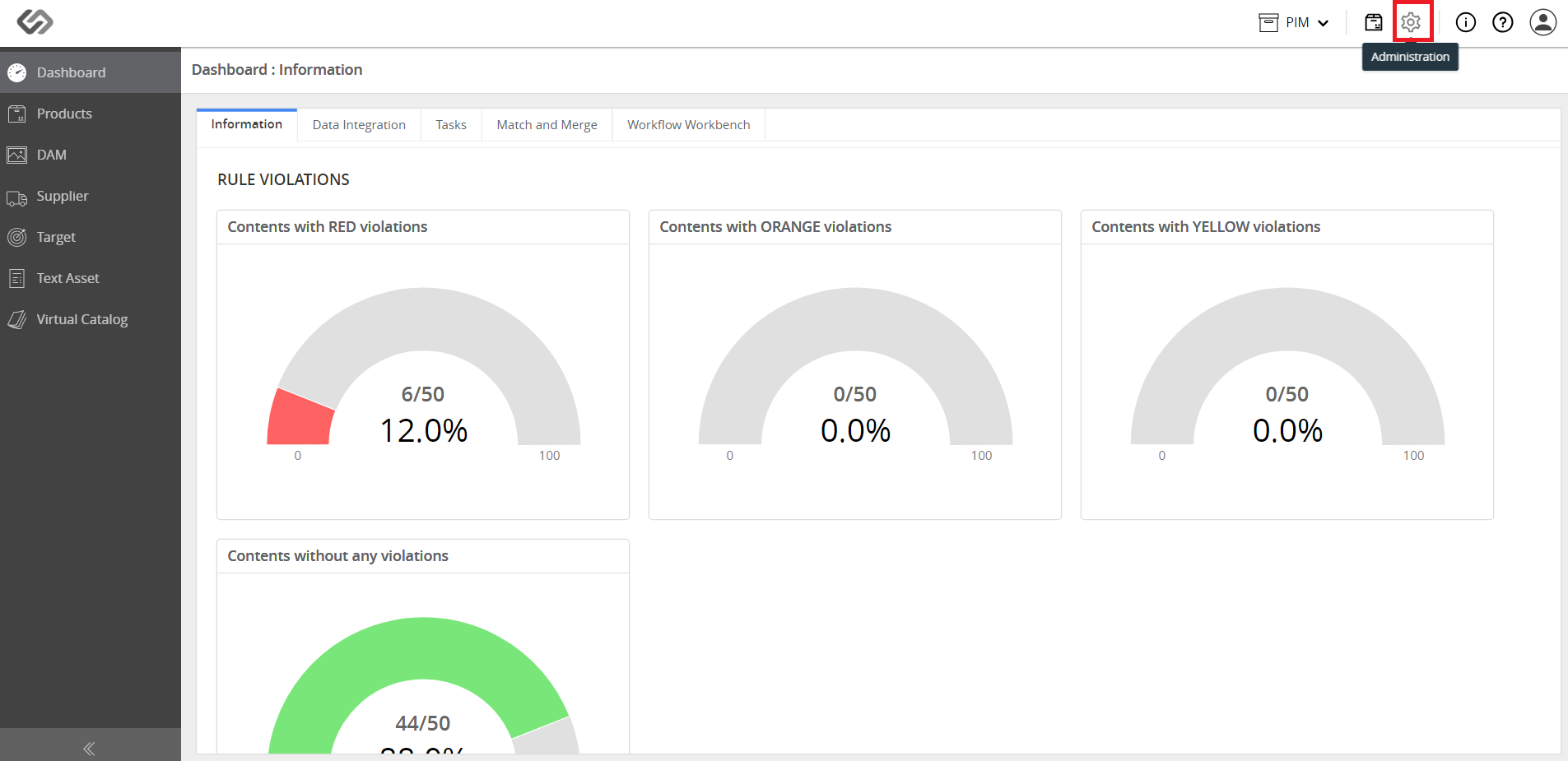
- Log in and go to Administration.
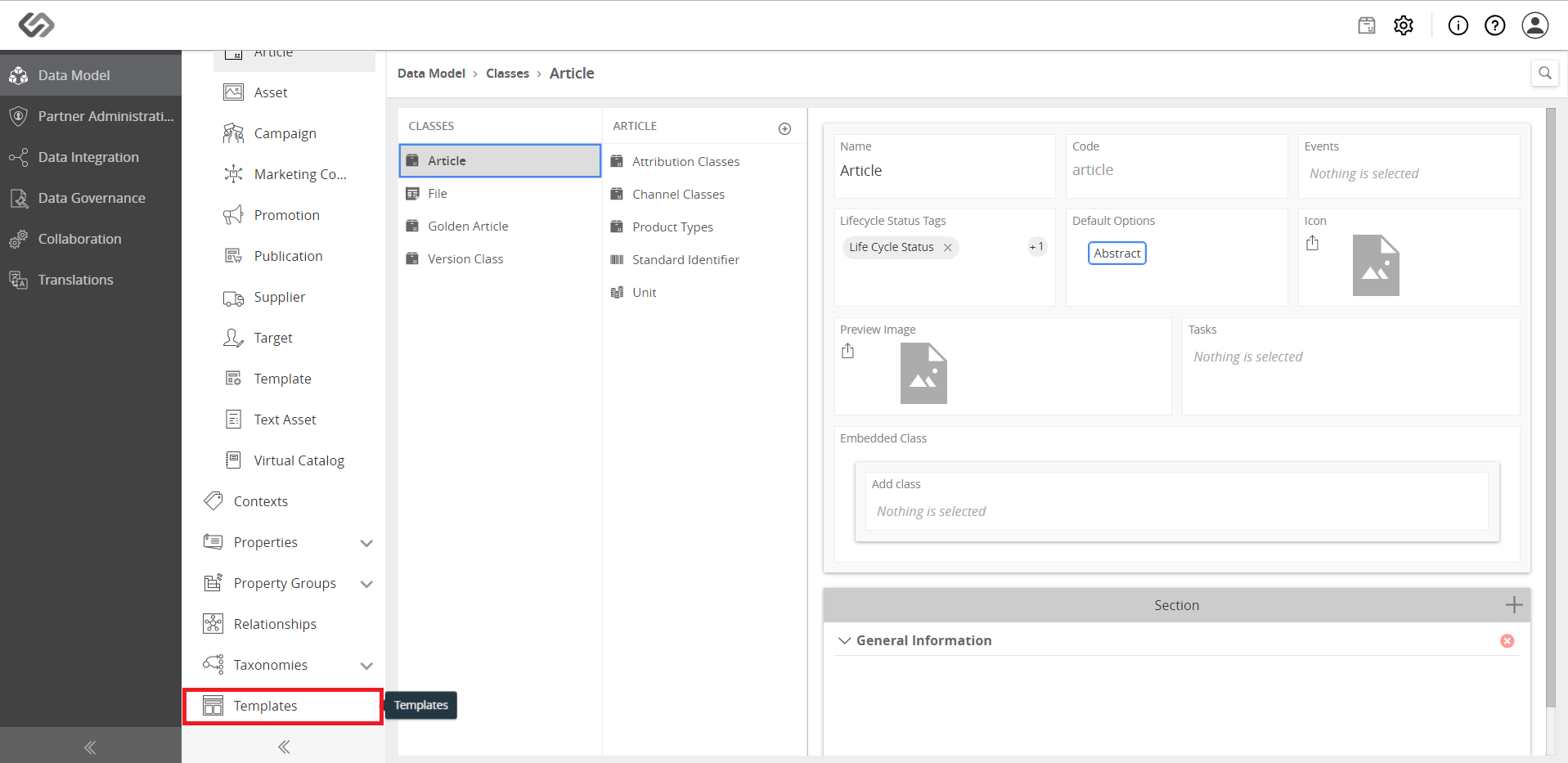
- Click on Templates.
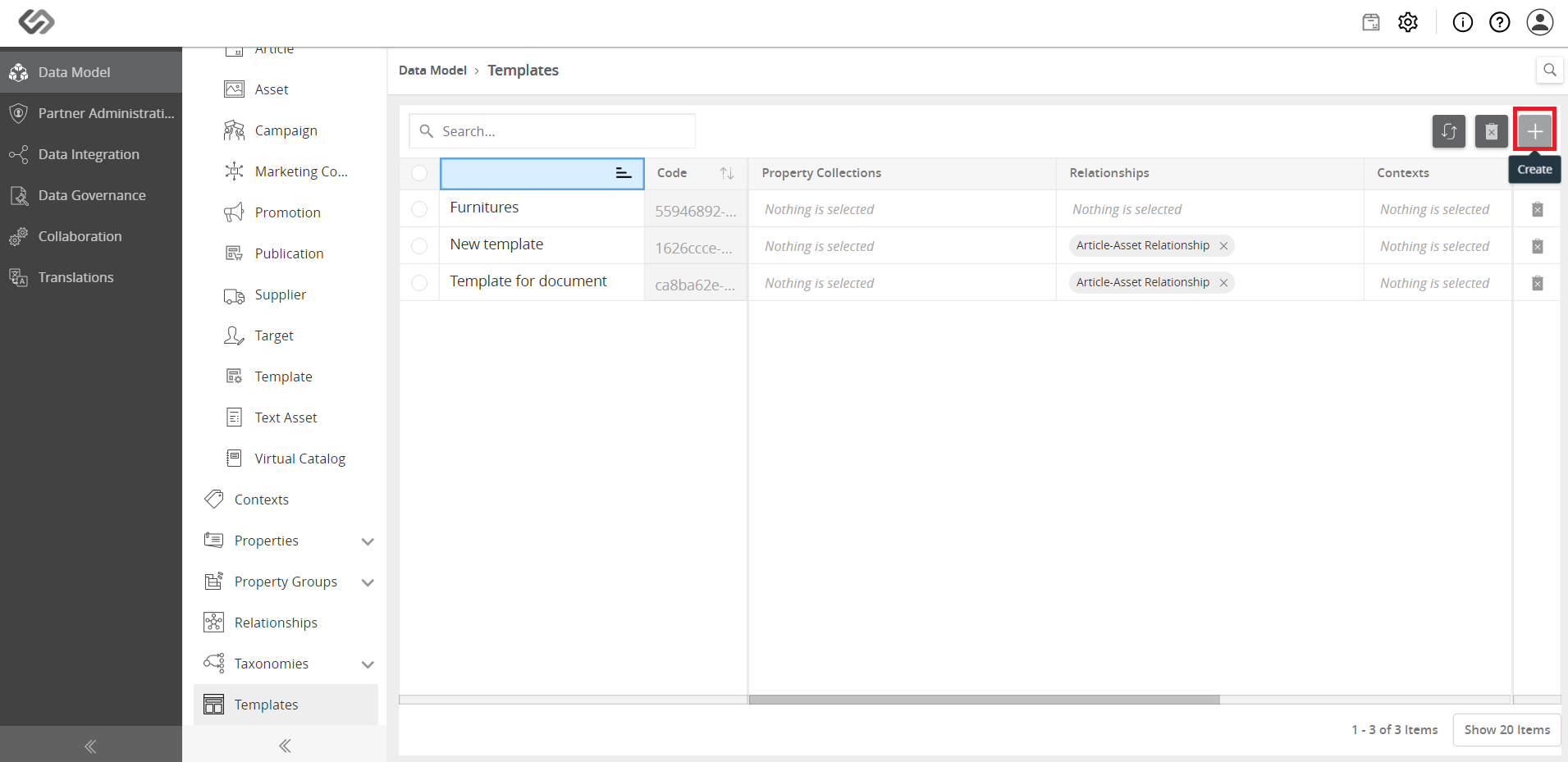
- Click the ‘+’ icon to create a new template. The left pane shows the default templates.
- Enter the name for the template and click the Create button.
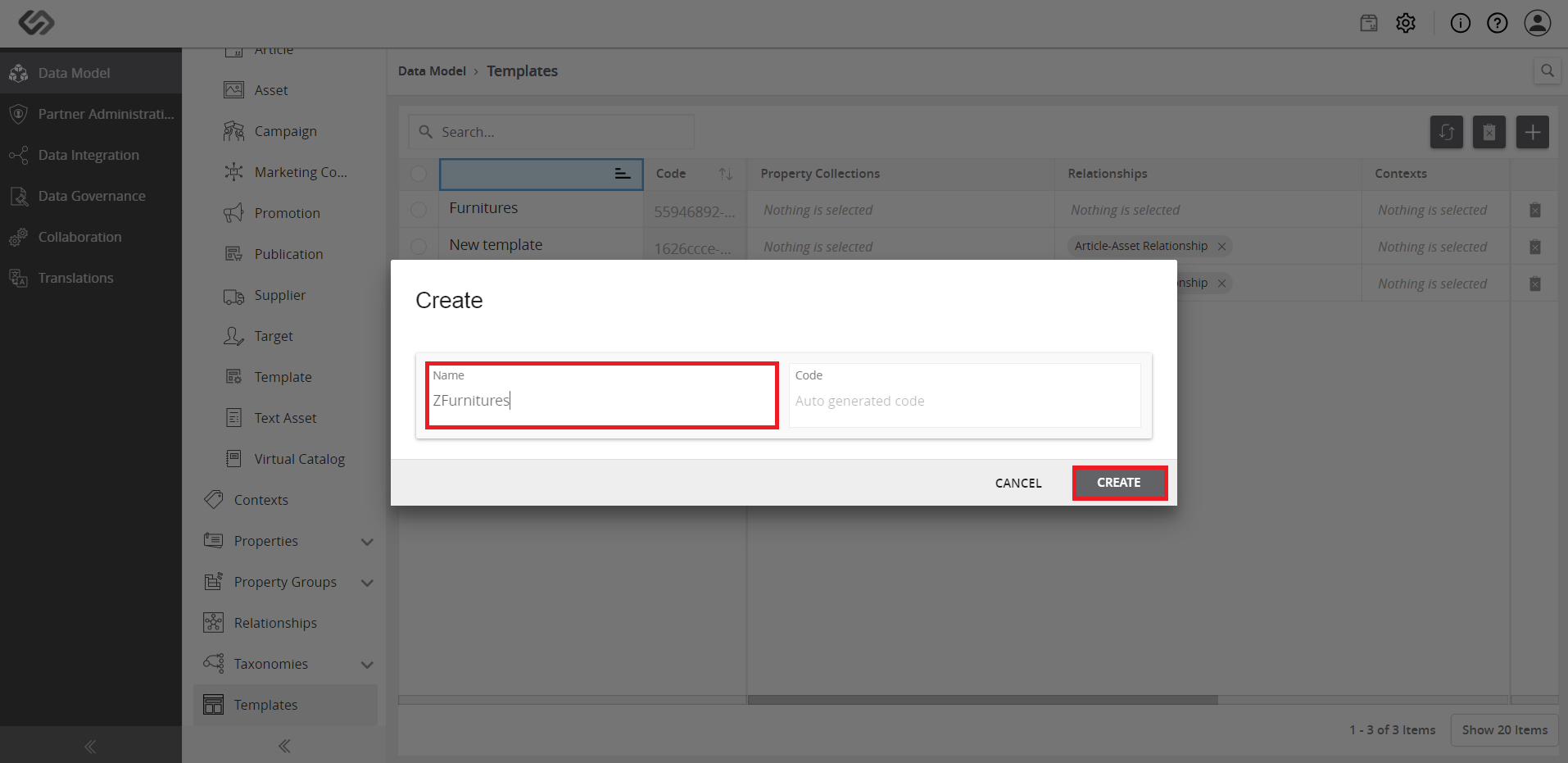
- Click to select the desired property collection and click the Save button.
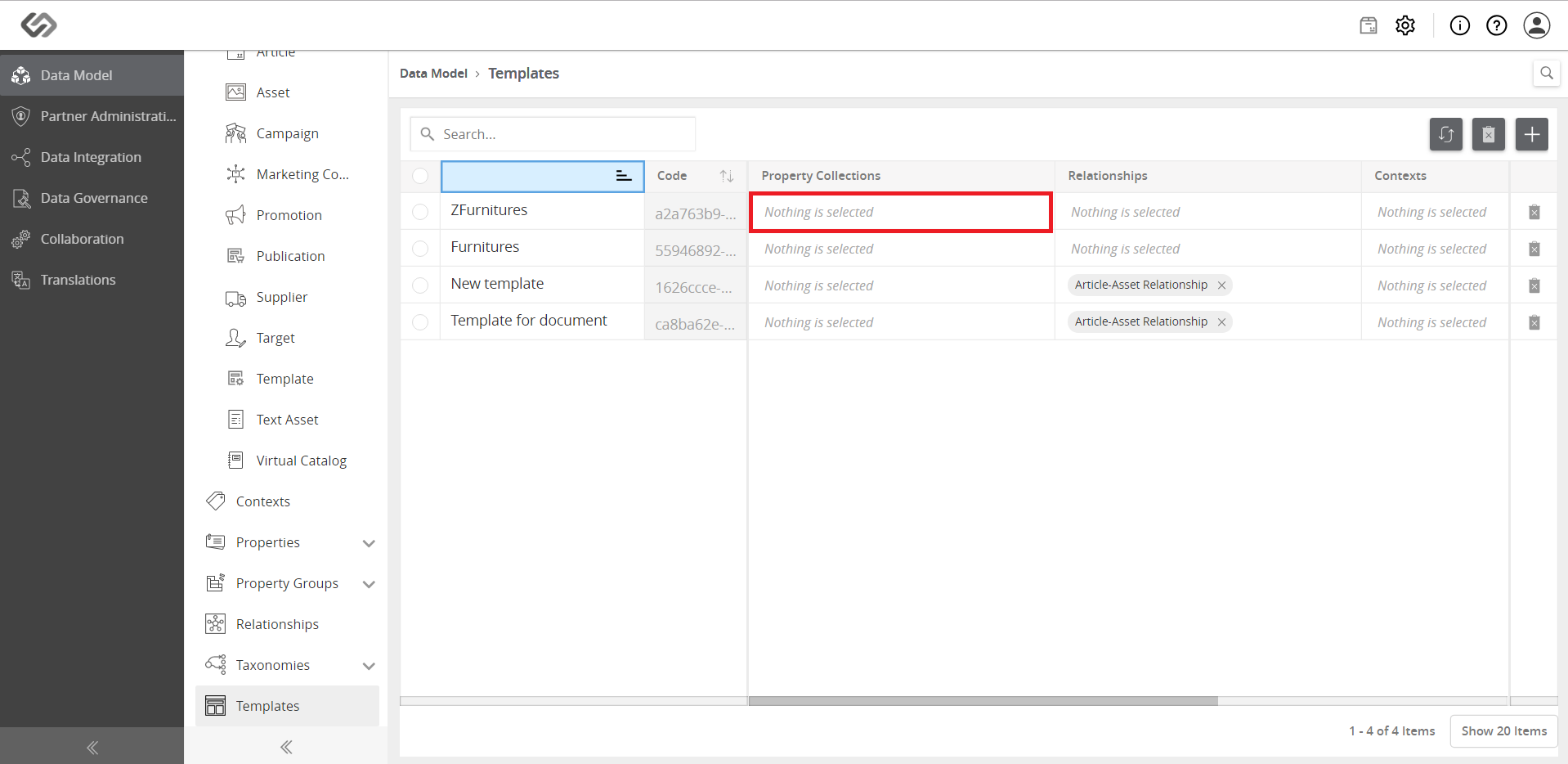
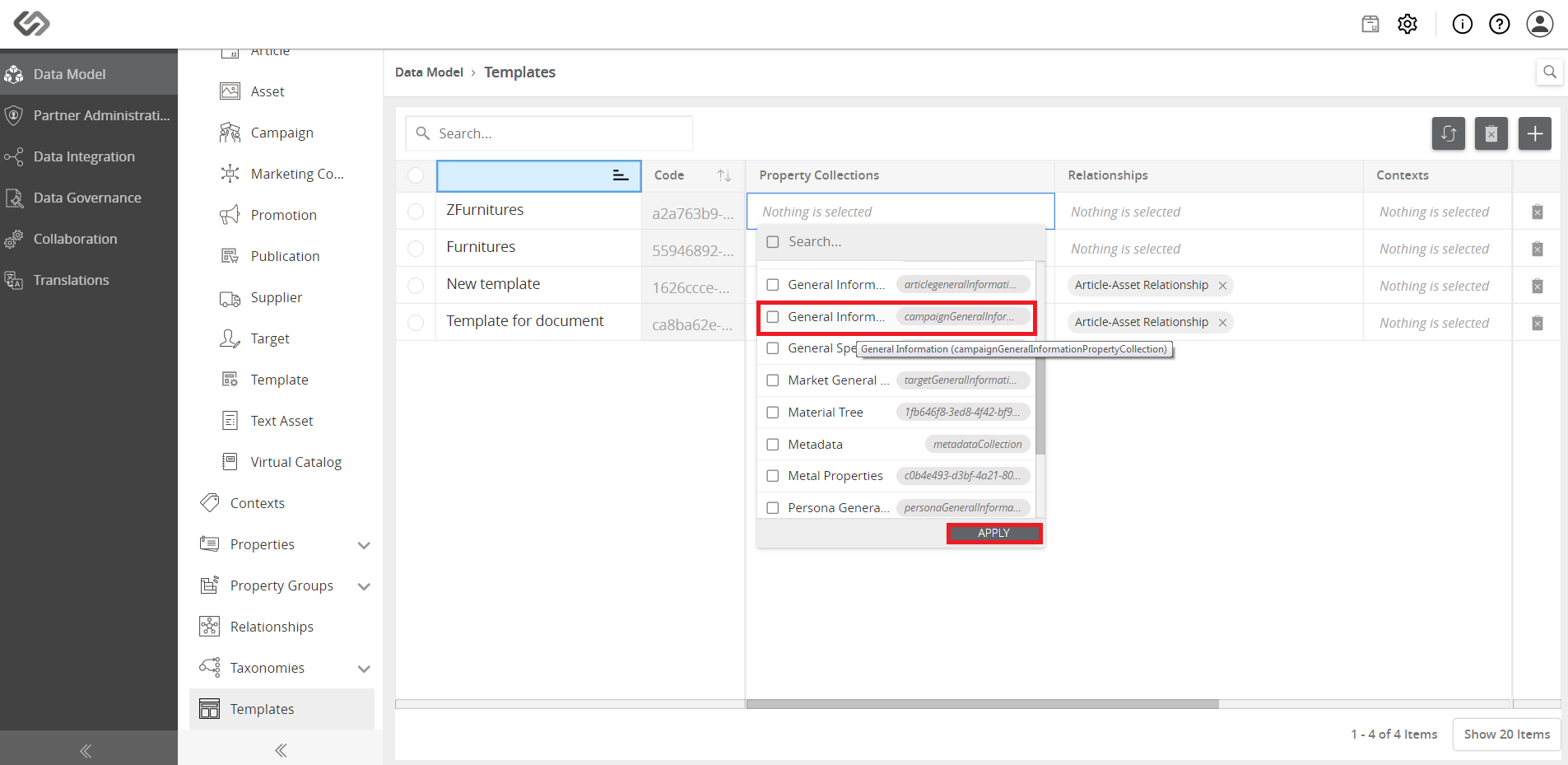
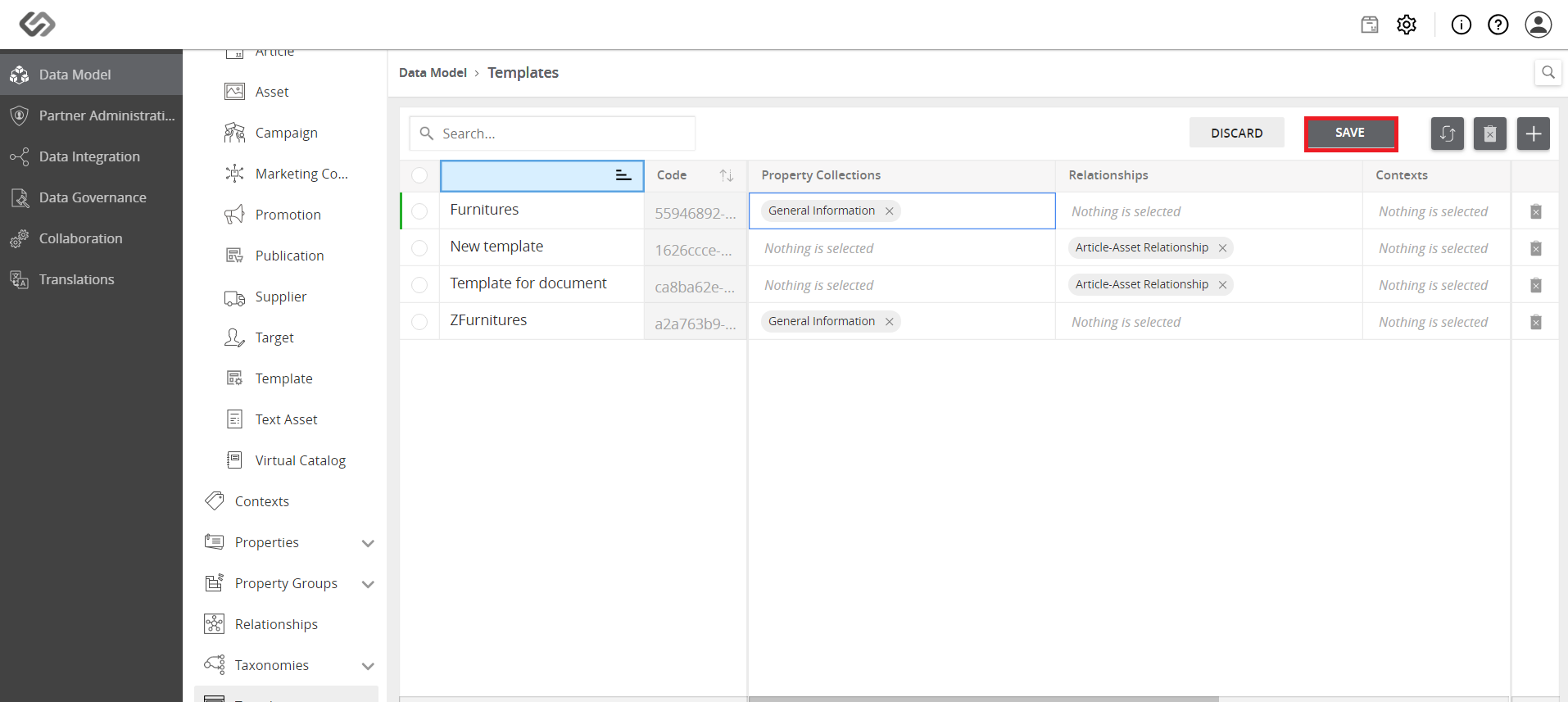
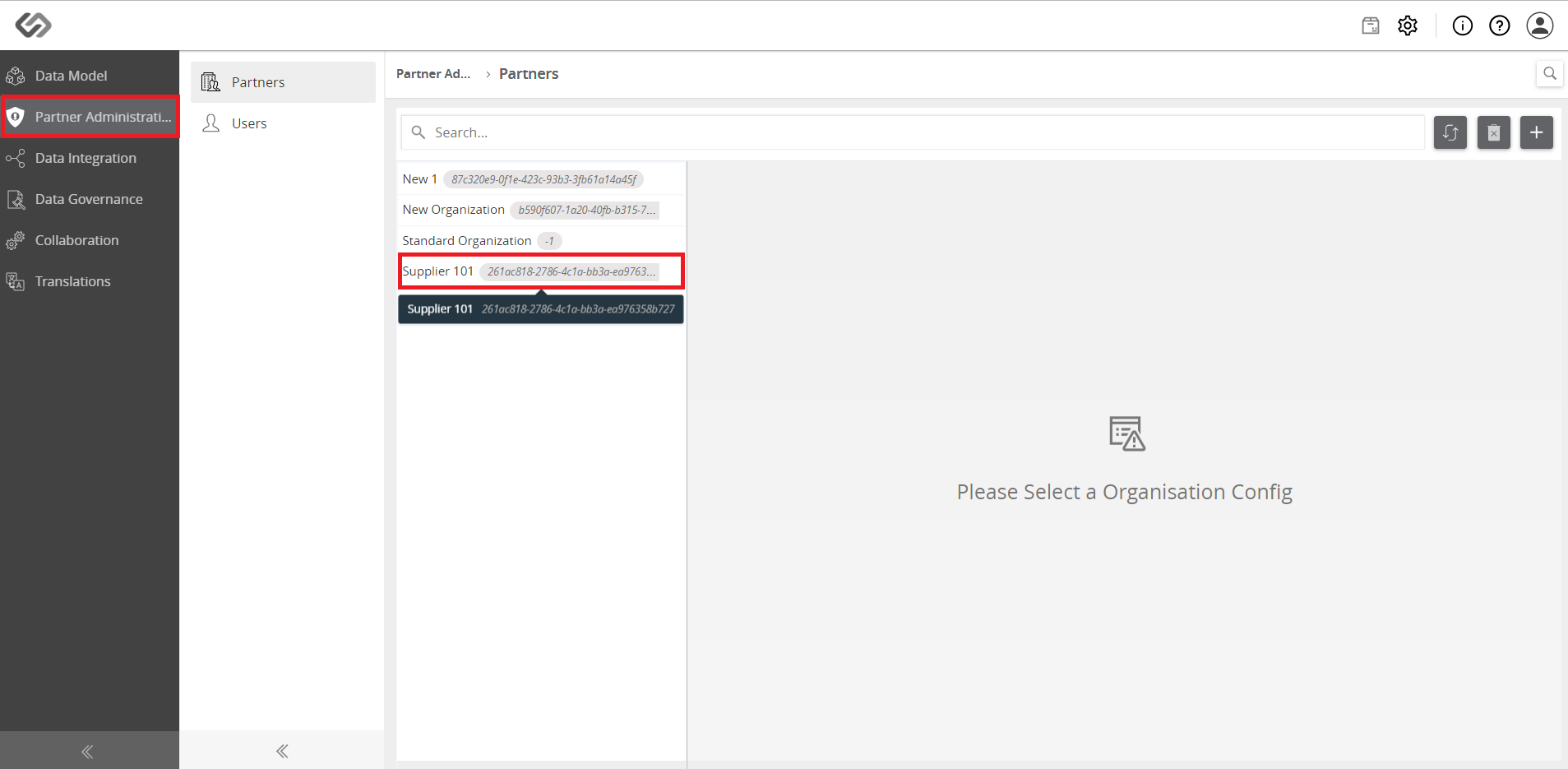
- Go to Partner Administration, and select a partner from the list. In this demo, we selected ‘Suppliers 101’.
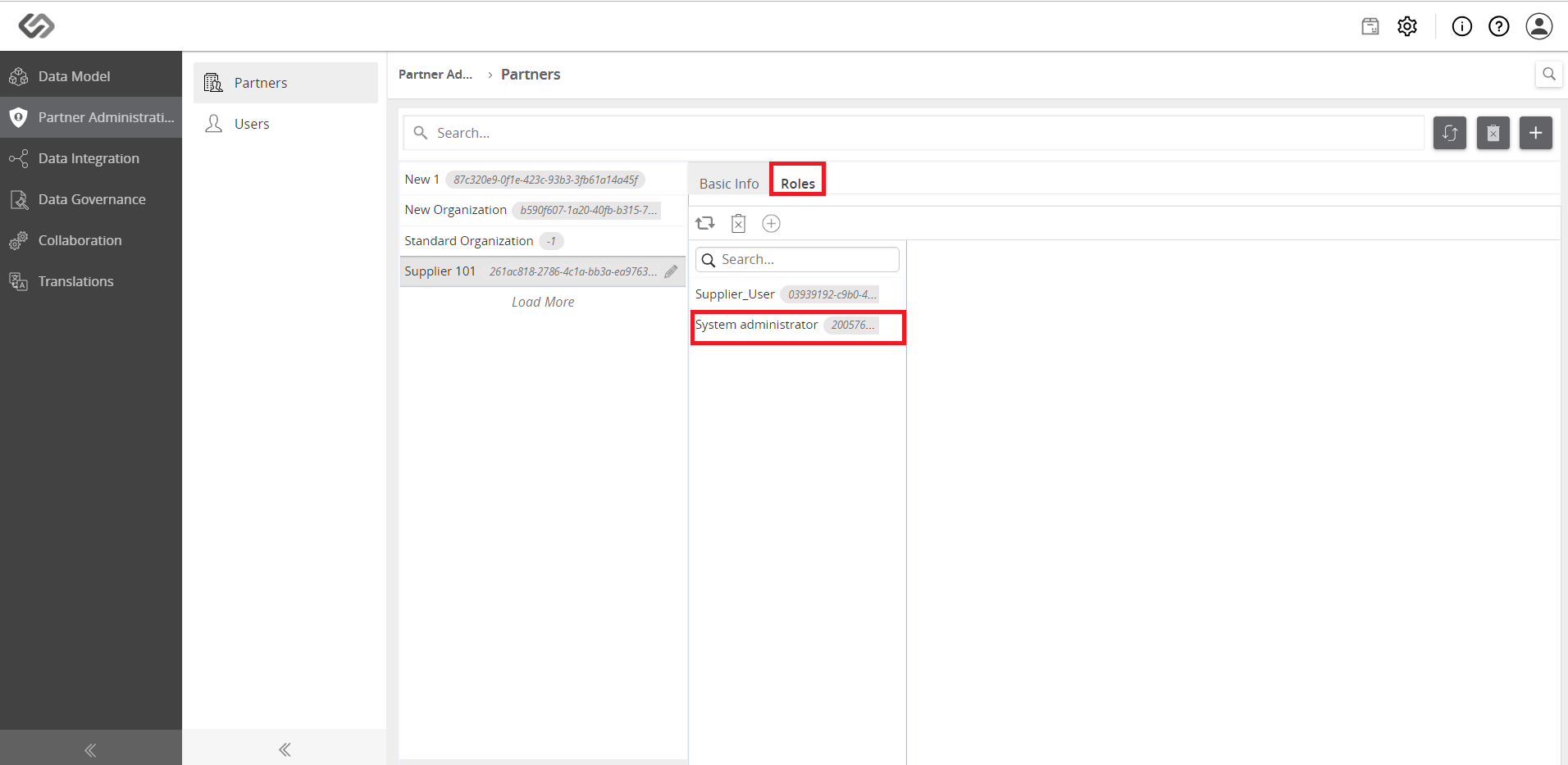
- Click the Roles tab and select a role from the list to which the template is to be assigned.
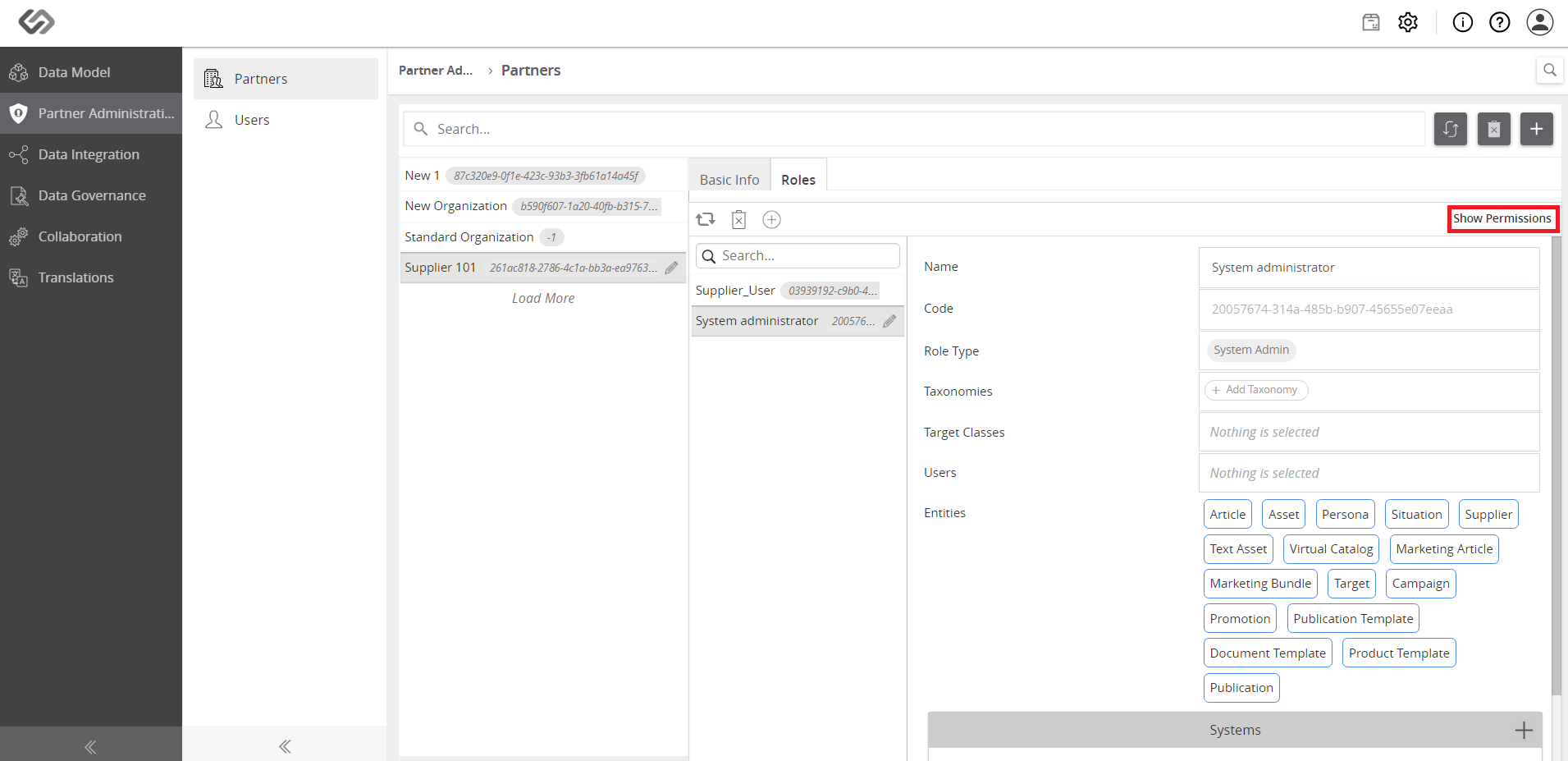
- Click the Show Permissions button.
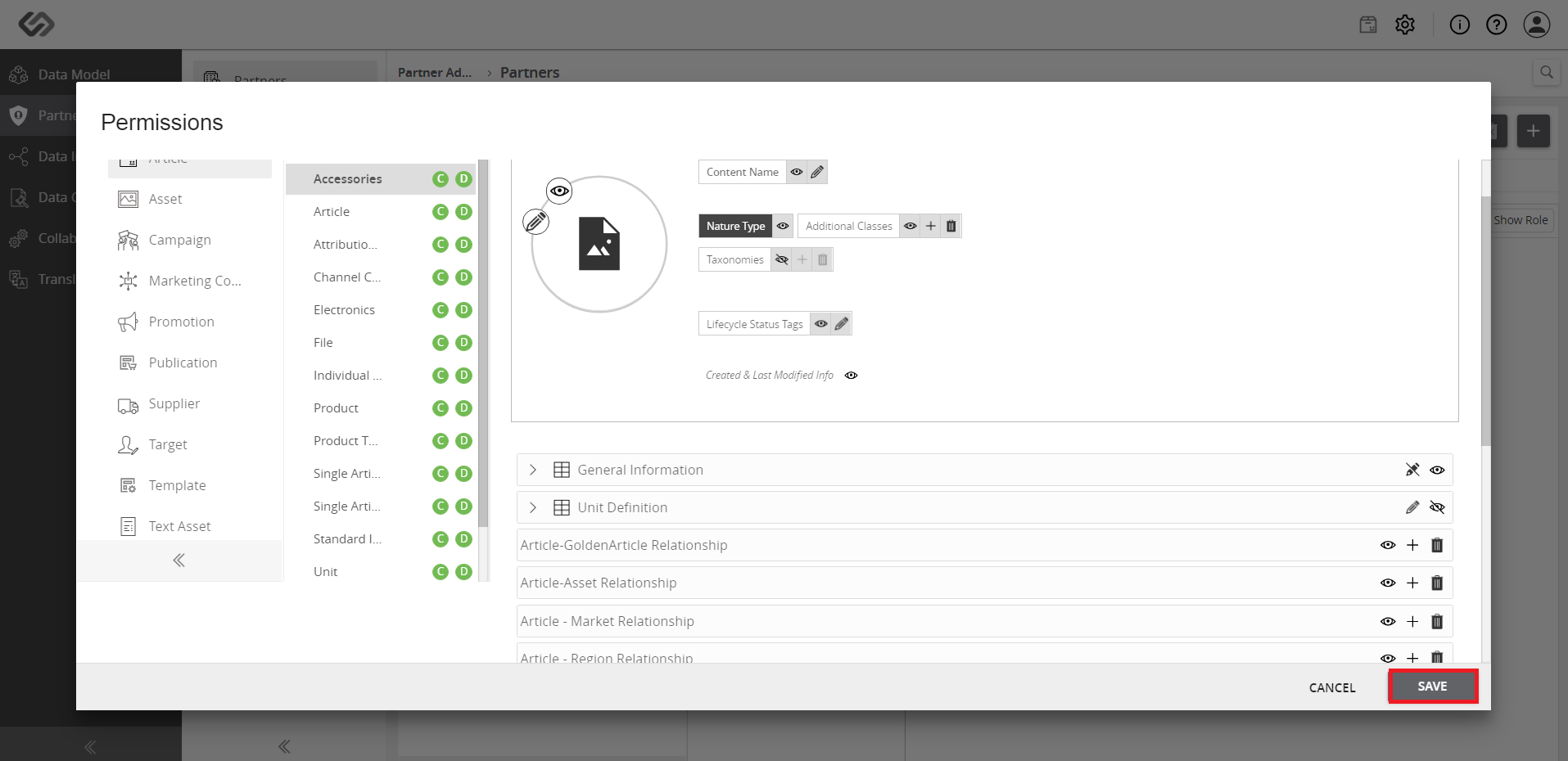
- Click the Visible icon to make the tab visible or hidden. In the image below, the default image is kept visible and the taxonomy is kept hidden.
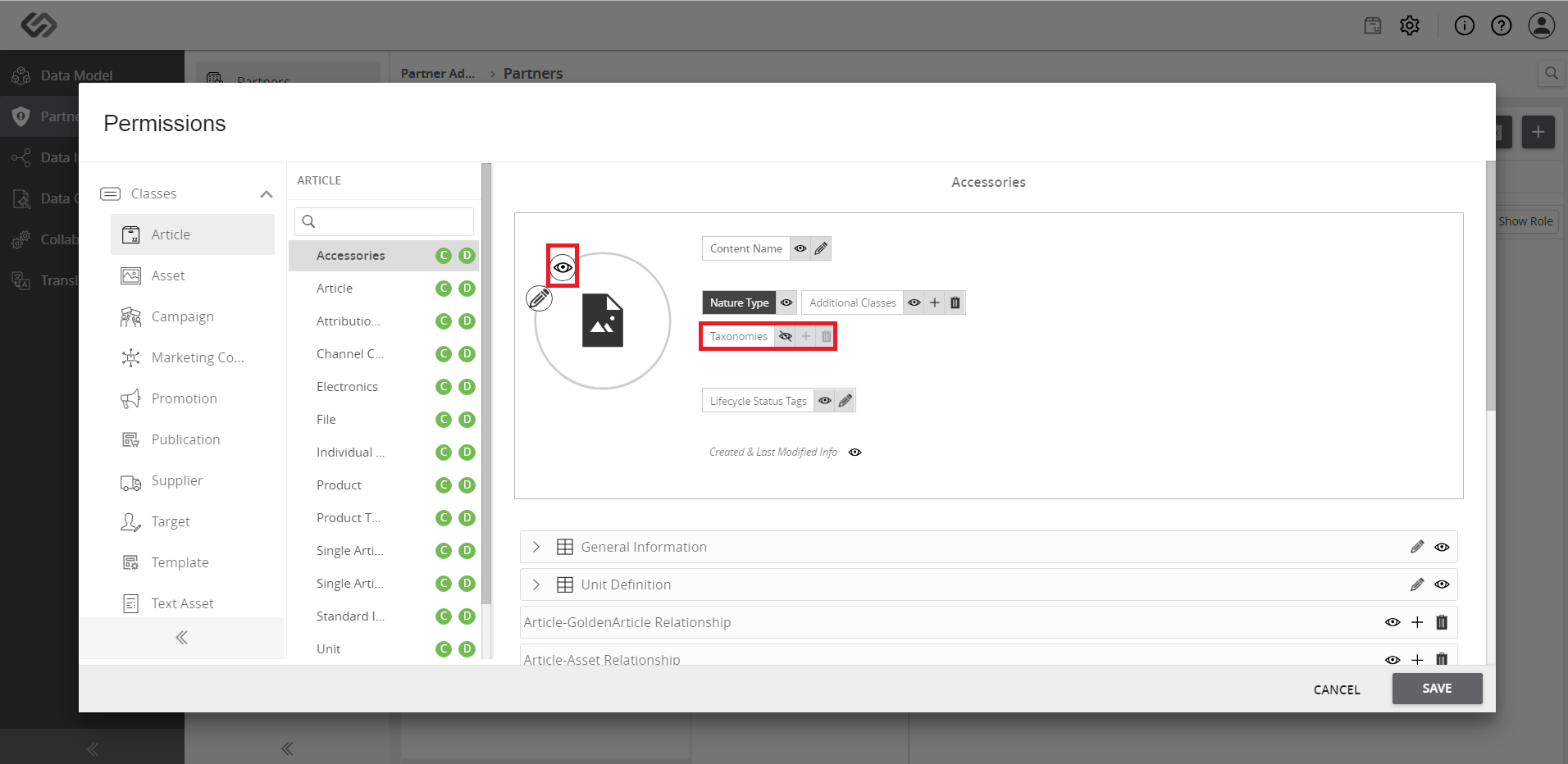
- Select the appropriate class from the list of classes.
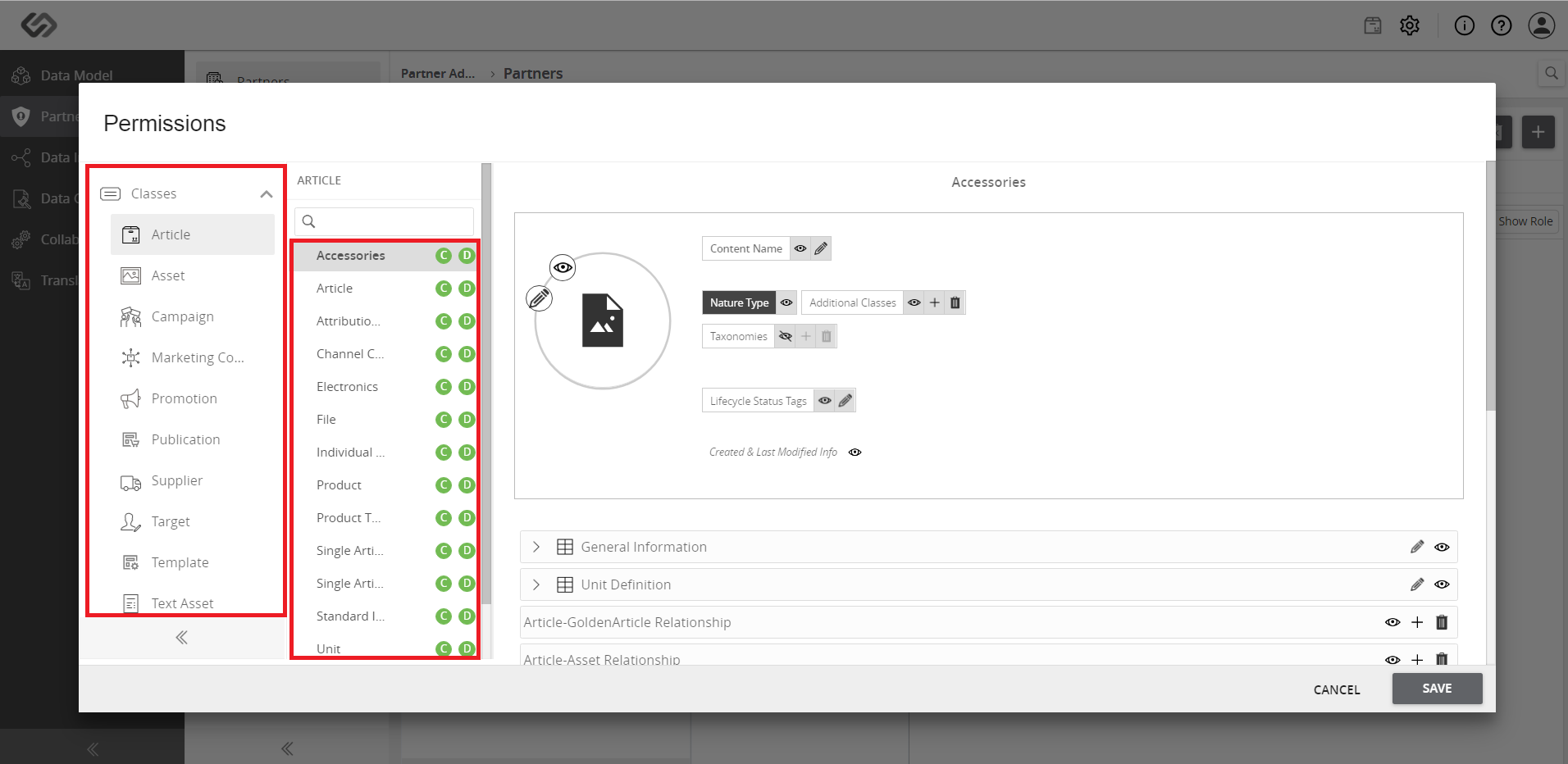
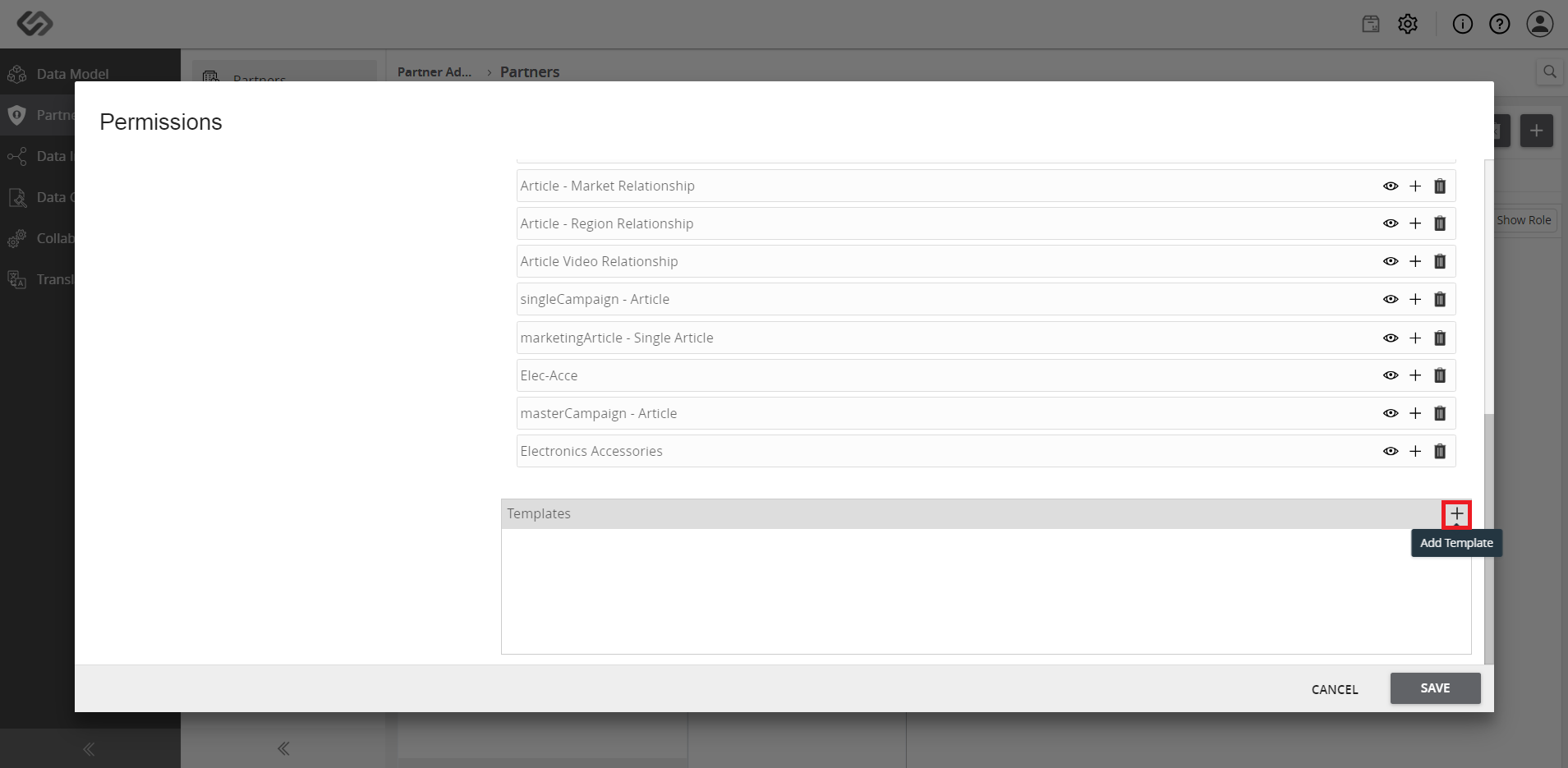
- Then, scroll down and click the ‘+’ icon to add a template.
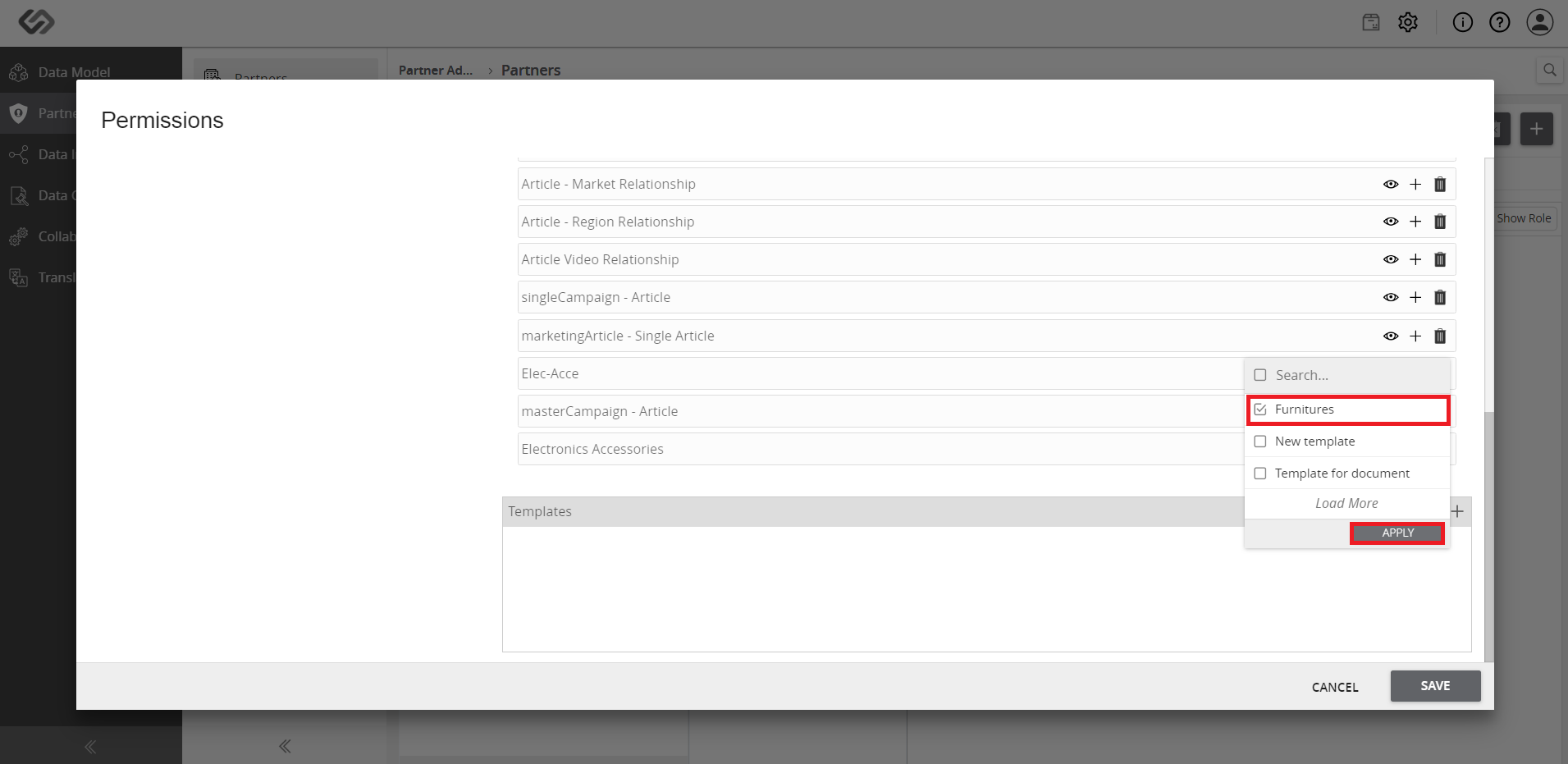
- Select the created template and click on the Apply button.
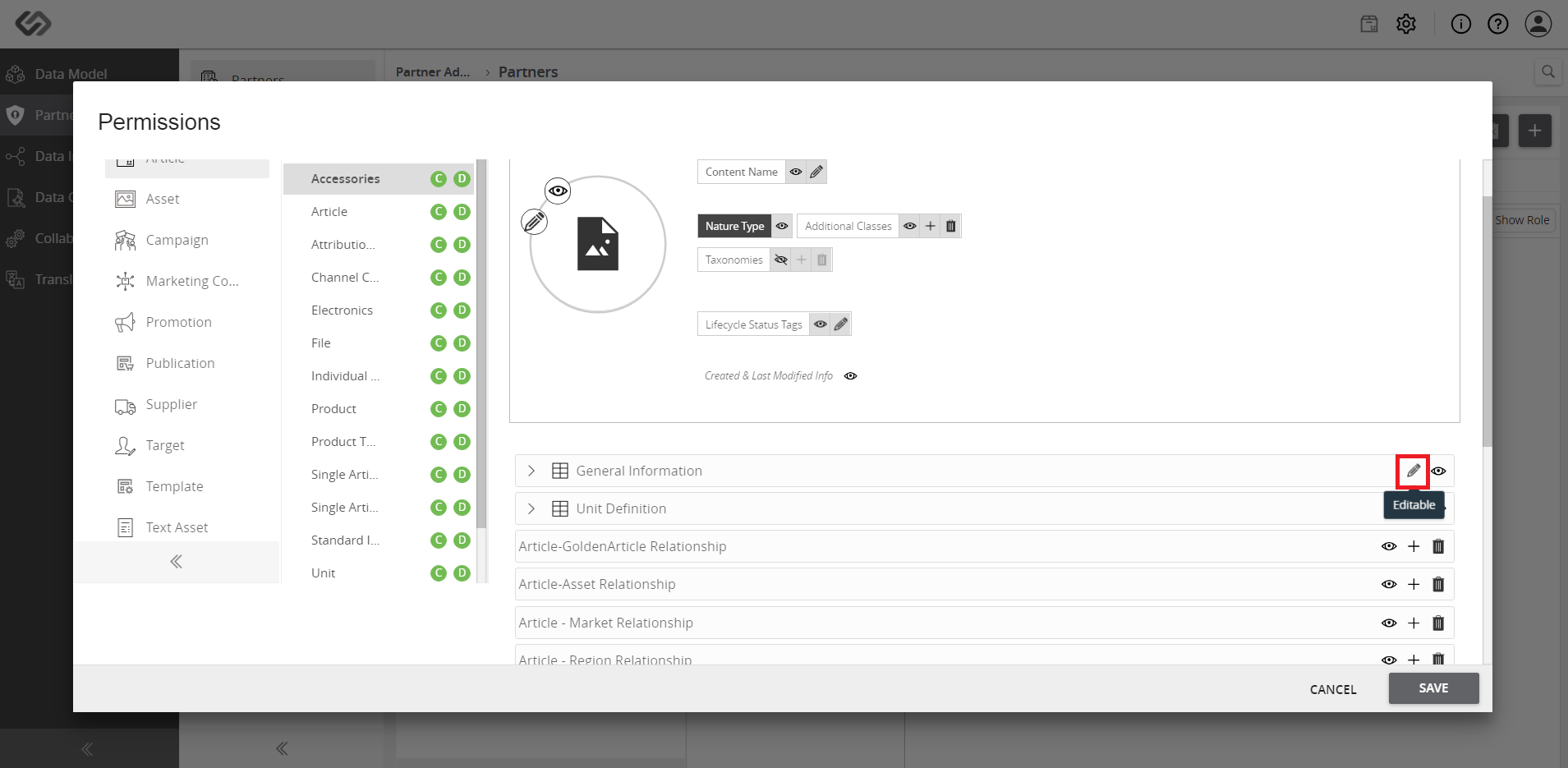
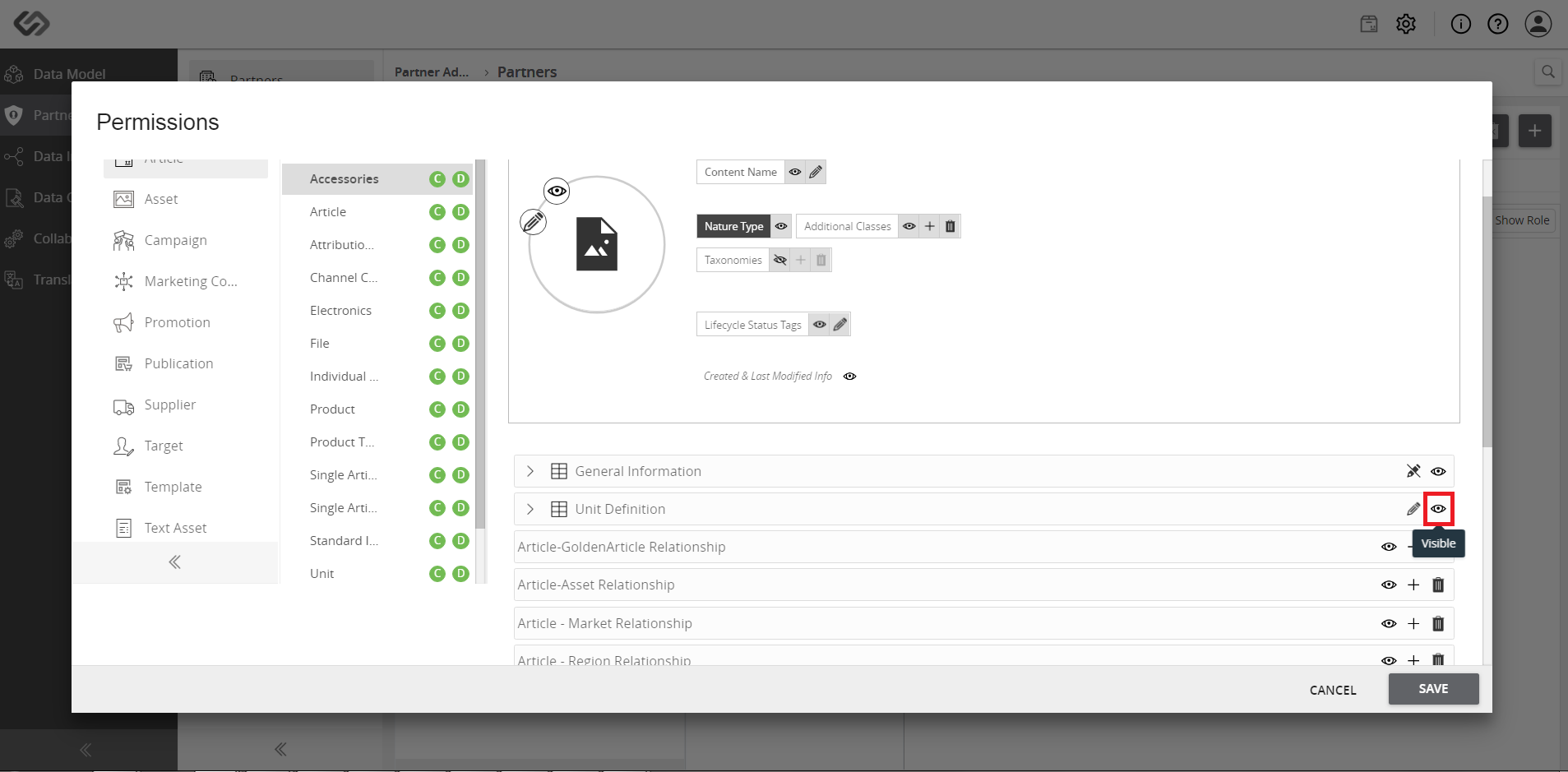
- To toggle the visibility of the property, click the Visible icon. To edit the rights for the property, click the Editable icon.
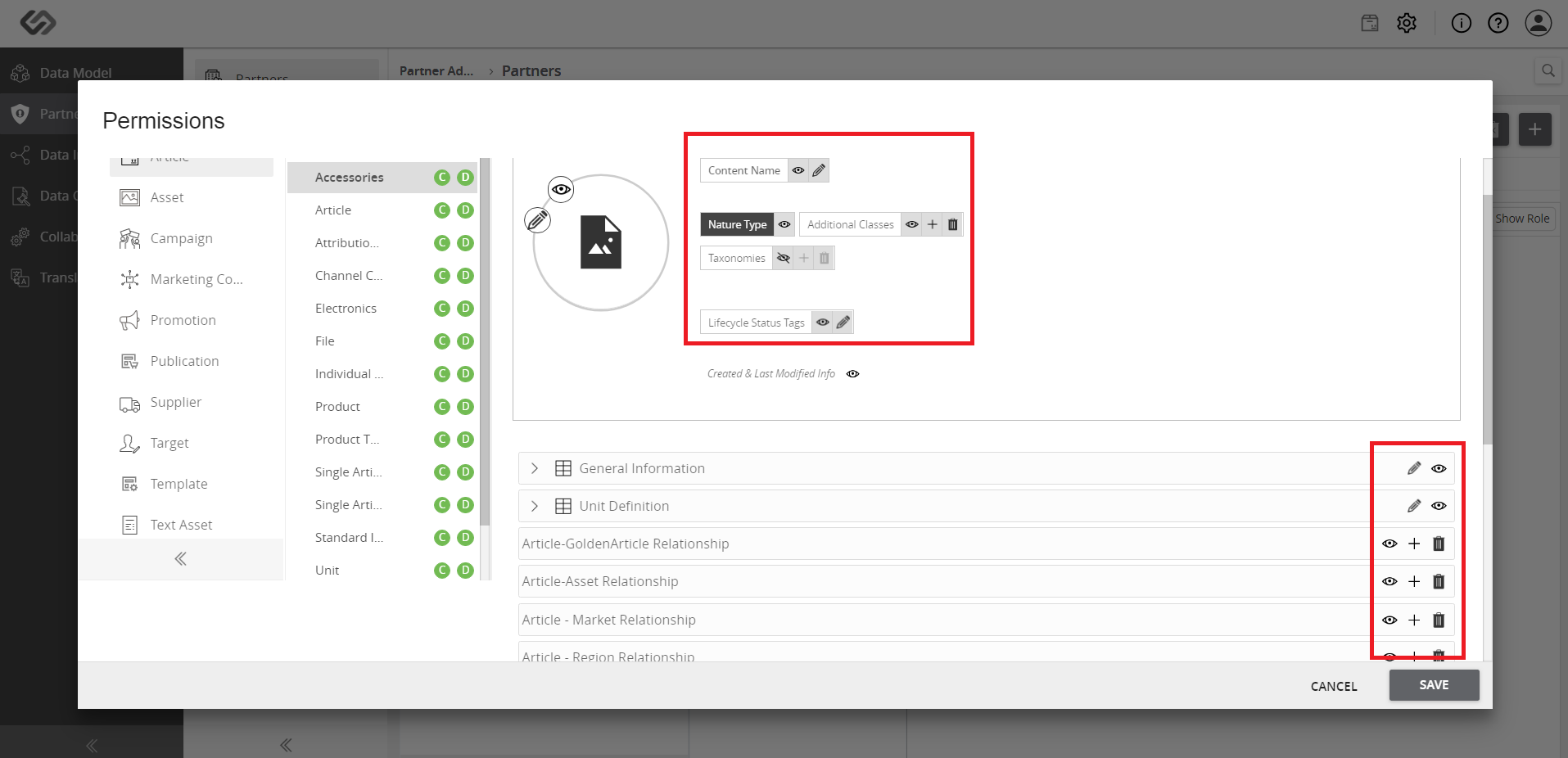
- Select the properties to be non-editable (for example, General Information) and hidden (for example, Unit Definition).
- Click the Save button to save the changes.