Language Variant

Language Variant is a feature that allows a user to assign language specific values for an attribute or product information can be maintained in multiple languages.

Key Term:
  • Attribute: a data field which describes a product, it can also use property.
Description:
  • The Contentsphere’s MDM system will have multiple users belonging to various countries.
  • Language Variant will help the user create products and write information in several languages.
Related topics:
Application:
  • Link an object to a taxonomy for proper classification.
  • Taxonomy branches serve as a classification of the parts.

How-to: Create a Language Variant

To do this, follow these steps:

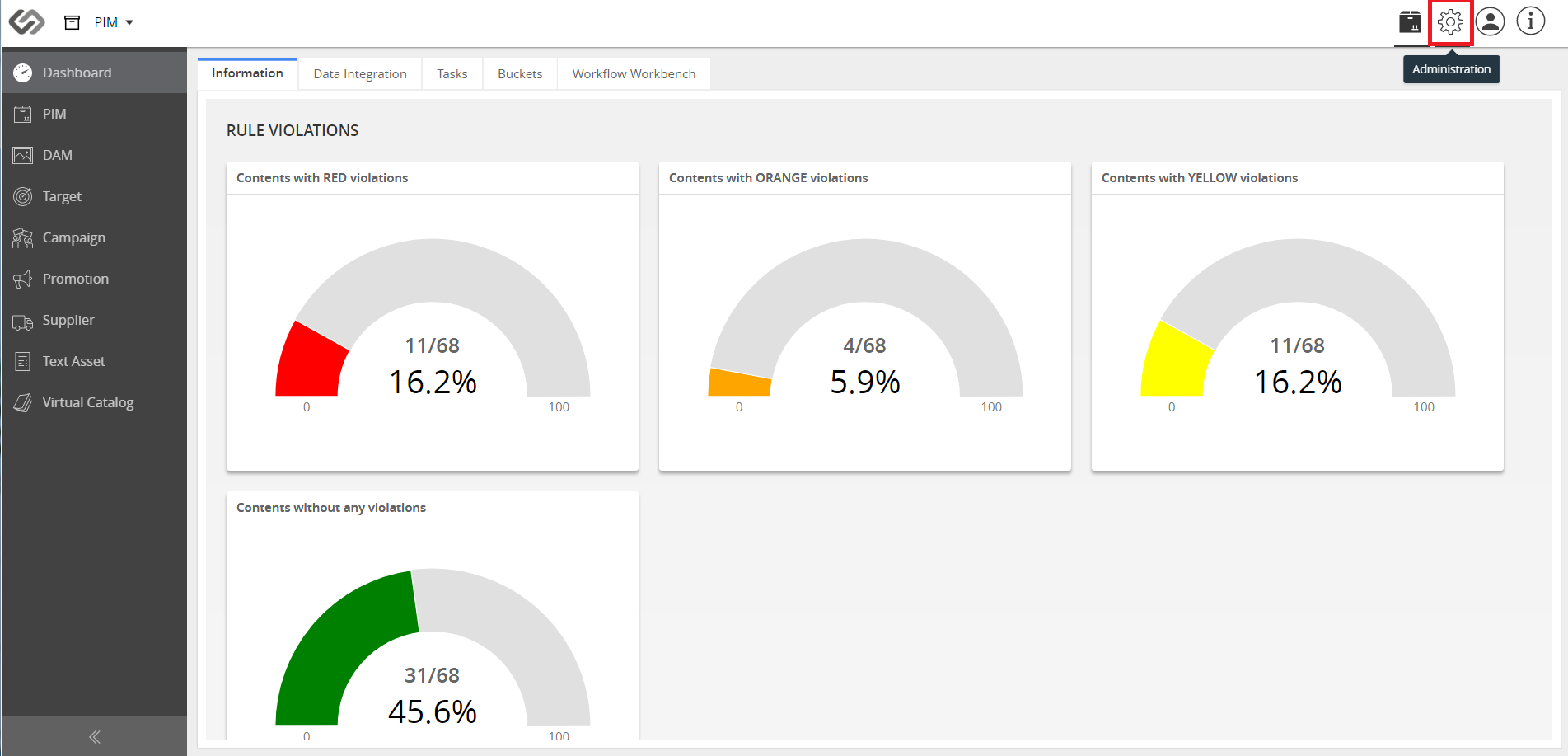
  • Log in and click Administration.
../../../../../../_images/cs_languagevariant_clickadministration.PNG


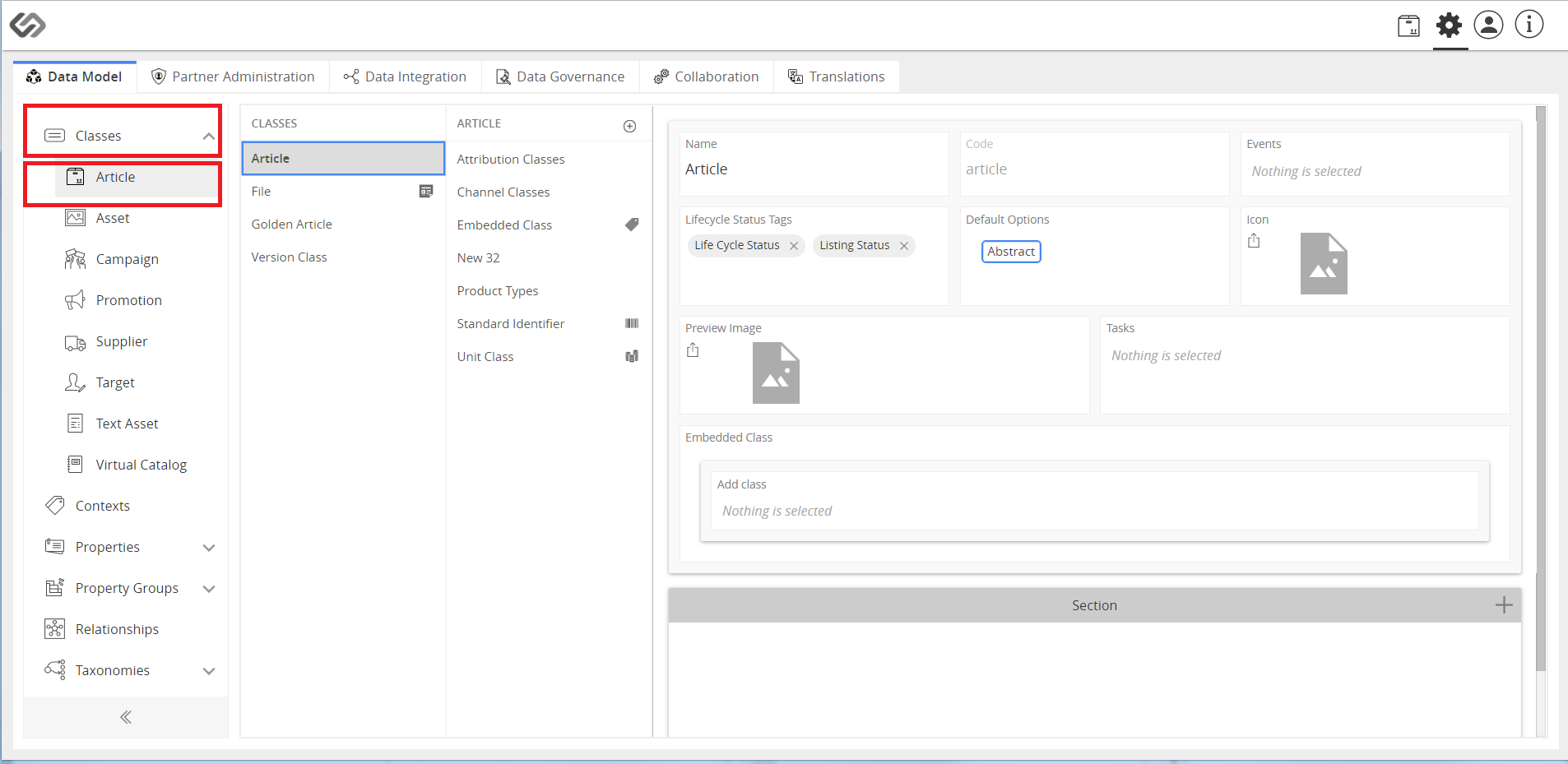
  • Click on Classes and then click Article.
../../../../../../_images/cs_languagevariant_clickarticle.PNG


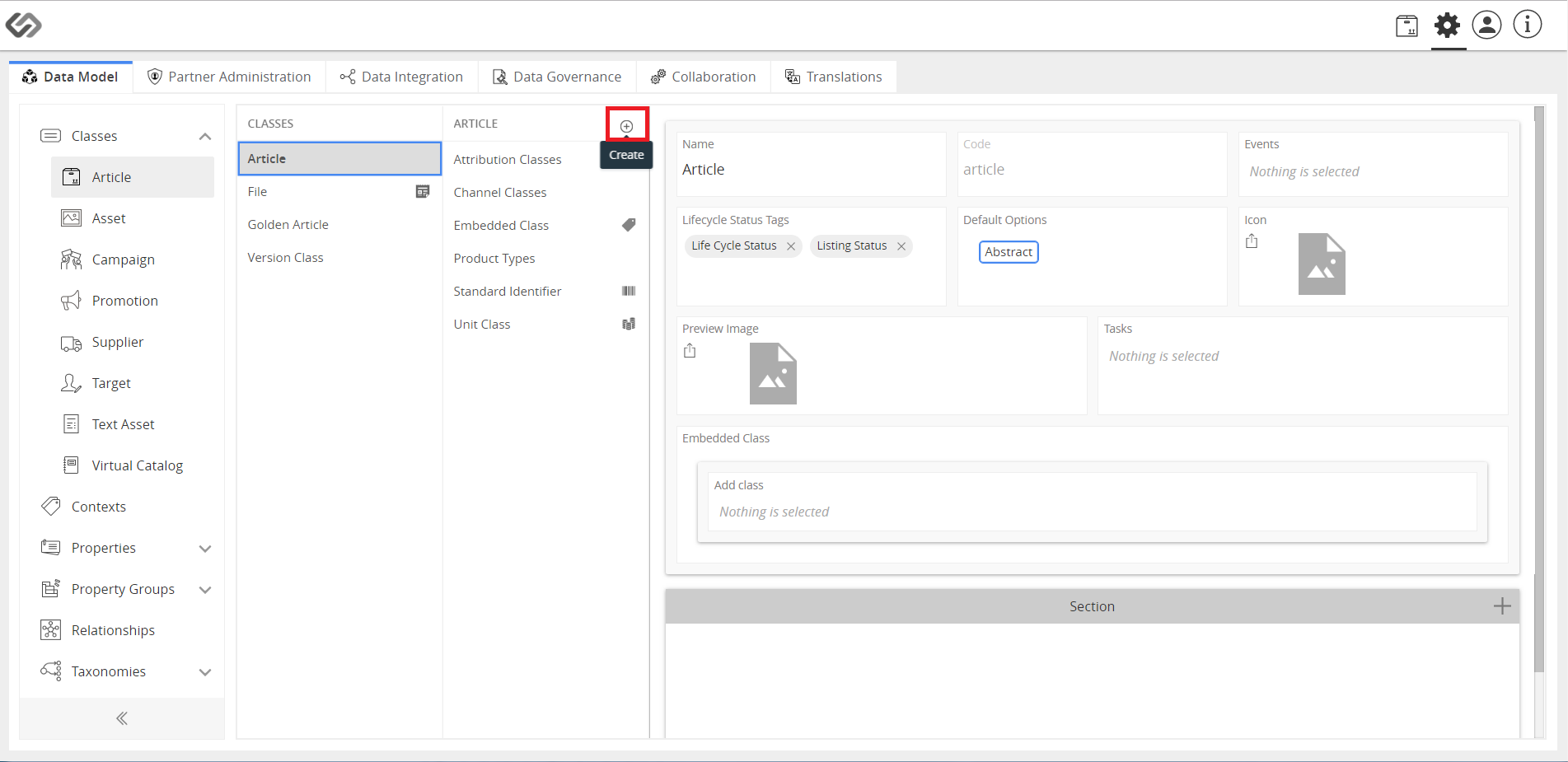
  • Click Create symbol to create Language Variant class.
../../../../../../_images/cs_languagevariant_clickcreatevariantclass.PNG


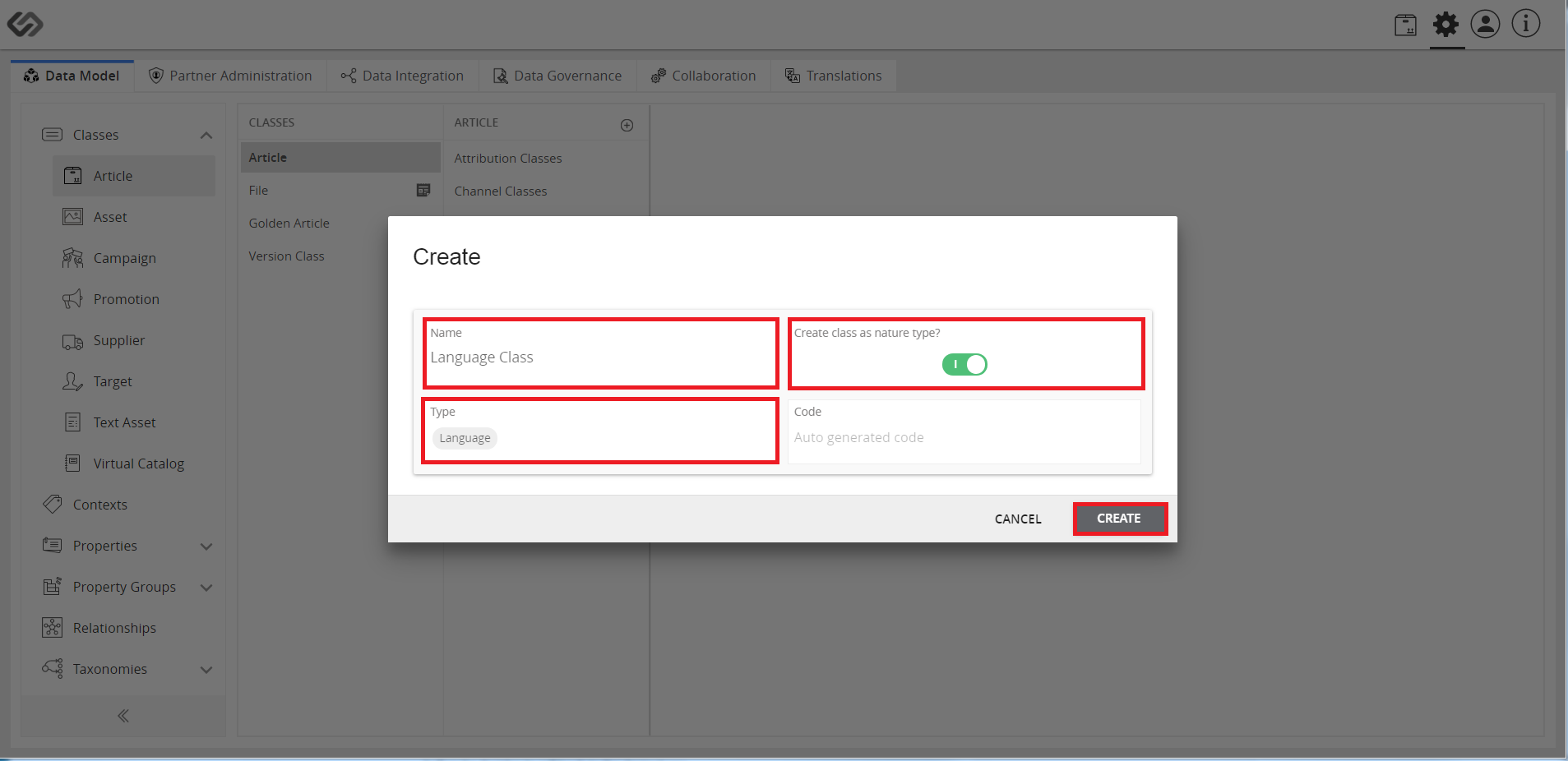
  • Enter details: Name, enable the nature type, and select the type Language. Then, click Create.
../../../../../../_images/cs_languagevariant_centerdetails.PNG


  • Once the Language class is made, click Language Class to edit the Context.
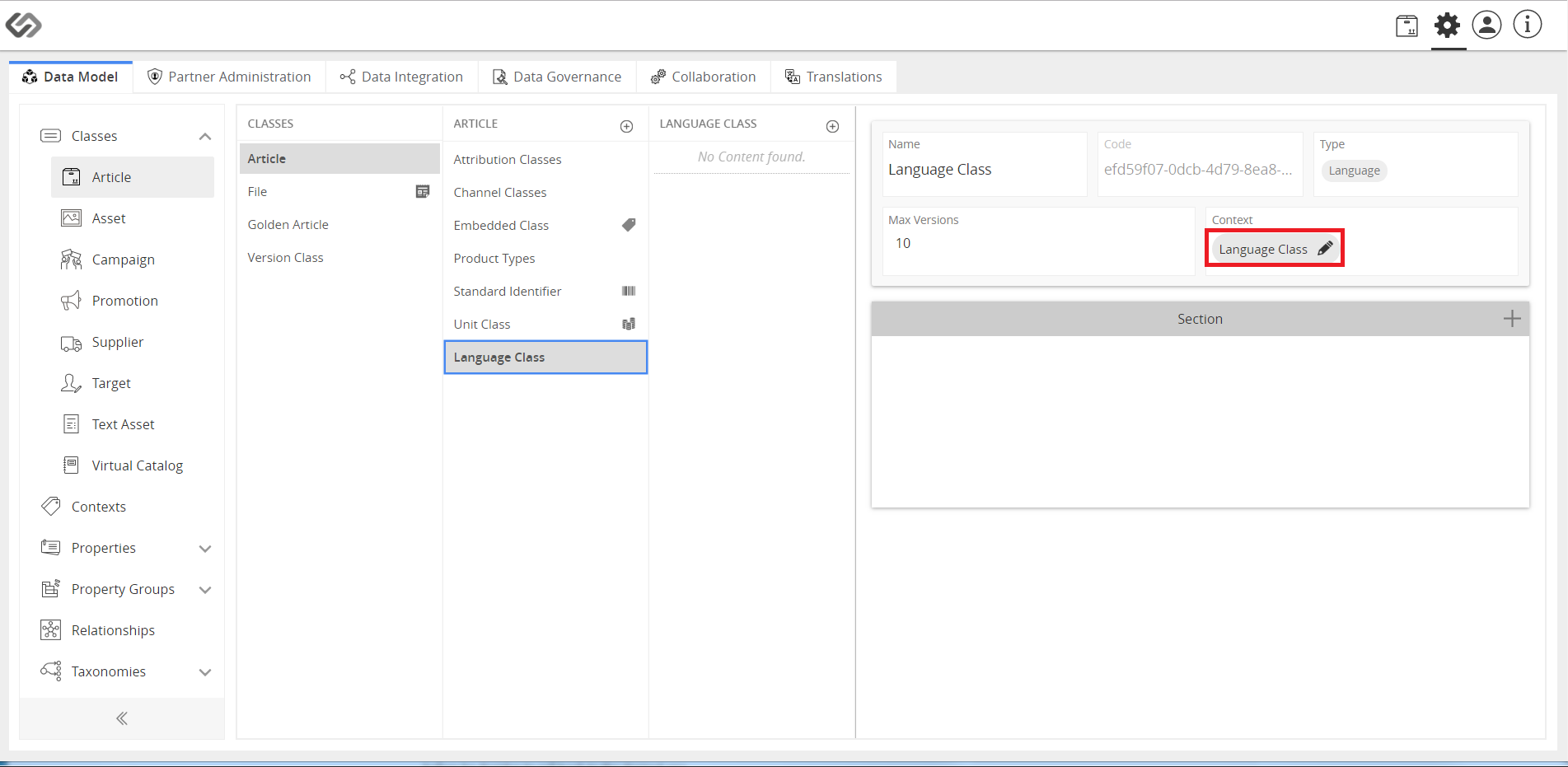
../../../../../../_images/cs_languagevariant_clickcontext.PNG


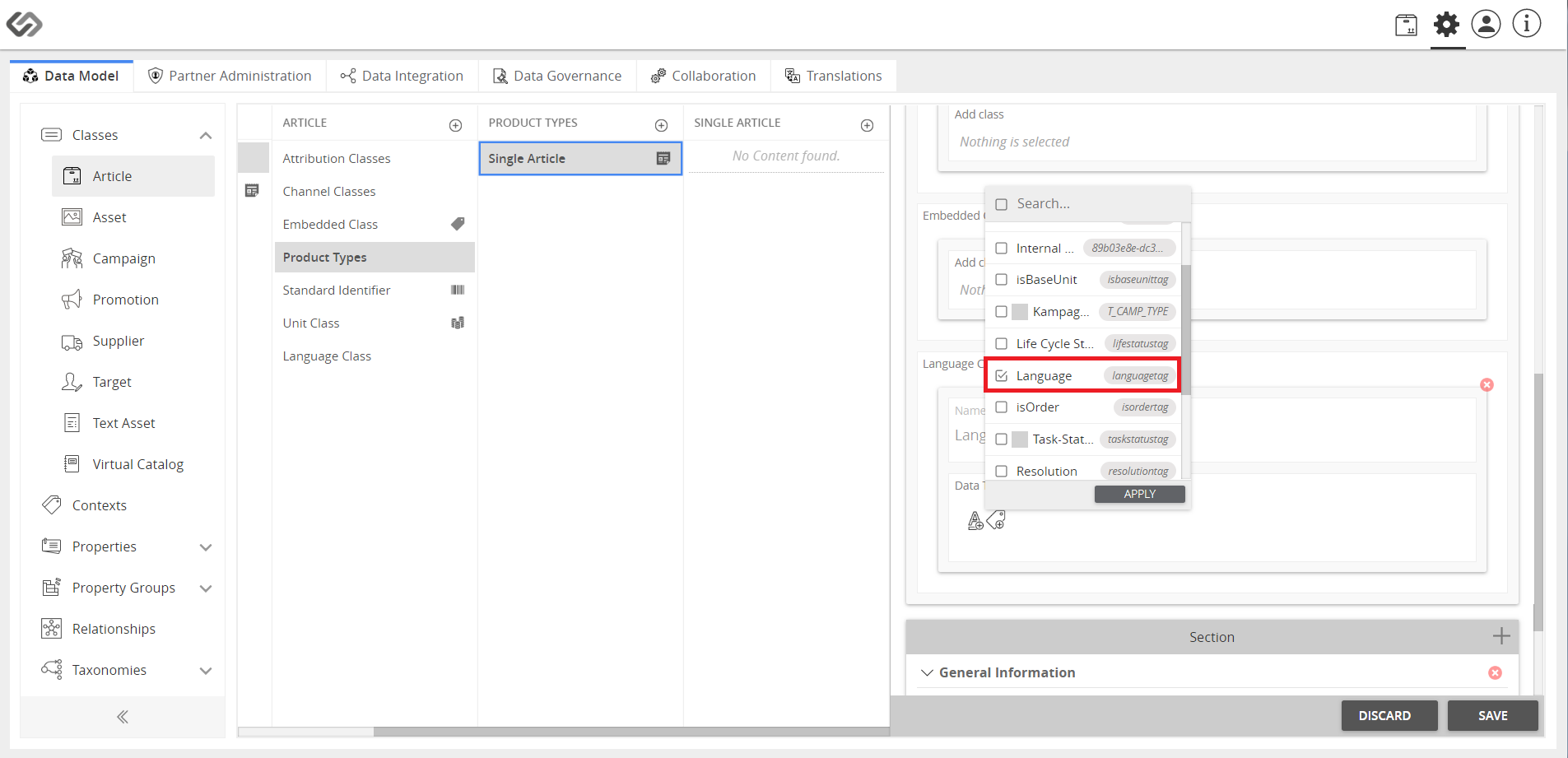
  • Click Selected Tag Group to tag a language. Select the as many countries as you find relevant to your product and audience.
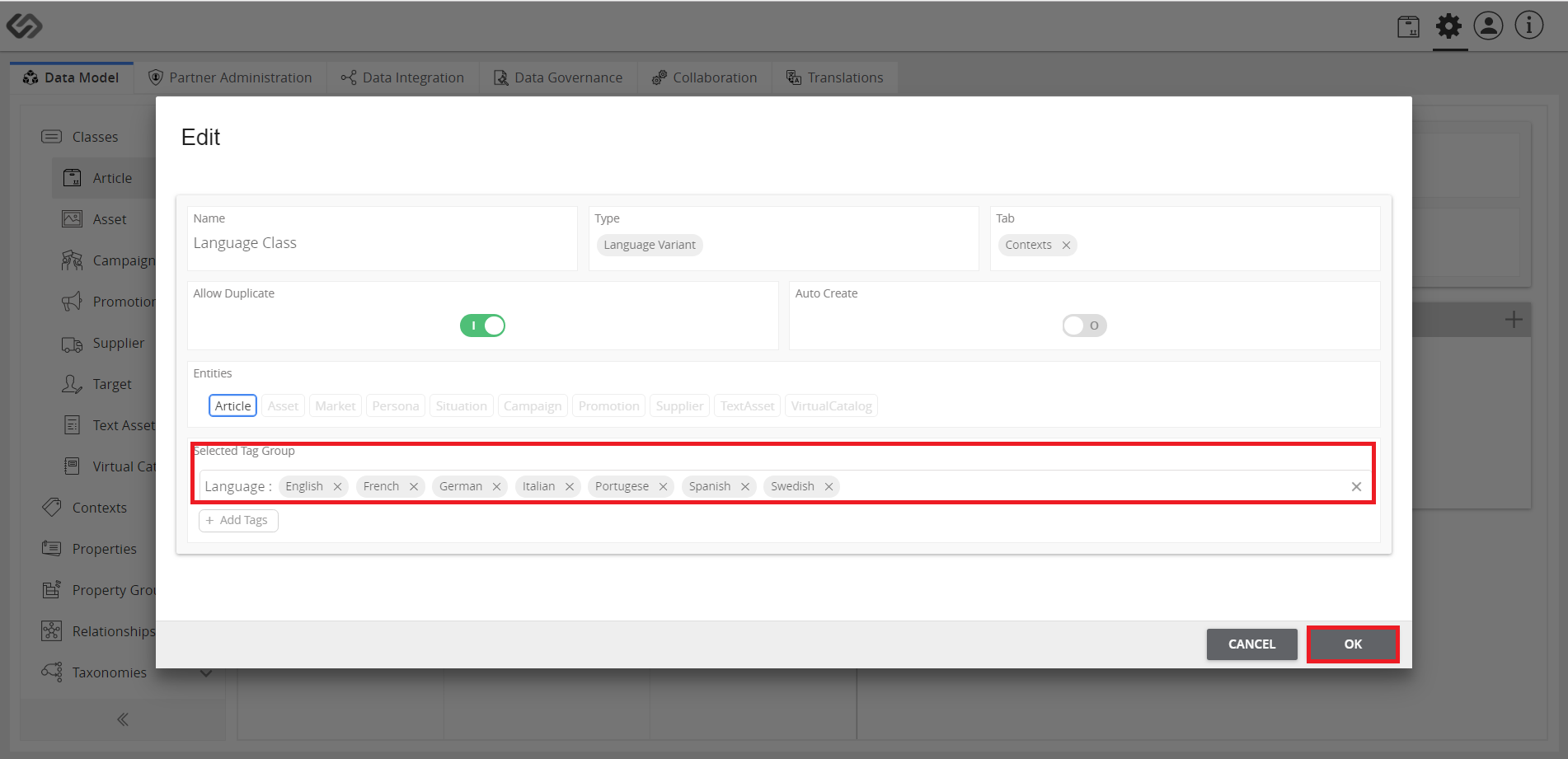
../../../../../../_images/cs_languagevariant_clickselectedtaggroup.PNG


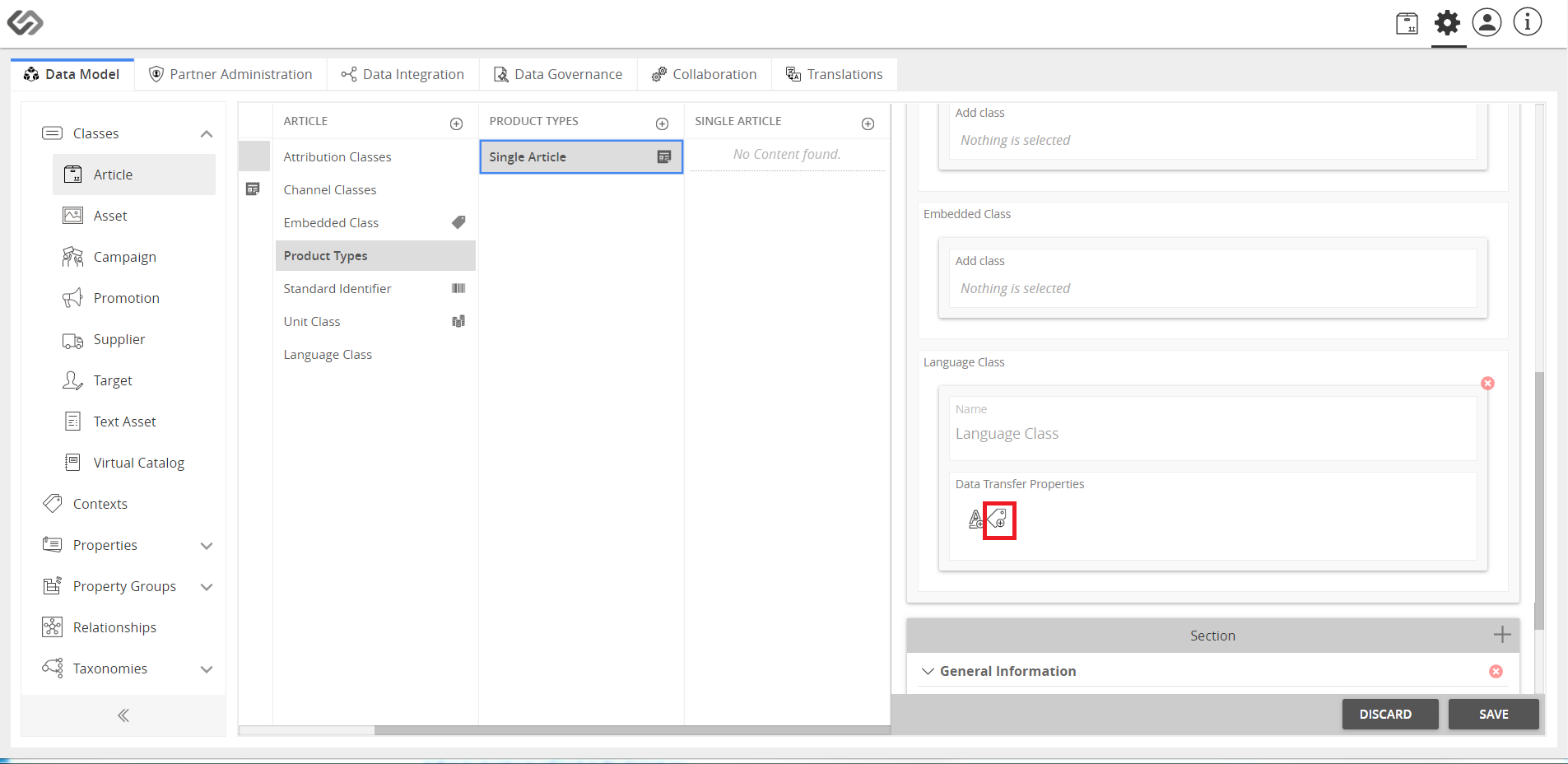
  • Click Add Property Collection icon to add the required property collection to the language class.
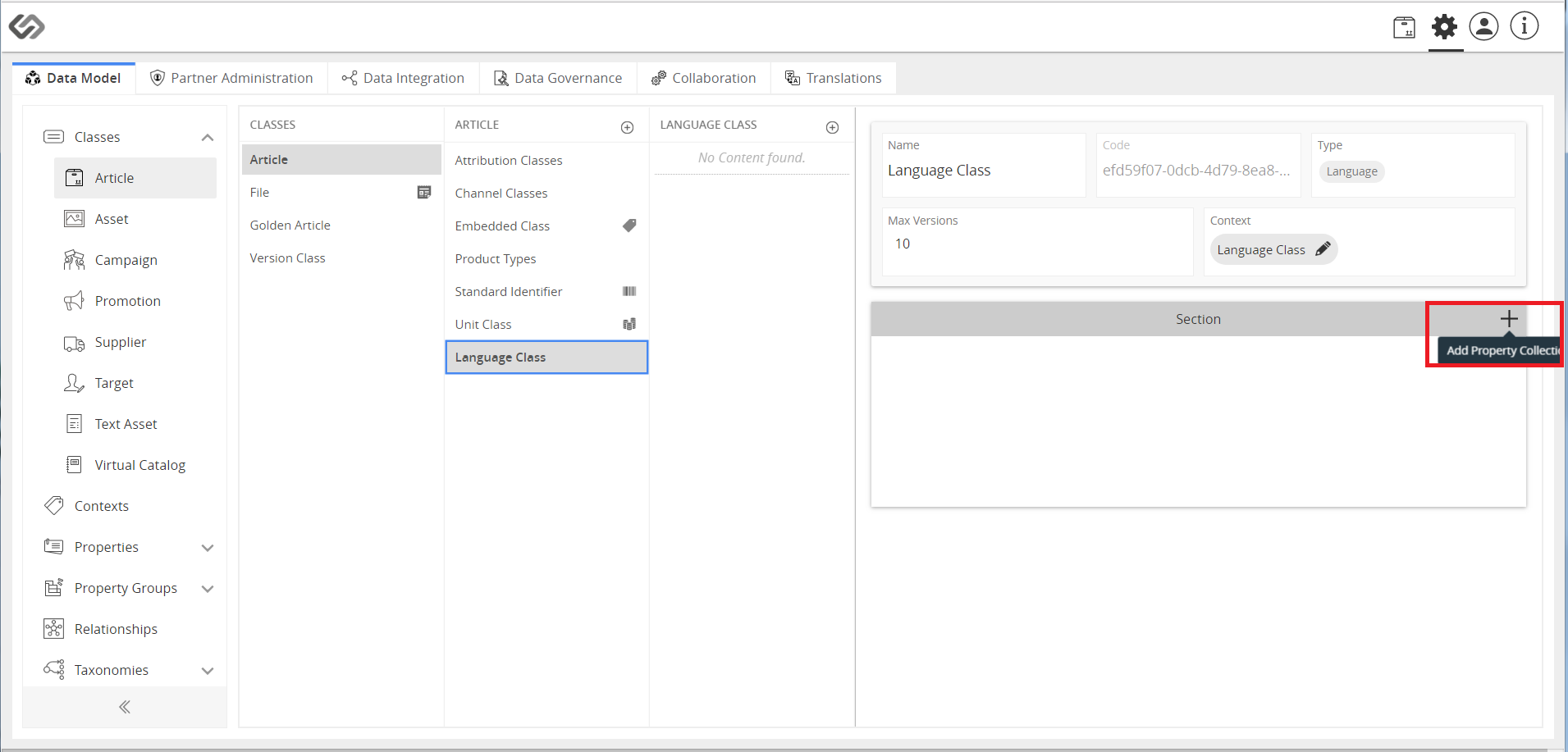
../../../../../../_images/cs_languagevariant_addpropertycollection.PNG


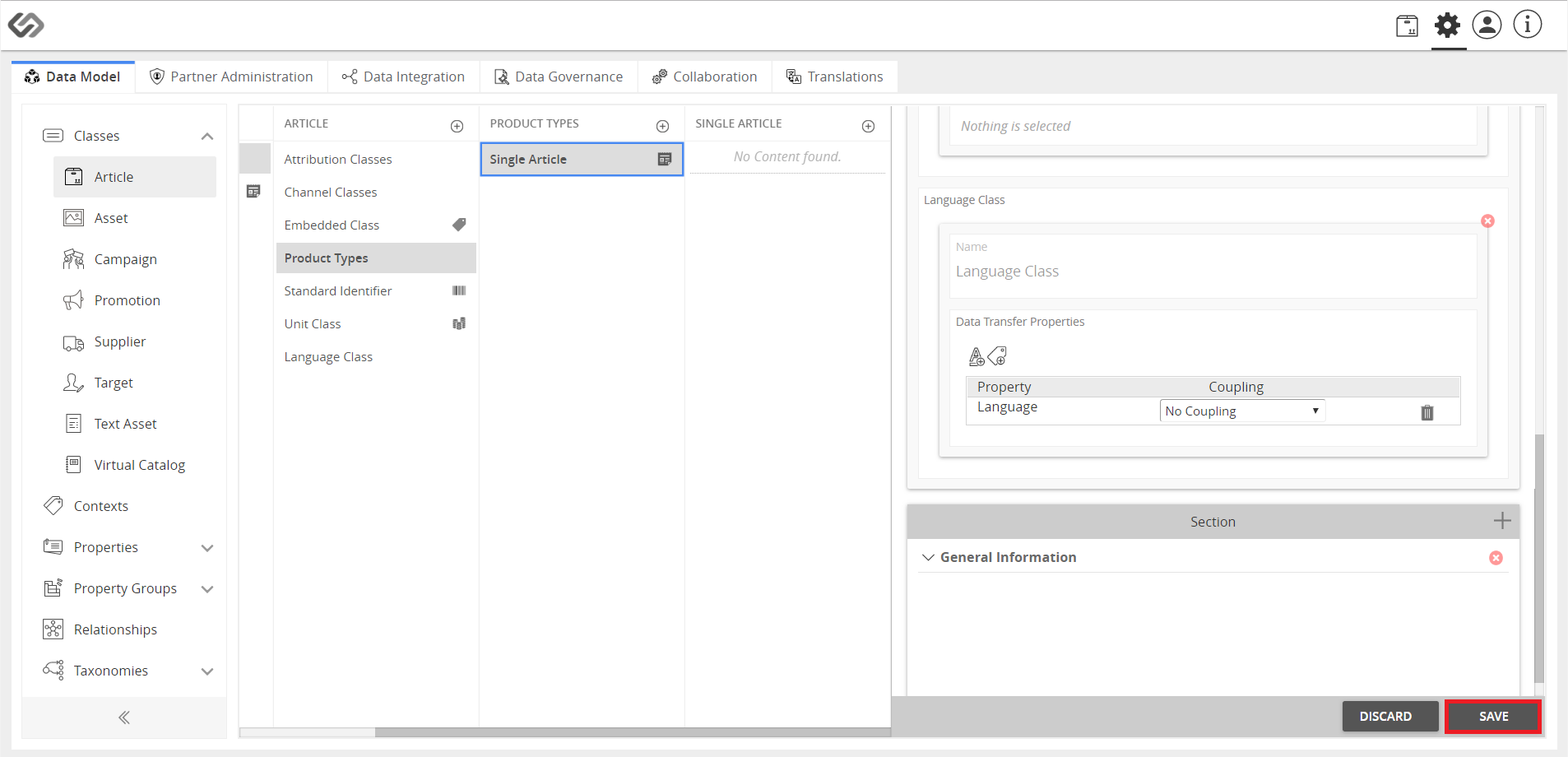
  • Click Add Class to assign a language class to any product.
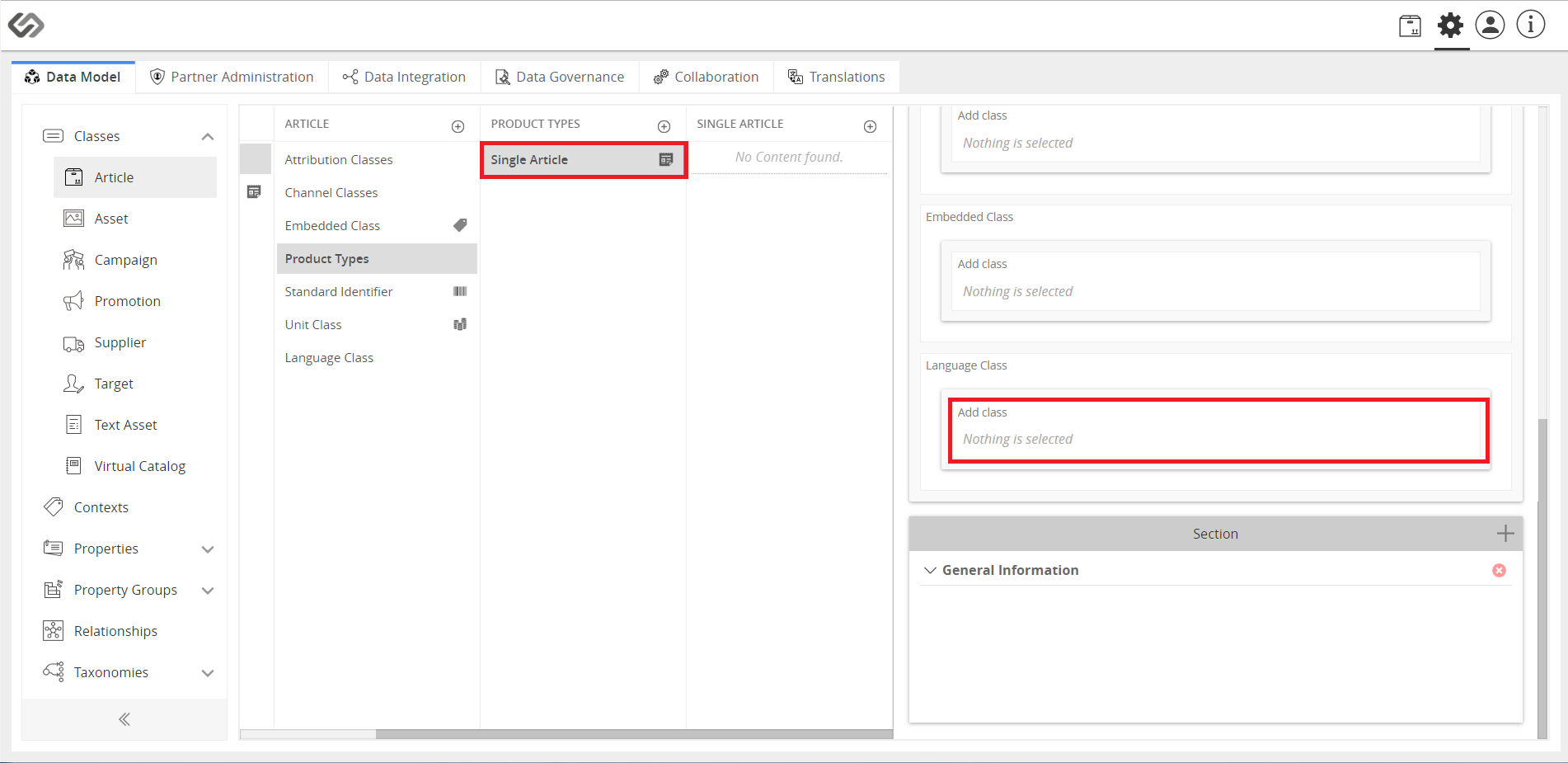
../../../../../../_images/cs_languagevariant_assignclass.PNG


../../../../../../_images/cs_languagevariant_assignclassb.PNG


../../../../../../_images/cs_languagevariant_assignclassc.PNG


../../../../../../_images/cs_languagevariant_assignclassd.PNG


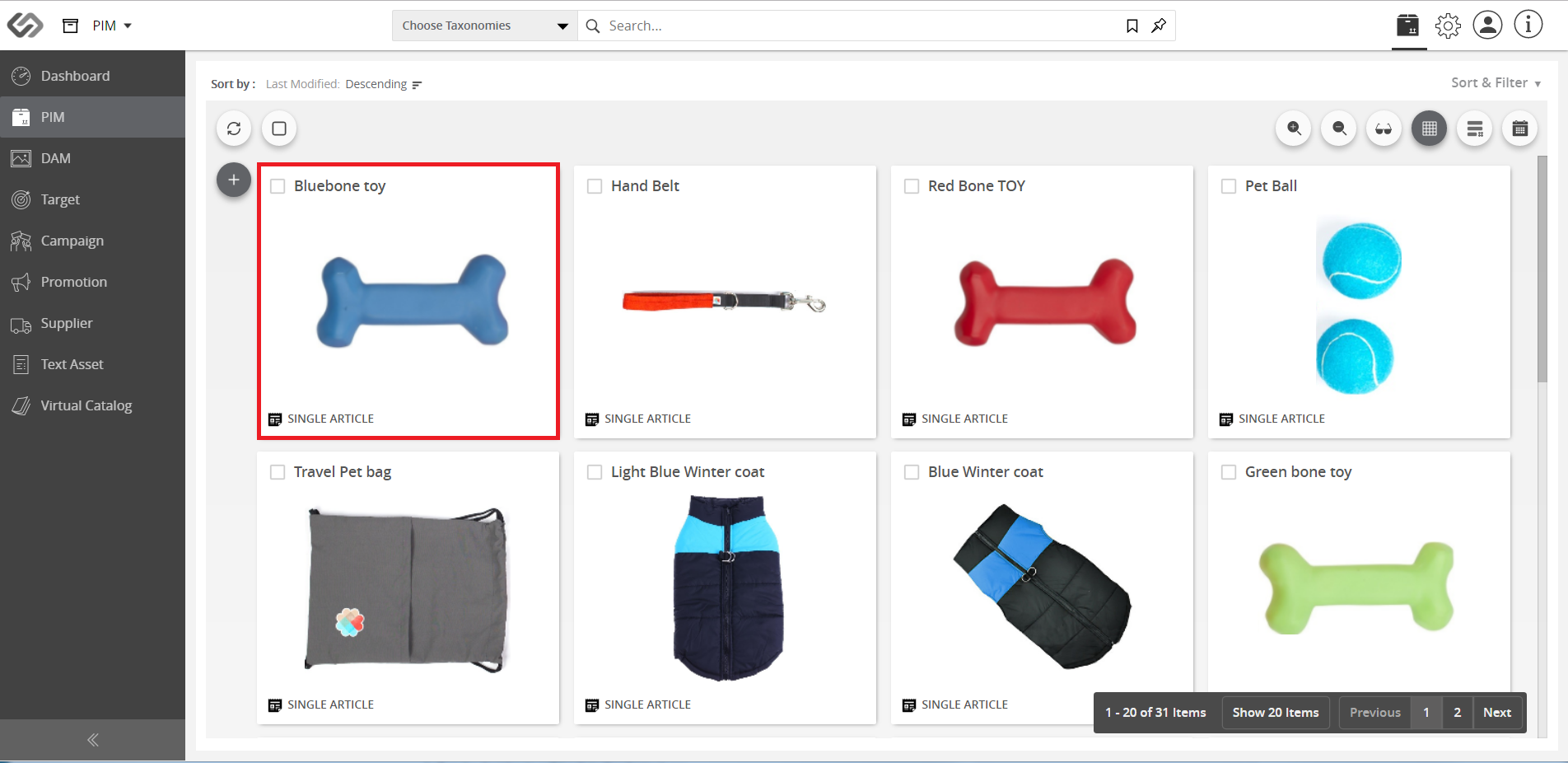
C* lick Explore and then PIM. Select or create a product (In this demo, we selected ‘Bluebone toy’).
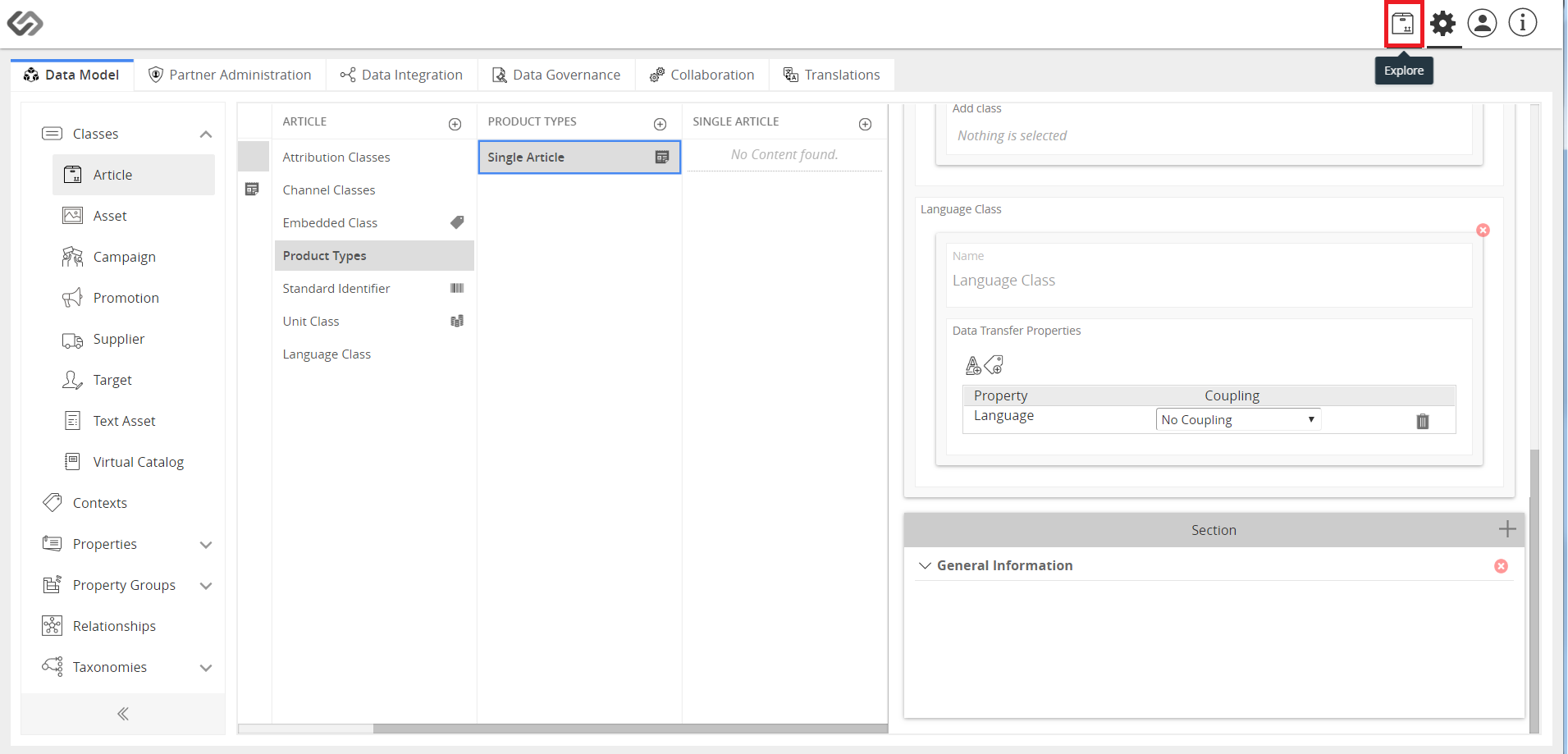
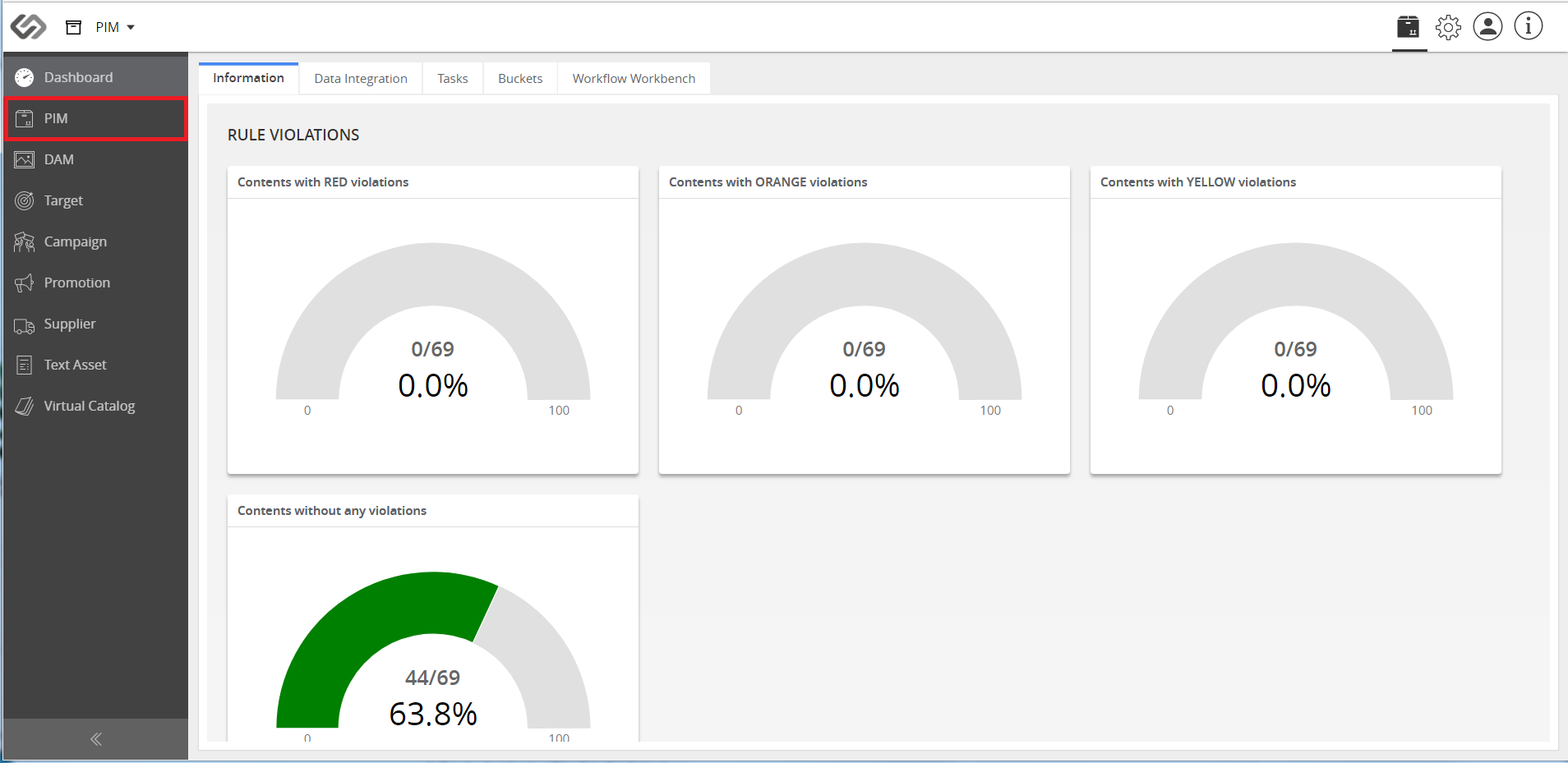
../../../../../../_images/cs_languagevariant_clickexplore.PNG


../../../../../../_images/cs_languagevariant_clickpim.PNG


../../../../../../_images/cs_languagevariant_selectproduct.PNG


  • Click on the product, and then go to Contexts Tab.
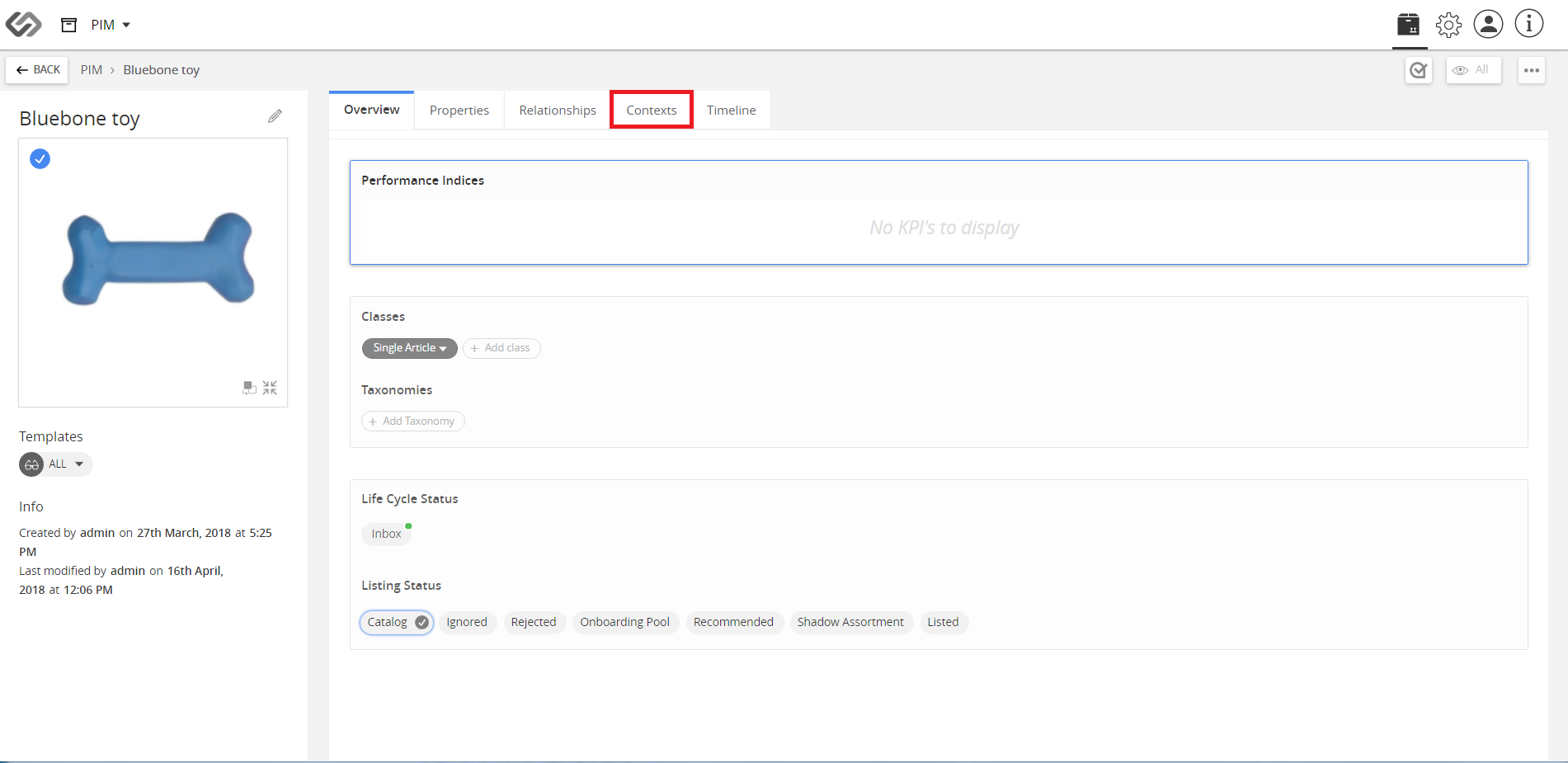
../../../../../../_images/cs_languagevariant_gotocontext.PNG


  • Click on Create to select the country whose Language Variant you would like to create.
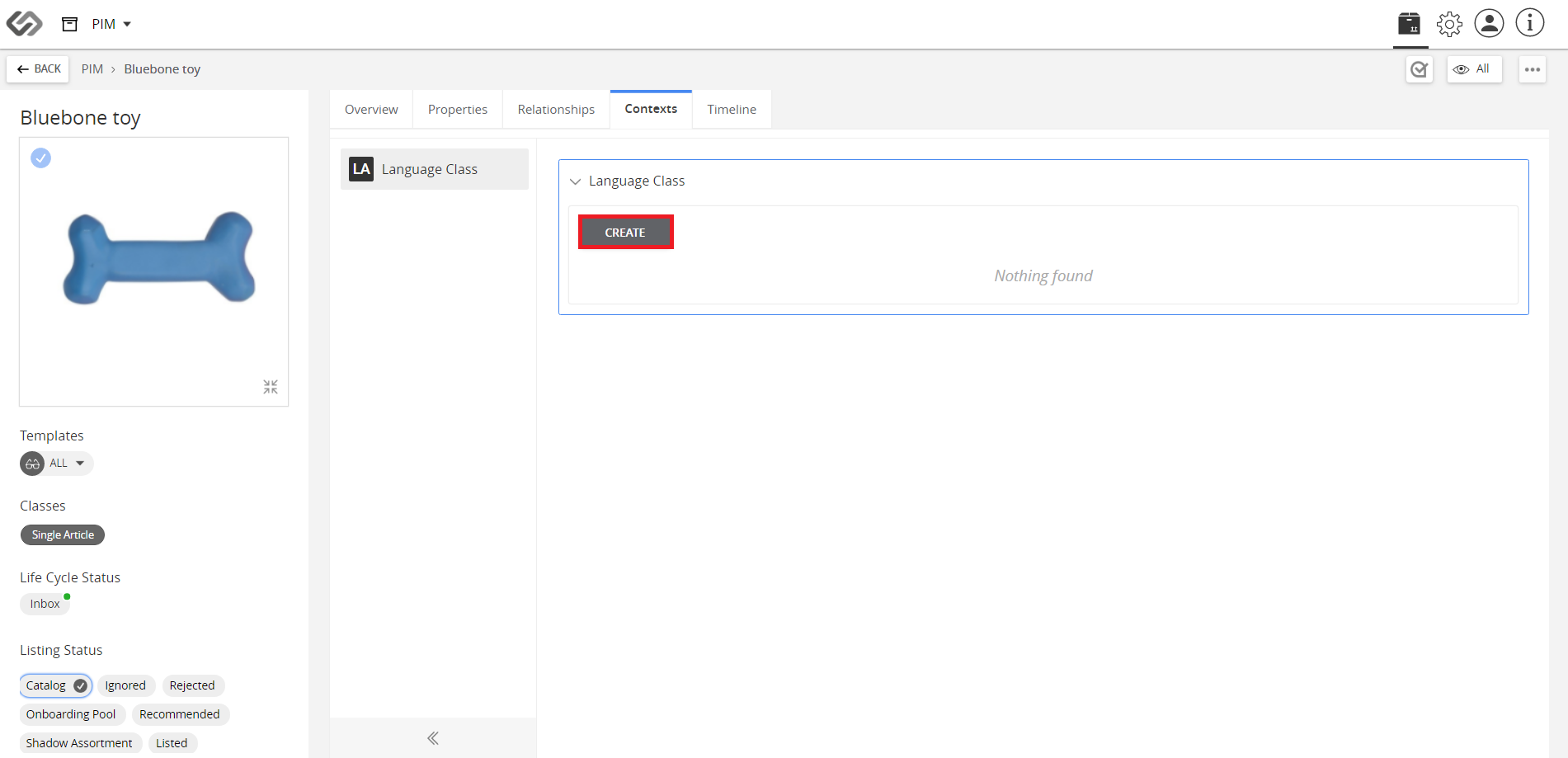
../../../../../../_images/cs_languagevariant_createlanguagevariant.PNG


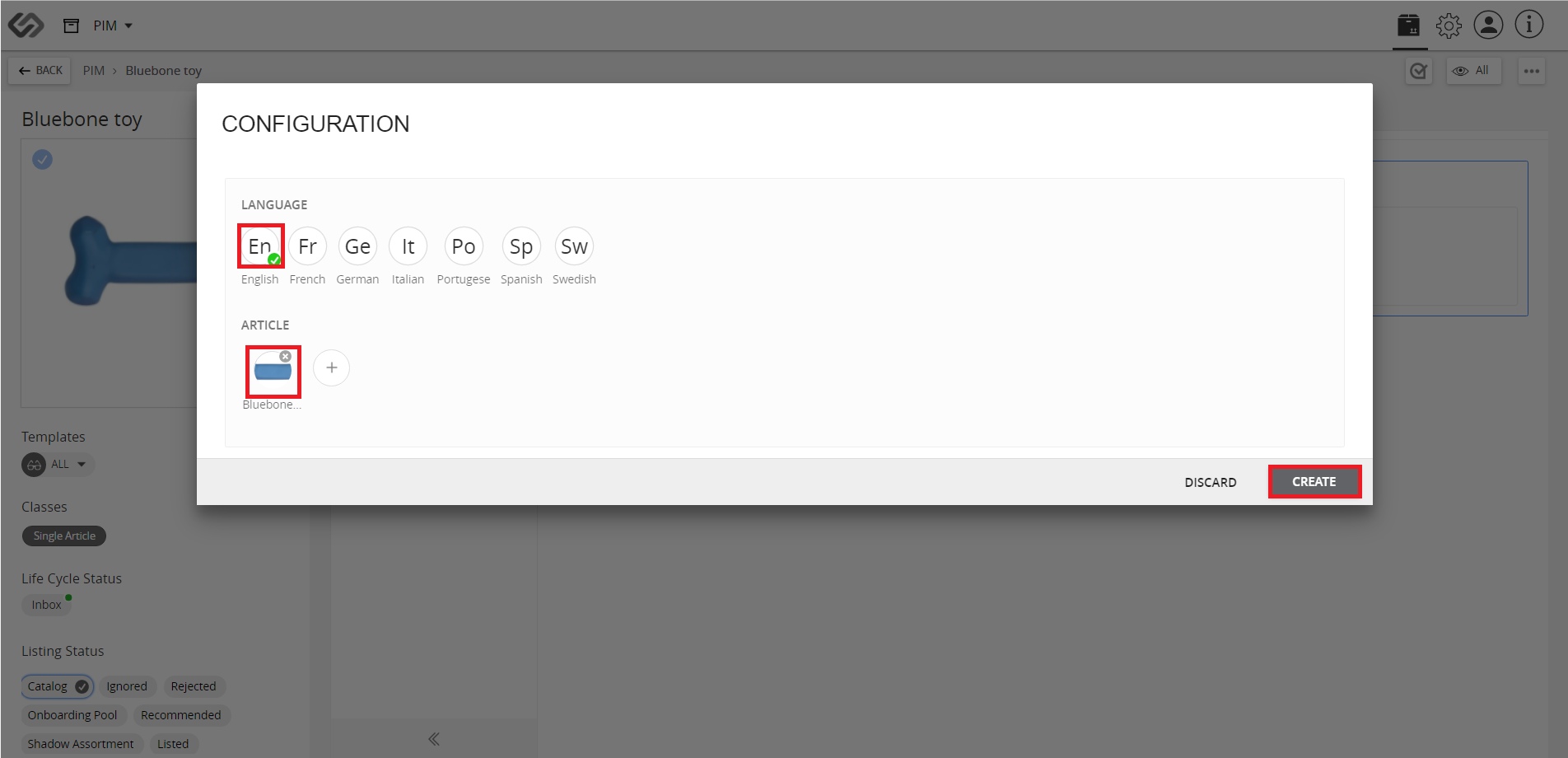
  • Add corresponding values in selected languages ( in this demo, we selected ‘English’ and click Create to save.
../../../../../../_images/cs_languagevariant_addcorrespondingvalues.PNG


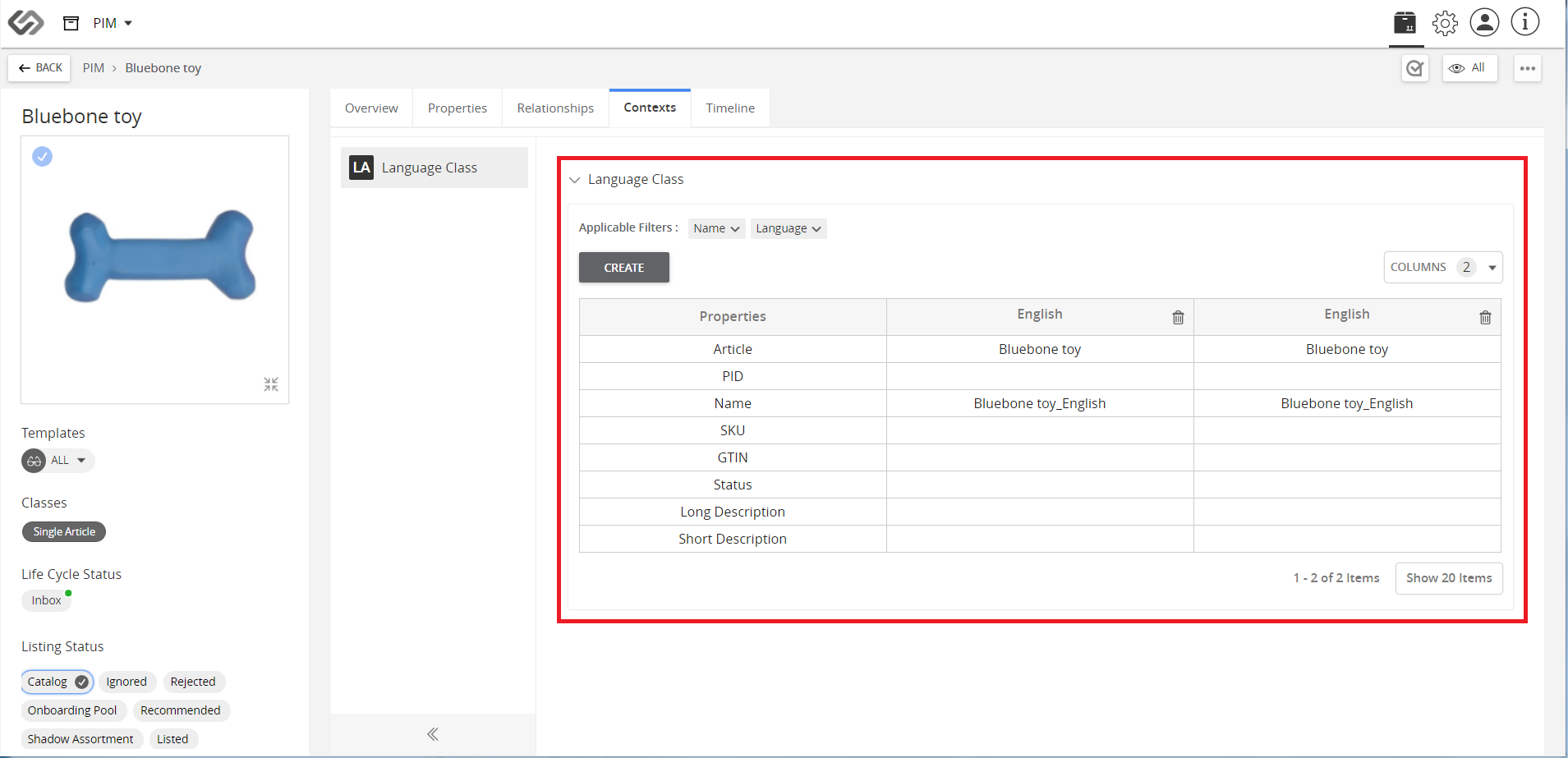
  • View the added English language variant in the selected Bluebone toy.
../../../../../../_images/cs_languagevariant_viewaddedlanguagevariant.PNG


Contentserv line