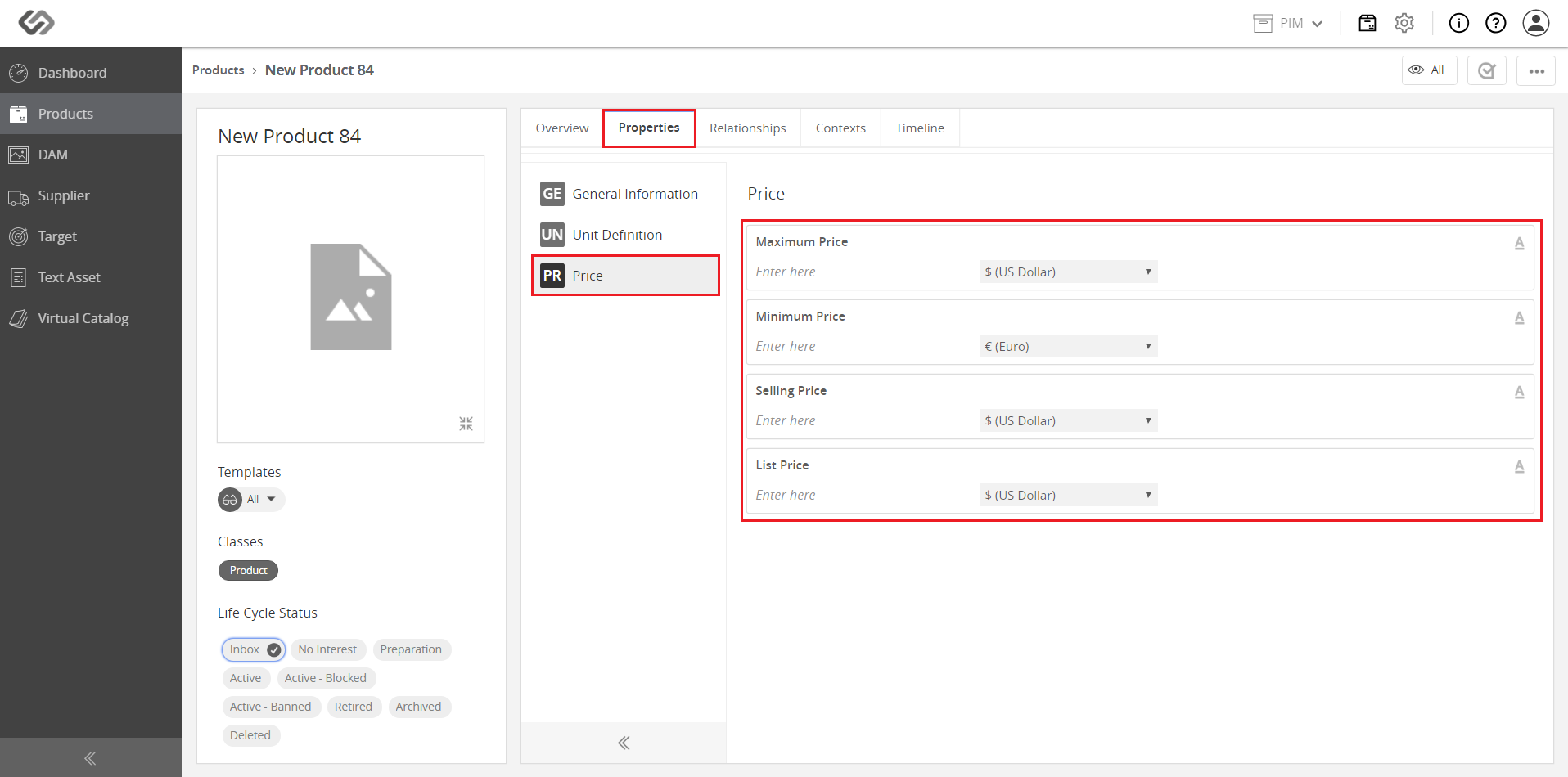
Property Collections
The Property Collections feature allows a user to group the attributes and tags under one area to easily configure a group of products.
| Key Term: |
|
| Description: |
|
| Related topics: | |
| Application: |
|
How-to: Property Collections
To create and add property collections, follow these steps:
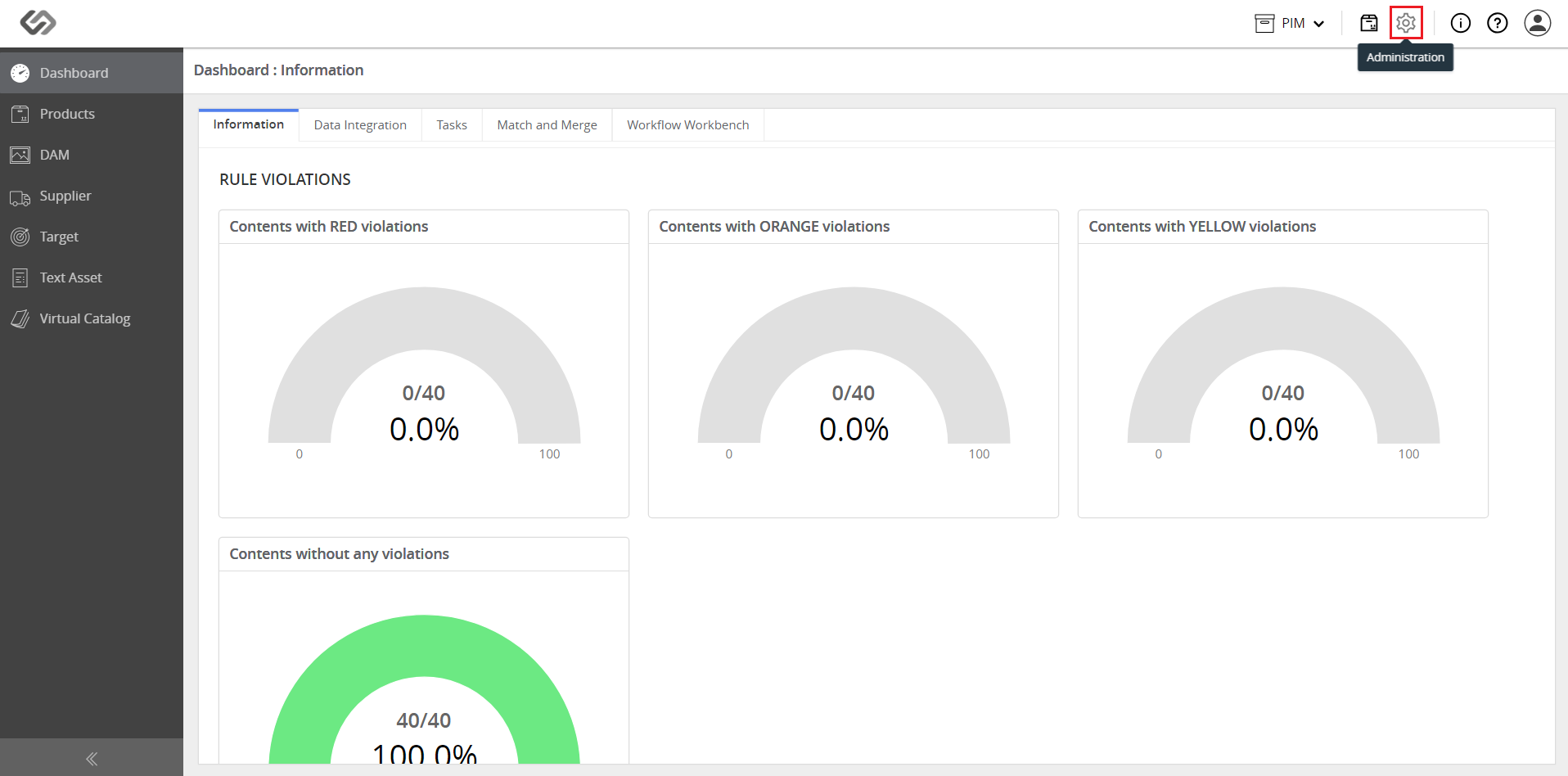
- Log in and click on the Administration icon.
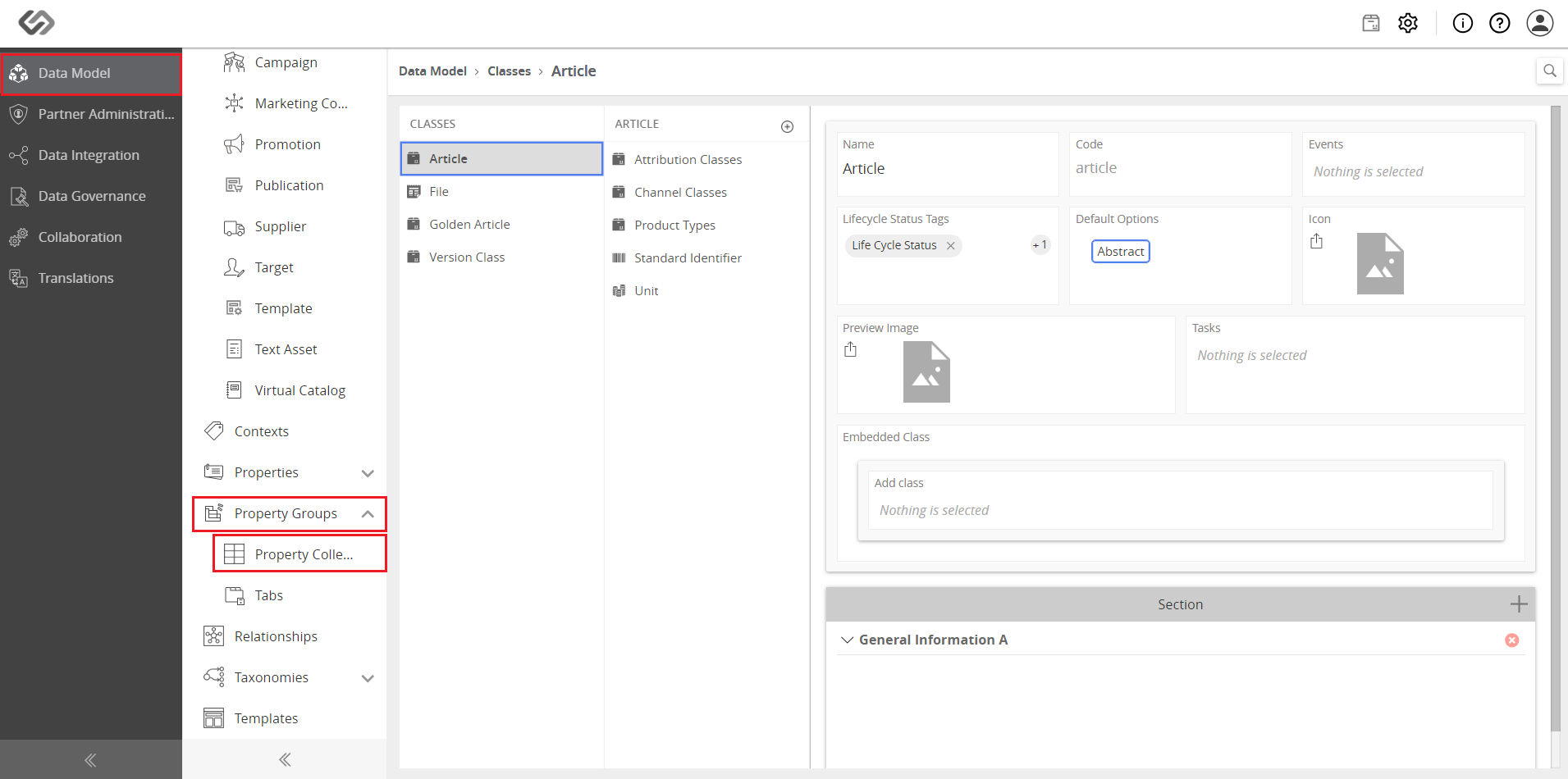
- In Data Model, click on the Property Groups drop-down list and select Property Collections.
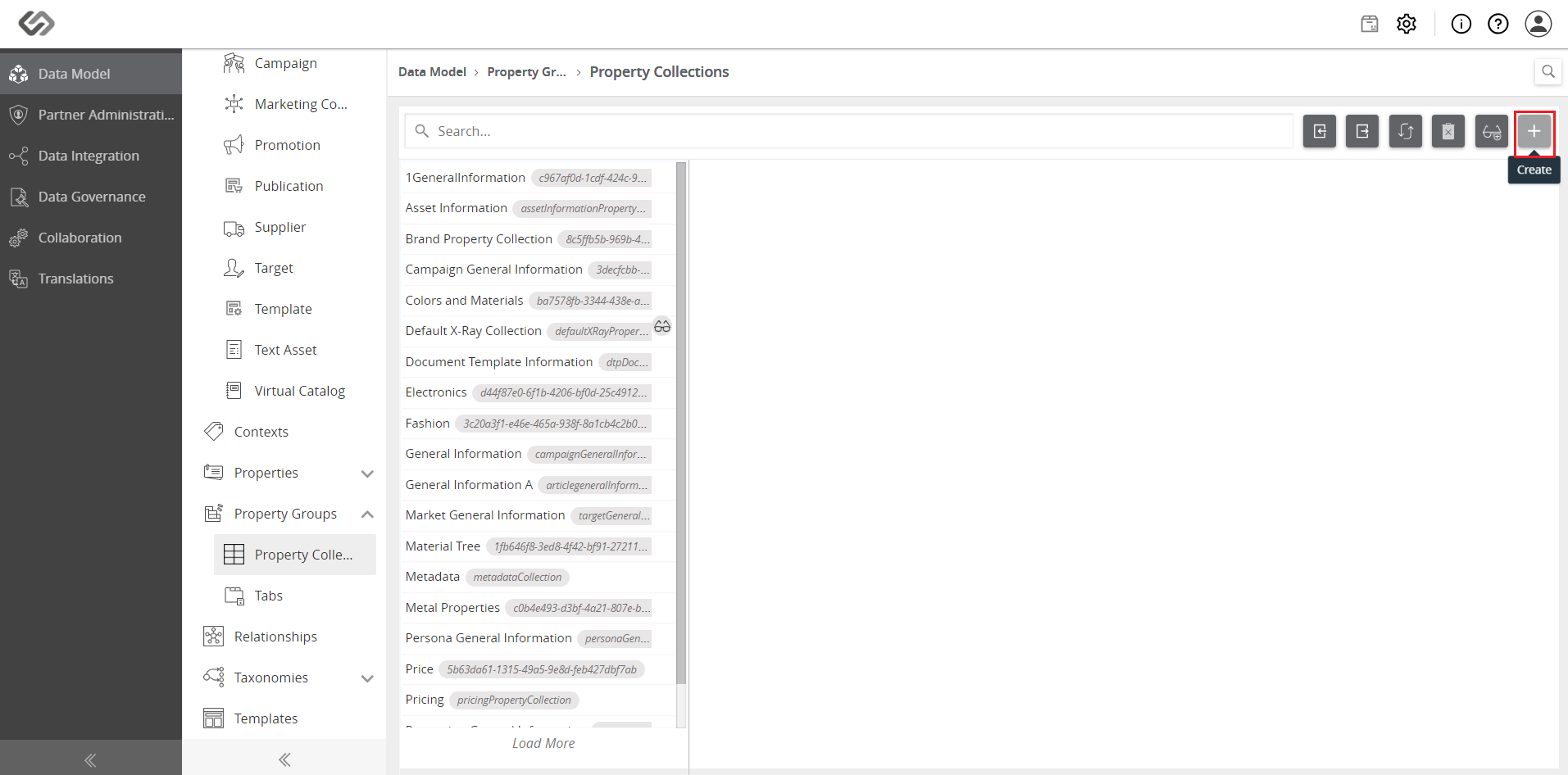
- Click on the ‘+’ icon to create a property collection.
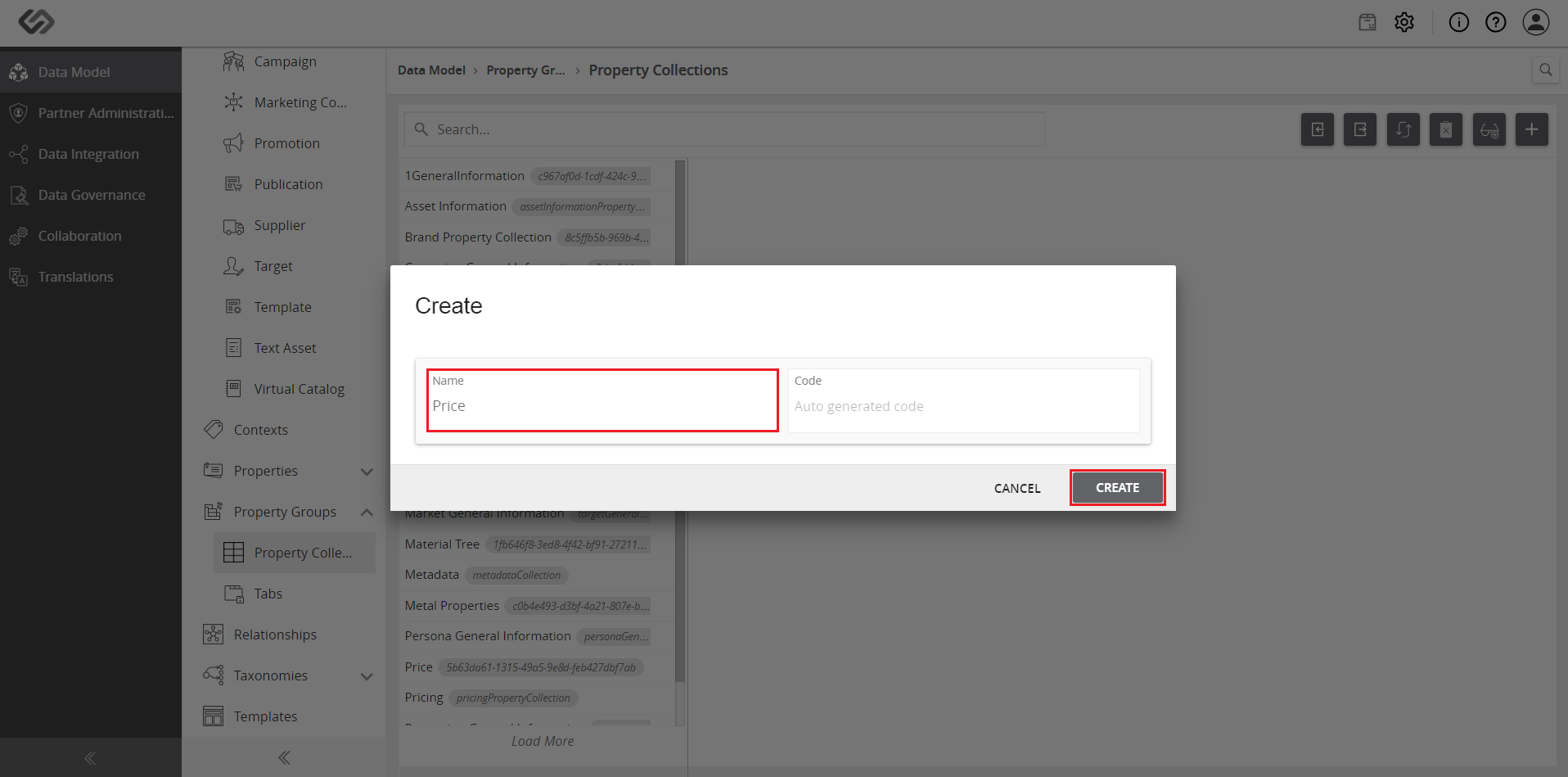
- Enter the name of the property collection and click on the Create button.
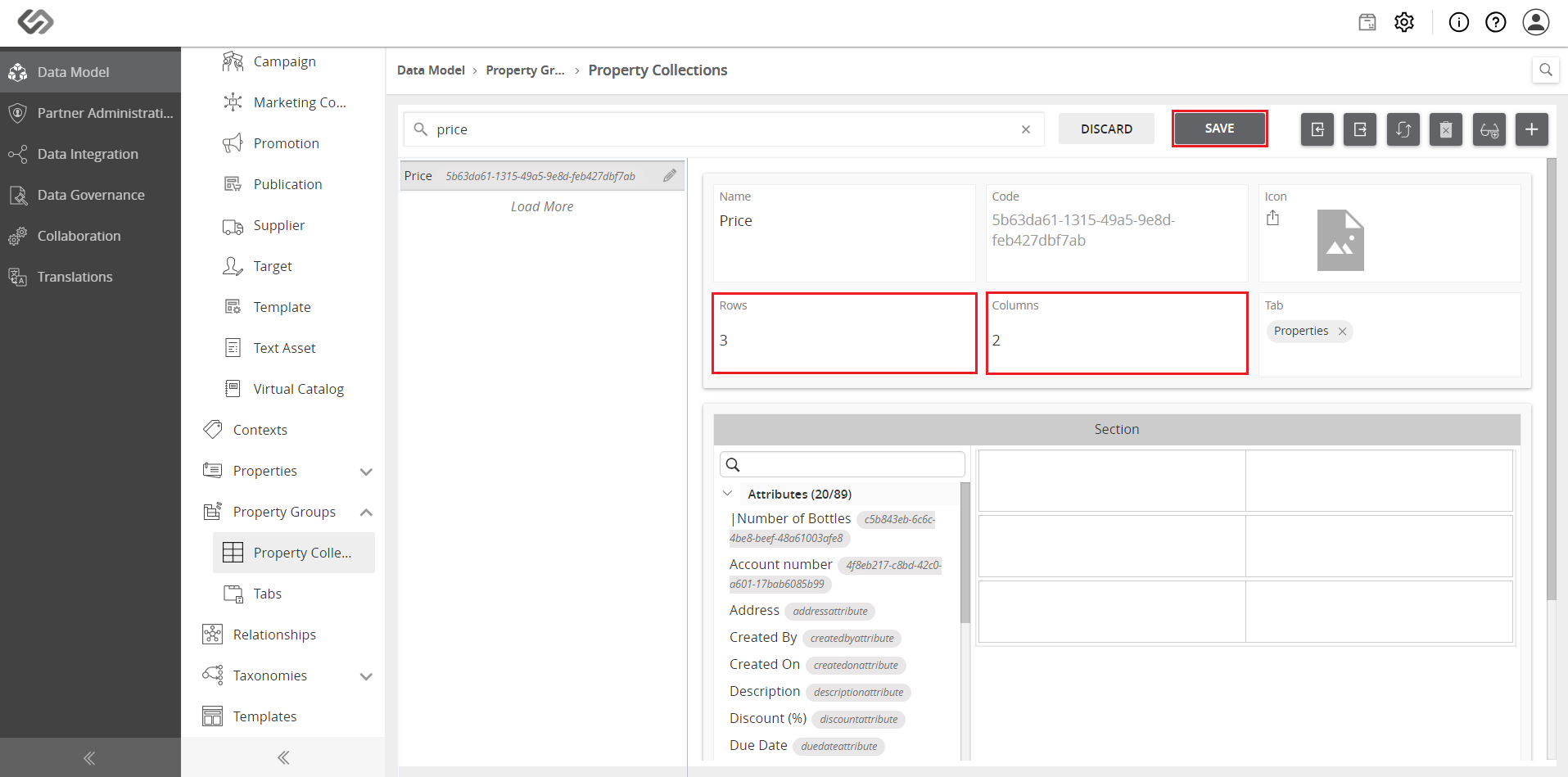
- Enter the number of rows (maximum of 10) and columns (maximum of 6) to accommodate the attributes and tags into the property collection. Click on the Save button.
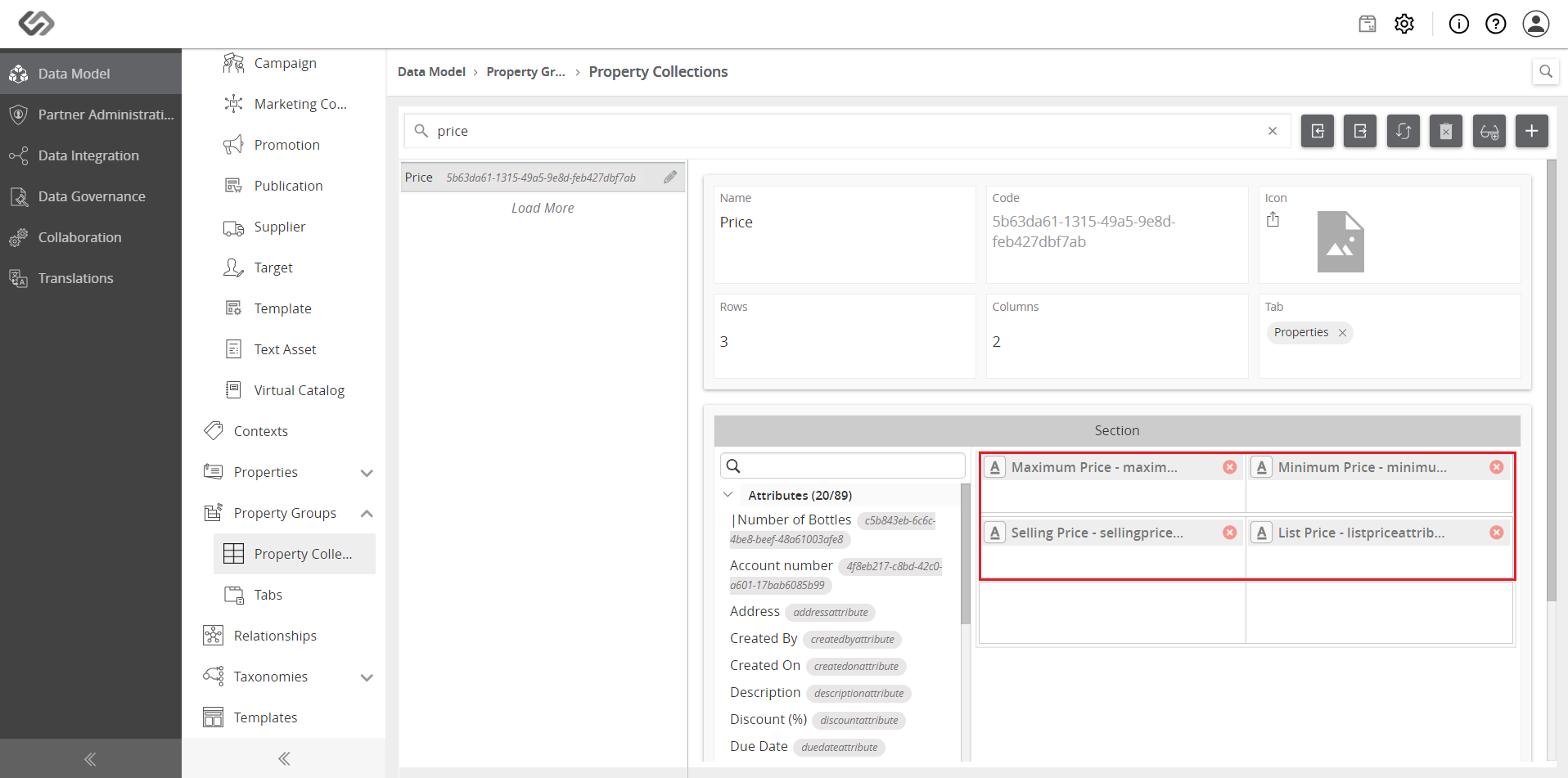
- Drag and drop the attributes and tags into the empty rows and columns.
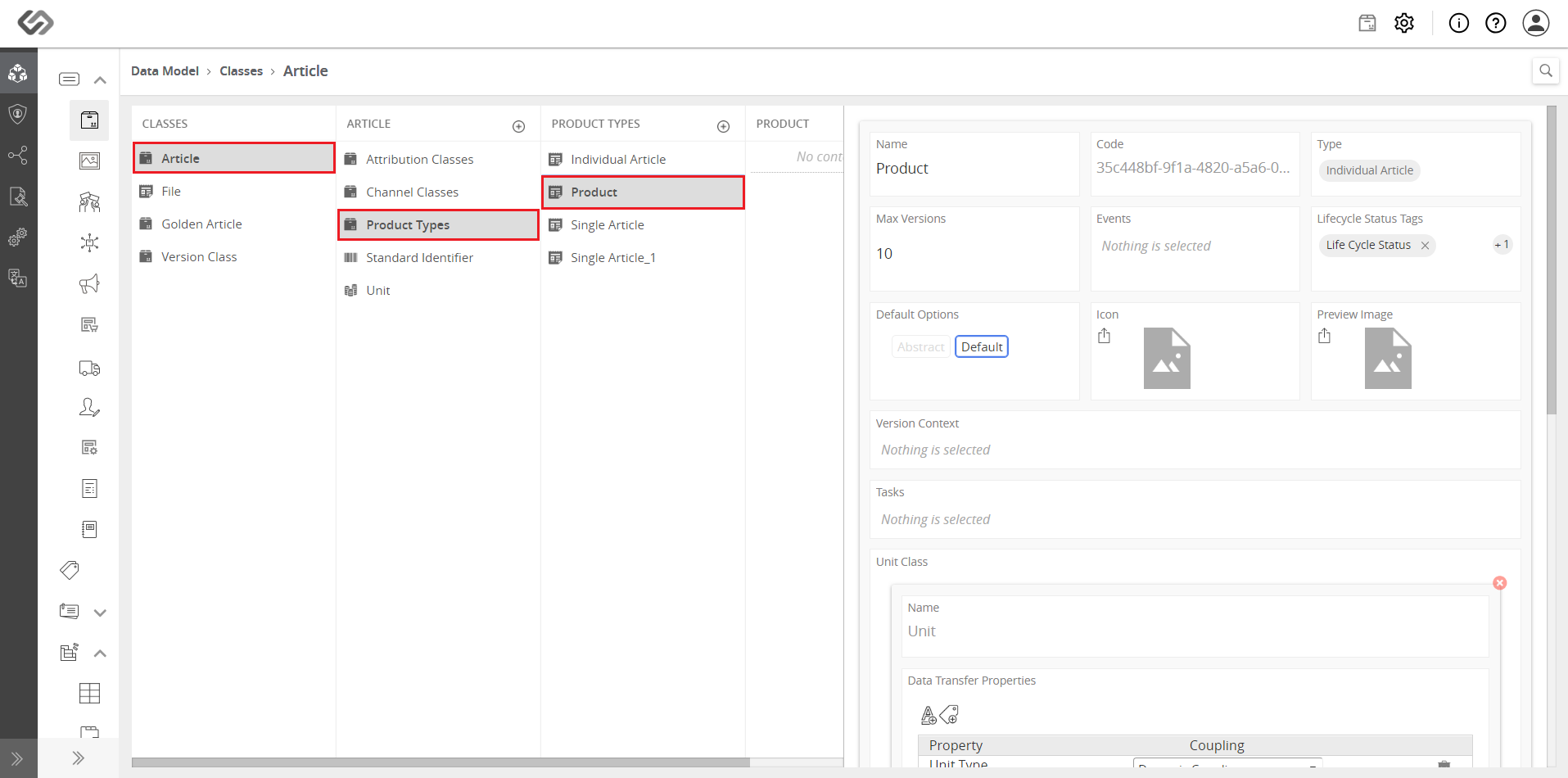
- Click on the Classes drop-down list and select the class to which the property collection will be applied.
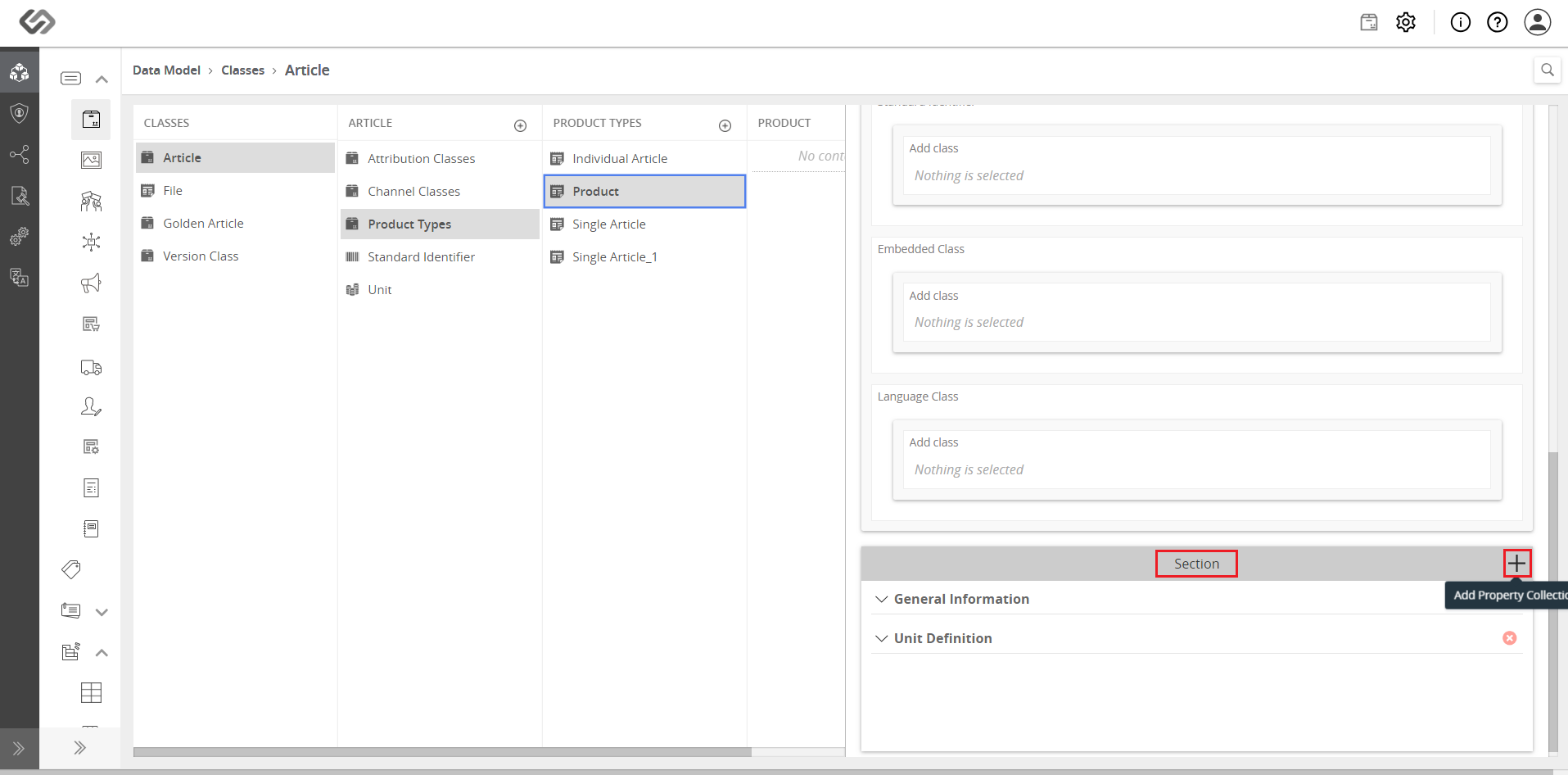
- Scroll down to Section and click the ‘+’ icon to add the property collection.
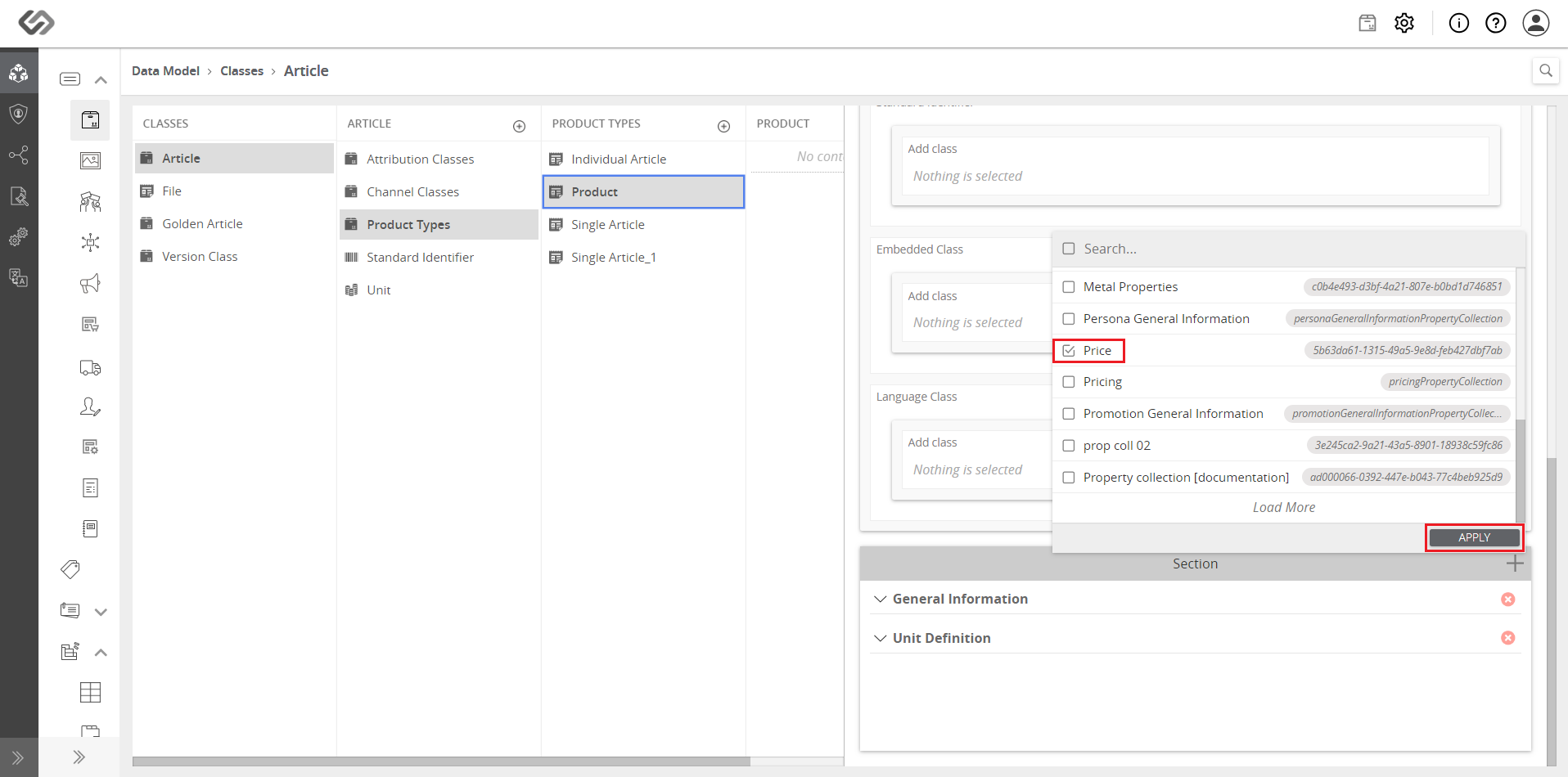
- Select the property collection to be added and click on the Apply button.
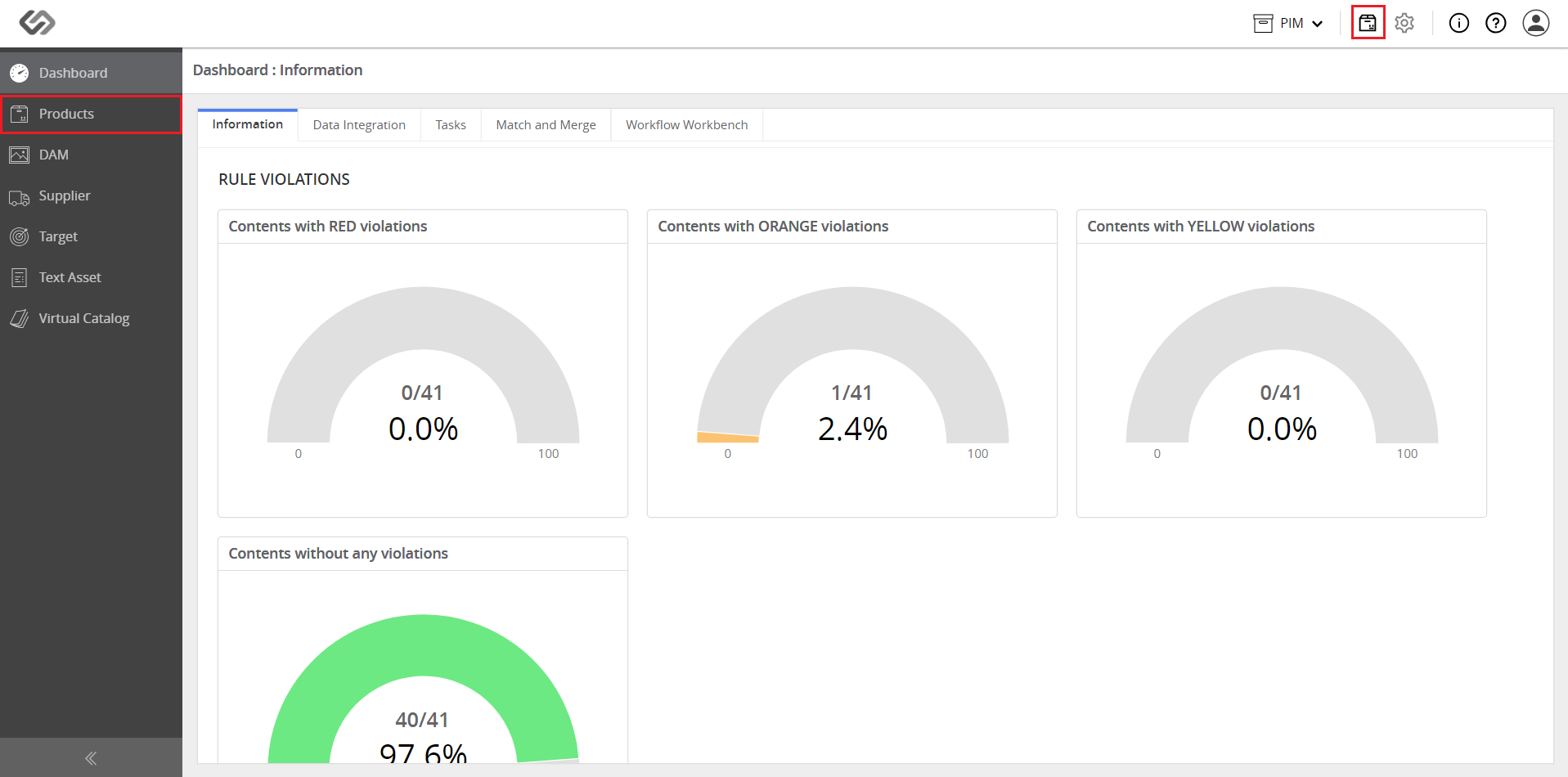
- Click on the Explore icon, then click on Products.
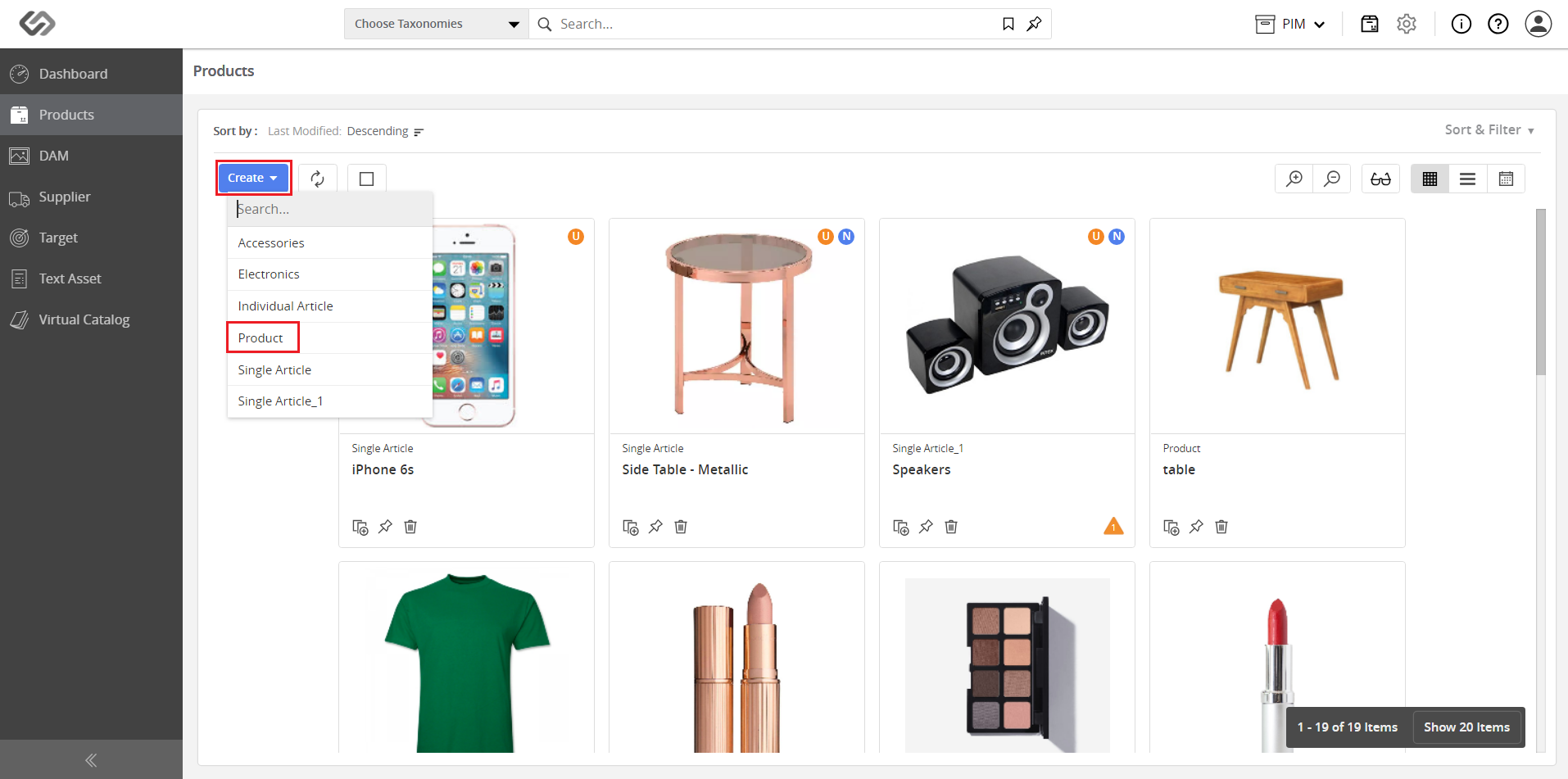
- Click on the Create button and select the class to which the property collection was attached (in our example, Product).
- Click on the Properties tab then click on Price to view the added property collection.